Activity Log & Audit Trail
See exactly what happened on any request. One timeline on the request itself records every decision, routing evaluation, and email sent, with who did what and when.
Updated
Every request in ApproveThis keeps a running timeline of what happened to it: each decision, each routing evaluation, and each notification sent, with the timestamp and the person (or 'System') behind it. This guide covers reading that timeline from the request itself, right after recording a decision. You'll need a request already waiting on your approval.
Who this is for: a User.
Approve the pending request, then open its 'Activity Log' from the request header and confirm the decision and the notification sends are recorded
A finance reviewer asking who signed off on a request, and whether the approver was ever actually emailed, gets both answers from the request's own timeline instead of a mailbox search. The broader audit table that spans a workflow and all of its requests lives on the flow's Activity tab and is only shown to users who can edit that workflow.
-
Sign in with the account that holds the pending approval on the request.
-
Click Approve to record your decision.
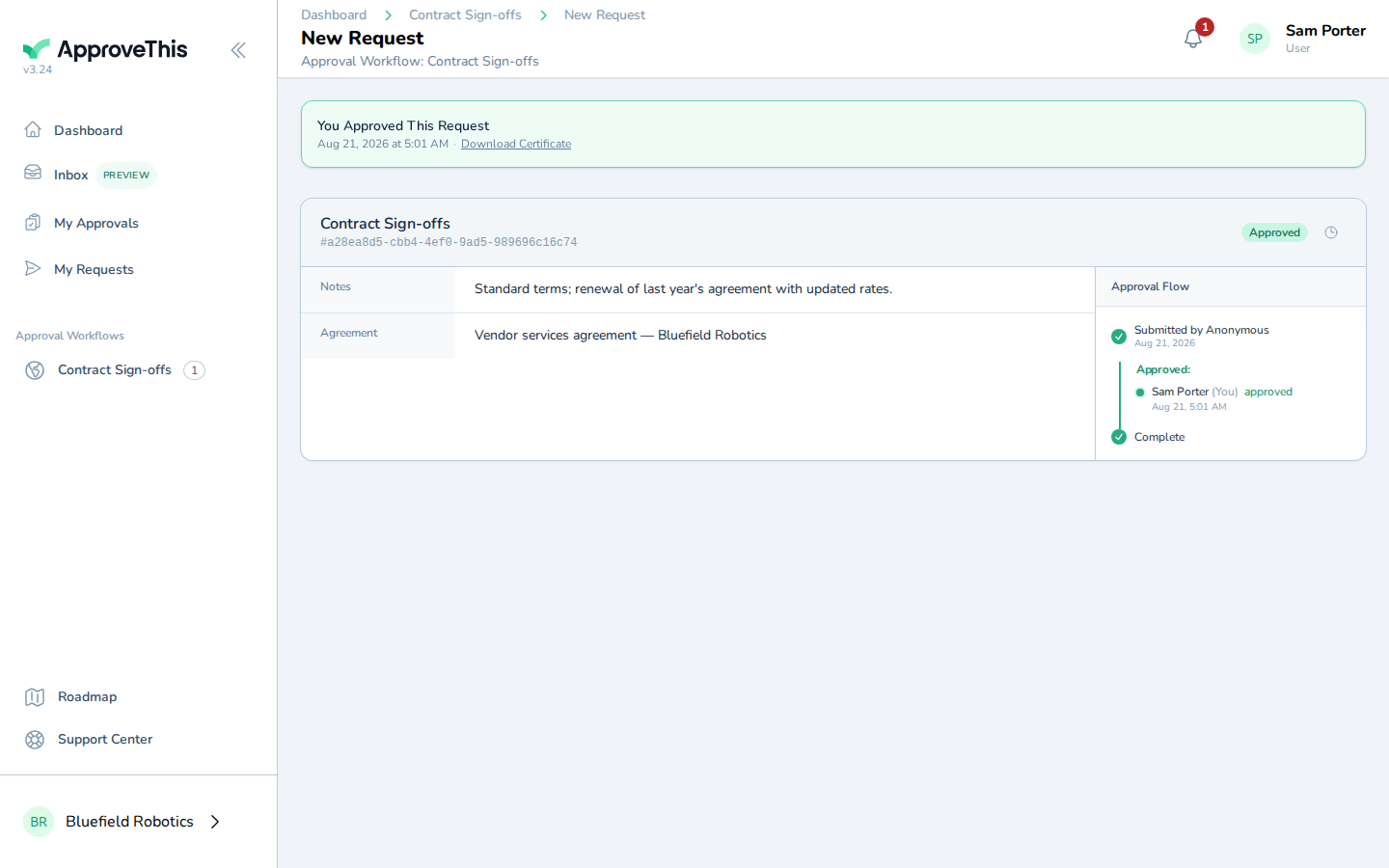
Click Approve to record your decision. -
Click the clock icon Activity Log in the request header to open the timeline, then read down the entries: each row carries its timestamp, who performed it, and, for notification rows, the named recipient and their role (the example screenshots show entries such as
Notified Jane Doe (approver) — Approval request).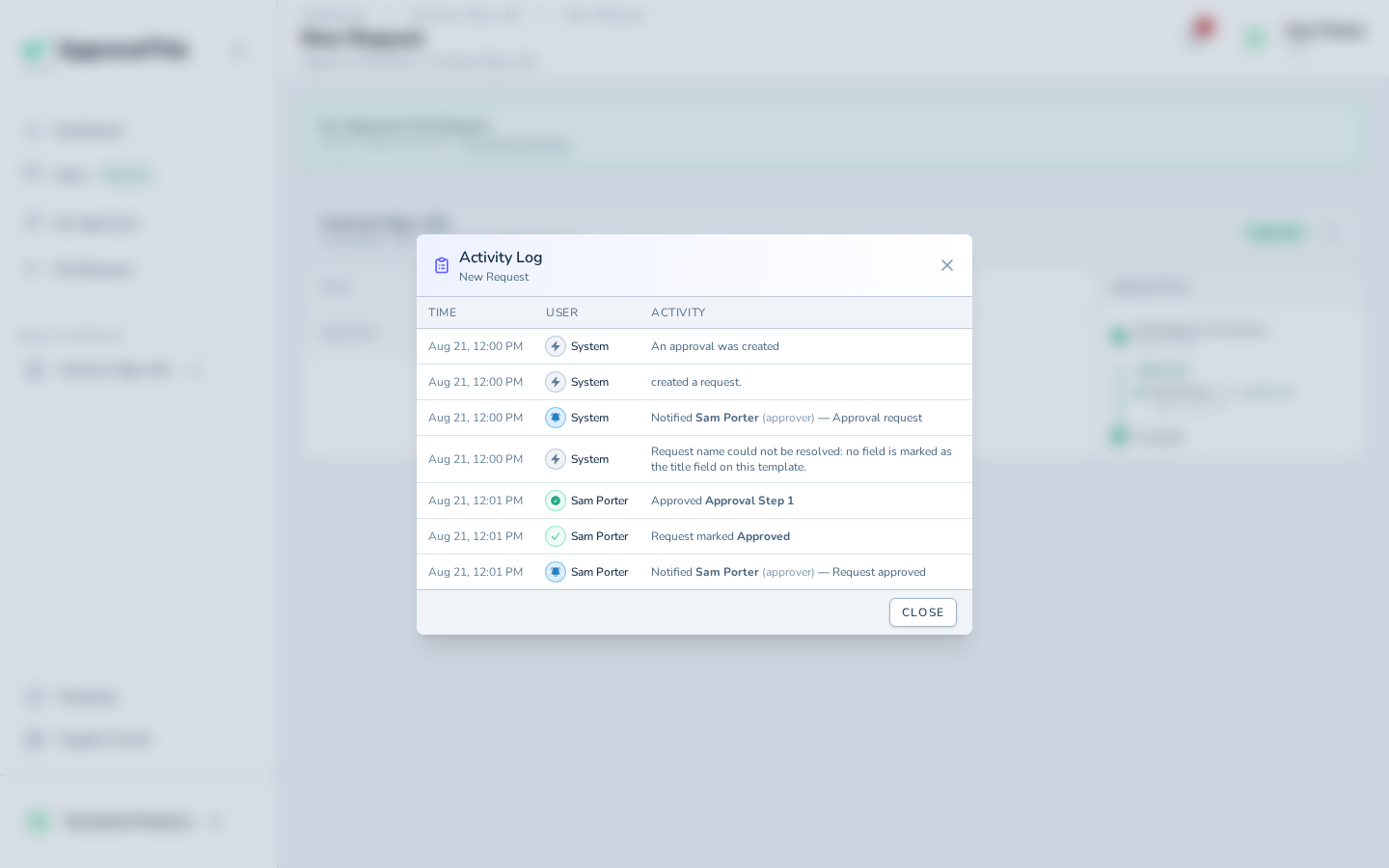
Click the clock icon Activity Log in the request header to open the timeline, then read down the entries: each row carries its timestamp, who performed it…