CC Approval (approvals@ email)
Turn any email thread into a tracked approval request just by CC-ing your team's approvals@ address. No form, no setup; the people on the To line become the approvers.
Updated
CC-ing your team's approvals@ address on an ordinary email turns that thread into a tracked approval request, and everyone on the To line receives a 'CC Approval Request' email with Approve and Deny buttons built in. This guide covers what an approver does with that email: opening it and recording a decision through the personal signed link, without signing in to ApproveThis. You'll need a CC approval email already sitting in the approver's inbox. Note that approvers come from the To line only — every valid address there must approve before the request is approved, and there's no way to pick a subset.
Who this is for: a User.
Open the email inbox and find the 'CC Approval Request' email sent to the approver
Approvers who never open ApproveThis still need to find and act on the request, and the decision buttons live inside the email itself. Locating the right message is the whole starting point for deciding without an account.
-
Sign in as the user whose inbox received the approval email.
-
Open the email inbox.
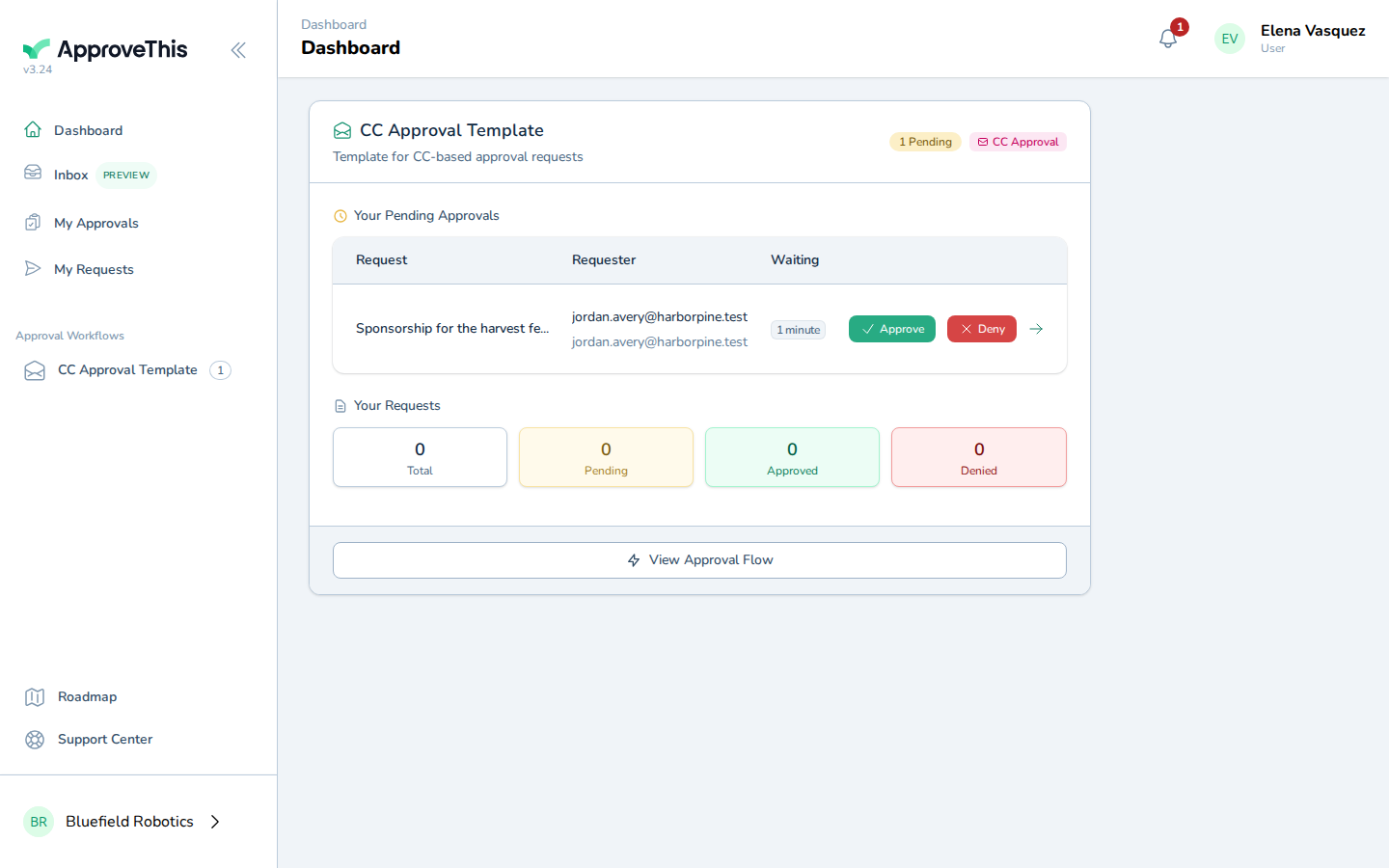
Open the email inbox. -
Click the CC approval email, whose subject carries over from the original thread — the example screenshots show Approval Request: Sponsorship for the harvest festival.
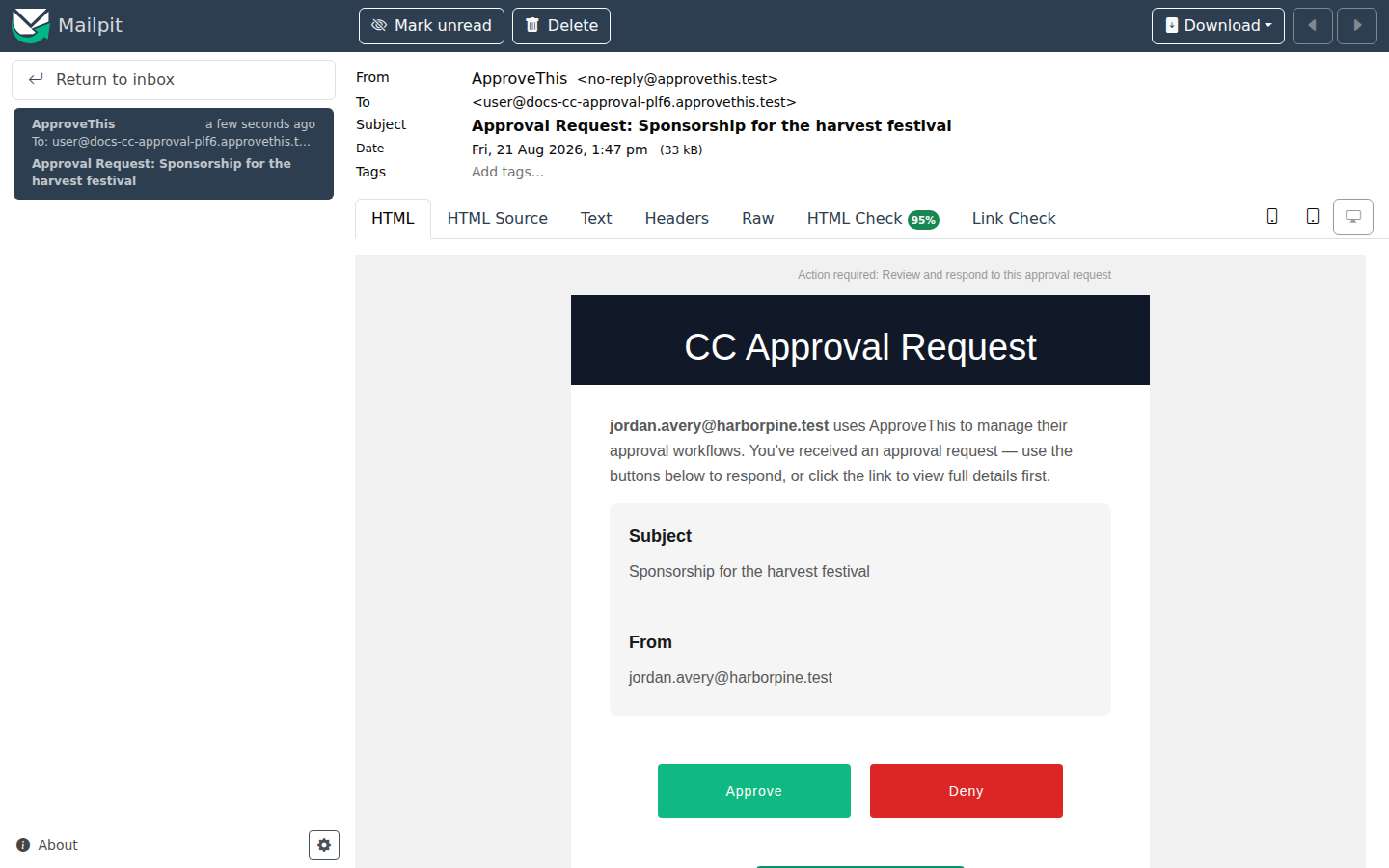
Click the CC approval email, whose subject carries over from the original thread — the example screenshots show Approval Request: Sponsorship for the harvest…
Click Approve in the email — the request is approved without logging in
Recording the decision from the email spares approvers a login and keeps the request moving; the requester gets an email for each individual decision. This is a single approval step, so there's no routing or threshold behind the button.
-
Click Approve.
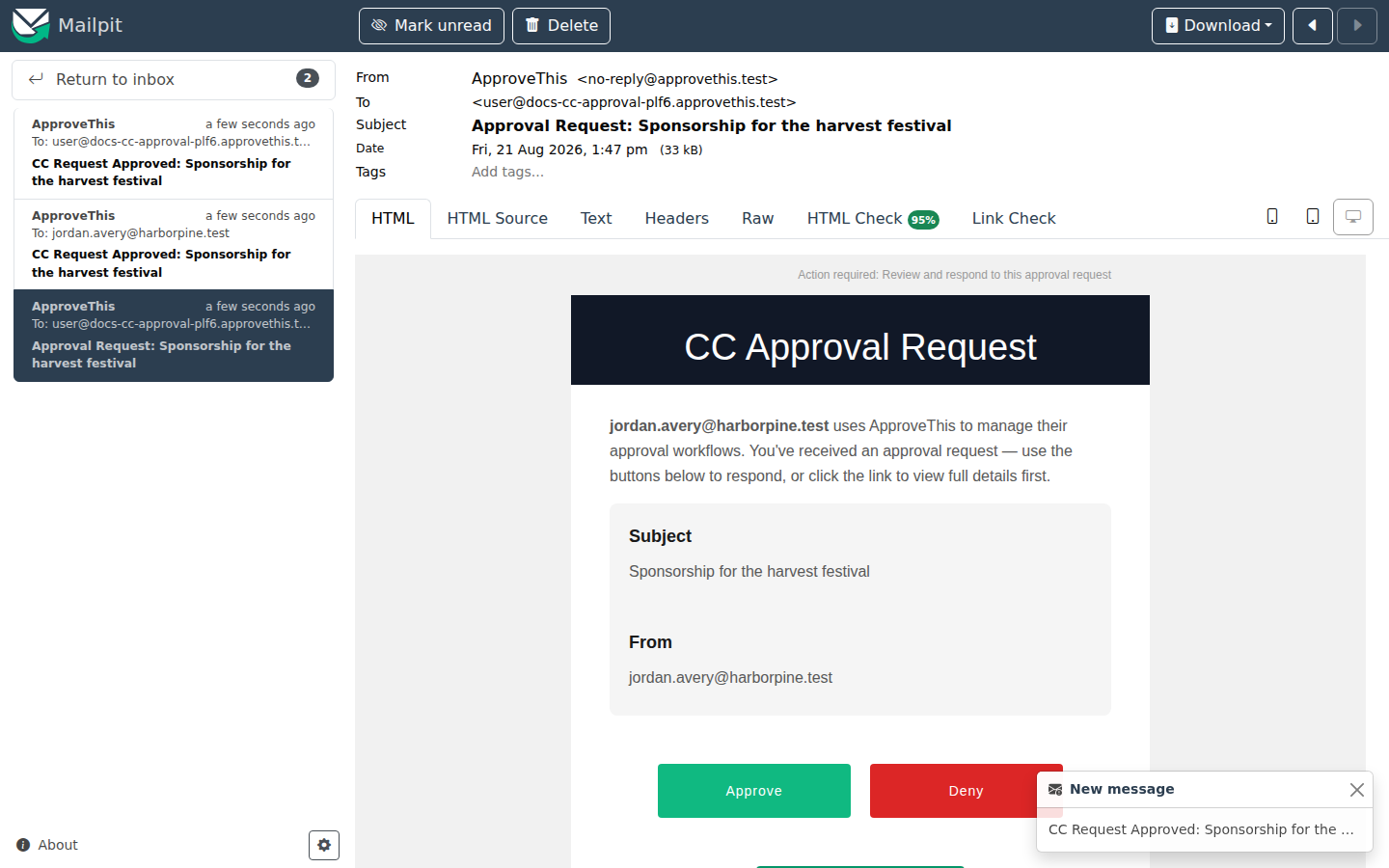
Click Approve.