E-Signature
Require approvers to sign off with a legally-attributable e-signature — a typed or drawn signature captured with their decision, not just a click.
Updated
Some approvals need more than a click on record. E-signature captures a typed or drawn signature alongside the approver's decision, along with a tamper-evident audit context: the signer's name, signature type, consent version, signing method, IP address, user-agent, and a SHA-256 hash of the request's field values at the moment of signing. This walkthrough covers the approver's side of a step configured for a typed signature, and it assumes a request is already waiting on you. E-signature is available on all tiers, and once a request is in flight its signature terms stay fixed even if the workflow is edited later.
Who this is for: a User.
Approve the request with a typed signature
An approval step with e-signature turned on will not record your decision until you sign, so the signature and the decision are captured together rather than as separate events. The same audit context is recorded whether the decision is an approval or a denial.
-
Sign in as the User who the request is waiting on.
-
Click Approve on the request.
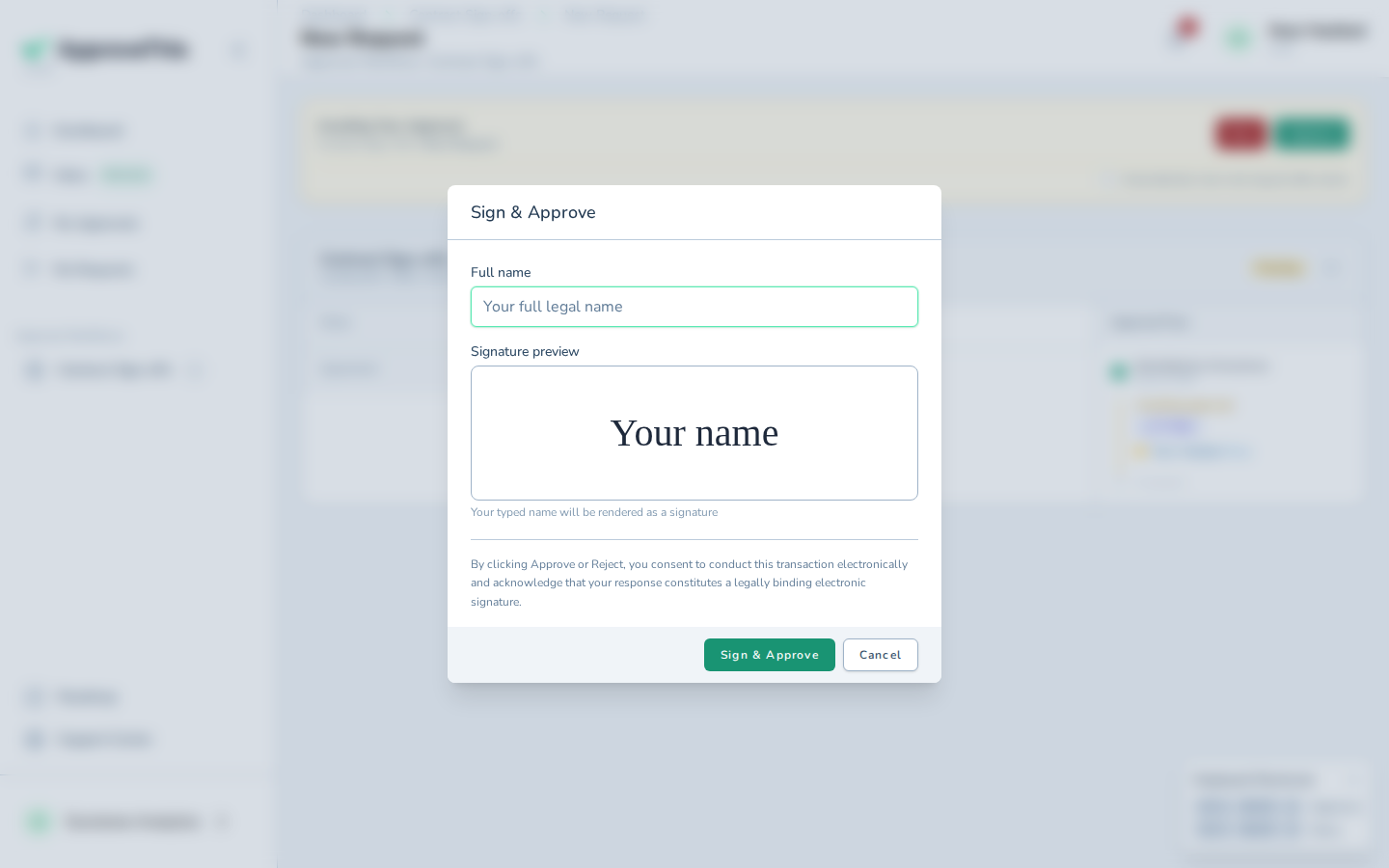
Click Approve on the request. -
Type your own full legal name in Full name — the example uses
Noor Haddad. This is the name recorded as the signer.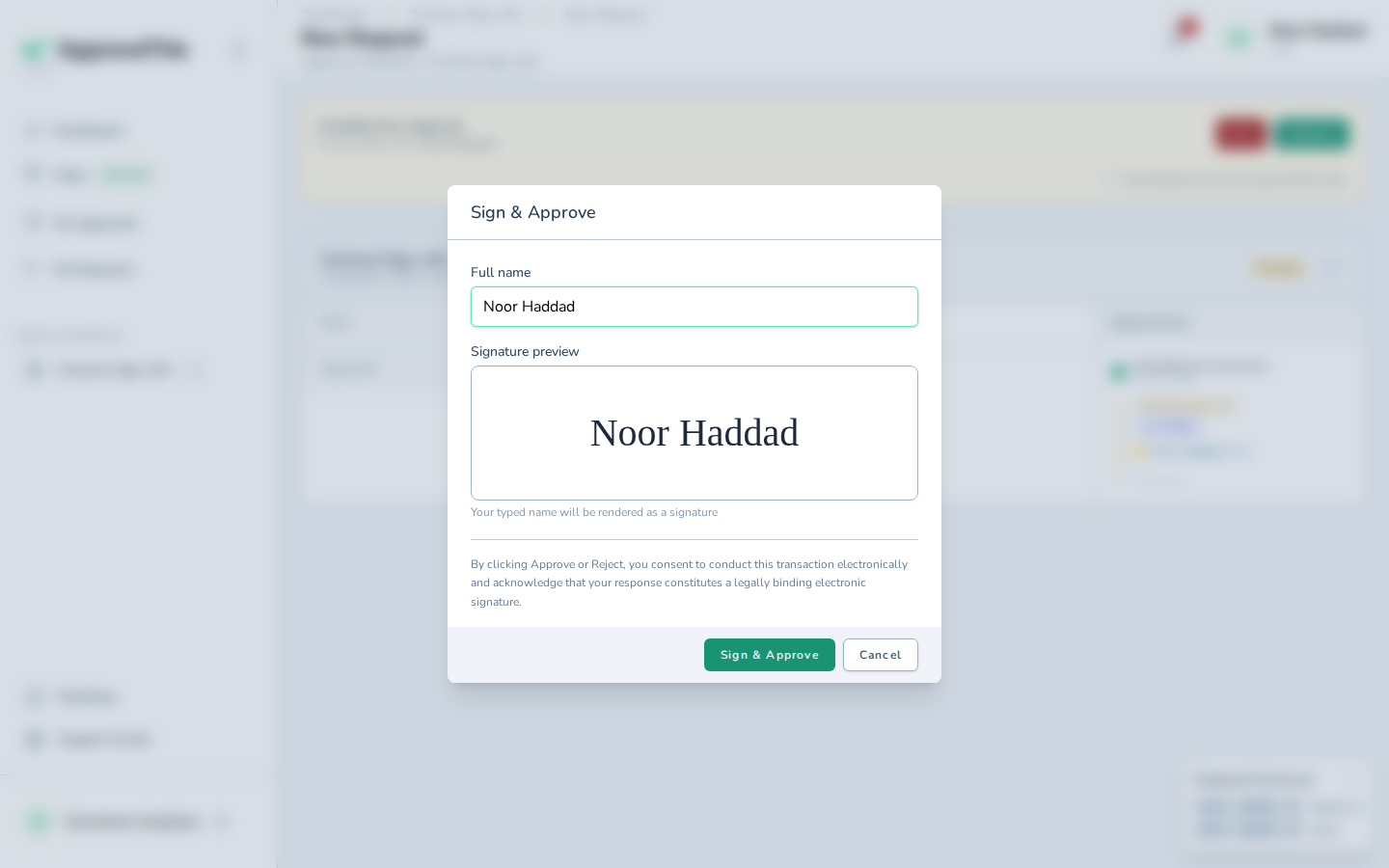
Type your own full legal name in Full name — the example uses Noor Haddad. This is the name recorded as the signer. -
Click Sign & Approve to sign and record your decision in one action.
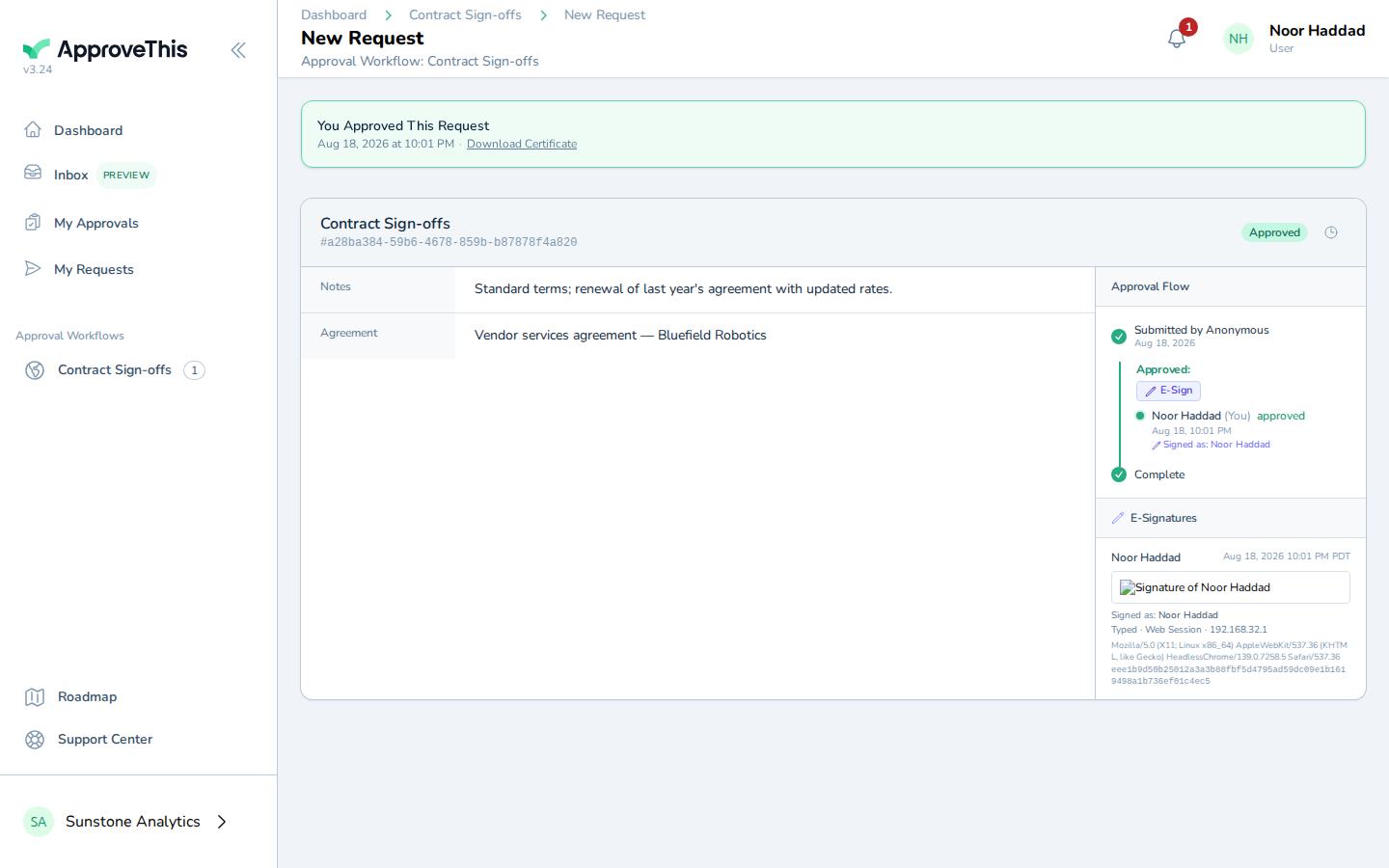
Click Sign & Approve to sign and record your decision in one action.