Workflow Dashboards
See a workflow's requests the way the work demands: a Kanban board by status, a sortable table, or a calendar of date-ranged requests, switched instantly on one screen.
Updated
A workflow's Requests tab holds the same set of requests three ways: a Kanban board grouped by status, a sortable table with inline archive actions, and a calendar that spreads date-ranged requests across the month. Administrators use the view switcher to read the same queue differently depending on the task at hand — scanning for what's stuck, working through a backlog, or spotting overlapping bookings. This guide starts on a workflow's Requests tab with requests already submitted. Note that the Calendar view only appears on date-based workflow types that carry start and end date fields; workflows without them show no Calendar tab at all.
Who this is for: an Administrator.
Switch the board between Kanban, Table, and Calendar views
A status board answers "what's waiting on whom," but it's a poor tool for sorting or spotting date overlaps. Switching views keeps you on one screen while changing how the same requests read — no reload, no separate report.
-
Sign in as an Administrator on the workspace whose workflow you want to review.
-
Click Table to read the requests as a sortable, filterable list with inline actions for archiving and restoring rows.
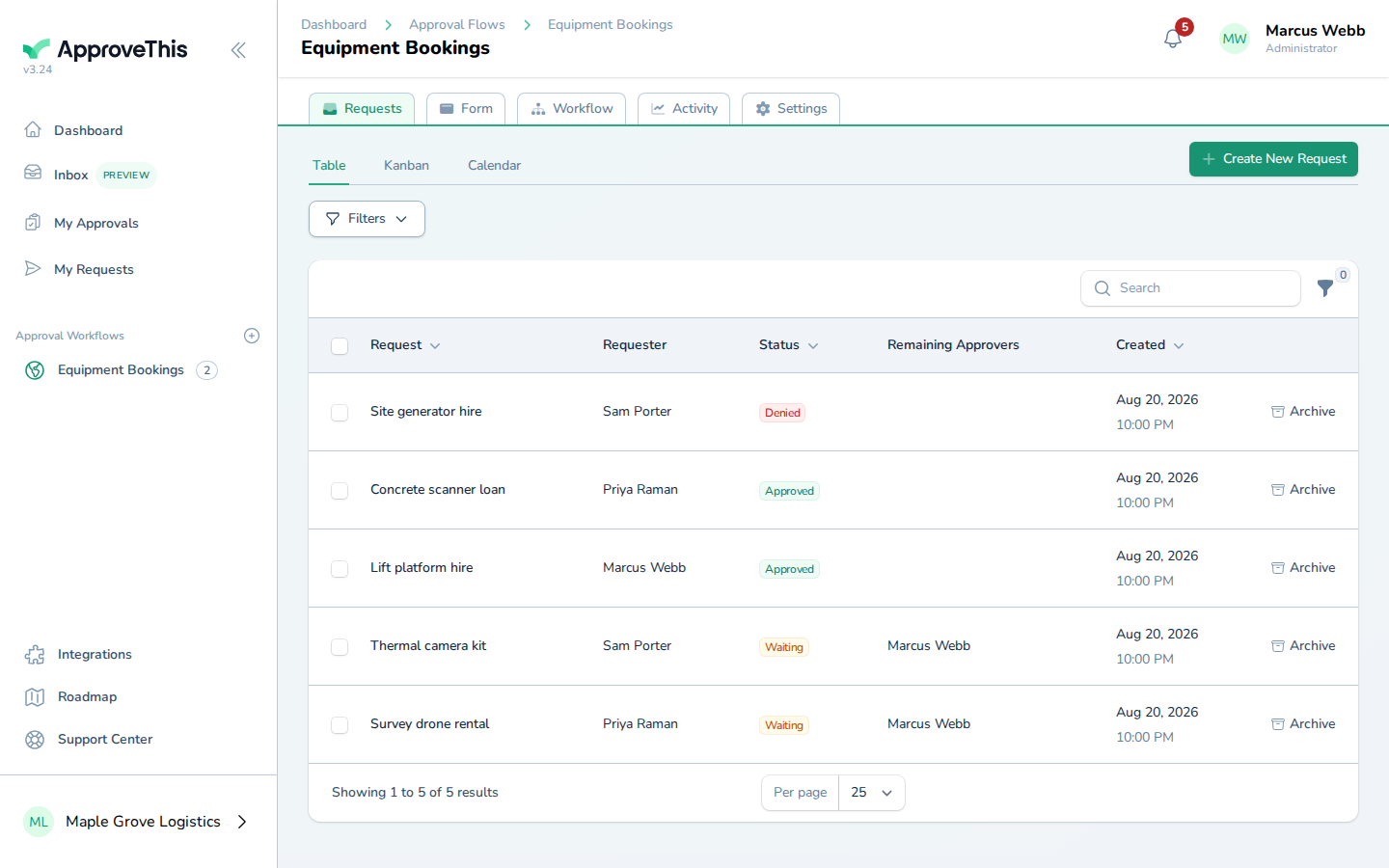
Click Table to read the requests as a sortable, filterable list with inline actions for archiving and restoring rows. -
Click Calendar to lay the date-ranged requests across the month, using the workflow's start and end date fields; the view opens on a month heading such as August 2026 in the example screenshots.
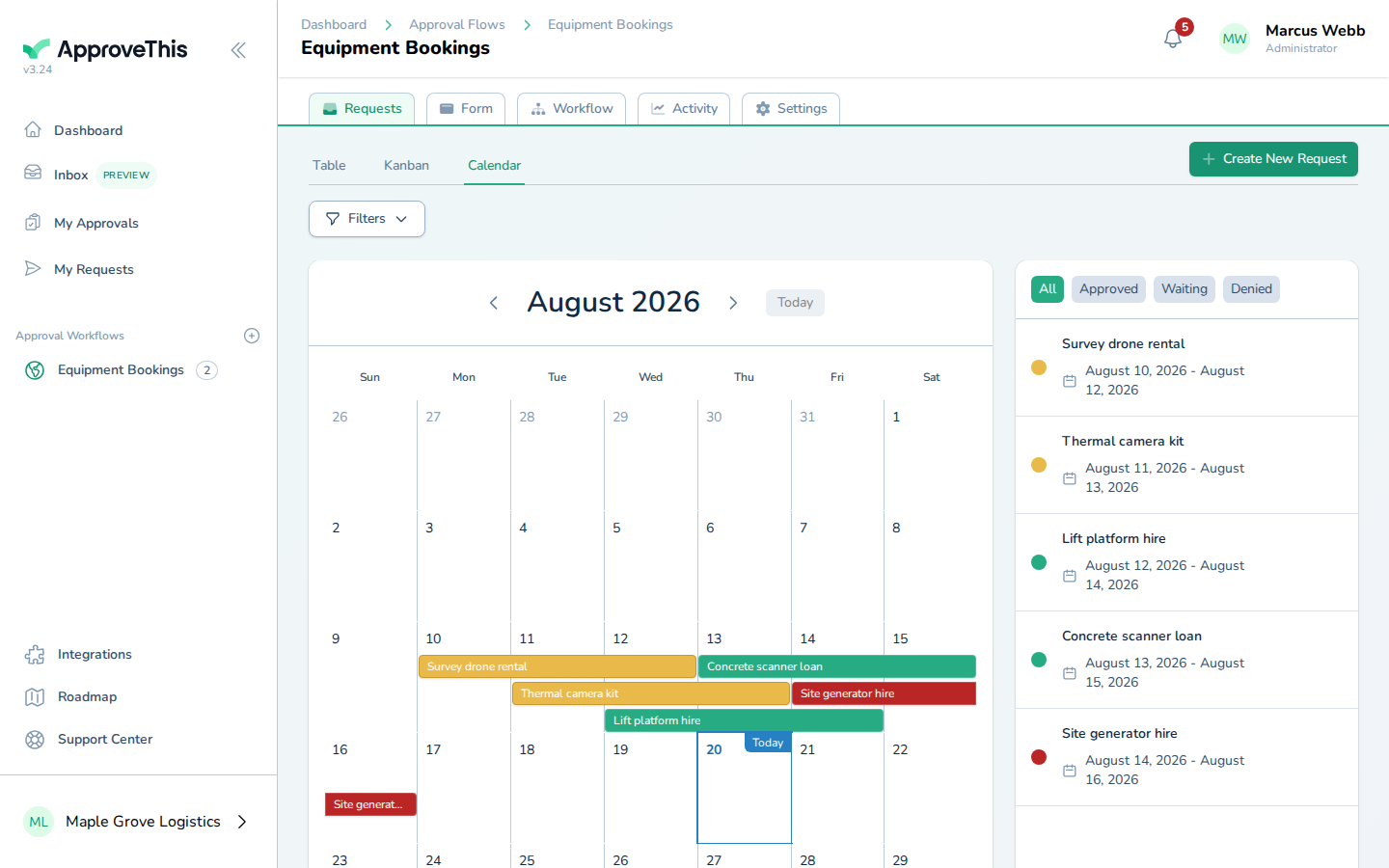
Click Calendar to lay the date-ranged requests across the month, using the workflow's start and end date fields; the view opens on a month heading such as…