Timecard approvals routed from QuickBooks Time
QuickBooks hours route to each employee's own manager by lookup table, with a named fallback so nothing is paid unreviewed.
Updated
Every pay period, the office manager at a field-services firm runs the same chase. Hours land in QuickBooks Time, but nobody in payroll knows whether they're real until each crew's manager confirms them. So out go the emails: a list of names and hours to one manager, another list to the next, then reminders, then a phone call to the one who's on a job site. Whatever isn't confirmed by the cutoff forces a choice payroll shouldn't have to make: hold the run and pay people late, or pay hours nobody verified.
This walkthrough replaces that chase with a routing table. The office manager (or whoever owns payroll) maintains a lookup table on the QuickBooks timecard workflow that maps each employee to the manager who signs off on their hours. As timecards sync in, they become requests, each waiting on the right manager, and each manager approves from the email in their inbox. The office manager names themselves as the fallback for anyone unmapped, resends the approval email when a manager goes quiet, and answers payroll's "who approved this?" questions from the request's own audit trail. You'll need the QuickBooks timecard integration already connected to your workspace, with the approving managers in it as members.
What you'll set up
- A lookup table on the QuickBooks timecard workflow: one row per employee, naming the manager who approves that employee's hours
- Use Fallback Approver for anyone the table doesn't match, with the office manager as the named catch-all — never Skip Approval Step, which pays unverified hours through with no approval at all
- Synced time entries arriving as requests, each waiting on its mapped manager
- Managers deciding straight from the approval email, no login required
- A resend path for stalled approvals, and a per-request activity log that records every routing decision and notification for payroll's audit questions
Point each employee's hours at their own manager
Open the QuickBooks timecard workflow in the sidebar and click its Timecard tab. The Run Payroll view opens first; switch to the Lookup Table sub-tab, which is where routing lives. Without a row here, an employee's synced hours have no named approver, so the table is the first thing to fill in.
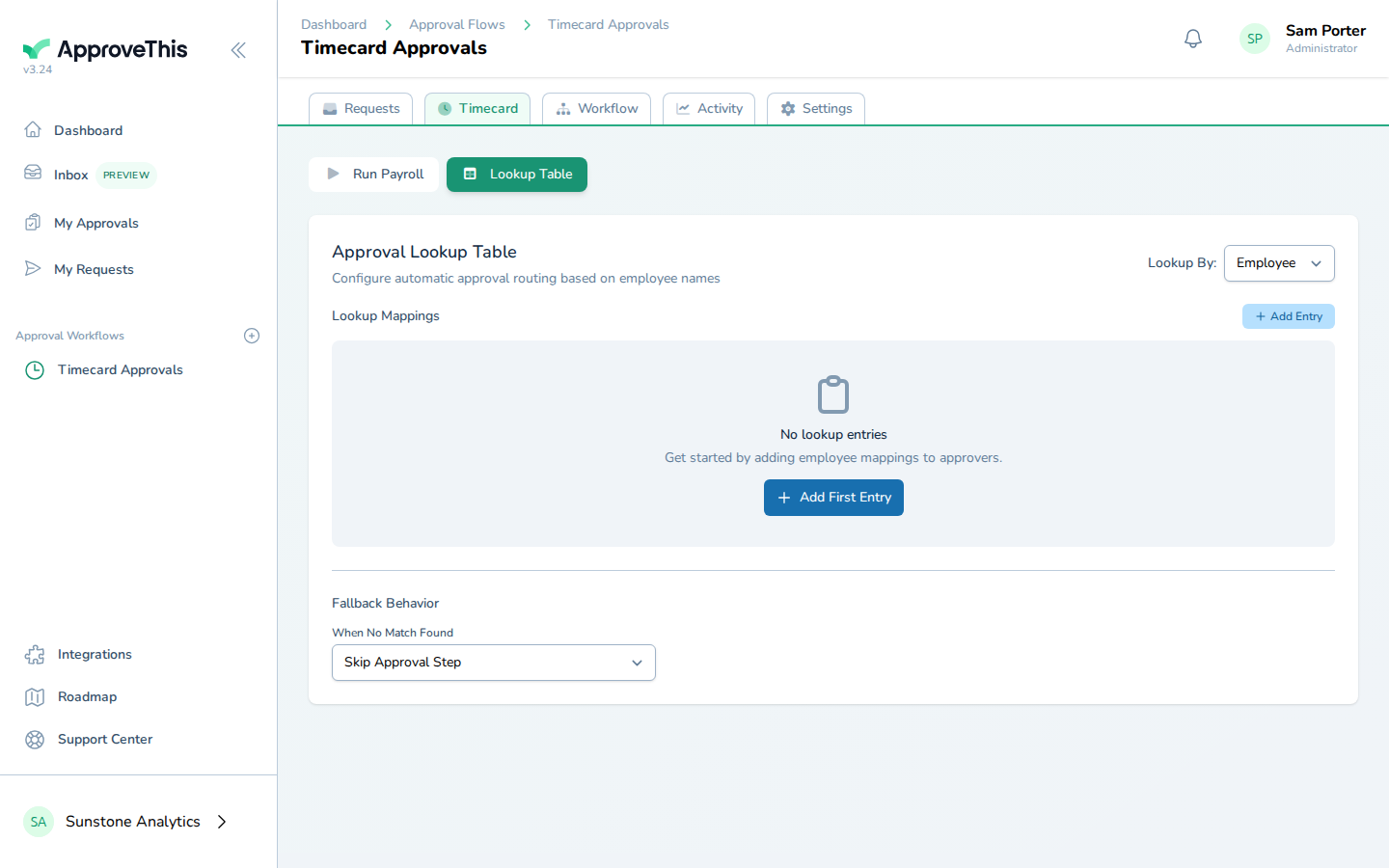
Click Add Entry and type the employee's name exactly as it comes over from QuickBooks. The example uses Grace Lindqvist; in your workspace this is one field tech, one row.
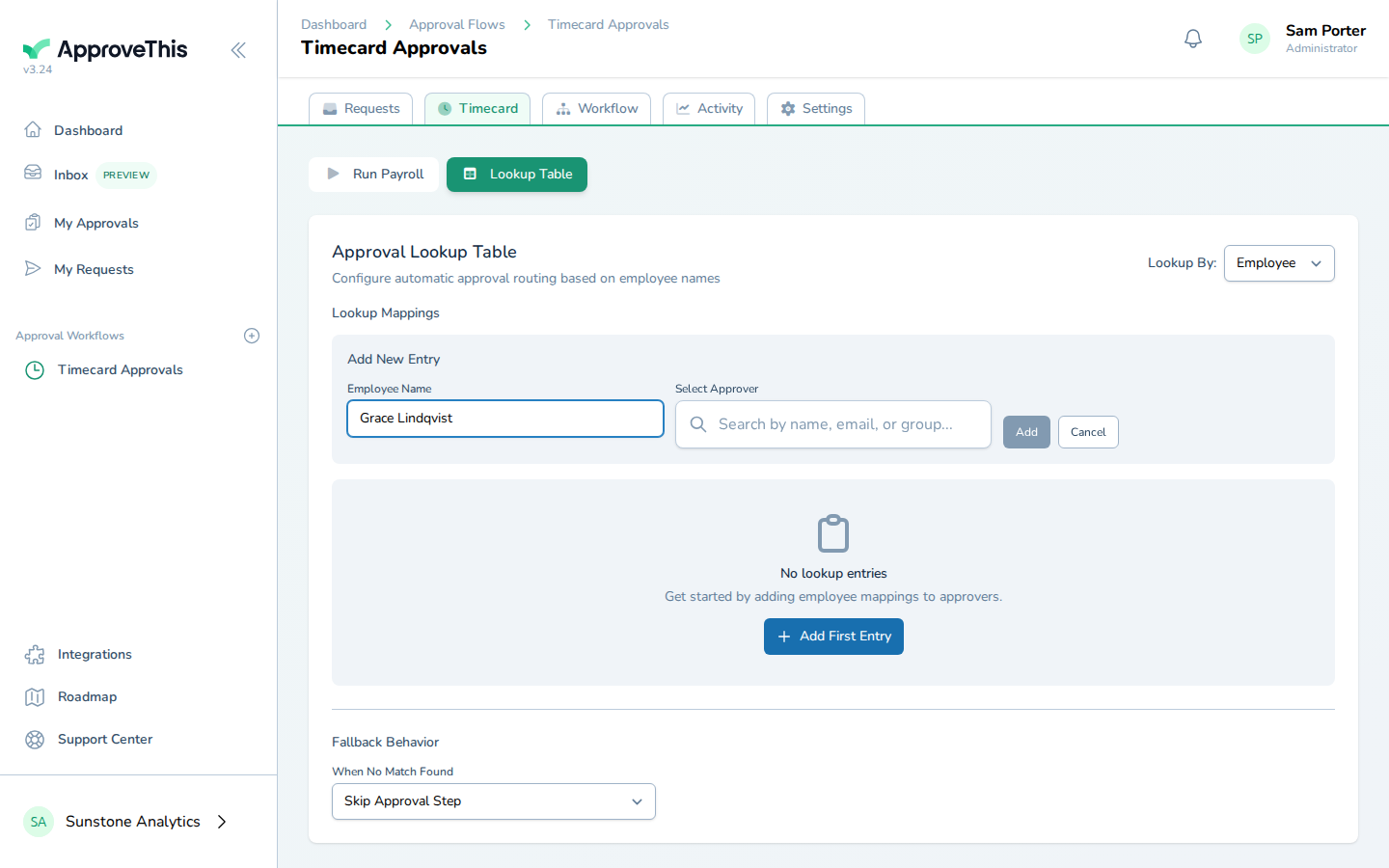
Then click Search for an approver, type part of the manager's name or email, and pick them from the results. The example maps Grace's hours to an approver named Noor Haddad — for you, this is where each crew's manager gets attached to their own people.
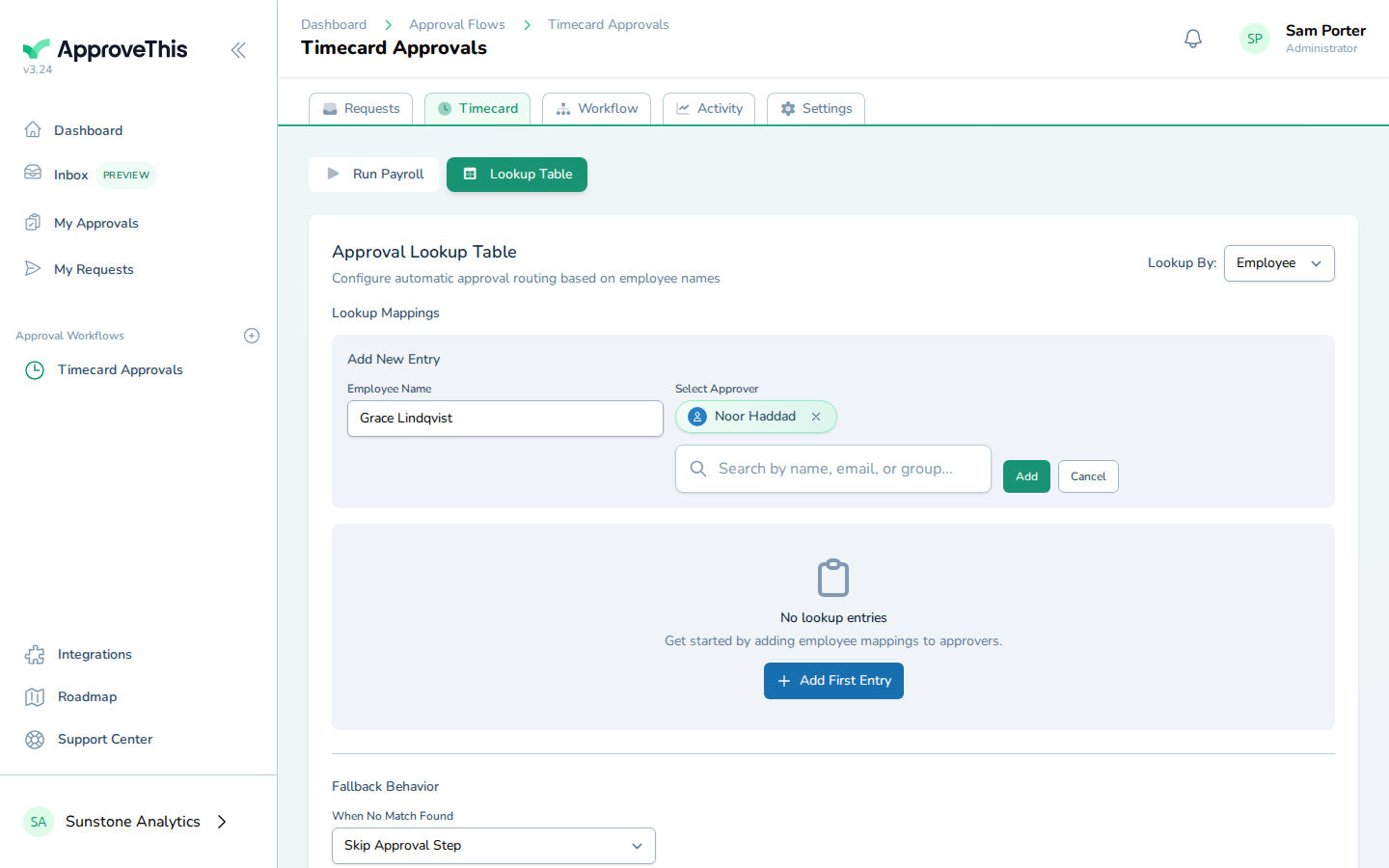
Click Add and you'll see Entry added successfully. Repeat for every employee on payroll. One thing worth doing before the next sync rather than after: routing applies as timecards arrive, and requests that already exist are never re-routed. A row you add today fixes future syncs, not the timecards already sitting in the wrong place.
Full click-by-click: Routing QuickBooks Timecards
Name a fallback, because "skip" pays unverified hours
New hires, contractors, and name mismatches will sync in before anyone remembers to add their row. The When No Match Found setting decides what happens to them, and the two options are not close cousins. Use Fallback Approver sends unmatched timecards to a named person. Skip Approval Step sends them through with no approval at all — silently auto-approved, which is exactly the unverified-hours problem this workflow exists to end.
So choose Use Fallback Approver, and make the fallback the office manager: the person who runs payroll is the one who'll recognize an unfamiliar name and either add the missing row or chase down whose hire this is.
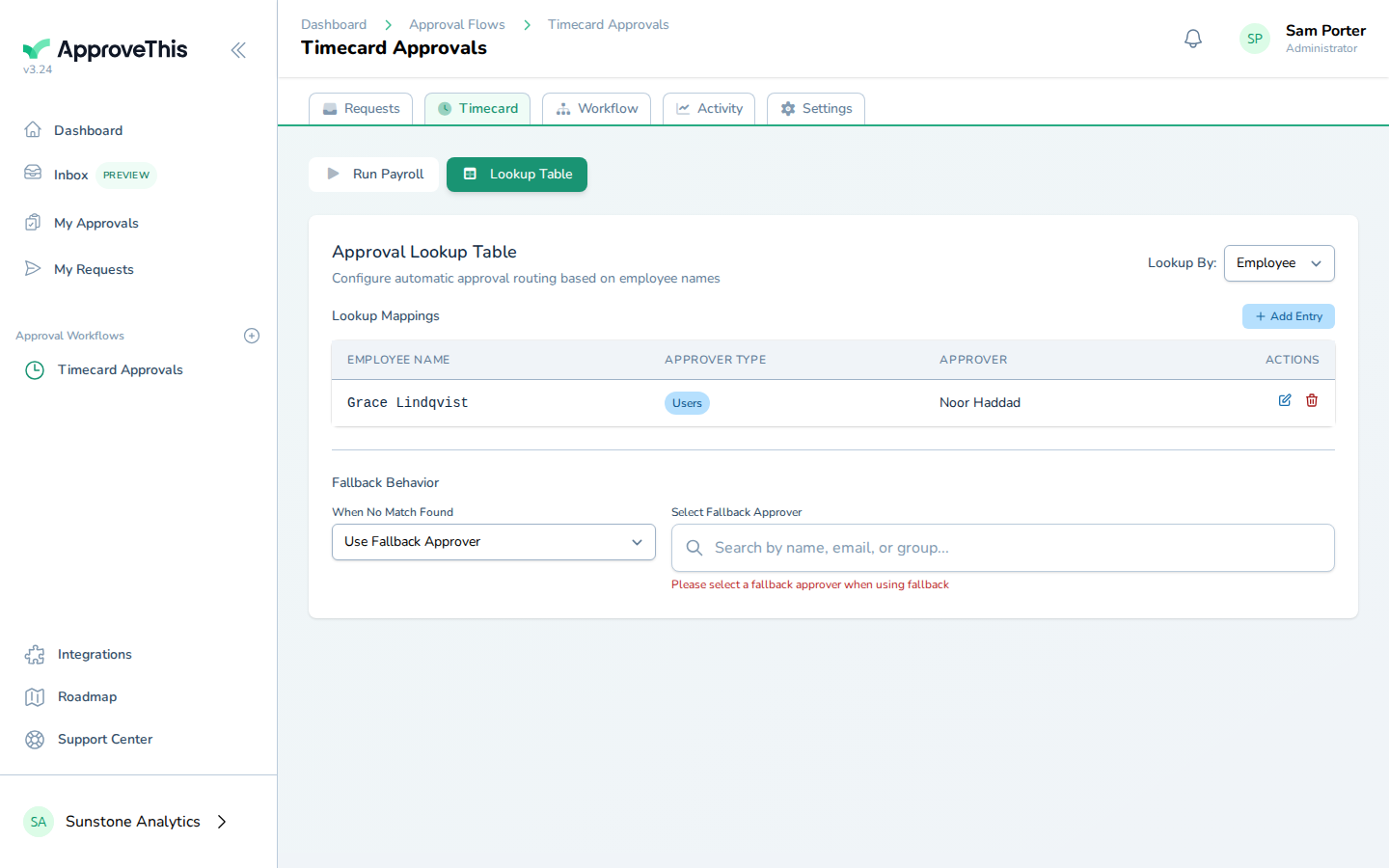
Search for and select the fallback the same way as any approver — the example picks the workspace's own administrator, Sam Porter. The confirmation reads Fallback behavior updated successfully.
Full click-by-click: Routing QuickBooks Timecards
Hours sync in and managers approve from their inbox
From here the pay period runs itself. Every sync checks the table: each employee's hours become a request waiting on their mapped manager, unmatched names go to the fallback. Each manager sees only their own people's timecards, which is the point — no one is confirming hours for a crew they don't run.
The approval email each manager receives carries a login-free link: one click records the decision, with the signed URL logging them in for just that action. For managers who live in email between job sites, this is the difference between same-day approvals and another chase.
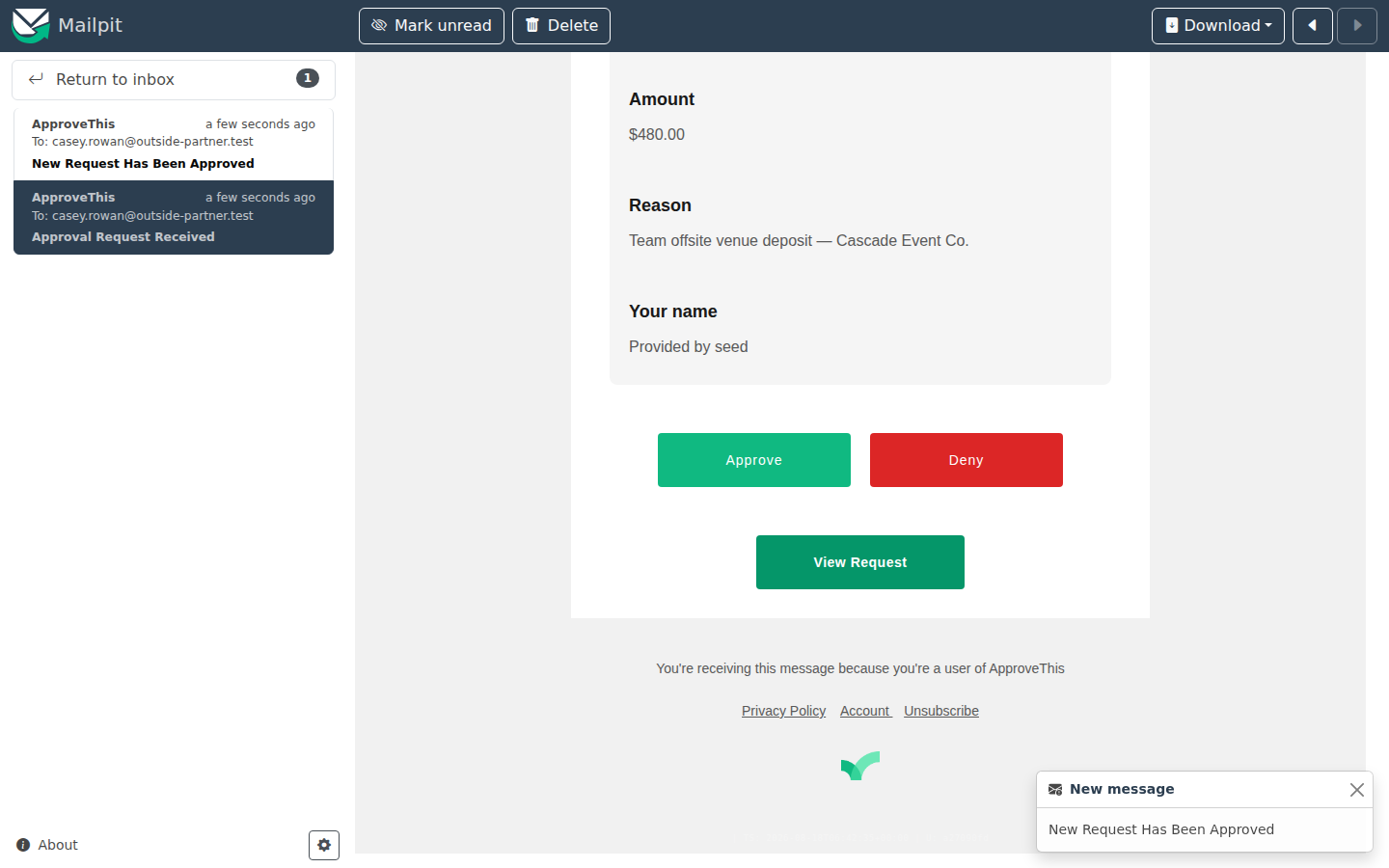
Managers with 2FA enabled, or on a workflow that requires approvers to log in, get a sign-in prompt first — worth knowing before payday.
Full click-by-click: Login-Free Approval Links
When a manager goes quiet, resend the exact email
A pay period cutoff doesn't wait for a lost email. When one manager's approvals sit untouched and they claim nothing arrived, open that request, click Activity Log, and use Resend on the row that recorded their approval email. The same email goes out again with working links — no duplicate request, and the log records the resend so you can show exactly when they were re-notified.
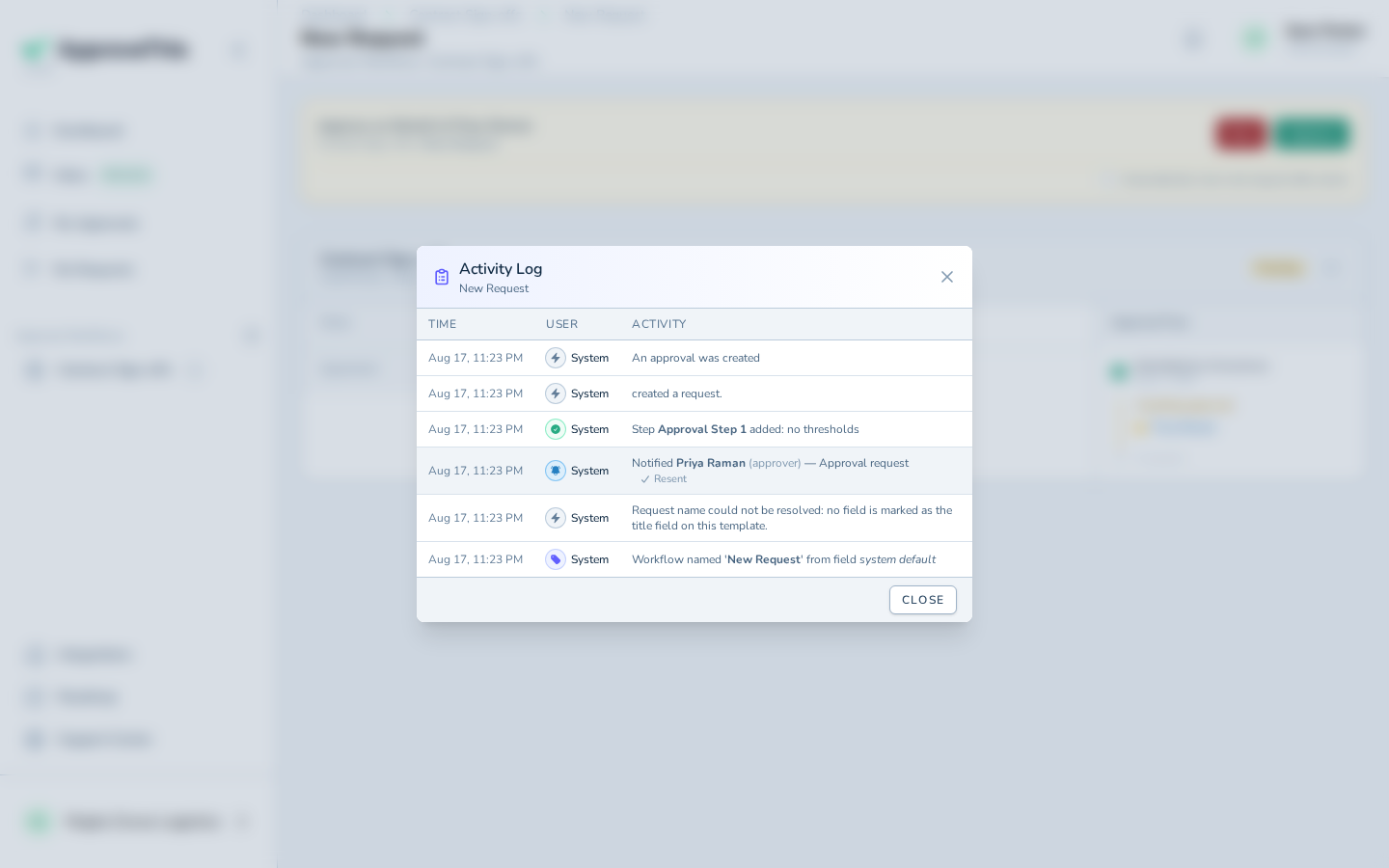
The example screenshots use a Contract Sign-offs flow and an approver named Priya Raman — the same Activity Log and Resend control appears on any request, your timecards included. After the resend, the log adds an entry like Notified Priya Raman (approver) — Approval request Resent.
Full click-by-click: Resend an Approval Request
When payroll asks who approved this, the answer is on the request
Weeks later, someone disputes their check, or an auditor asks why a contractor's hours were paid. Open the timecard's request and click Activity Log — the clock icon in the request header. The timeline lists each decision, each routing evaluation, and every notification with the named recipient and their role, so "which manager approved these hours, and when" is a read, not a reconstruction.
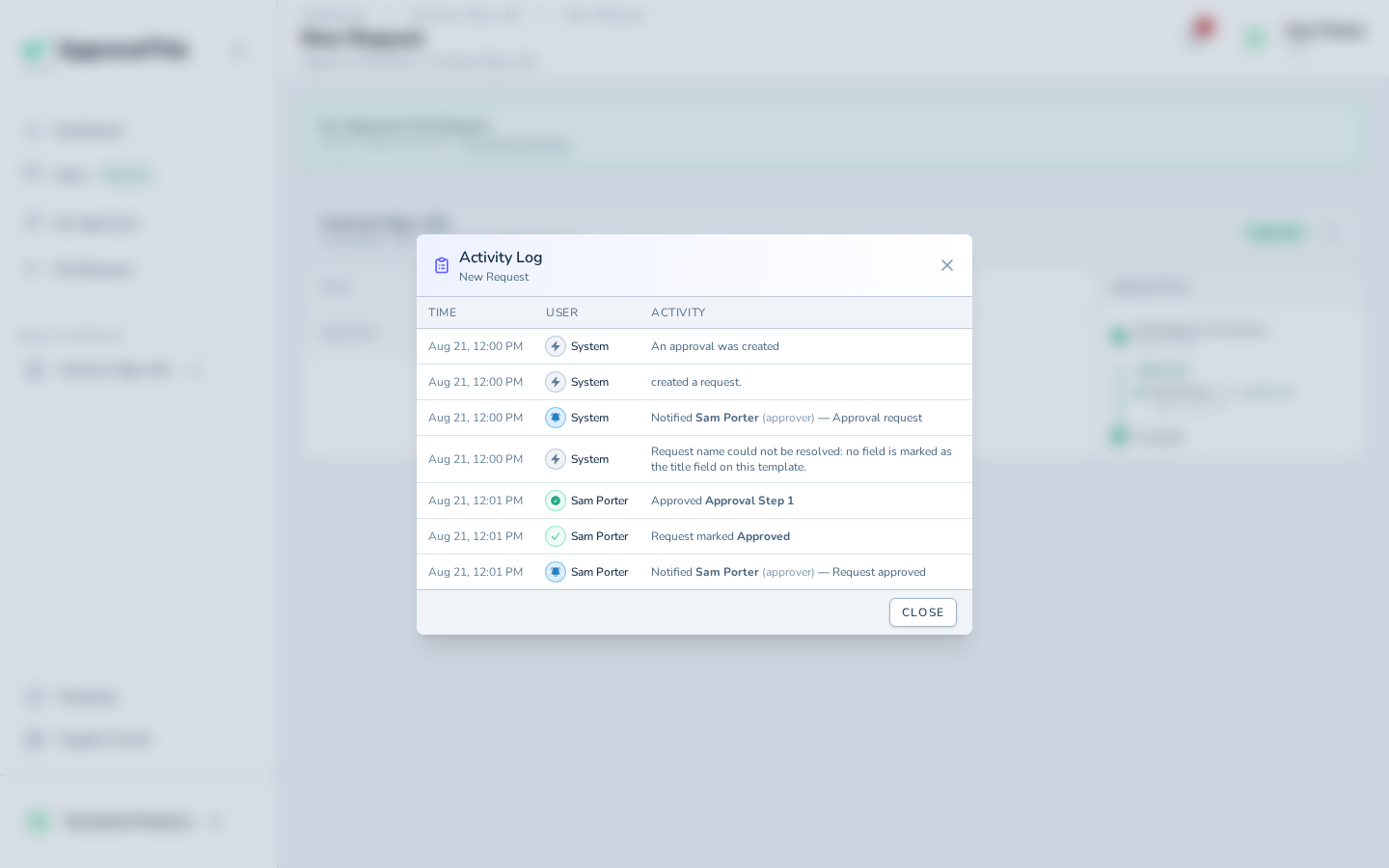
Workspace members who can edit the workflow also get a workflow-level Activity tab: a searchable audit table across all requests, with CSV/Excel export when the answer needs to leave ApproveThis.
Full click-by-click: Activity Log & Audit Trail
Related guides
- Vacation & Delegation — when a manager is out for a pay period, they name a colleague to catch their approvals instead of stalling them.
- Approval Reminders — automatic nudge emails on a schedule, so you resend by hand less often.
- Org Chart — record who reports to whom in the workspace, the same structure your lookup table mirrors.
- Request & Activity Export (CSV / Excel) — hand the full timecard audit trail to an auditor as a spreadsheet.
- Workflow Dashboards — Kanban, table, and calendar views for watching a pay period's requests move.
- Login-Free Approval Links — the full detail on one-click email approvals and when a sign-in is still required.