Bulk Archive Requests
Clear out finished requests in bulk from a workflow's Table view. Archived requests leave the list but can be restored at any time.
Updated
Once a batch of requests has run its course, the Table view fills with rows nobody needs to look at again. Bulk archiving clears several of them at once and keeps every one of them recoverable, so nothing is lost by tidying up. This guide is for Administrators working in a workflow's Table view, and it assumes that view already holds finished requests you want out of the way.
Who this is for: an Administrator.
Archive two finished requests in one step
Closed-out requests crowd the rows you still need to watch. Selecting them together and archiving in one action clears the list without deleting anything.
-
Sign in as an Administrator.
-
Open the workflow whose finished requests you want to clear — the example screenshots use Purchase Requests.
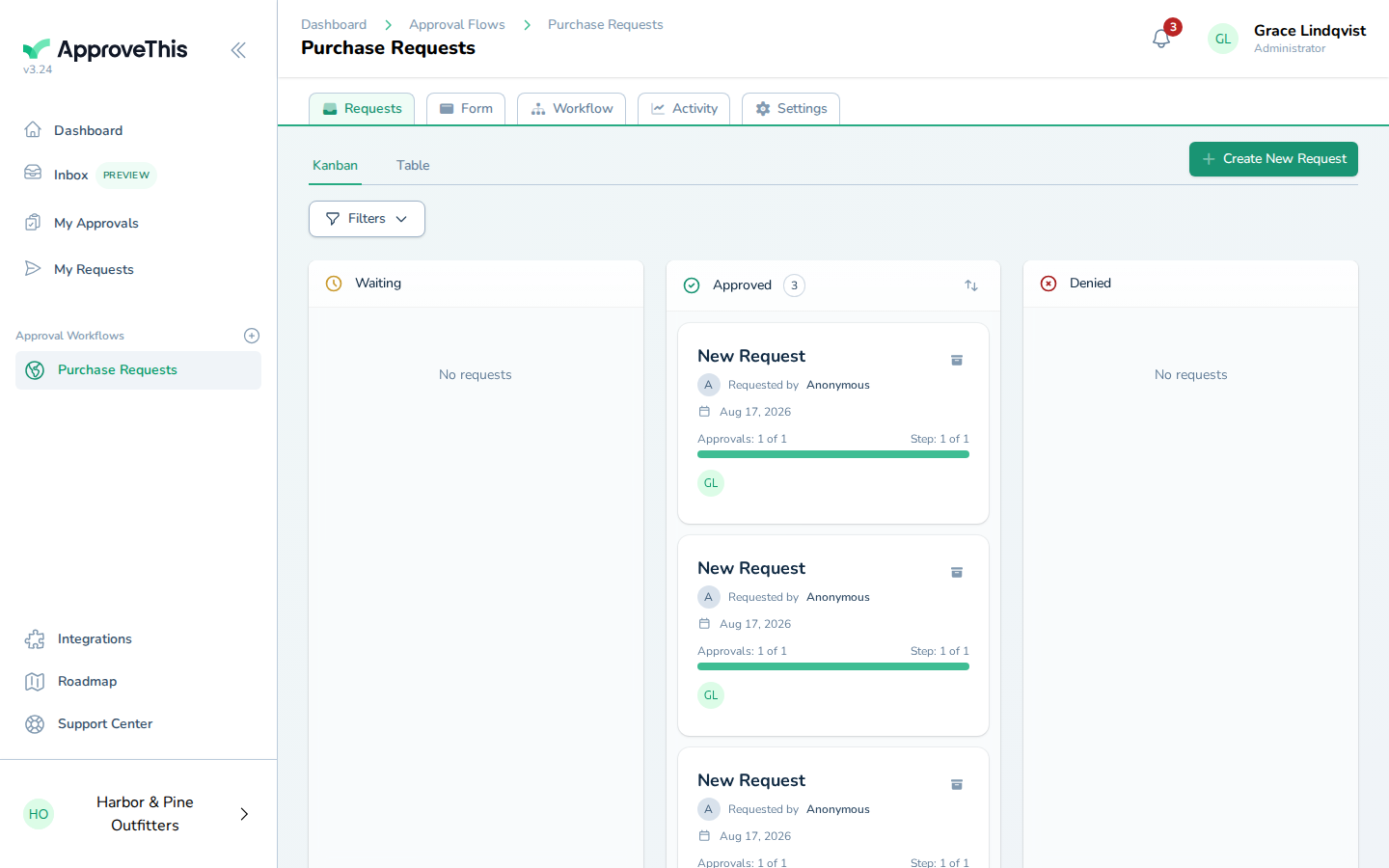
Open the workflow whose finished requests you want to clear — the example screenshots use Purchase Requests. -
Click Table to switch the dashboard to the row-by-row view that supports bulk actions.
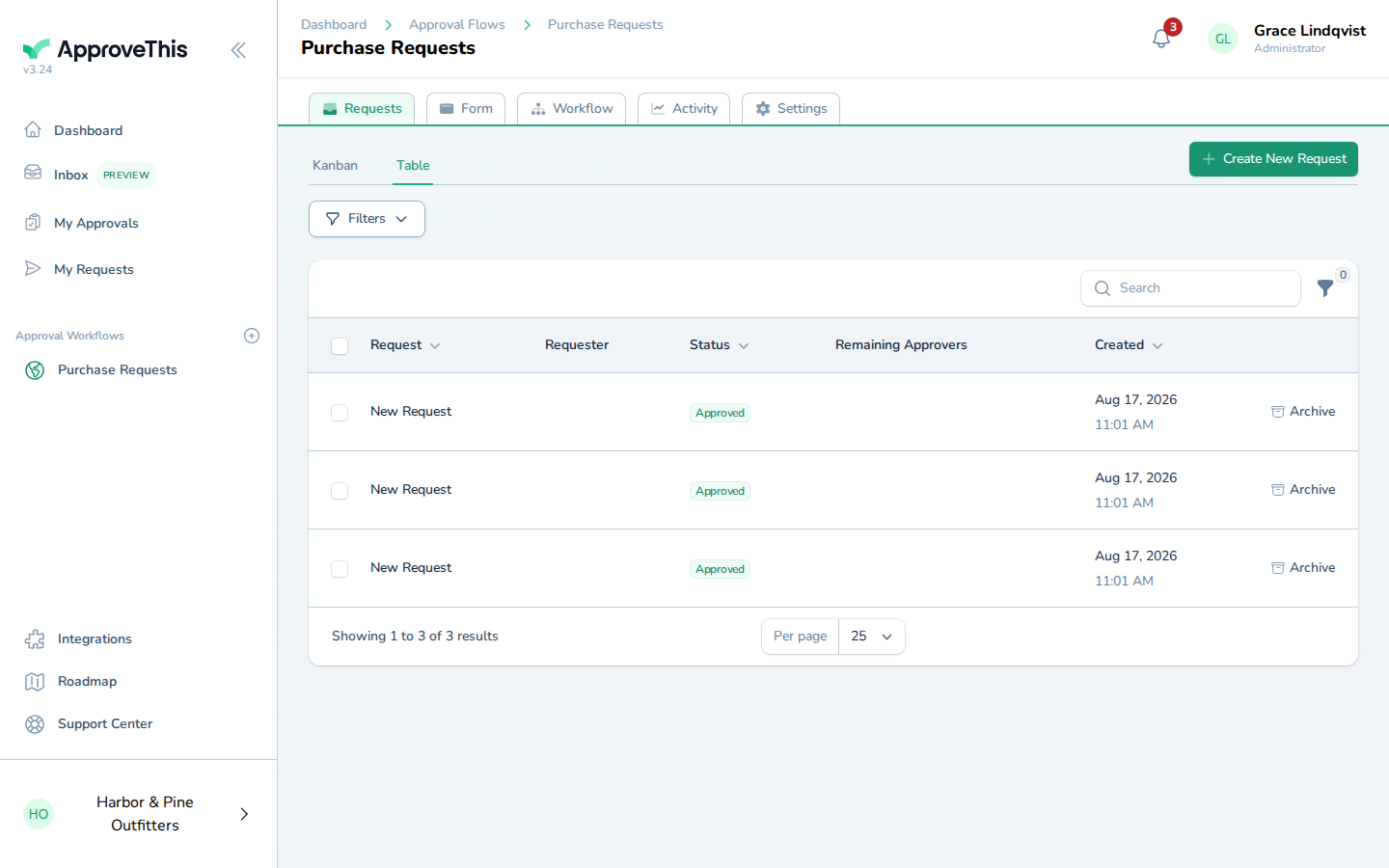
Click Table to switch the dashboard to the row-by-row view that supports bulk actions. -
Tick the selection checkbox on the first request you want to archive; in the example screenshots that control reads Select/deselect item a2869893-2709-4bbe-9783-35fc191f5f8c for bulk actions.
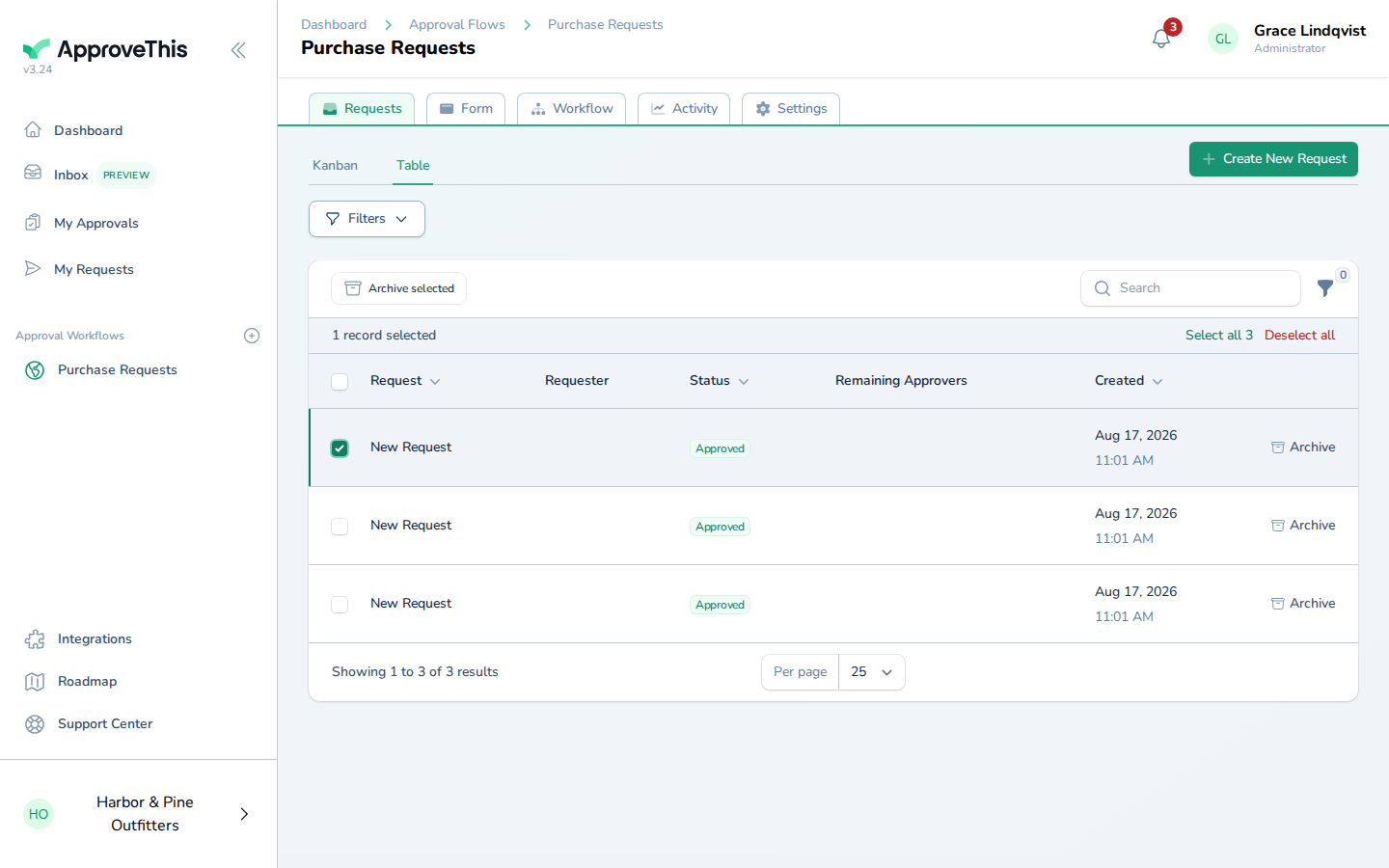
Tick the selection checkbox on the first request you want to archive; in the example screenshots that control reads Select/deselect item… -
Tick the selection checkbox on the second request, such as Select/deselect item a2869892-b772-441d-af12-aba9842da01e for bulk actions.
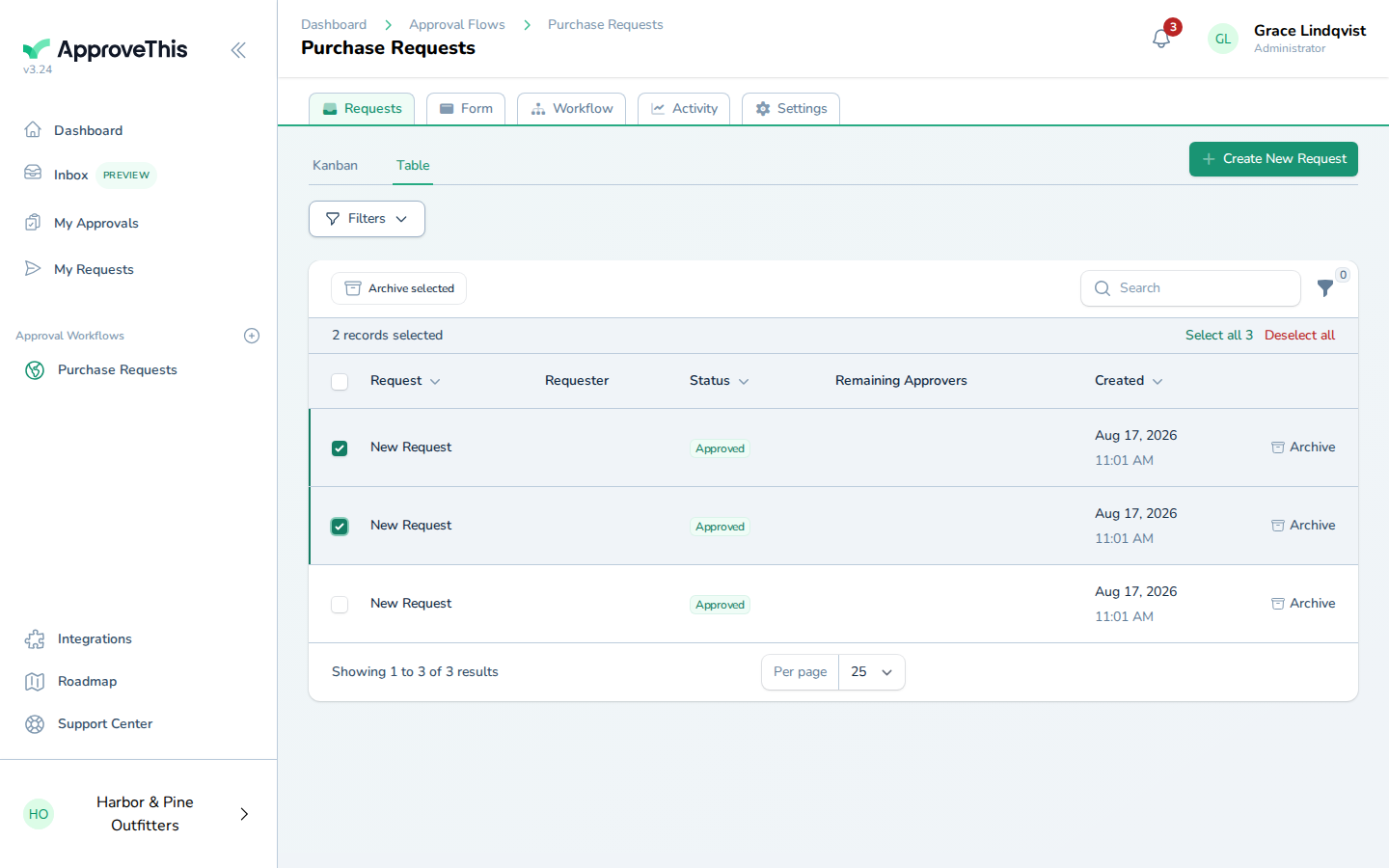
Tick the selection checkbox on the second request, such as Select/deselect item a2869892-b772-441d-af12-aba9842da01e for bulk actions. -
Click Archive selected.
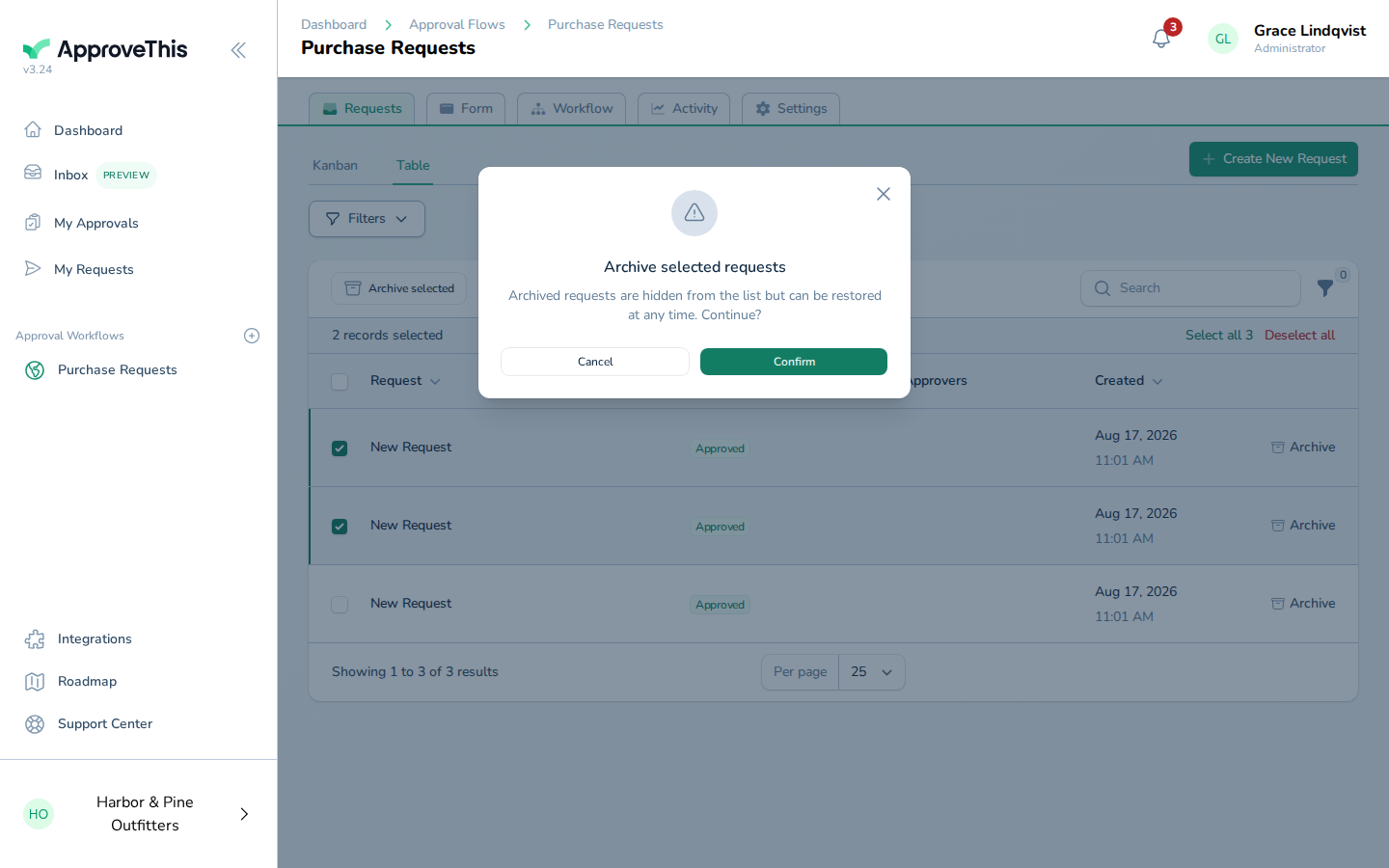
Click Archive selected. -
Click Confirm to complete the archive.
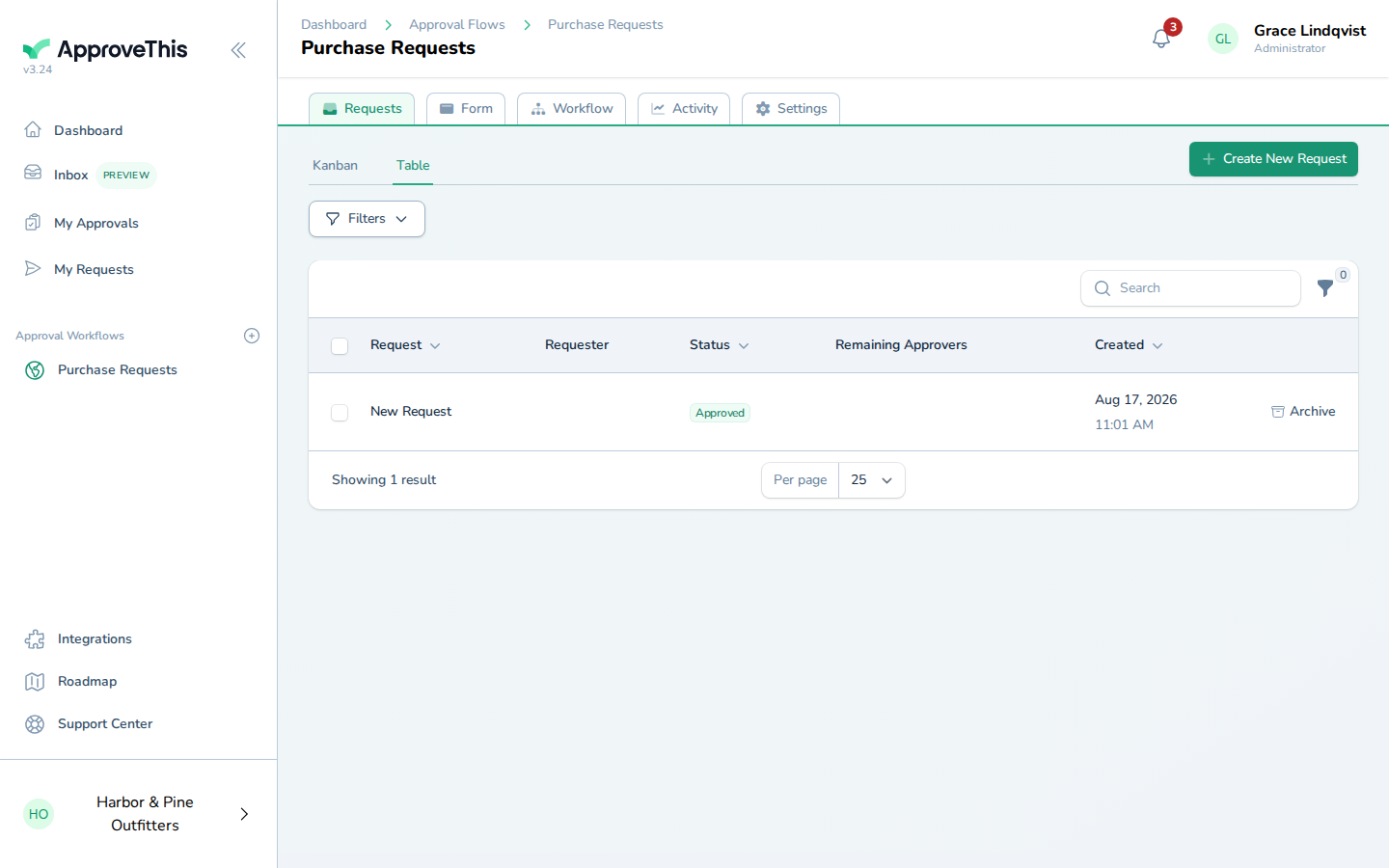
Click Confirm to complete the archive.
Show the archived requests
Archived requests leave the default list, so you need a filter to look at them again — to check you archived the right ones, or to find something to bring back.
-
Click Filters.
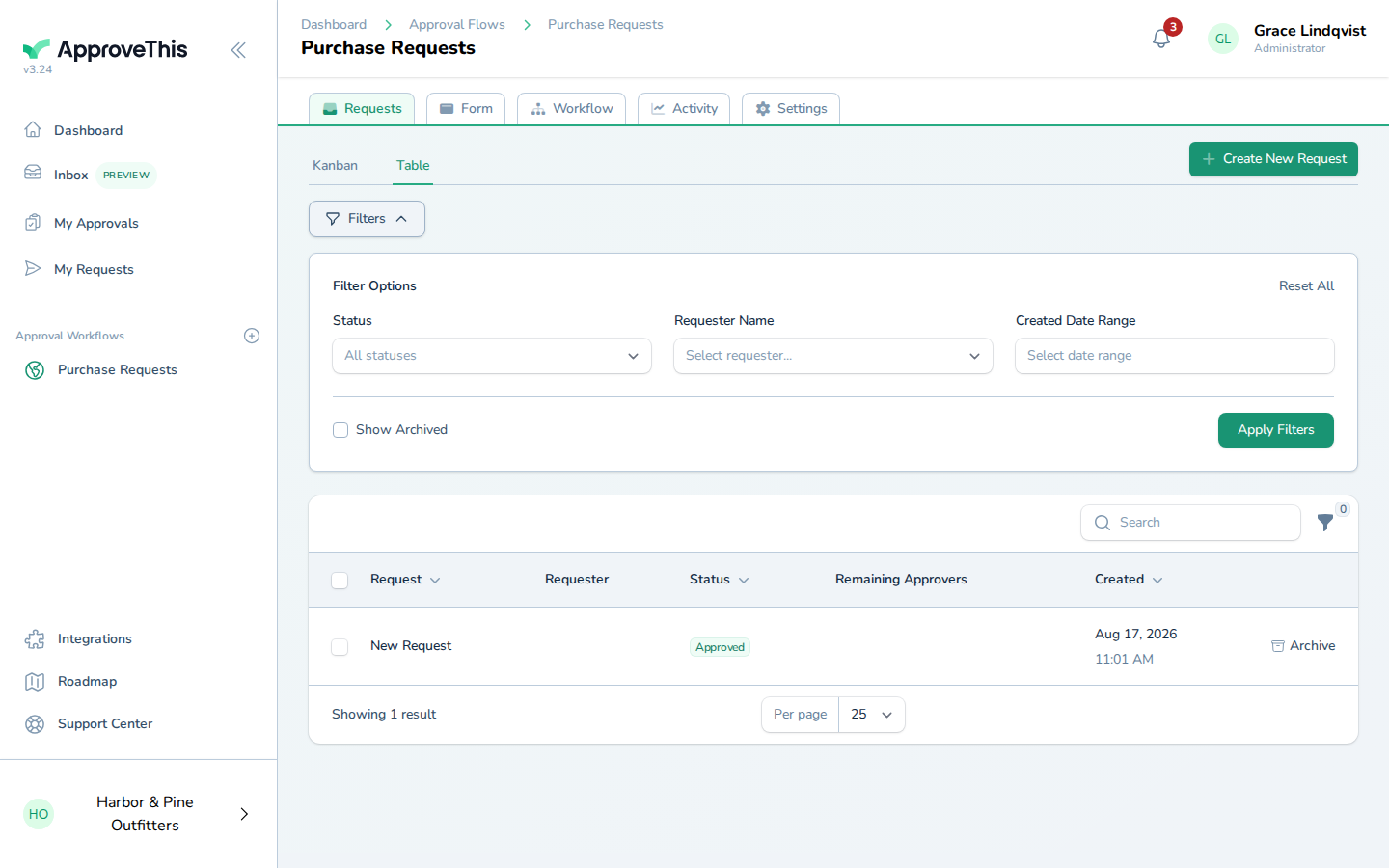
Click Filters. -
Click Show Archived.
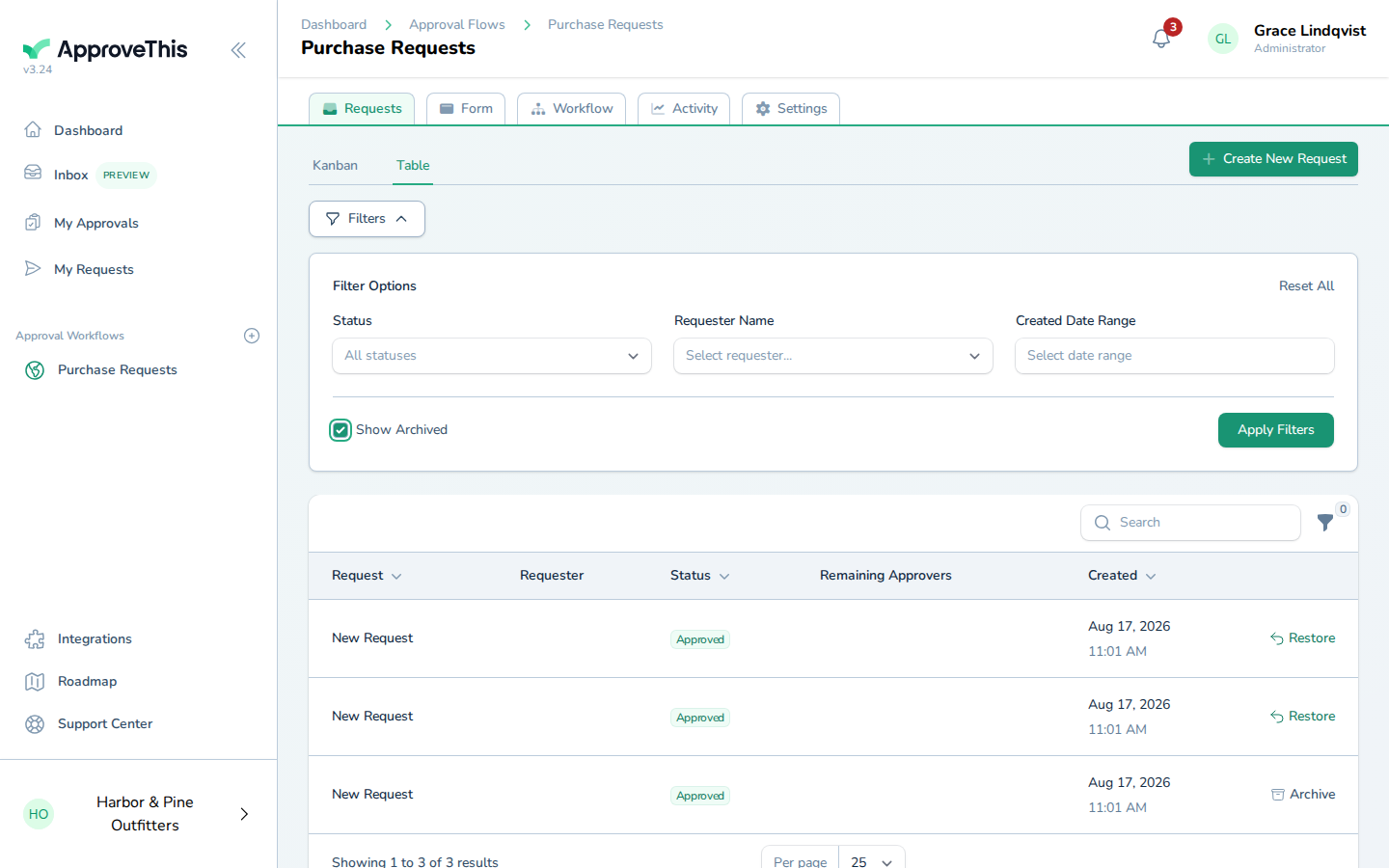
Click Show Archived. -
Click Apply Filters.
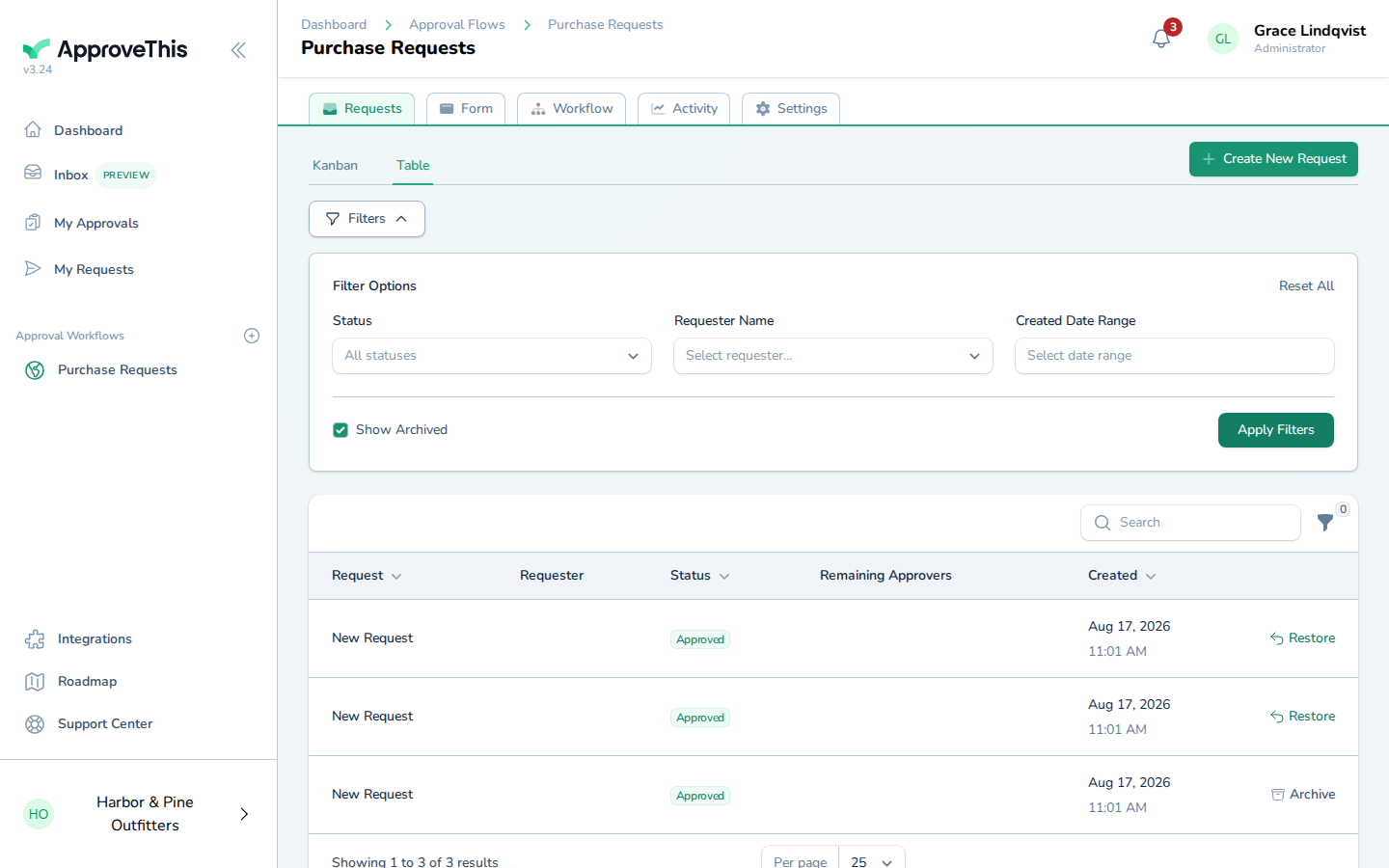
Click Apply Filters.
Restore an archived request
Archiving is reversible at any time. If a request was cleared too early or someone needs it back in the working list, restoring returns it without recreating anything.
-
Click Restore on the archived request you want back in the list.
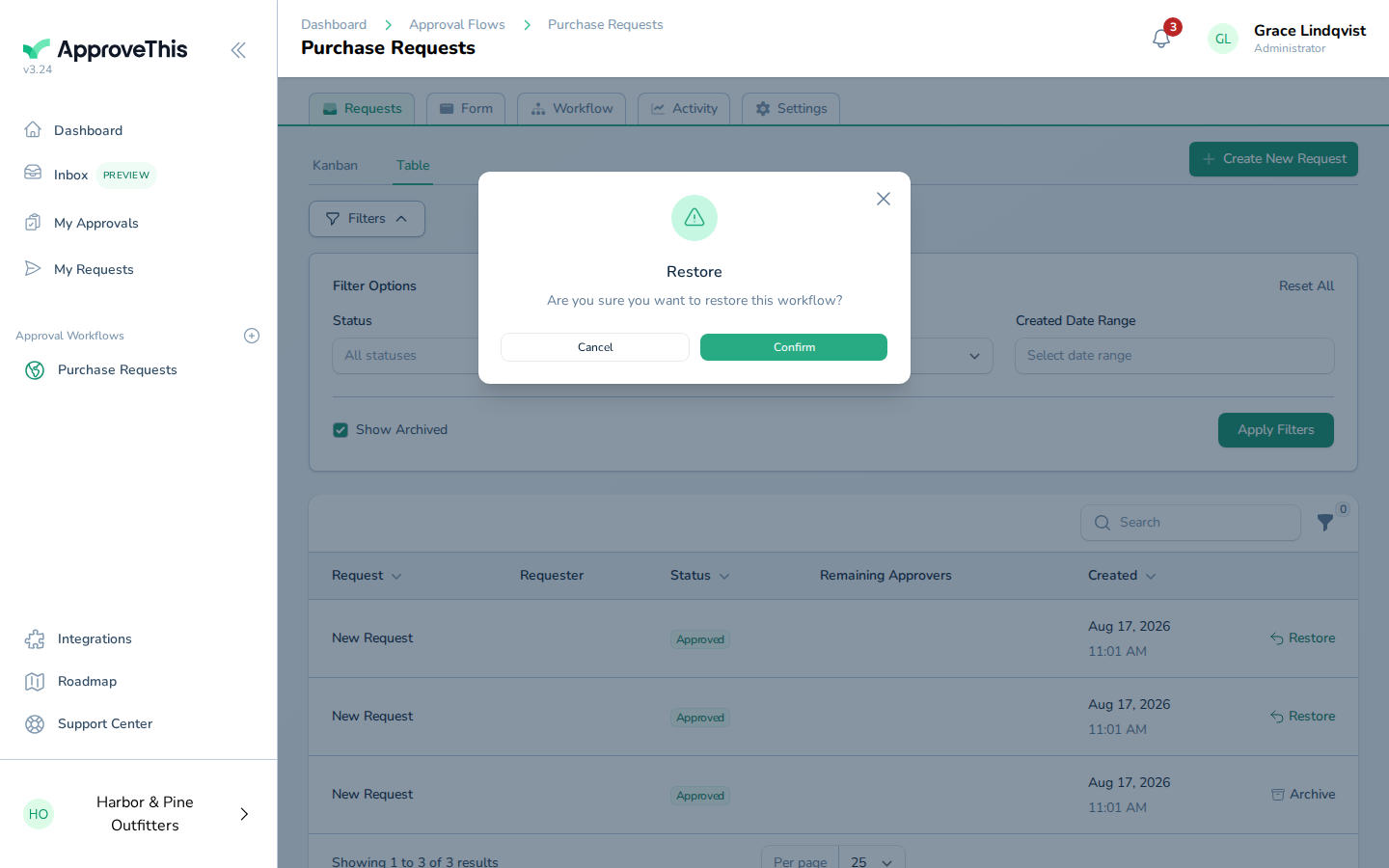
Click Restore on the archived request you want back in the list. -
Click Confirm.
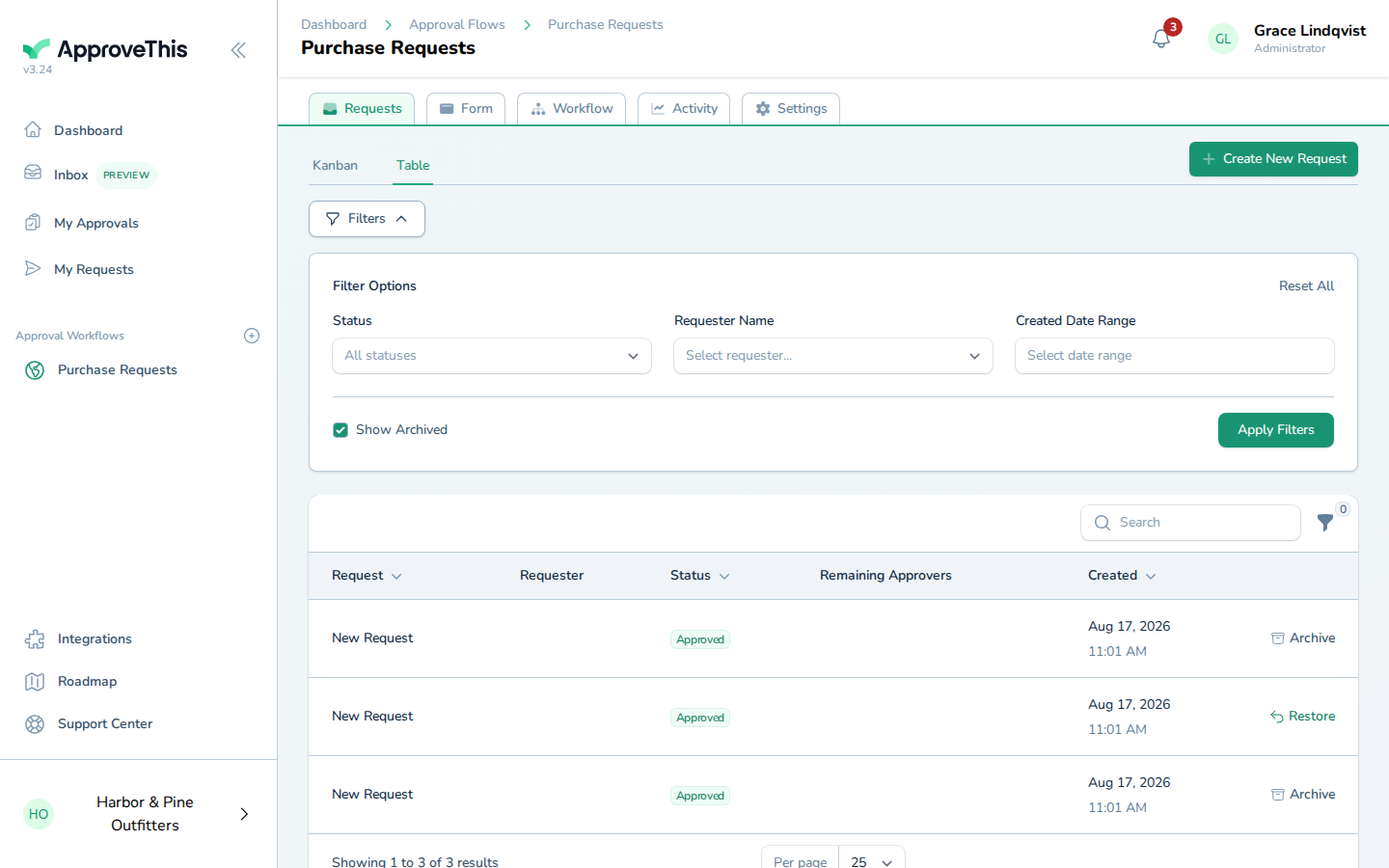
Click Confirm.