IT access requests with an audit-ready trail
Approval before provisioning, privileged grants escalated to a security lead, and access-review evidence one export away.
Updated
Ask the IT admin who owns access control where requests come from, and the list is long: a ticket asking for a finance-system login, a chat message about admin rights on the CRM, a hallway ask. Because nothing forces a decision before the work, provisioning often happens first and approval is reconstructed later, if at all. When the annual access review comes around, the auditor samples a handful of grants and asks the same three things: who asked, who approved, and why. Answering that from ticket threads, chat exports, and memory is archaeology, not evidence.
This walkthrough replaces that scatter with one workflow the IT admin builds once. A public form link goes out company-wide, so any employee can submit without an ApproveThis seat. Standard requests route to a manager and then to IT; a condition on access level adds the security lead for privileged rights. The workflow is dry-run in testing mode before publishing, and at audit time the per-request activity log, the request export, and a locked comment thread are the access-review evidence.
What you'll set up
- A request form with three questions: System needed, Access level, and Business justification
- A public form page any employee can submit to, no seat required
- An approval chain: manager sign-off, then IT provisioning approval
- A condition on Access level that adds the security lead only for privileged grants
- A tamper-proof record: per-request activity log, CSV/Excel export, and comments locked after posting
A form shaped around the auditor's questions
Open the flow you'll use for access requests and click Form. Every field you add here is a column in your eventual evidence export, so collect exactly what the access review needs: the system, the level of access, and the business justification. Click Add Field for each and pick the type that fits the answer.
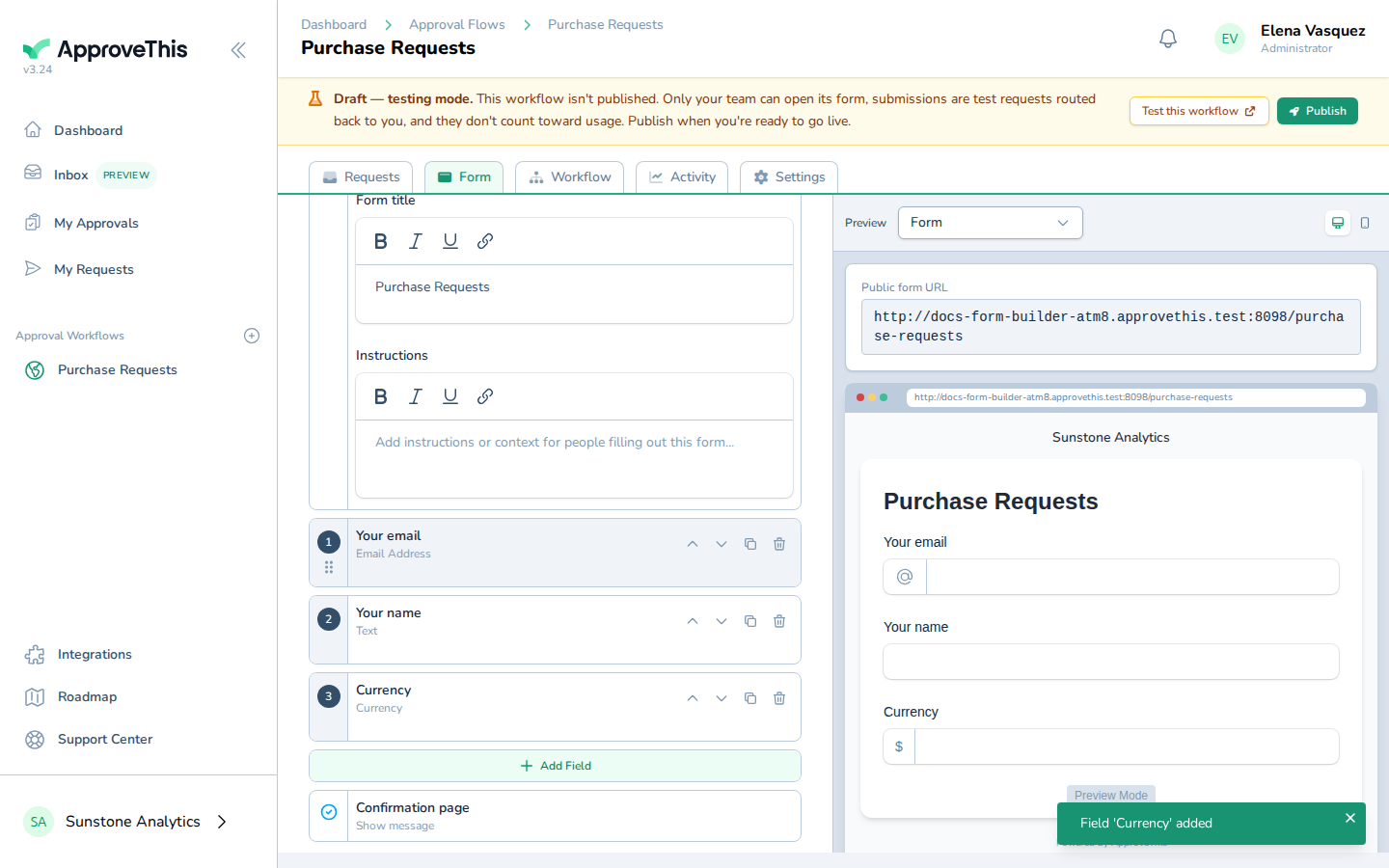
The example screenshots come from a Purchase Requests flow adding a Currency field; your access form will lean on text fields instead. Click each field to set its label and settings.
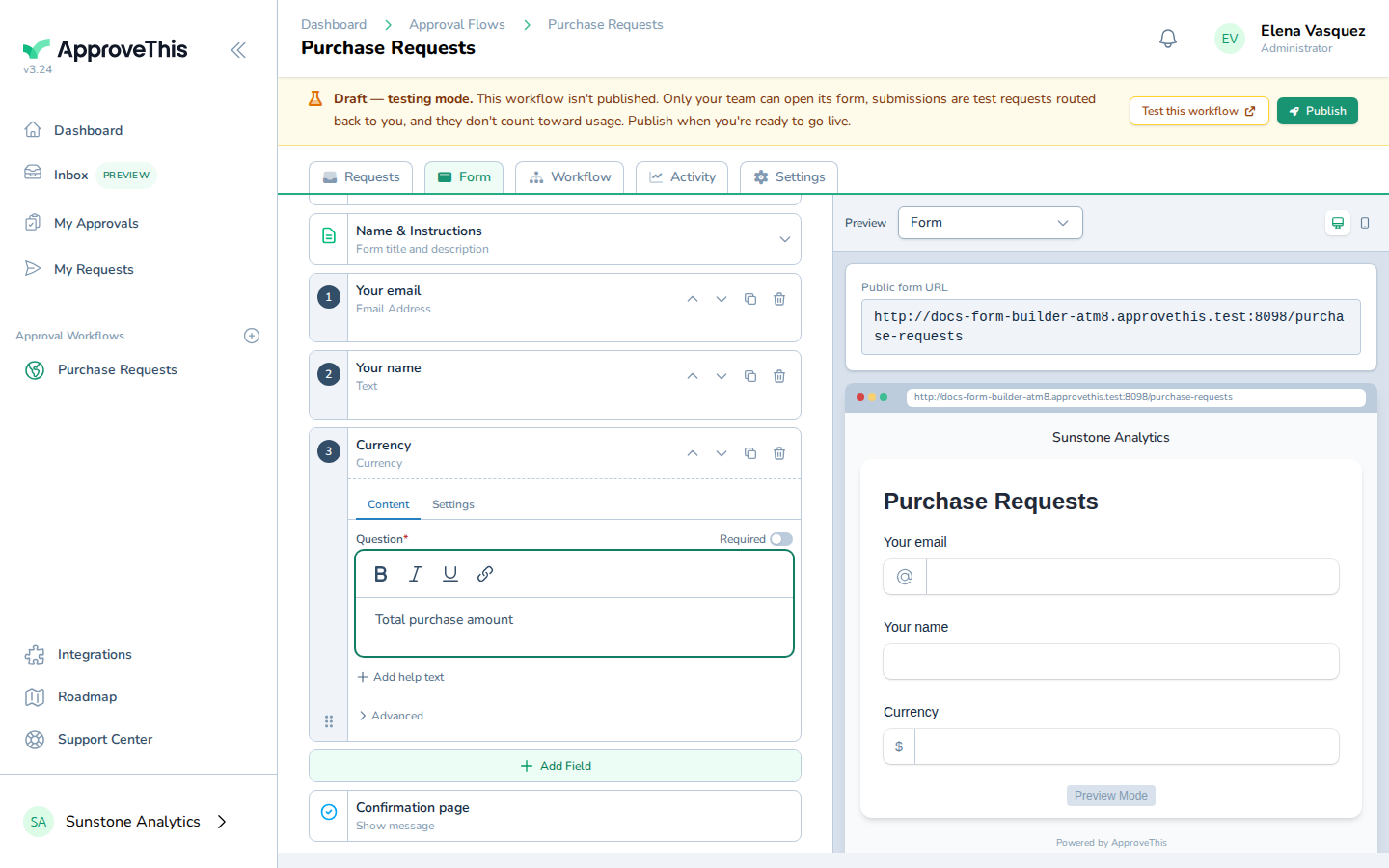
Mark Business justification as Required so no request arrives without a reason on record. On the Access level field, click Add help text and spell out the exact answers you expect, such as Standard or Privileged. The routing condition you'll add later compares against this field's text, and consistent answers are what make the gate reliable.
Full click-by-click: Form Builder
Chain the manager and IT approvals
Switch to the flow's Workflow tab and click Add a new step below this one to build the chain: a manager step first, then an IT step. On each step, type a name into Search for an approver and click the match to add them.
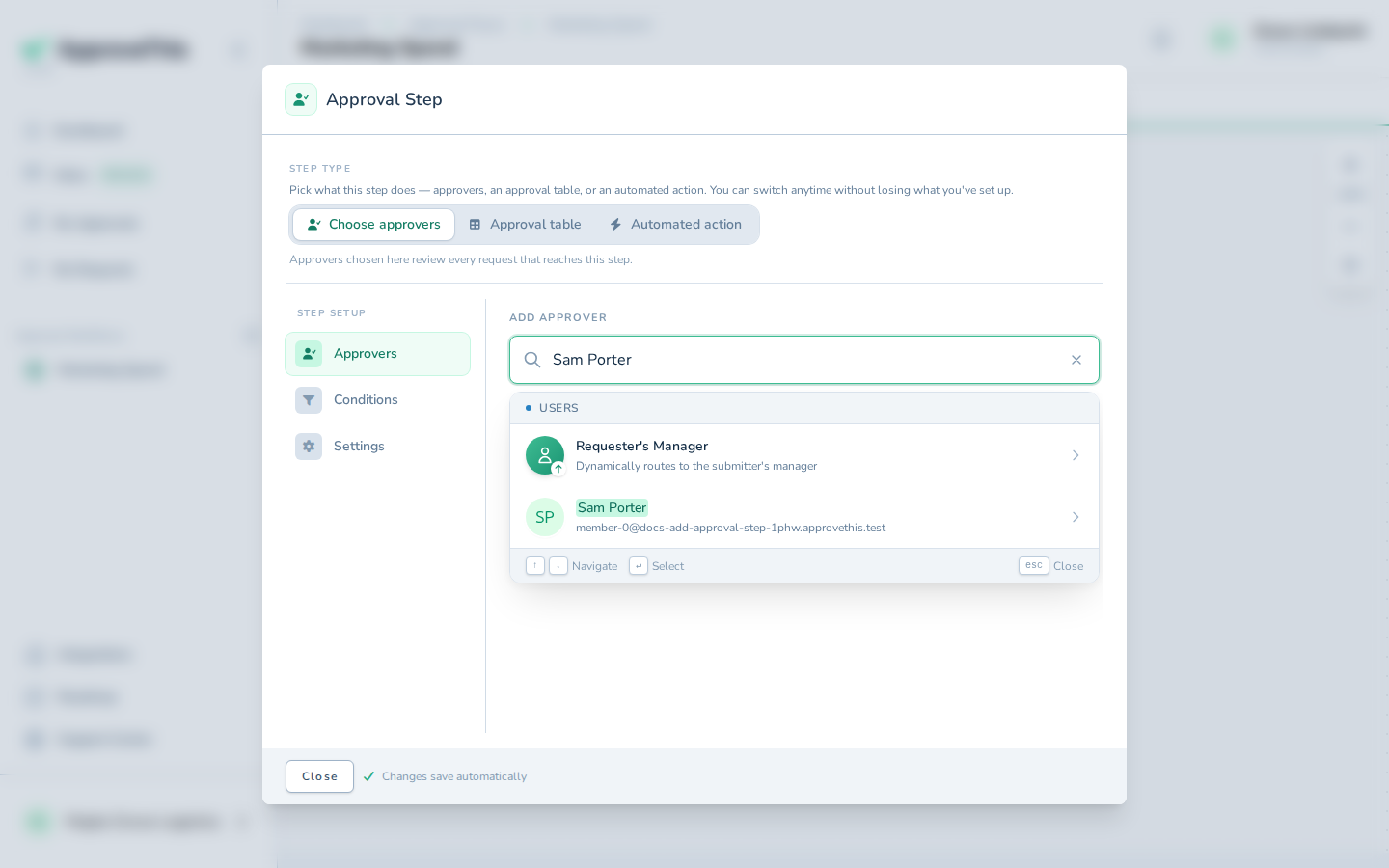
Approvers on a step are the named people you add here — the manager step routes to the managers you name, not automatically to each submitter's own manager. If several people share a sign-off, add each and open the step's Settings to choose what counts as approved — everyone, a majority, a fraction, or a specific number — so any one of your IT admins can clear the provisioning queue without waiting on the rest.
Full click-by-click: Add an Approval Step
Gate the security lead on access level
Add a third step for the security lead, then keep it out of the way of routine requests. Click Configure step, then Conditions, then Add Condition. Choose Access level from Field, pick an operator, and enter the value that marks a request as privileged. The operators are equals, less than, less than or equal, greater than, greater than or equal, and contains — for a text field like access level, Contains or equals is the fit.
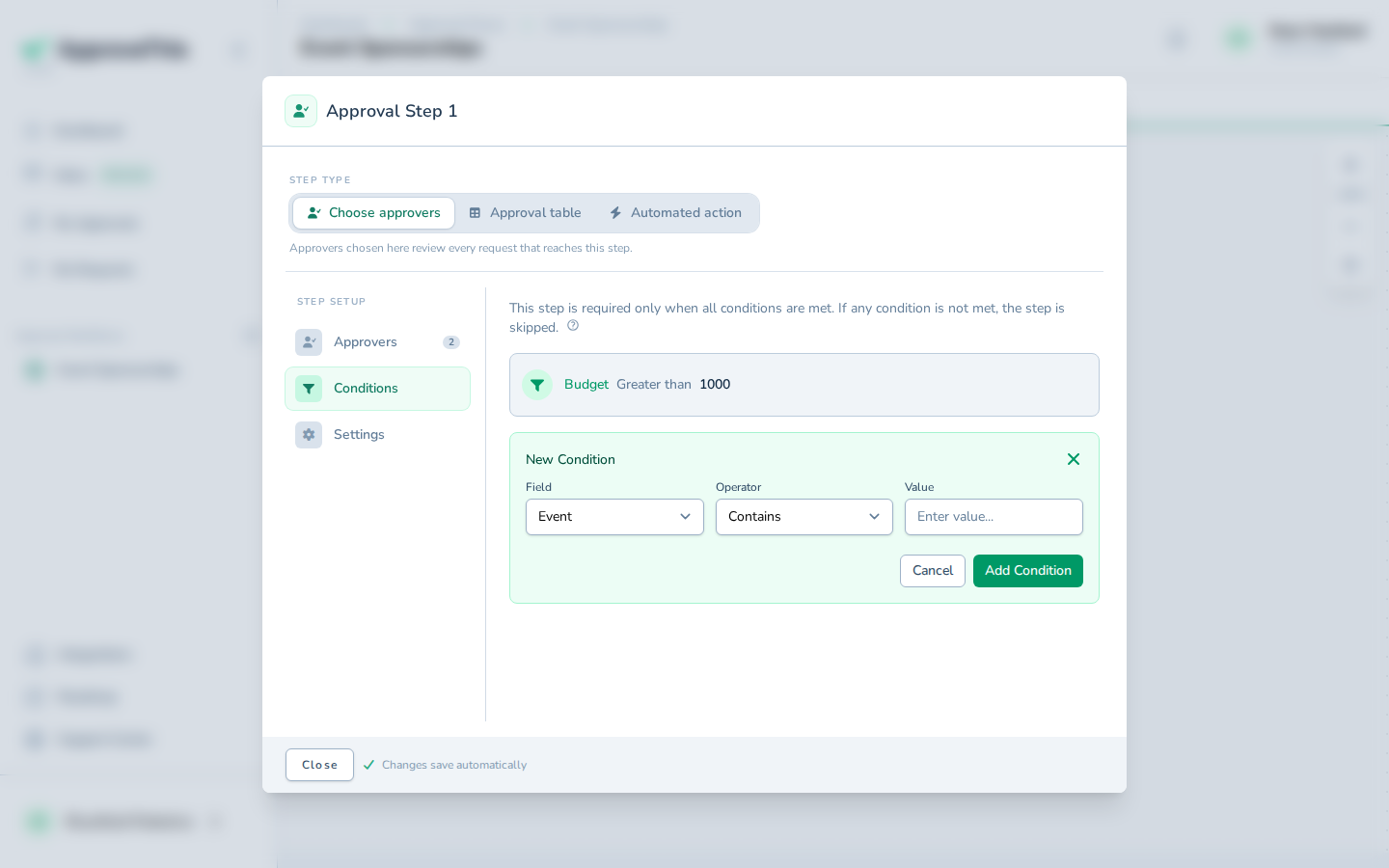
With the condition saved, the step is skipped unless it's met, so a standard request finishes at IT while a privileged one picks up the extra sign-off. Two behaviors worth knowing: multiple conditions combine with AND, each row narrowing when the step runs, and existing requests keep the routing they were born with.
Full click-by-click: Conditional & Threshold Routing
Dry-run in testing mode, then publish and share the link
A workflow that has never been published sits in testing mode, marked by the amber Draft — testing mode. banner. Use it: submit through the real form, and every approver notification is redirected to you with a banner naming who it would have gone to, so you can walk the whole chain yourself. Submit one standard request and one privileged, and confirm the security step is skipped for the first and runs for the second. Test requests stay out of usage counts, live lists, and approver queues.
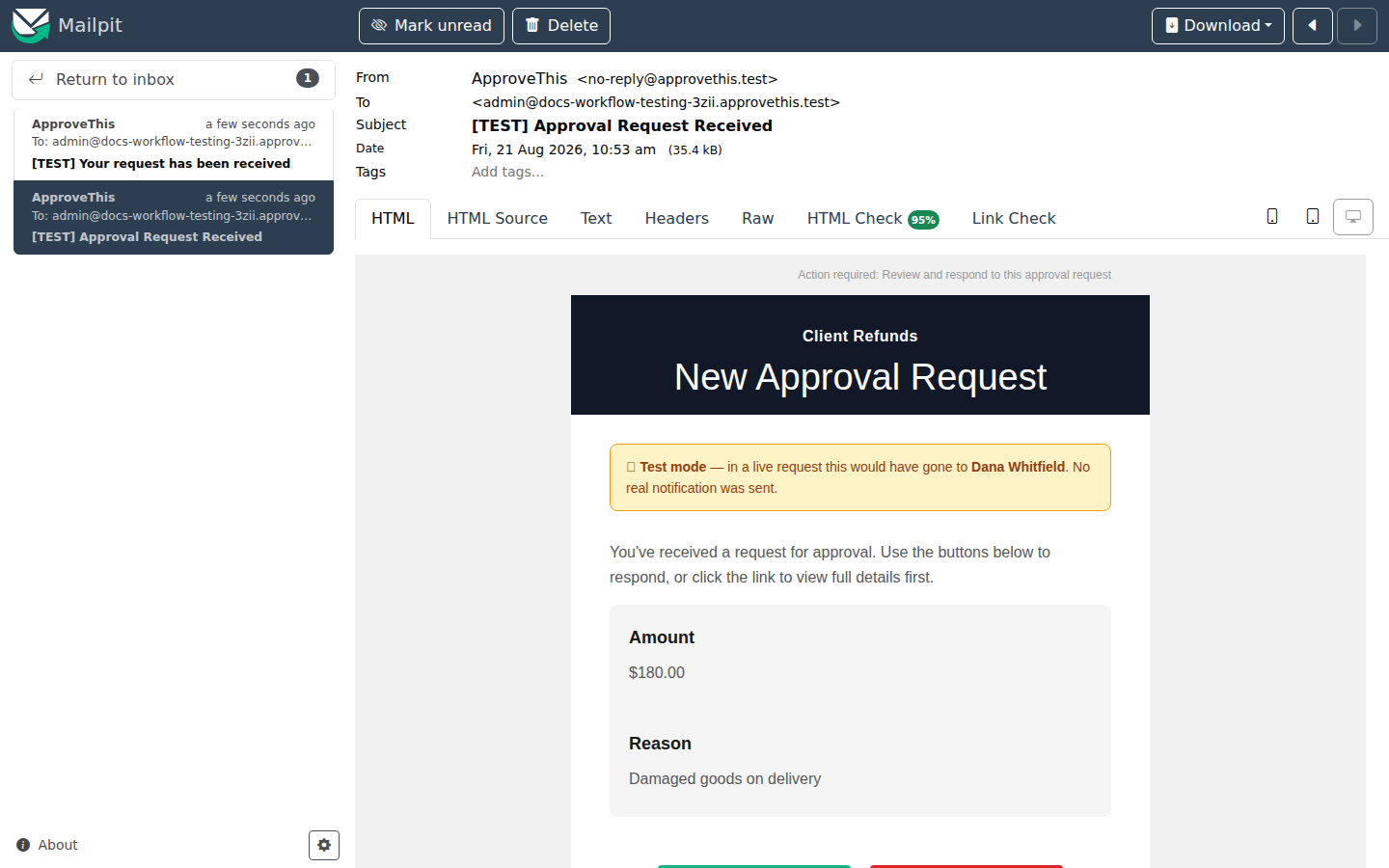
Before opening the doors, lock the discussion: in the flow's Settings tab under Comments, click Enable comments, then Lock comments after posting, then Save, so a posted comment can never be edited or deleted afterwards (Immutable Comments covers it). Then click Publish, knowing it's one-way: a published workflow can't return to testing mode.
Publishing matters for the link too: the public page is only reachable on a published, active flow. In the Settings tab, click Requesters, then Public Submissions.
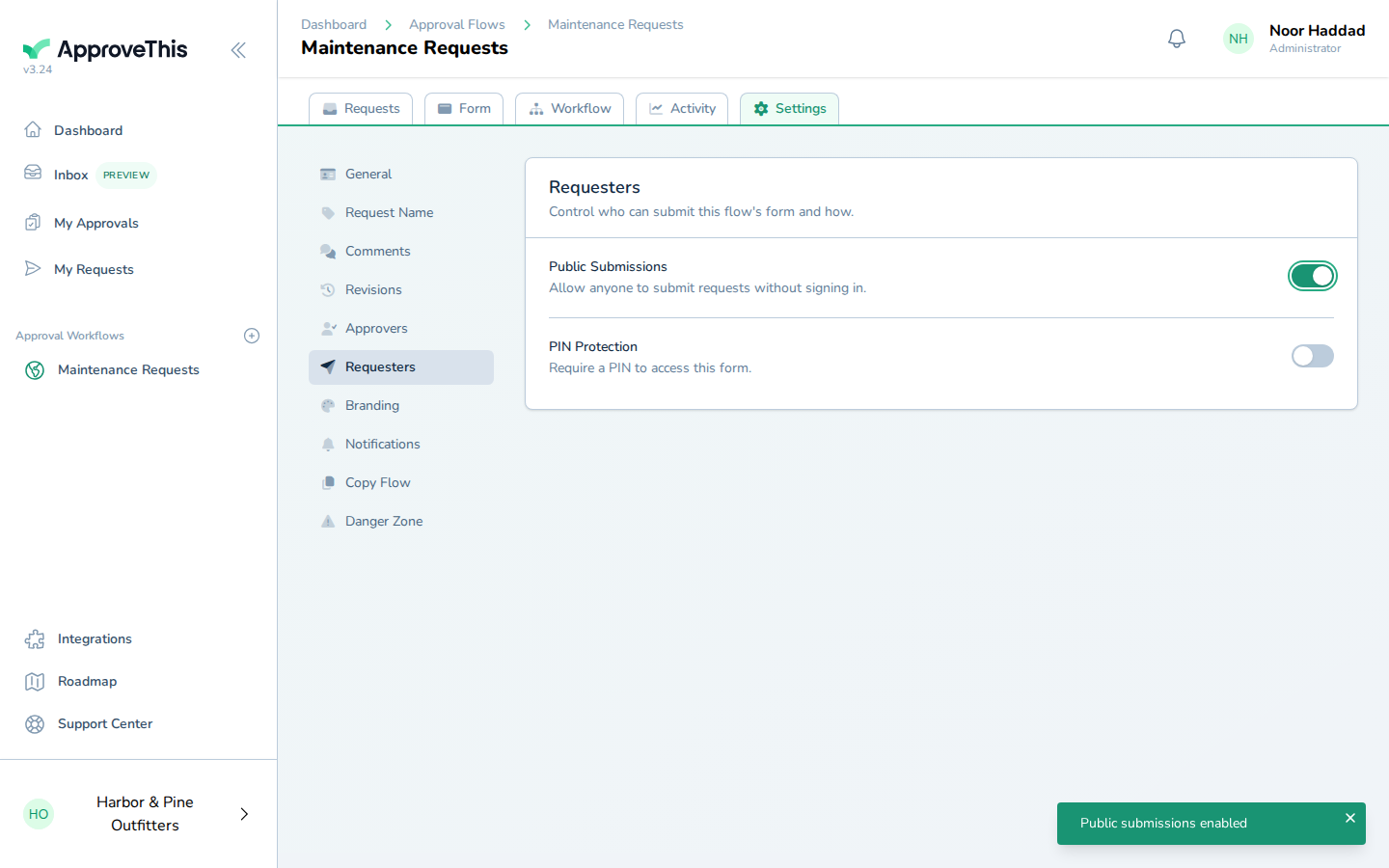
Anyone with the page link can now submit without signing in, and every submission still enters the approval chain as normal — one link shared company-wide, no seat per employee. One limit: a form containing User Selection fields can't be made public until those fields are removed.
Full click-by-click: Workflow Testing and Public Forms
At audit time, the evidence is already assembled
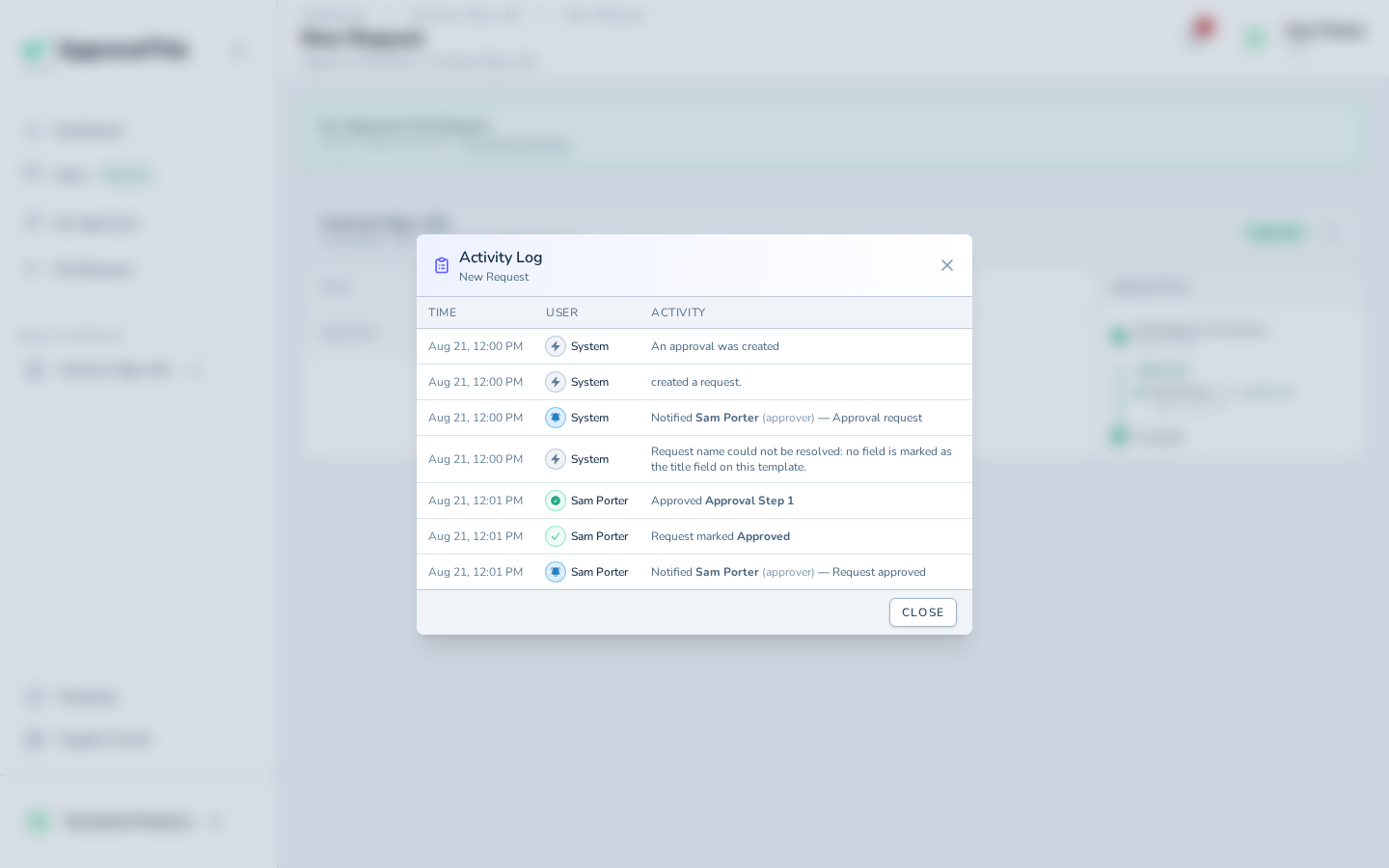
When the auditor samples a grant, open that request and click Activity Log — the clock icon in the request header. The timeline lists every decision, every routing evaluation, and every notification sent, each with who did it (or System) and when. That single screen answers who asked, who approved, and whether the right people were notified.
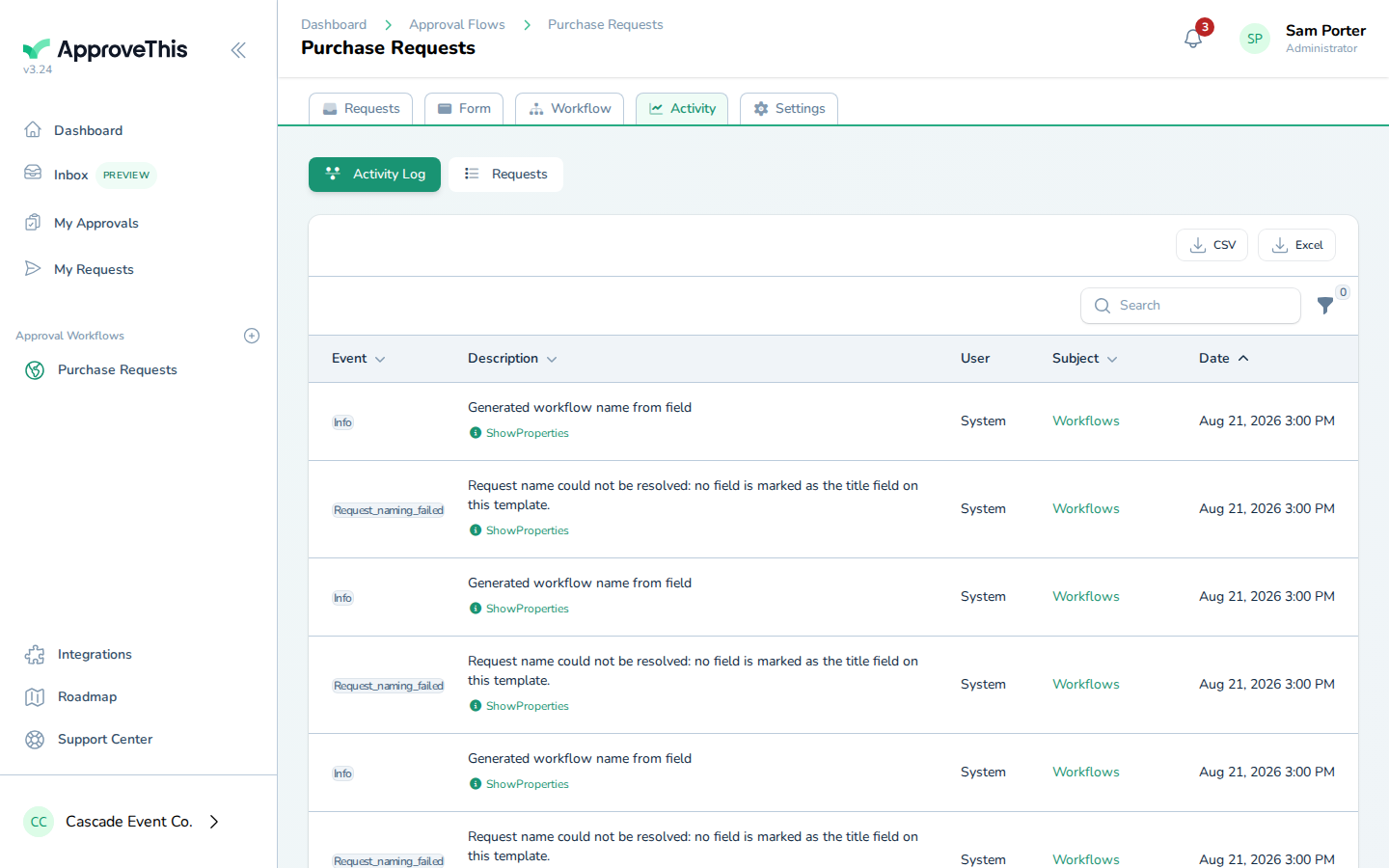
For the review population itself, open the workflow's Activity tab — shown to members who can edit the workflow — and use the Requests sub-tab's CSV or Excel button. The file includes every matching row with one column per visible form field, so system, access level, and justification sit beside status, requester, and submission date. Know its edges before you hand it over: the export honors the table's search text and sort order but not the Status or date dropdown filters, hidden form fields never appear, and once the workflow is published its test requests are excluded. The export itself is written into the audit trail.
And because you locked comments before launch, the justification thread on every request reads exactly as it was written — no one reworded a reason after the fact.
Full click-by-click: Activity Log & Audit Trail and Request & Activity Export
Related guides
- Immutable Comments — the per-flow setting that locks posted comments and replies against edits and deletion.
- Workflow Testing — the full tour of testing mode, redirected notifications, and cleaning up test requests at publish.
- Unified Inbox (Preview) — one searchable feed where your manager, IT, and security approvers can find and act on pending requests.
- Team Management — inviting the approvers into the workspace with the right roles before you wire them into steps.
- Org Chart — recording who reports to whom so the workspace reflects your actual structure.
- Account Security — two-factor authentication for the admin account that owns the workflow and its evidence.