Org Chart
Map who reports to whom on your team, so approvals can route to a person's manager automatically and everyone can see the reporting structure.
Updated
The org chart at /org-chart draws your workspace's reporting structure, showing which employees have a manager assigned and which don't. Setting those relationships is what makes manager-based approval routing possible and gives everyone a shared picture of who reports to whom. This one is for Administrators, and it's available on all tiers. You'll need teammates already in the workspace to link together.
Who this is for: an Administrator.
Assign a manager to a team member
A team member with no manager assigned can't have approvals routed upward automatically, and they show up on the org chart as unattached. Picking their manager fills that gap and places them in the hierarchy.
-
Sign in as the Administrator.
-
Open the manager picker for the team member you're placing (labeled Manager for Noor Haddad in the example screenshots) and choose the teammate who manages them — the example selects Sam Porter.
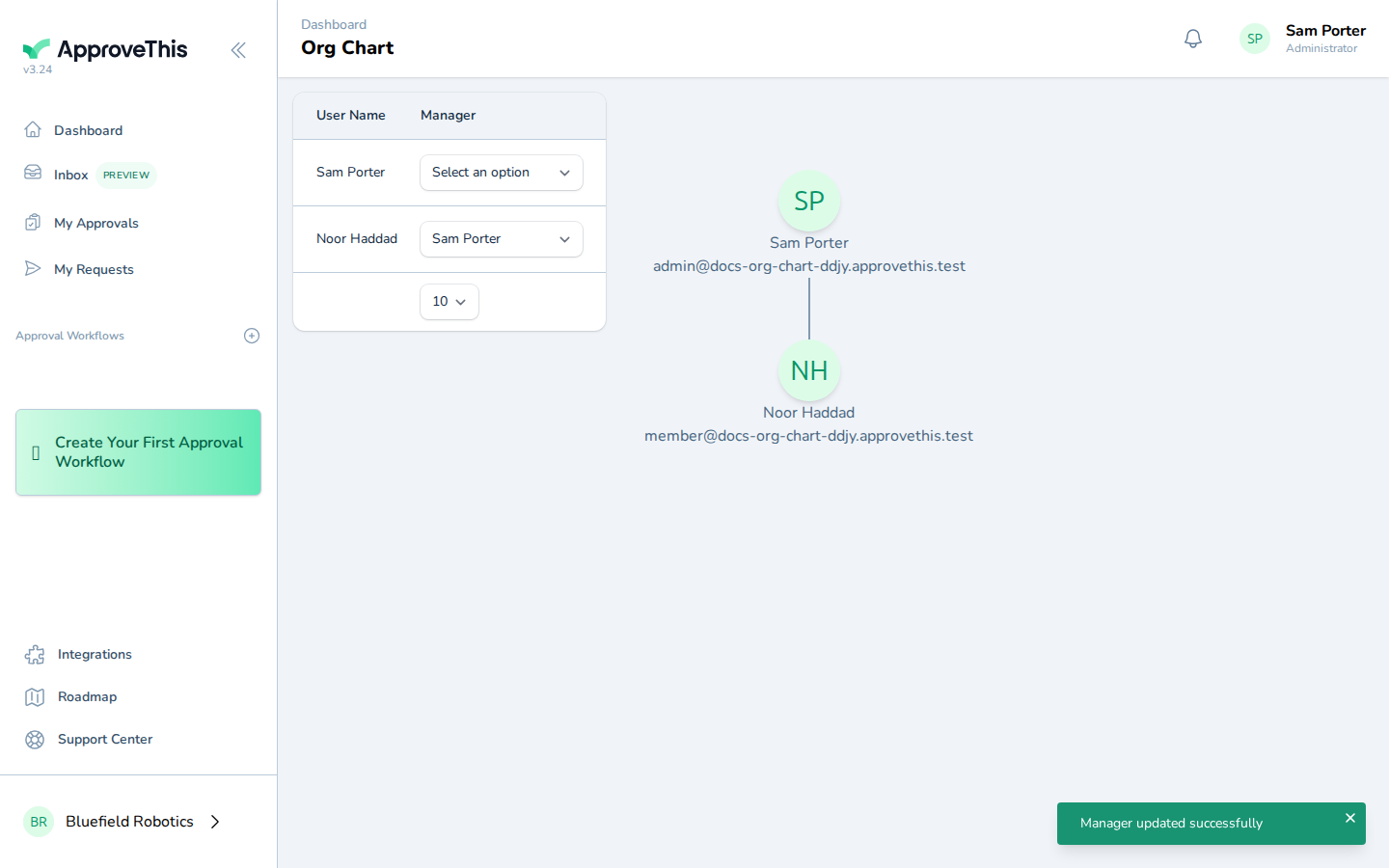
Open the manager picker for the team member you're placing (labeled Manager for Noor Haddad in the example screenshots) and choose the teammate who manages…