External Data Endpoints
Teach a webhook workflow what the incoming data means: map the payload's keys onto the workflow's fields once, and every waiting and future payload becomes a properly filled-in request, attributed to the right requester.
Updated
A webhook can deliver perfectly good data and still produce empty requests, because ApproveThis doesn't know which incoming key belongs in which form field. External Data Endpoints closes that gap: you match each payload key to a field on the workflow once, save the mapping, and then convert the payloads that arrived before the mapping existed into real requests. This guide is for Administrators working on a workflow that already has an endpoint receiving payloads, with unmapped records waiting.
Who this is for: an Administrator.
Map the payload keys to the flow's fields
Until the payload keys are matched to fields, inbound data has nowhere to land and arrives as unmapped records. Setting the mapping once tells the workflow what each key means, so payloads become properly filled-in requests — including who the requester is.
-
Sign in as an Administrator on the workspace that owns the workflow receiving the payloads.
-
Click Map them to open the field-mapping screen for the endpoint's captured payload keys.
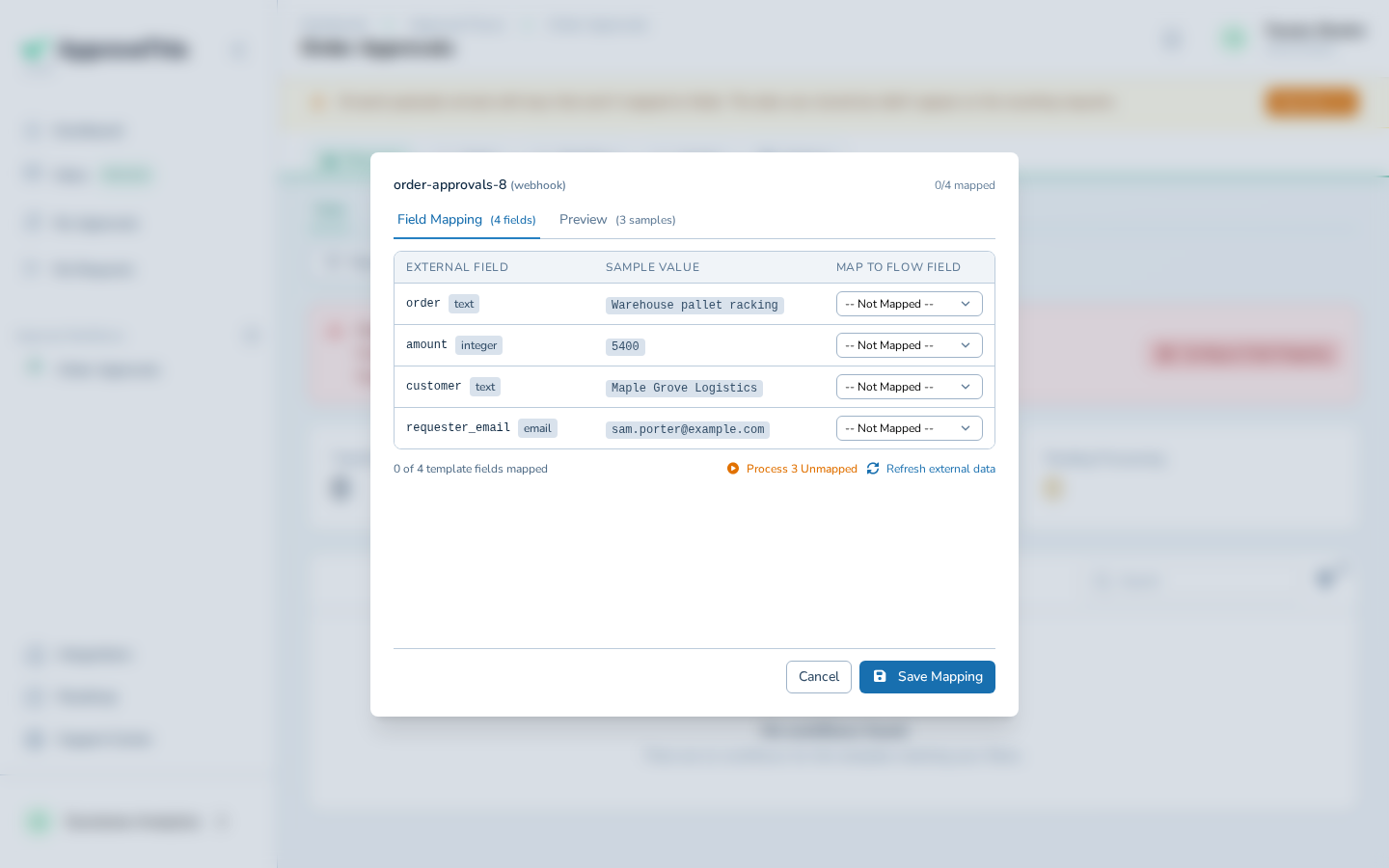
Click Map them to open the field-mapping screen for the endpoint's captured payload keys. -
In Map order, choose the form field that should hold the incoming order identifier (Order in the example screenshots).
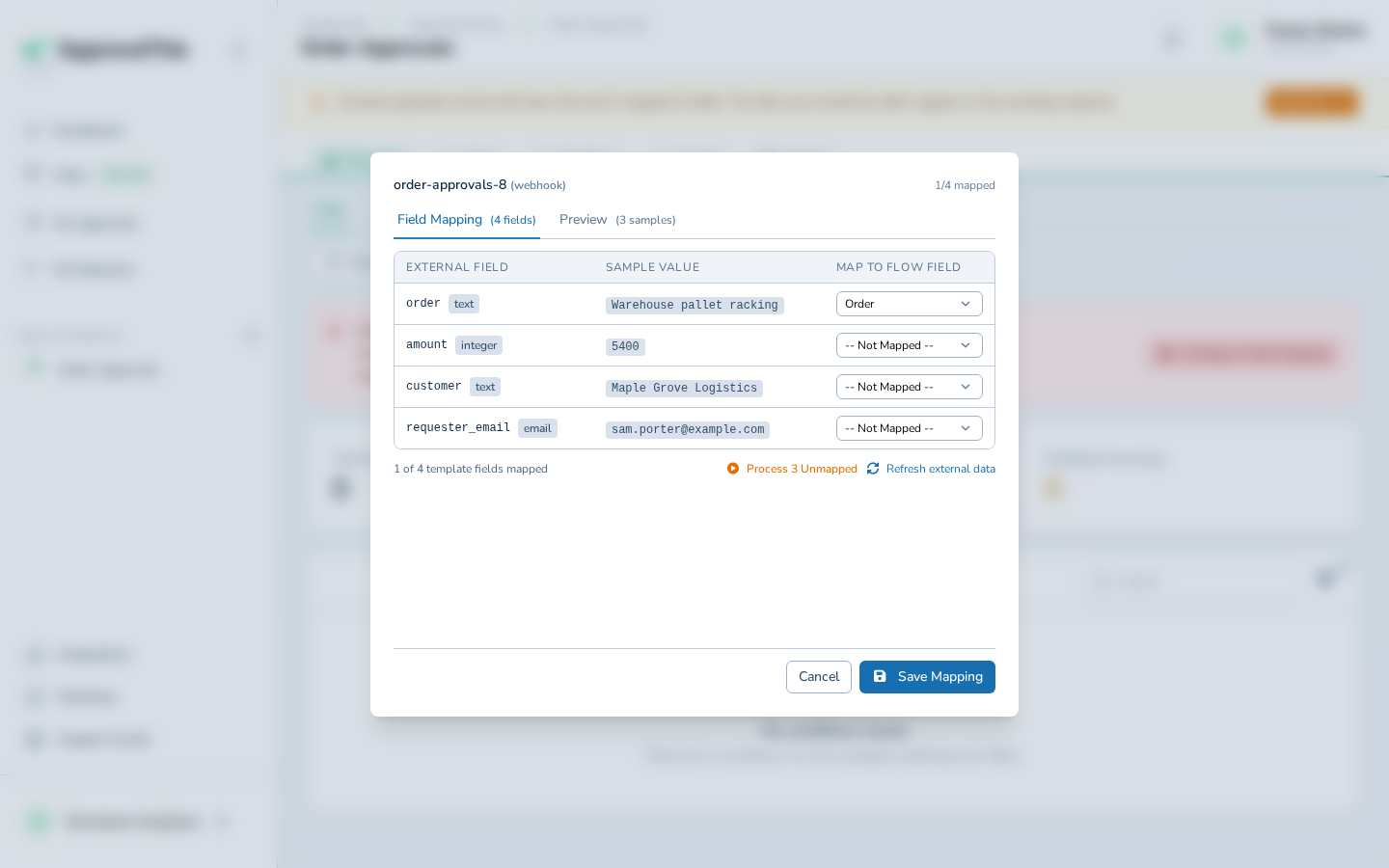
In Map order, choose the form field that should hold the incoming order identifier (Order in the example screenshots). -
In Map amount, choose the field that captures the monetary value from the payload; the example uses Amount.
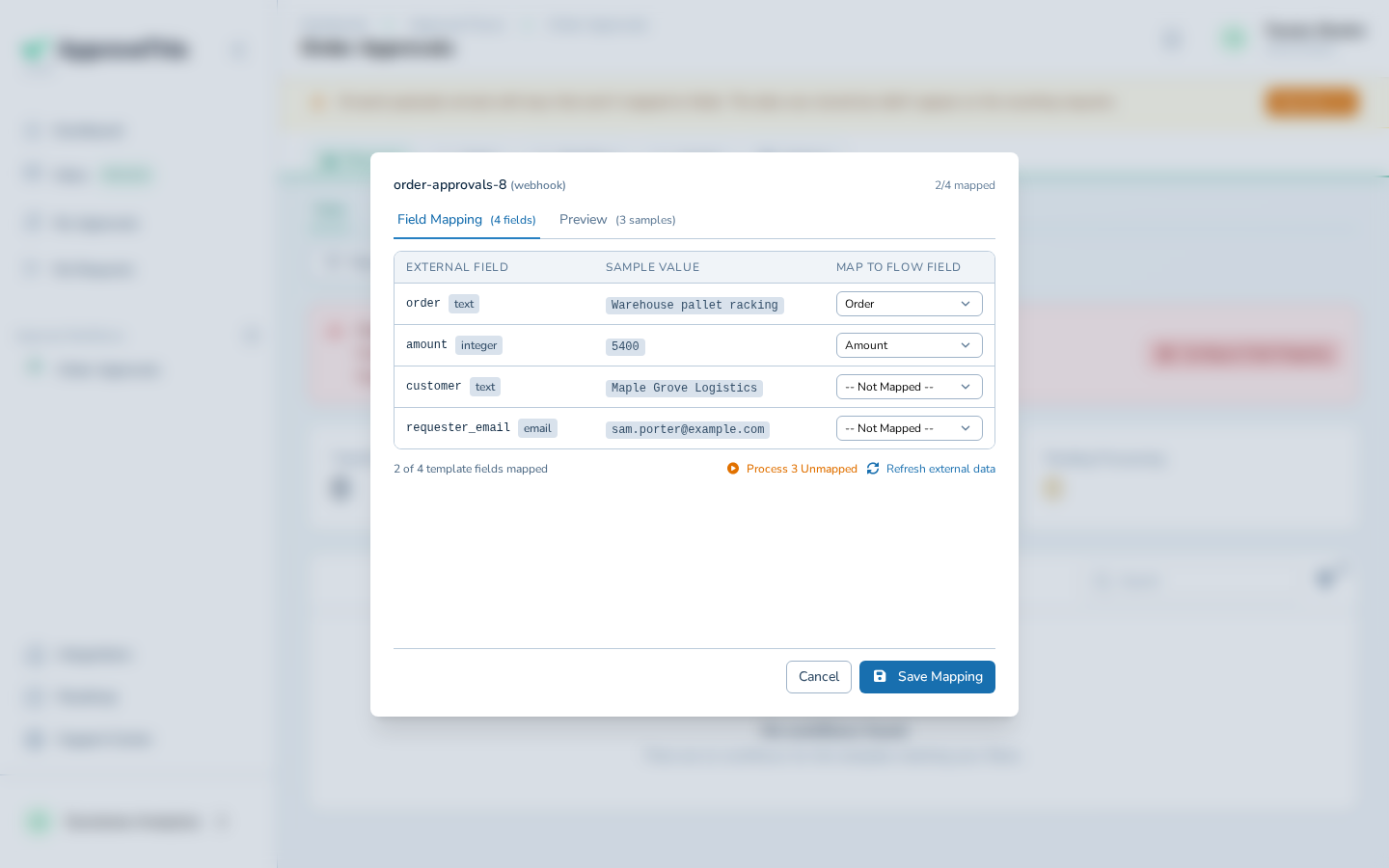
In Map amount, choose the field that captures the monetary value from the payload; the example uses Amount. -
In Map customer, choose the field that records who the request is about, such as Customer.
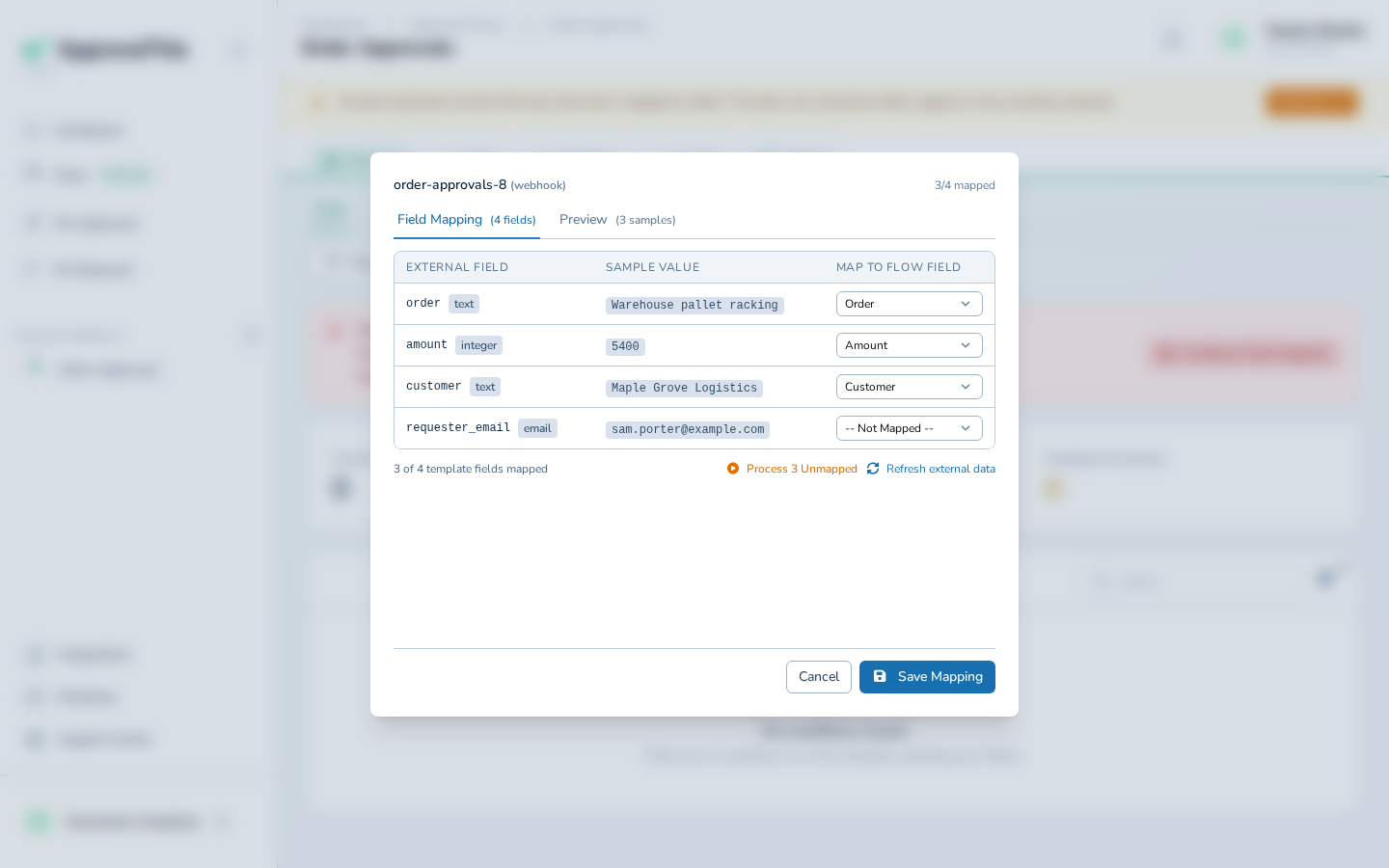
In Map customer, choose the field that records who the request is about, such as Customer. -
In Map requester_email, choose the field that carries the submitter's address so the resulting request is attributed to the right requester — e.g., Requester email.
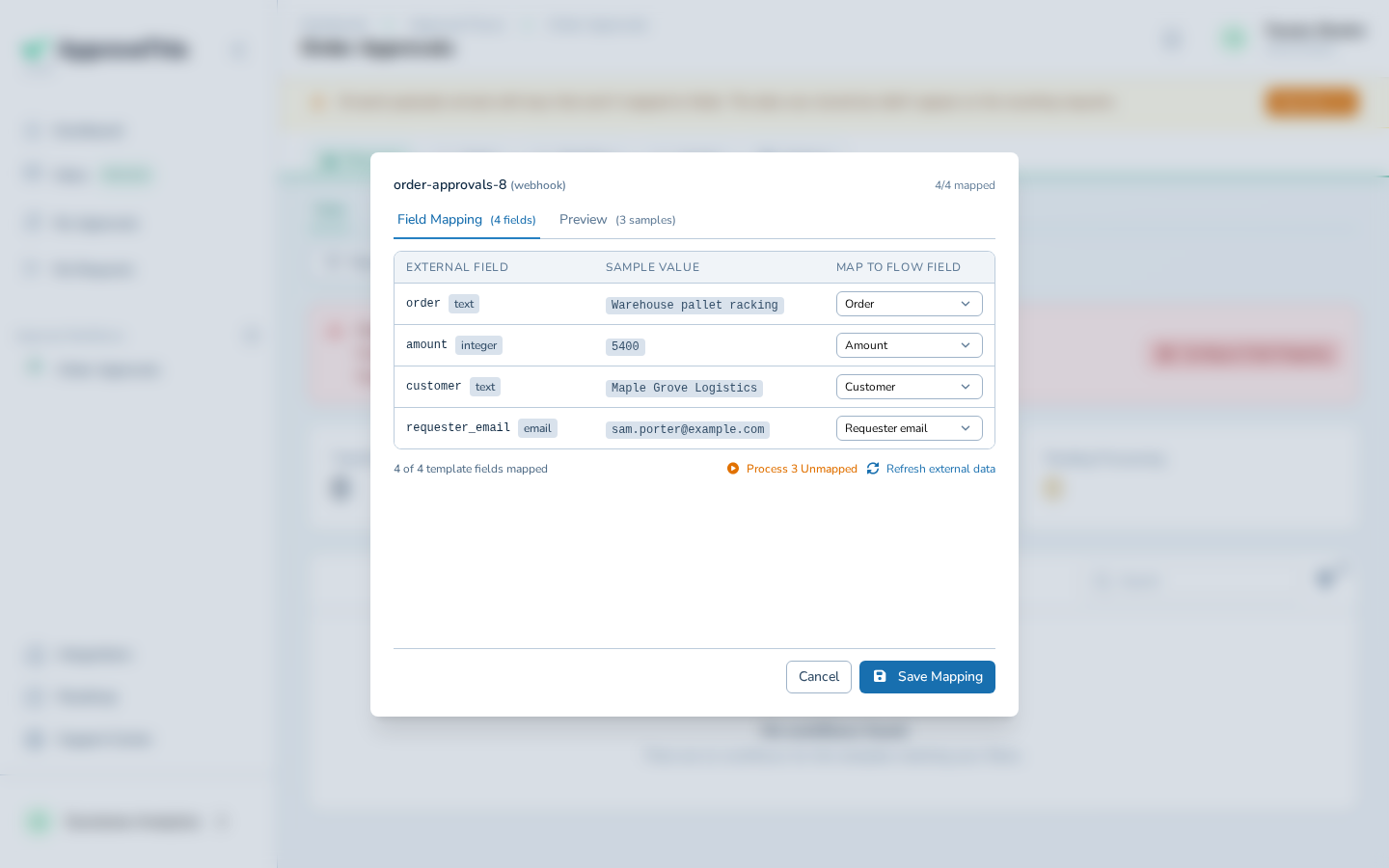
In Map requester_email, choose the field that carries the submitter's address so the resulting request is attributed to the right requester — e.g., Requester… -
Click Save Mapping to store the key-to-field matches for this endpoint.
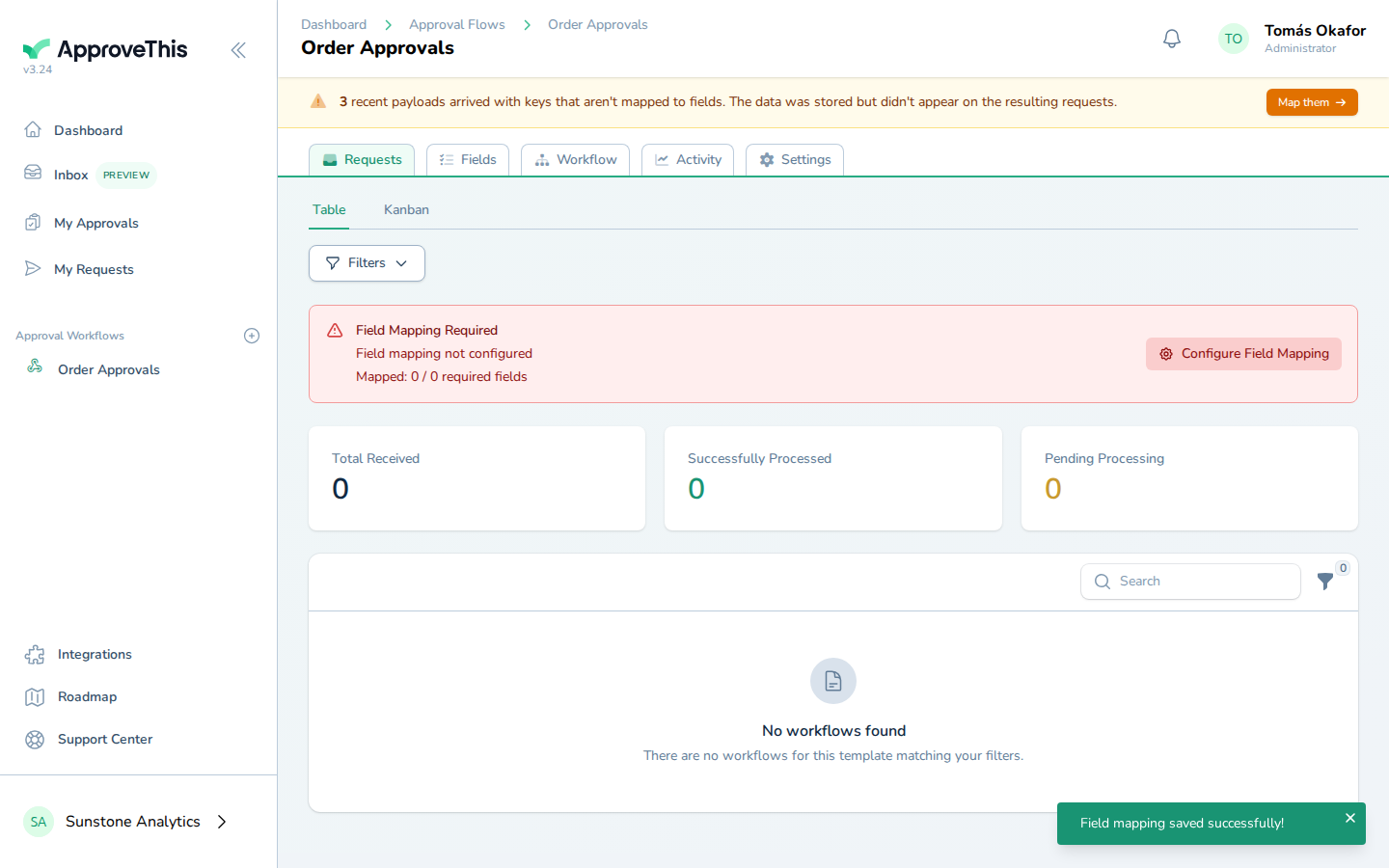
Click Save Mapping to store the key-to-field matches for this endpoint.
Process the waiting payloads into requests
Payloads that arrived before a mapping existed sit as unmapped records rather than requests. Processing them applies the mapping you just saved retroactively, so nothing that already came in has to be resubmitted by the sending system.
-
Click Map them to return to the mapping screen for the endpoint.
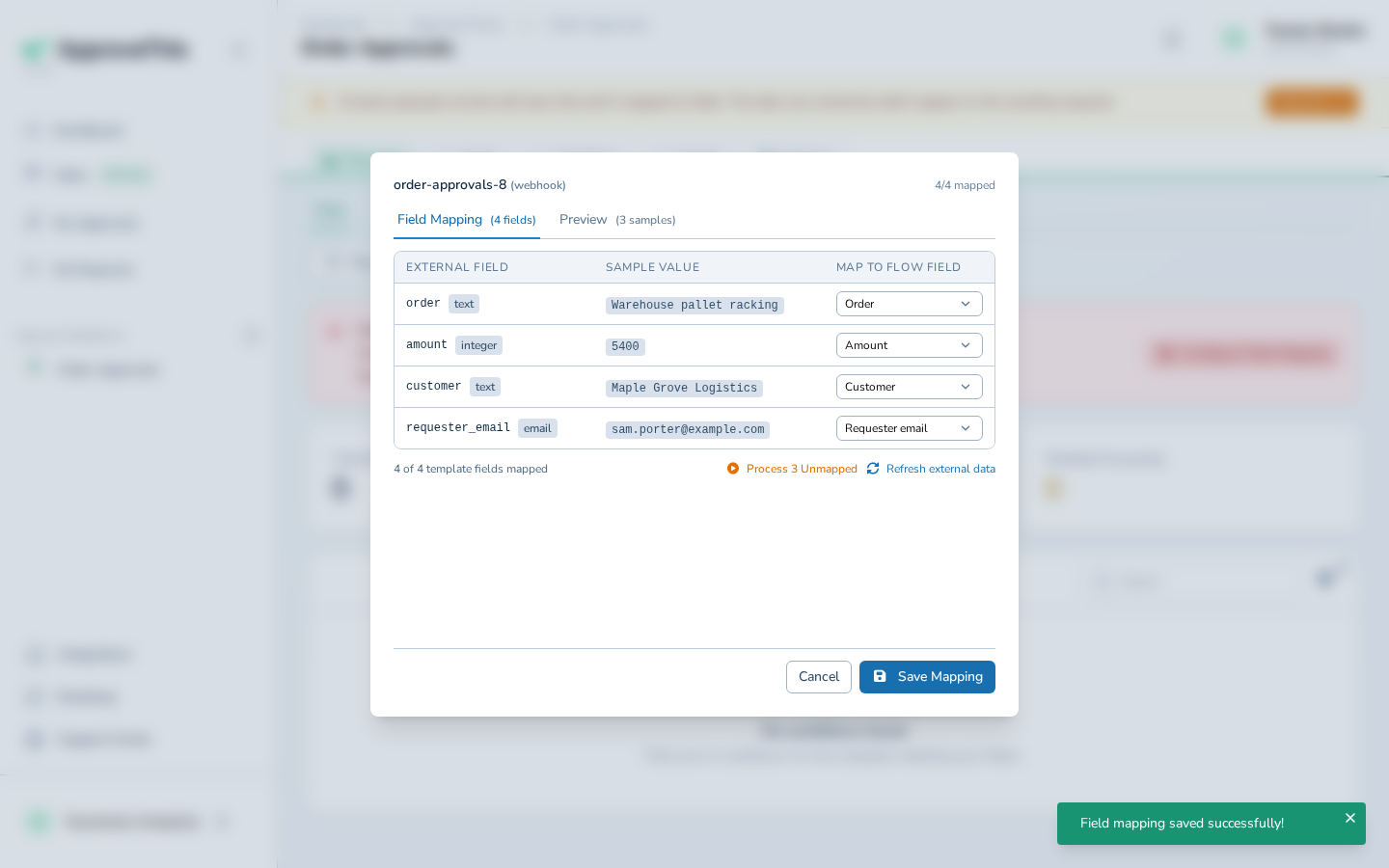
Click Map them to return to the mapping screen for the endpoint. -
Click Process 3 Unmapped to convert the waiting payloads into requests; the button names the number of records currently waiting, three in the example screenshots.
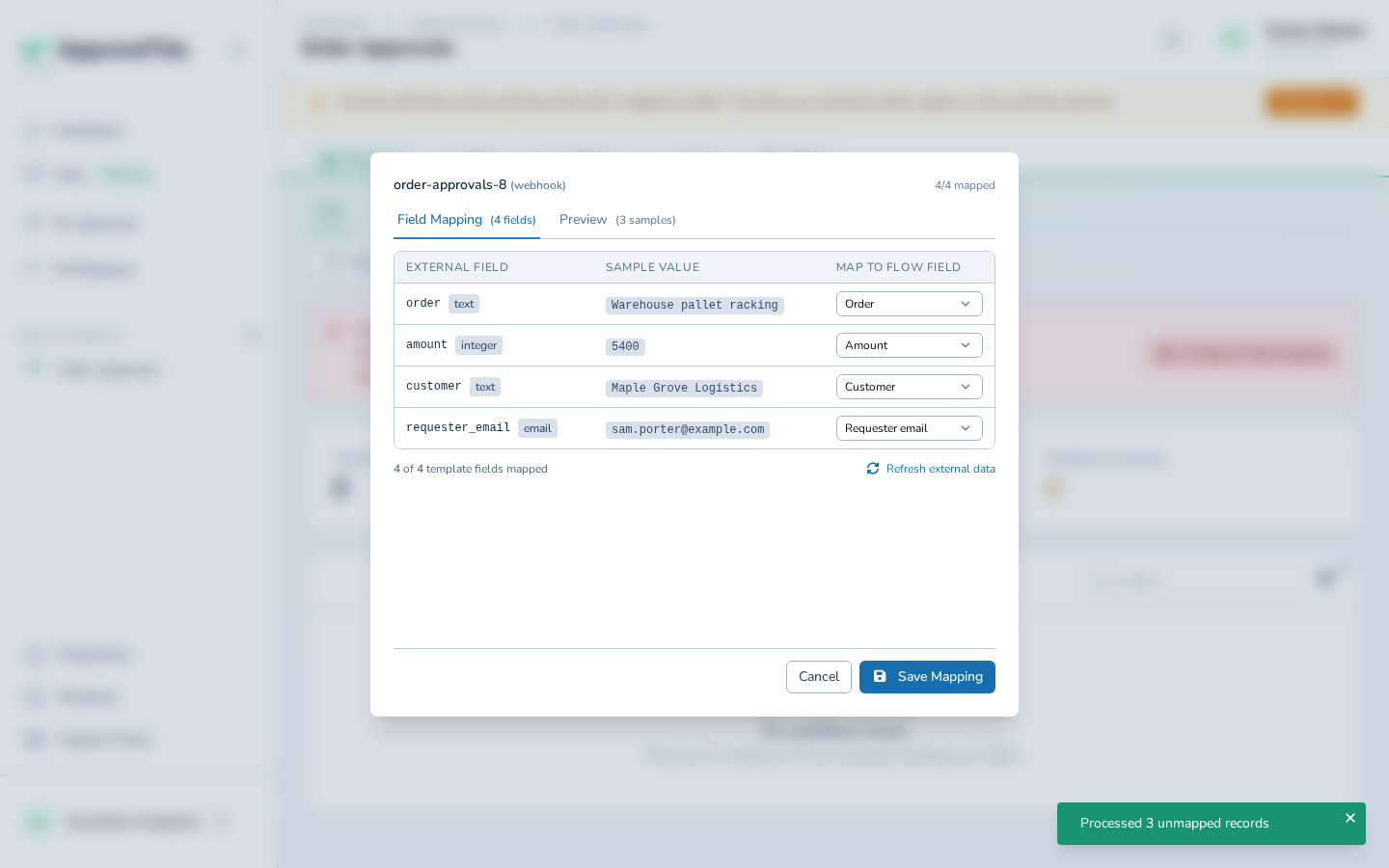
Click Process 3 Unmapped to convert the waiting payloads into requests; the button names the number of records currently waiting, three in the example…