Workflow Testing
Every workflow starts in a safe sandbox: until you publish, you can run real requests through the real form and the whole approval chain — every notification comes back to you, nothing counts against usage, and nothing fires externally.
Updated
A workflow that has never been published runs as its own sandbox: signed-in members of the owning workspace can submit through the real form, walk the full approval chain, and see every notification come back to the tester. Nothing counts toward request volume, and Slack messages, outbound webhooks, external action steps, and time-based reminders stay suppressed. This guide is for Administrators checking a draft before it goes live; you'll need a draft workflow with a form already built. AI extraction, calculated fields, and file uploads still run for real, so what you see in a test is what requesters will get.
Who this is for: an Administrator.
Submit a test request through the draft workflow's form
Submitting through the draft's own form is the only intake a workflow accepts before publishing — email, API, and integration submissions are rejected against drafts. The submission becomes a test request tied to you, excluded from usage counts, live request lists, reports, and approver queues.
-
Sign in as an Administrator. A draft workflow's form is reachable only by signed-in members of the workspace that owns it.
-
Go to the draft workflow's form URL.
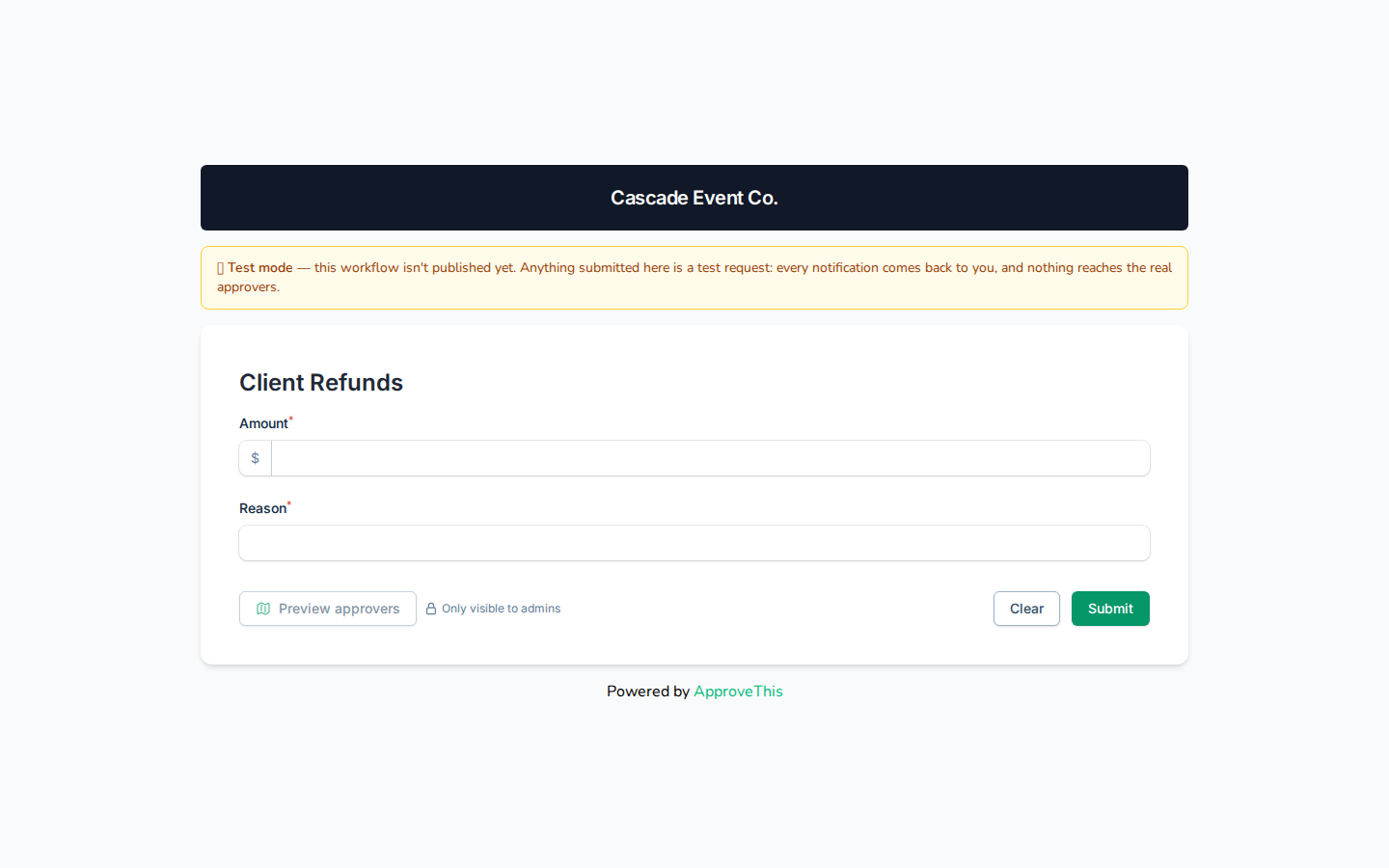
Go to the draft workflow's form URL. -
Enter the amount the request is for in Amount; the example uses
180.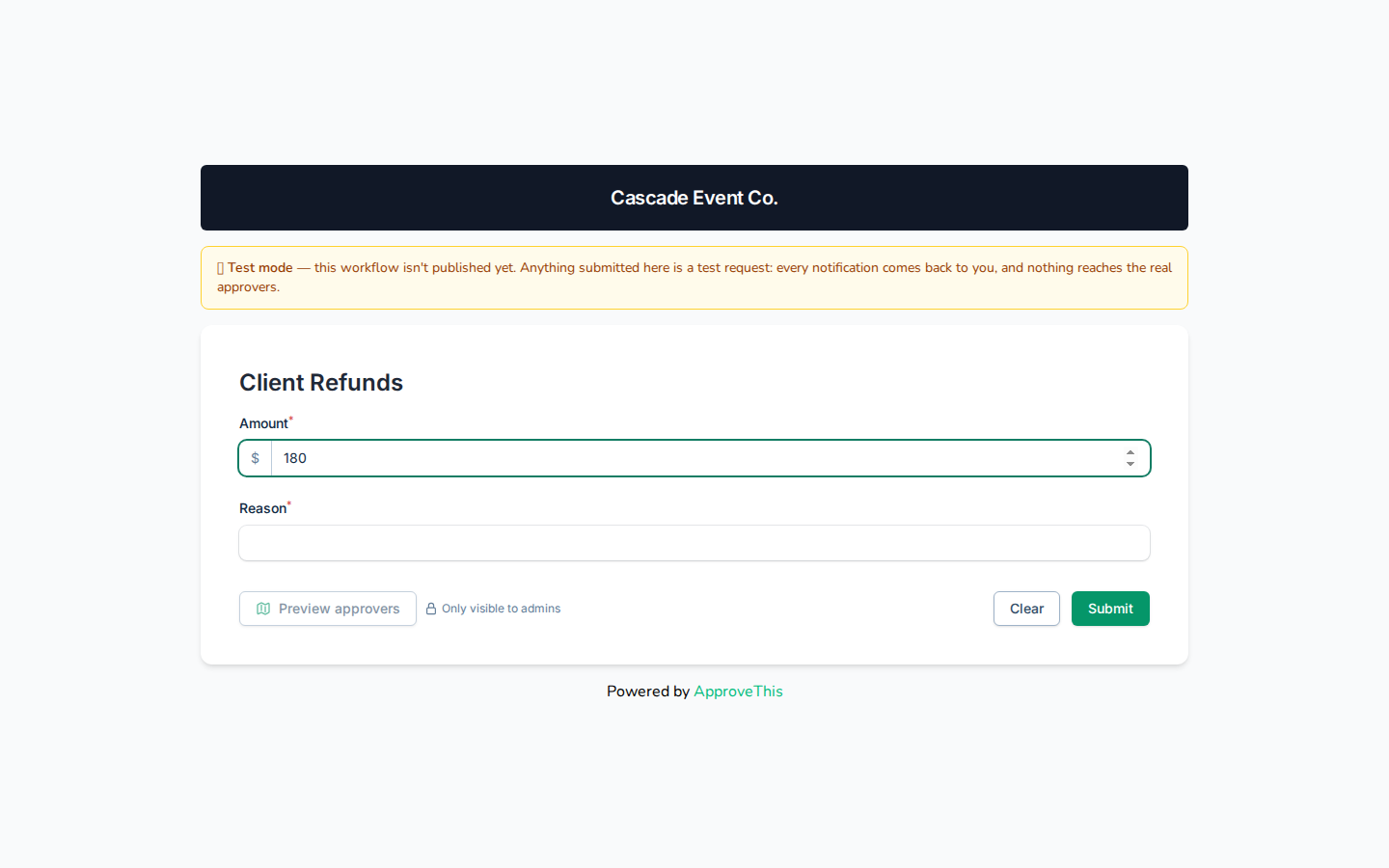
Enter the amount the request is for in Amount; the example uses 180. -
Enter the explanation the form asks for in Reason — e.g.,
Damaged goods on delivery.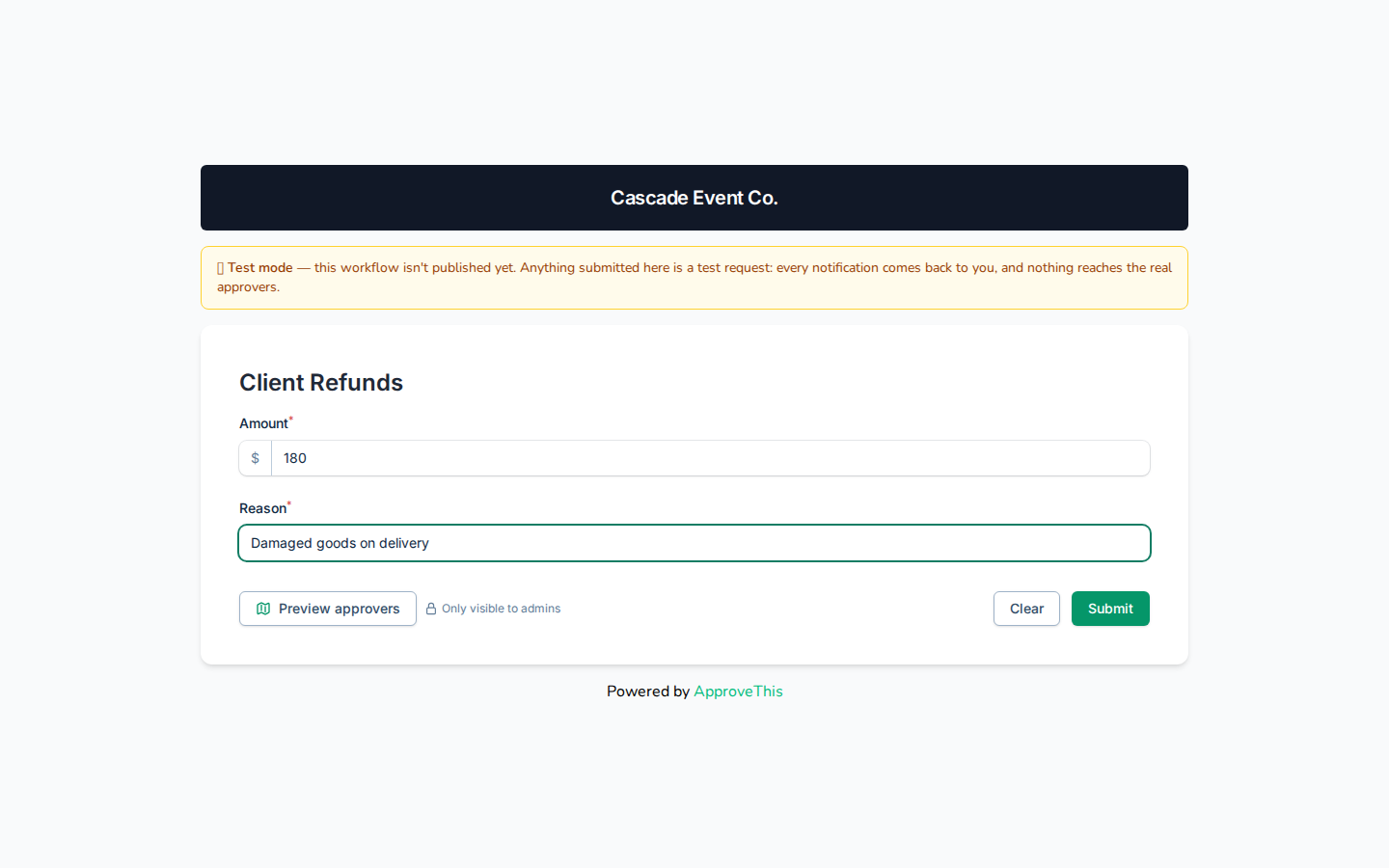
Enter the explanation the form asks for in Reason — e.g., Damaged goods on delivery. -
Click Submit.
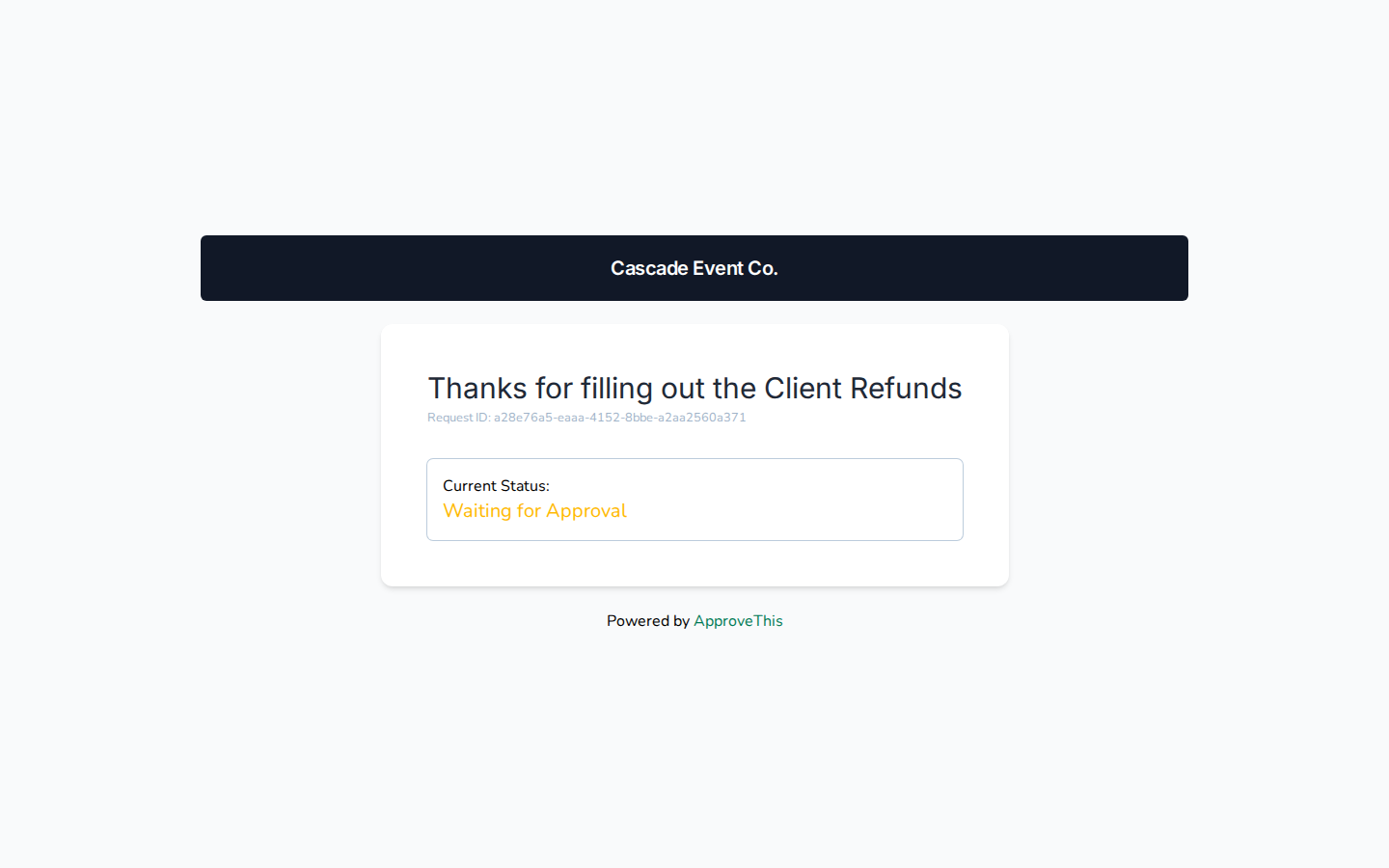
Click Submit.
Open the redirected approval email
Every person-facing notification from a test request redirects to you, the tester, with a banner naming who it would have reached, so one person can act as each approver down the chain. Only mail and database notifications arrive this way; Slack blocks and webhook payloads can't be previewed through a test request.
-
Open the email inbox.
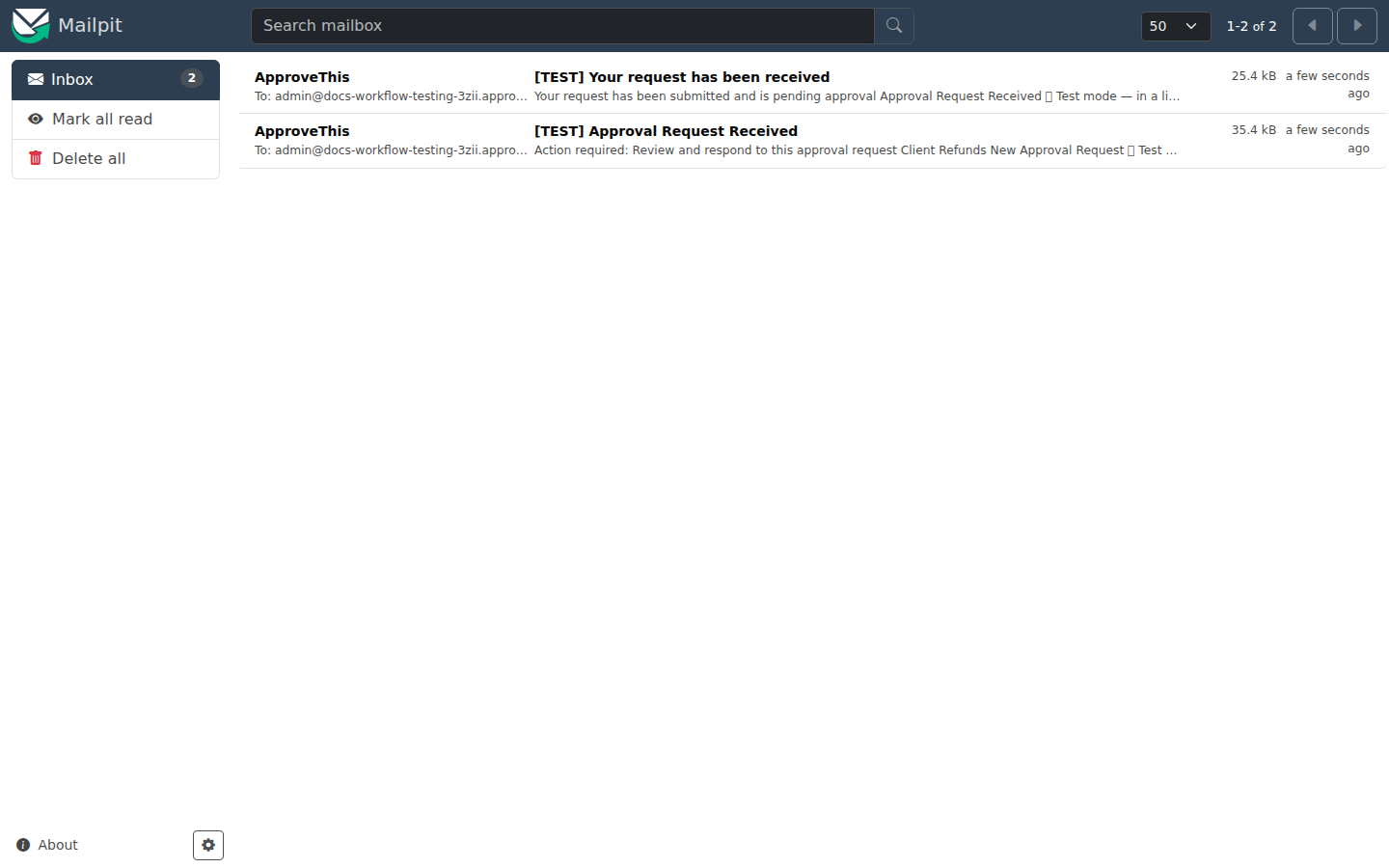
Open the email inbox. -
Click [TEST] Approval Request Received to open the redirected approval email.
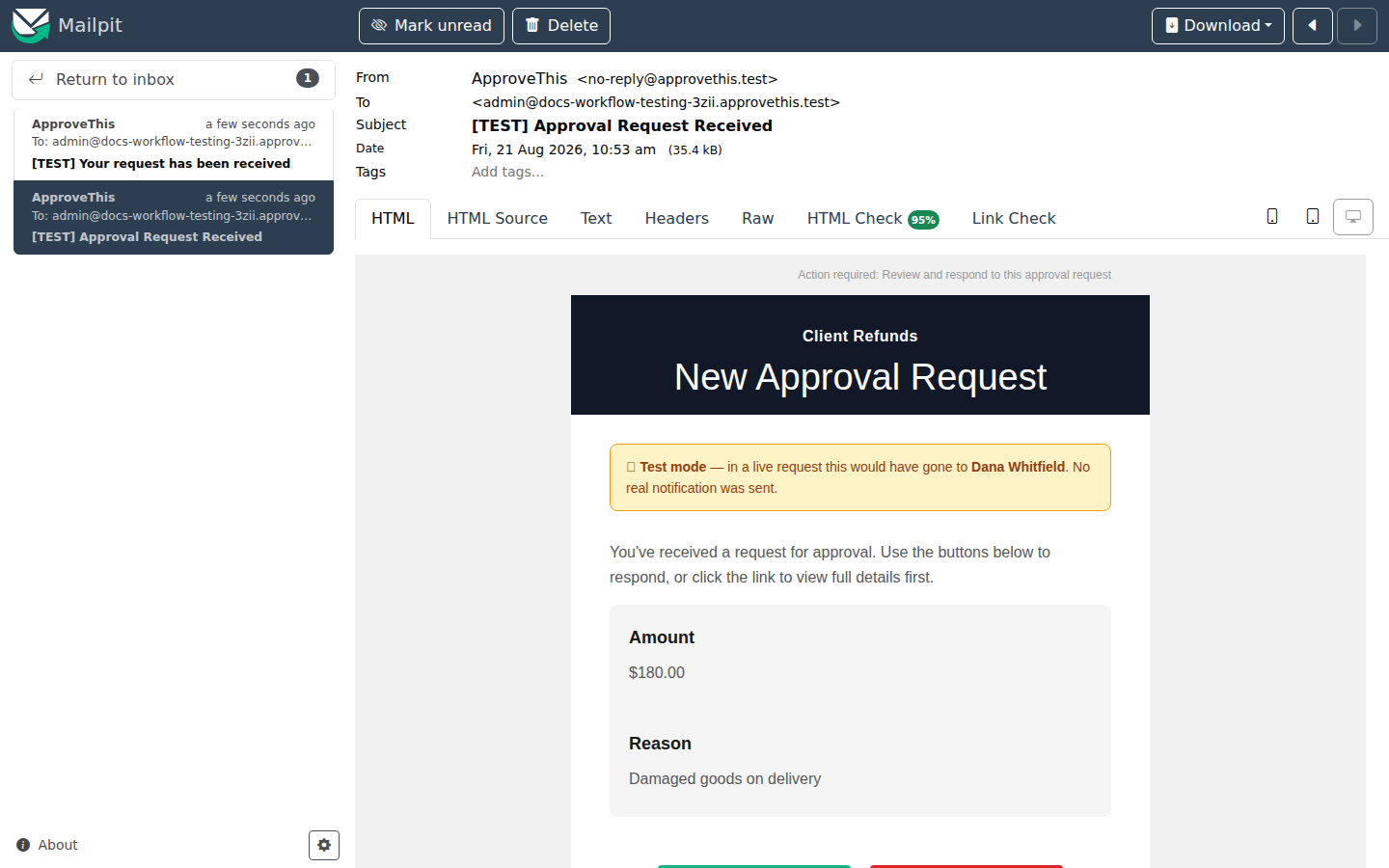
Click TEST Approval Request Received to open the redirected approval email.
Publish the workflow and clean up its test requests
Publishing ends the sandbox for good — testing mode is the never-published state, and there is no way to re-enter it afterward. On first publish you're prompted to delete the workflow's test requests, which clears the practice submissions before real ones start arriving.
-
Go to the workflow's Flow page.
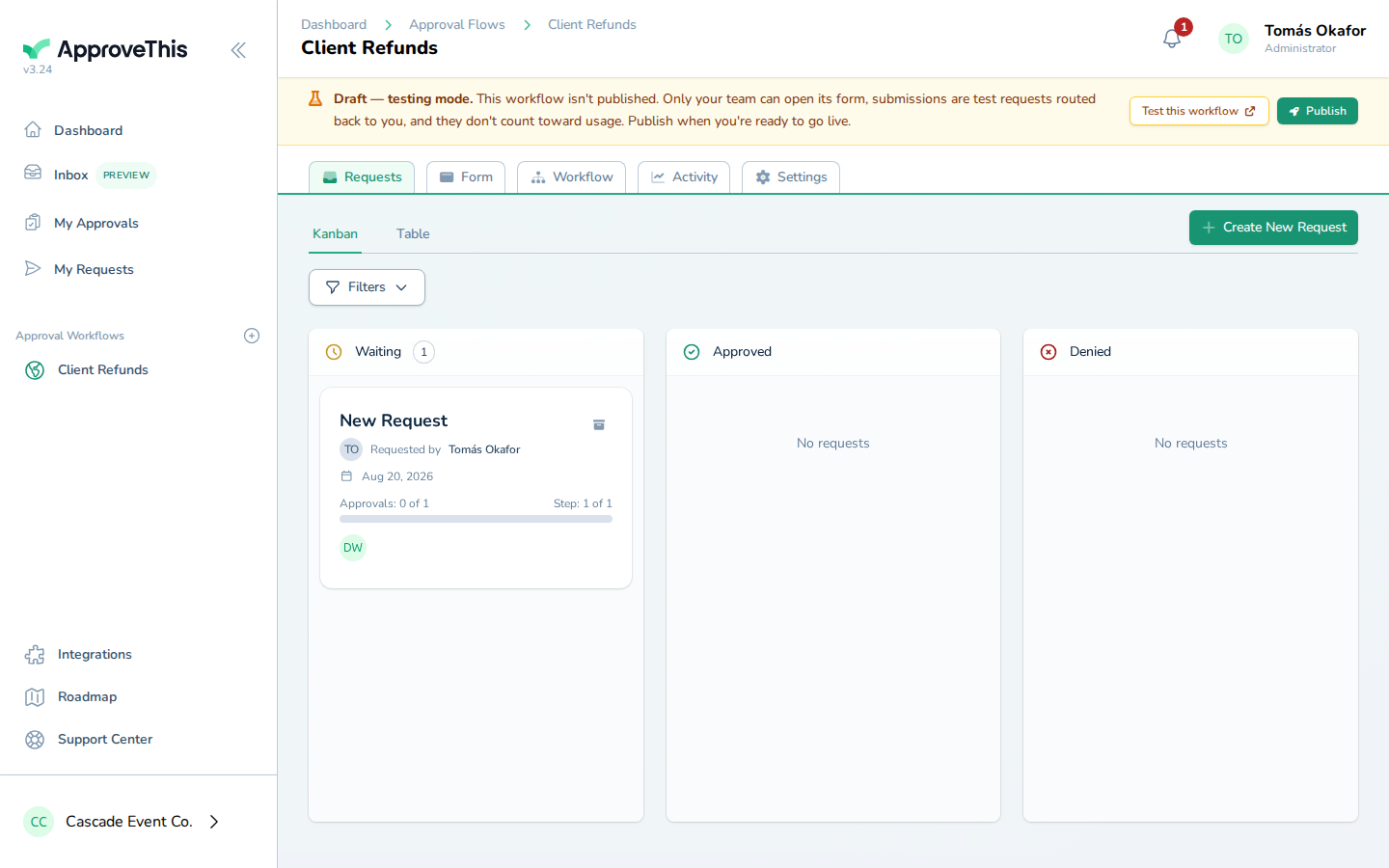
Go to the workflow's Flow page. -
Click Publish and work through the publish prompt, which offers to delete the workflow's test requests; the example does this 2 times.
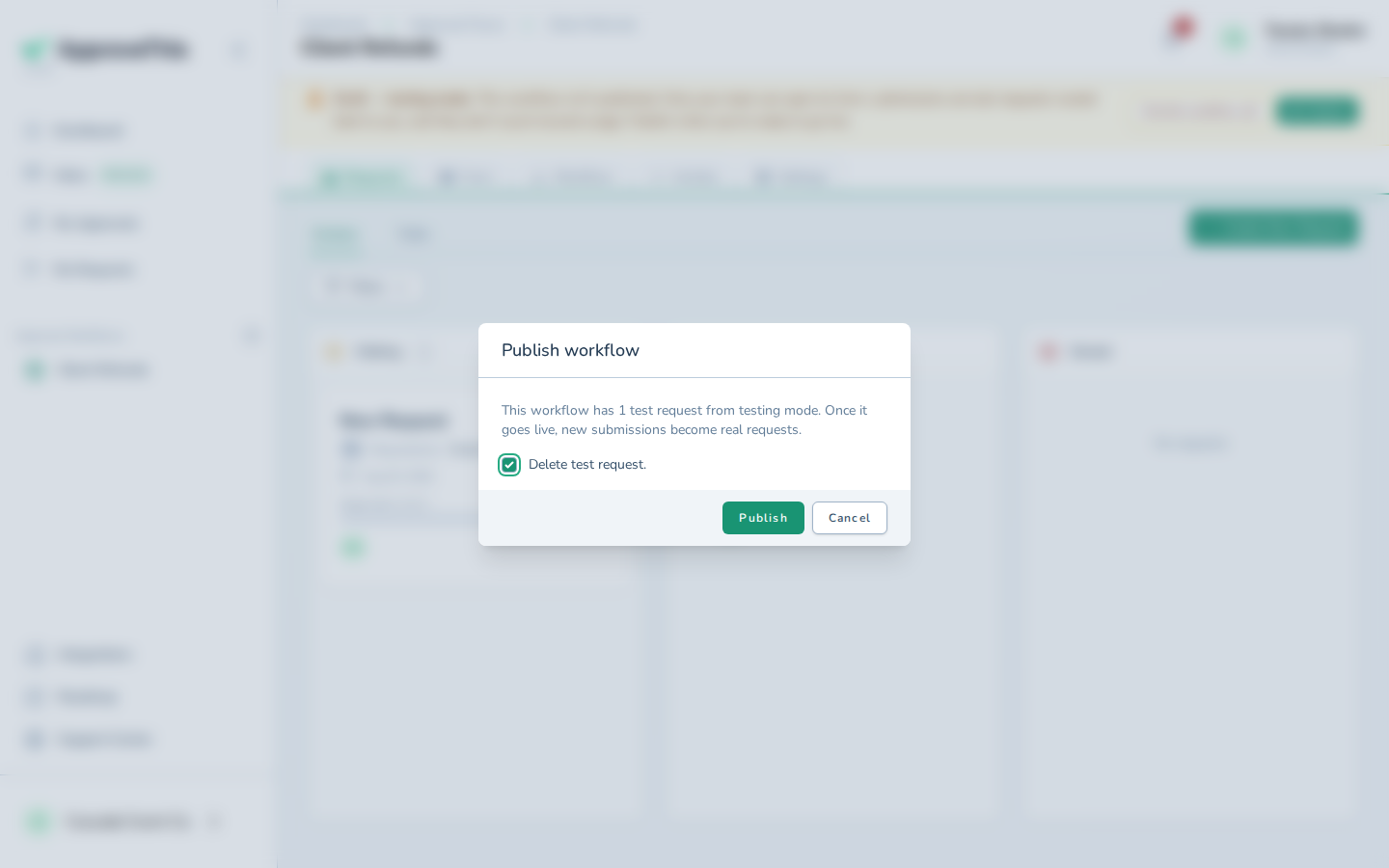
Click Publish and work through the publish prompt, which offers to delete the workflow's test requests; the example does this 2 times.