Capex requests with committee sign-off
Committee capex votes resolve on a majority, the CFO signs electronically, and auditors verify the certificate on their own.
Updated
At a mid-market manufacturer, a healthcare administrator, or a multi-site services group, capital requests tend to get approved in a meeting. A plant manager pitches a new press line, heads nod, the purchase order goes out. Eight months later the auditors sample that spend and the controller is reconstructing the decision from calendar invites and memory: who actually approved it, against what business case, and whether the people who said yes had the authority to say it. A verbal yes leaves nothing to produce.
This walkthrough gives the CFO a capex workflow that leaves proof at every stage. A department head submits the request with the cost and the business case attached. The finance committee votes, and the step resolves on a majority so one traveling member never holds up the quarter. The CFO signs electronically before the decision records. The comment trail is locked against edits, and the approved request yields a certificate an auditor can verify on their own, with no ApproveThis account.
What you'll set up
- A capex request form with a cost field and a business-case field
- A committee step with each finance leader added by name, set to Majority must approve
- A final CFO step with Require E-Signature turned on
- Comments locked after posting, so nobody can reword the discussion later
- A downloadable approval certificate with a verification link auditors can check independently
The form, the committee, the signature
Start with the form, because it is what the committee will be judging. In the Form Builder, add a Currency field for the cost and a text field for the business case; the point is that every request arrives with its justification written down, not delivered across a conference table. Then switch to the flow's Workflow tab, where the approval chain is drawn, and add the committee step with Add a new step below this one. Approvers are named people: in Search for an approver, type each finance leader's name and click it to add them to the step.
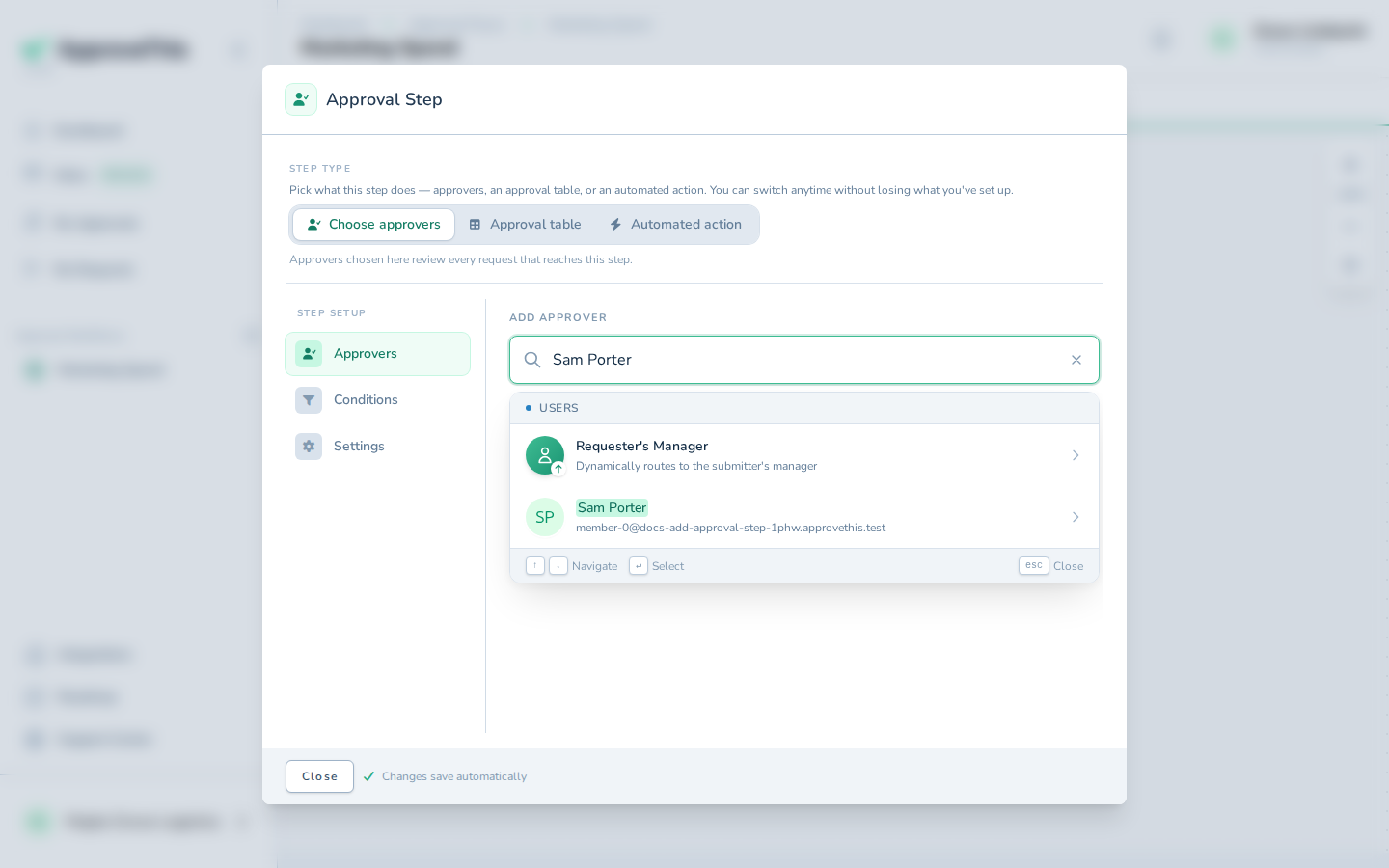
With the committee assembled, open the step's Settings and click Majority must approve. By default the step would wait on every approver; with the majority setting it resolves once a majority of its approvers have responded, and it can deny early — remaining pending approvals are auto-retracted at that point.
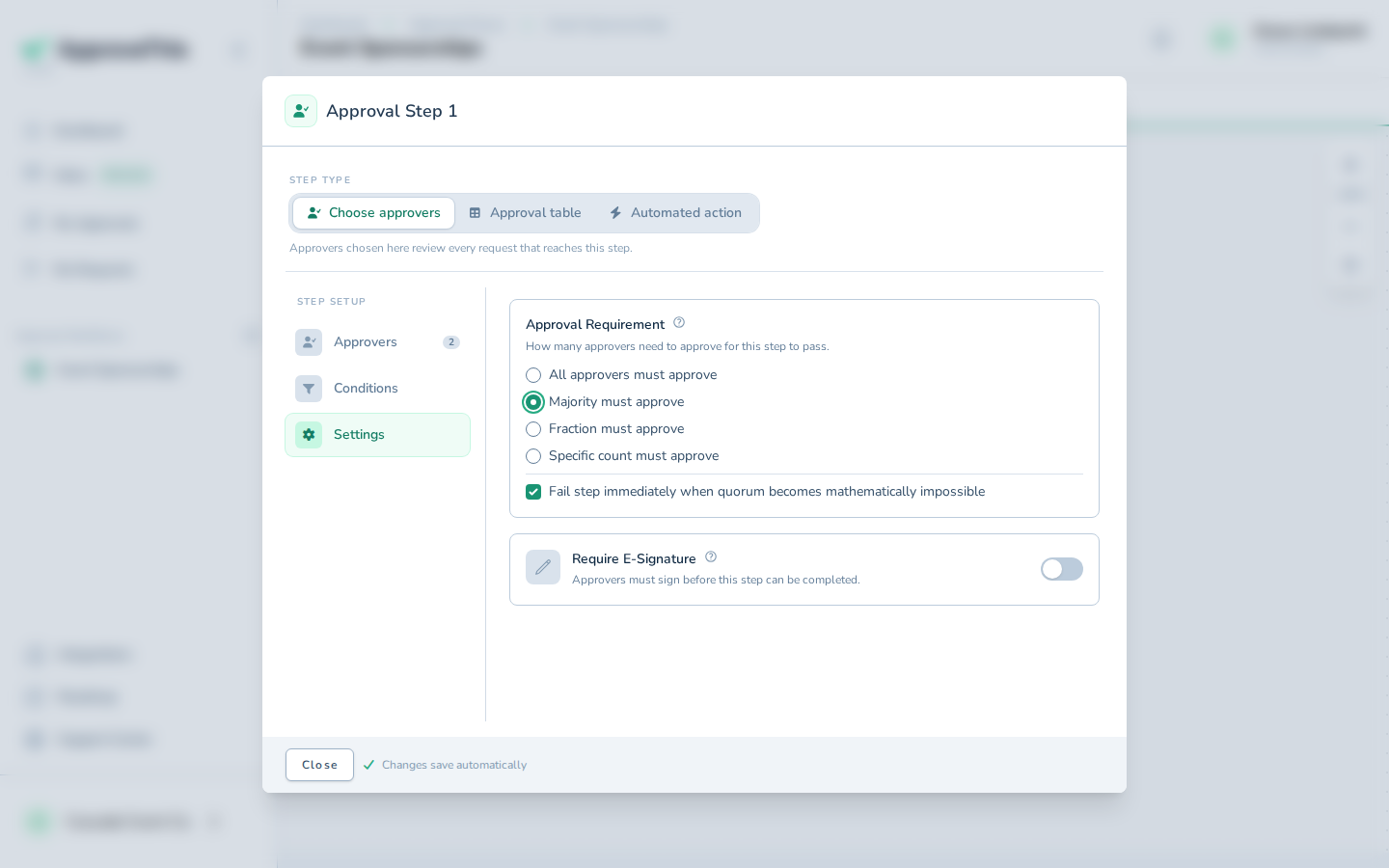
Now add a second step below for the CFO, added the same way by name. In that step's Settings, click Require E-Signature so the final decision is signed, not clicked. The screenshot shows the example step from the manuals, which carries two approvers; on your single-approver CFO step the toggle works the same.
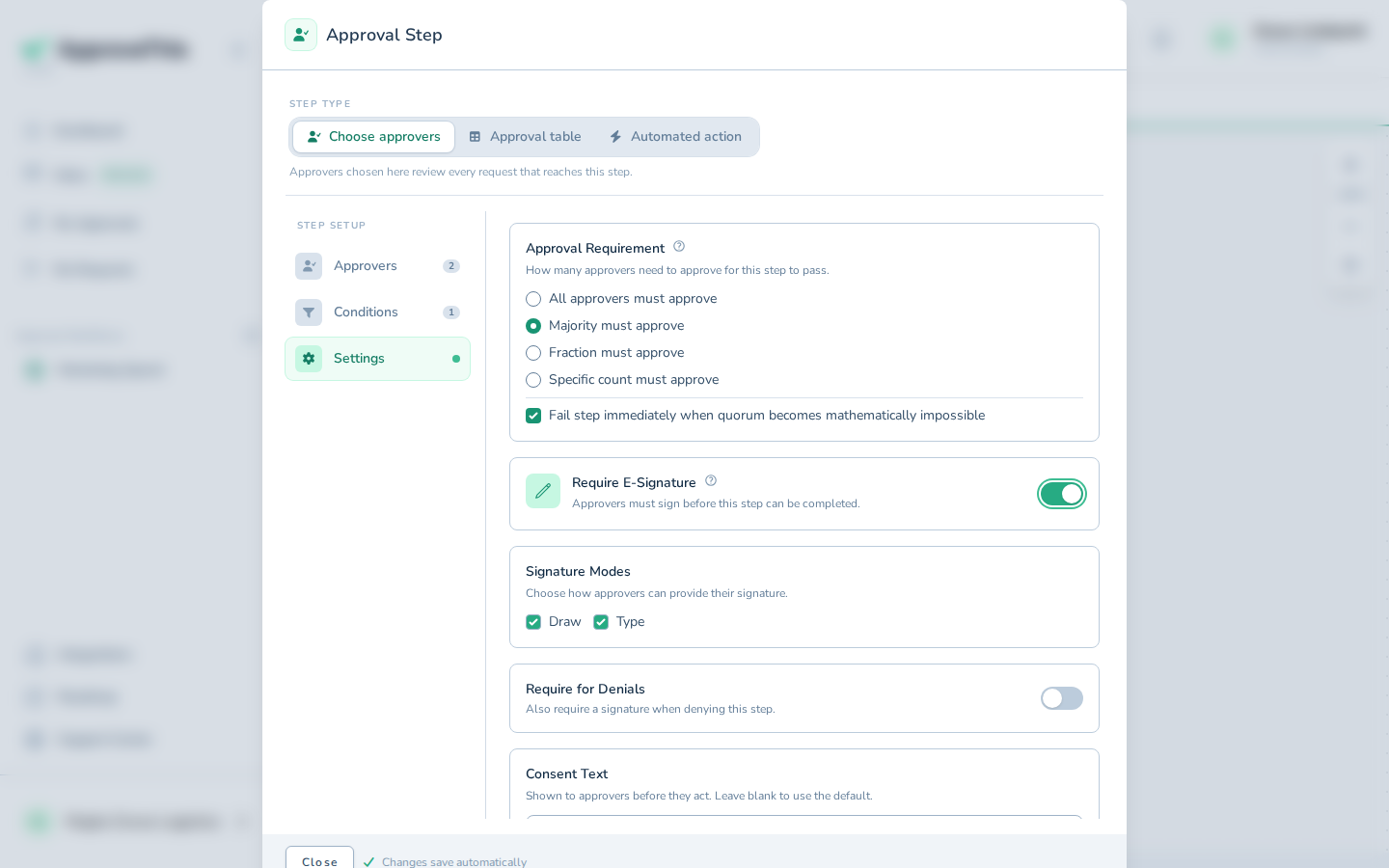
Full click-by-click: Form Builder, Add an Approval Step, Quorum & Majority Voting
Lock the discussion before the first request
Committee deliberation is part of the audit record, so it needs the same protection as the decisions. In the flow's Settings tab, open Comments, click Enable comments, then Lock comments after posting, then Save. Once locked, posted comments and replies can no longer be edited or deleted. The setting applies to this flow only, so your capex trail is tamper-proof without changing how the rest of the workspace discusses requests.
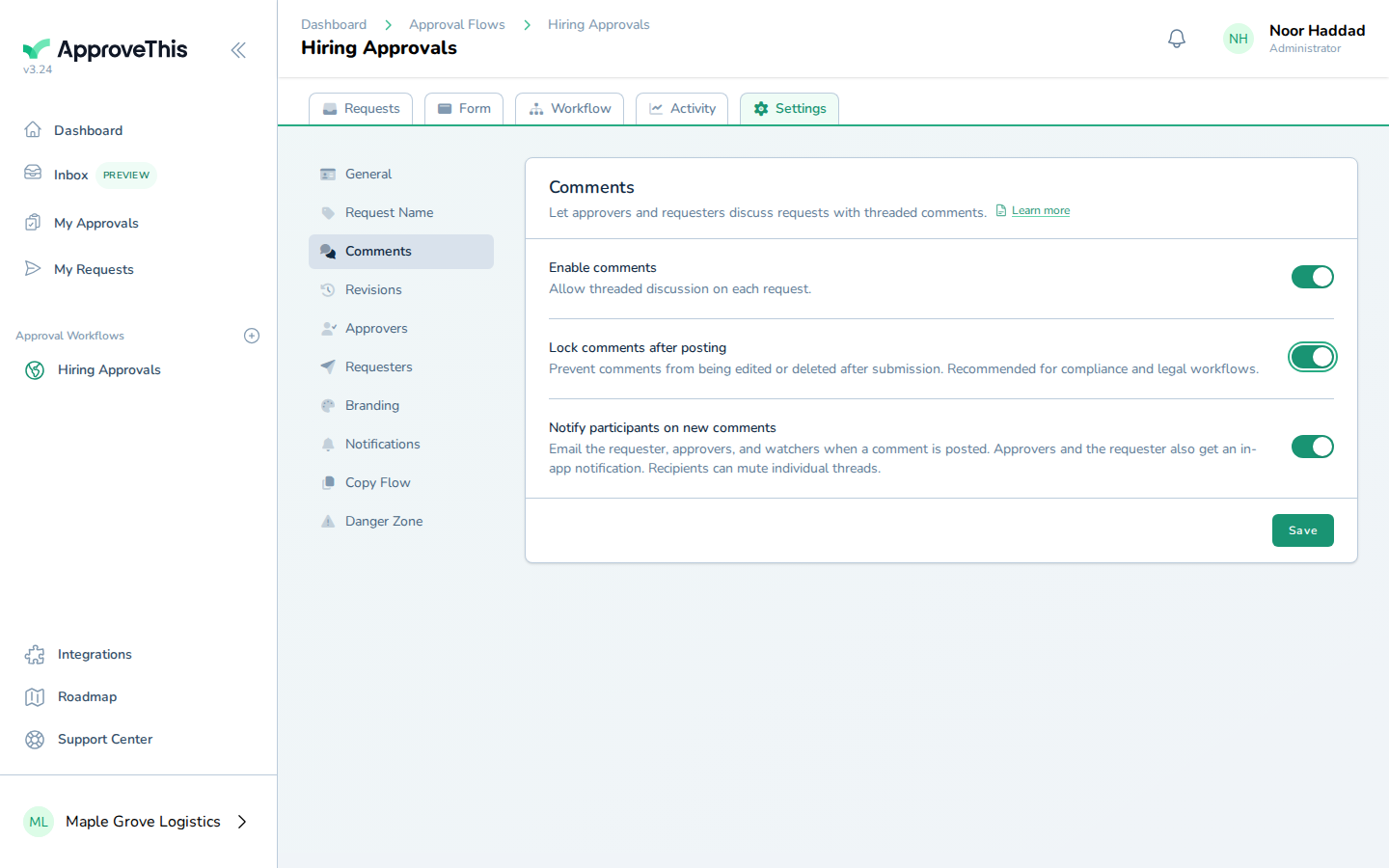
Full click-by-click: Immutable Comments
A department head submits an equipment request
When a department head needs the spend, they open the workflow's form — from the flow's New Request button or a link you share — fill in the cost and write the business case, and click Submit. The example screenshots show an expense report form, where a What was purchased description plays the role your business-case field will; the mechanics are identical.
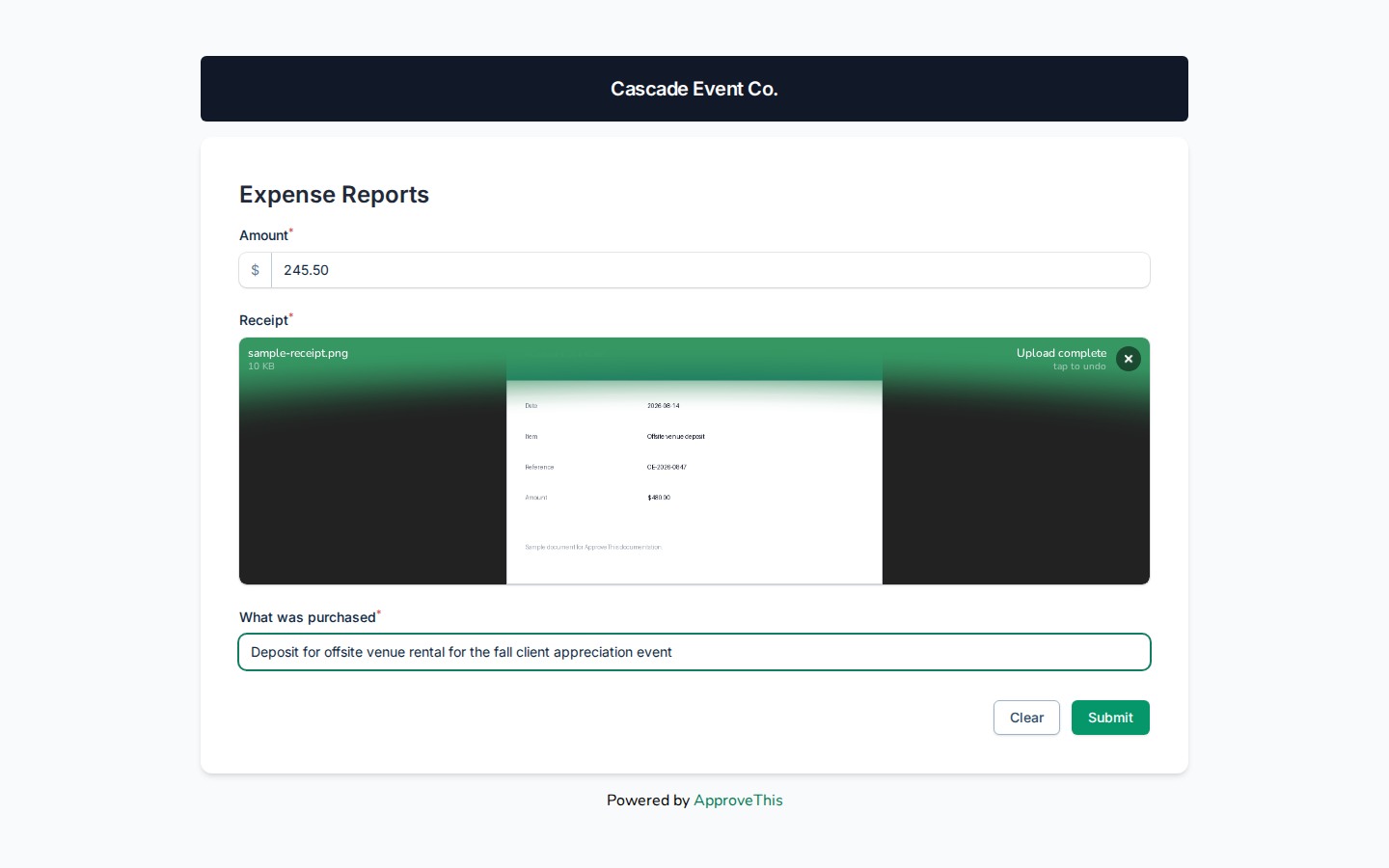
Once submitted, the committee members are notified, and everything they need to decide is in the request rather than in a meeting.
Full click-by-click: Submit a Request
The committee votes from their inboxes
Each committee member receives the approval email, and the Approve link in it records the decision without a separate sign-in — the link carries a signed URL that logs them in for that single action. One caveat worth knowing in a finance team: auto-login does not apply if the approver has 2FA enabled or the flow requires approvers to log in; in those cases they are asked to sign in first, then the decision records the same way.
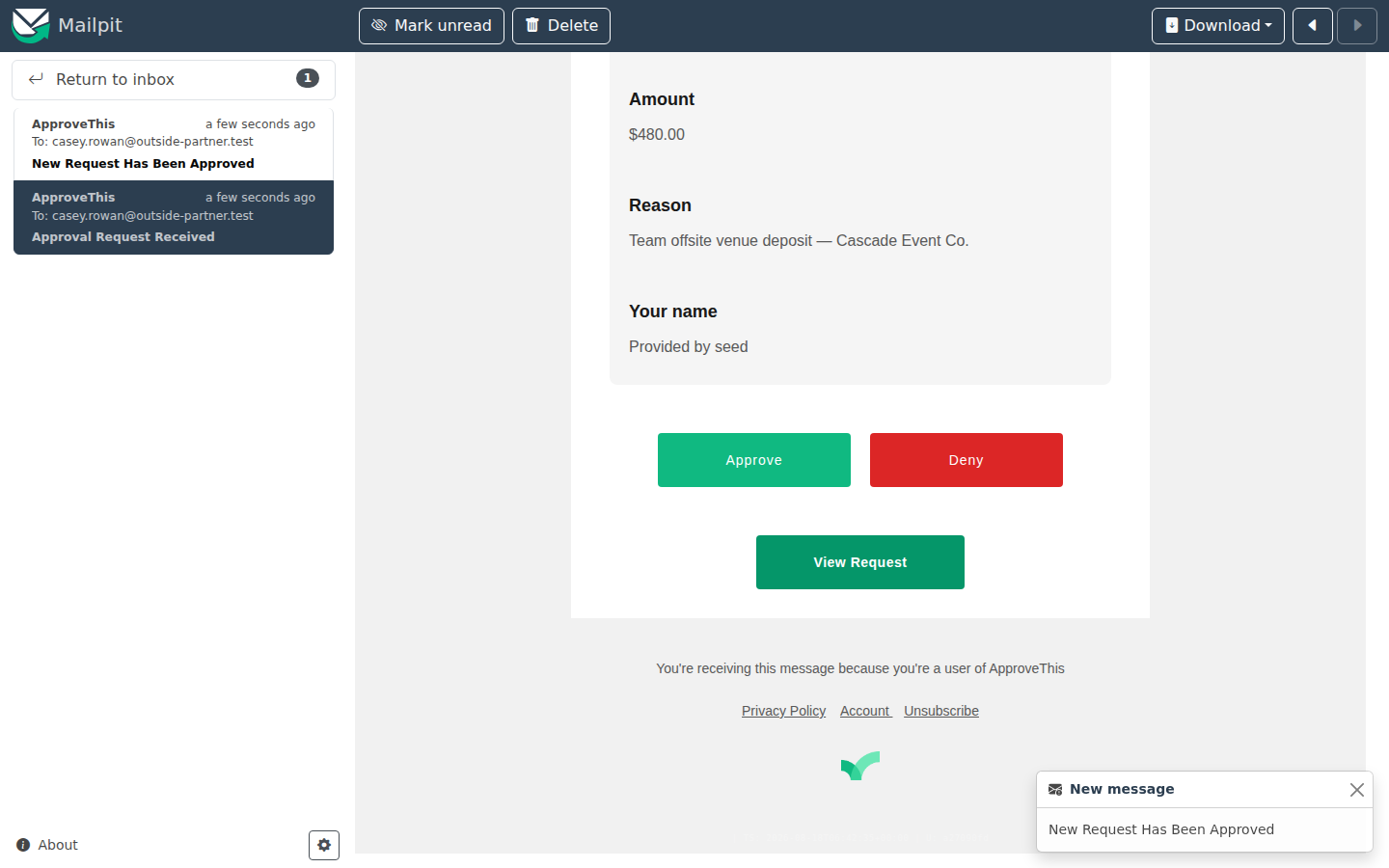
Here the majority setting earns its keep: the step passes as soon as a majority of its approvers approve, and the rest are released without acting. The absent committee member on a plant visit never becomes the bottleneck, and the recorded votes still show exactly who weighed in.
Full click-by-click: Login-Free Approval Links
The CFO signs the decision of record
When the committee step resolves, the request reaches the CFO. Because the step requires an e-signature, clicking Approve opens a signature prompt instead of recording a bare click: the CFO types their name in Full name and clicks Sign & Approve. ApproveThis stores a tamper-evident audit context alongside the decision — the signer's name, signature type, consent version, signing method, the request IP address and user-agent, and a SHA-256 hash of the request's field values at signing time. That is the answer to the auditor's authority question: this person, this justification, this moment.
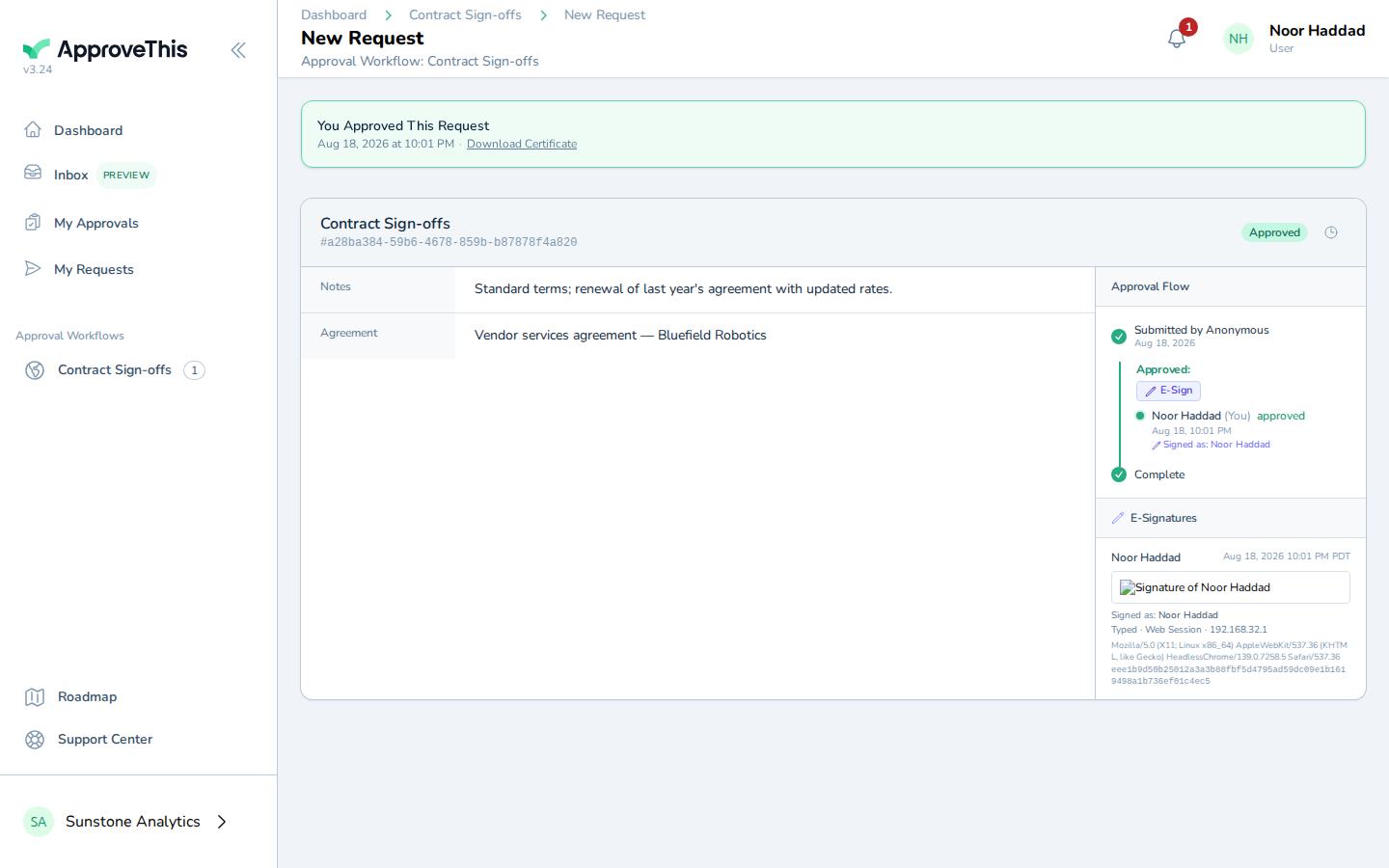
Full click-by-click: E-Signature
Proof the auditor can check without you
On the approved request, the green approved bar carries the payoff. The department head, as requester, clicks Download Certificate to save a PDF record of the approval — the document you hand to an auditor instead of a meeting recollection.
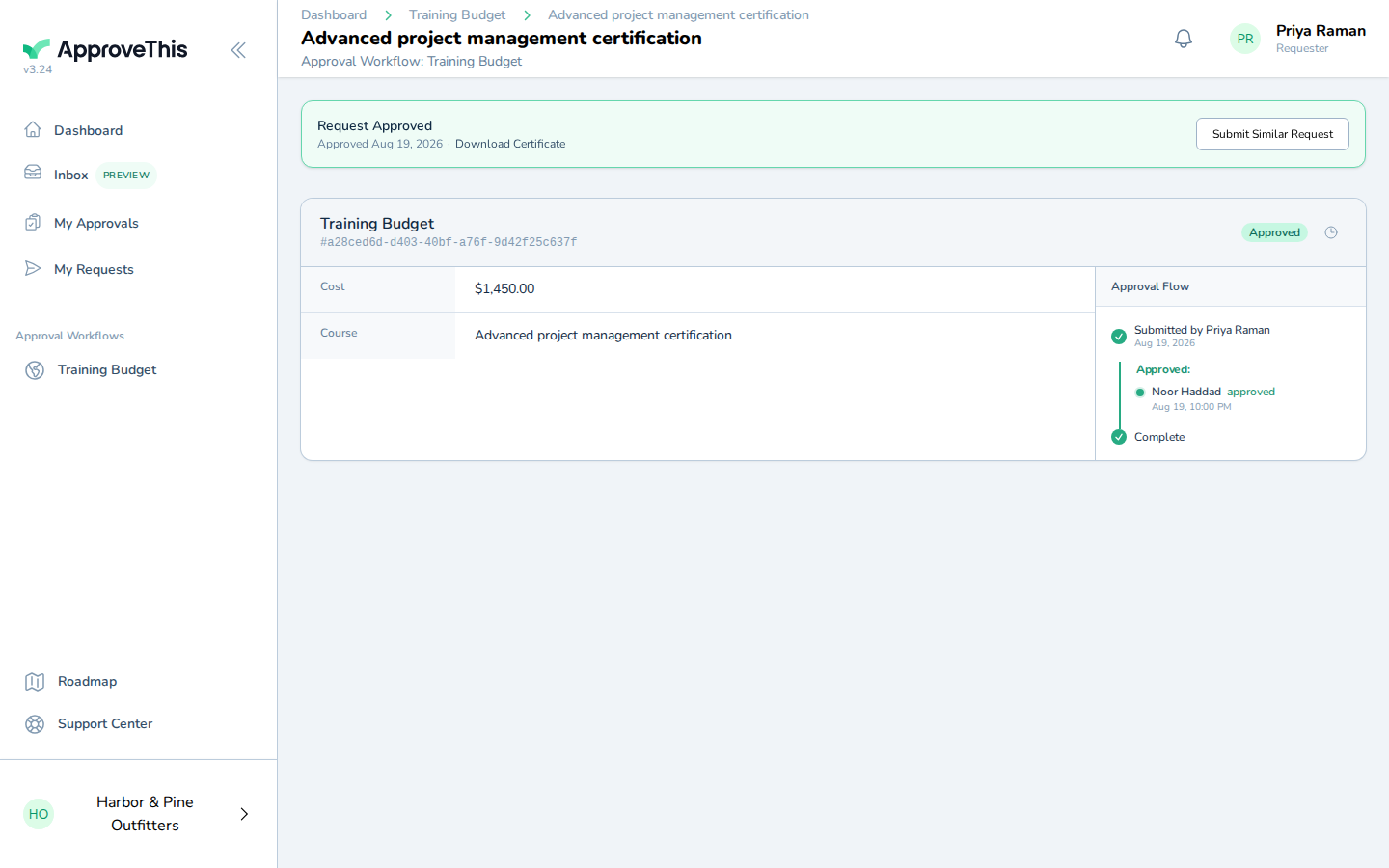
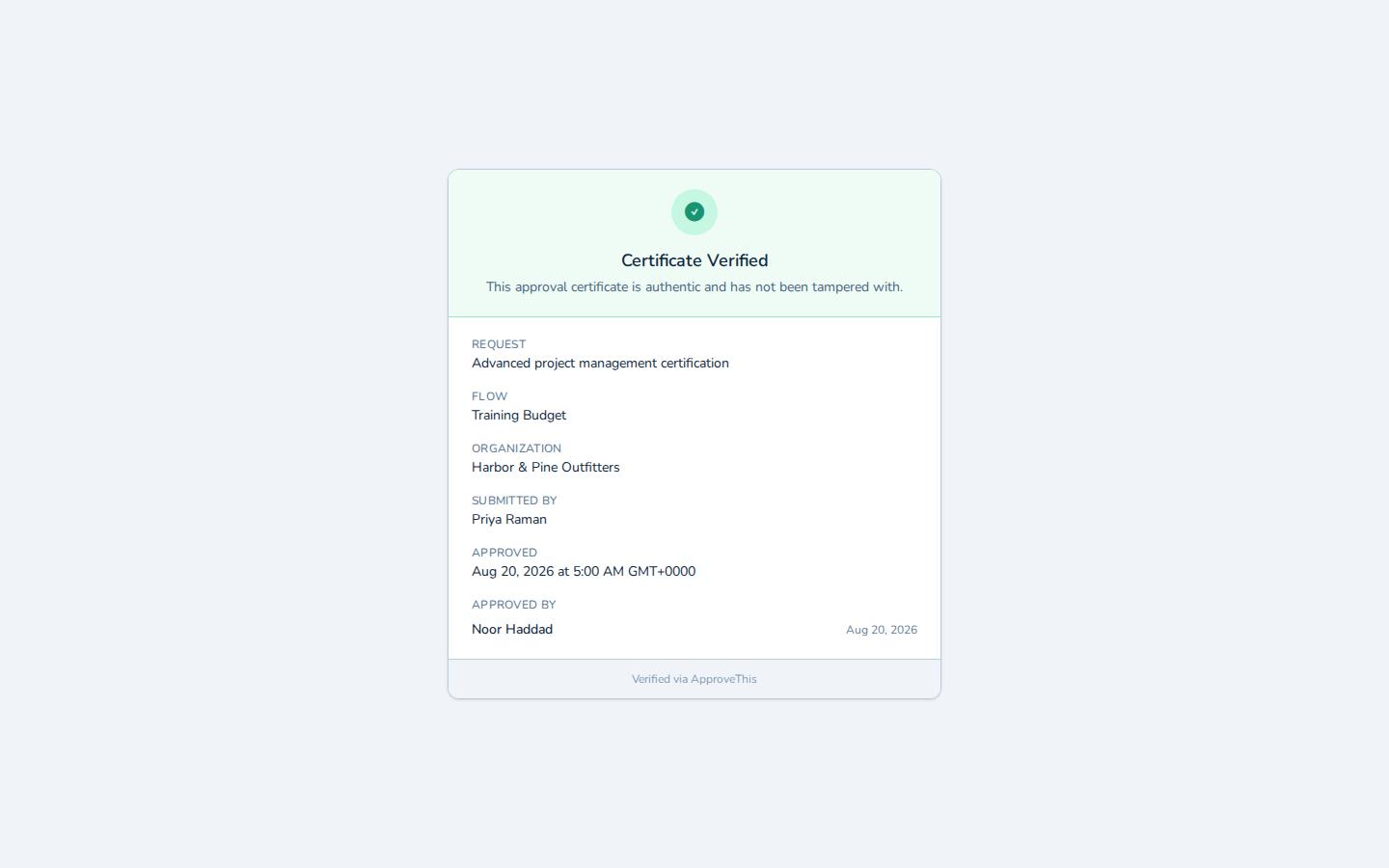
The certificate carries a public verification link in two forms, a QR code and the printed URL at the foot of the page. An auditor scans or types it and the page confirms the approval is genuine with Certificate Verified — no ApproveThis account needed, no call to your team. Each certificate download and each visit to the verification page is itself recorded in the request's Activity Log, so you can see when copies were taken and checked.
The same shape carries a nonprofit's grant spending. Program managers submit expenditures; a condition on the committee step (Conditional & Threshold Routing) skips committee review below a spend threshold, so small spends stop with the executive director's step, while the large ones go to the board finance committee set to Majority must approve — one traveling board member never stalls a program.
Full click-by-click: Approval Certificates
Related guides
- Conditional & Threshold Routing — gate the committee step so it only runs above a capex threshold.
- Activity Log & Audit Trail — read the per-request timeline of decisions, routing, and notifications.
- Workflow Comments — the @-mention discussion that the lock setting makes tamper-proof.
- Request & Activity Export (CSV / Excel) — hand a whole year of capex history to an auditor as a spreadsheet.
- Flow Watchers — give the controller full visibility of capex requests without a seat in the approval chain.