Login-Free Approval Links
Approvers act on a request straight from their inbox. One click on the email link approves or denies it, no login required.
Updated
Approval emails from ApproveThis carry the decision buttons in the message body itself, so an approver can respond from the inbox without stopping to sign in. This guide walks the approver's side of that experience, starting from an approval email already sitting in the inbox for a request that's waiting on a decision. Behind the scenes, each button points at a signed link that logs the approver in just long enough to record the response — unless that approver has 2FA turned on or the workflow has Require Approver Login enabled, in which case the buttons are replaced by a trip through the login screen.
Who this is for: a Requester.
Open the approval email in the inbox
Approvers usually meet a request in their inbox rather than in the app, so the email is the starting surface. Every signed-link access is written to the activity log along with the IP address, so opening from email still leaves a record.
-
Sign in as the requester whose request is waiting on a decision.
-
Open the email inbox where approval notifications arrive.
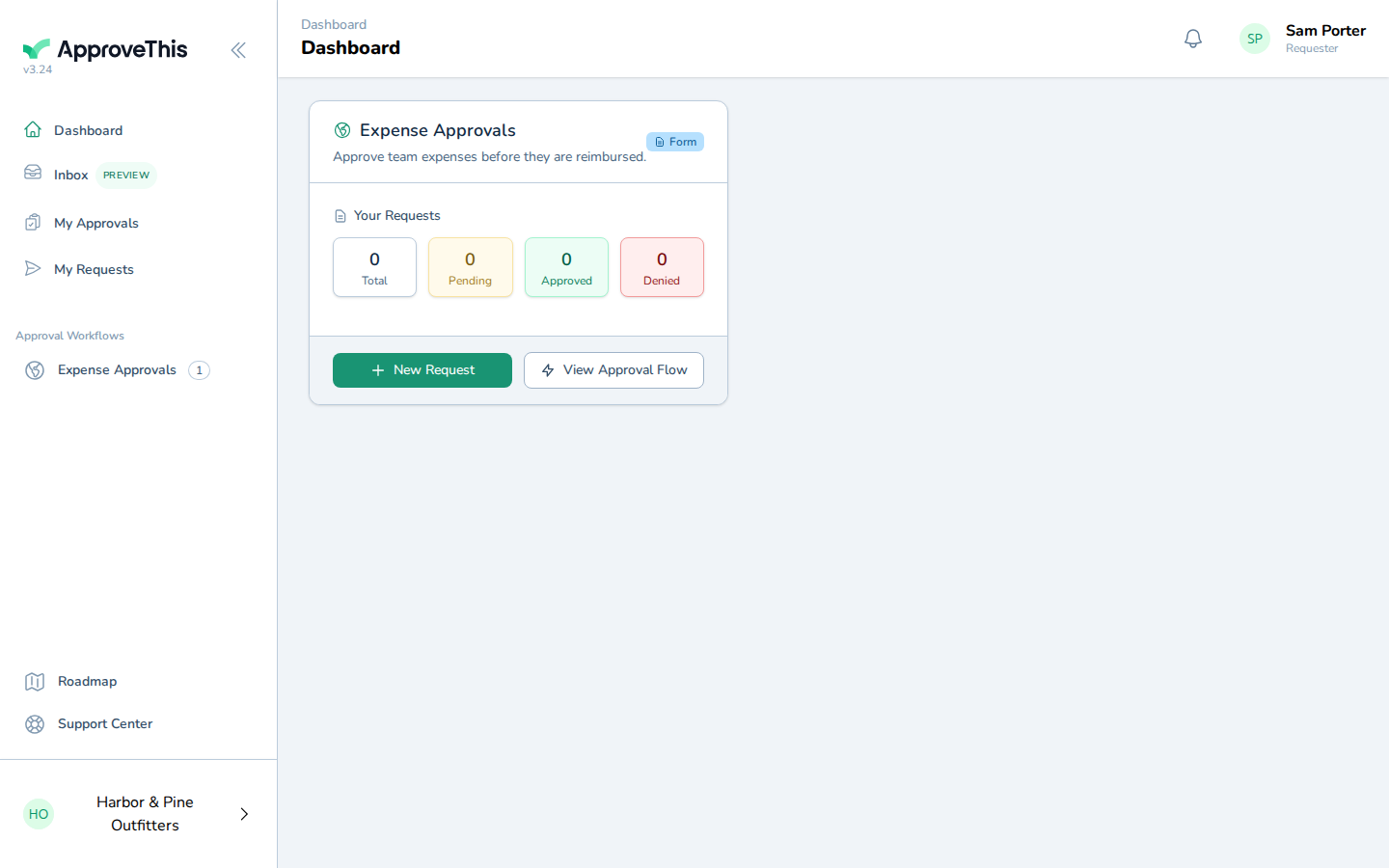
Open the email inbox where approval notifications arrive. -
Open the approval notification from ApproveThis.
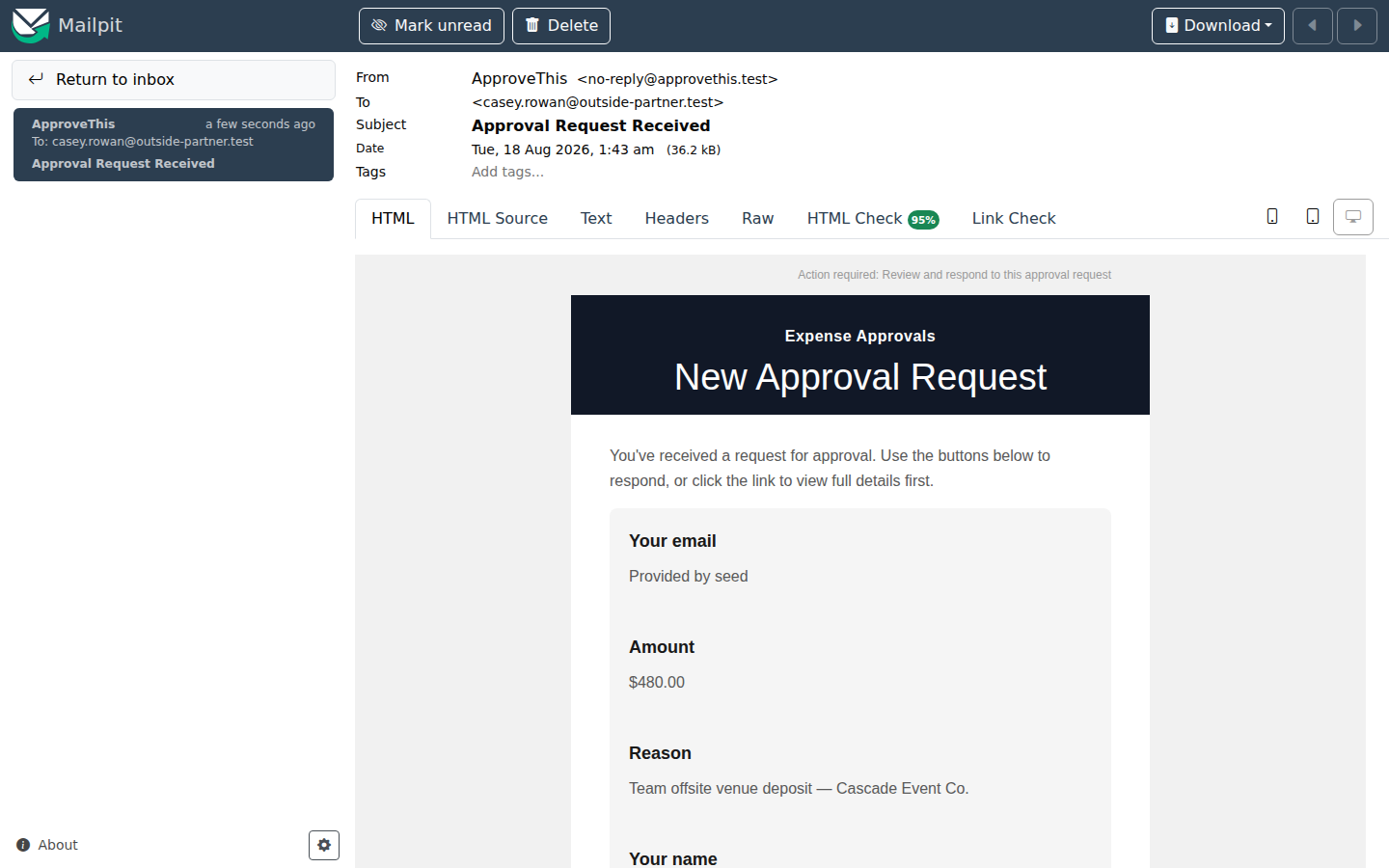
Open the approval notification from ApproveThis.
Follow the approval link in the email and approve the request without logging in
Responding straight from the email removes the sign-in step for approvers who don't work in ApproveThis daily. This one-click path exists only while the workflow keeps Guest Approver Access on and Require Approver Login off; secure links also expire after the workflow's Link Expiration window (7 days by default), after which the approver has to sign in.
-
Click Approve in the email body to record the decision on the request.
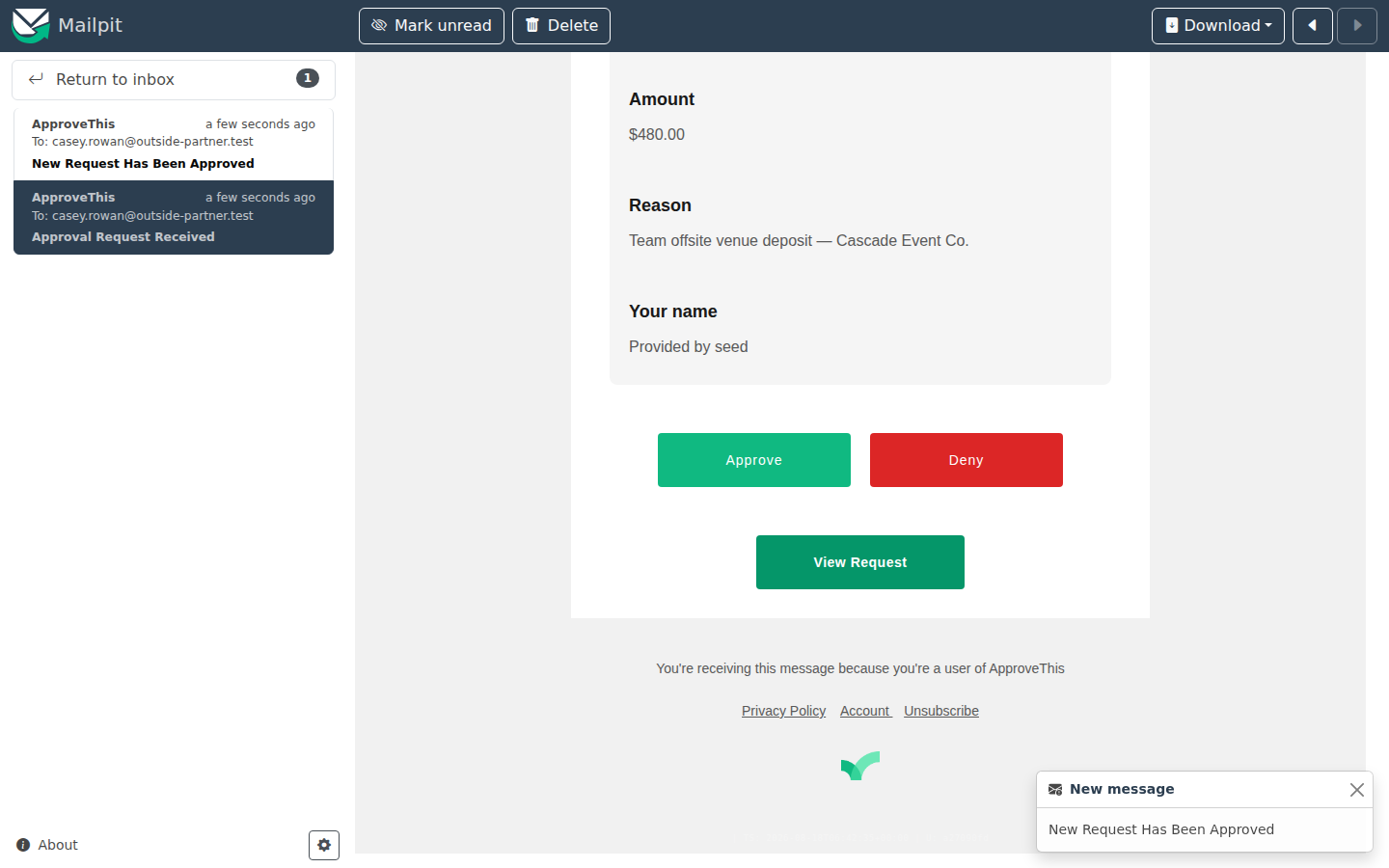
Click Approve in the email body to record the decision on the request.