Hiring requisitions and offer approvals
Requisitions run department head, then finance — and only senior salaries reach the COO. The quarter exports for the board pack.
Updated
At a mid-sized professional-services firm, headcount moves faster than the paperwork. A hiring manager pitches a requisition in a direct message, the department head thumbs it up, and the offer number gets nudged upward in a hallway conversation on the way to the candidate. The finance lead finds out at payroll that the hire came in above the budgeted band. When the board asks who signed off on a senior salary, the HR manager has nothing to produce but a chat scroll that proves nothing.
The fix is one requisition workflow. The HR manager builds a requisition workflow with role, level, and salary fields, chains a department-head step and a finance step, and gates a COO step so it only runs above a salary threshold. Before publishing, they use the routing preview to confirm a mid-level requisition skips the COO while a senior one does not. Then a hiring manager submits a real requisition, the COO settles a question in the request's comment thread and approves, and at quarter end HR exports every request for the board pack.
What you'll set up
- A requisition form with fields for the role, the level, and the proposed salary (a currency field), each required and labeled so hiring managers answer them the same way every time.
- An approval chain: department head, then finance lead, then COO.
- A threshold condition on the COO step so it only runs when the proposed salary crosses your line for senior offers.
- A dry run with Preview approvers proving the routing before anyone submits.
- Decisions and discussion recorded on the request itself, and a CSV export of the quarter for the board.
What the requisition form must carry
The form is what every approver decides on, so it has to carry the three facts that matter: what role, at what level, for how much. Open the flow, click Form, then Add Field for each one. The salary is a currency field — pick Currency Monetary amounts from the type list.
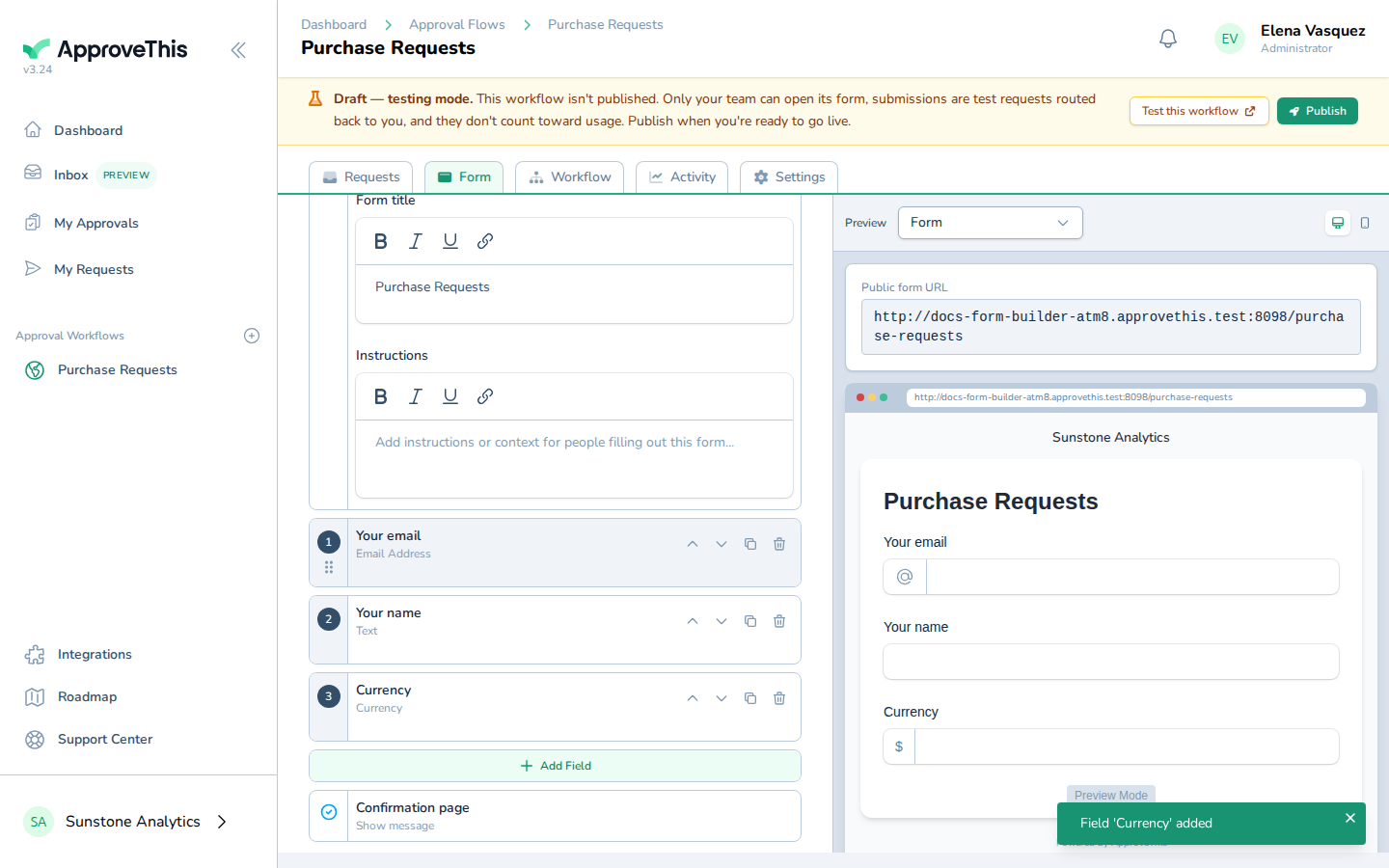
Click the new field to configure it. The example labels its currency field Total purchase amount — in this workflow yours would be something like Proposed salary. Mark it Required, because a requisition without a number can't be judged against a budget, and use Add help text to tell hiring managers exactly what to enter, such as base salary excluding bonus, so no two managers count the number differently.
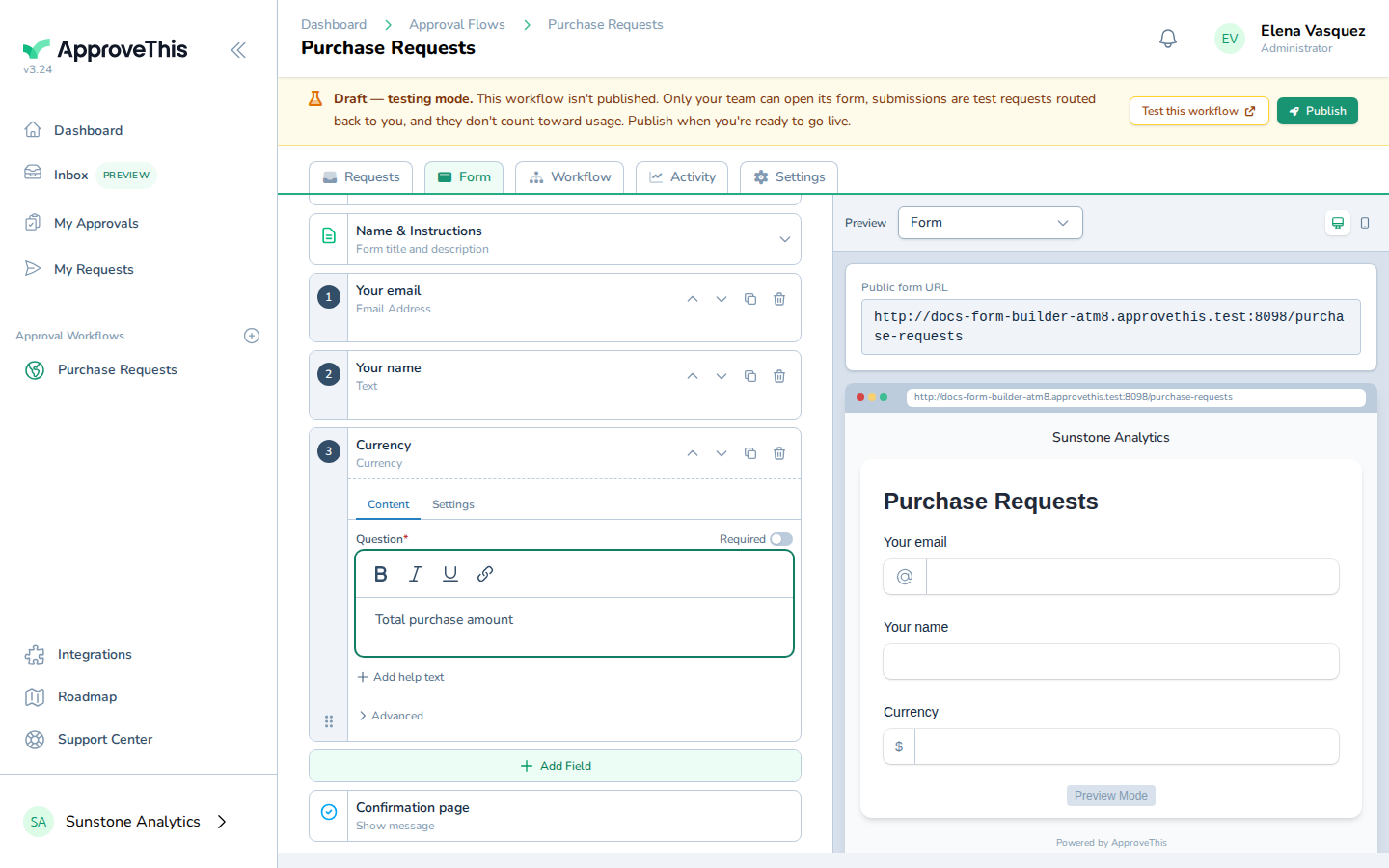
Add text fields for the role title and level the same way, then use Move up so the three sit together at the top of the form.
Full click-by-click: Form Builder
Three steps: department head, finance, COO
Switch to the flow's Workflow tab, where the approval chain is drawn. Every step card has a + below it; click Add a new step below this one and type a name into Search for an approver to place someone on the step. Build three steps in order: the department head, the finance lead, the COO. The example screenshots show adding an approver named Sam Porter — in your chain each step carries the real person who owns that call.
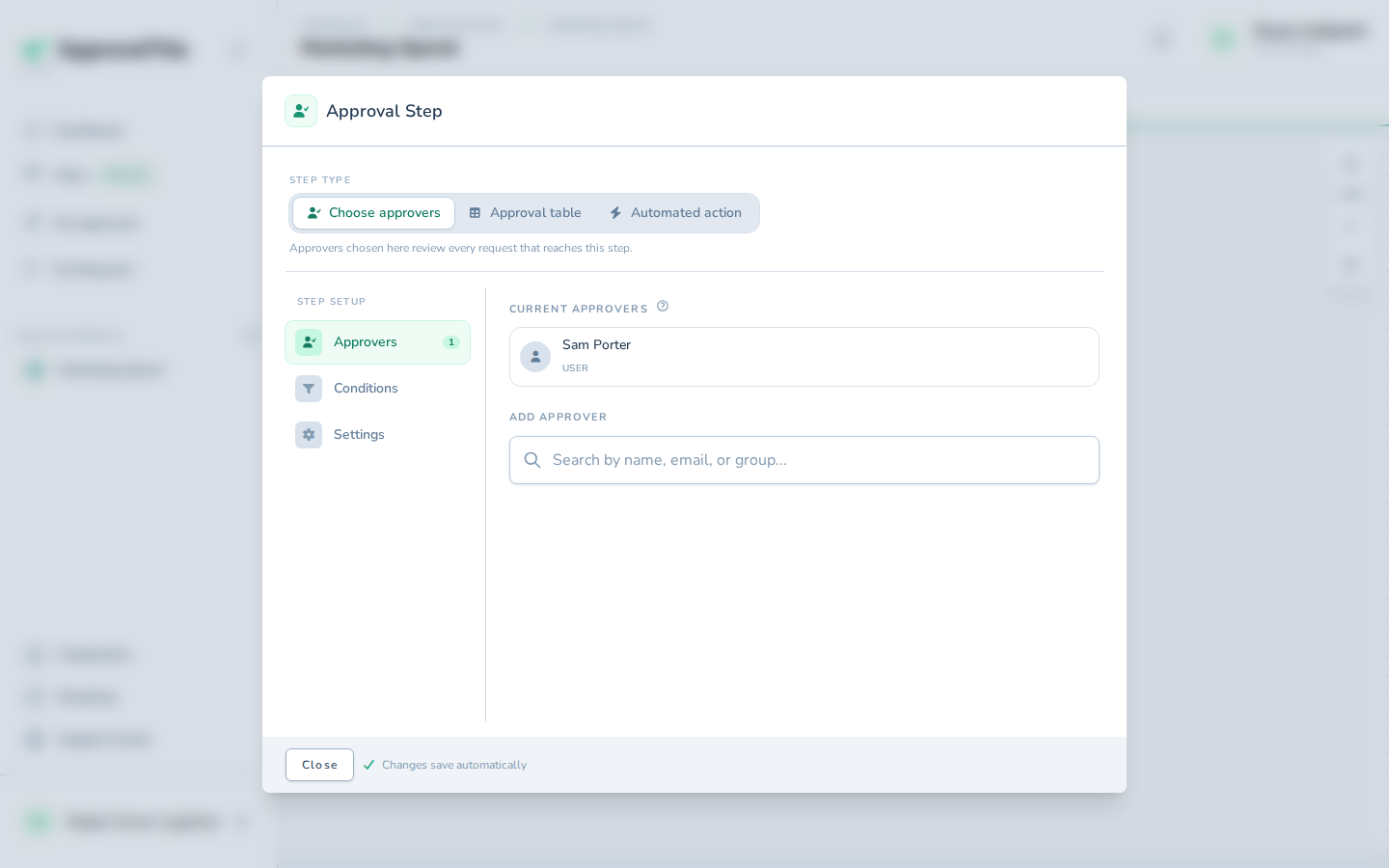
A step can hold more than one approver, with Settings deciding what counts as approved — everyone, a majority, or a specific number. The same dialog offers Require E-Signature; for offer approvals it is worth turning on, because a drawn or typed signature turns "the COO approved this salary" into a signed record rather than a checkbox.
Full click-by-click: Add an Approval Step
The COO sees only senior offers
The COO should not see every backfill. Click Configure step on the COO step, open Conditions, and click Add Condition. Choose your salary field from Field, Greater than from Operator, and enter your senior-offer threshold in Value — the example gates on a Budget field greater than 1000; in this workflow the field is the proposed salary and the value is wherever your firm draws the senior line.
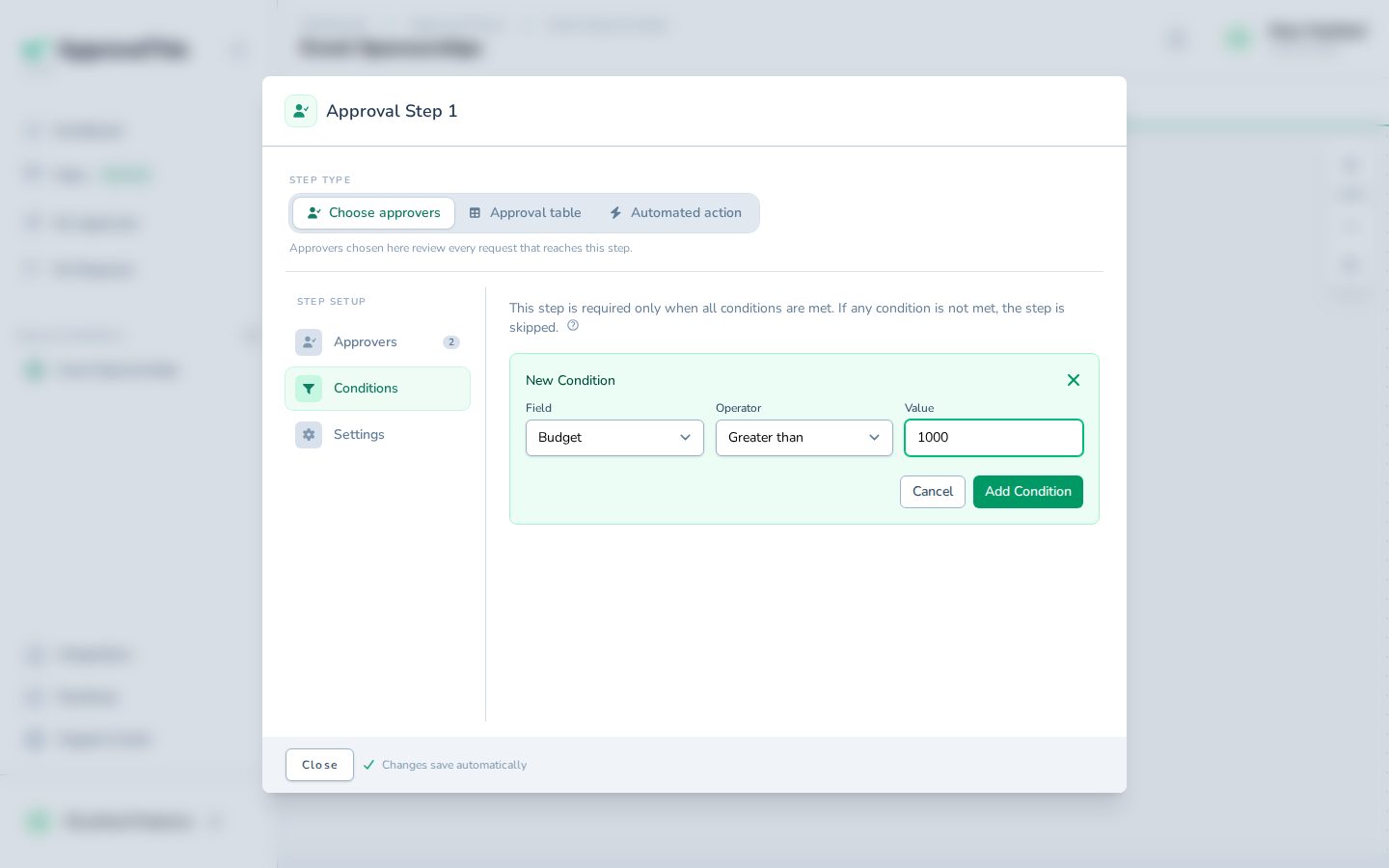
Conditions combine with AND, so you can narrow further: add a second condition using Contains on the level field, and the step runs only for senior-titled roles above the number. Any request that misses a condition skips the step entirely and follows the shorter path. A changed threshold applies from the next requisition onward; requests already in flight are unaffected.
Full click-by-click: Conditional & Threshold Routing
Prove the routing before anyone submits
Do not take the gate on faith. On the workflow's form, enter the numbers of a typical mid-level requisition and click Preview approvers — a routing walkthrough simulates which steps would run and who would approve for exactly those values. Nothing is submitted and nothing is saved.
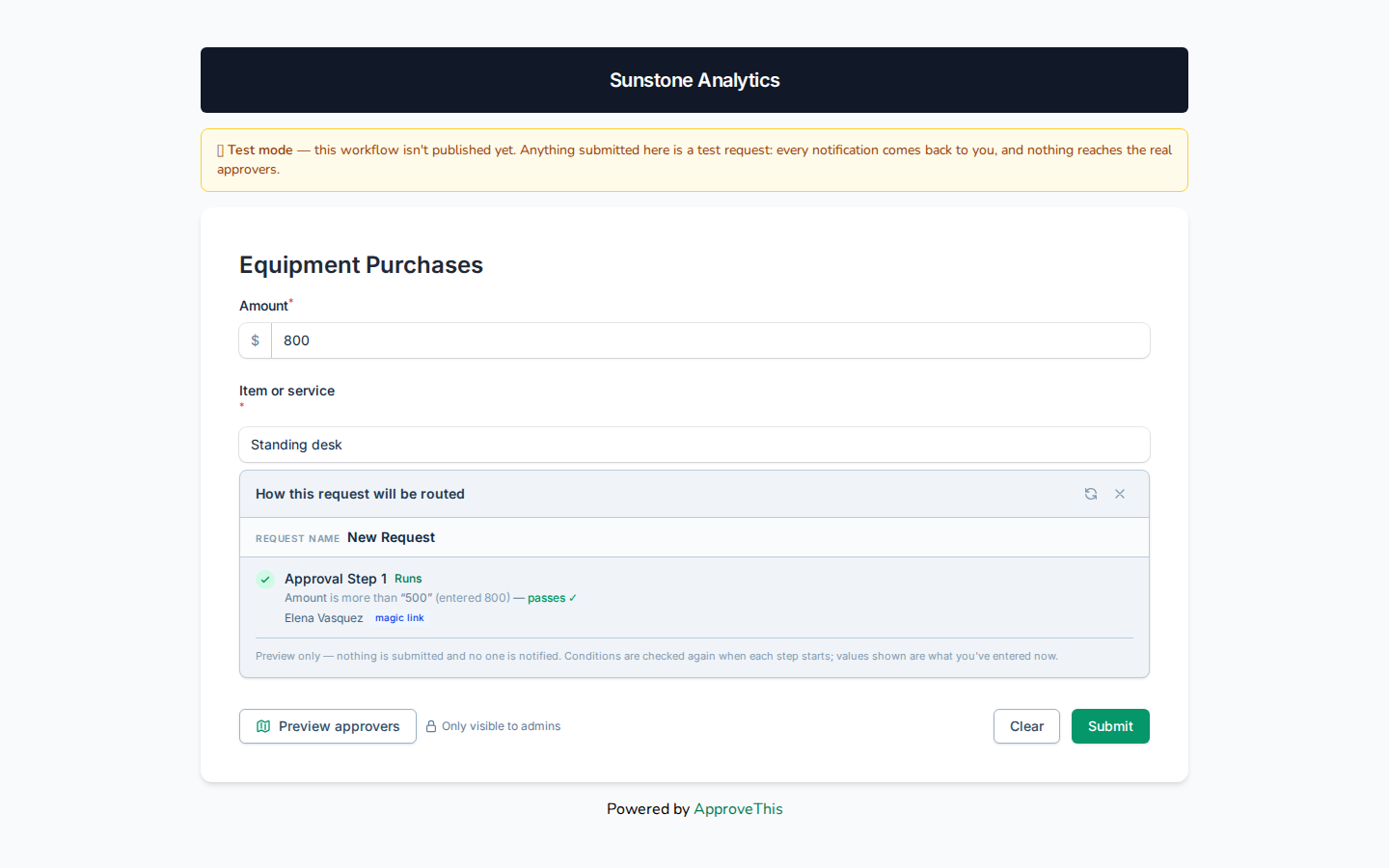
Now change the salary to a senior number and click Refresh preview. The walkthrough re-runs, and you watch the COO step drop in and out of the path as the value crosses the threshold — a skipped step is marked Condition(s) not met.
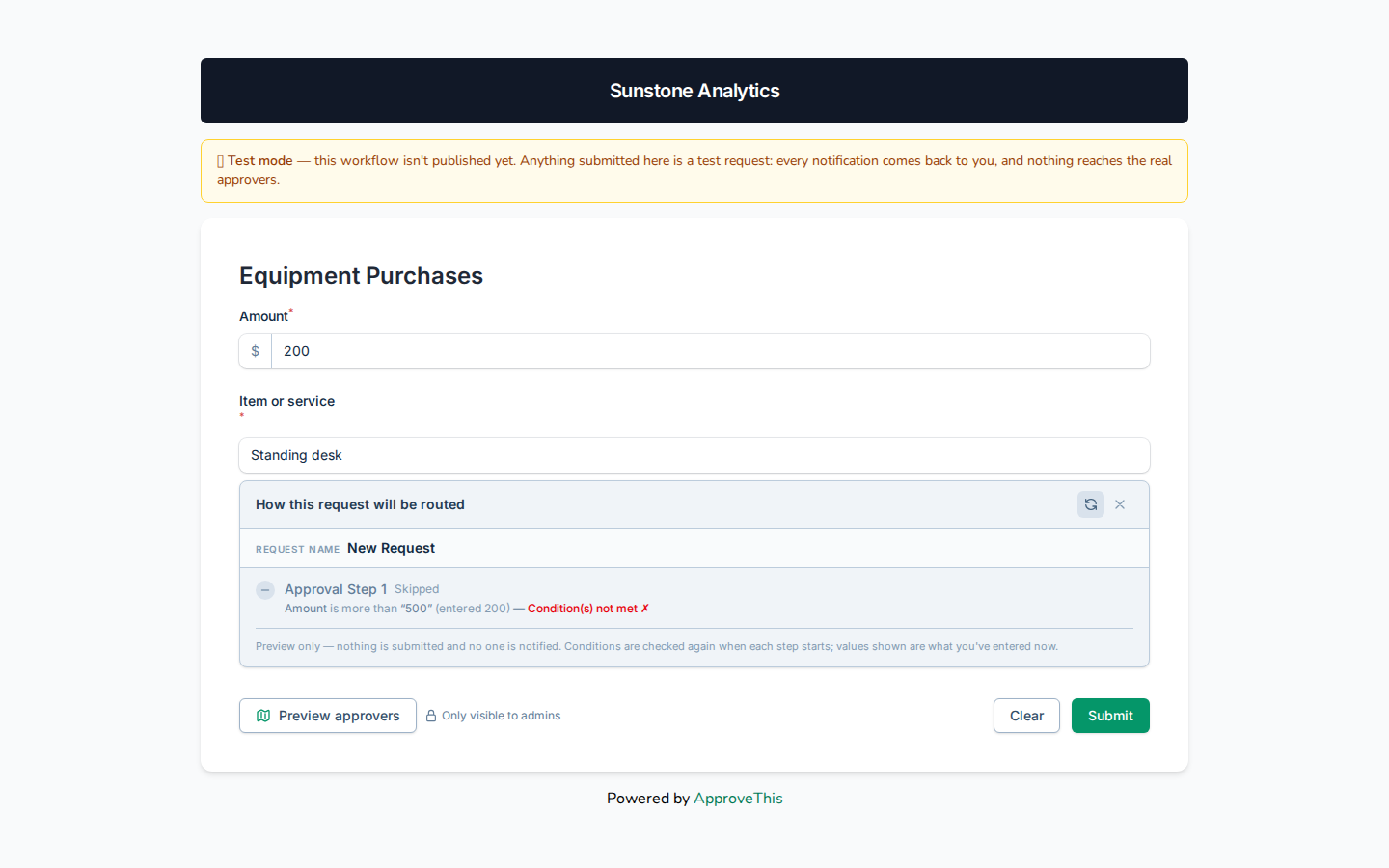
The Preview approvers button appears only for members of the owning team with update permission, so hiring managers filling the form never see it.
Full click-by-click: Workflow Preview
A senior offer runs the chain
A hiring manager submits a requisition with a senior salary. The department head approves, the finance lead checks it against the comp budget, and because the number crosses the threshold, the request lands with the COO instead of quietly completing.
The COO has a question about the comp band. Instead of a DM, they ask it in the request's Comments section and @-mention the hiring manager, who gets an email and in-app notification with a link straight back to the thread. You can only mention teammates who are allowed to view the request, and the notification is a link to the conversation, not a way to approve by reply.
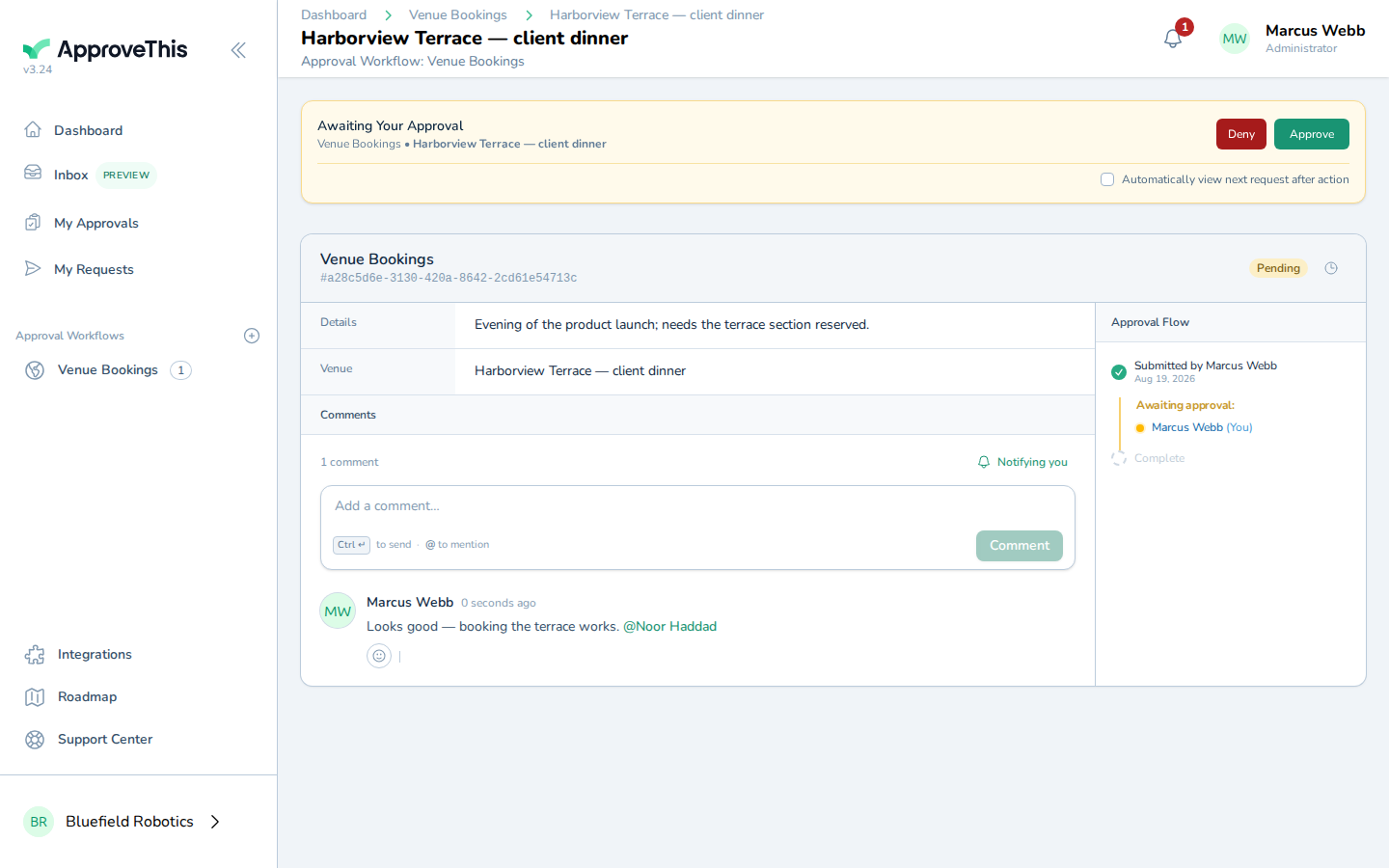
The answer lands in the same thread, the COO approves, and the whole exchange — question, answer, decision — lives on the request where an auditor can find it.
Full click-by-click: Workflow Comments
The quarter, in one file
For the board pack, open the workflow's Activity tab (it is shown to members who can edit the workflow), click Requests, and click CSV or Excel. The file downloads immediately with one row per request — Status, Requester, and Submitted, then one column per visible form field, so role, level, and salary each get their own spreadsheet column.
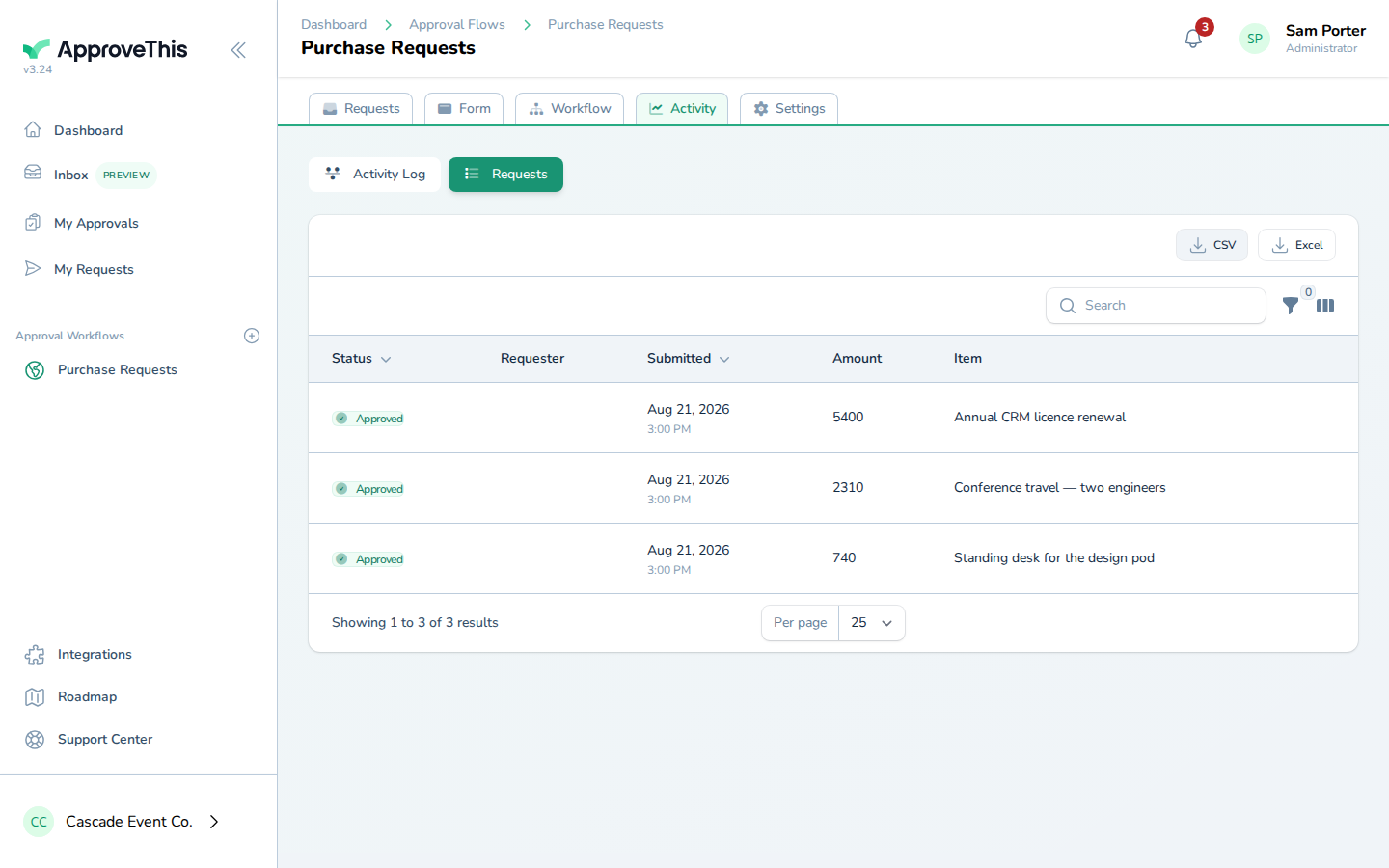
One limit to respect: the export honors the table's search text and sort order, but not the Status or Created From / Created Until dropdown filters. Filtering the table to the quarter on screen will not narrow the file — export everything and trim by the Submitted column in your spreadsheet instead. Hidden form fields never appear in the export, and once the workflow is published its test requests are excluded. The export itself is written to the workflow's Activity Log — who exported, which table, the format, and the row count — so even the board pack is on the record.
Full click-by-click: Request & Activity Export (CSV / Excel)
Related guides
- Building Workflows — the ways to create a workflow in the first place, before you shape its form and steps.
- Activity Log & Audit Trail — the who-did-what history behind a single request or the whole workflow.
- Inline File Previews — when requisitions carry attachments, such as comp benchmarks, approvers need to read in place.
- Approval Reminders — nudge a department head who is sitting on a requisition.
- Dynamic Request Naming — name each request from its form values so the request list reads at a glance.
- Quorum & Majority Voting — when a step holds several approvers and you need to define what counts as approved.