Dropdown Fields & Options
Add a Dropdown question to a form and manage its choices: bulk-add them in a key|value format, and rename what people read without breaking the routing rules written against the stored key.
Updated
A Dropdown question needs a list of choices, and the Options tab on the field card is where that list lives. This guide covers loading choices into that editor with Bulk edit and changing what requesters read afterwards, using the stored key | displayed text pipe syntax. It's written for Administrators editing a workflow that already has a published Dropdown field on its form. Because the stored key and the displayed text are separate halves of each line, it matters which half you touch — routing conditions and lookup tables compare the displayed label, so a rename is the risky edit, not a harmless one.
Who this is for: an Administrator.
Open the Dropdown's Options tab and add its choices with Bulk edit
Typing choices one at a time is slow when you already know the whole list; Bulk edit takes the entire set in one paste and gives the requester a populated select on the form. Keep in mind that bulk editing regenerates the stored keys from the pasted text, so pasting over an existing list can rewrite keys that conditions rely on.
-
Sign in as an Administrator and open the workflow whose form you're editing.
-
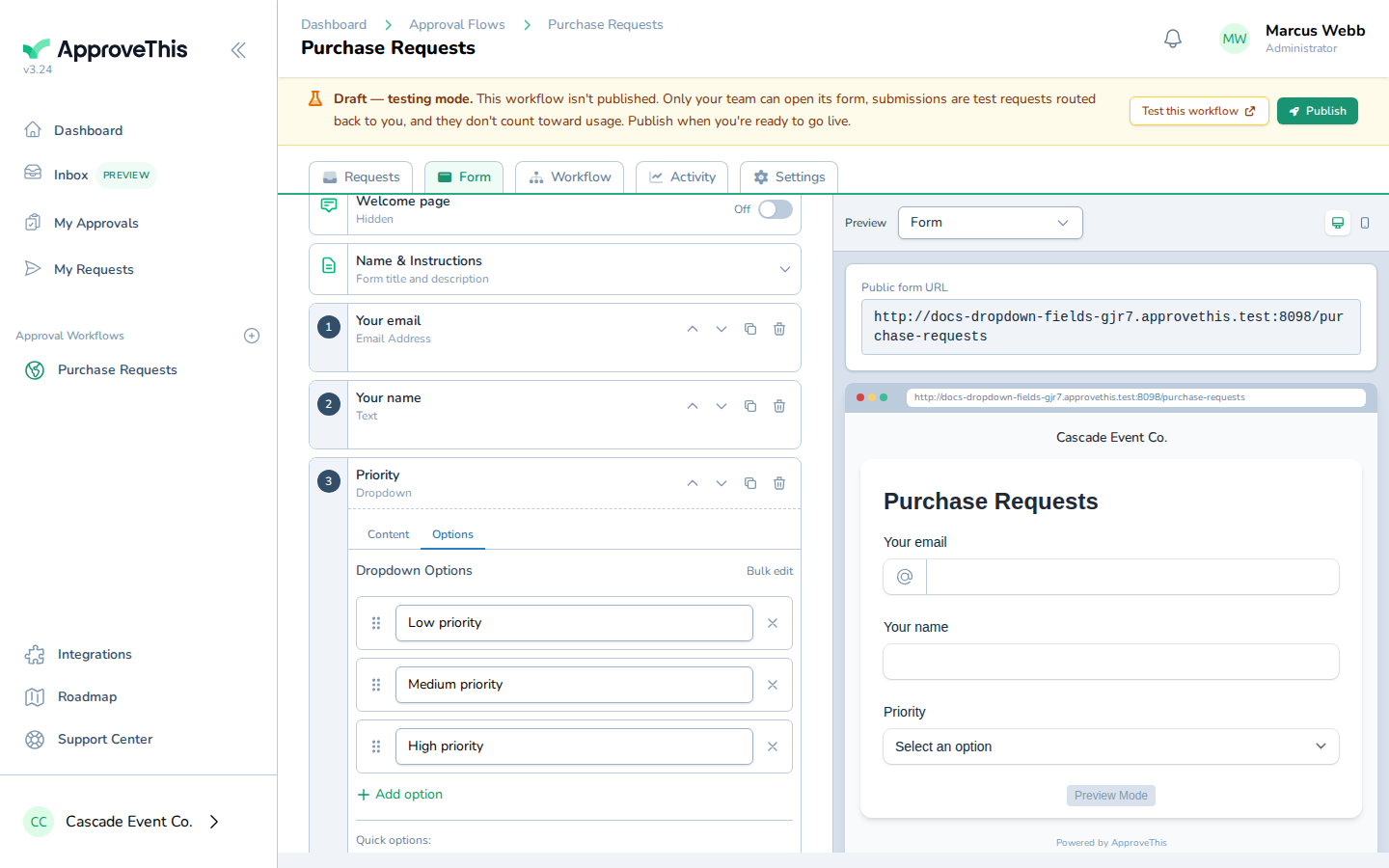
Click the Dropdown field's card on the Form tab to open it (Priority in the example screenshots).
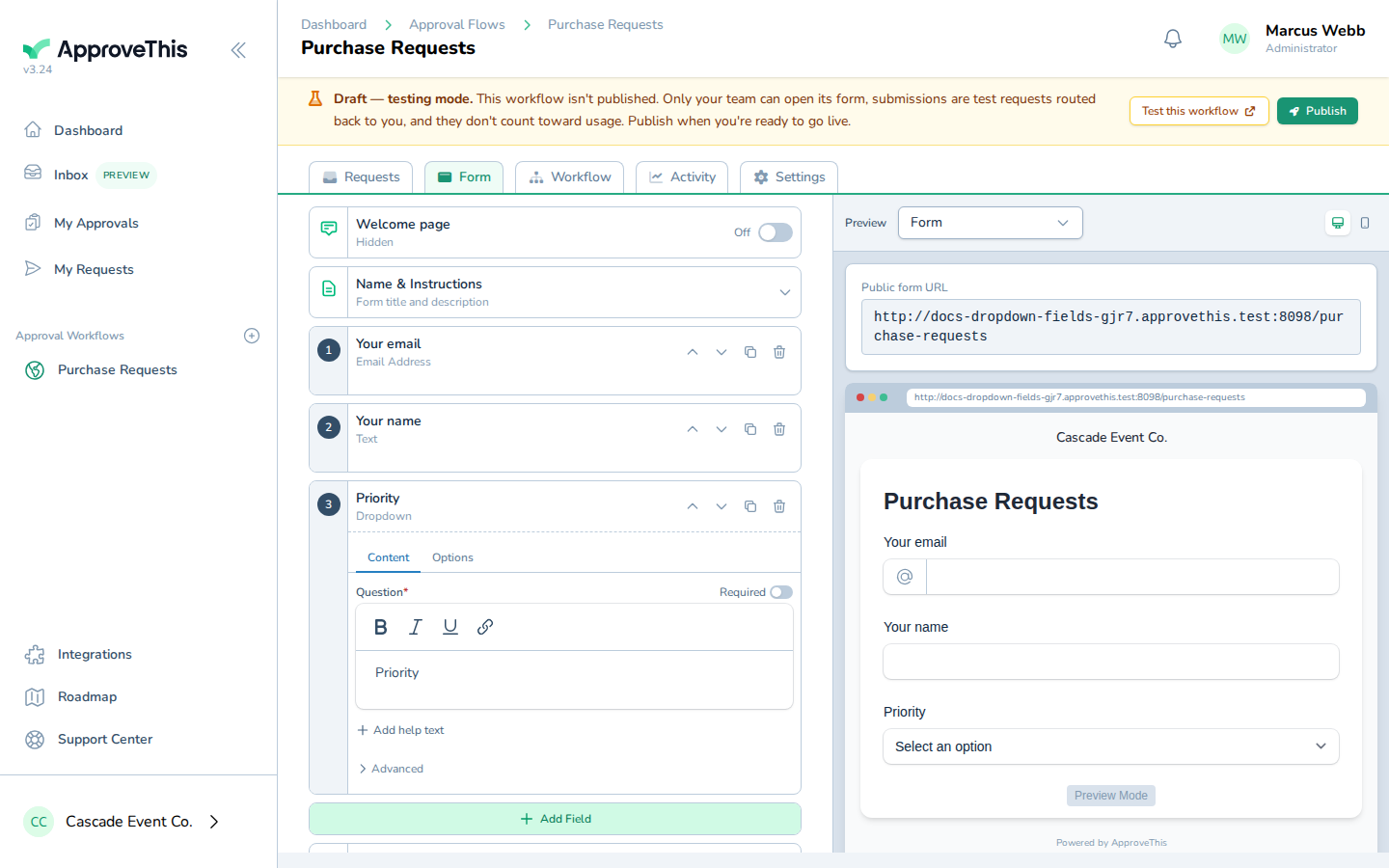
Click the Dropdown field's card on the Form tab to open it (Priority in the example screenshots). -
Click Options to switch the card to its choices editor.
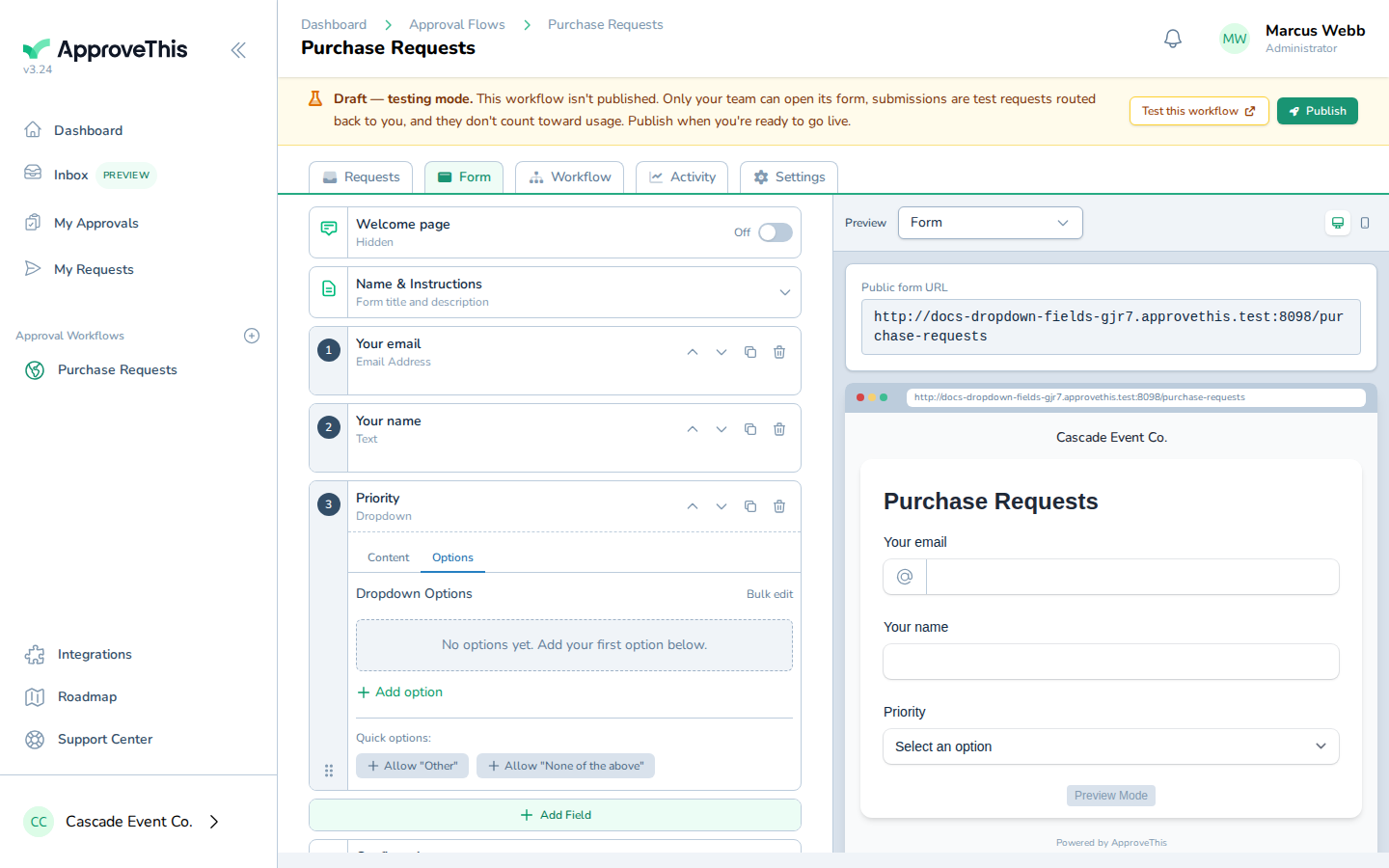
Click Options to switch the card to its choices editor. -
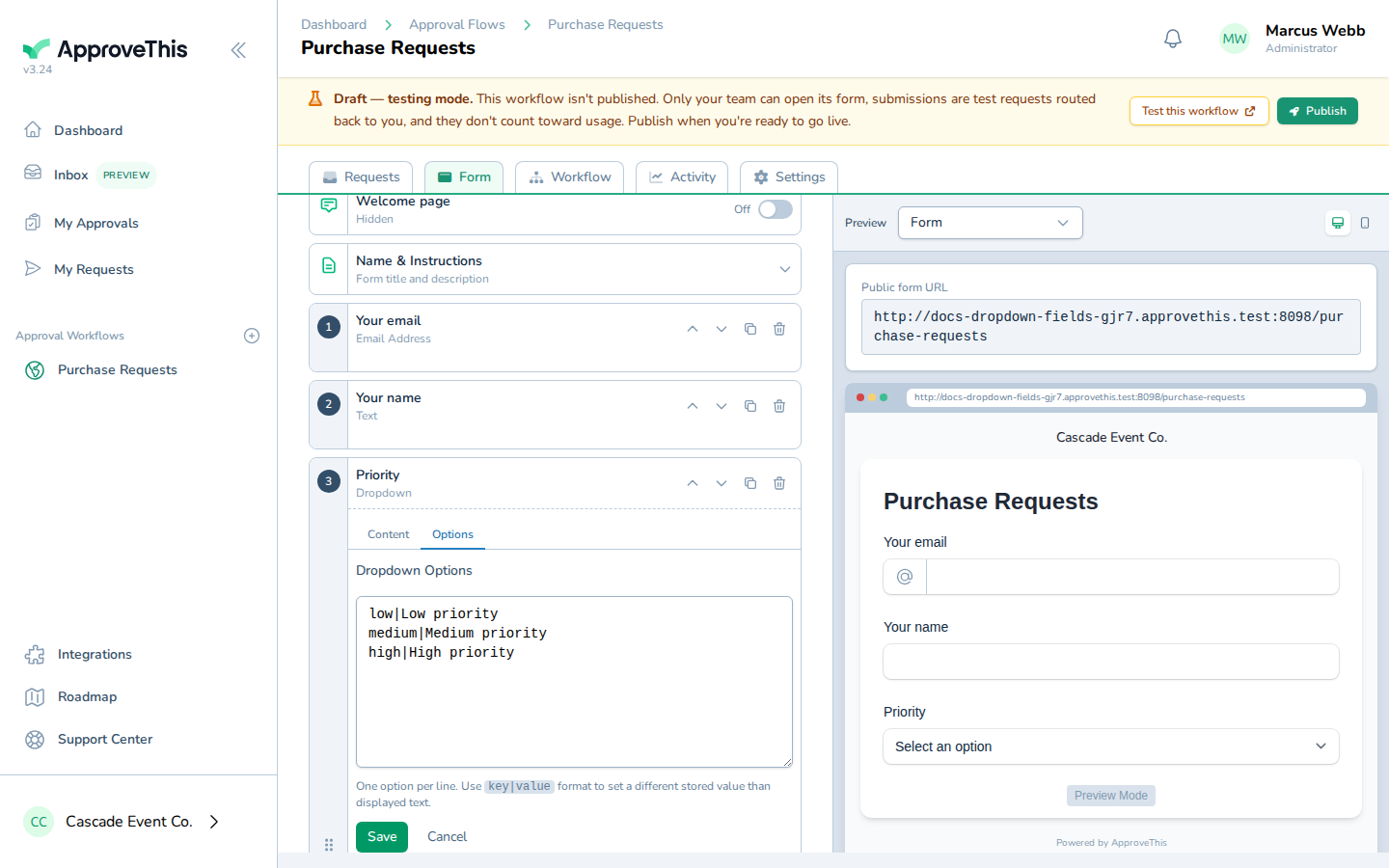
Click Bulk edit to swap the one-at-a-time list for a free-text area.
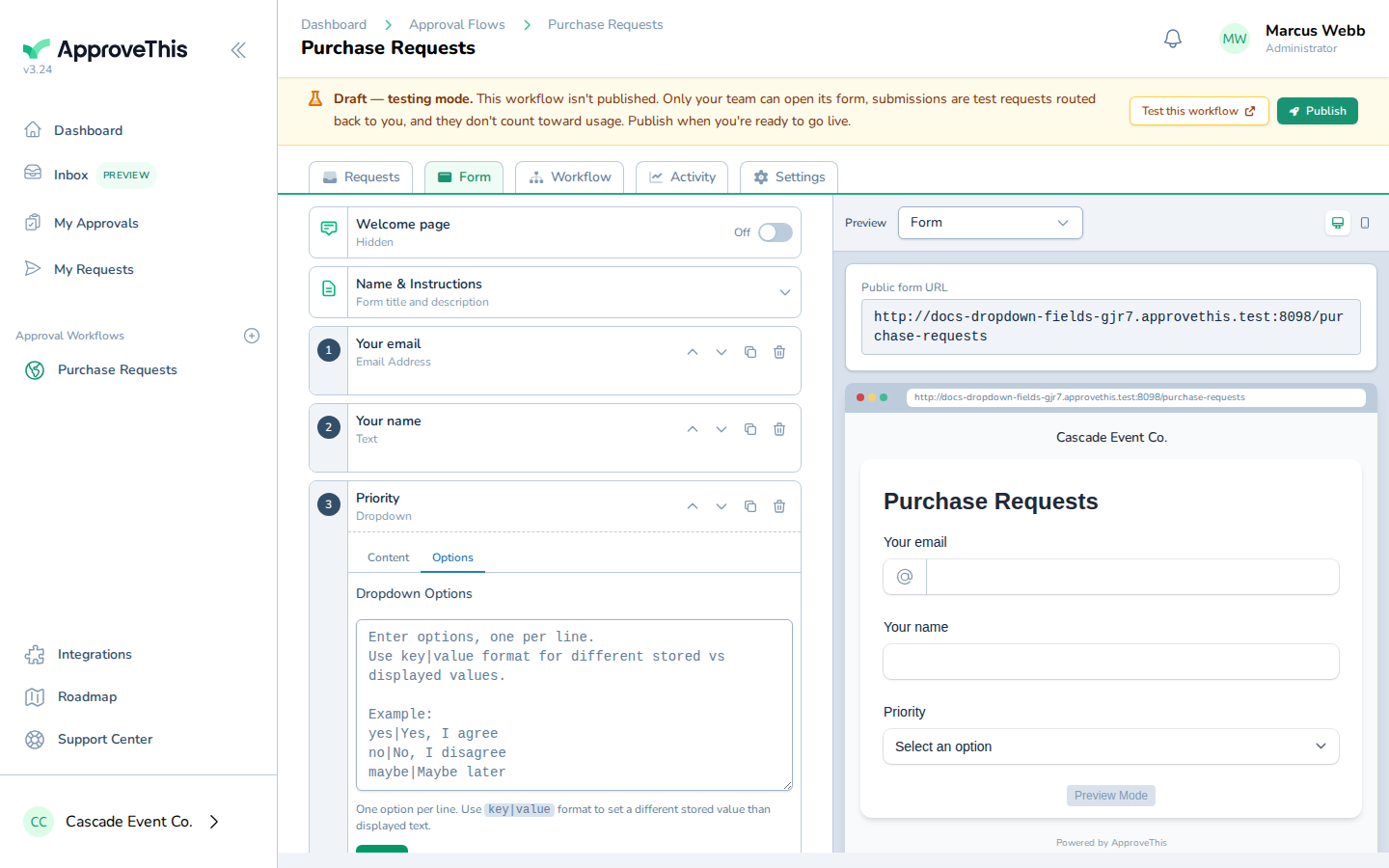
Click Bulk edit to swap the one-at-a-time list for a free-text area. -
Type your choices into Options, one per line, one choice per line, using
stored key|displayed textwhen you want the matched value to differ from what requesters read — the example useslow|Low priority,medium|Medium priority, andhigh|High priority.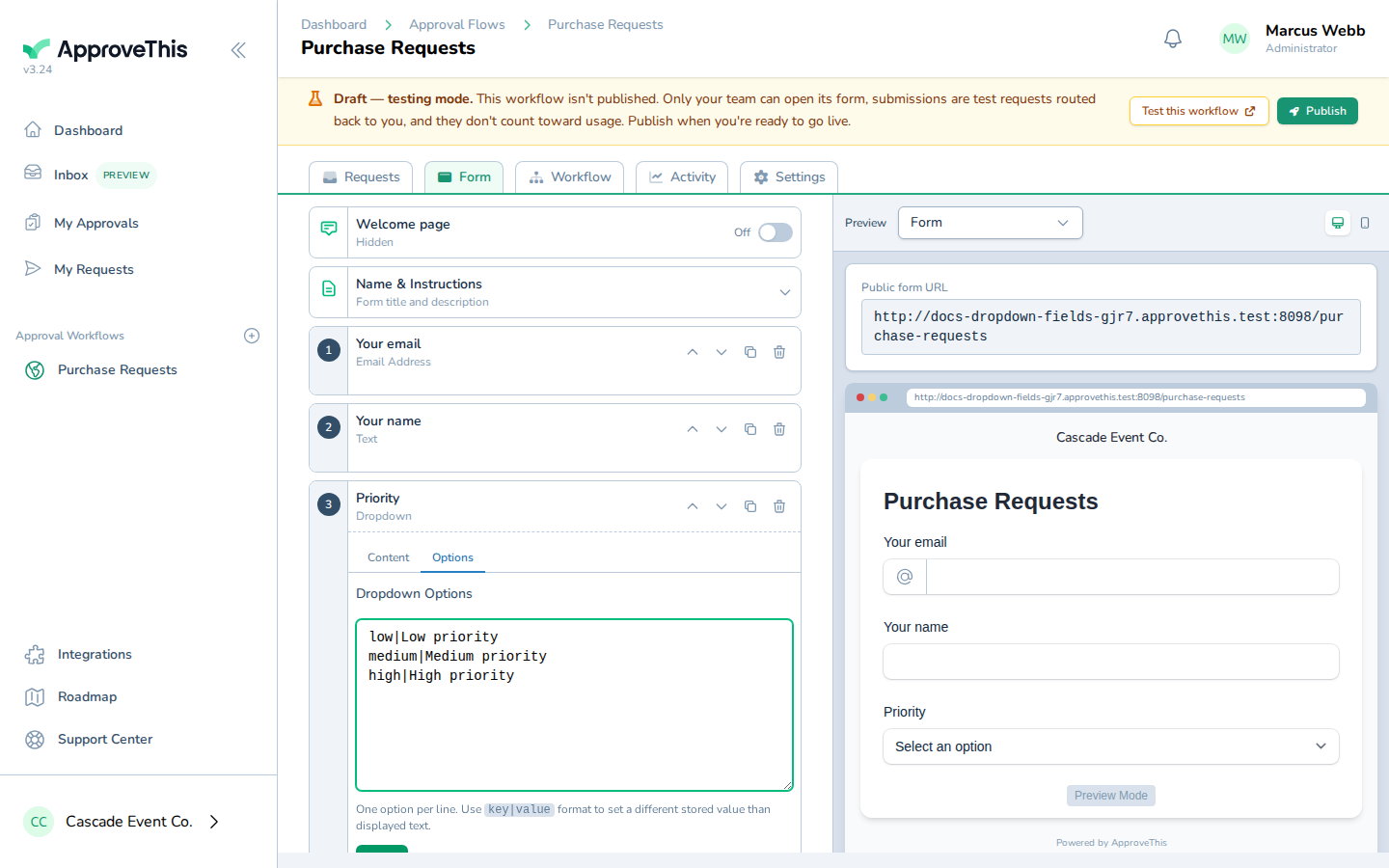
Type your choices into Options, one per line, one choice per line, using stored key|displayed text when you want the matched value to differ from what… -
Click Save to write the pasted list onto the field.
Click Save to write the pasted list onto the field.
Rename a choice's displayed text without changing its stored key
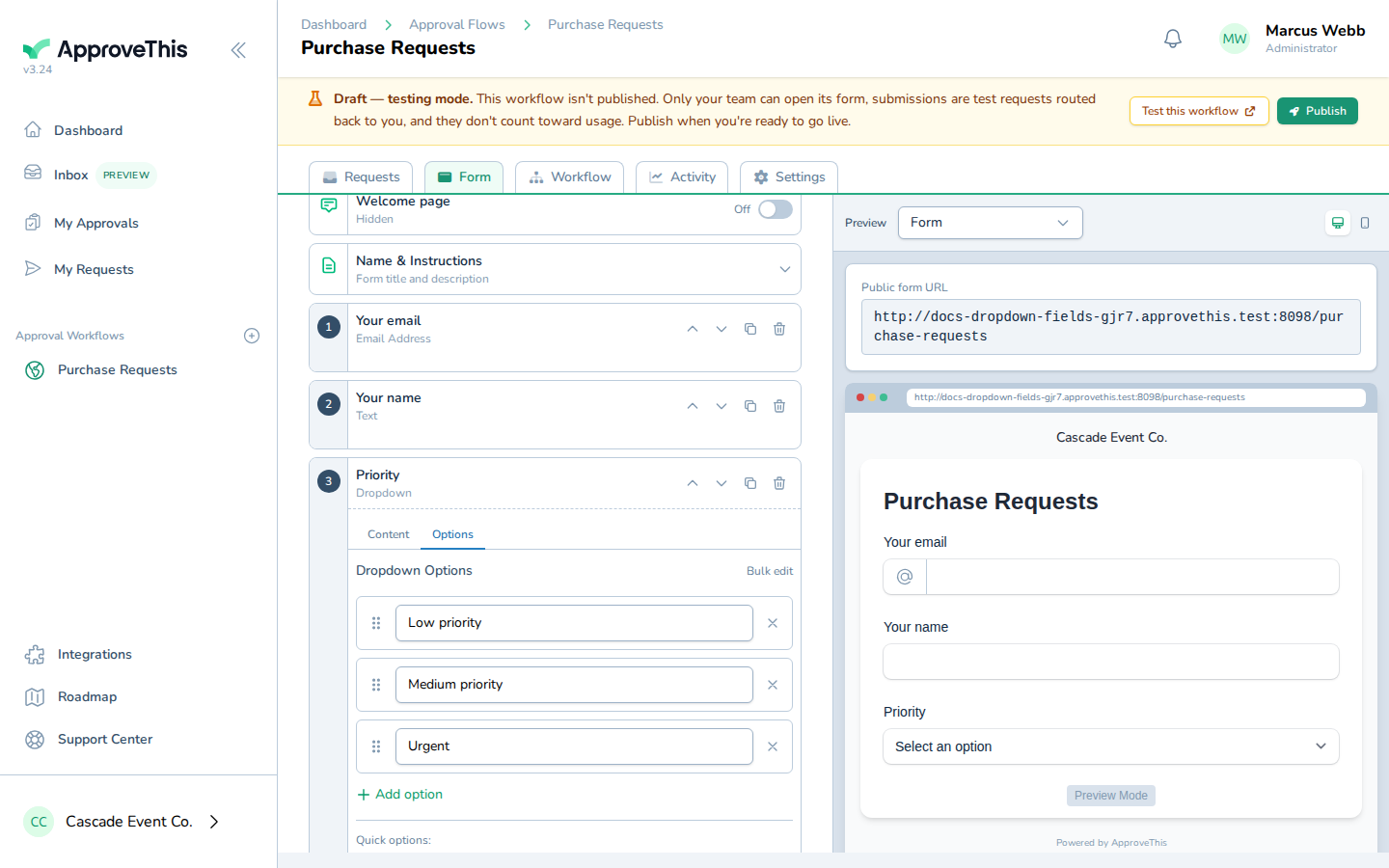
Wording changes happen — "High priority" becomes "Urgent" — and editing only the text after the pipe leaves the stored key untouched. Be aware that threshold conditions and lookup tables match on the displayed label, so any rule or lookup row written against the old wording stops matching the moment you save the new text.
-
Click Bulk edit to reopen the pasted list.
Click Bulk edit to reopen the pasted list. -
Edit the text after the pipe on the line you're renaming and leave the key before the pipe as it is; in the example,
high|High prioritybecomeshigh|Urgentwhile the other lines stay unchanged in Options, one per line.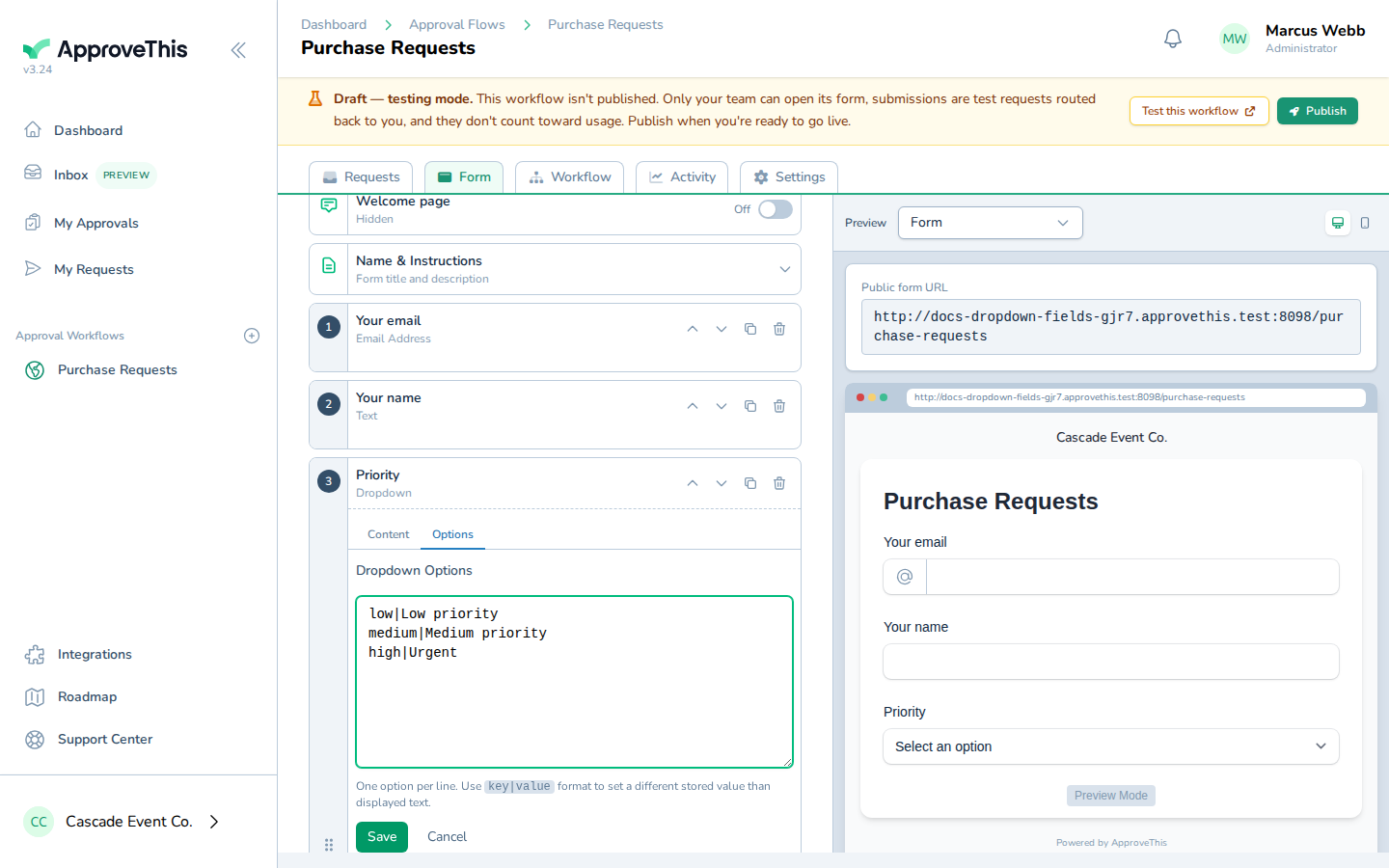
Edit the text after the pipe on the line you're renaming and leave the key before the pipe as it is; in the example, high|High priority becomes high|Urgent… -
Click Save to apply the new wording.
Click Save to apply the new wording.