Calculated Fields
Add a form field whose value is computed from other fields with a formula, so totals, names, and references fill themselves in instead of being typed.
Updated
A calculated field carries a formula instead of an input box, so its value is derived from what's already been entered elsewhere on the form. Formulas are written in Symfony Expression Language, reference other fields with {{field_slug}} syntax, and support arithmetic, string concatenation with ~, comparisons, and ternary conditionals. This page covers writing and saving that formula as an Administrator; you'll need a workflow form that already contains a calculated field. Calculated fields are available on all tiers.
Who this is for: an Administrator.
Write the formula for the calculated field
A calculated field does nothing until it holds a formula, and typed-in totals or assembled names drift the moment a requester edits an earlier answer. Defining the expression here means the value recomputes from its source fields rather than depending on the person filling out the request.
-
Sign in as an Administrator.
-
Open the form and click the calculated field you want to define (
full_namein the example screenshots).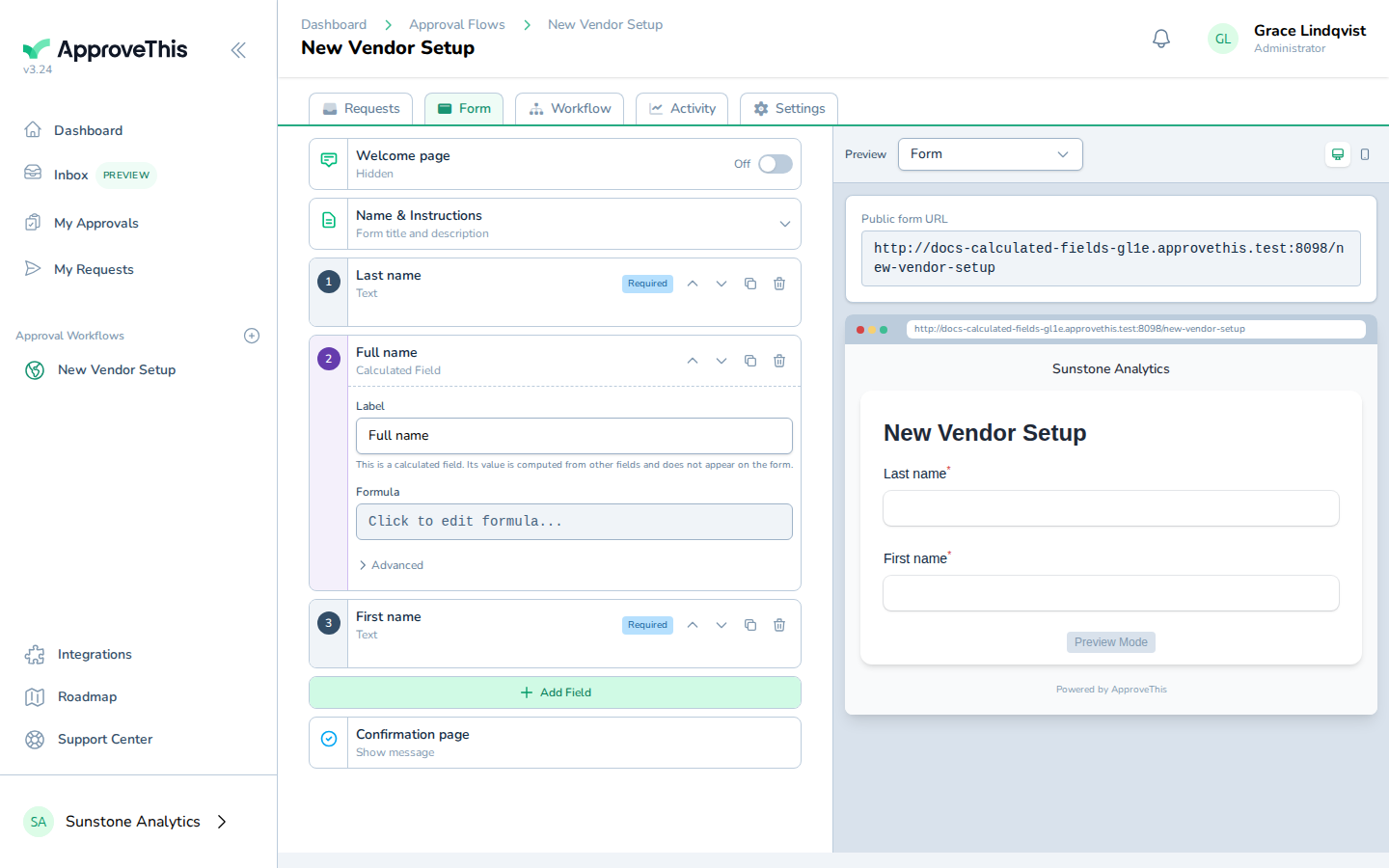
Open the form and click the calculated field you want to define (full_name in the example screenshots). -
Click Click to edit formula... to open the formula editor.
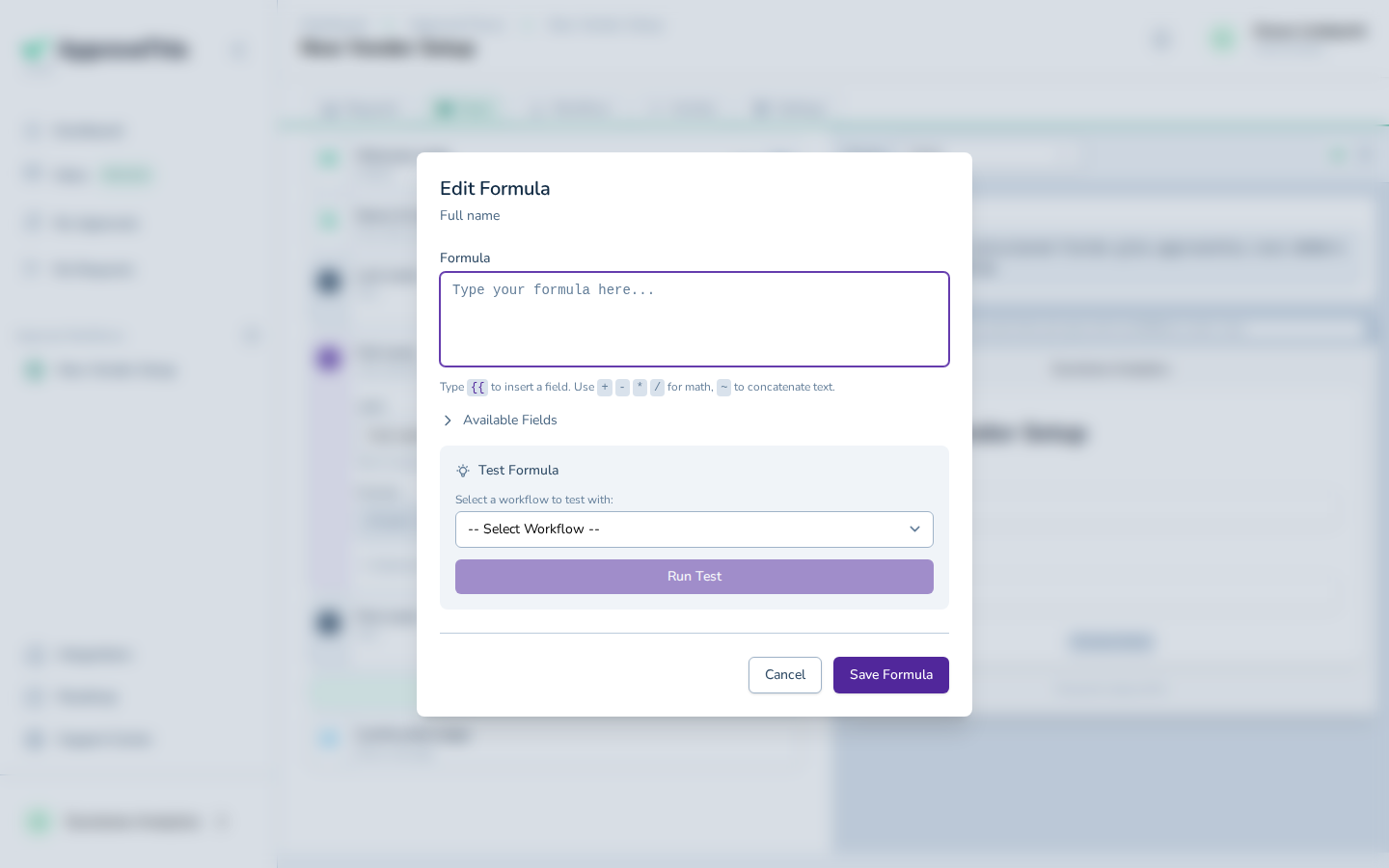
Click Click to edit formula... to open the formula editor. -
Click Available Fields to see the field references you can drop into the expression.
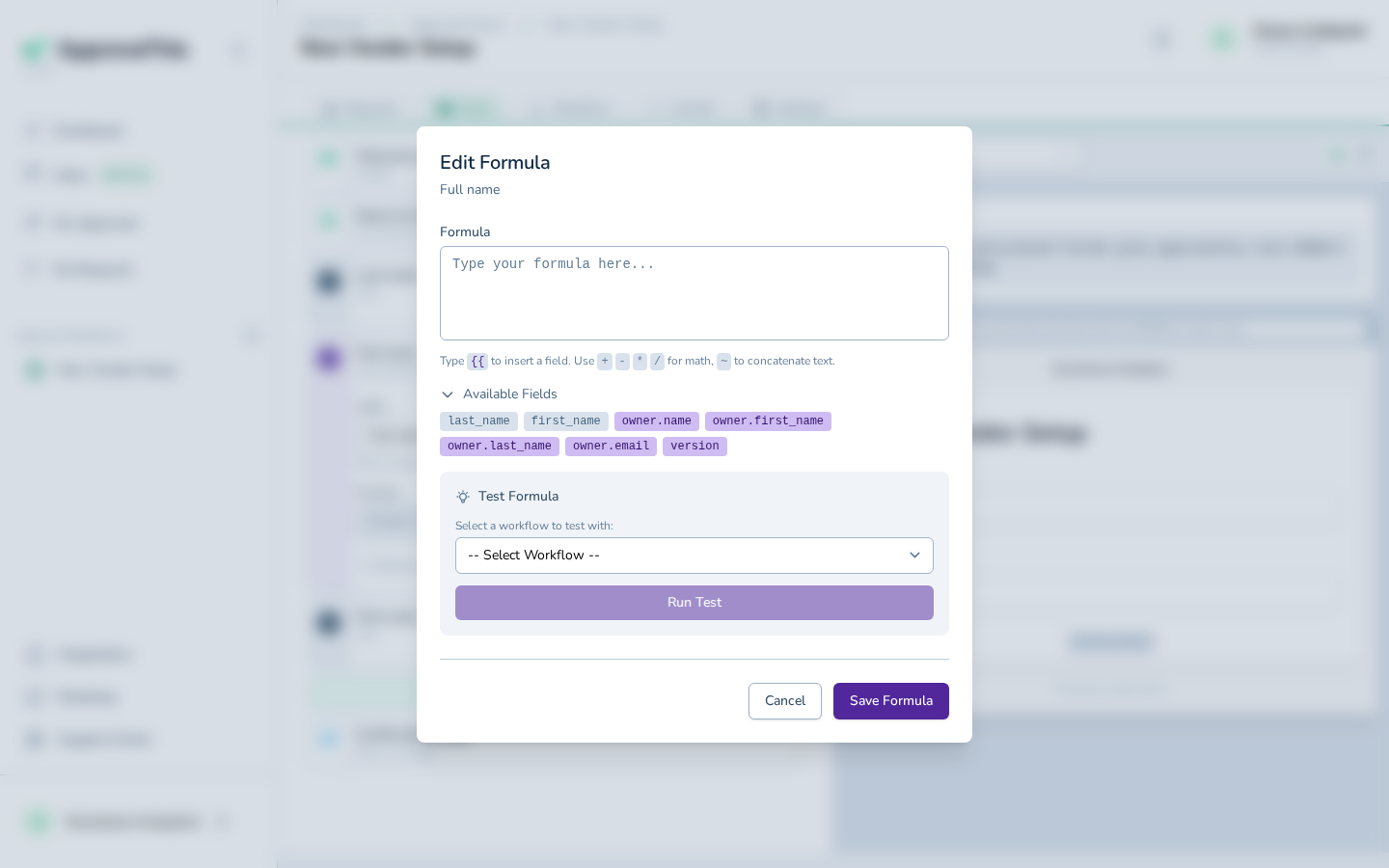
Click Available Fields to see the field references you can drop into the expression. -
Type the expression that produces the value you want in Type your formula here..., referencing other fields with
{{field_slug}}syntax; the example uses{{first_name}} ~ {{last_name}}to join two name fields with the~concatenation operator.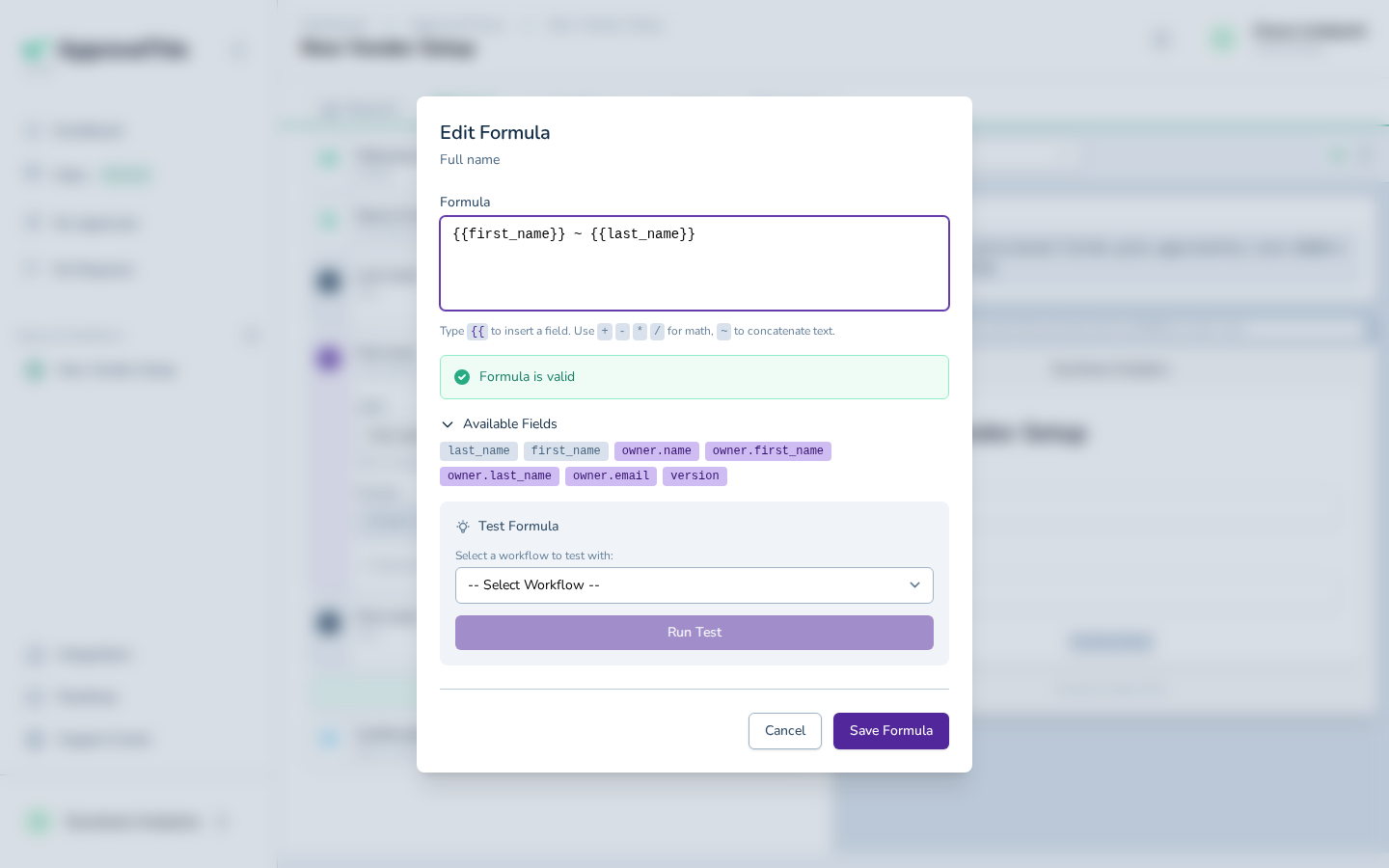
Type the expression that produces the value you want in Type your formula here..., referencing other fields with {{field_slug}} syntax; the example uses… -
Click Save Formula.
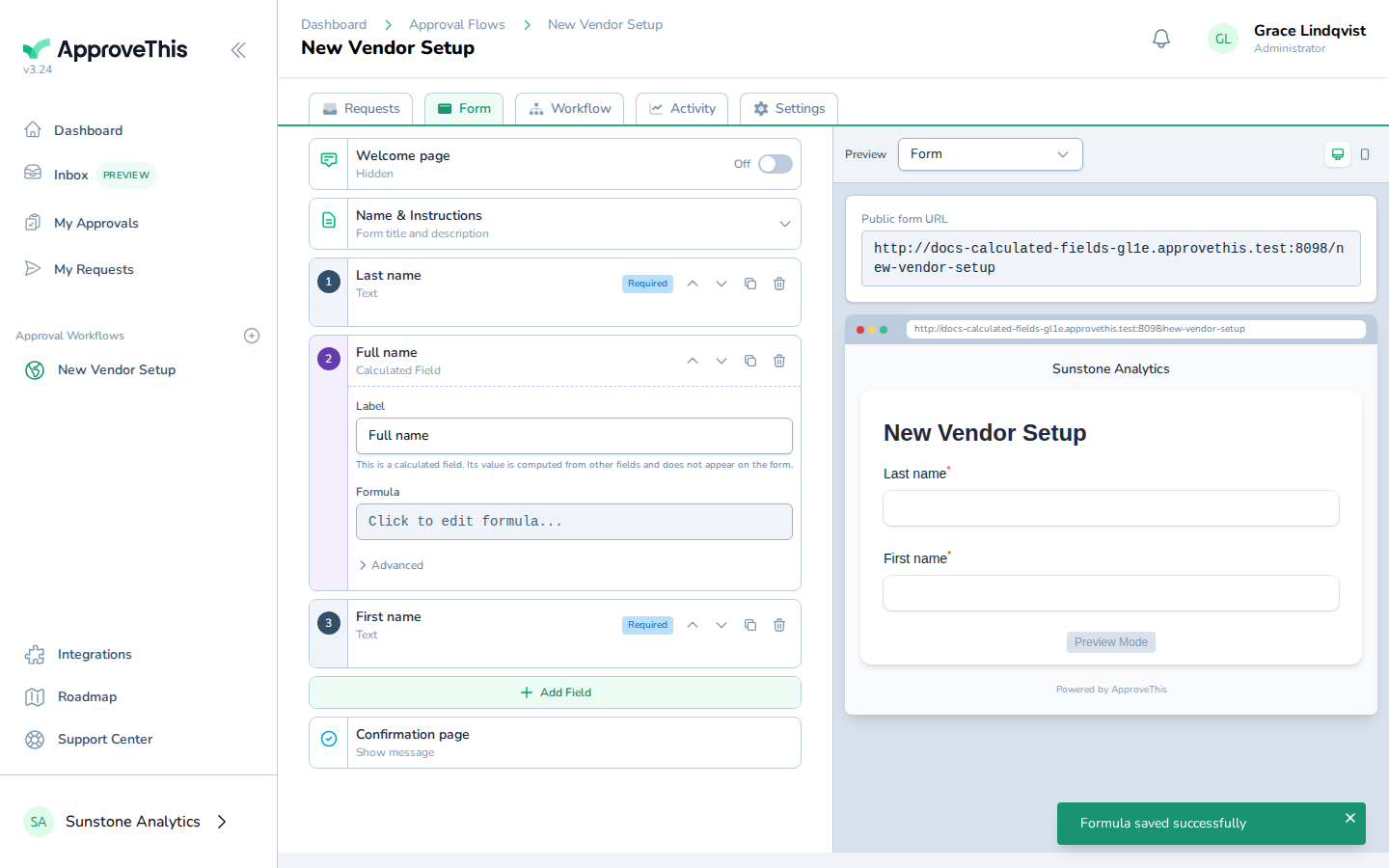
Click Save Formula.