Document and policy sign-off with e-signatures
Policy and contract sign-off with e-signatures, versioned revisions, locked comments, and a certificate anyone can verify.
Updated
A legal ops manager at a mid-market company knows how document approvals actually happen: an NDA variant goes out as an email attachment, redlines come back on a forked copy, and sign-off lands somewhere around reply thirty, in a one-line answer nobody will find again. When a counterparty later disputes a clause, or an auditor asks who approved the current version and when, there is nothing to hand over. Versions forked, comments were edited or quietly deleted, and nobody can prove which file leadership actually saw.
One request replaces the thread. Legal ops builds a document sign-off workflow: a file upload with context fields, review discussion locked against editing, and revisions on so a returned document comes back as a new version in the same chain. A sales manager submits an NDA variant, a legal reviewer sends it back once, leadership approves, and the executive signs electronically on the final step. The approved request produces a certificate anyone can verify, backed by a timestamped activity log.
What you'll set up
- A form with a file upload for the document, plus context fields: counterparty, effective date, what changed from standard
- Comments enabled and locked after posting, so the review discussion is tamper-proof
- Resubmission on for the flow, so a revised document returns as v2 in the same chain
- An approval chain: legal reviewer, then leadership, then a signing executive on a step with Require E-Signature
- The proof at the end: a downloadable approval certificate with a public verification link, and the request's activity log
Shape the form, lock the record
Open your flow's Form tab and use Add Field to shape what a requester must provide. The document itself is a file field; around it, add the context approvers need: a text field for the counterparty or policy name, a date field for the effective date, and a text field for what deviates from your standard terms. Mark the essentials Required and use Add help text to spell out exactly what to attach.
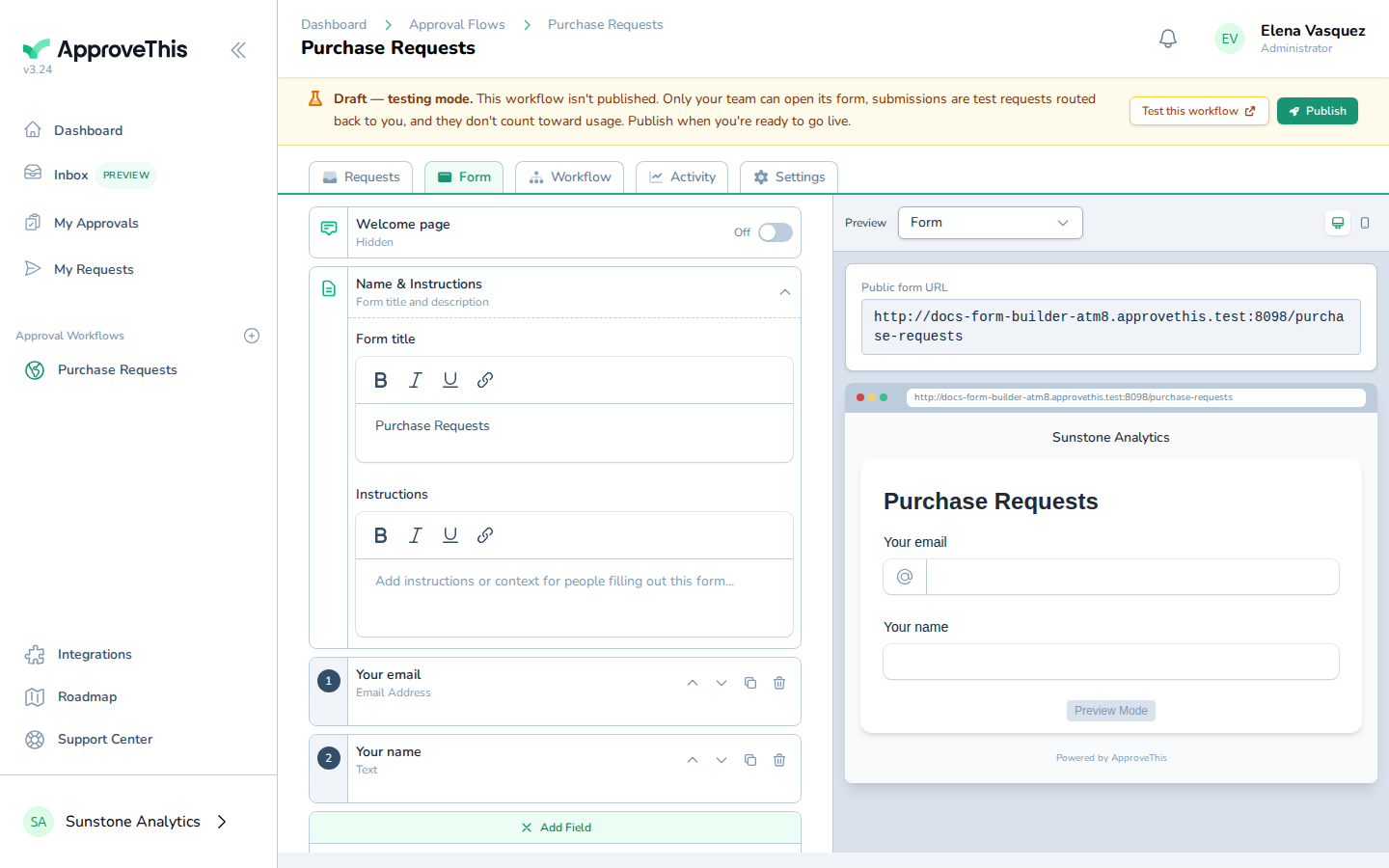
The example flow in the screenshots is Purchase Requests; your form swaps its currency field for a file upload and context fields.
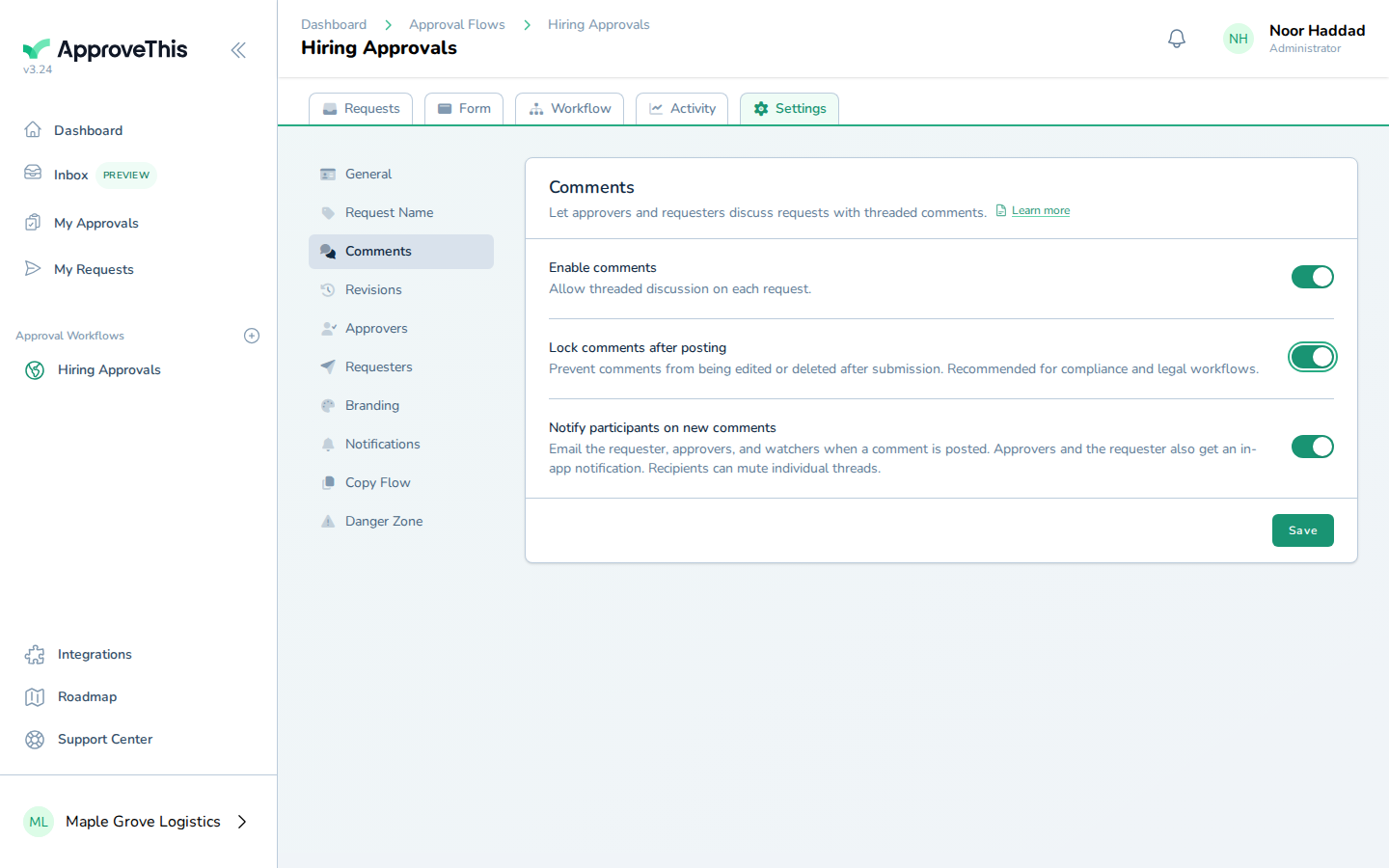
Then go to the flow's Settings tab and open Comments. Click Enable comments, then Lock comments after posting, then Save. This is the setting that makes the review discussion defensible: once posted, comments and replies can no longer be edited or deleted on this flow. The setting is per flow.
Resubmission is also a per-flow setting — make sure it is on for this flow, so a returned document can come back as a linked version rather than a disconnected new request.
Full click-by-click: Form Builder, Immutable Comments
Add the chain of approvers
On the flow's Workflow tab, add the approval steps in review order: the legal or compliance reviewer first, leadership next, and the signing executive last. Approvers on a step are named people you add via Search for an approver; with several approvers on the leadership step, its Settings pick what counts as approved: everyone, a majority, a fraction, or a specific number.
On the executive's step, click Require E-Signature in the step's Settings: the final decision becomes a signature, drawn or typed, captured at the moment the decision is recorded.
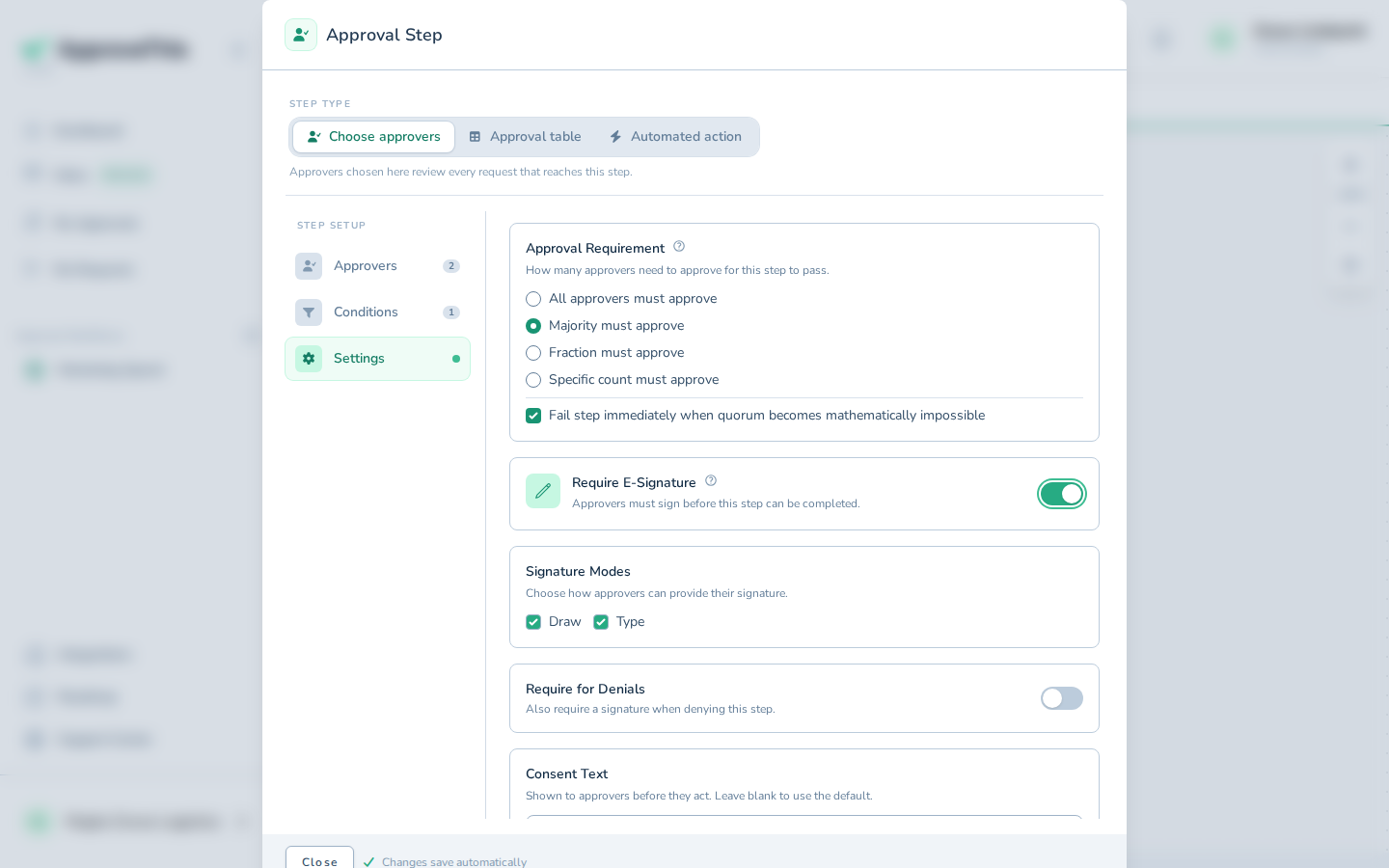
The example step in the screenshot has two approvers and a majority rule; for your executive step, the part that matters is the Require E-Signature toggle.
Full click-by-click: Add an Approval Step
An NDA variant comes in and legal pushes back
A sales manager submits through the form, attaching the NDA draft and filling in the counterparty and the deviations from standard terms. Because the form has a file field, the reviewer's approval email previews a PDF or image attachment inline rather than as a bare link (Inline File Previews walks that submission).
Discussion happens on the request itself, in its Comments section. The legal reviewer writes what needs to change and types @ to mention the sales manager, which notifies them by email and in-app with a link straight back to the thread. Only teammates who can view the request can be mentioned, and the notification is a link to the conversation, not a way to approve by reply.
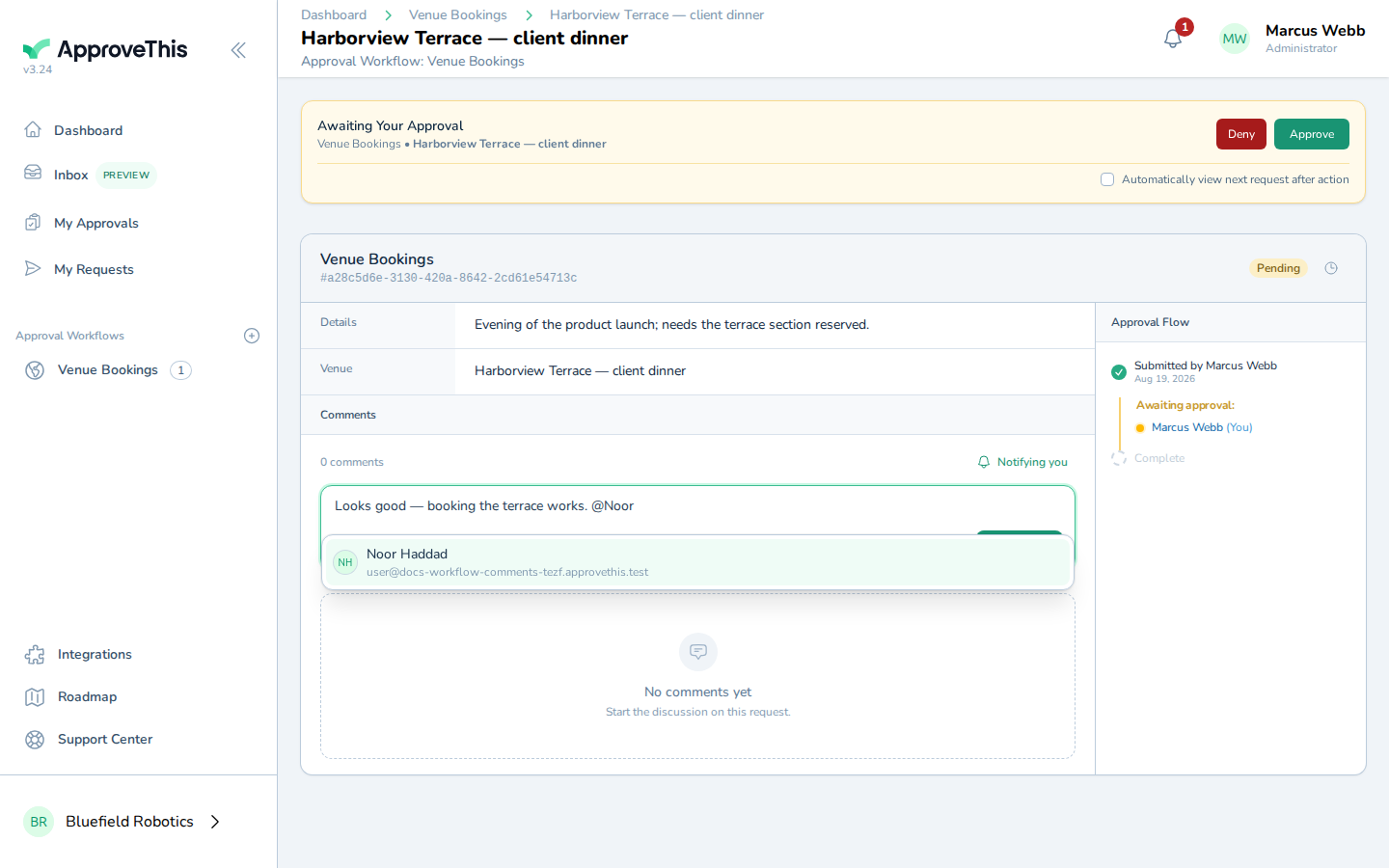
The example comment in the screenshot is a go-ahead on a different request; here, the reviewer's comment states the required change, and because this flow locks comments after posting, that comment is now permanent. The reviewer then asks for a revision rather than denying outright, sending the request back to the sales manager.
Full click-by-click: Workflow Comments
The revision comes back in the same chain
The sales manager, as the requester, opens the returned request. An orange bar at the top shows what the reviewer asked for. Clicking Edit & Resubmit reopens the request's fields with the prior values and uploaded files carried forward, so they swap in the corrected draft and touch nothing else.
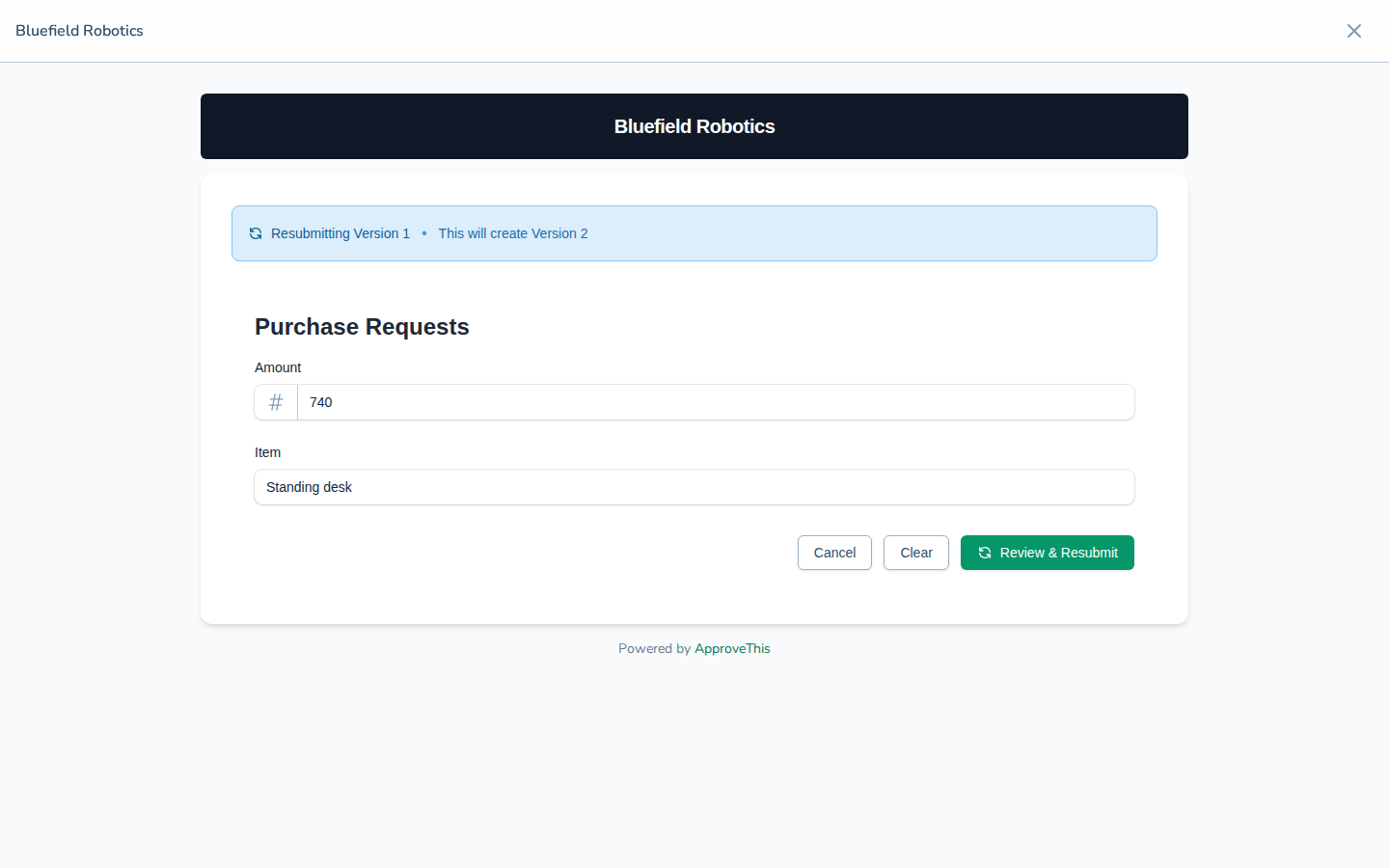
Review & Resubmit leads to a confirmation step with an optional Reason for resubmission, worth filling in so the reviewer sees at a glance what changed. Confirm Resubmission creates a new version linked to the original: the request page now shows v2 (current), and the whole chain stays together, which is exactly the version history the email thread never had. Note that only the latest version in a chain can be resubmitted, and an optional cap on chain length can limit how many rounds a request may go.
Full click-by-click: Request Revisions & Versioning
The executive signs
Once legal and leadership approve v2, the request reaches the executive. Approve on an e-signature step does not record the decision yet: the executive types their name in Full name (signatures can be typed or drawn), then clicks Sign & Approve.
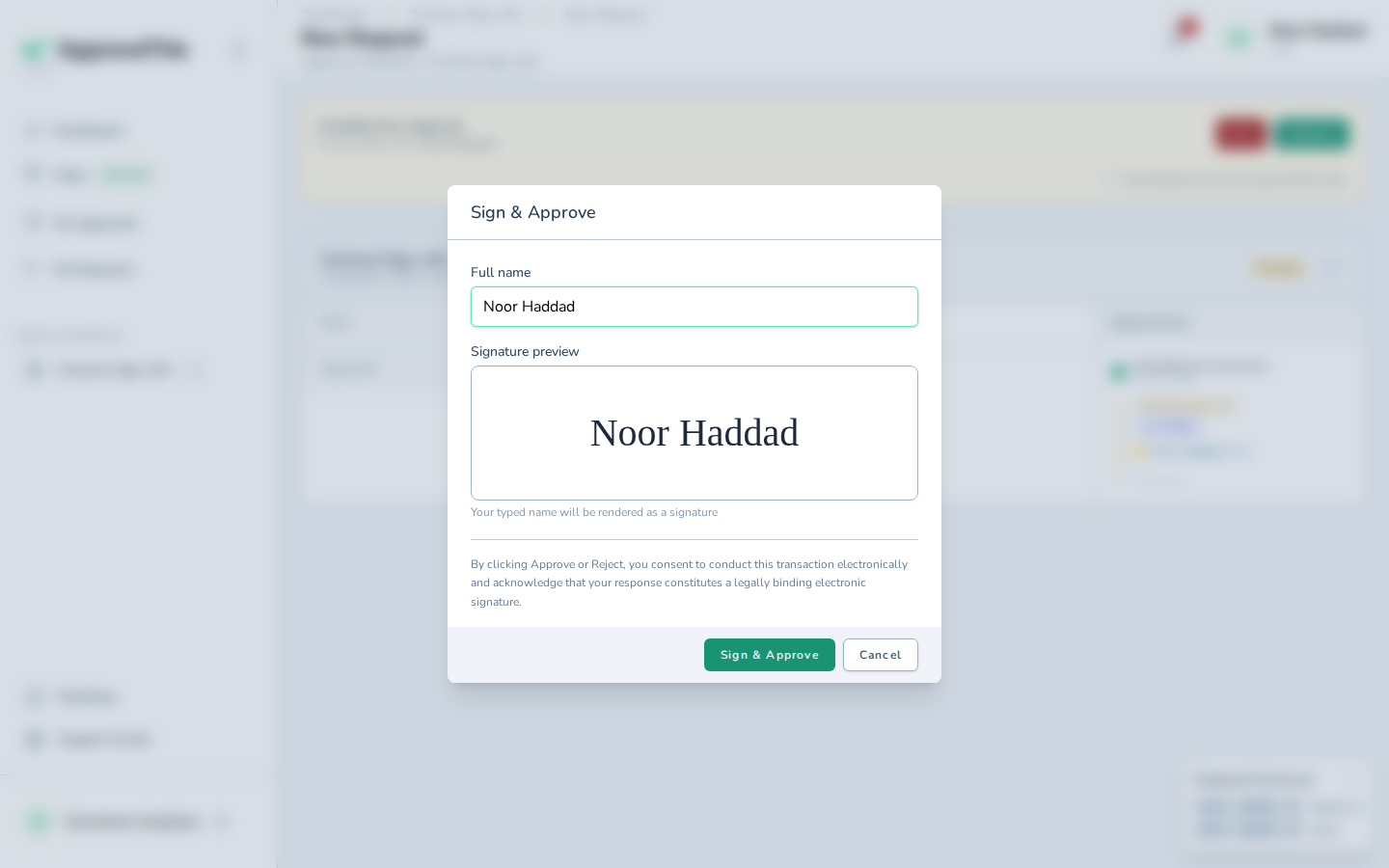
Alongside the signature, ApproveThis stores a tamper-evident audit context: the signer's name, the signature type, the consent version, the signing method, the request IP address and user-agent, and a SHA-256 hash of the request's field values at signing time. The signature terms shown to the signer are snapshotted when the request is created, so later edits to the flow don't change what they agreed to, and the same audit context is recorded whether they approve or deny.
Full click-by-click: E-Signature
The certificate and the record
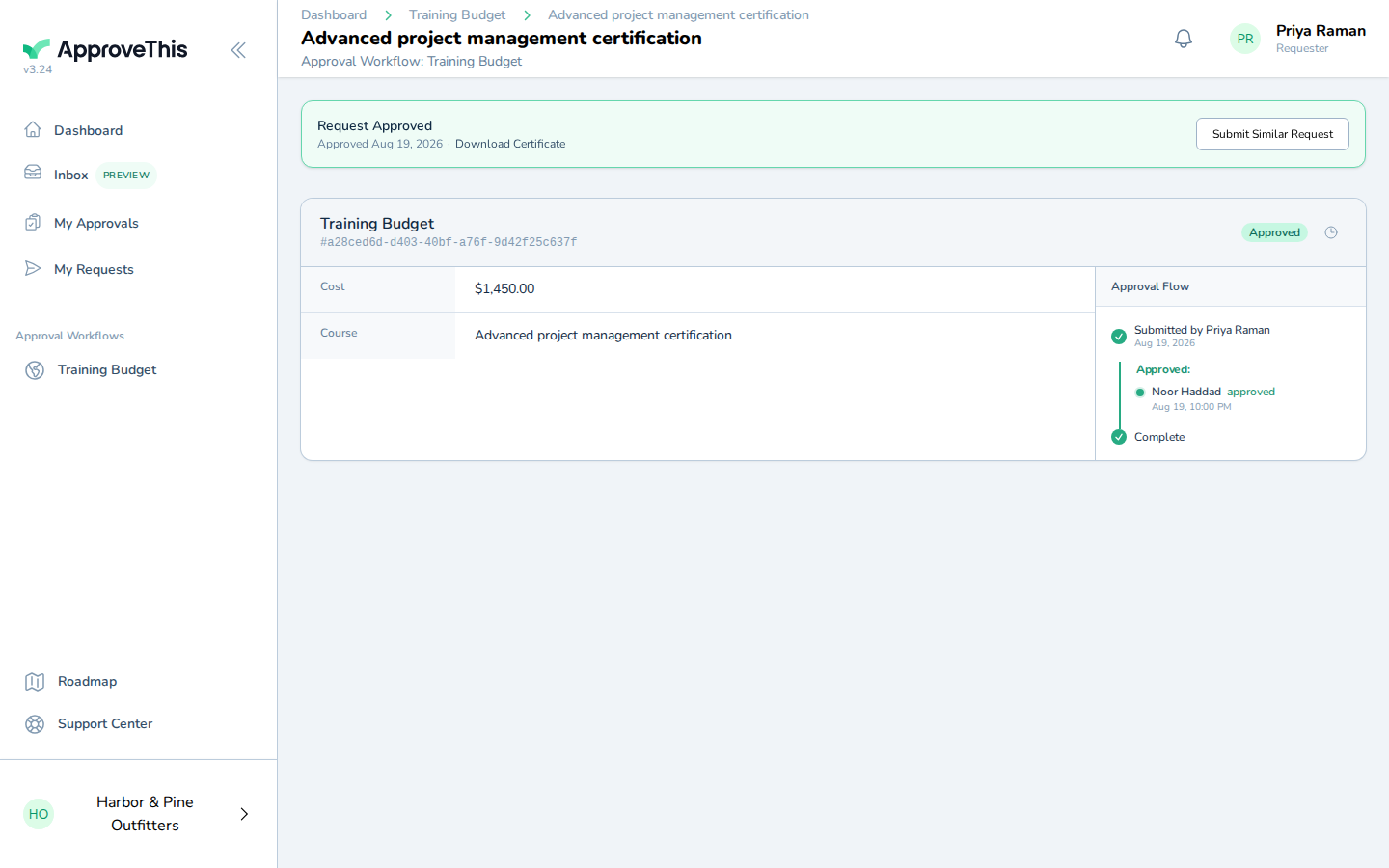
The sales manager's approved request now shows a green approved bar with Download Certificate. The certificate is a PDF record of the approval with a public verification link in two forms, a QR code and the URL printed at its foot, so a counterparty or auditor can confirm the approval is genuine without an ApproveThis account.
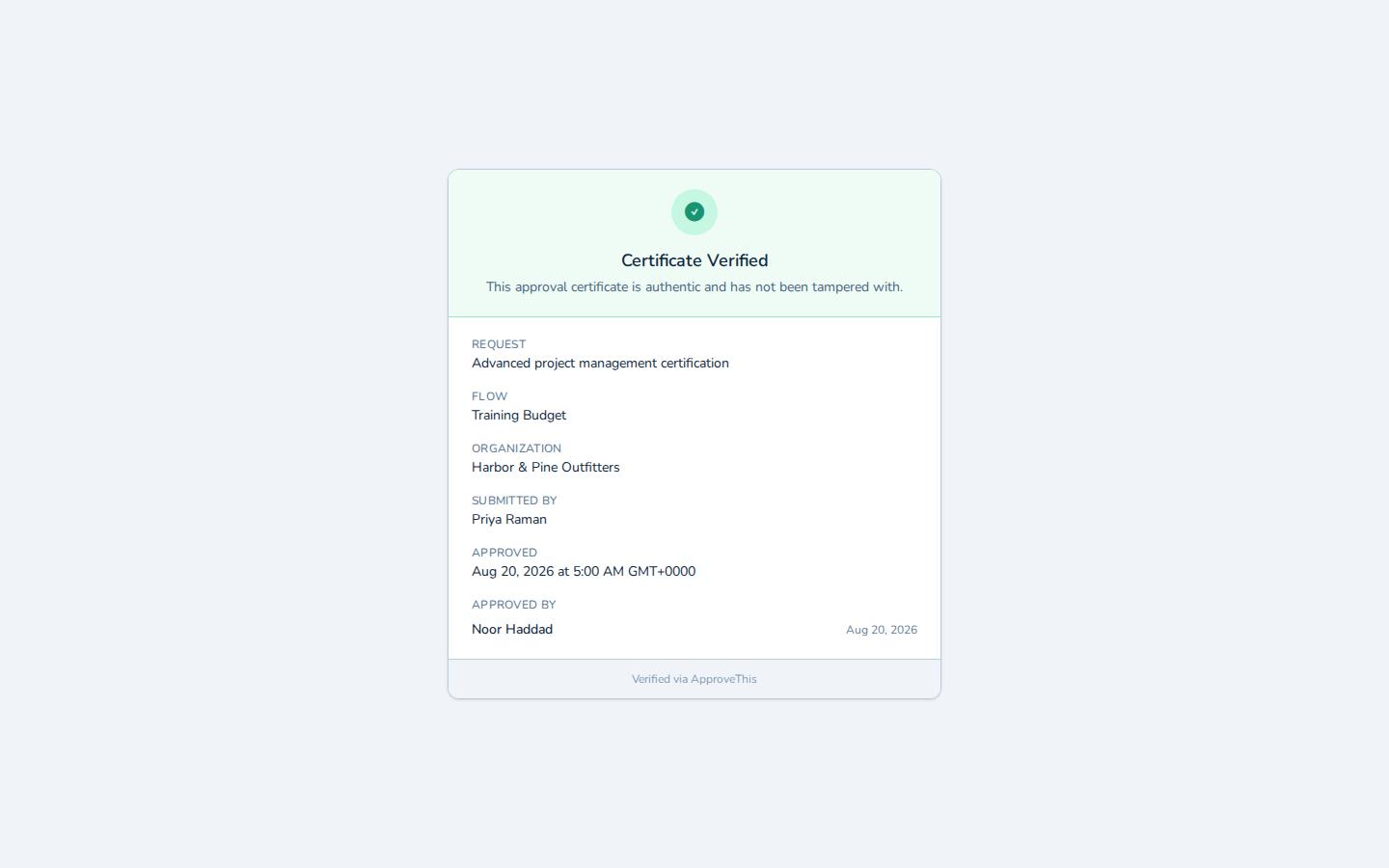
Check the link before handing the document over; the verification page confirms with Certificate Verified.
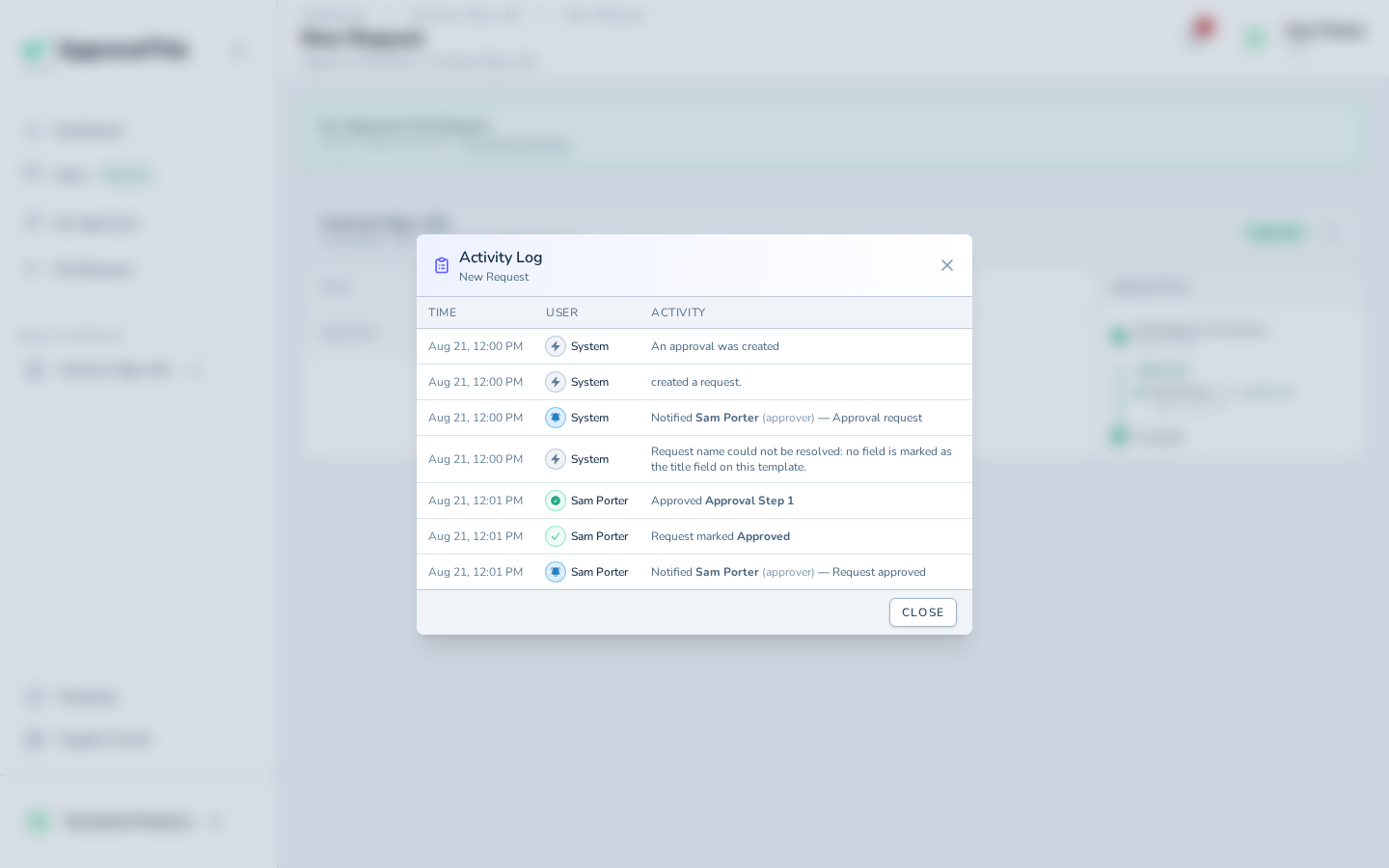
Behind it all sits the request's Activity Log, the clock icon in the request header: each decision, each routing evaluation, and each notification sent, with who did it (or 'System') and when. Certificate downloads and visits to the verification page are recorded there too. Between that timeline and the locked comment thread, "who approved this version, and what was discussed" has a documented answer.
HR runs the same shape for employee-handbook and policy updates: the policy PDF is the attachment, leadership reviews it and signs as they approve on e-signature steps, and the certificate plus the locked comment trail is what you hand the auditor.
Full click-by-click: Approval Certificates, Activity Log & Audit Trail
Related guides
- Add an Approval Step — conditions, approval requirements, and signature rules on any step in the chain.
- External Approver Role — when the counterparty's own signer needs to approve without seeing your workspace.
- Inline File Previews — how attached documents appear previewed inside approval emails.
- Request & Activity Export (CSV / Excel) — pull a workflow's requests or audit trail into a spreadsheet for an audit package.
- Flow Watchers — give a general counsel or compliance lead email visibility into every sign-off without putting them in the chain.