Client creative approval with timestamped feedback
Clients watch the cut inline and sign off without an account, and feedback lands as comments pinned to exact moments.
Updated
Client review by email thread has one signature failure. The producer sends a cut, notes come back days later as "fix the bit near the end", and the editor guesses which bit. Filenames sprout v3, v4, FINAL-final. When a deliverable is disputed later, nobody can prove which cut the client actually signed off.
One workflow replaces the thread. The producer builds it: a form that carries the video and its context, a producer review step, and a final client approval step. The editor submits each cut as a request. The producer reviews it on the request page and pins comments to exact timestamps, folding in the notes the client sends back by reply or call. The client marketing lead signs off from their inbox with one click, and the account director watches without being asked to act. At the end, decision, discussion, and every version sit on one auditable request.
What you'll set up
- A form with a Video Link field for the cut plus context fields (cut number, campaign, due date)
- Two approval steps: the producer's internal review first, then a final step whose approver is your client contact, holding the restricted External Approver role
- The account director added as a watcher, so they get email on submissions, comments, decisions, and revisions
- A review loop on the producer's step where feedback, including the client's relayed notes, arrives as comments pinned to Timestamp (minutes:seconds) moments
- Resubmission turned on for the flow, so each new cut becomes v2, v3 in the same versioned chain
- A final approval recorded on the request itself, one click from the client's email
A form built around the cut
Open your flow's Form tab and shape what the editor fills in per cut. The load-bearing field is a Video Link field: it stores a pasted Gumlet, YouTube, or Google Drive URL (ApproveThis does not host, transcode, or store the video file itself), and the clip plays inline on the request page next to Comments, which is what makes timestamped feedback possible later. The Video Review Comments guide describes that field; the Form Builder covers adding fields generally. Around it, add the context the client needs to judge the cut without asking: a text field for the cut number and what changed, a date field for the air date.
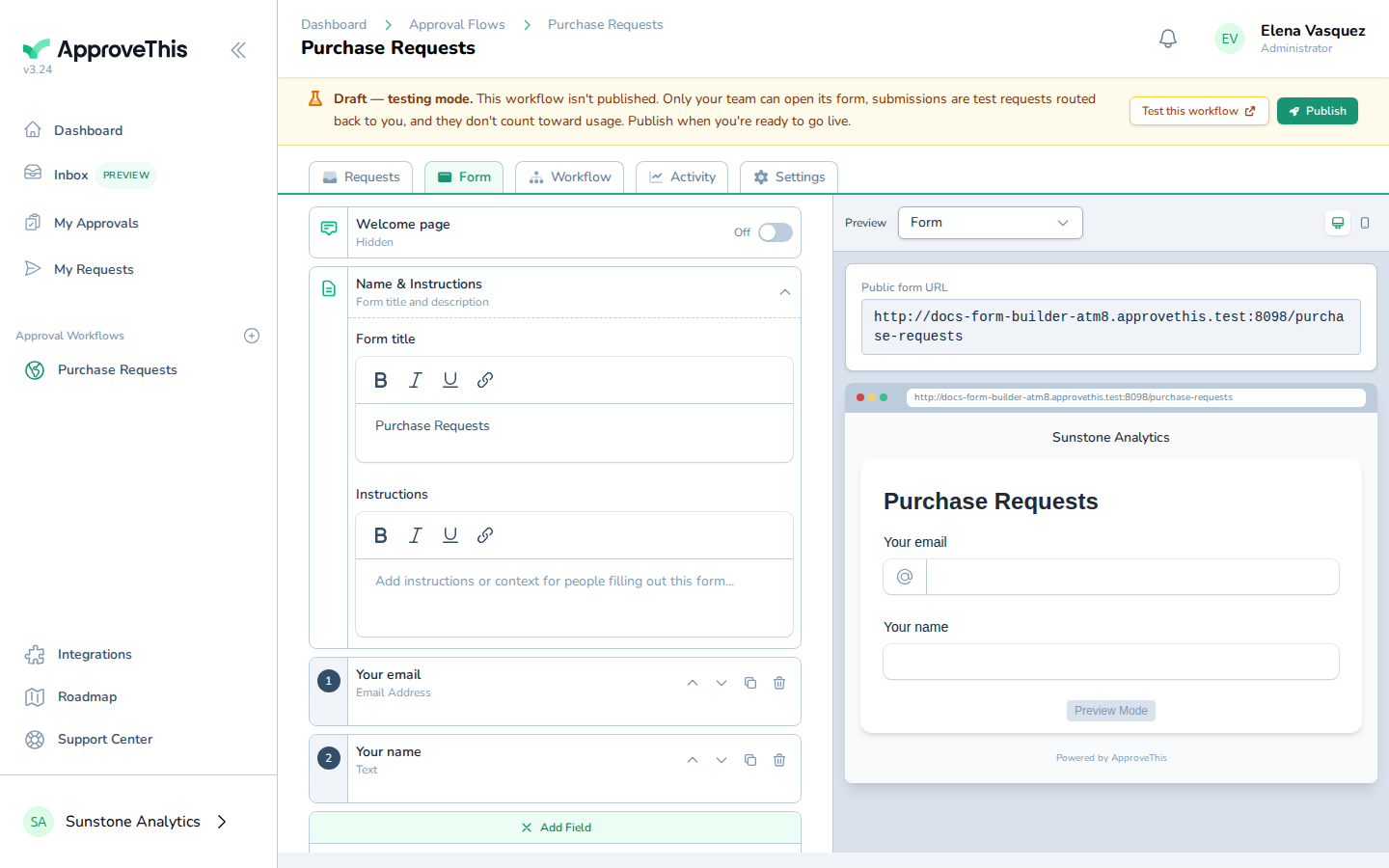
Click Add Field, pick the type, then set the label, Required, and help text. While you're here, confirm the flow has comments enabled and resubmission turned on; both are per-flow settings, and the versioned chain later in this walkthrough depends on resubmission.
Full click-by-click: Form Builder
Put the producer before the client, the account director beside both
On the flow's Workflow tab, add two approval steps; approvers on a step are named people you add through Search for an approver. The first step belongs to the producer, and it has to: the External Approver Role guide states that approving is the one action an external approver can take from their restricted view, so the commenting and send-it-back half of this walkthrough needs an internal seat, and the producer's step is where it lives. The second step's approver is your client contact, holding the External Approver role. That role is what makes the hand-off safe: external approvers get a restricted, approval-only view, with navigation limited to the approvals assigned to them; one client never sees another client's campaigns. Assigning approvers through a user_select field can even auto-create these external accounts when a request is created; the same guide covers the hand-off.
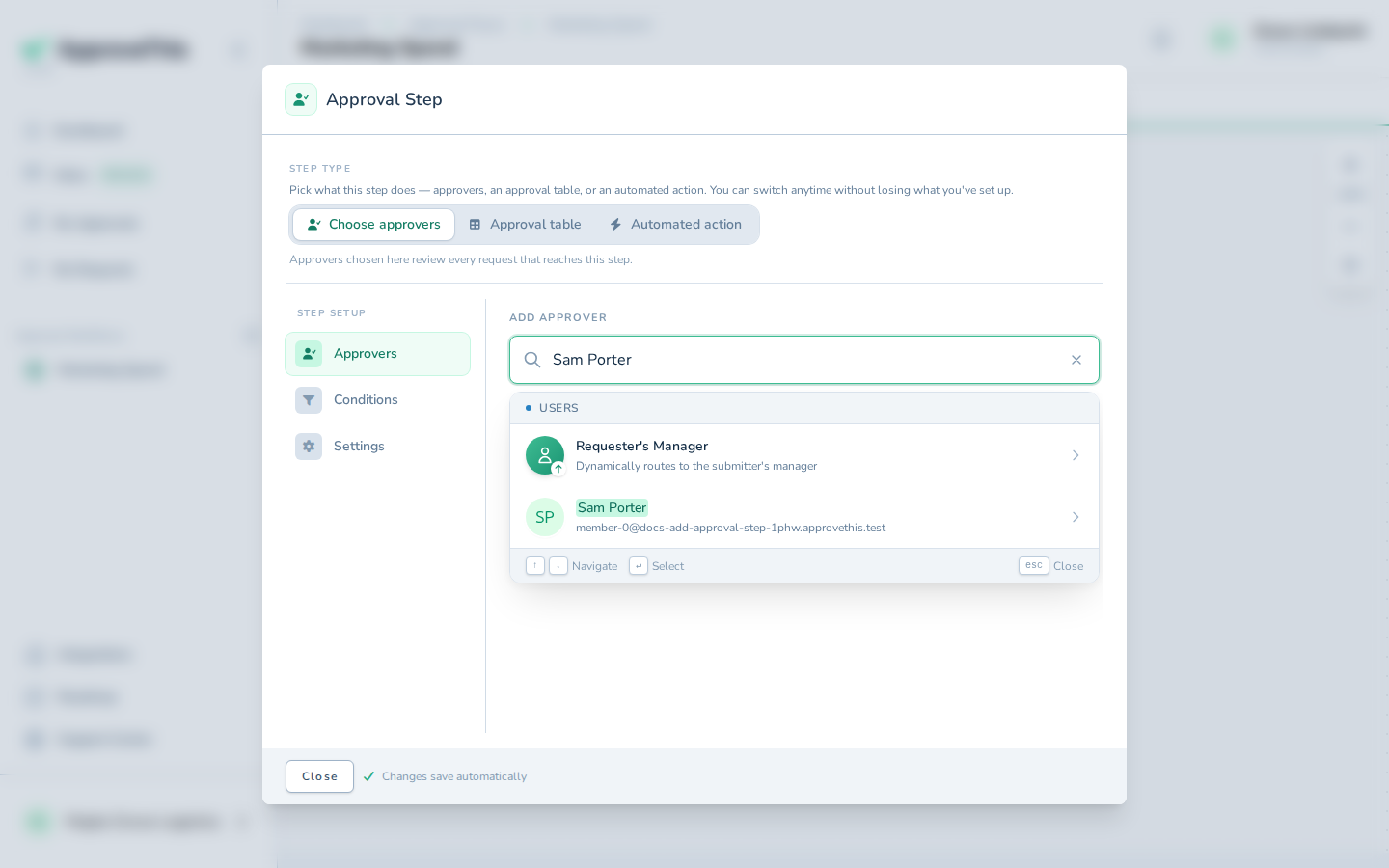
The account director should see everything and approve nothing. In the flow's Settings tab under Notifications, add them as a watcher: they get email when requests are submitted, approved, or denied, and when comments or revision requests land, without ever holding up the chain. The Flow Watchers guide has the panel; the requester is excluded from watcher emails, so the editor isn't double-notified.
Full click-by-click: Add an Approval Step
Feedback pinned to the frame
The editor submits the first cut as a request and it opens on the producer's step. The request page is the end of "fix the bit near the end". The video plays inline with the Comments section below it, and a comment can be pinned to an exact playback moment. Commenting is a teammate action: the Video Review Comments manual demonstrates the clicks from an Administrator's seat, and Workflow Comments covers Administrators and Users, while the client's restricted view offers approving only. So the client's notes reach the request the way they already reach you, in a reply or on a call, and the producer pins each one to its moment: click Add a comment…, type the note, enter the position in Timestamp (minutes:seconds), click Add, then Comment.
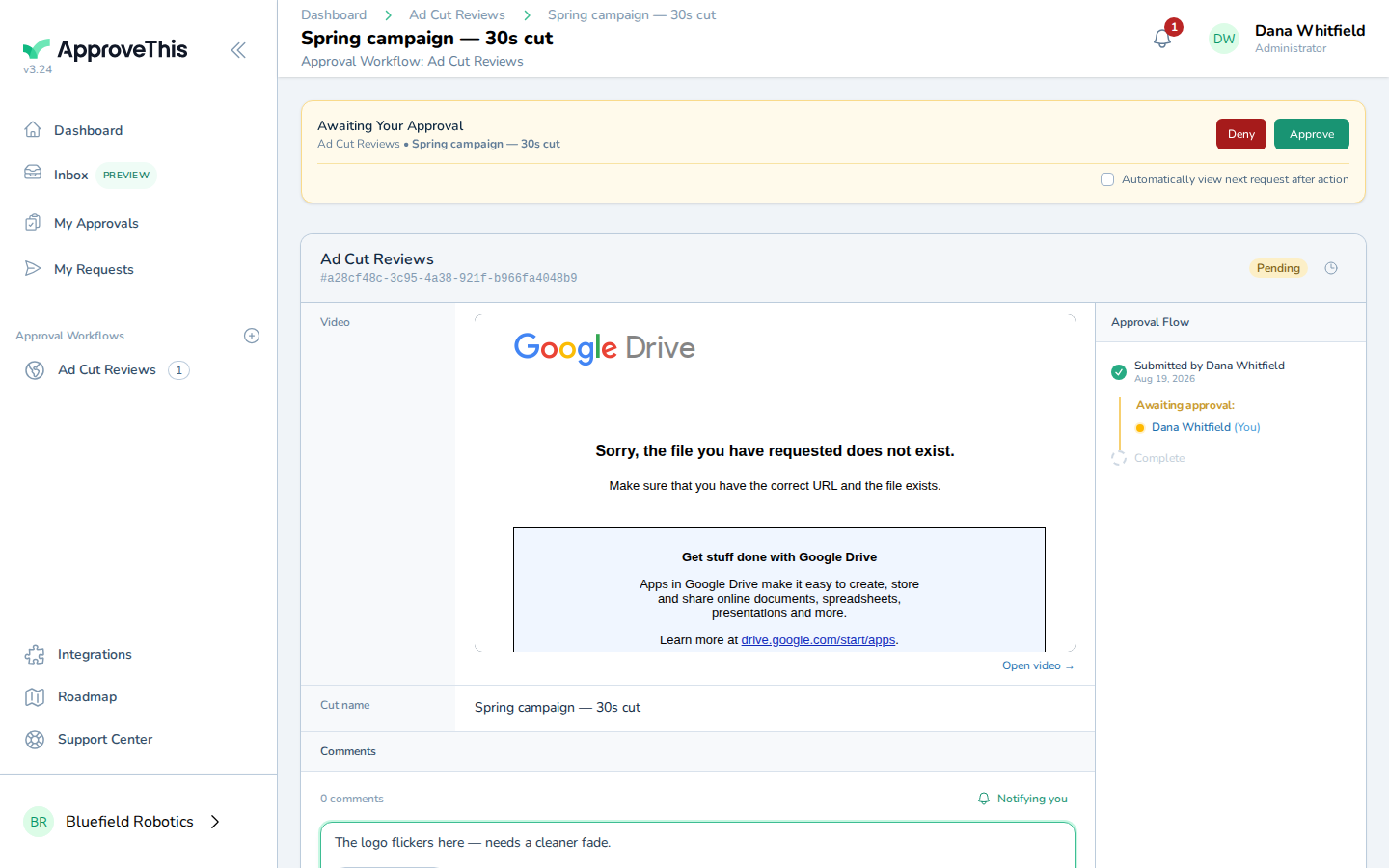
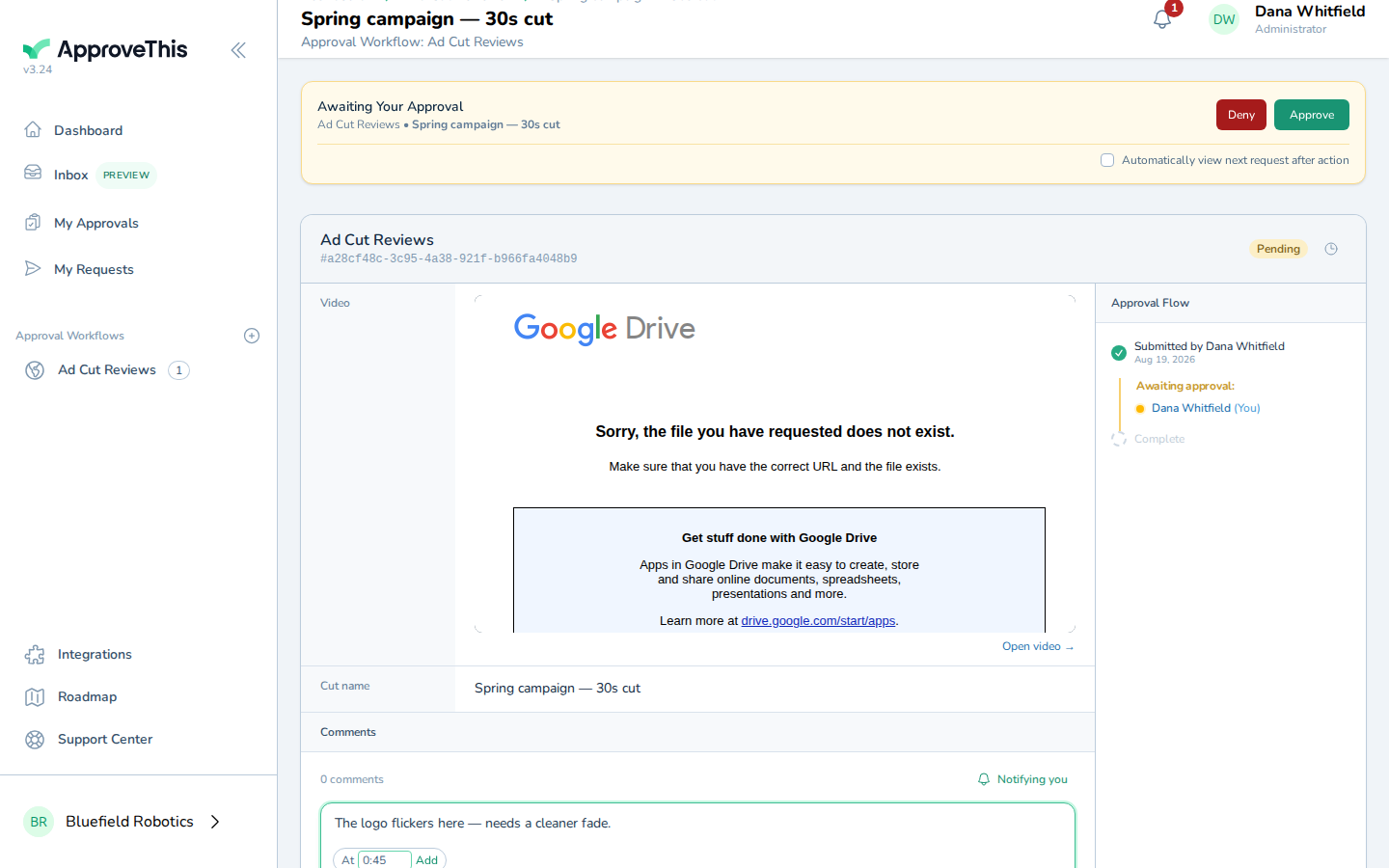
Each posted comment carries a chip that jumps the player back to that moment, and comment-received emails carry the timestamp plus a link that lands on the request and auto-seeks to it, so the editor opens their inbox and is looking at the exact frame. Provider support is asymmetric, which matters when you pick where cuts are hosted: Gumlet and YouTube allow in-page capture, seek, and jog; Google Drive embeds are not scriptable, so timestamps are typed manually and the jump chip opens Drive's own viewer in a new tab.
For discussion that isn't about a frame, the editor can @-mention the producer in the same thread; only teammates allowed to view the request can be mentioned, and the notification is a link to the conversation, not a way to approve by reply.
Full click-by-click: Video Review Comments and Workflow Comments
The next cut joins the same chain
When the producer sends the cut back for changes, the editor doesn't file a new request and orphan the feedback. On the returned request, an orange bar at the top shows what the approver asked for, and Edit & Resubmit reopens the fields. Prior values carry forward unless changed, so the editor pastes the new cut's URL into the Video Link field, updates the cut notes, then clicks Review & Resubmit, adds a line in Reason for resubmission (optional), and clicks Confirm Resubmission.
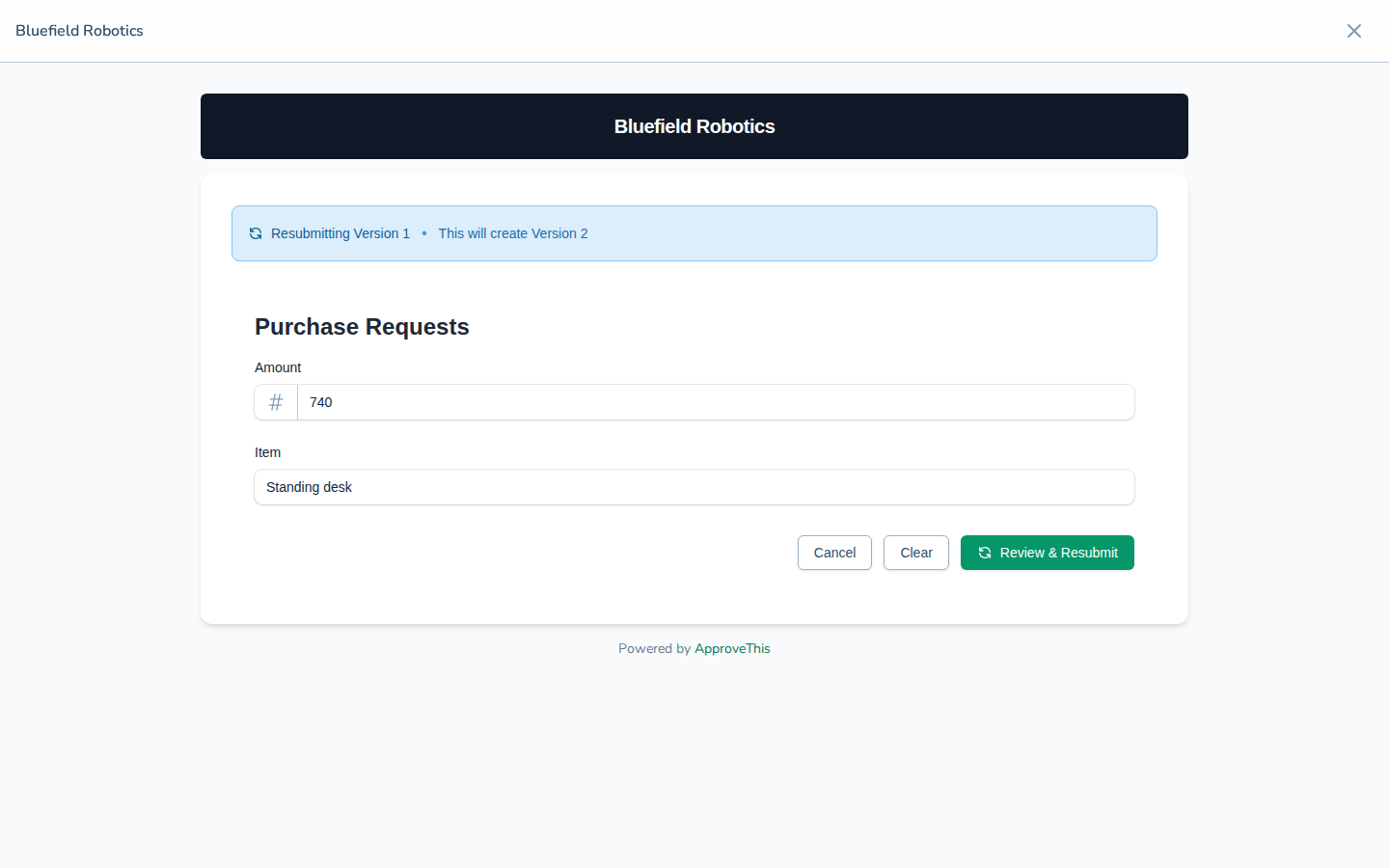
The resubmitted request shows v2 (current), linked to the original, so every cut and every timestamped comment stays in one chain. Limits to respect: only the latest version in a chain can be resubmitted, cancelled requests have no resubmit entry, and an optional cap on chain length can limit the number of rounds.
Full click-by-click: Request Revisions & Versioning
Sign-off you can point to
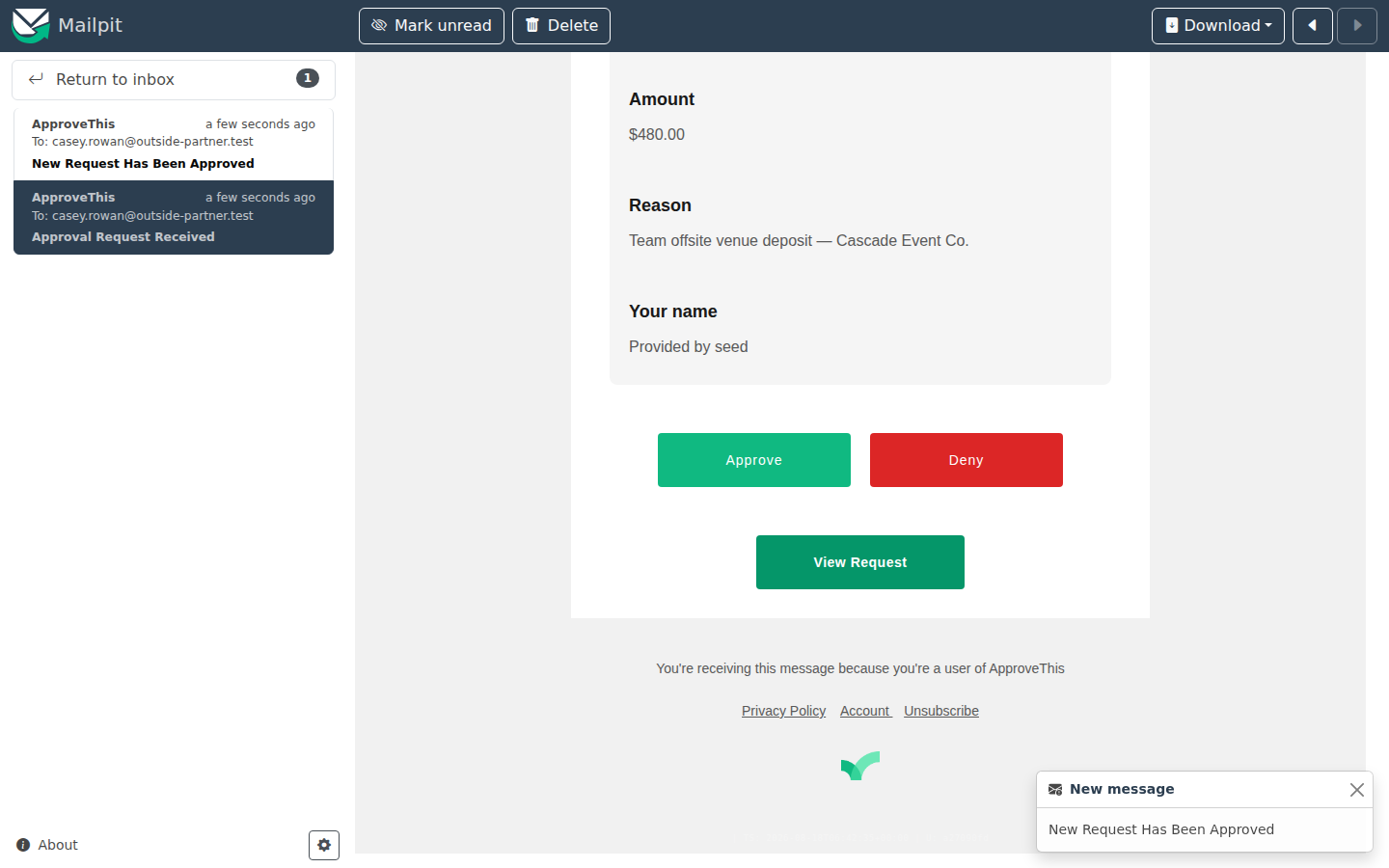
When the producer approves a cut, it moves to the client's step and the client gets an approval email. No password hunt: approval emails route through short links to signed URLs that log the approver in automatically for that single action. Before promising the client zero friction, know the exceptions — 2FA, or a workflow that requires approvers to log in, still means a sign-in.
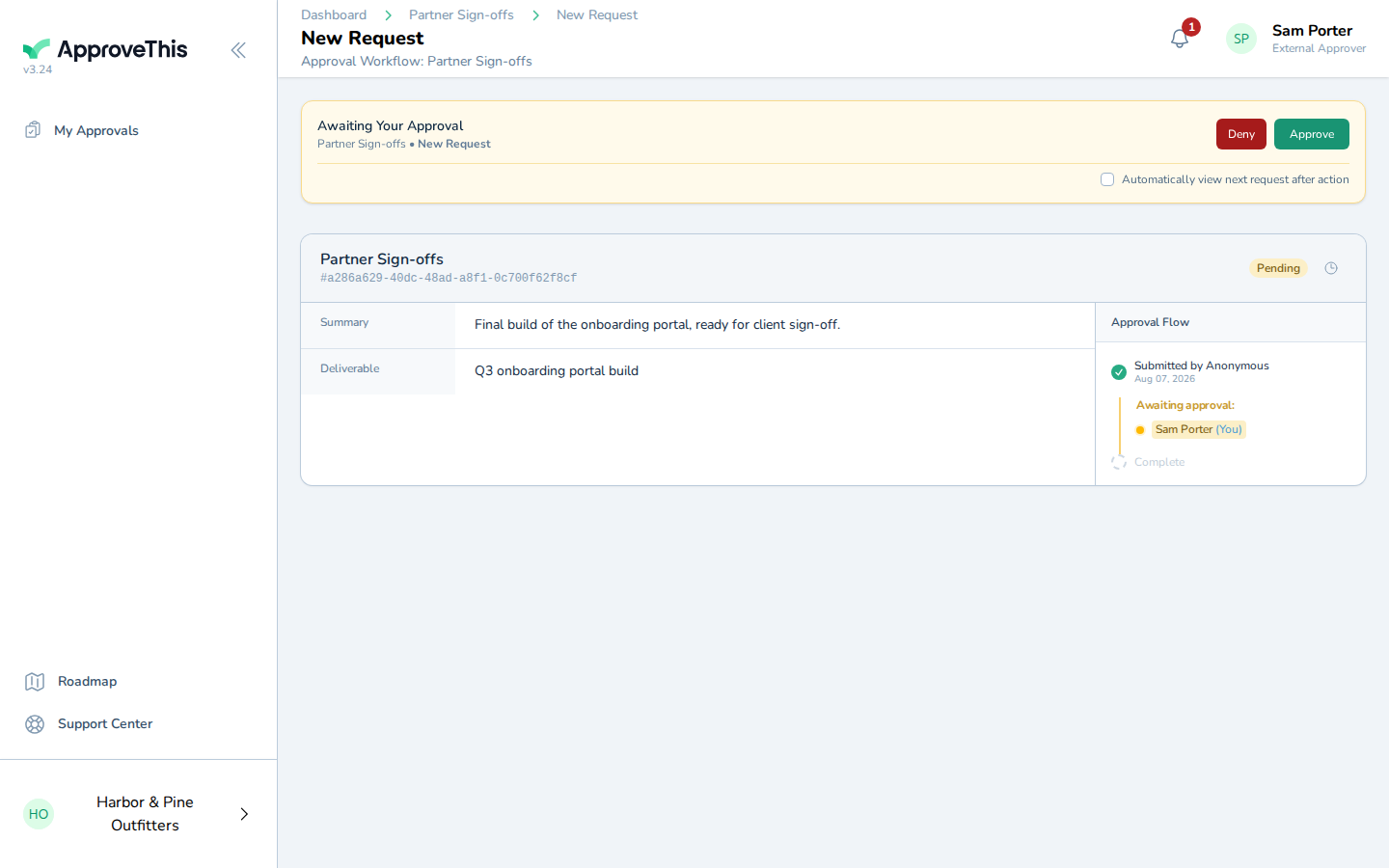
In the app, the client sees only their assigned approvals, and the request opens under Awaiting Your Approval. The client clicks Approve in the email and sees You approved this request. We'll let everyone know. From the restricted in-app view the confirmation reads You Approved This Request.
If the client side is a committee rather than one marketing lead, put every stakeholder on the client step and give it a majority quorum: open Configure step, then Settings, then Majority must approve. The step passes as soon as a majority of its approvers approve, with the rest released without acting. The Quorum & Majority Voting guide covers the setting.
The payoff is the request itself: the approved cut's version, the full comment thread with its timestamps, and the recorded decision, all on one page the account director was watching from the first submission. Next time someone asks which cut was approved, you send a link instead of forwarding a thread.
Full click-by-click: Login-Free Approval Links and External Approver Role
Related guides
- Notification Branding — set the flow's sender name, color, and logo so client-facing approval emails read as yours, not a generic system's.
- Flow Watchers — add or remove watchers like the account director, or watch a flow yourself.
- Approval Reminders — recurring email nudges when the client sits on a cut; off by default and configured per flow.
- Quorum & Majority Voting — the majority setting for committee sign-offs, plus fraction and fixed-count options.
- Resend an Approval Request — when the client swears the email never arrived, resend it from the request's activity log with the resend on record.