Inline File Previews
Approvers see the attachment, not a filename: images and PDFs preview right inside the approval email, with the file a single click away.
Updated
Attachments on an approval request don't have to arrive as a bare filename an approver has to download to understand. When a request includes an uploaded image or PDF, the notification email renders it inline — a thumbnail alongside the filename, size, and a download button — so the approver can read the receipt without leaving the inbox. This guide is for Requesters submitting a request with a file field, and it assumes you have a request form open with a file upload field on it. Previews for images and PDFs are on by default in notification emails; other file types fall back to a download link.
Who this is for: a Requester.
Attach a file and see it previewed in the approval email
A receipt or invoice attached to a spending request is the thing the approver actually needs to look at, and inline previews put it in front of them in the approval email itself. Note that on the request page in the browser only .eml files preview today — images, PDFs, and spreadsheets there fall back to download links.
-
Sign in as the Requester submitting the request.
-
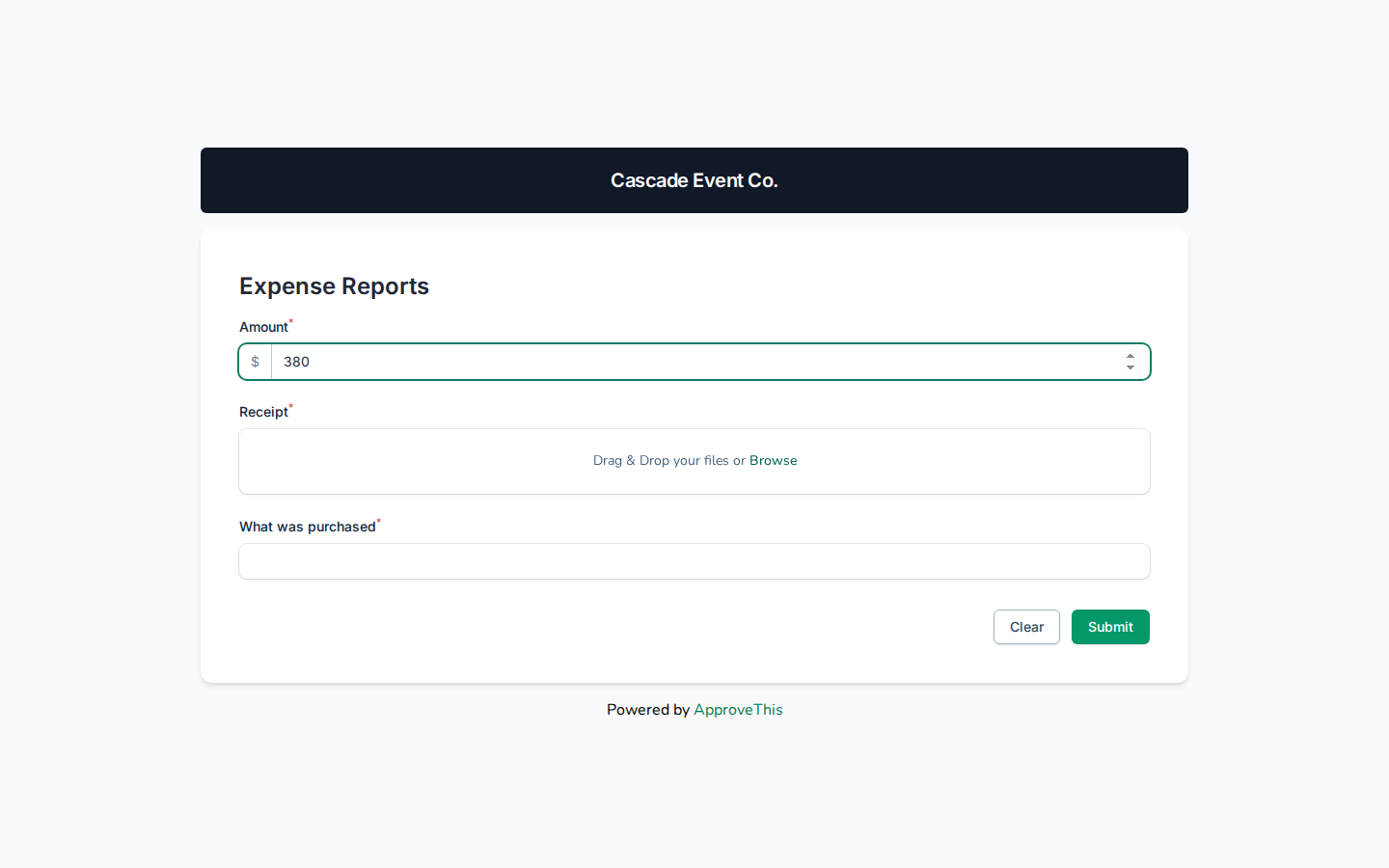
Enter the amount the request is for in Amount (the example uses
380).
Enter the amount the request is for in Amount (the example uses 380). -
Upload your file to Drag & Drop your files or Browse — an image or PDF previews inline in the notification email, such as
sample-receipt.pngin the example screenshots.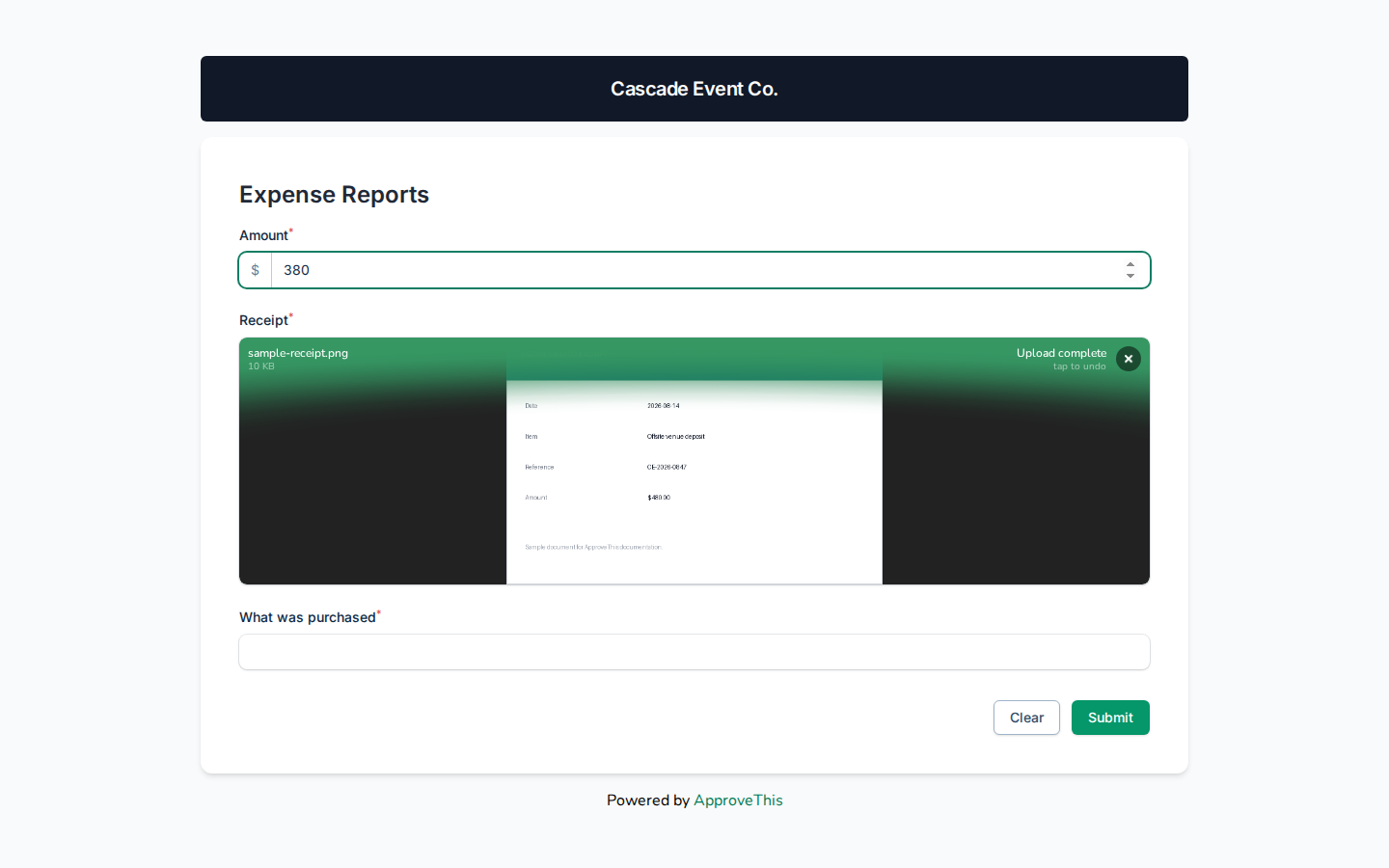
Upload your file to Drag & Drop your files or Browse — an image or PDF previews inline in the notification email, such as sample-receipt.png in the example… -
Describe what the spend covers in What was purchased, e.g.
Catering deposit — client workshop lunch.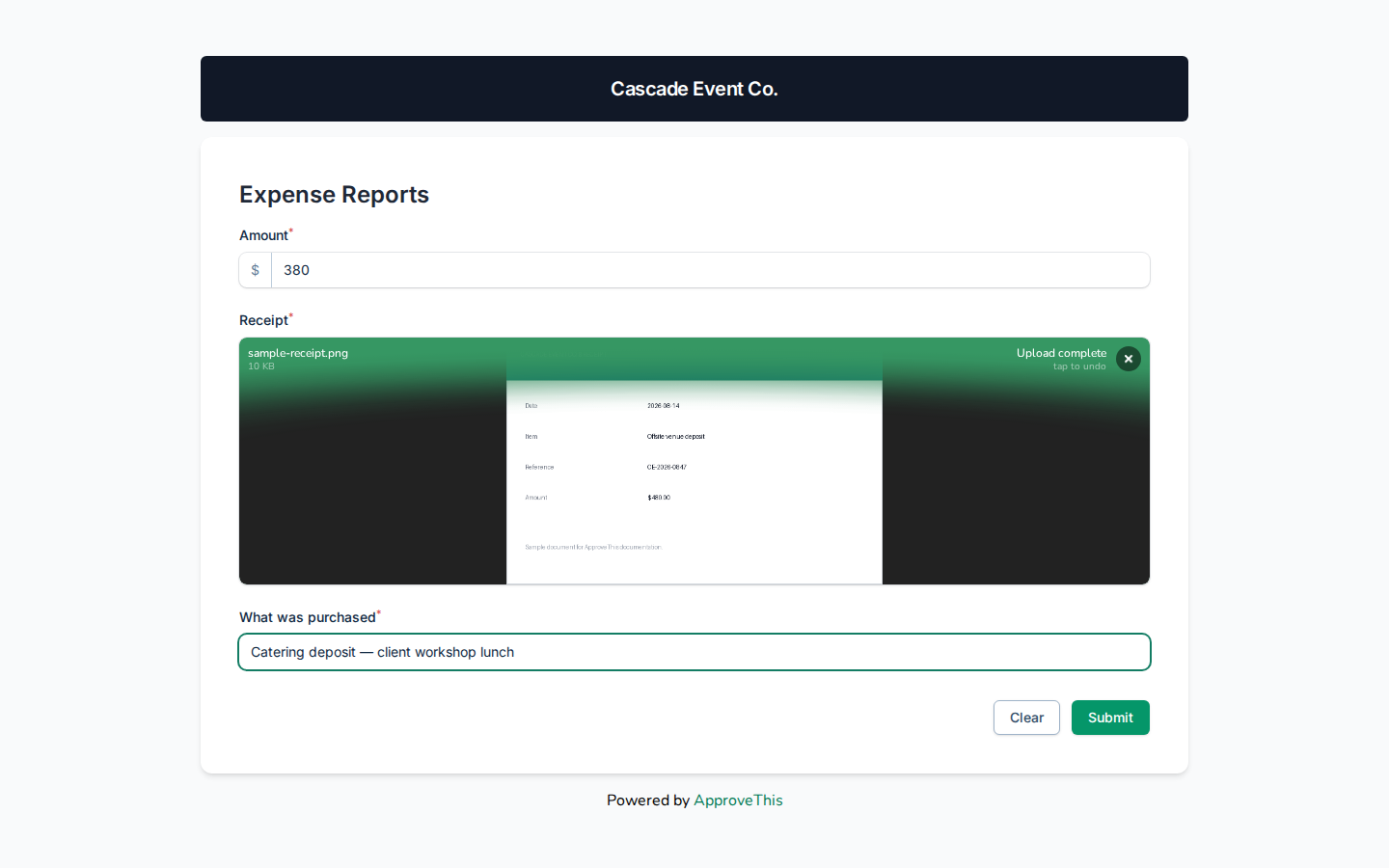
Describe what the spend covers in What was purchased, e.g. Catering deposit — client workshop lunch. -
Click Submit.
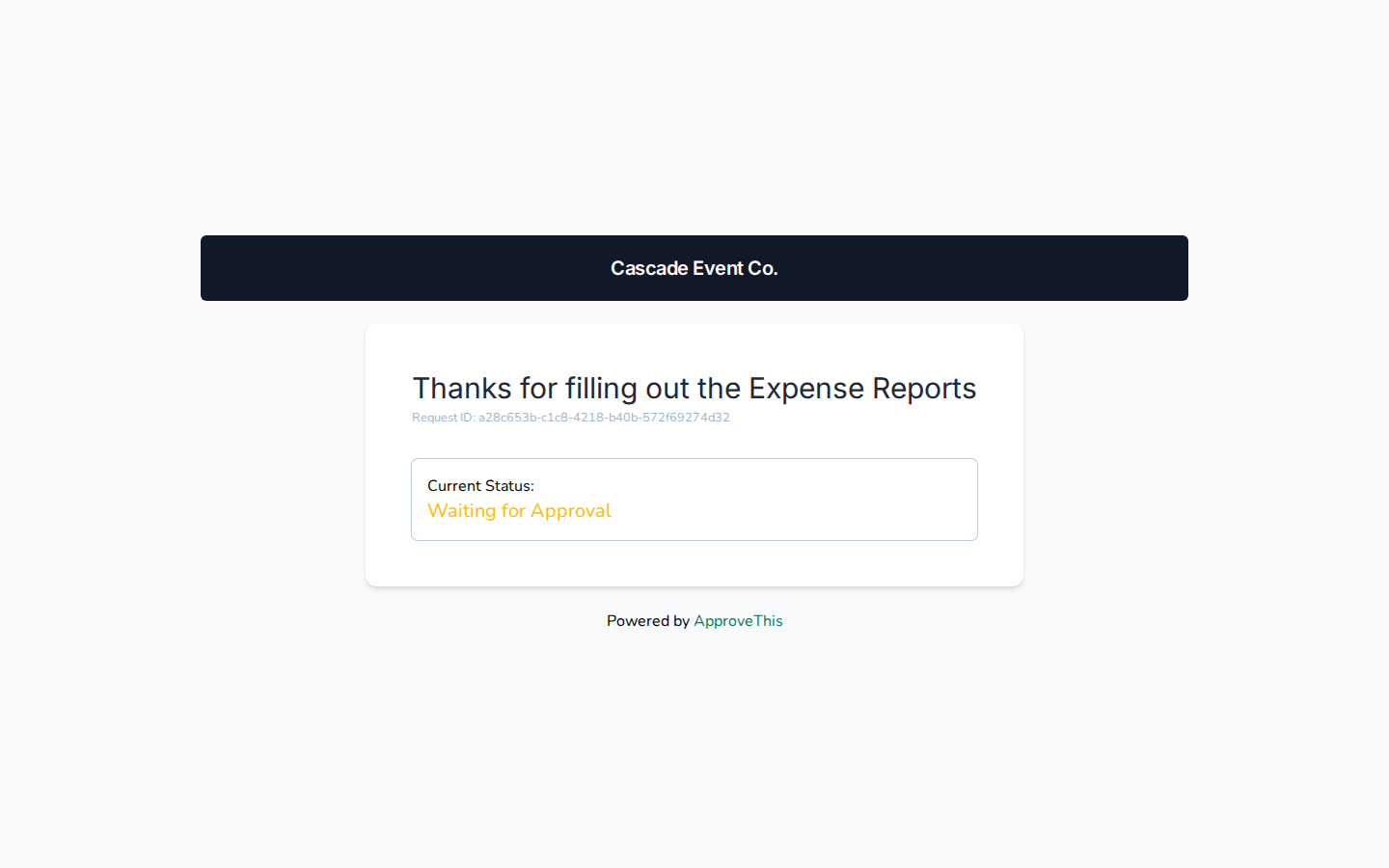
Click Submit. -
Open the email inbox where the approver receives notifications.
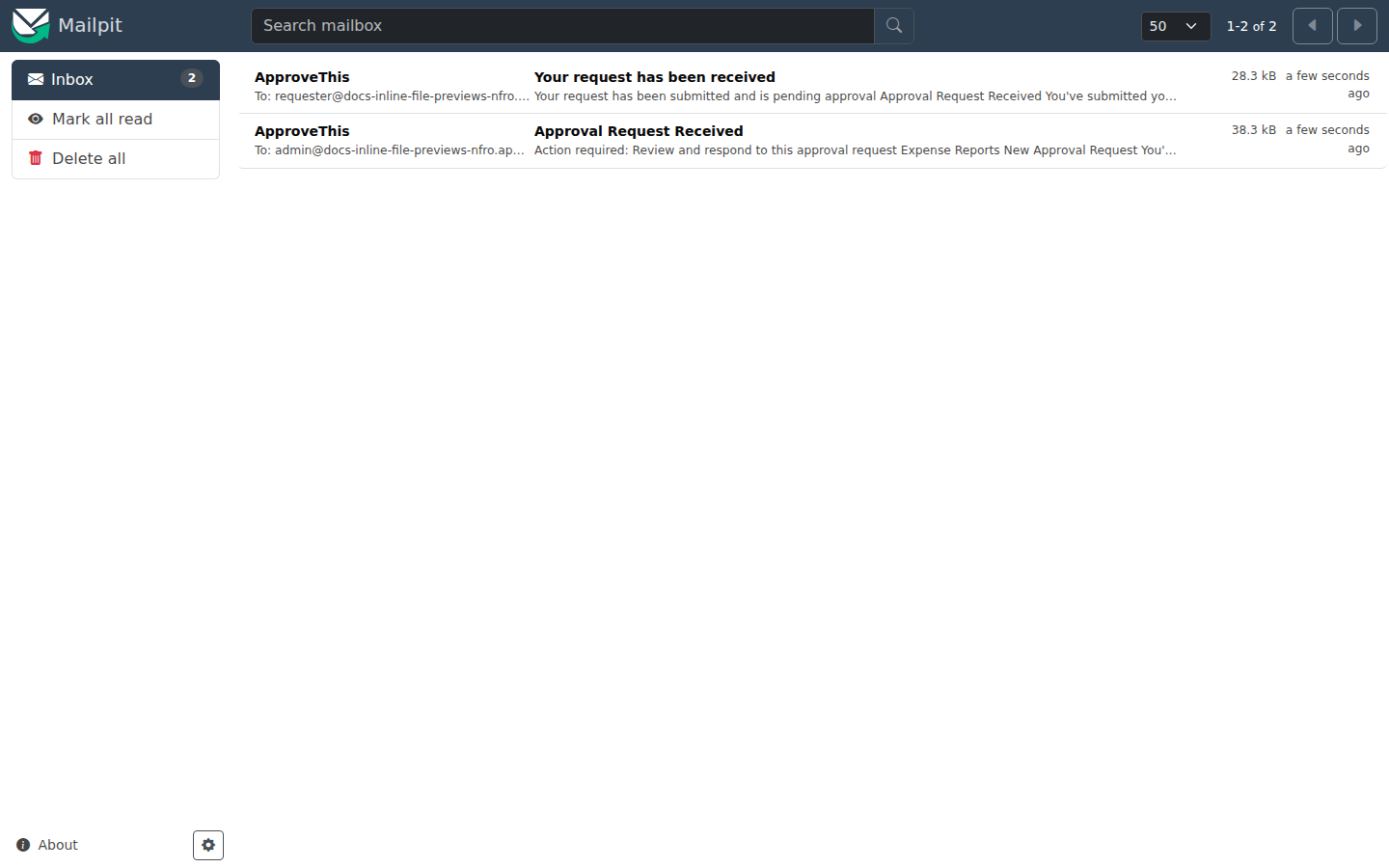
Open the email inbox where the approver receives notifications. -
Open the notification email by clicking Approval Request Received, then look for the attached image or PDF rendered inline with its filename, size, and a download button.
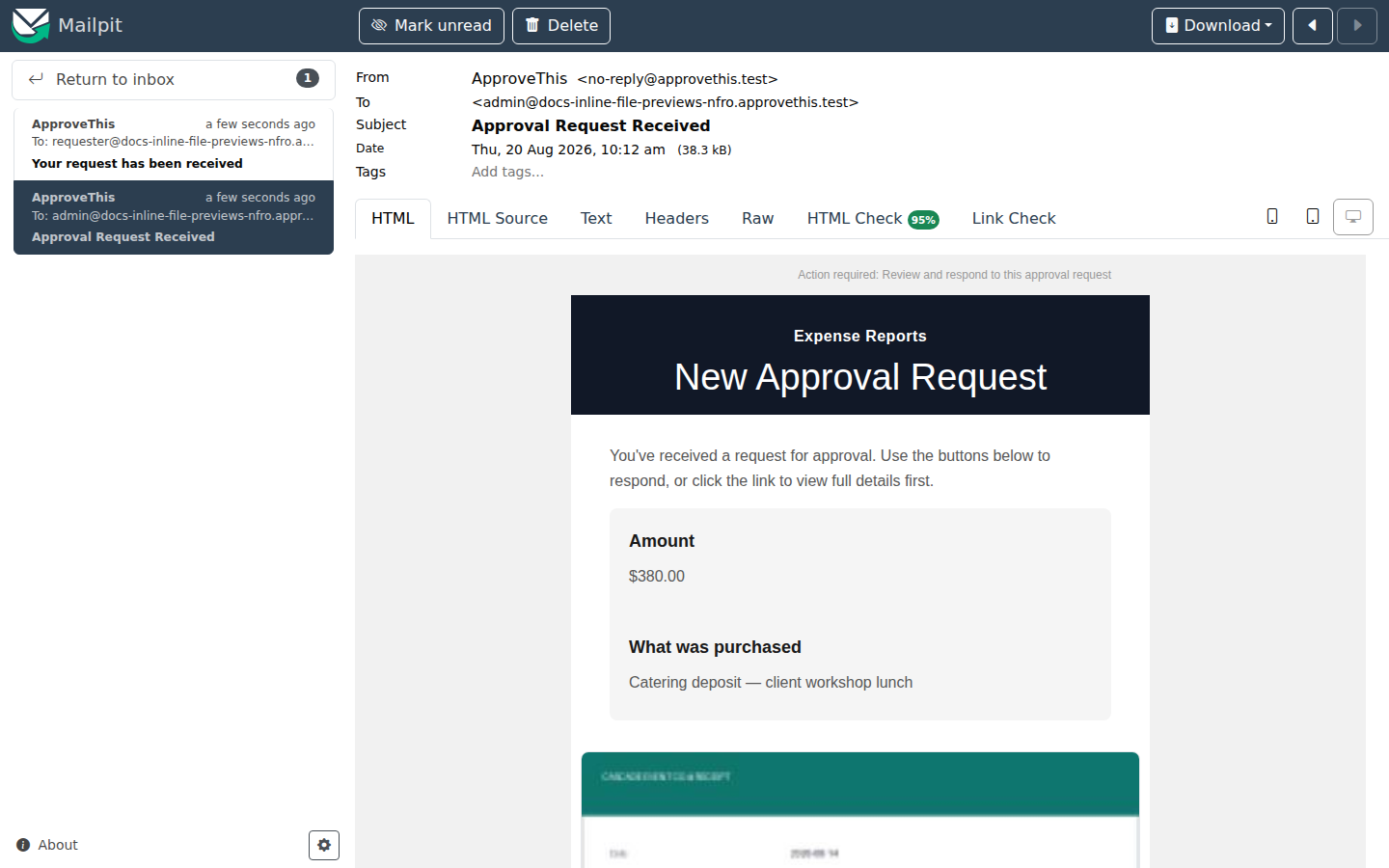
Open the notification email by clicking Approval Request Received, then look for the attached image or PDF rendered inline with its filename, size, and a…