Content Blocks
Add headings, instructions, and explanatory text between a form's questions with a Content Block — rich text that shows on the form and collects no data.
Updated
A form is rarely just a list of questions. Content Blocks hold static rich text — a heading, a warning, a short set of instructions — that sits among the fields and explains what a section is asking for, without collecting any answer. They're built by Administrators on a flow's Form tab, and they're the only layout mechanism the form builder offers: no sections, columns, or width controls. This guide picks up with a Content Block already added to the form from the Layout group of the Add Field palette.
Who this is for: an Administrator.
Write the instructions the Content Block should show
Requesters guess when a form gives no guidance, and a block left empty is worse than none — it shows its builder placeholder text to requesters exactly as it appears to you. Writing the copy here is what turns the placeholder into usable instructions before the workflow is published.
-
Sign in as the admin.
-
Click Content Block to open the field card's rich-text editor.
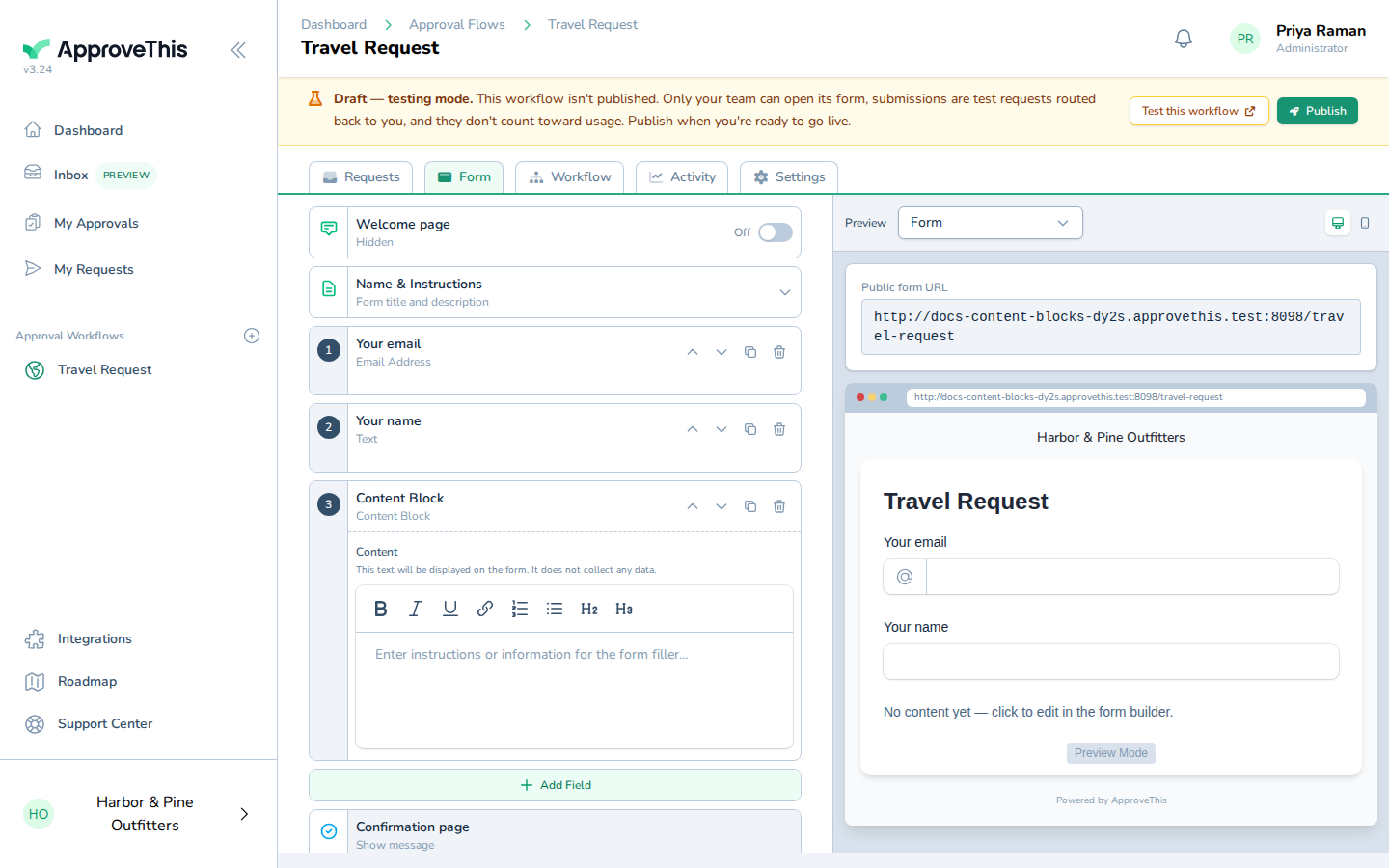
Click Content Block to open the field card's rich-text editor. -
Type the guidance you want requesters to read at this point in the form — instructions, a caution, or a heading for the fields that follow. The example uses
Book refundable fares only. Attach your manager's email approval before submitting..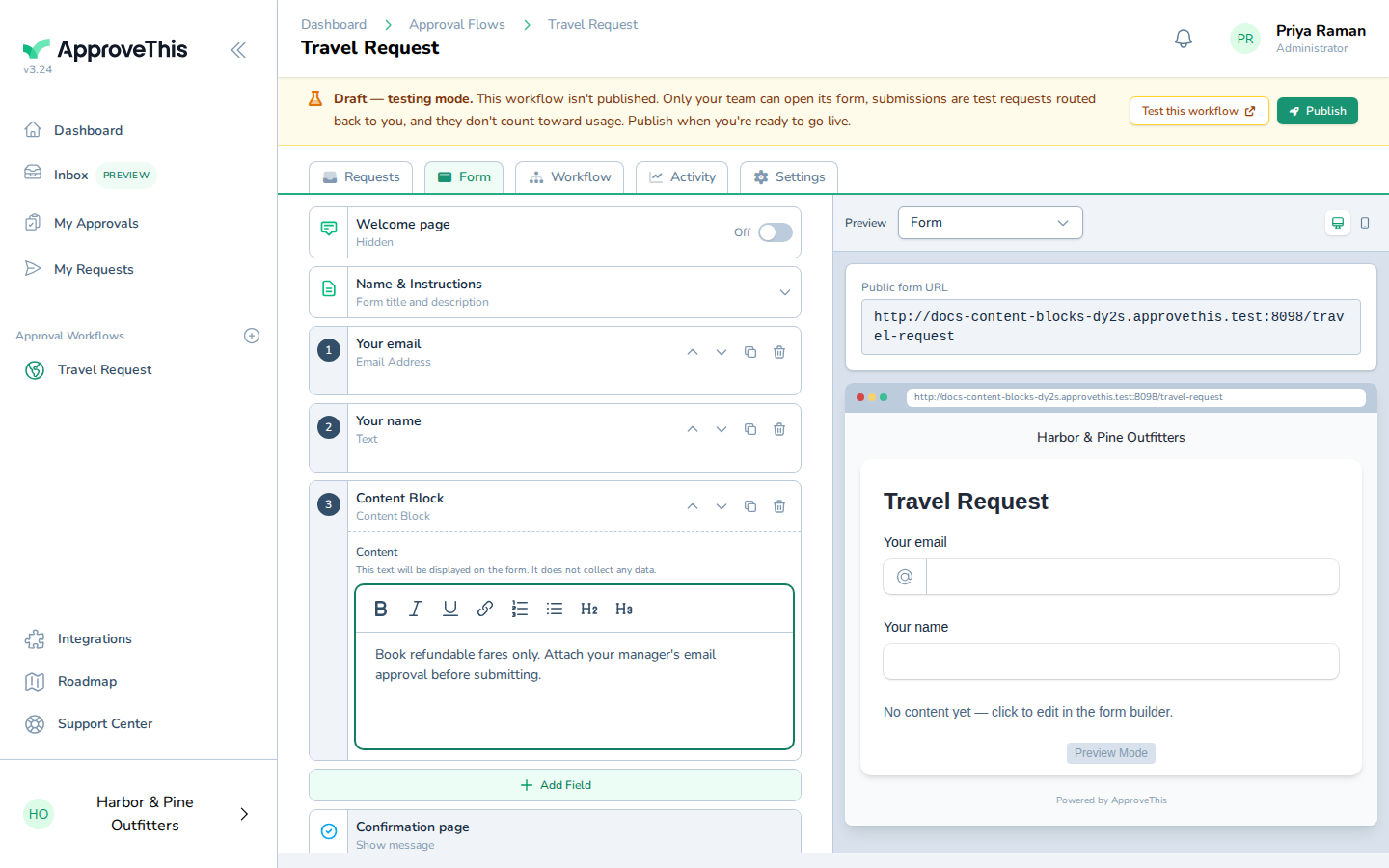
Type the guidance you want requesters to read at this point in the form — instructions, a caution, or a heading for the fields that follow. The example uses… -
Press
Tabto leave the editor and commit the text.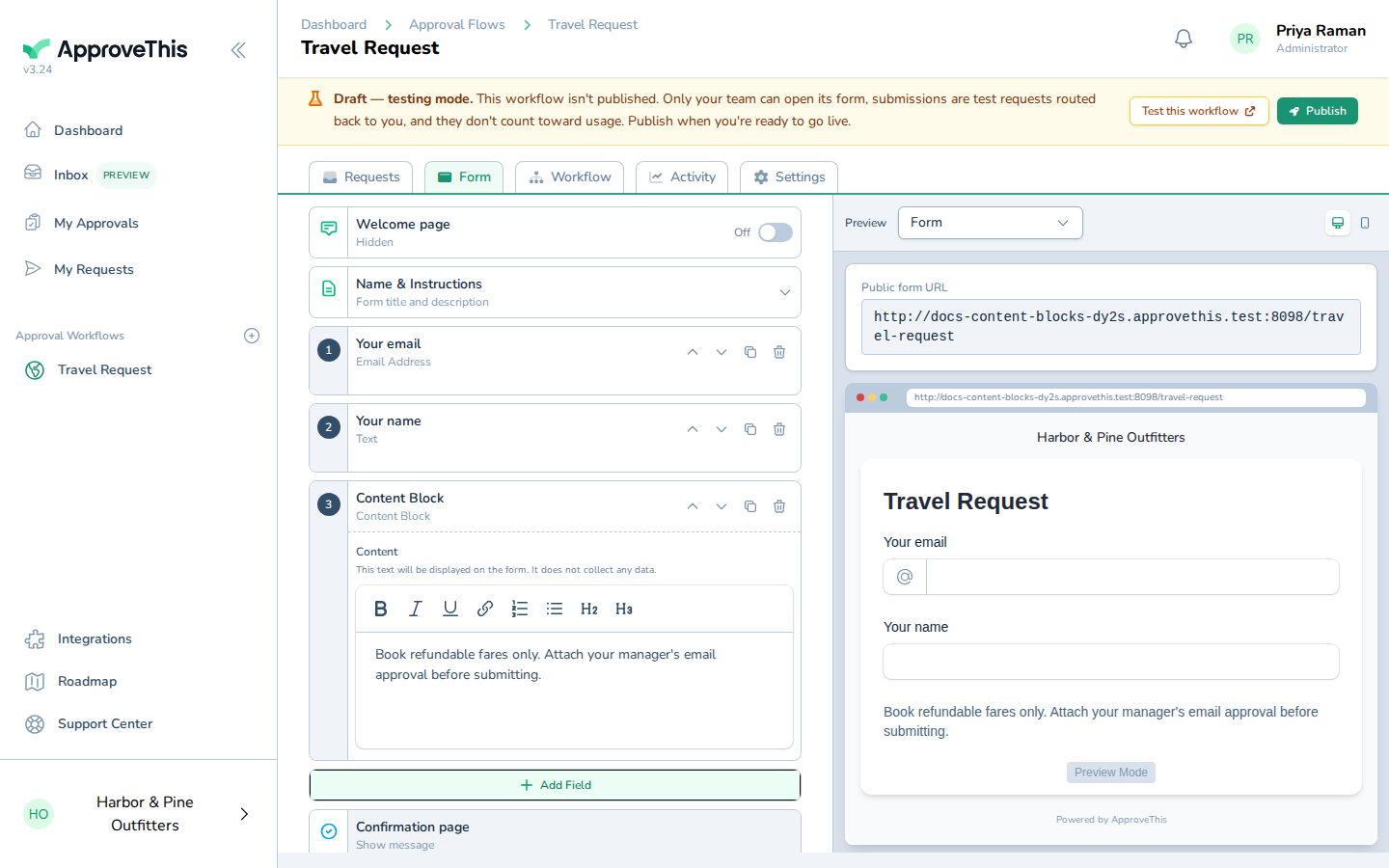
Press Tab to leave the editor and commit the text.