Conditional & Threshold Routing
Make a step earn its place in the chain: add conditions like "Budget greater than 1000" and the step only runs for the requests that need it. Everything else skips straight past.
Updated
Not every approval step needs to run on every request. Conditions gate a step in the visual flow builder: each one compares a form field against a value using an operator — equals, less-than, less-than-or-equal, greater-than, greater-than-or-equal, or contains — so a $200 request and a $20,000 request can travel different paths through the same workflow. Conditions combine with AND logic, and if any one of them is unmet the step is skipped. This guide is for Administrators working in a workflow that already has a step to configure; conditional routing is available on all tiers.
Who this is for: an Administrator.
Add a condition so the step only runs past a threshold
Small purchases rarely need the same scrutiny as large ones. A numeric threshold on a step keeps it out of the path for low-value requests while still catching anything above the line you set.
-
Sign in as the Administrator.
-
Click Configure step on the step you want to gate.
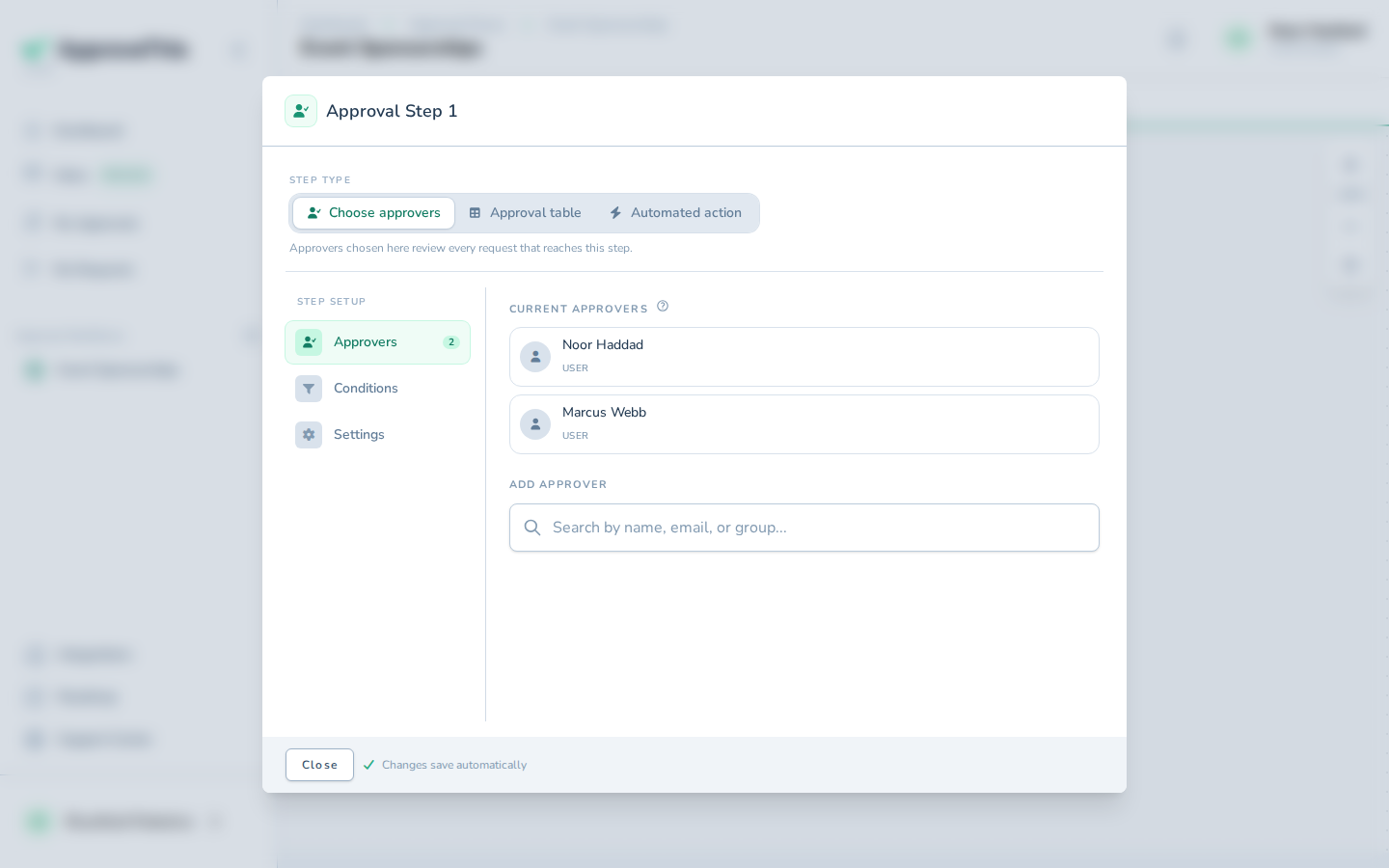
Click Configure step on the step you want to gate. -
Click Conditions.
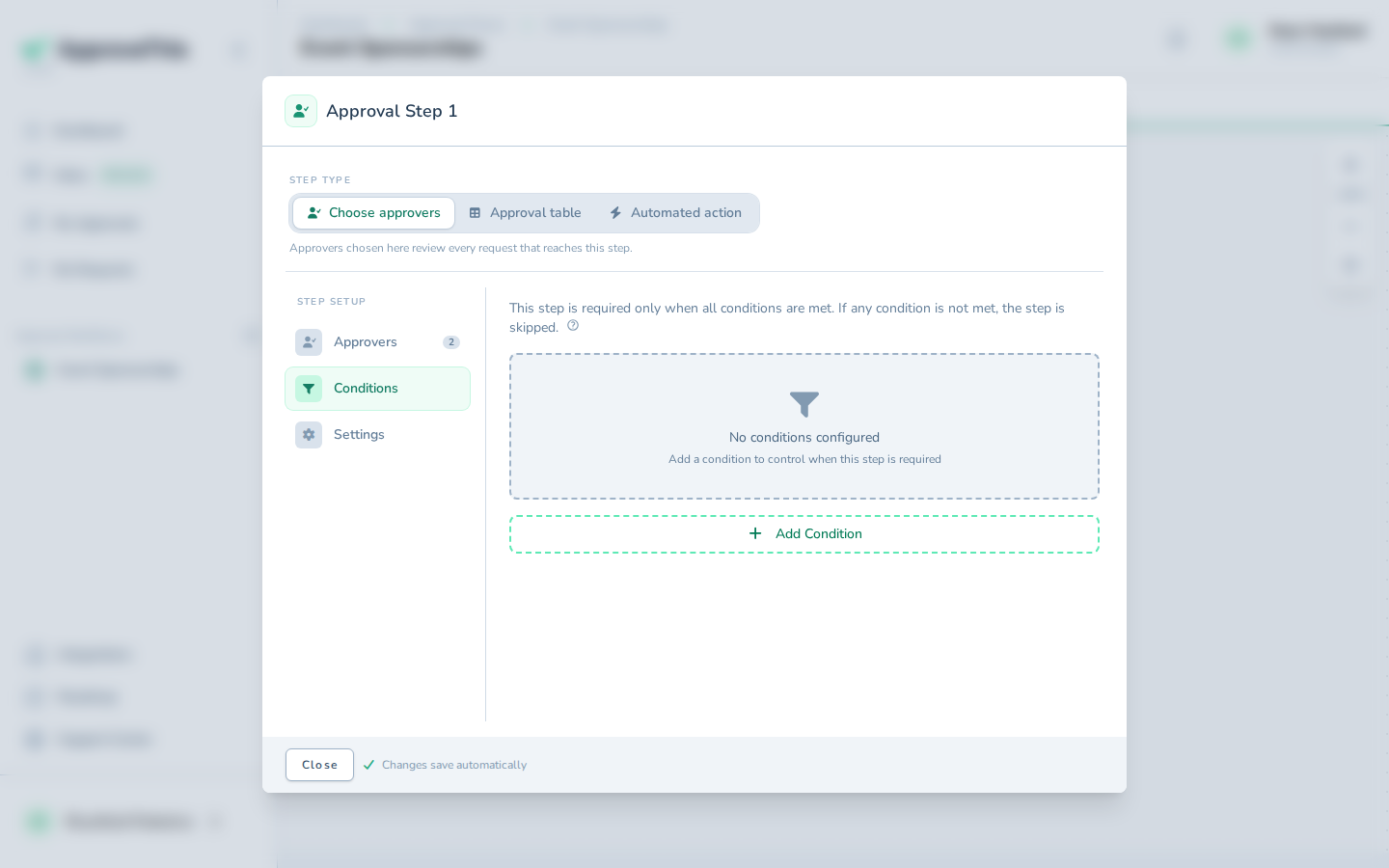
Click Conditions. -
Click Add Condition.
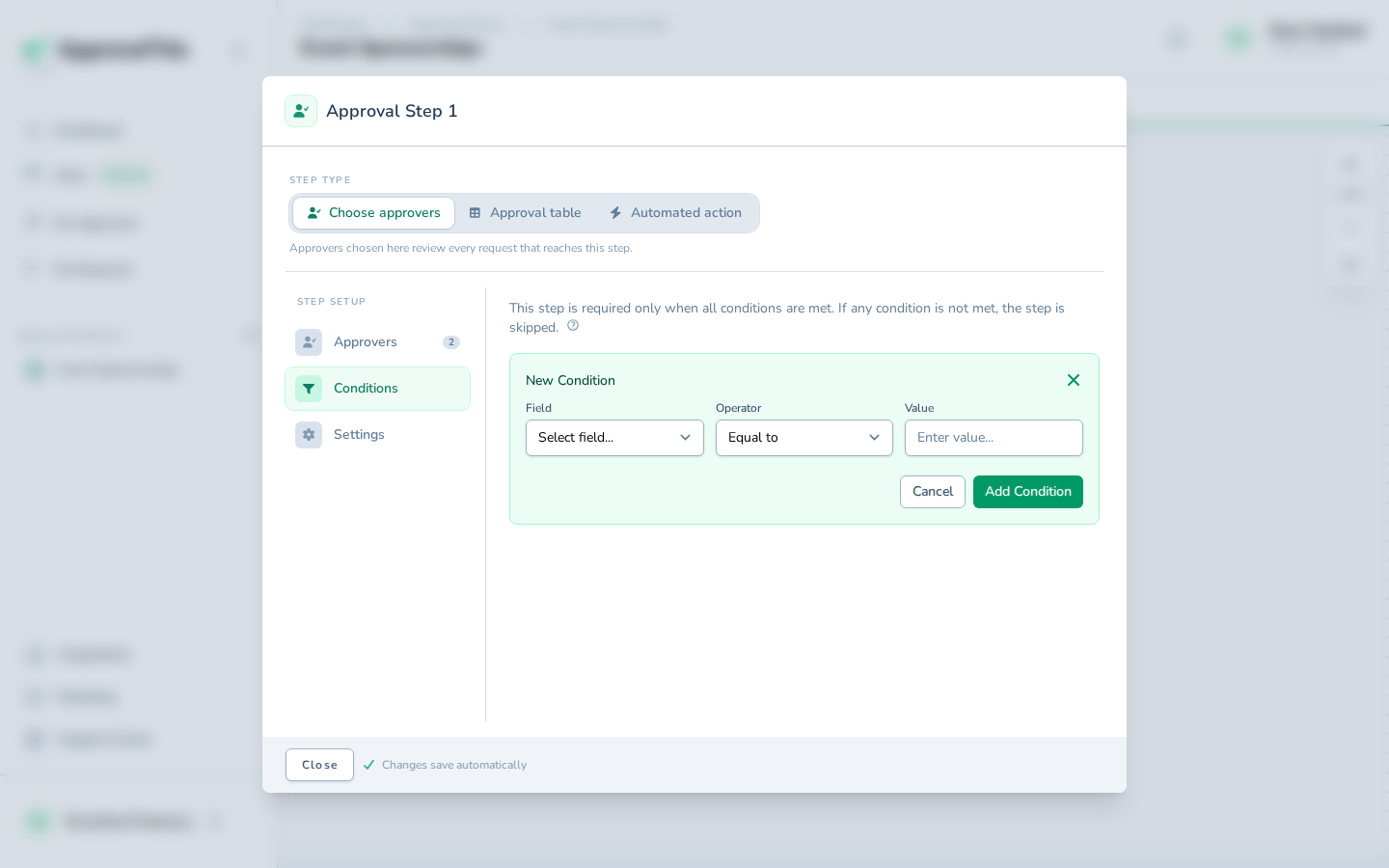
Click Add Condition. -
Choose the form field the threshold should read from in Field — Budget in the example screenshots.
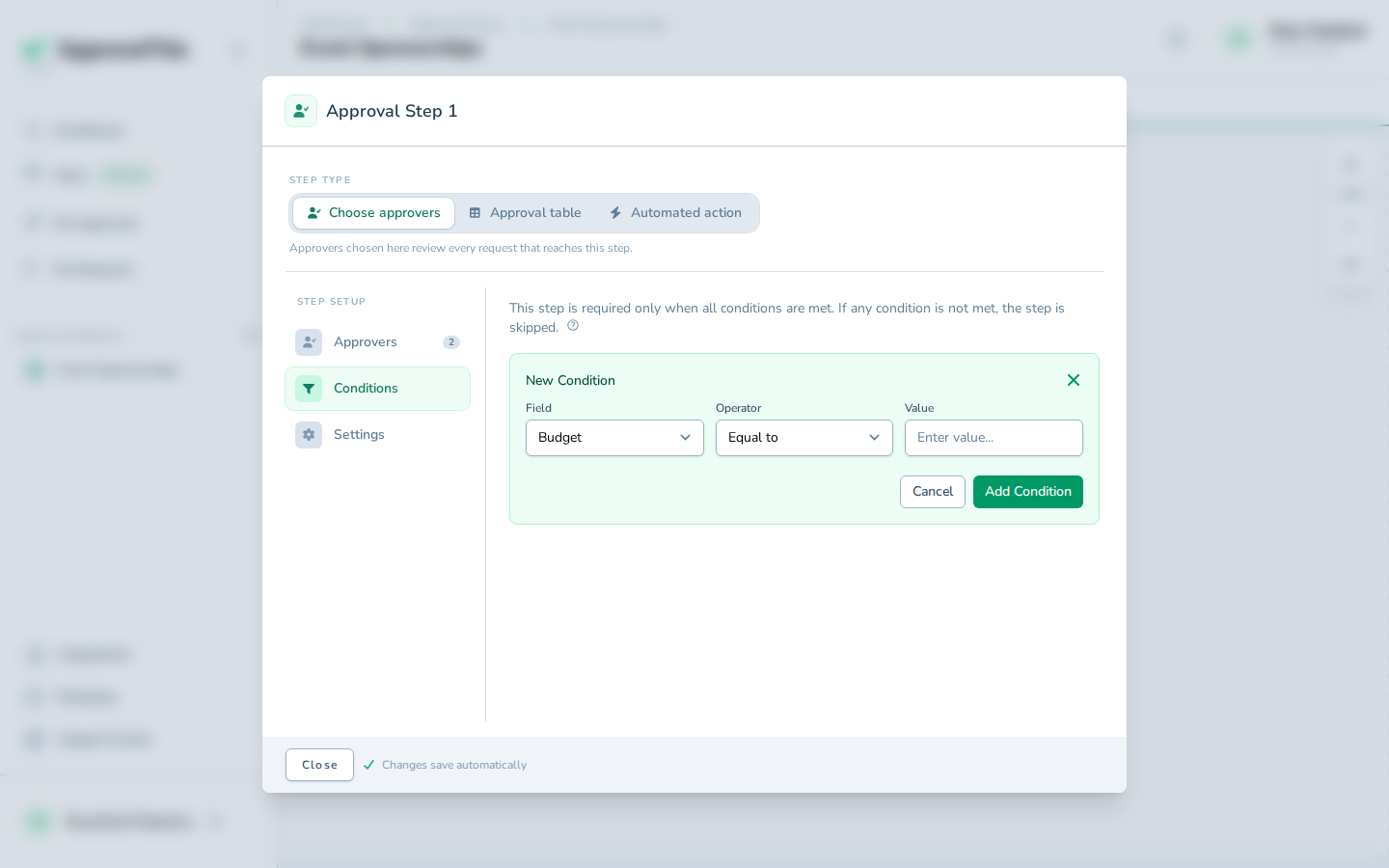
Choose the form field the threshold should read from in Field — Budget in the example screenshots. -
Choose the comparison you need in Operator; the example picks Greater than so the step runs only above the threshold.
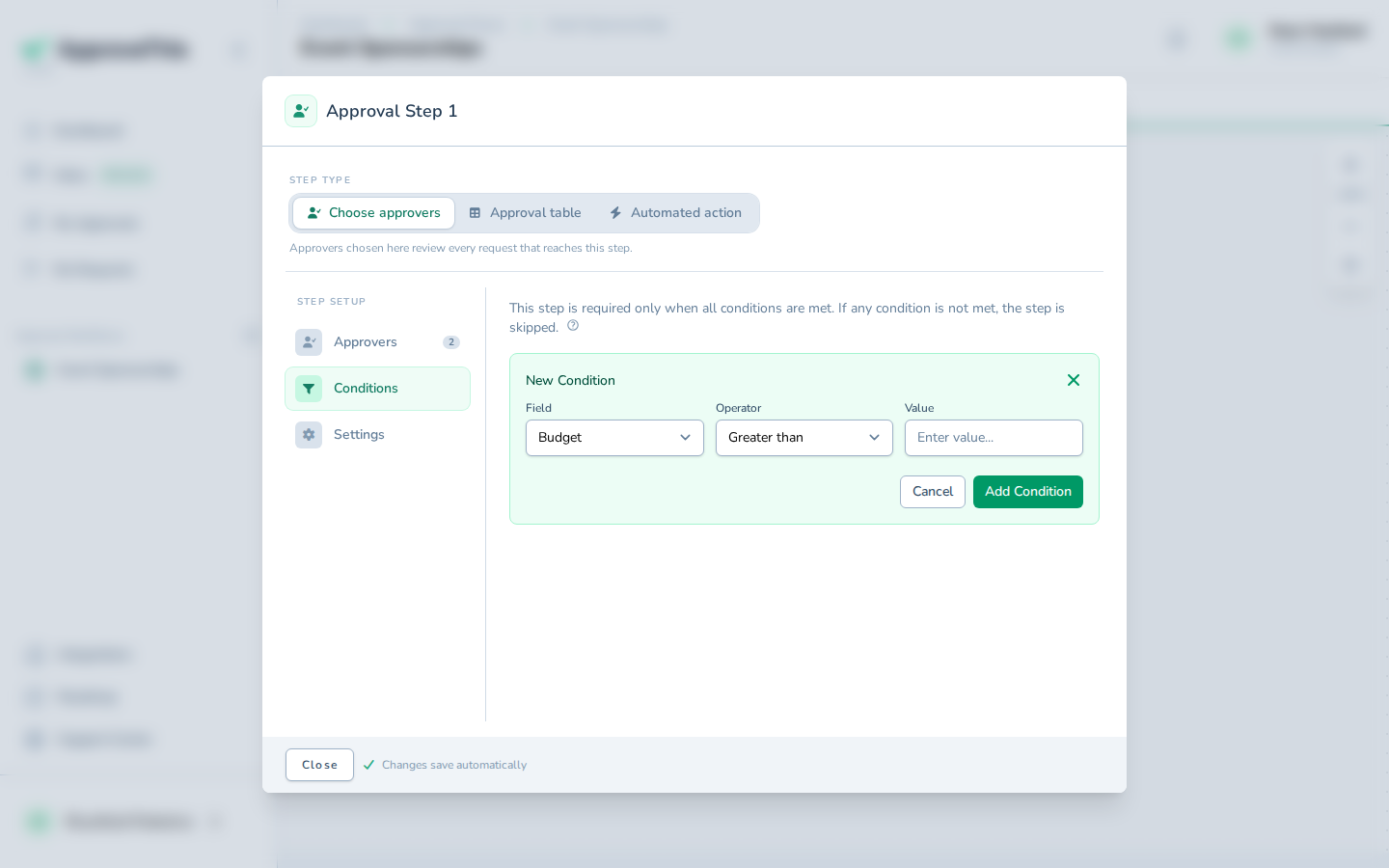
Choose the comparison you need in Operator; the example picks Greater than so the step runs only above the threshold. -
Type the threshold amount in Value (e.g.,
1000).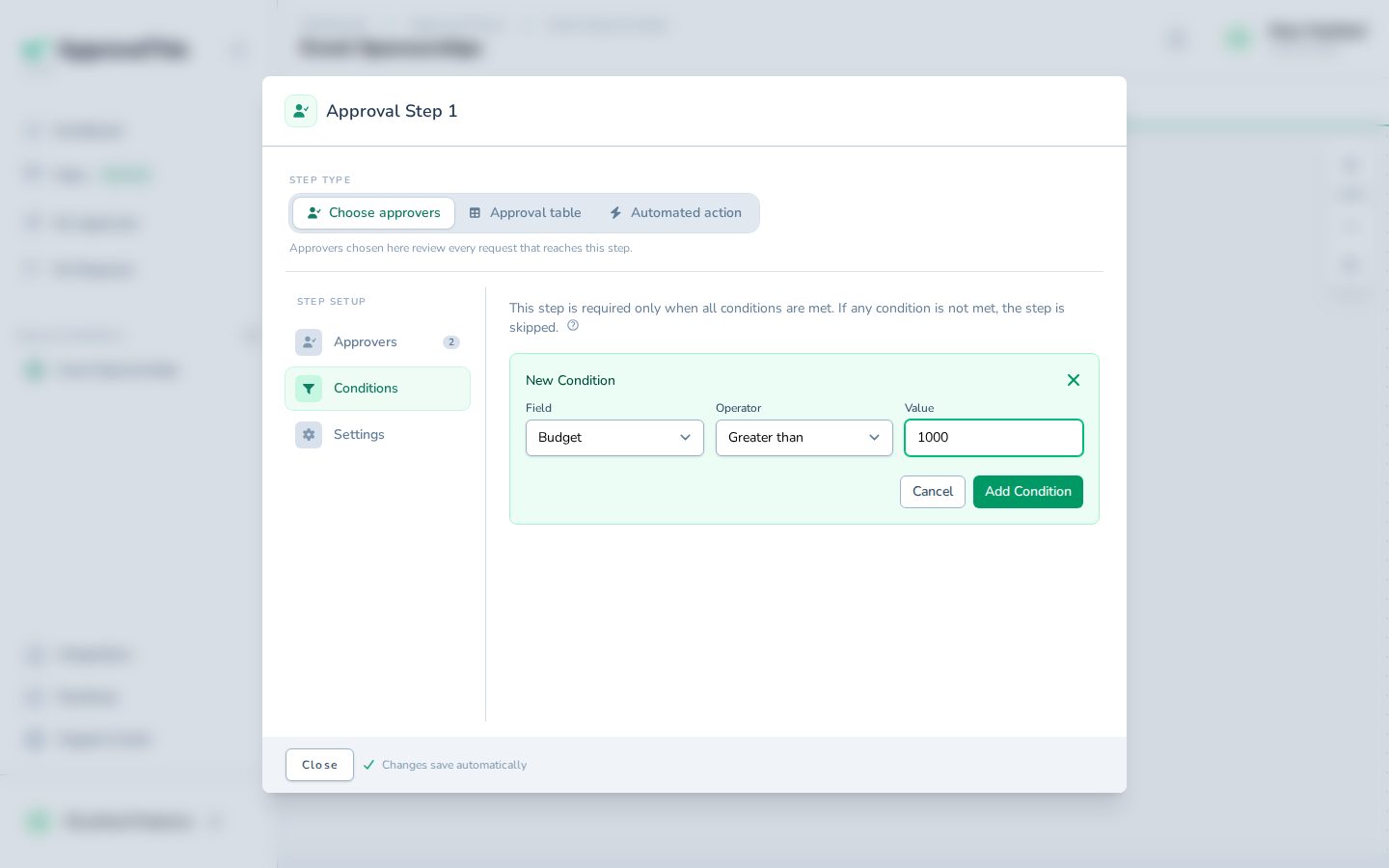
Type the threshold amount in Value (e.g., 1000). -
Click Add Condition to save the condition to the step.
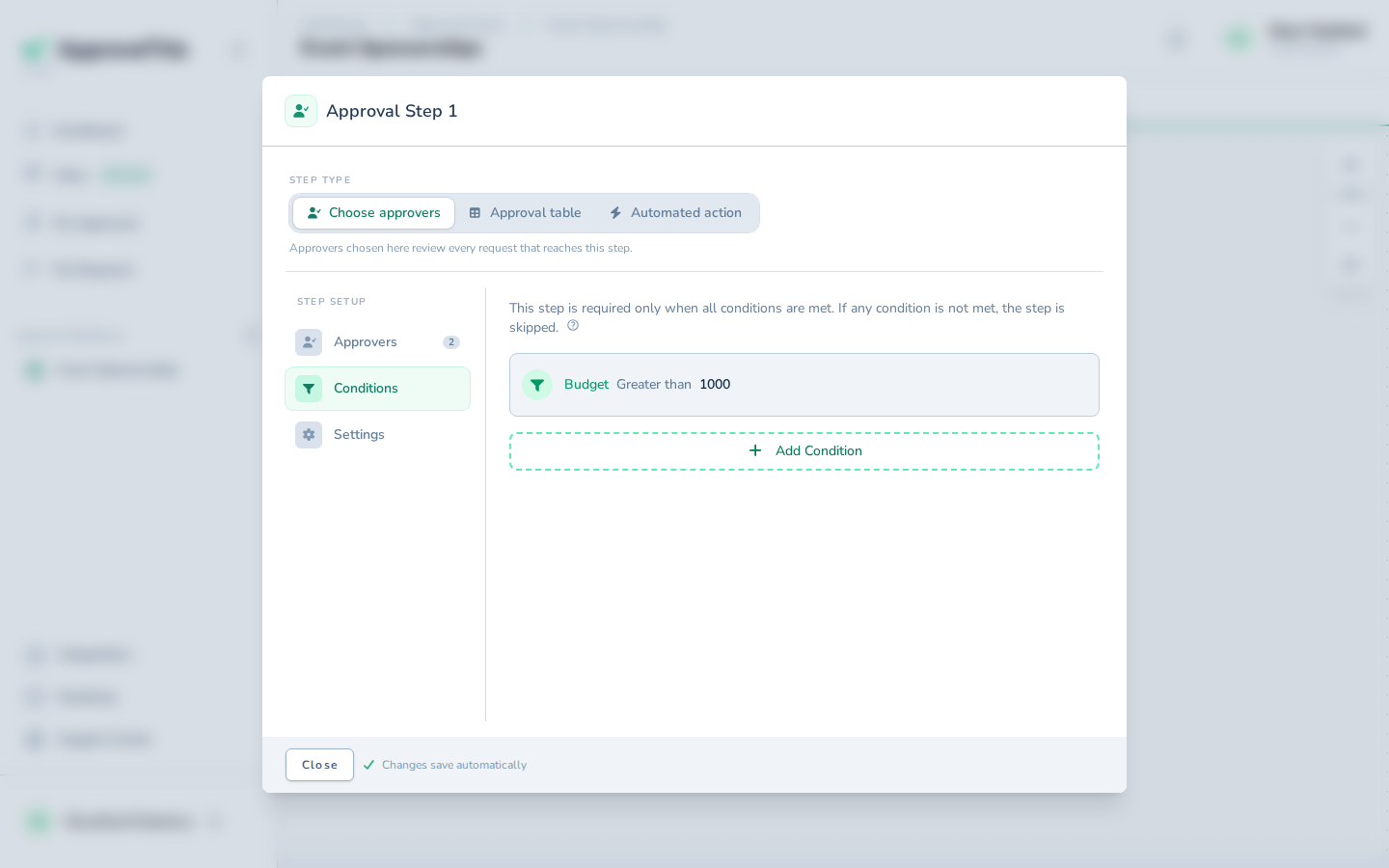
Click Add Condition to save the condition to the step.
Add a text-match condition alongside it
Thresholds alone can't separate one category of spend from another. Adding a text-match condition narrows the step further, and because conditions combine with AND logic, the step now runs only when both the amount and the text match.
-
Click Add Condition.
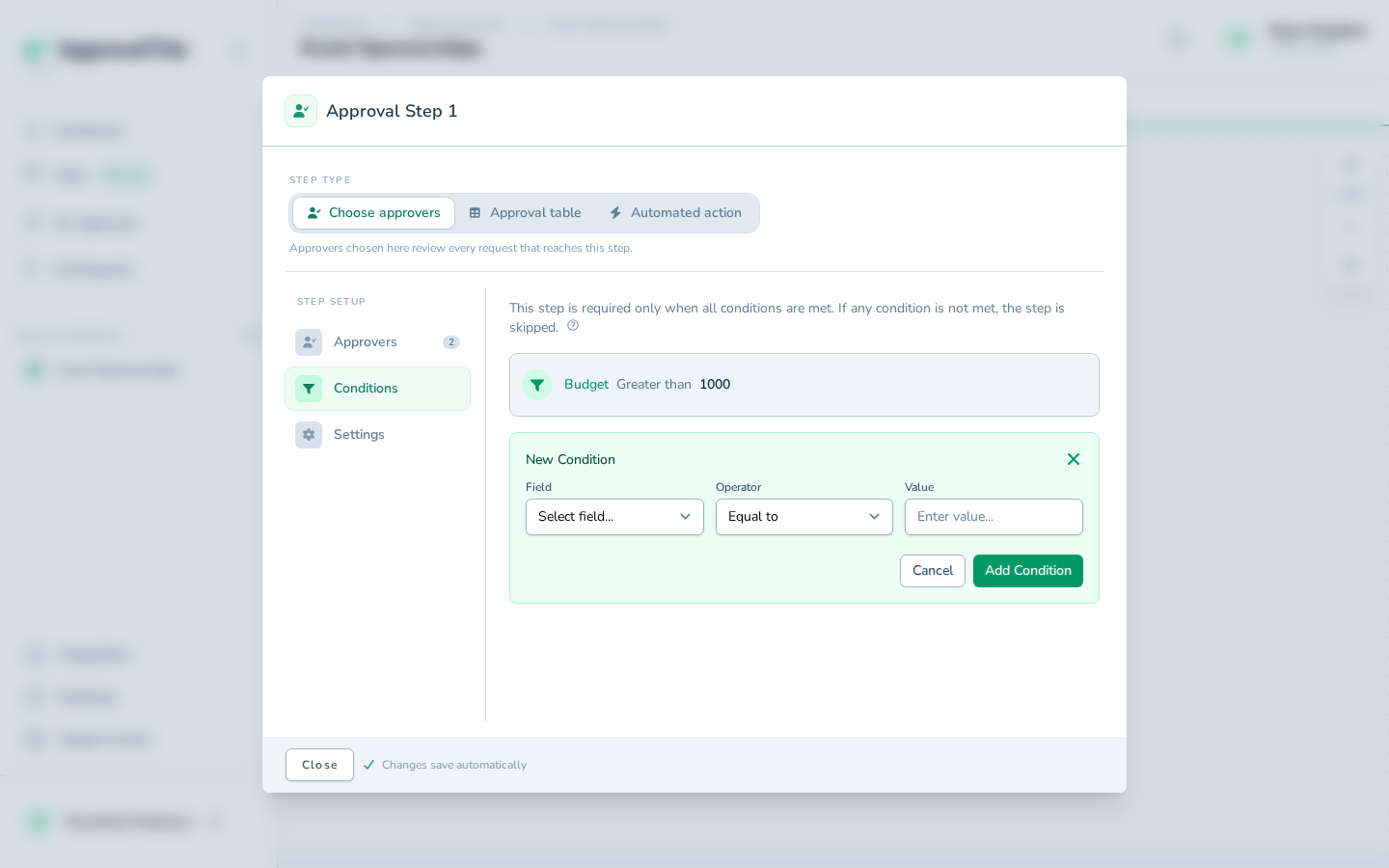
Click Add Condition. -
Choose the text field you want to match on in Field, such as Event.
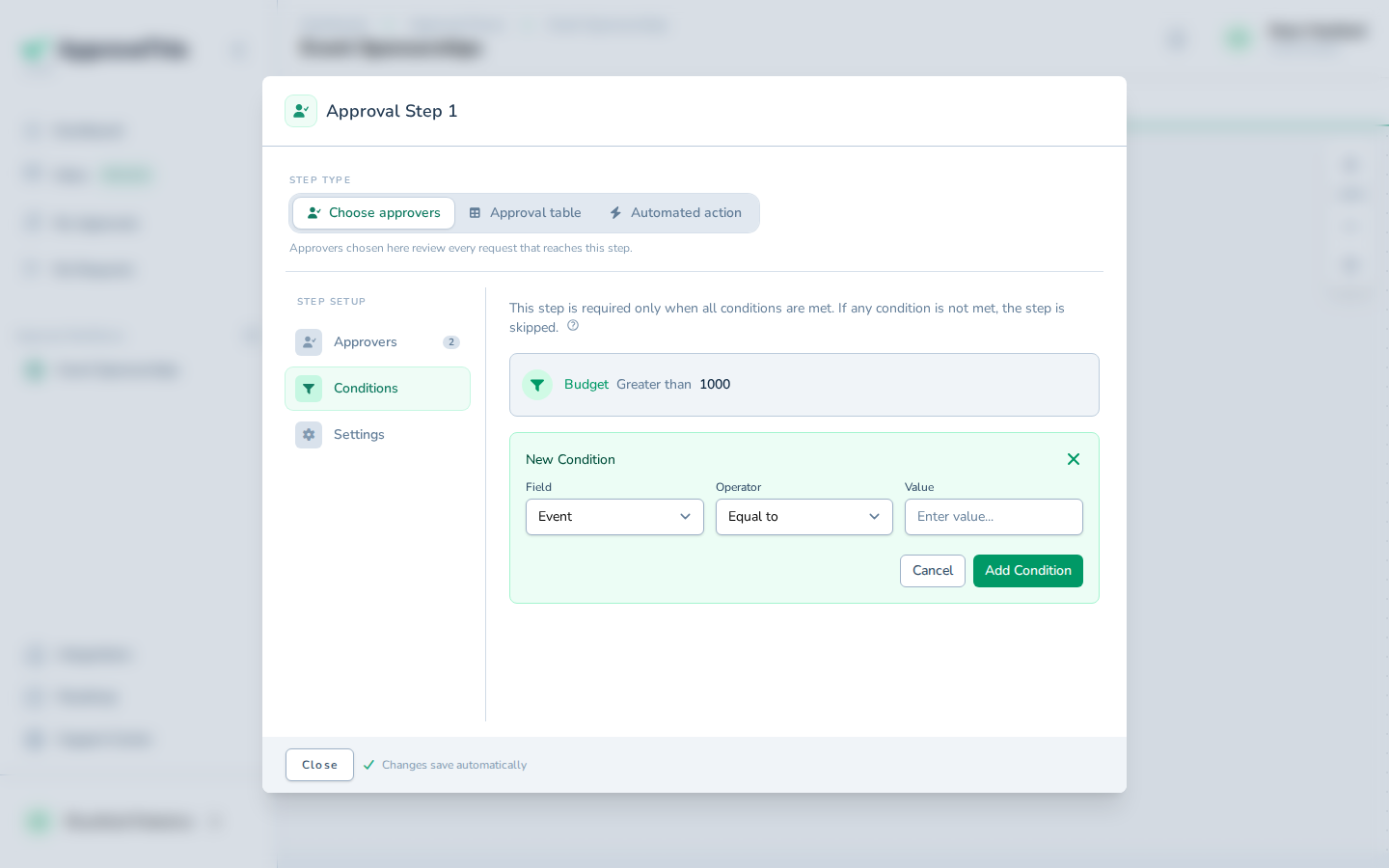
Choose the text field you want to match on in Field, such as Event. -
Choose Contains from Operator for a partial text match.
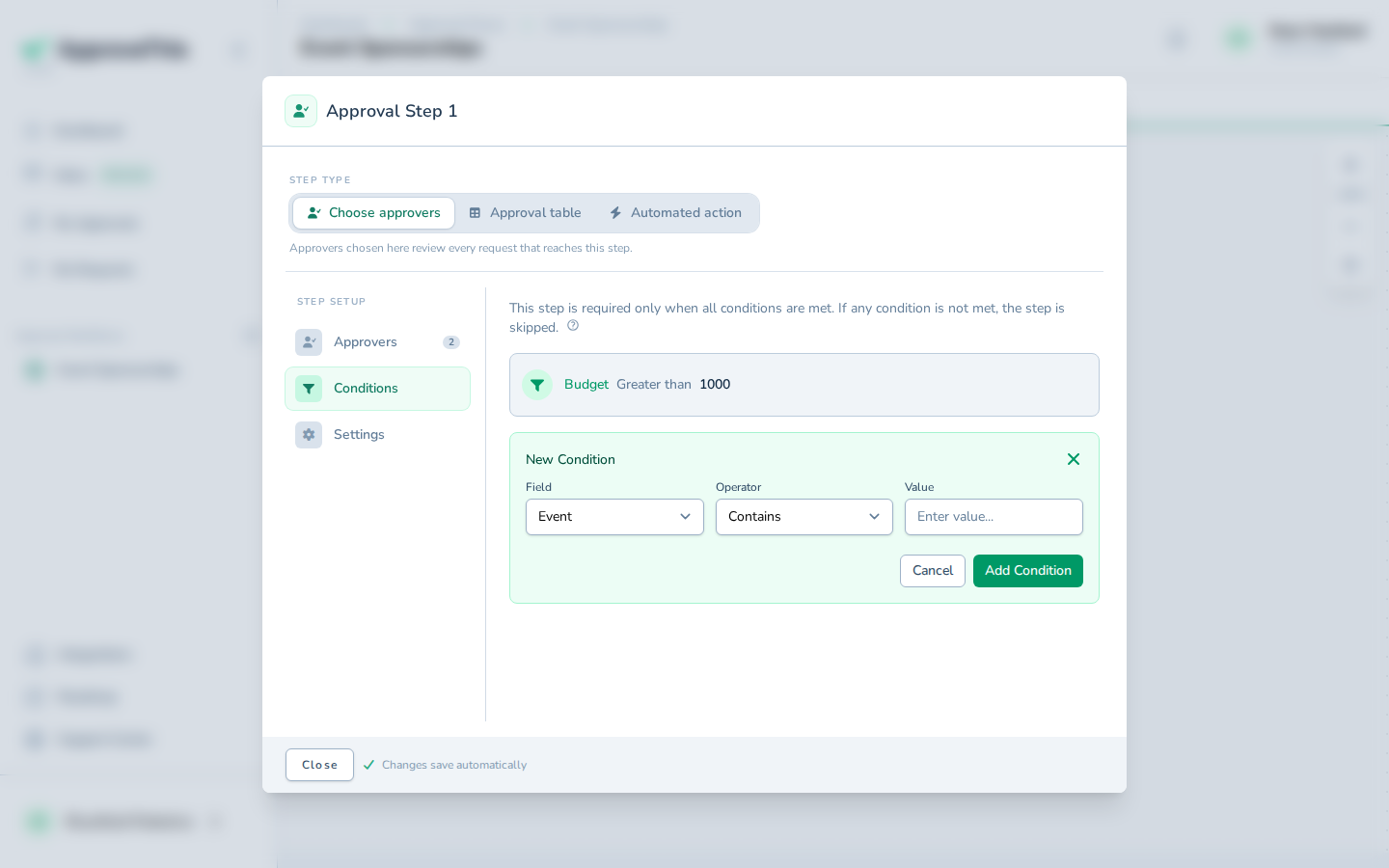
Choose Contains from Operator for a partial text match. -
Type the text the field must contain in Value — the example uses
Gala.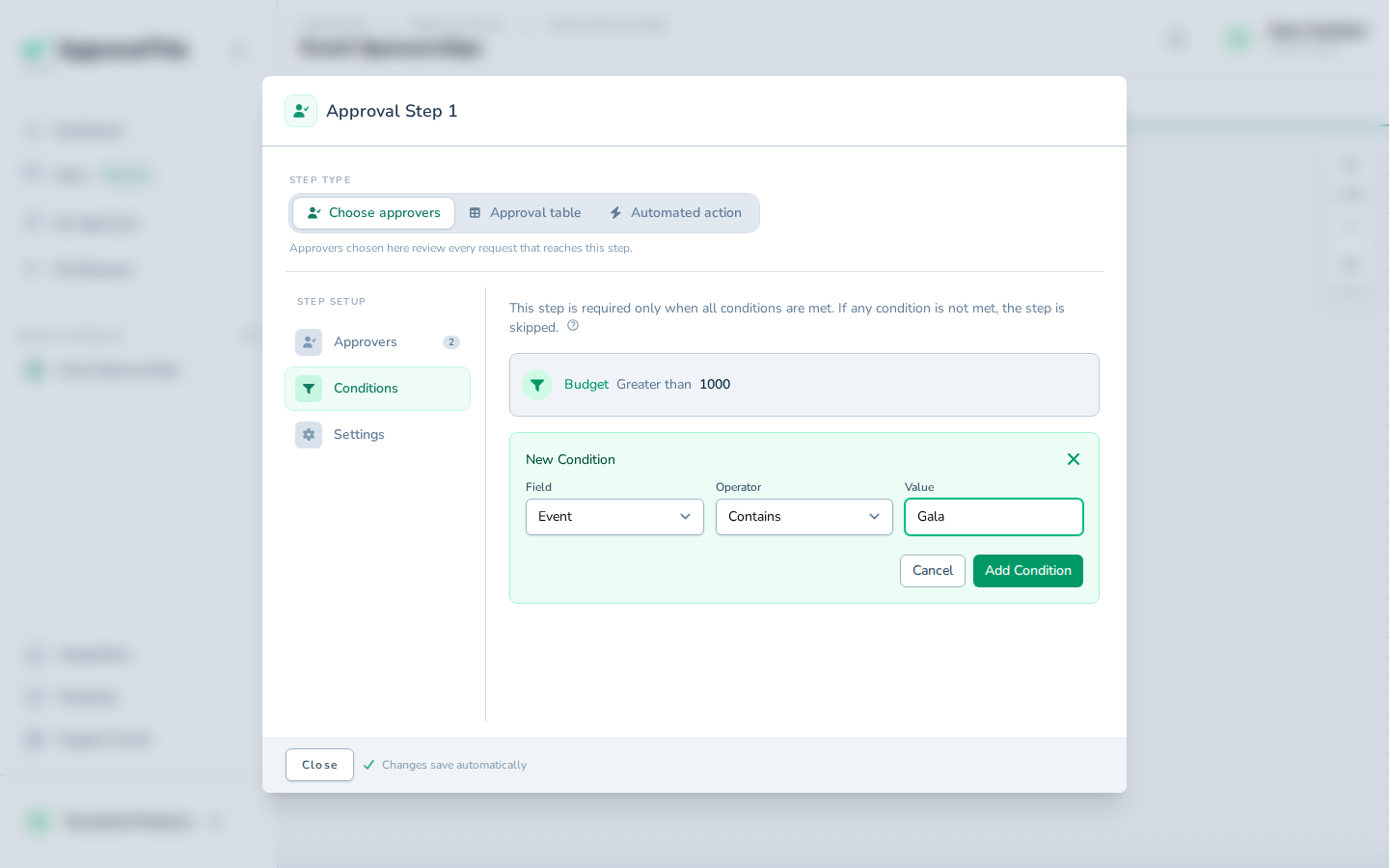
Type the text the field must contain in Value — the example uses Gala. -
Click Add Condition.
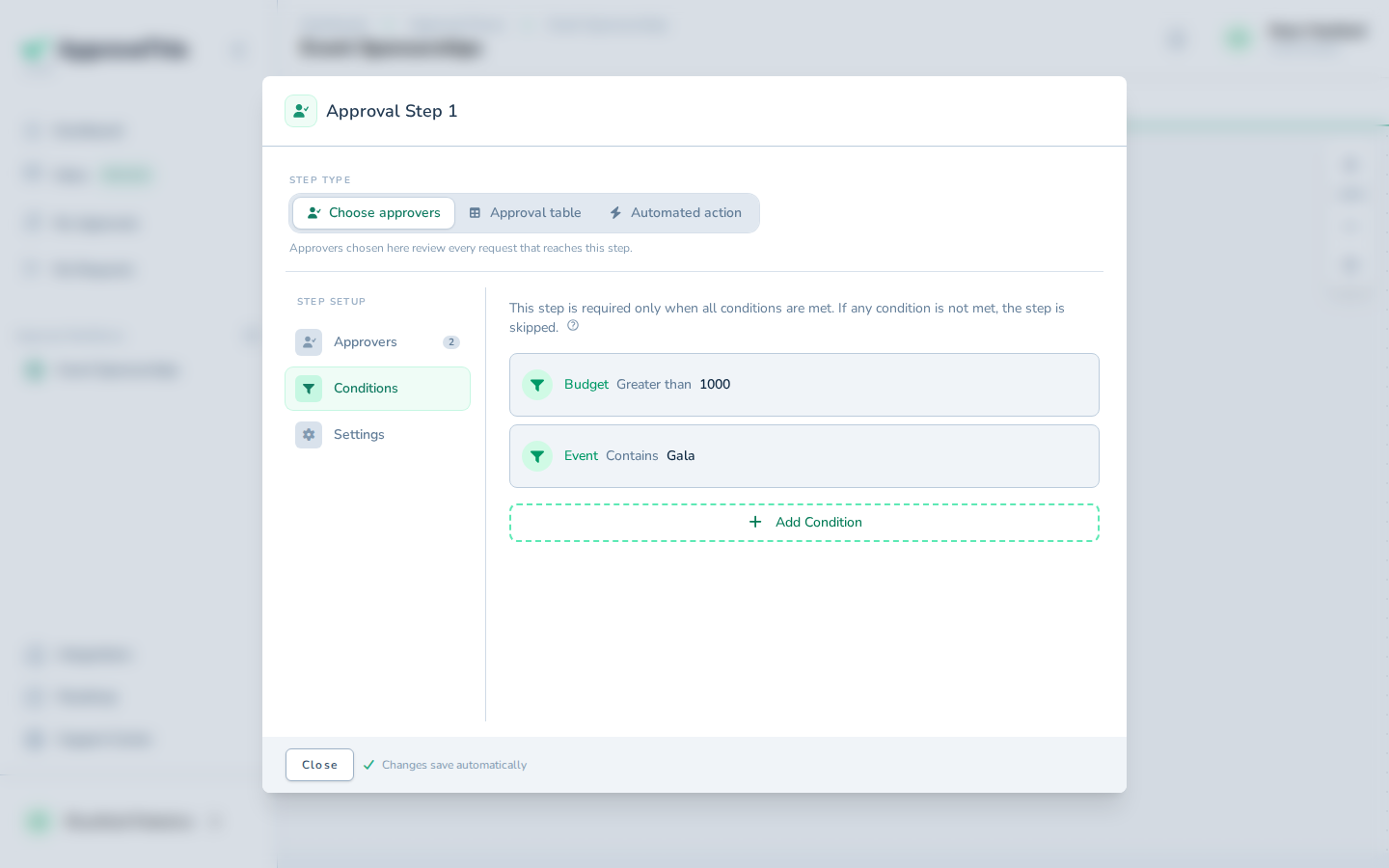
Click Add Condition.
Edit a condition's value
Approval limits move — a threshold set last quarter may be routing too many requests to a senior approver today. Editing the value retunes the routing without rebuilding the condition.
-
Click Edit condition on the condition you want to change.
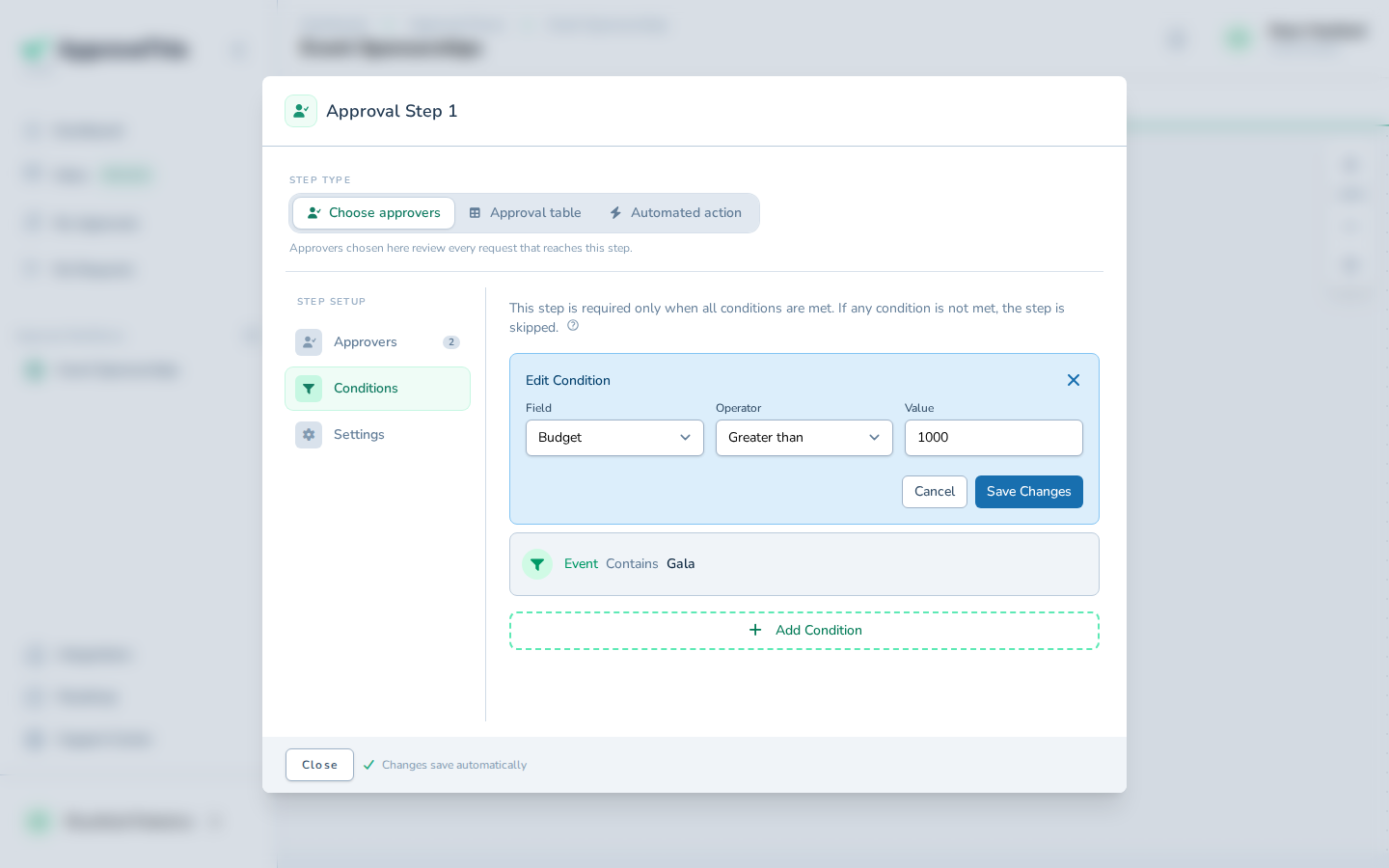
Click Edit condition on the condition you want to change. -
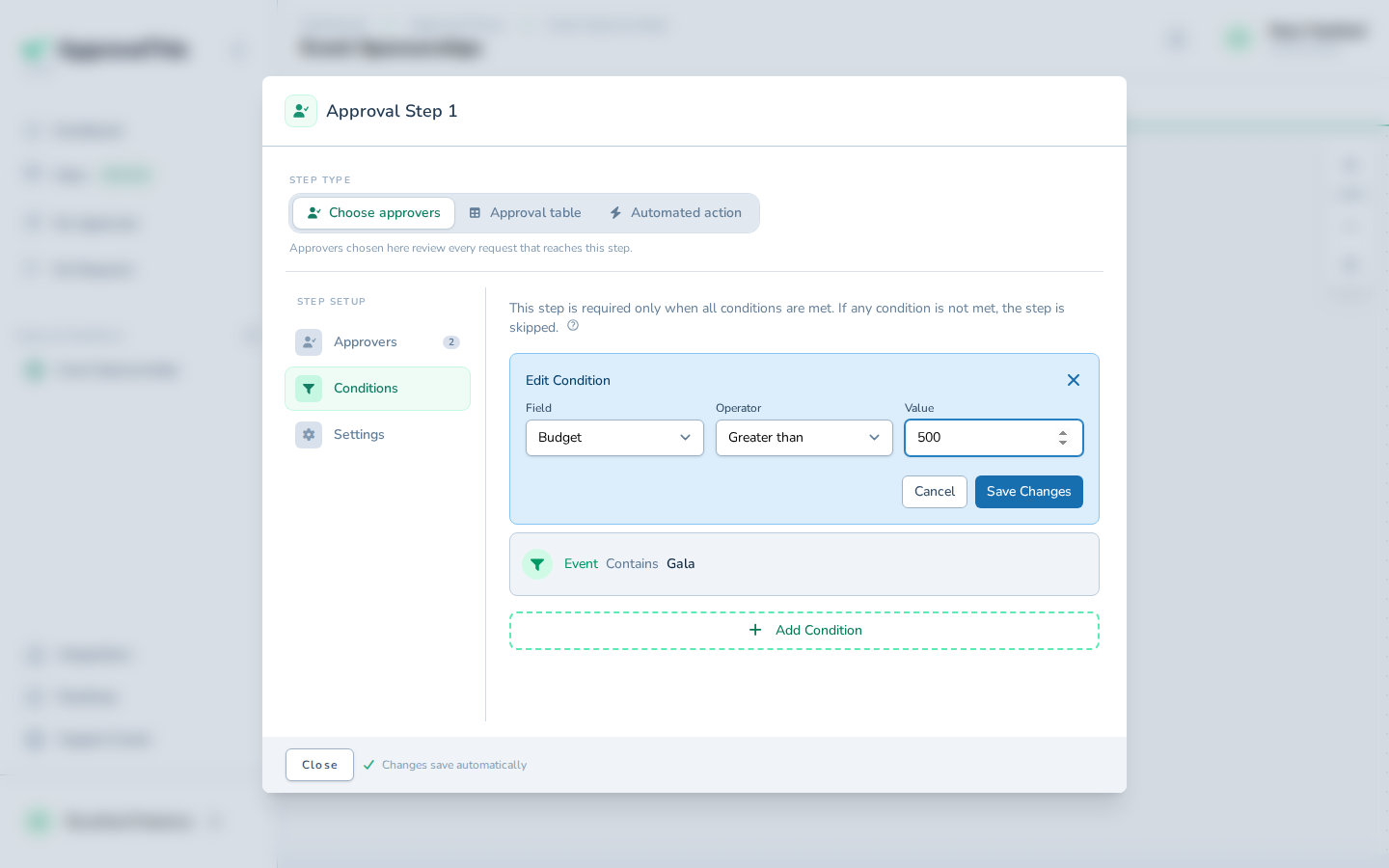
Replace the contents of Value with the new threshold or text (the example lowers it to
500).
Replace the contents of Value with the new threshold or text (the example lowers it to 500). -
Click Save Changes.
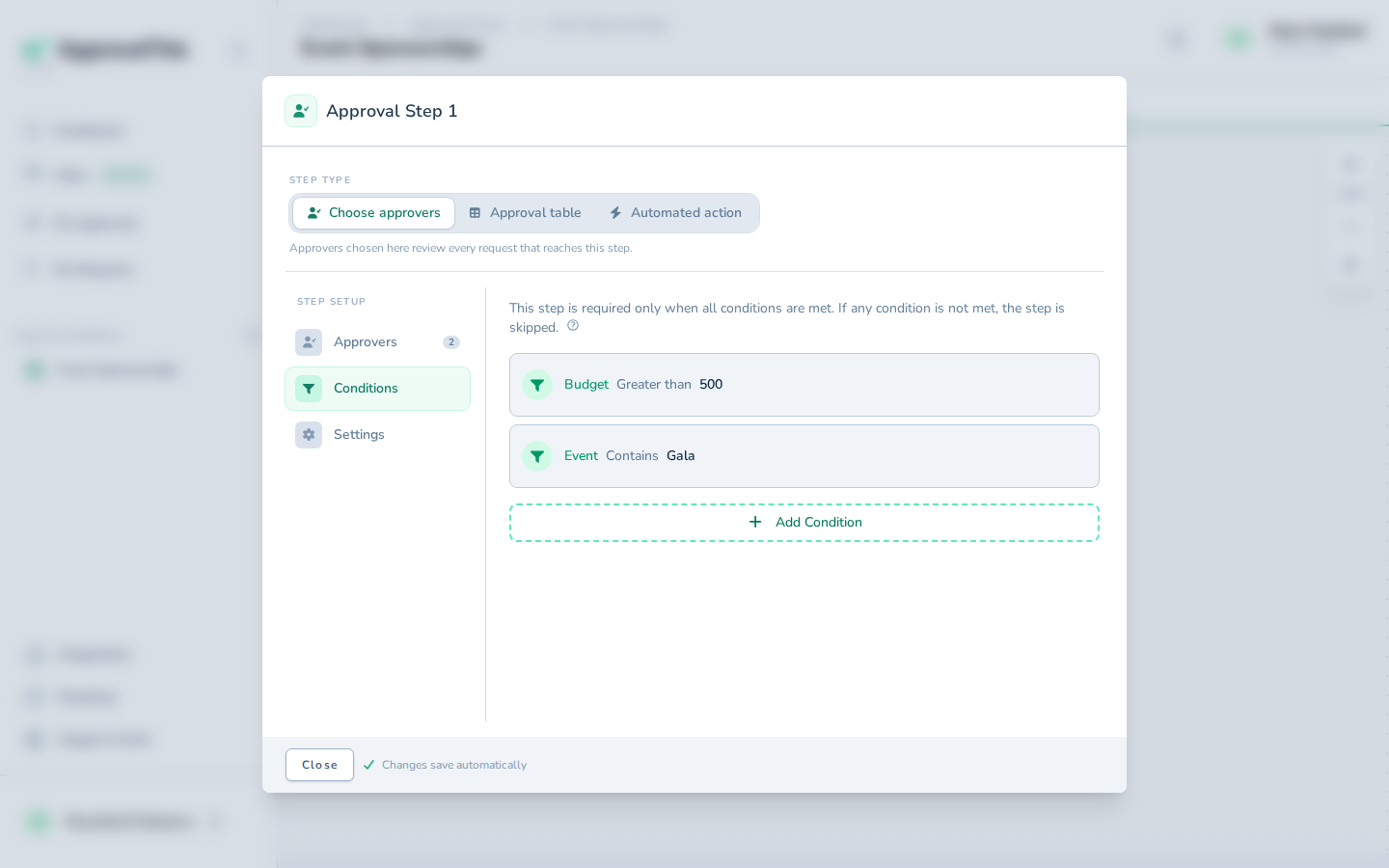
Click Save Changes.
Remove a condition
Deleting a condition loosens the gate: with one fewer test in the AND set, the step starts running for requests it previously skipped. Remove one when a rule no longer reflects how you want requests routed.
-
Click Delete condition on the condition you no longer need.
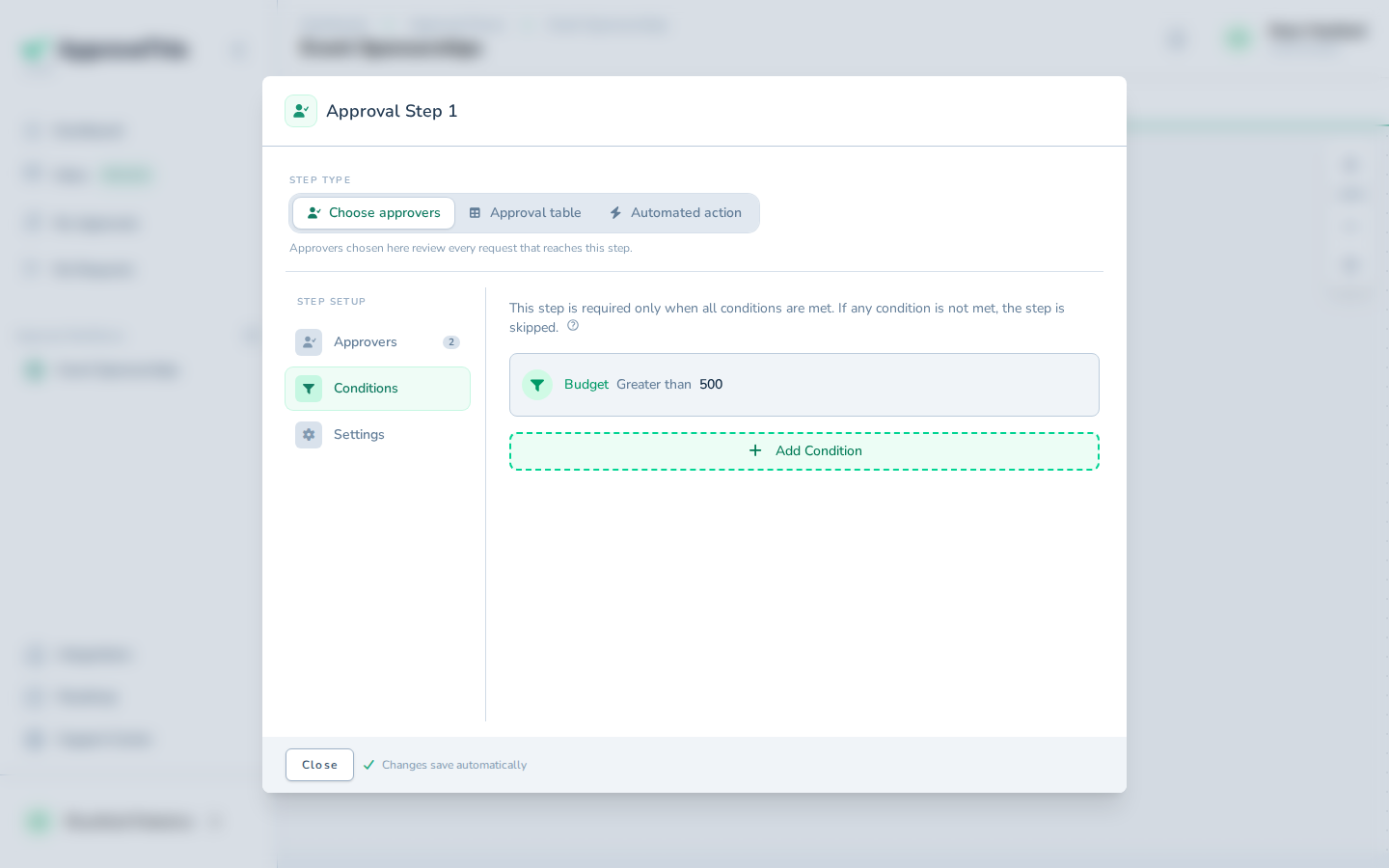
Click Delete condition on the condition you no longer need.