In-App Notification Center
A bell in the top navigation with a live unread count and a dropdown of recent approval activity, so you can jump straight to the request that needs you without digging through email.
Updated
Approval activity lands in the bell icon in the top navigation, where a red badge counts what you haven't read yet. Clicking the bell opens a panel of the eight most recent unread items, each one a direct jump to the request it concerns. This guide is for any signed-in user working through pending approvals; you'll need at least one unread notification waiting on your account. Note that the panel is unread-only and there's no separate history page — once an item is read, it leaves the list.
Who this is for: a User.
Open the bell and click one notification — it is marked read and takes you to the request it concerns
Instead of scanning your inbox for the email about a request, you open the bell and land on the request itself. Clicking an item marks it read and navigates straight there, which also removes it from the panel permanently.
-
Sign in to ApproveThis as the user who received the notifications.
-
Click Notifications in the top navigation to open the panel of unread items. A red badge on the bell carries the unread count, shown as 9+ once you pass nine.
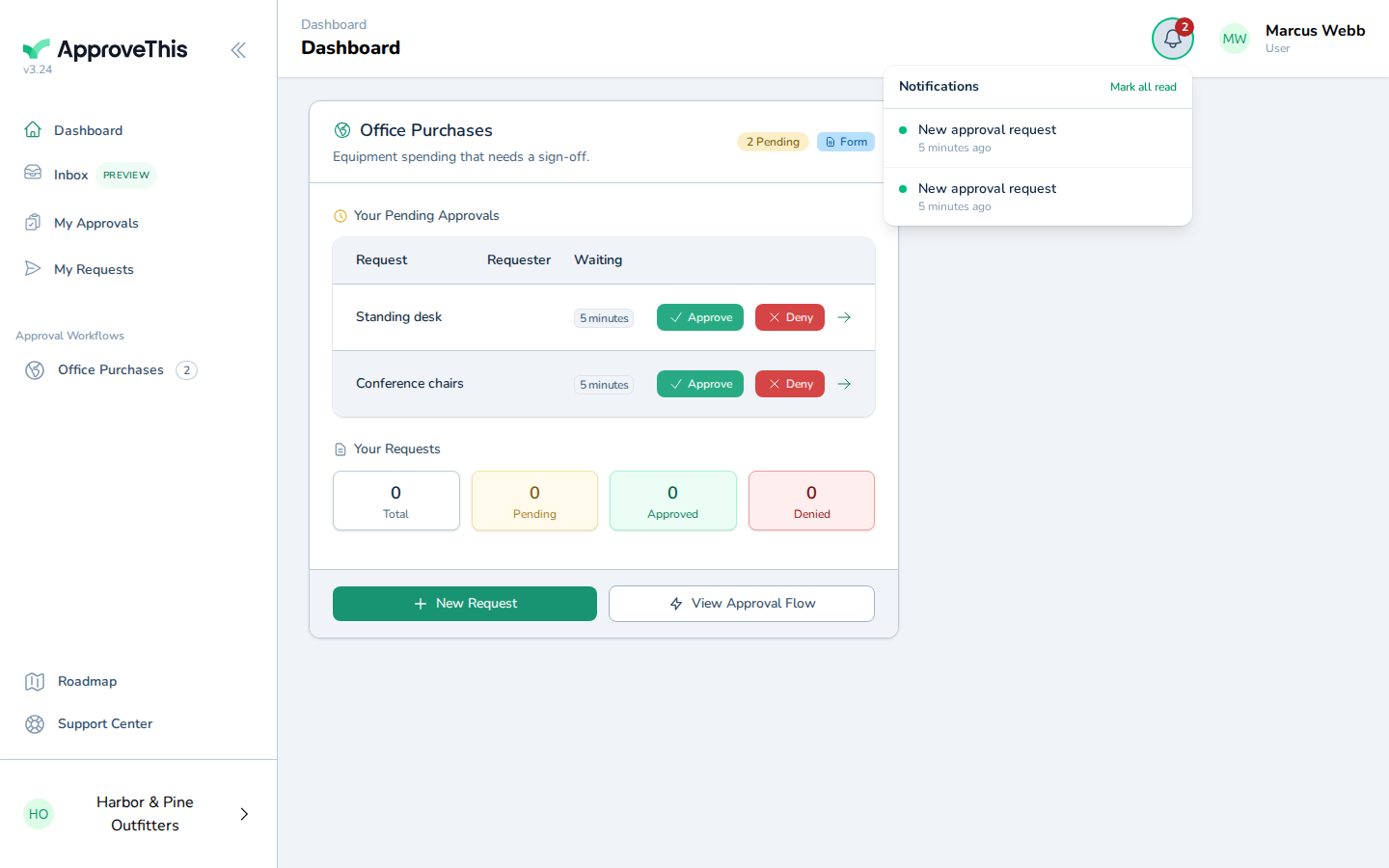
Click Notifications in the top navigation to open the panel of unread items. A red badge on the bell carries the unread count, shown as 9+ once you pass nine. -
Click the notification for the request you want to open — the example screenshots show
New approval request 5 minutes ago. Each entry pairs a title with how long ago it arrived, and clicking it marks that item read.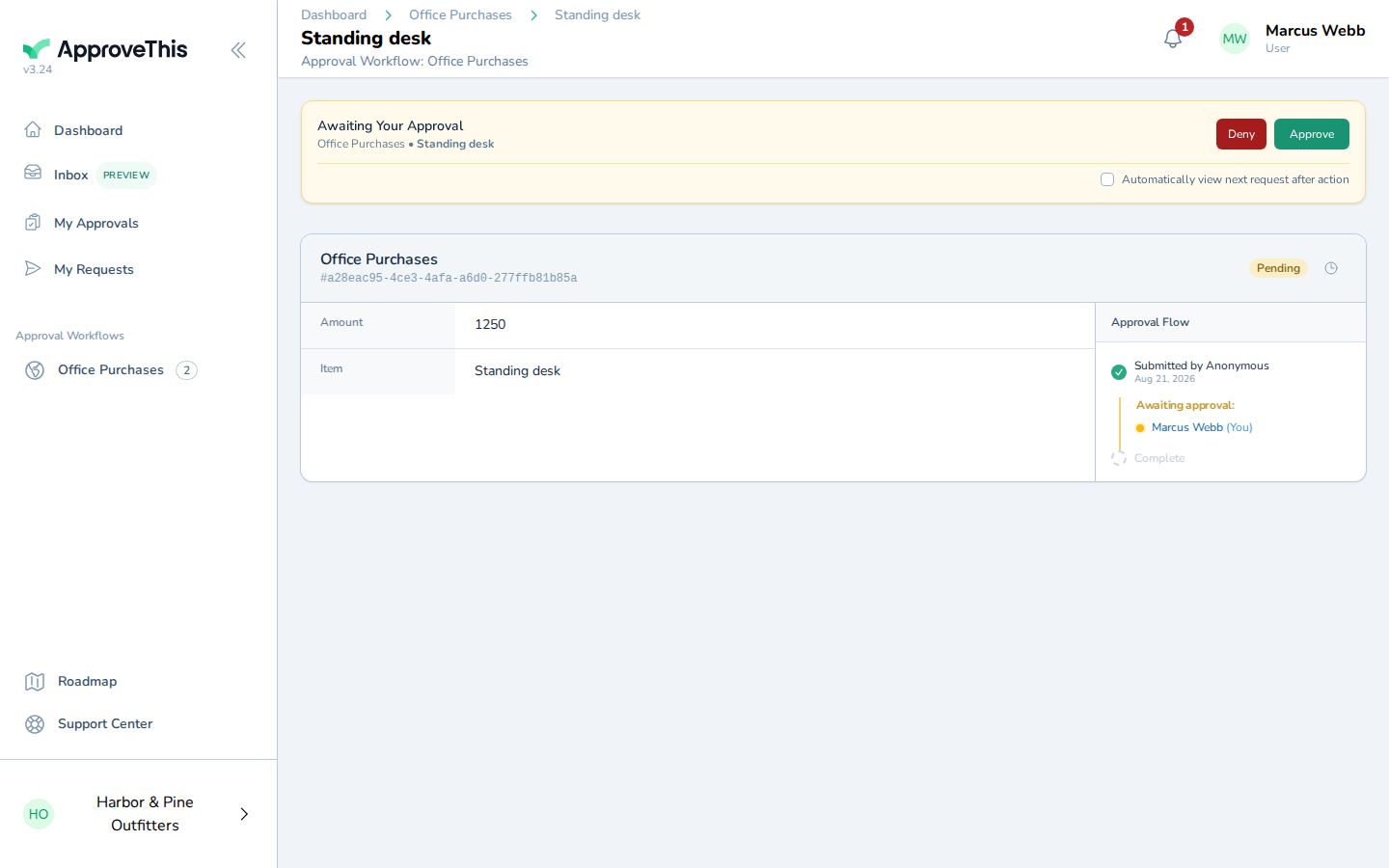
Click the notification for the request you want to open — the example screenshots show New approval request 5 minutes ago. Each entry pairs a title with how…
Open the bell again and click 'Mark all read' to clear the remaining unread notifications
After a batch of requests comes in, clearing the panel one item at a time is slow. Mark all read empties the whole list in a single click and drops the badge from the bell.
-
Click Notifications again to reopen the panel and see what remains unread.
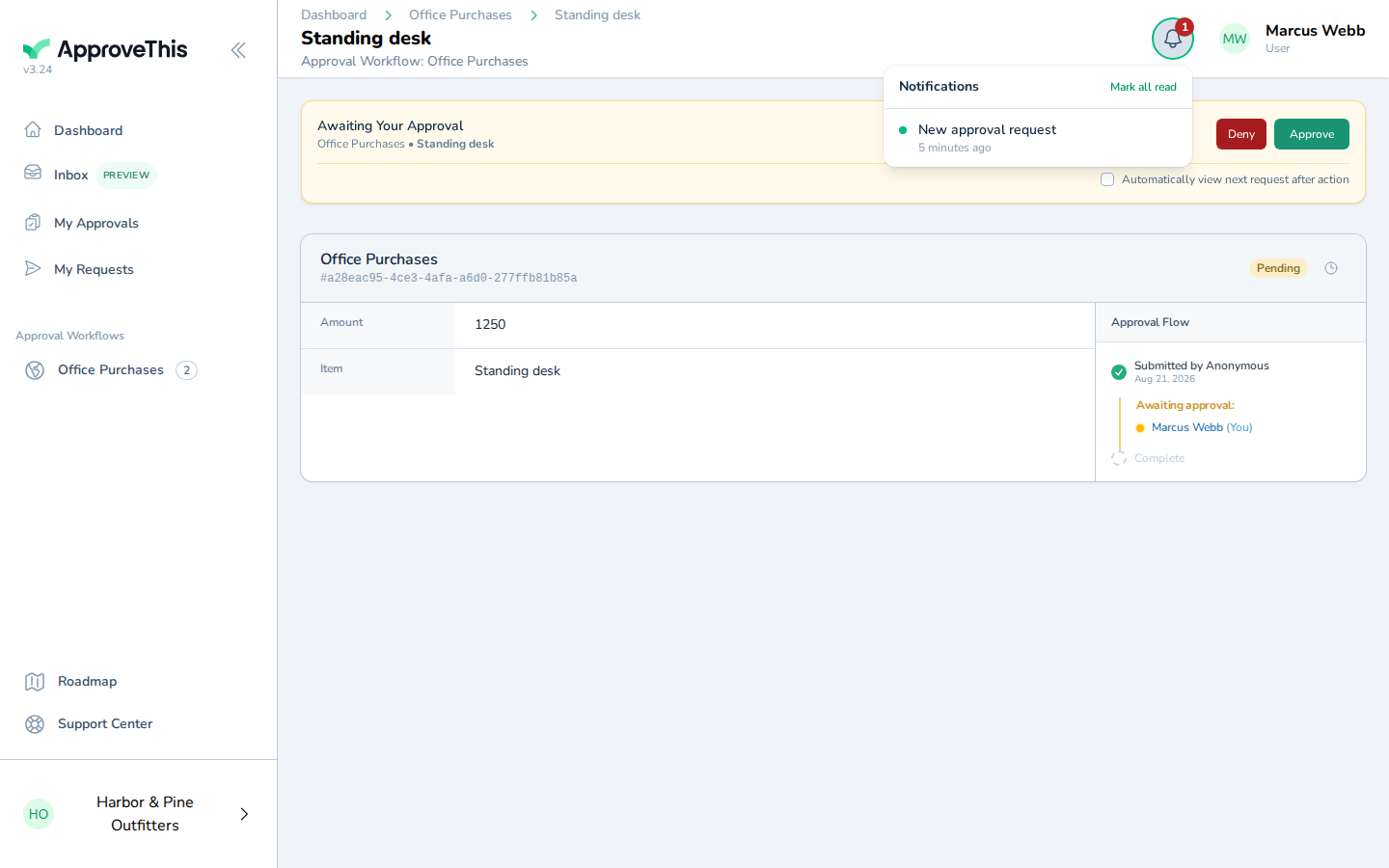
Click Notifications again to reopen the panel and see what remains unread. -
Click Mark all read to clear every remaining item at once.
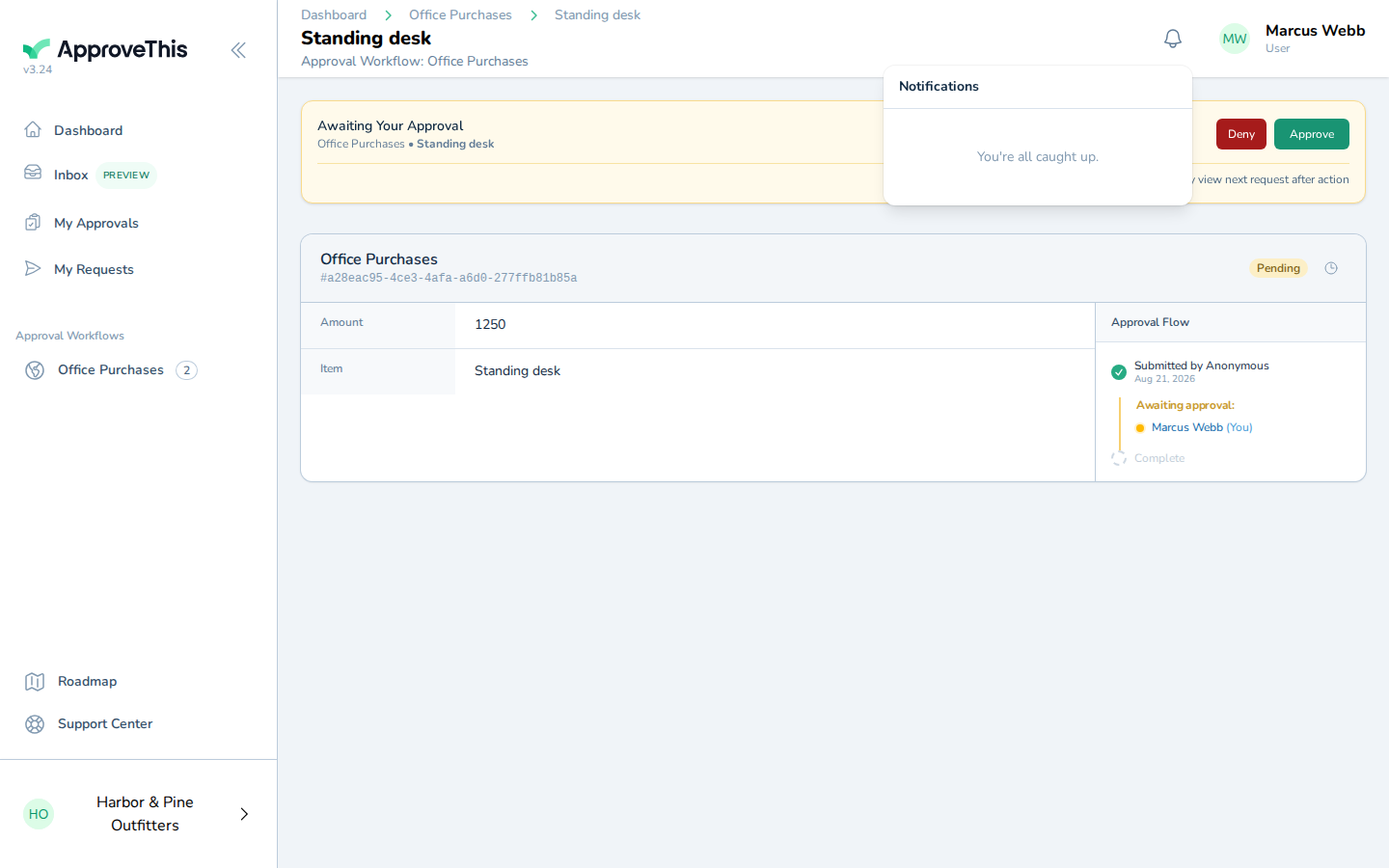
Click Mark all read to clear every remaining item at once.