Team Management
Invite teammates by email and pick the role that fits — they choose a password when they accept, and stay listed as pending until they do.
Updated
Growing a workspace means getting the right people in with the right level of access. Team Management handles that from the workspace side: you send an email invitation, pick the role the person will hold, and they set their own password when they accept. Until they do, they stay visible as a pending invitation. This guide is for Administrators and covers inviting one teammate and assigning their role.
Who this is for: an Administrator.
Invite a teammate and choose their role
Adding someone to your workspace starts with an invitation tied to a role, and the role you pick here determines what they can do once they accept — Administrator, Manager, User, Read-Only, Requester, or External Approver. Worth knowing before you assign it: an Administrator can approve or deny any approval on behalf of its assigned approver, so hand that role out with your approval controls in mind.
-
Sign in as an Administrator.
-
Type the work email address of the person you're inviting into Email address (the example uses
jordan.mills@example.com).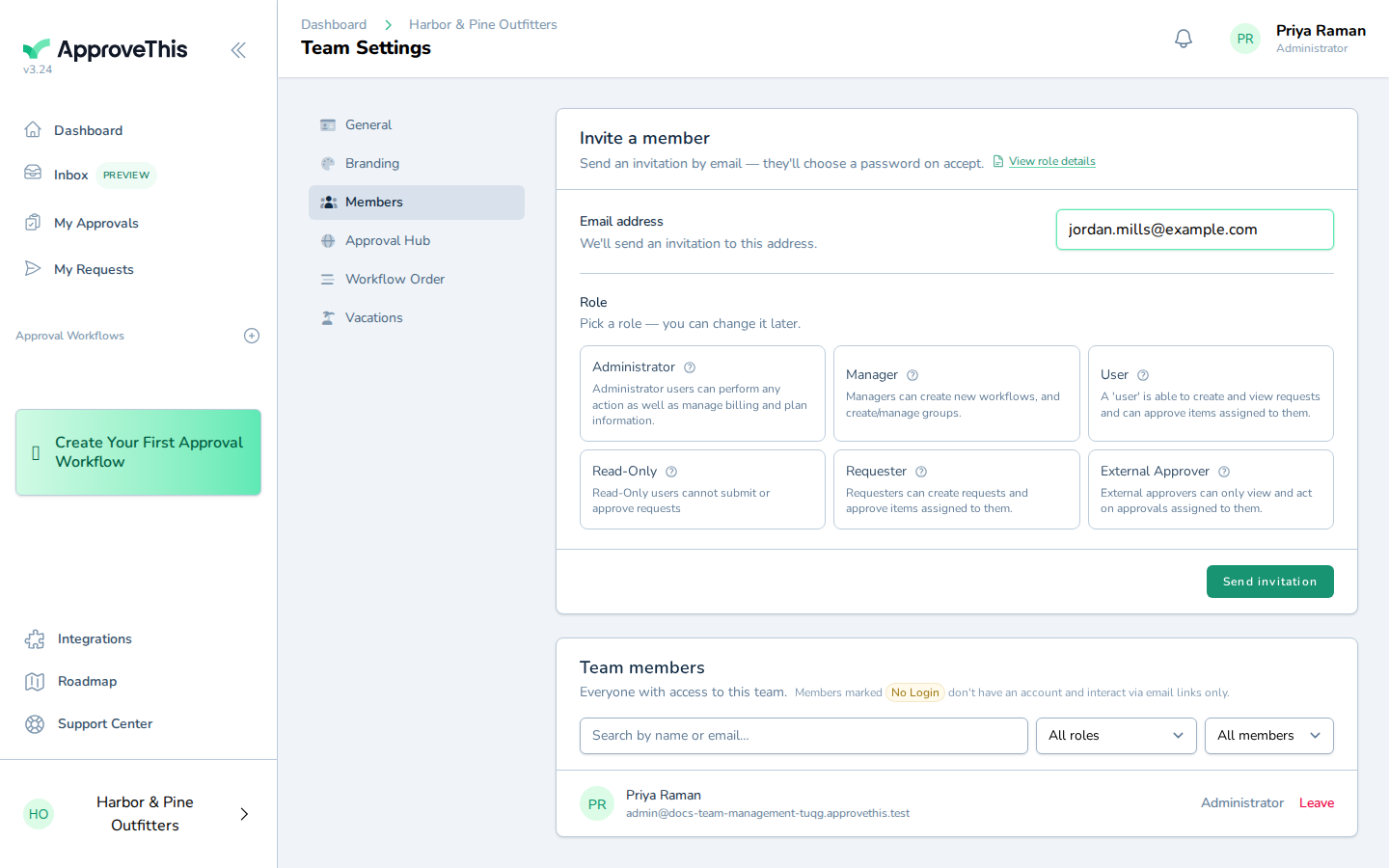
Type the work email address of the person you're inviting into Email address (the example uses jordan.mills@example.com). -
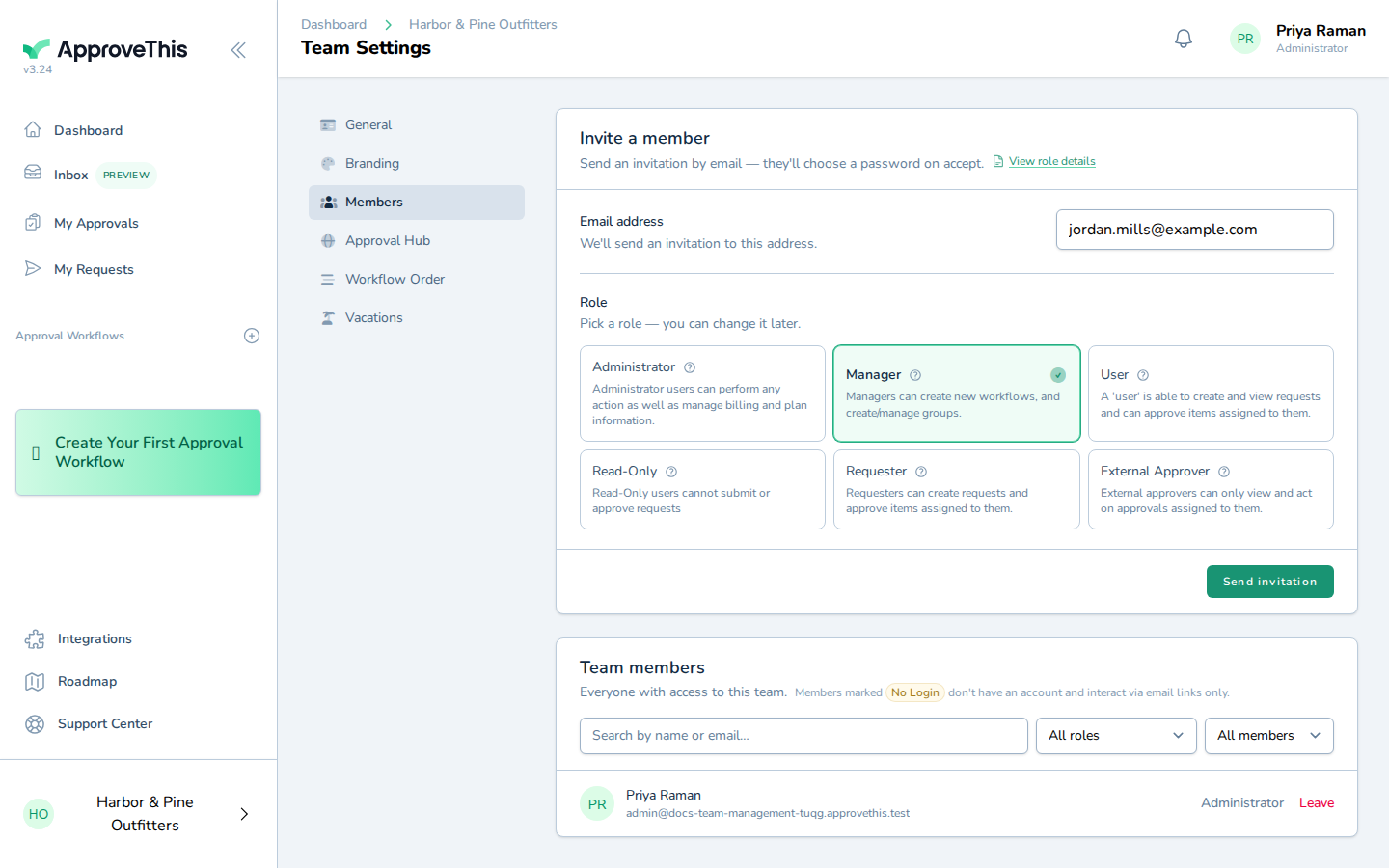
Click Manager role to set the access level the invitee will hold once they accept.
Click Manager role to set the access level the invitee will hold once they accept. -
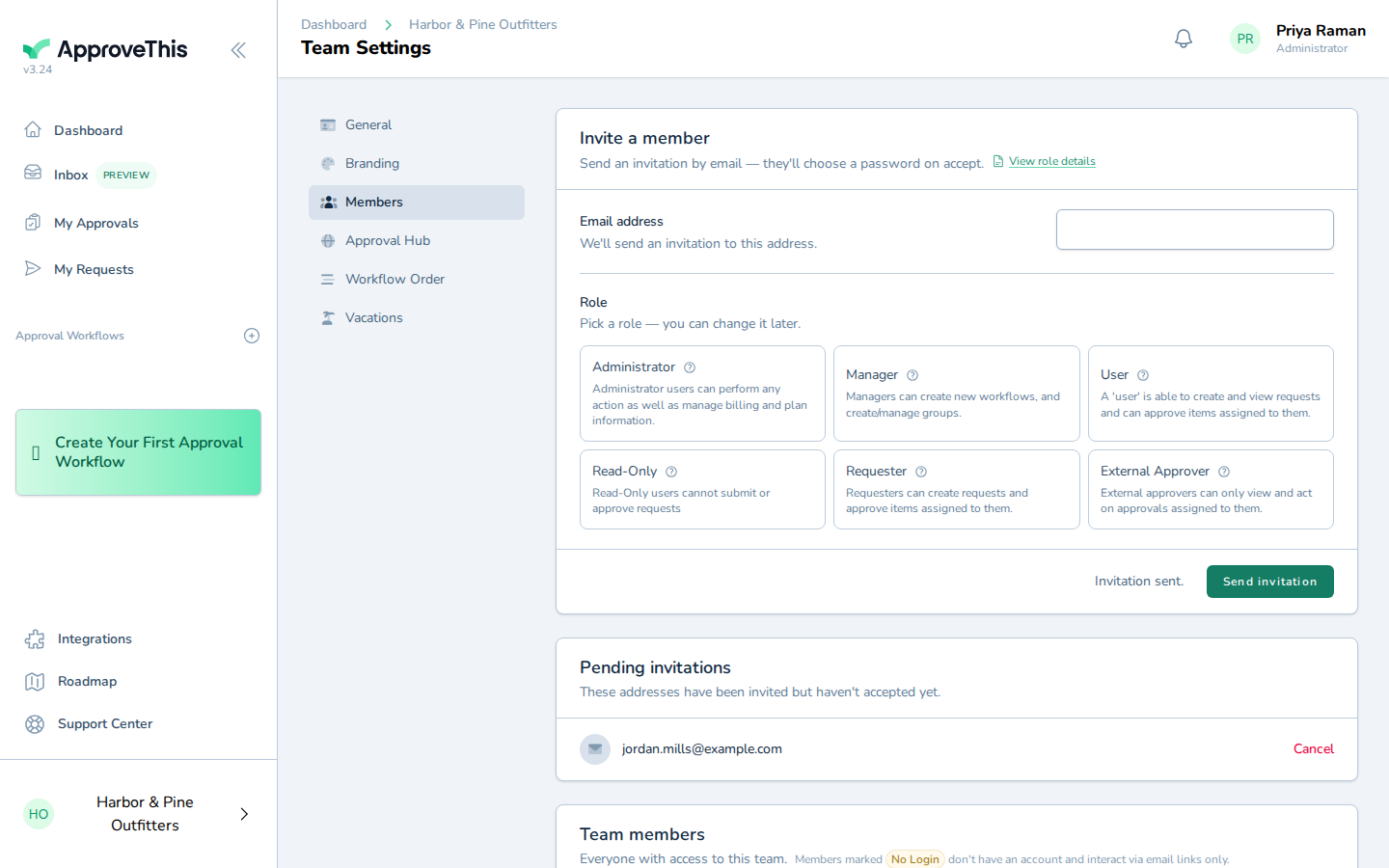
Click Send invitation to email the invitation.
Click Send invitation to email the invitation.