Workflow Comments
Discuss a request where the request lives — threaded comments on the request page, with @-mentions that pull the right teammate in and notify them with a link to the conversation.
Updated
Decisions about a request tend to scatter into email threads and chat, leaving the approver reading it later with no context. Comments keep that discussion on the request page itself, and typing @ pulls a specific teammate into the conversation with a notification linking straight back to it. This is for Administrators and Users working a request that already has comments enabled on its workflow — you'll need such a request open in front of you.
Who this is for: an Administrator or a User.
Post a comment that @-mentions a teammate
A request stalls when the one person who can answer the open question doesn't know they've been asked. An @-mention names them directly and sends them email and in-app notification with a link to the thread (plus SMS if SMS is configured for that user, as a notification only). The mention picker offers only teammates allowed to view that request, so anyone outside the request's view policy won't appear.
-
Sign in as an Administrator.
-
Click Add a comment… to open the comment box.
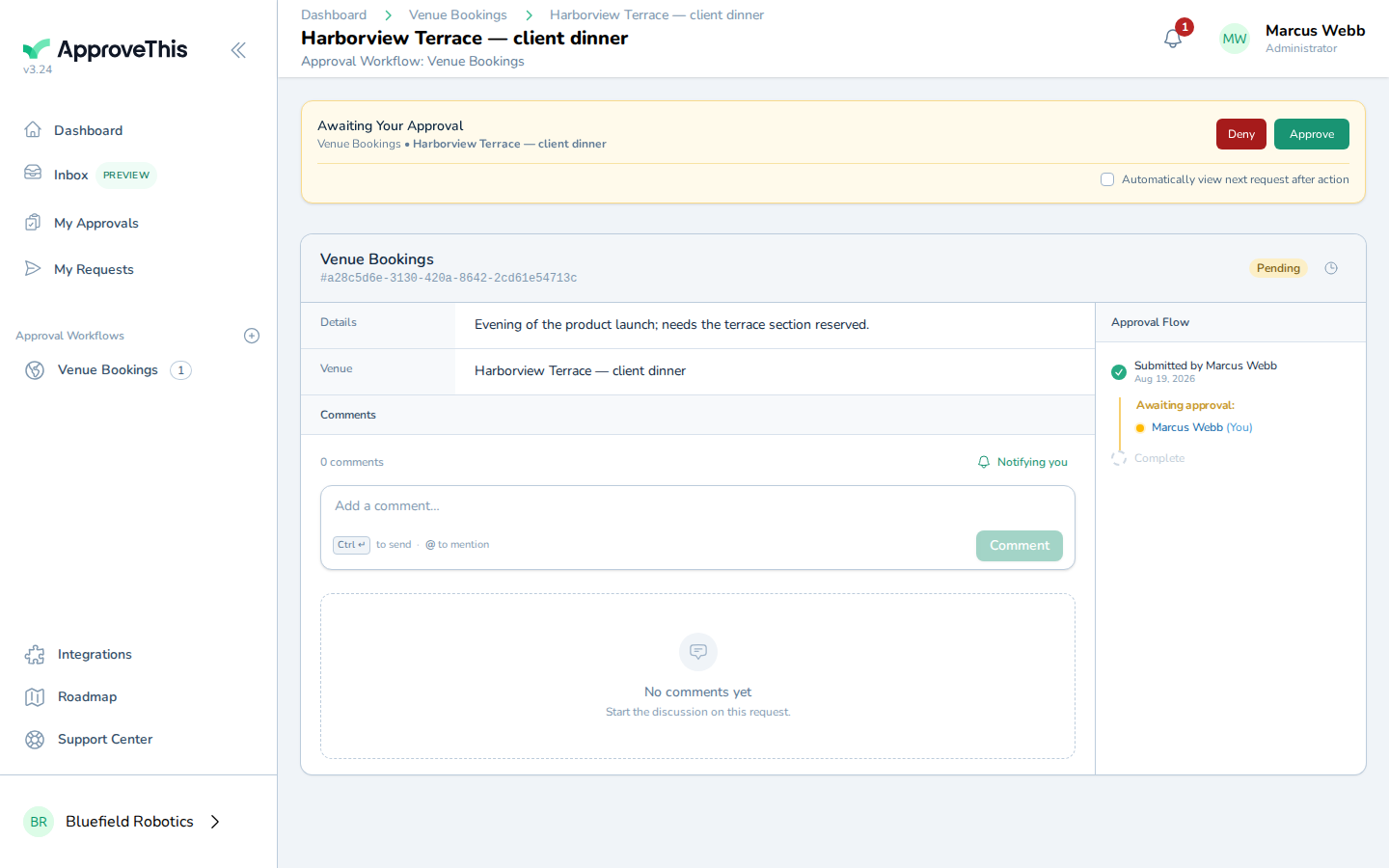
Click Add a comment… to open the comment box. -
Type your message, and where you want to pull someone in, type
@followed by the start of their name; the example usesLooks good — booking the terrace works. @Noor.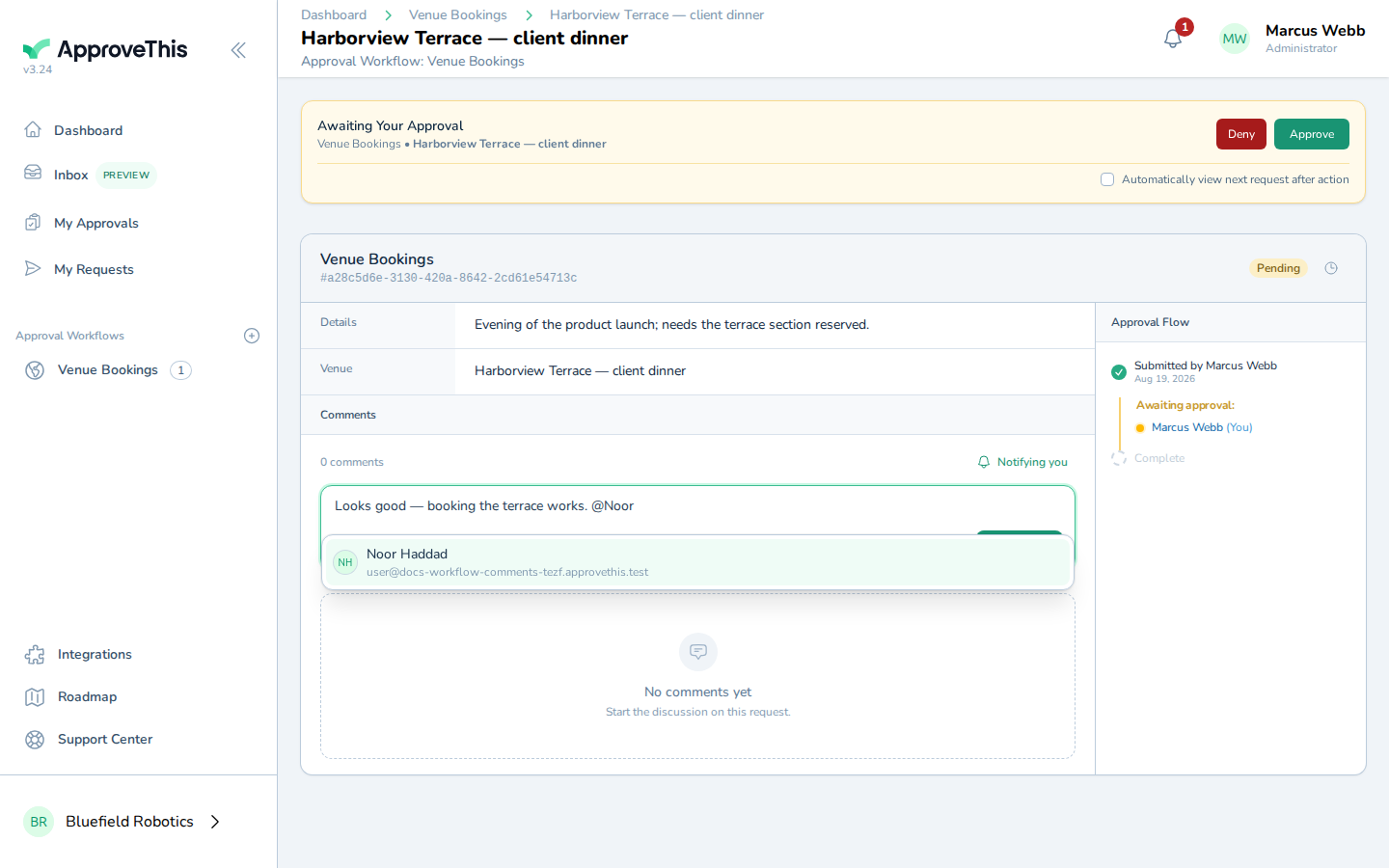
Type your message, and where you want to pull someone in, type @ followed by the start of their name; the example uses Looks good — booking the terrace works.… -
Click the teammate you're mentioning in the results the picker shows (Noor Haddad in the example screenshots).
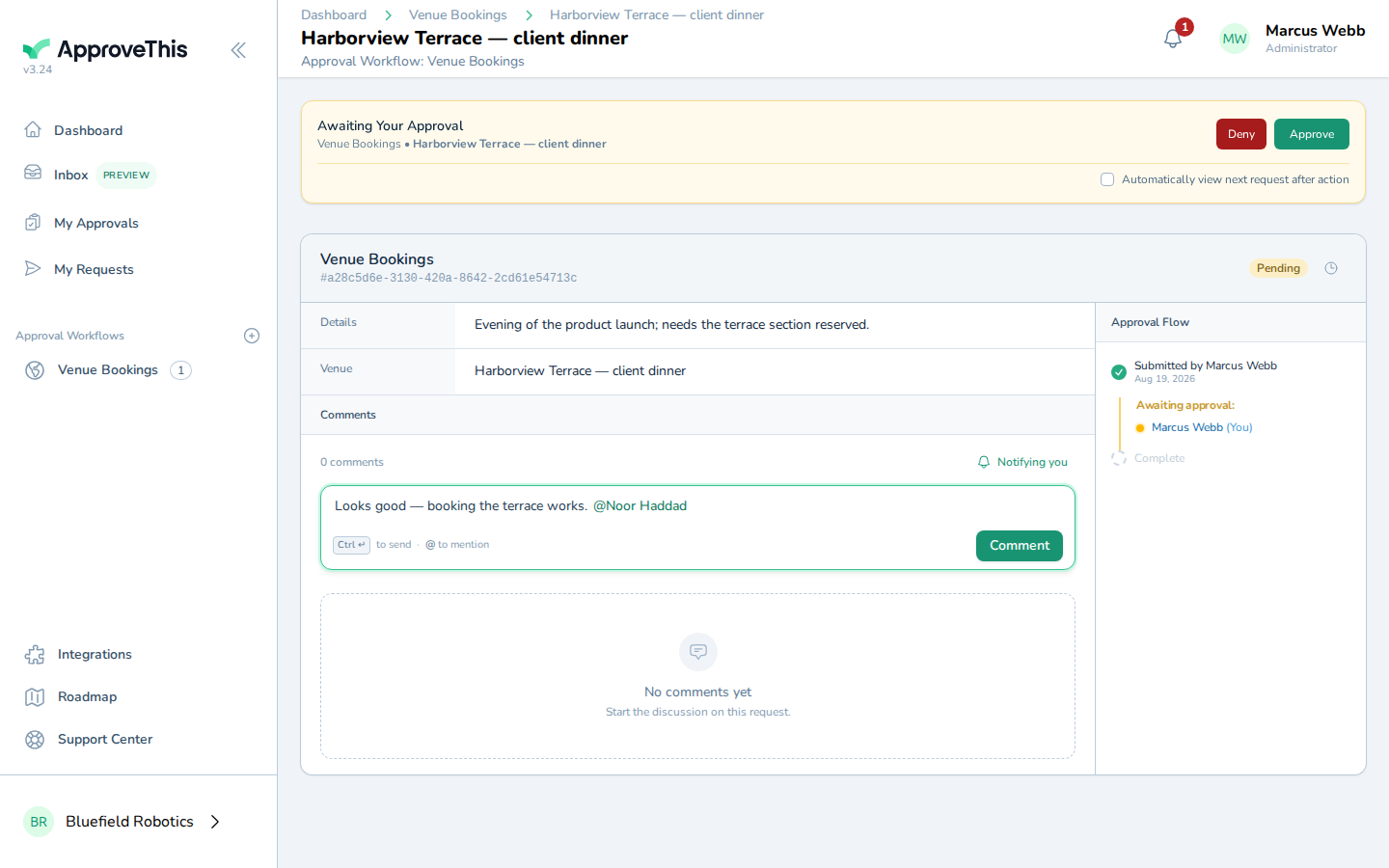
Click the teammate you're mentioning in the results the picker shows (Noor Haddad in the example screenshots). -
Click Comment to post it to the request.
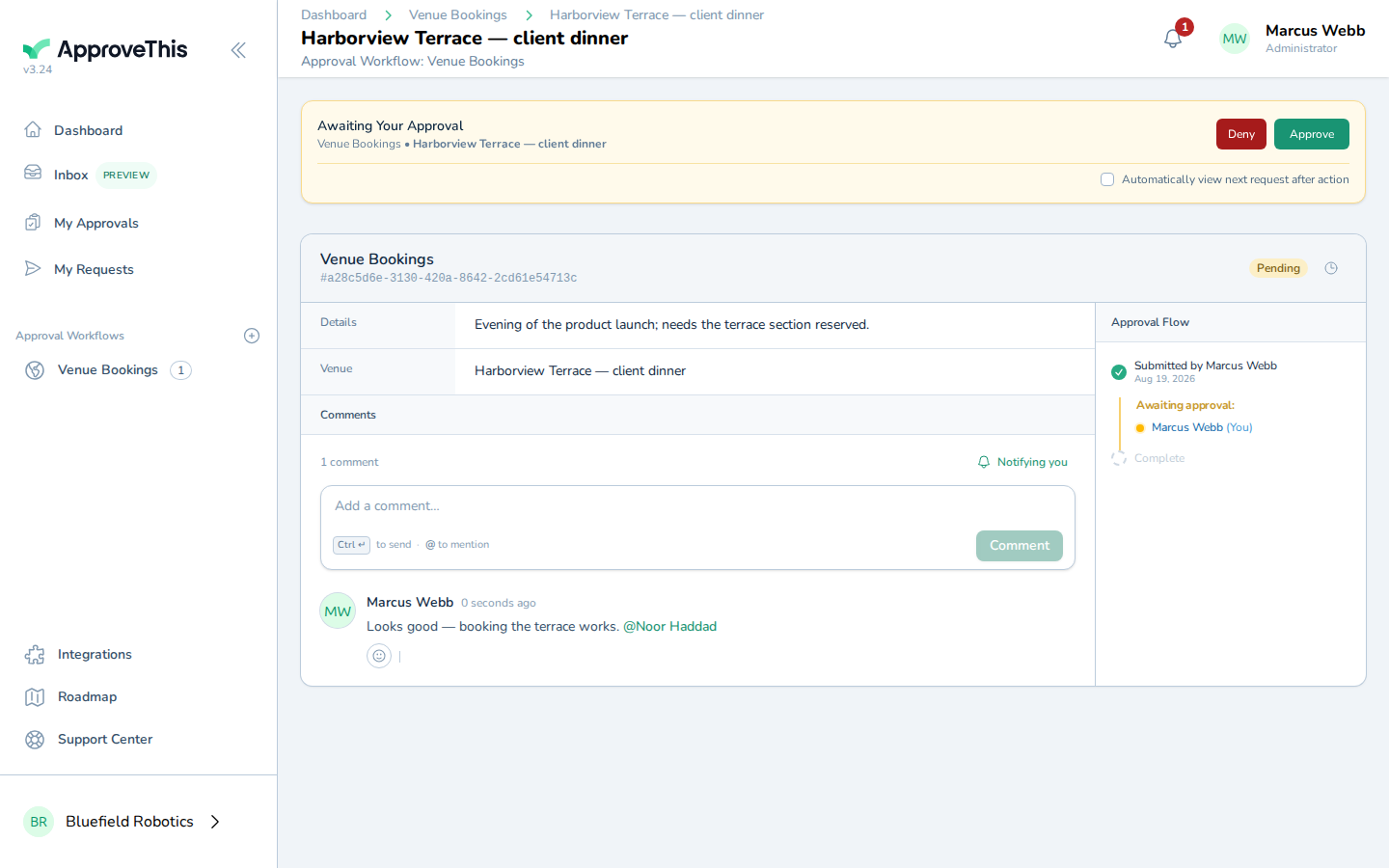
Click Comment to post it to the request.