Workflow Preview
See a workflow before anyone submits to it: the form previews live while you build, and the routing walkthrough shows exactly which steps would run and who would approve for the values on the form — before a single real request exists.
Updated
Workflow Preview answers two questions while a workflow is still being built: what will the form look like to whoever fills it, and who would actually get asked to approve. Administrators editing a workflow see the form render live in the Form tab's right-hand panel, and can run a routing simulation from the form itself against whatever values are currently entered. Nothing is written to the database and no request is created — the routing walkthrough is a simulation with no saved artifact. You'll need a workflow with at least one field and a routing condition already set up.
Who this is for: an Administrator.
Edit a field beside the live form preview
Field labels read differently to a requester than they do in the builder. Editing a field with the preview panel open shows the rendered result immediately, so wording and layout get fixed before anyone submits.
-
Sign in as the admin.
-
Click the item field to open it for editing.
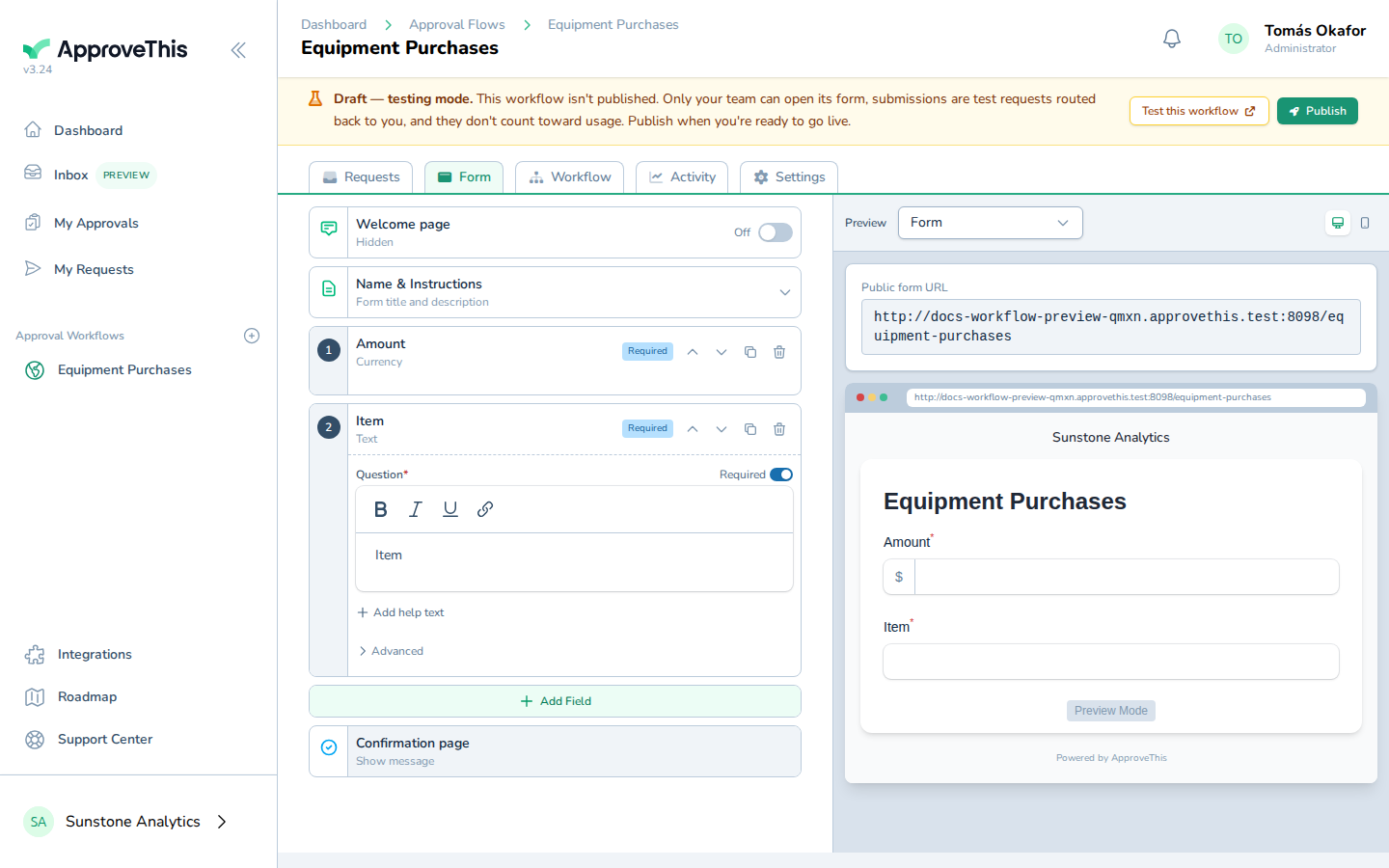
Click the item field to open it for editing. -
Type the label you want requesters to read on that field —
Item or servicein the example screenshots.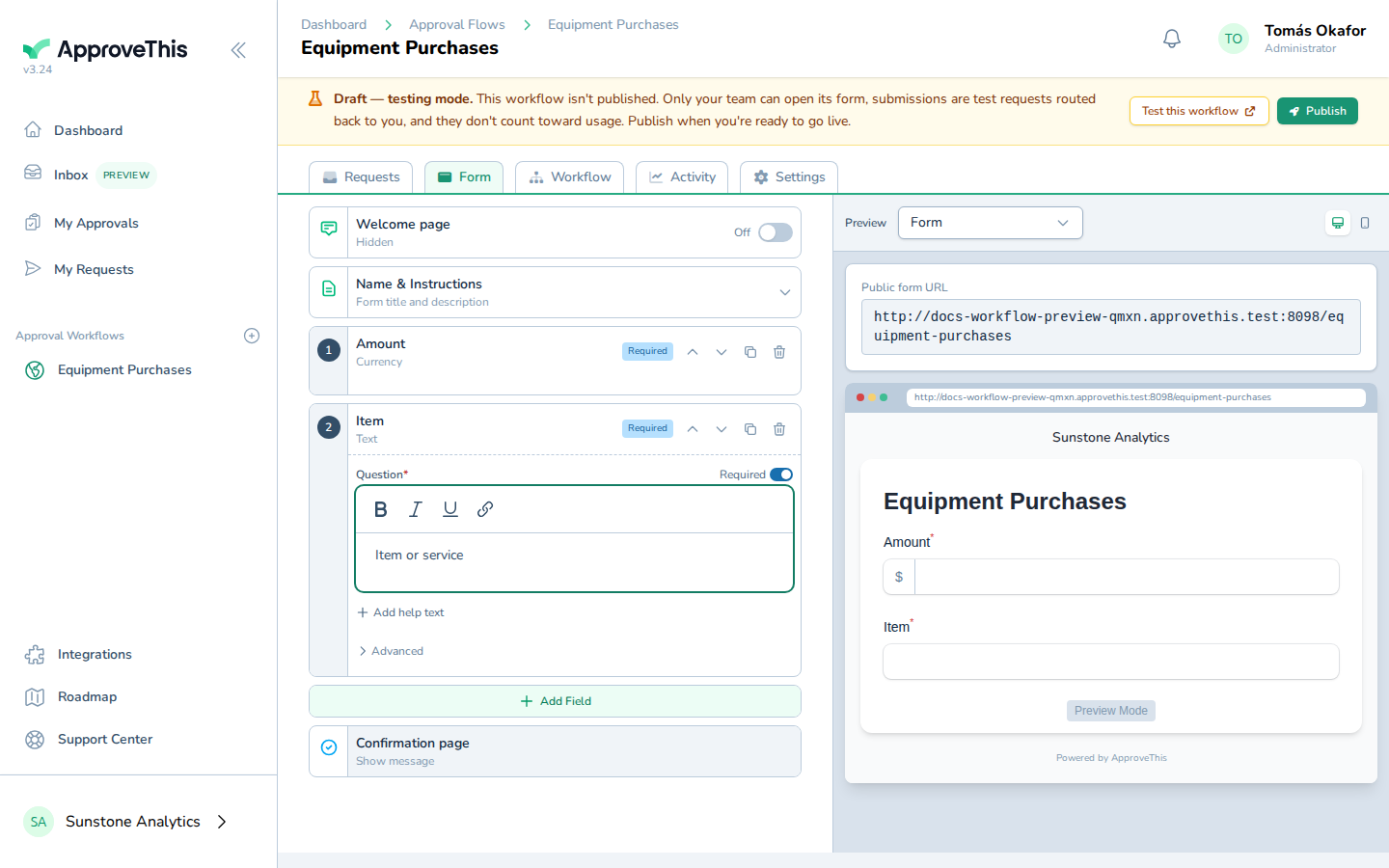
Type the label you want requesters to read on that field — Item or service in the example screenshots. -
Press
Tabto commit the change and re-sync the preview panel.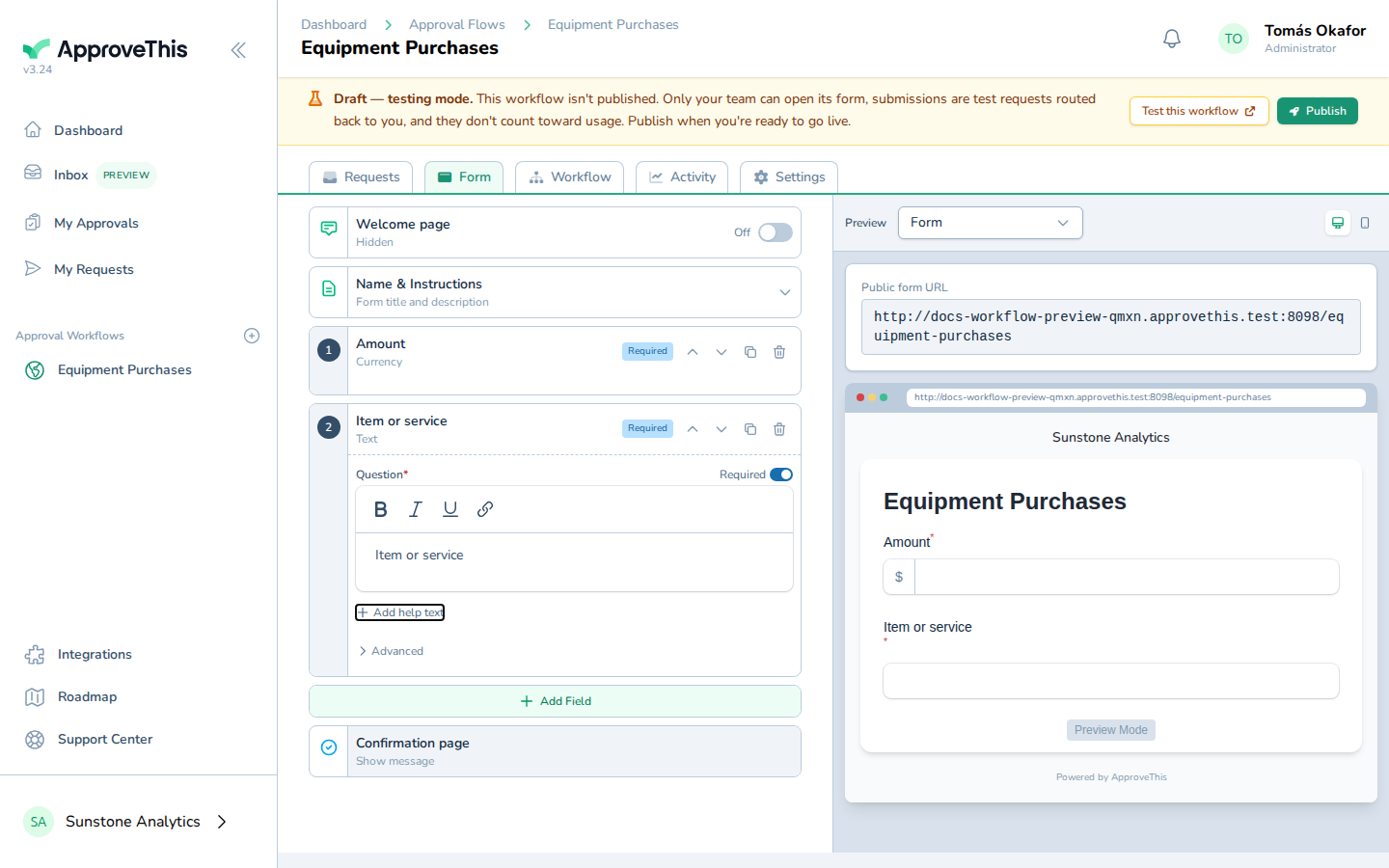
Press Tab to commit the change and re-sync the preview panel.
Preview who will approve before submitting
Conditional routing is easy to get wrong in ways that only show up after a real request goes to the wrong person. Running the preview against sample values shows which steps fire, which are skipped, and who resolves as approver for each one. The Preview approvers button appears only for members of the owning team who have update permission on the workflow; public fillers never see it.
-
Open the workflow's form at
@artifact:form_url.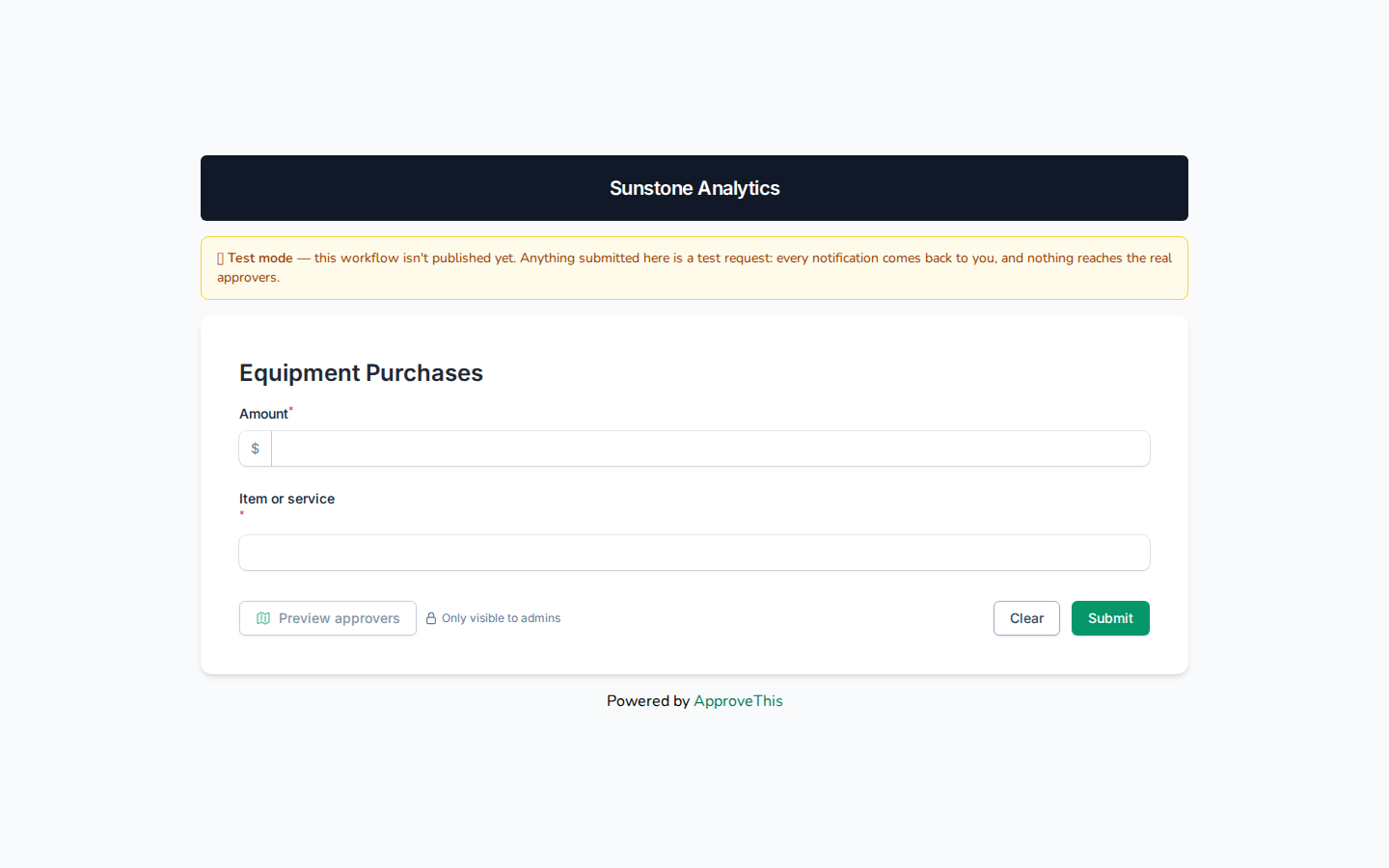
Open the workflow's form at @artifact:form_url. -
Enter a value in Amount that represents the spend you want to test — the example uses
800.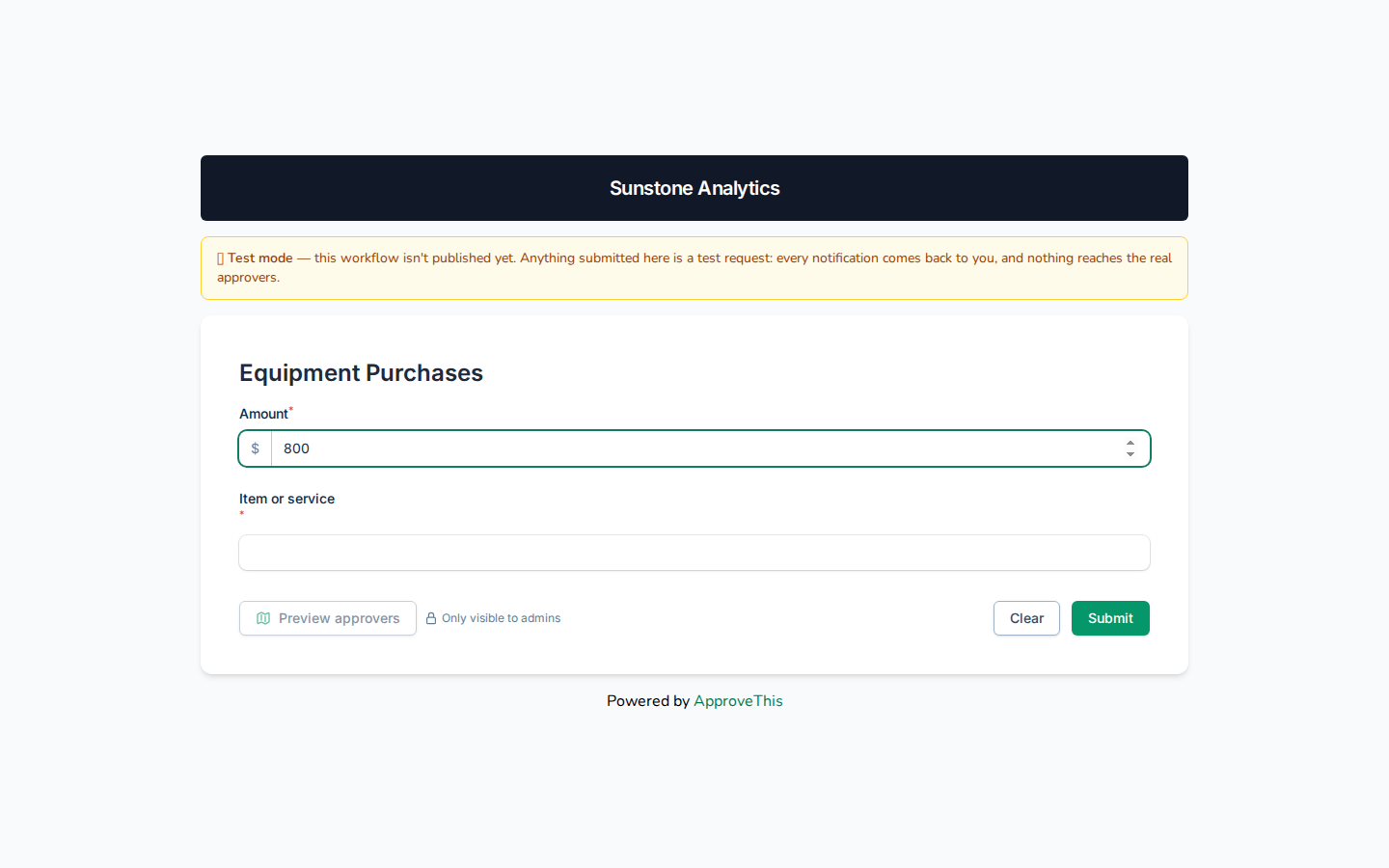
Enter a value in Amount that represents the spend you want to test — the example uses 800. -
Enter a description in Item or service, such as
Standing desk.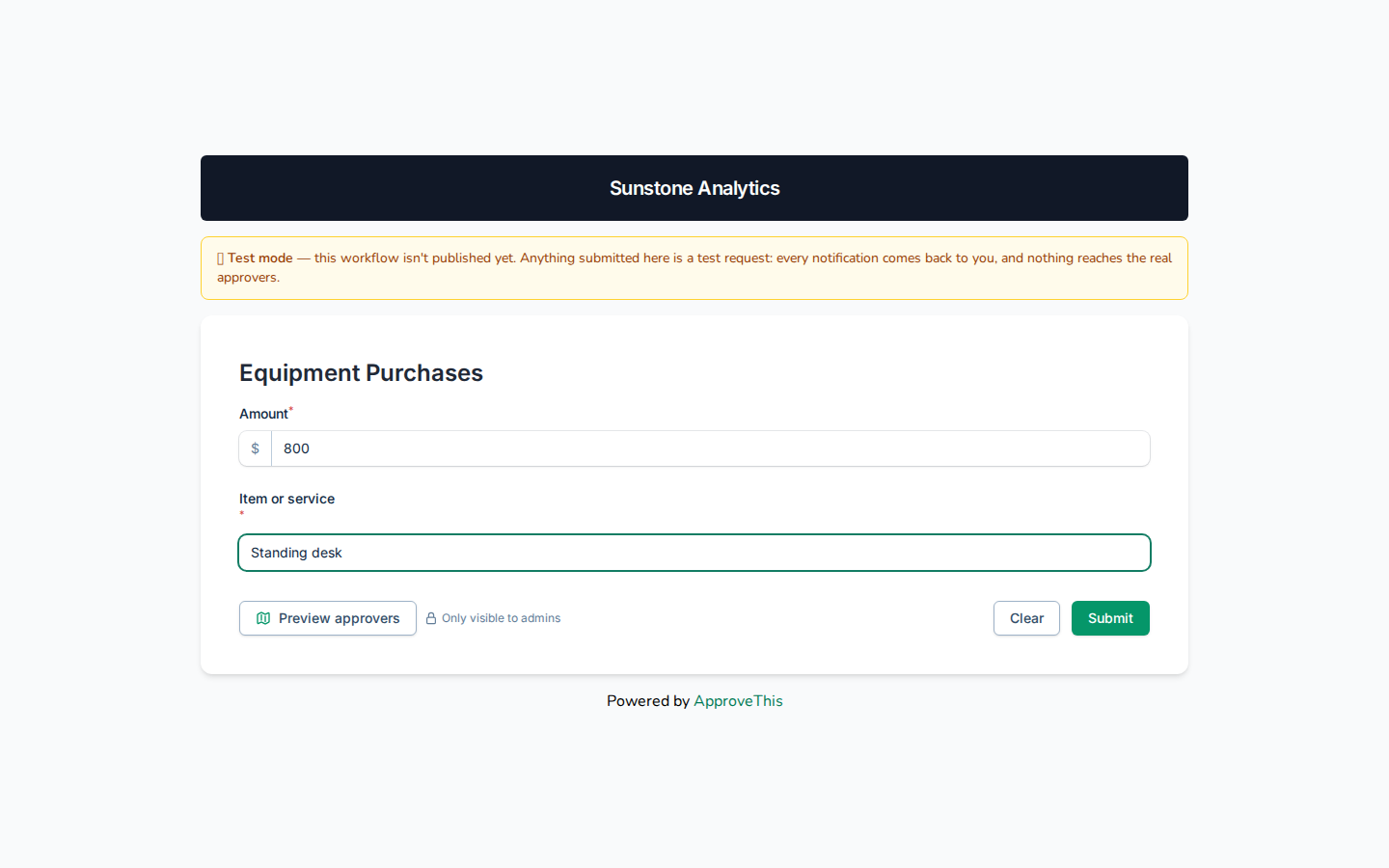
Enter a description in Item or service, such as Standing desk. -
Click Preview approvers to simulate routing against the values currently on the form.
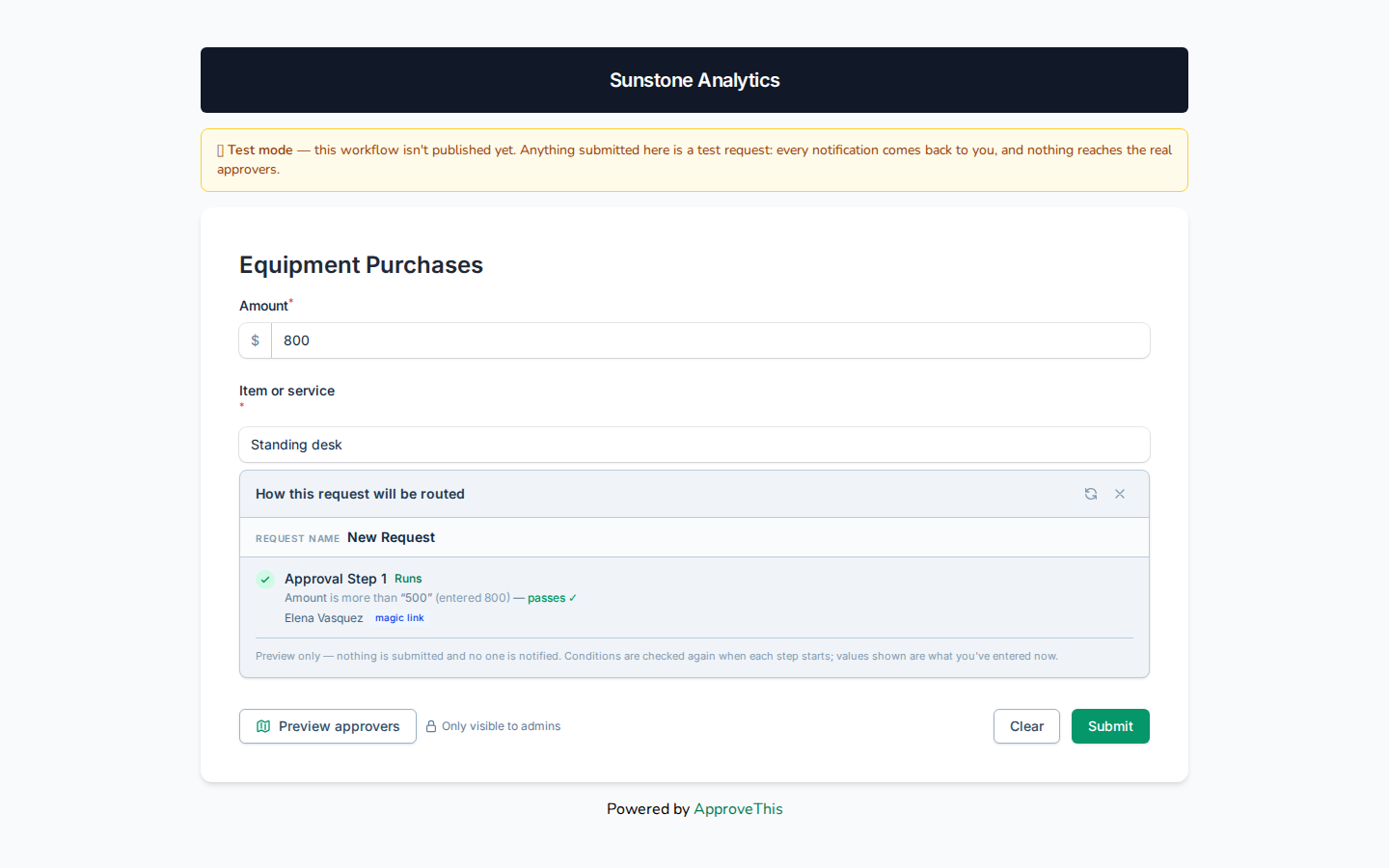
Click Preview approvers to simulate routing against the values currently on the form. -
Change Amount to a value on the other side of your routing condition — the example uses
200.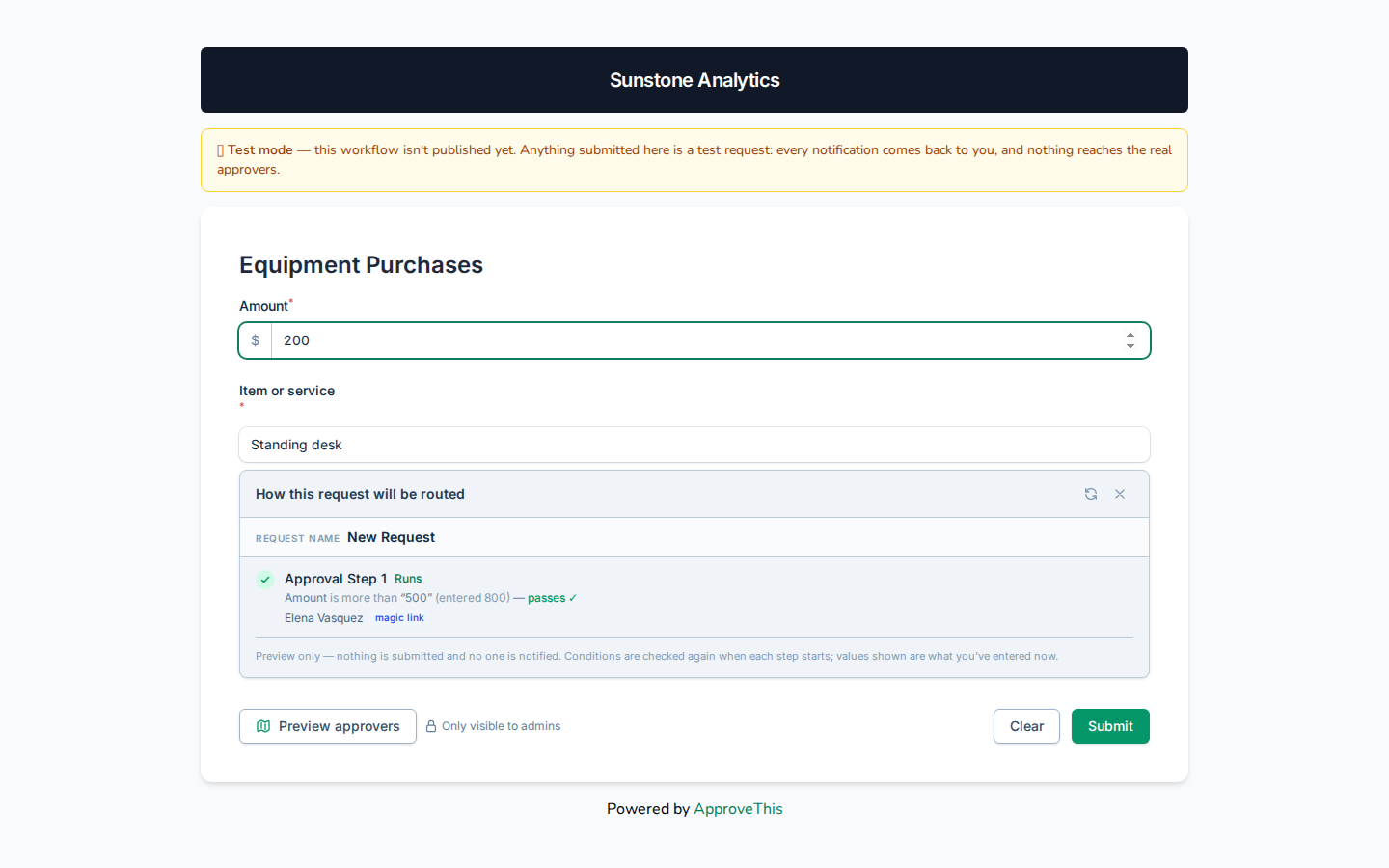
Change Amount to a value on the other side of your routing condition — the example uses 200. -
Click Refresh preview to re-run the simulation with the new value.
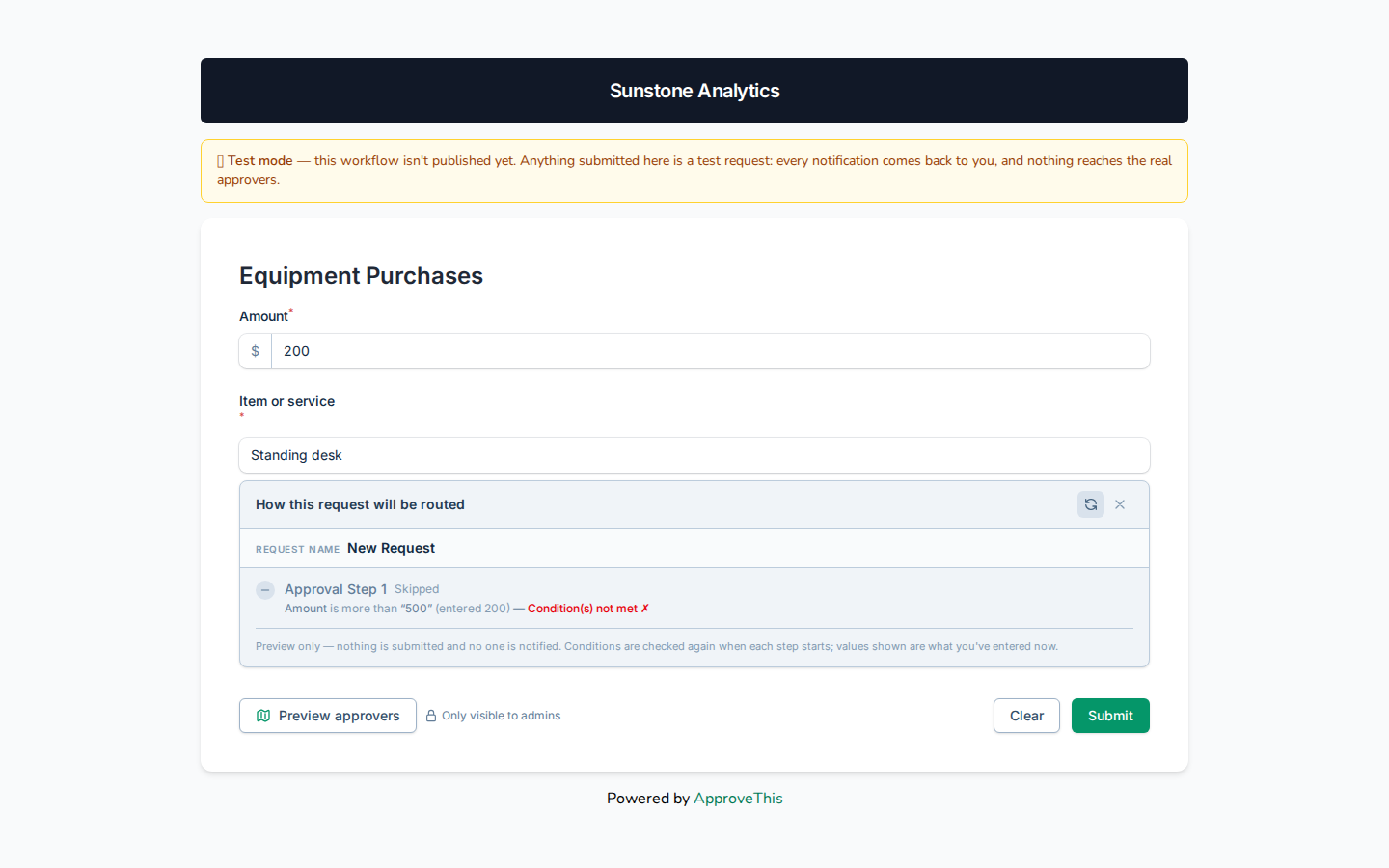
Click Refresh preview to re-run the simulation with the new value.