Vacation & Delegation
Hand your approvals to a colleague while you're away — set your dates and pick a delegate, and requests route to them until you're back.
Updated
Time off shouldn't leave requests sitting in a queue nobody is watching. Vacation & Delegation records the dates you'll be away in your own profile and names the colleague who should handle approvals in your place while you're out. It's available on all tiers, and you set it up for yourself from your account settings — no administrator involved.
Who this is for: a User.
Set your vacation start and end dates
Booked leave means approvals waiting on you will stall unless the workspace knows the exact window you're gone. Recording a start and end date fixes the period your approvals should route elsewhere.
-
Sign in with your own user account.
-
Click Account menu.
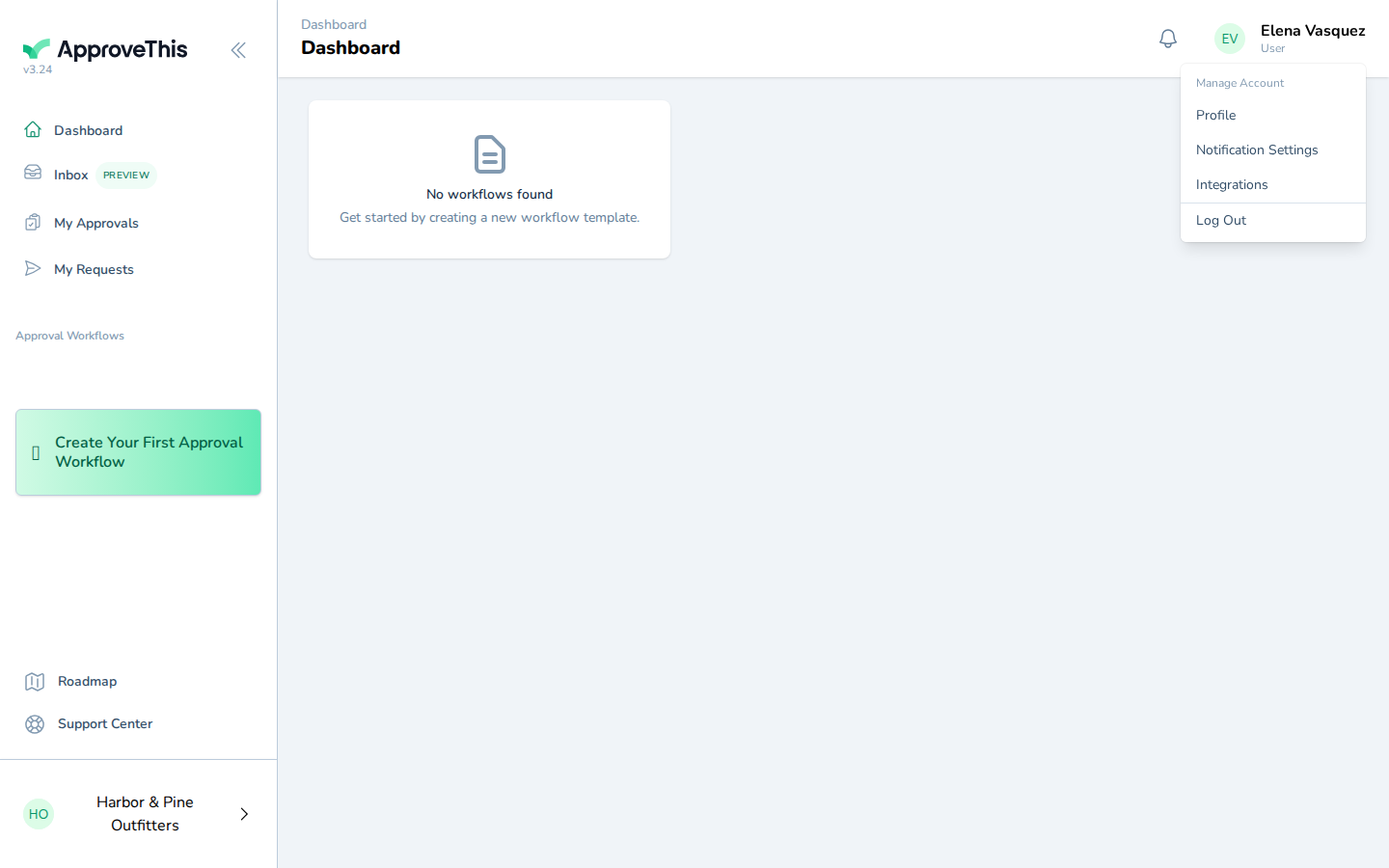
Click Account menu. -
Click your name in the menu (the example screenshots show Elena Vasquez).
Click your name in the menu (the example screenshots show Elena Vasquez). -
Click Account menu.
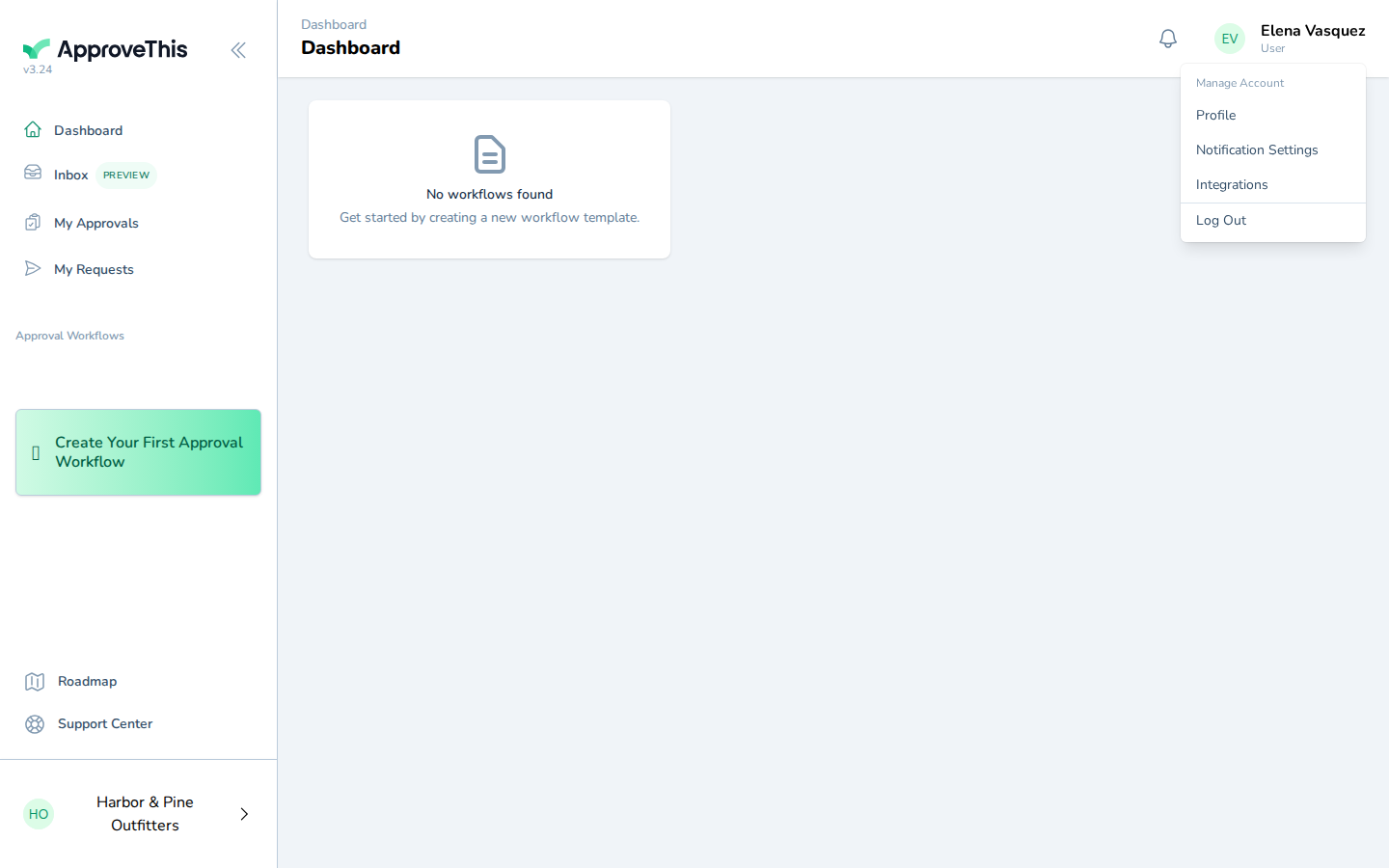
Click Account menu. -
Click Profile.
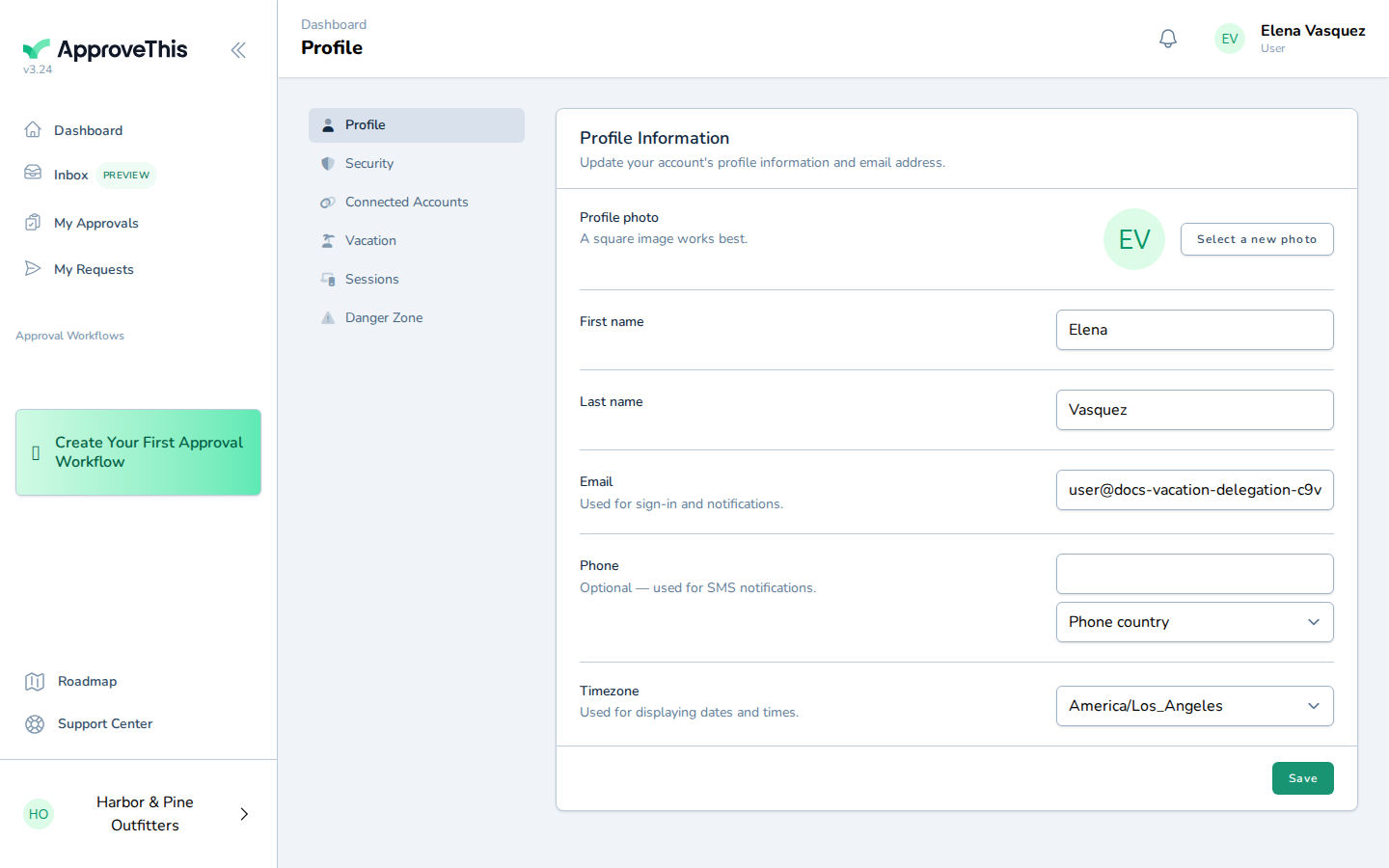
Click Profile. -
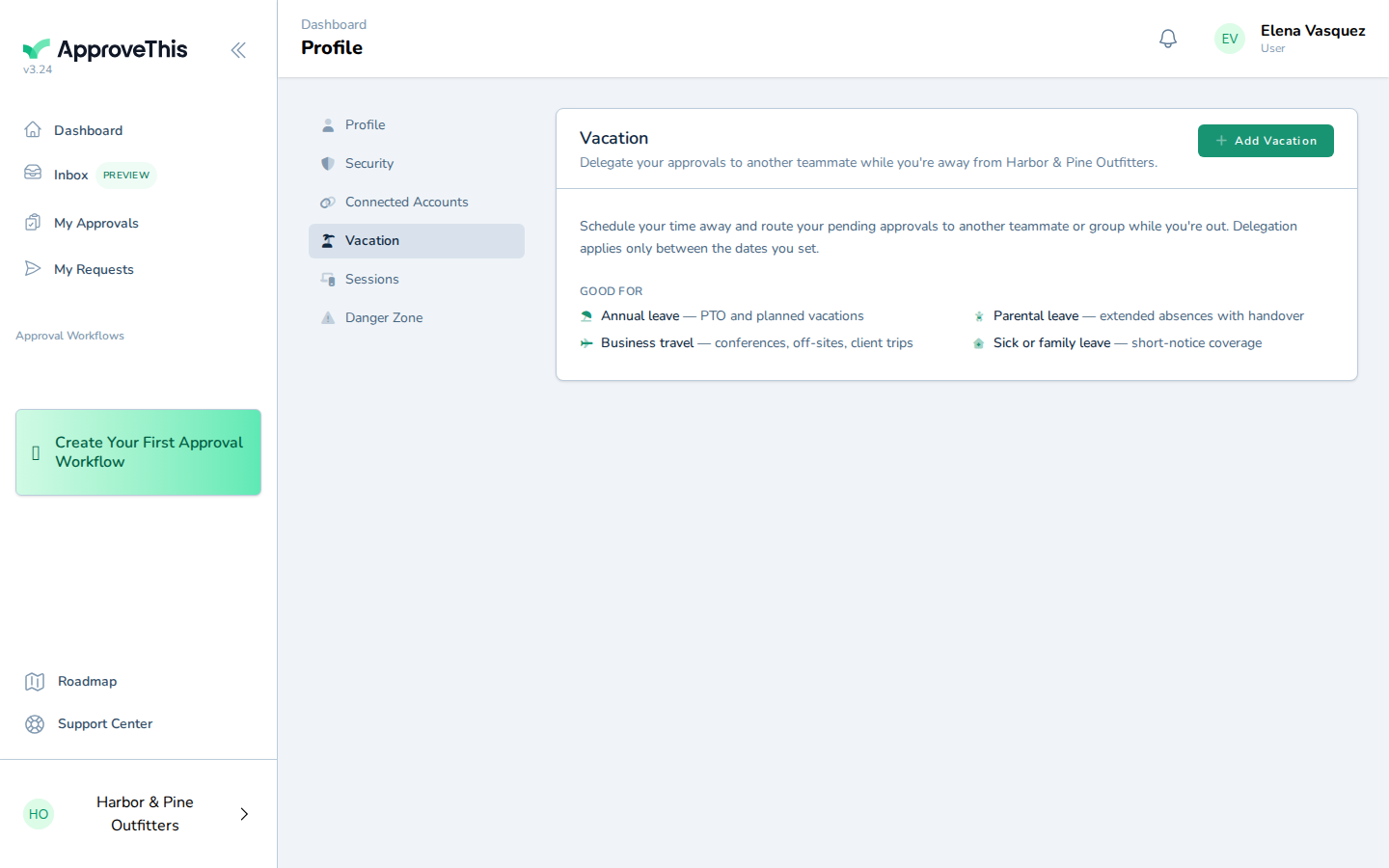
Click Vacation.
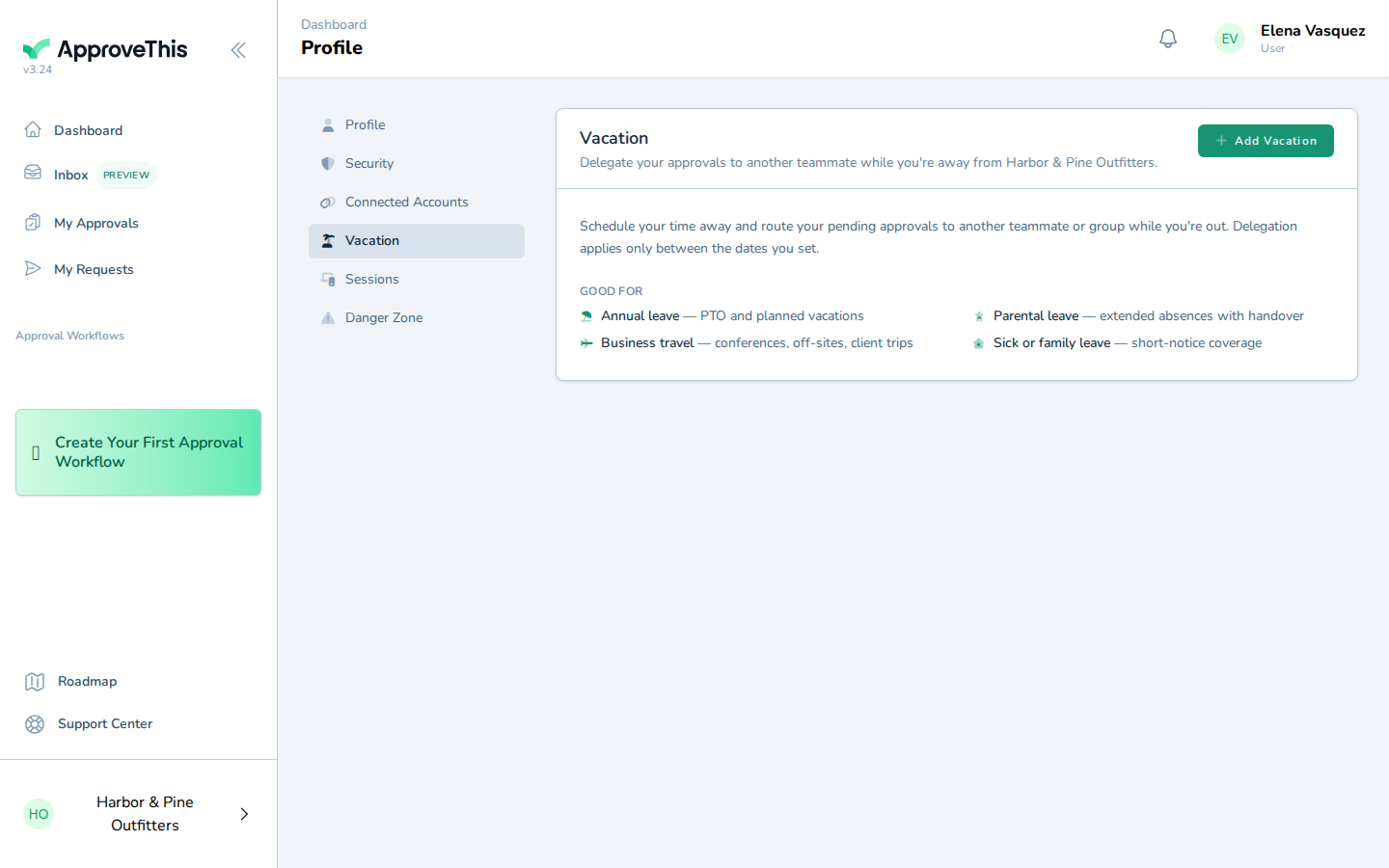
Click Vacation. -
Click Add Vacation.
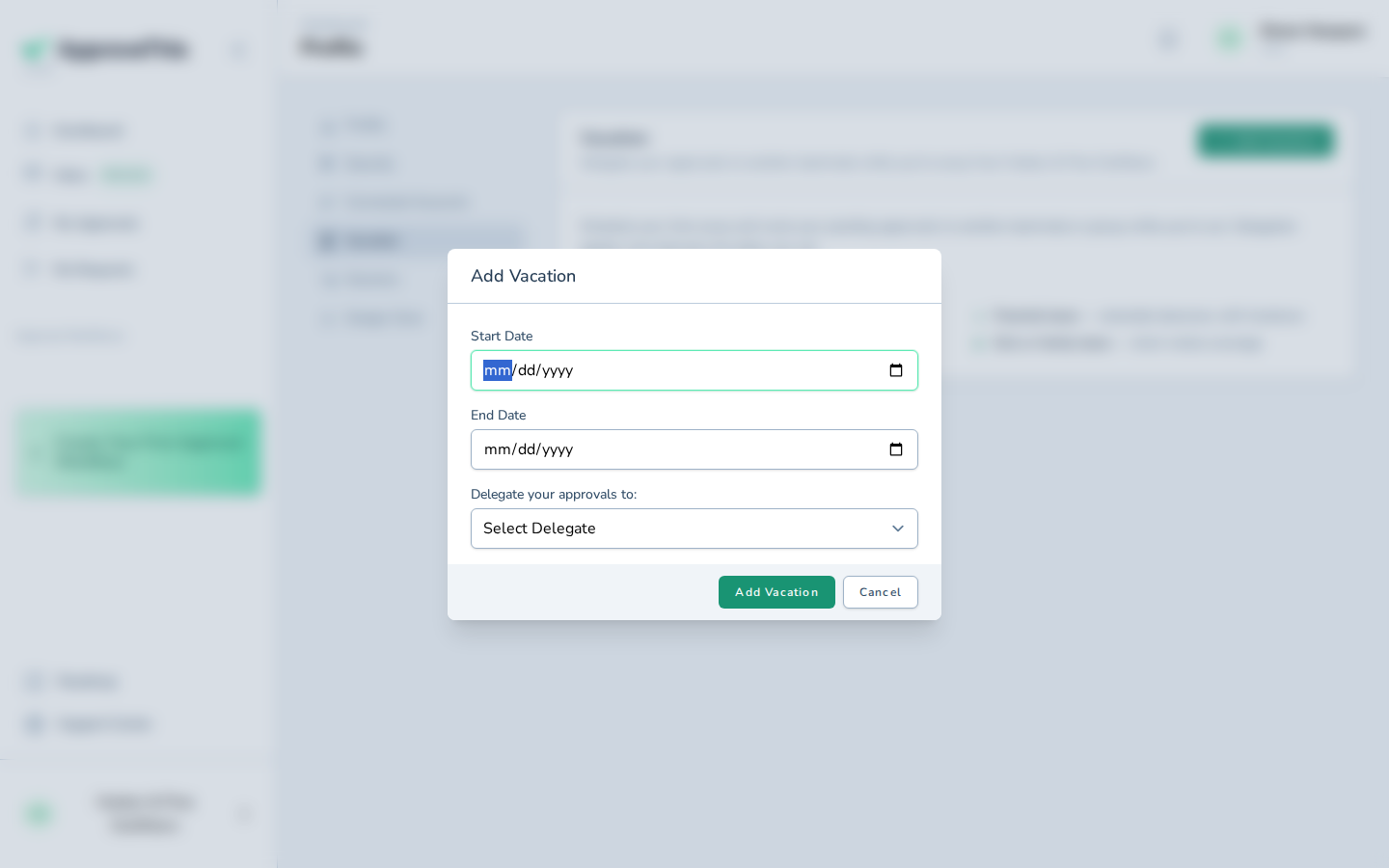
Click Add Vacation. -
Enter the first day you'll be away in Start Date — the example uses
2026-08-17.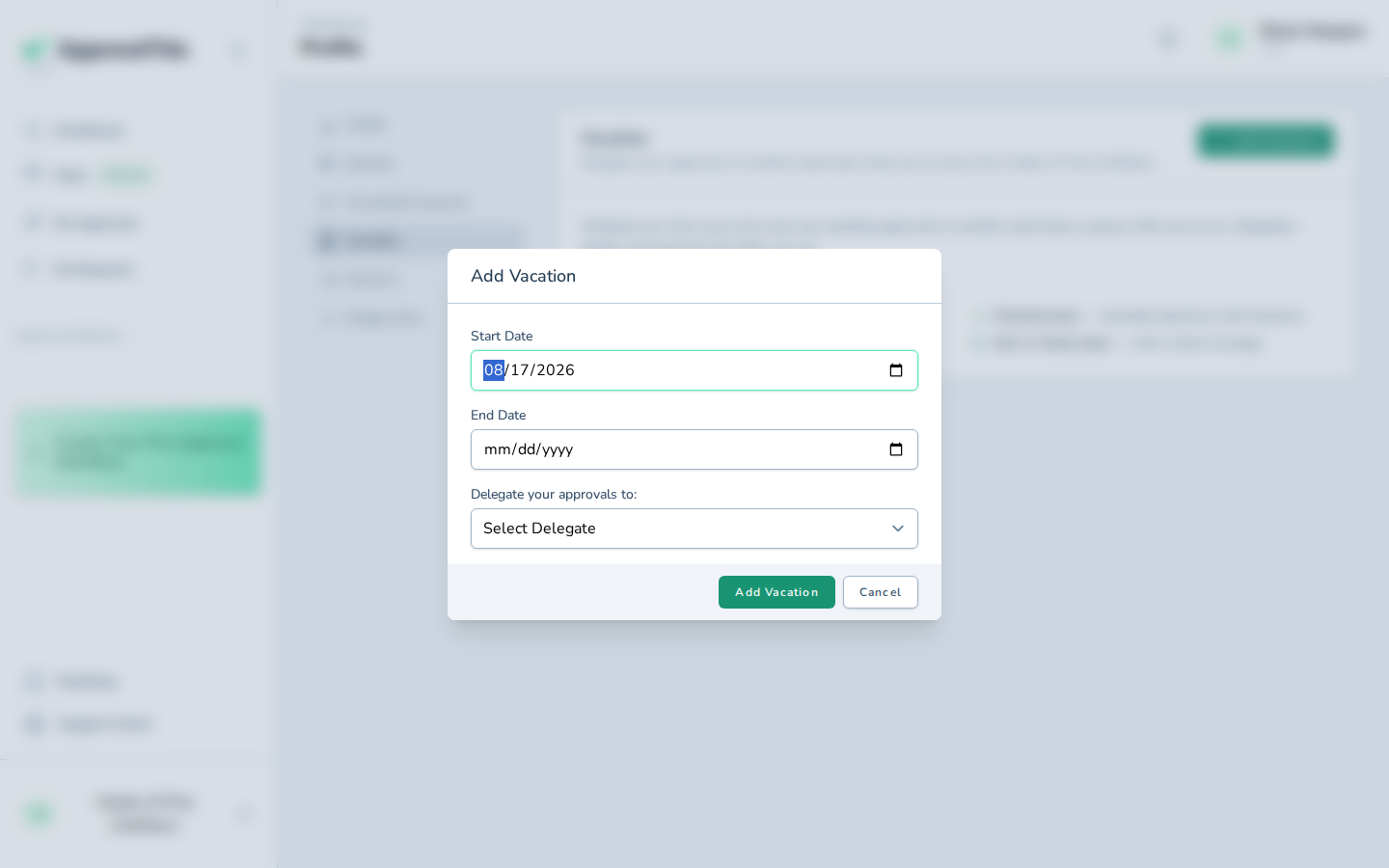
Enter the first day you'll be away in Start Date — the example uses 2026-08-17. -
Enter the last day you'll be away in End Date, such as
2026-08-28in the example.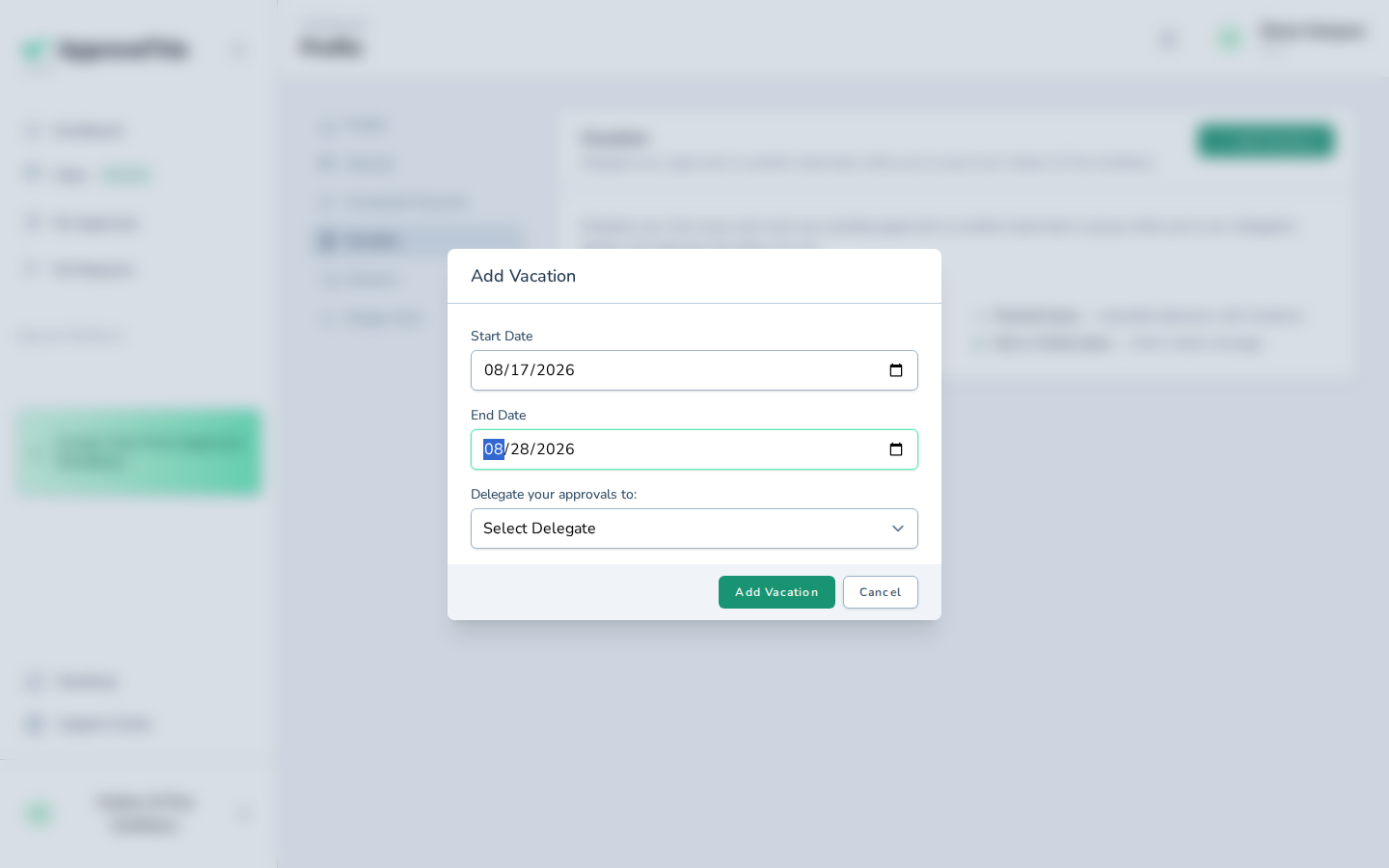
Enter the last day you'll be away in End Date, such as 2026-08-28 in the example. -
Click Add Vacation.
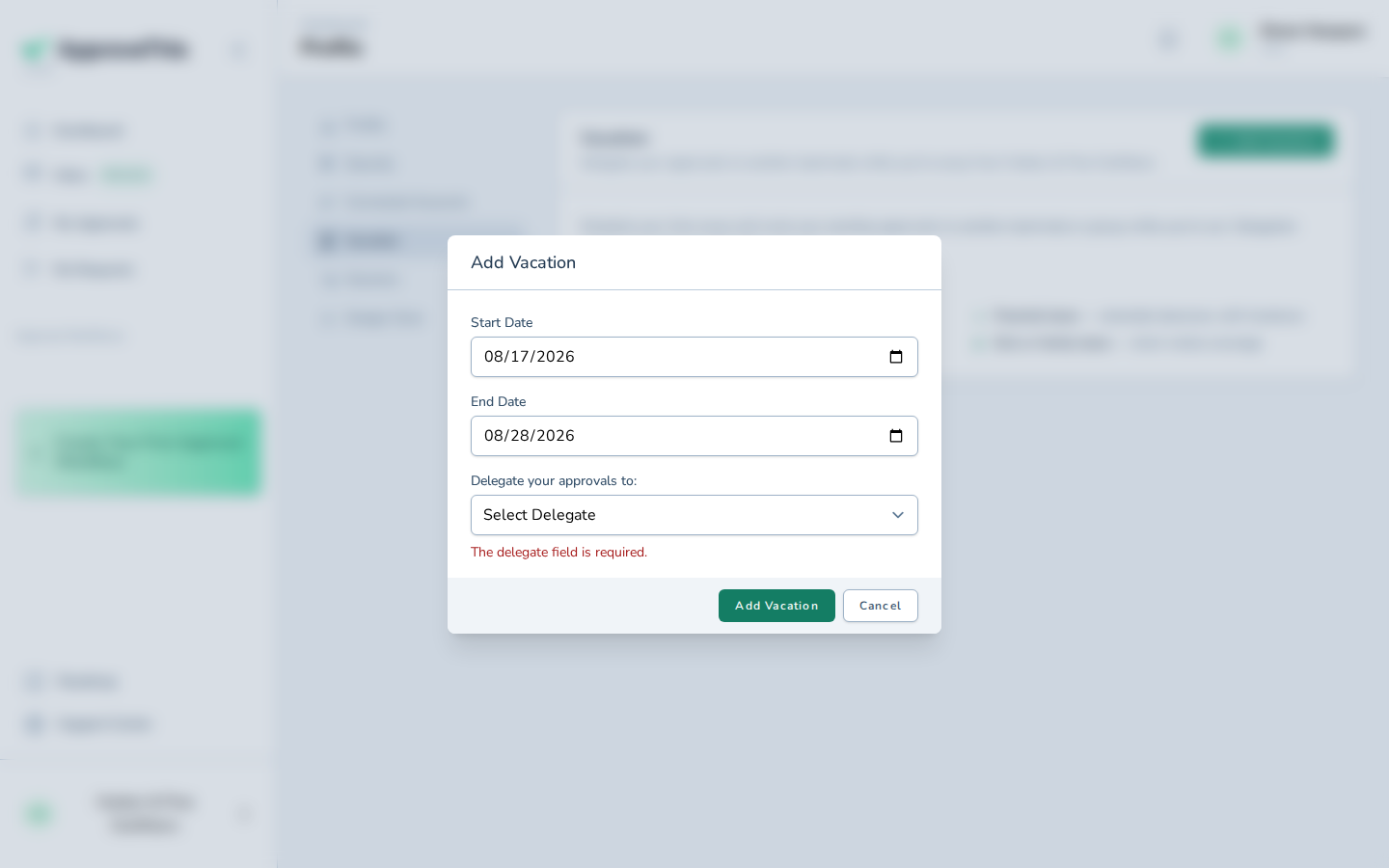
- Pick the colleague who should take your approvals from Delegate your approvals to: (Tomás Okafor in the example screenshots).
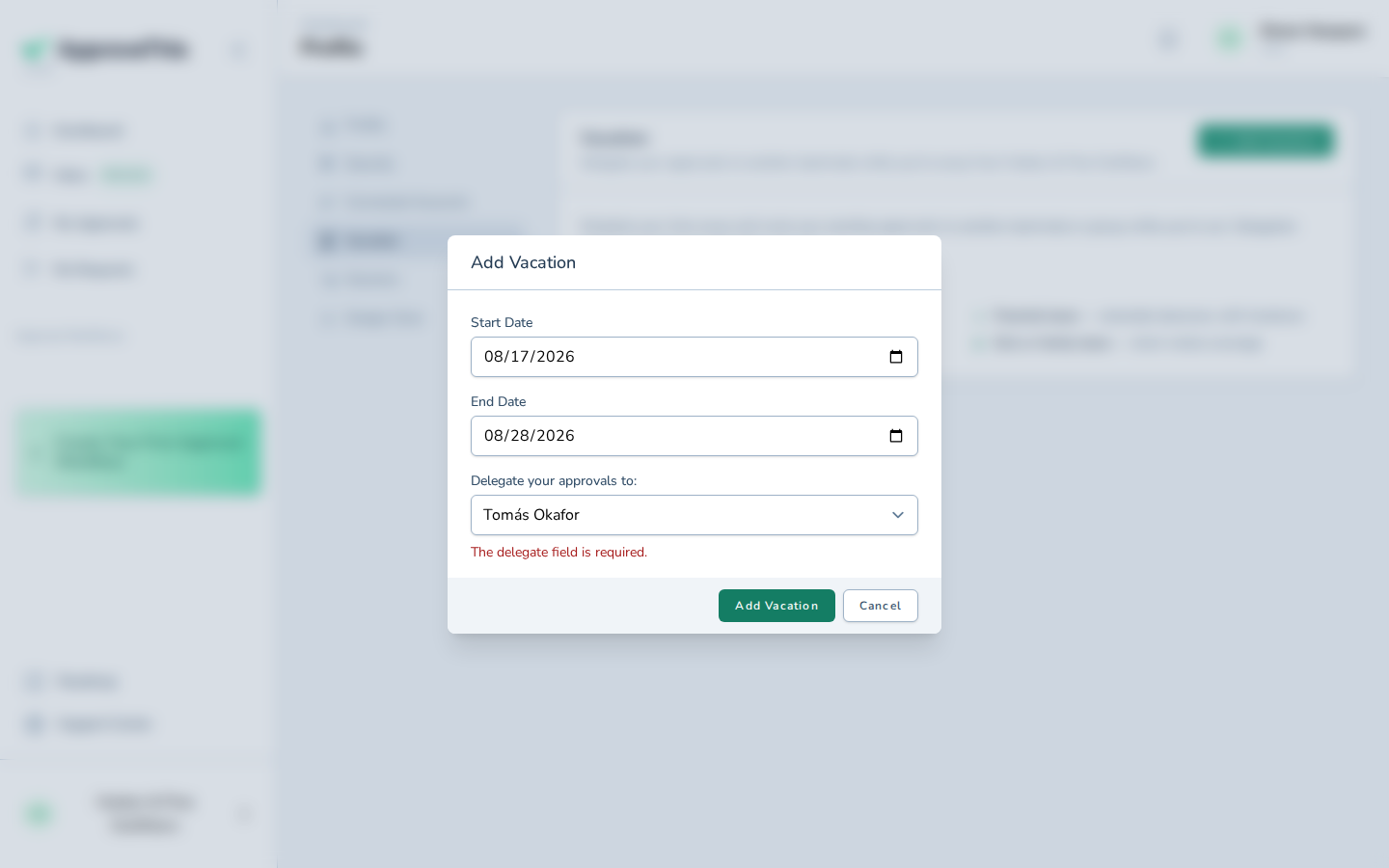
- Click Add Vacation.
Choose a delegate to handle approvals while you're away
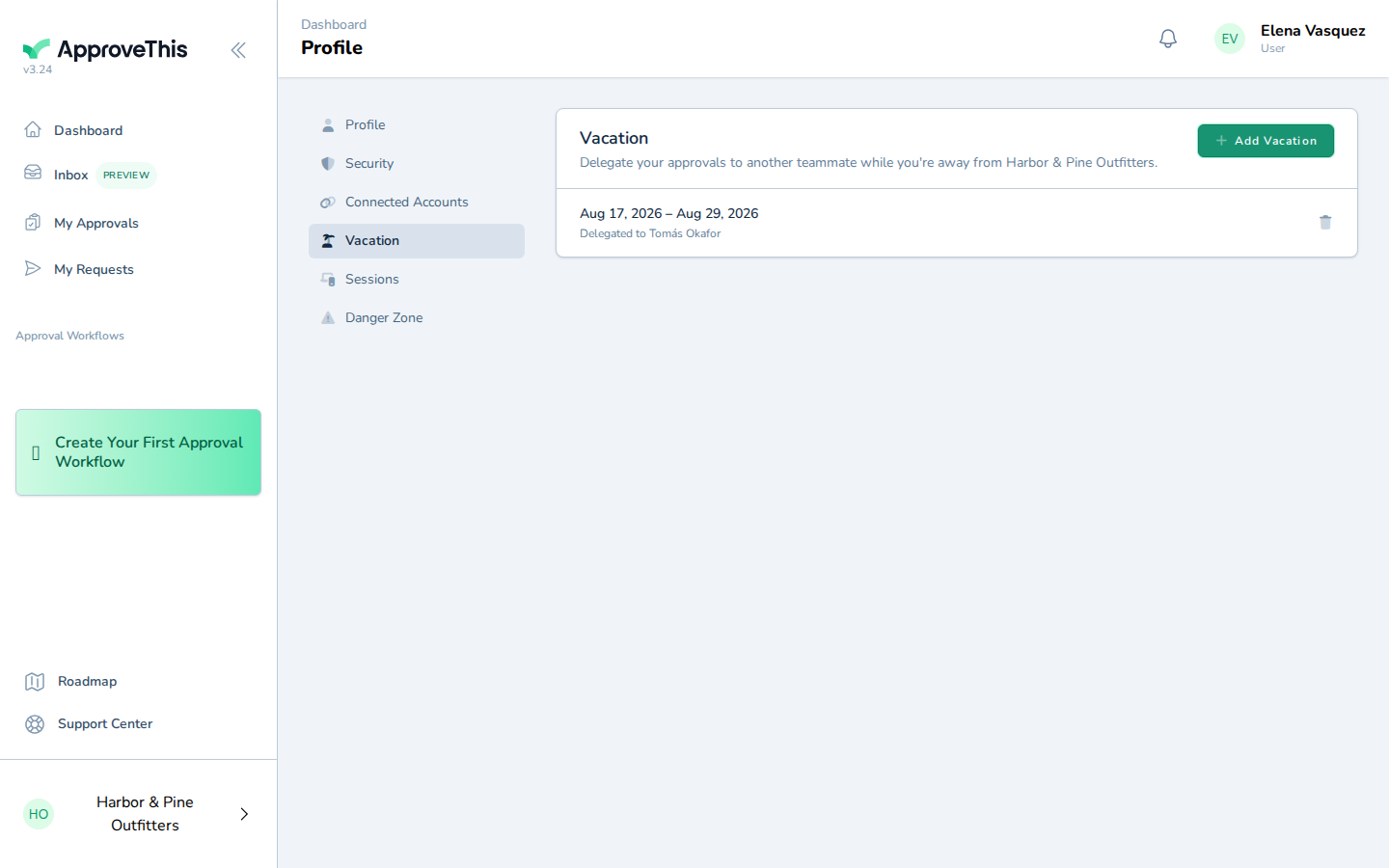
Dates alone only mark you absent; the delegate is who actually receives your pending approvals during that window. Returning to the Vacation tab shows which teammate the entry is pointing at.
-
Click Vacation.
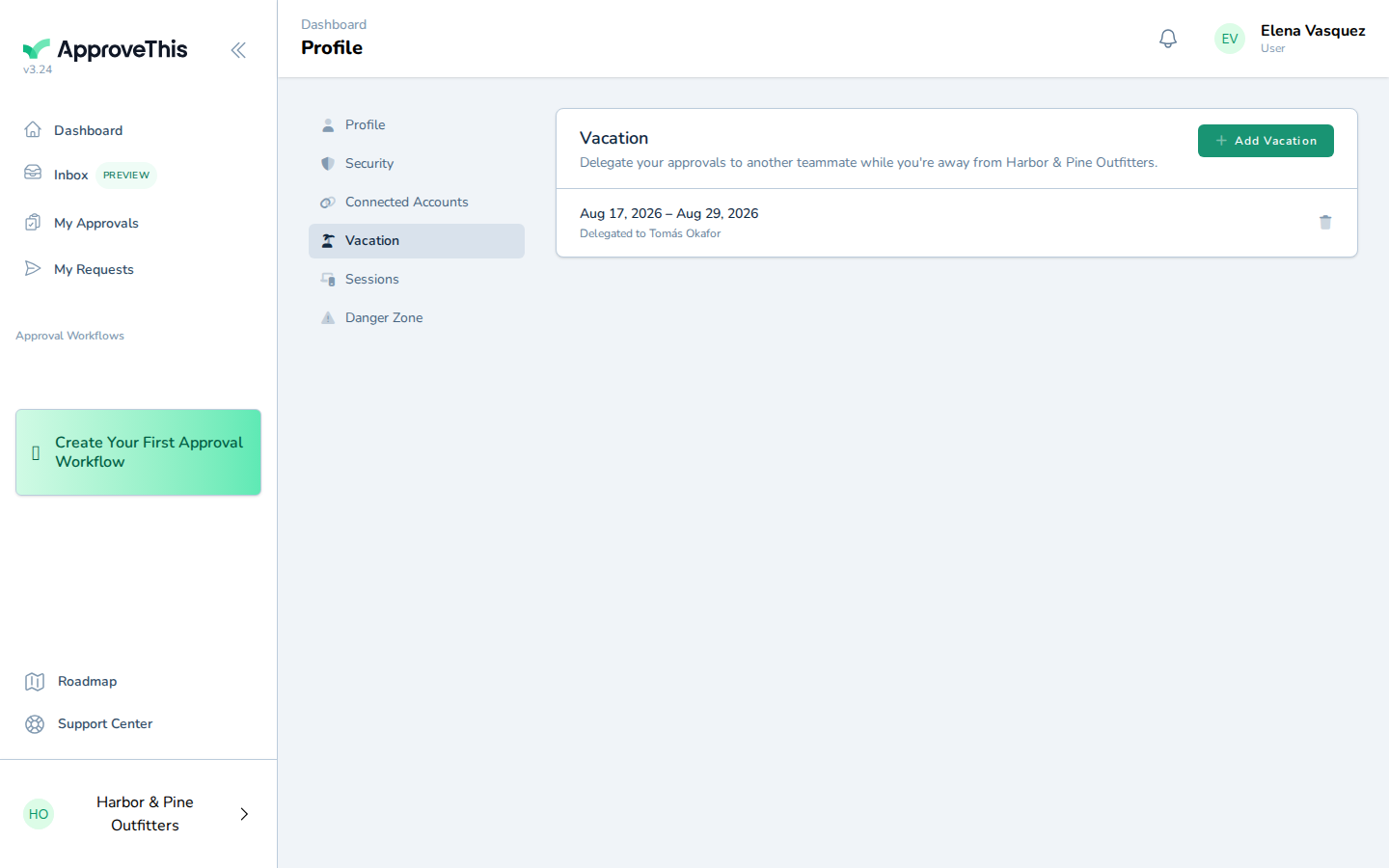
Click Vacation.
End the vacation / clear the delegate
Plans change, or you come back early and want approvals landing with you again. Removing the entry ends the delegation and clears the named colleague in one action.
-
Click Remove.
Click Remove.