Sales discount approvals that keep deals moving
Small discounts stop at the sales manager. Deep ones pull in the VP and finance automatically, and reps get answers in one click.
Updated
At a typical B2B SaaS company, discount approval lives wherever the rep can get the fastest yes. An account executive pings the VP Sales directly for a 12% discount because that's who answers, a sales manager blesses 5% in a chat thread that nobody will find again, and by the last week of the quarter every ask goes straight to the top regardless of size. The result is the worst of both worlds: small discounts wait on a VP's inbox while big ones get a hurried thumbs-up, and when the finance lead asks who approved the margin on a deal, the answer is a screenshot hunt.
This walkthrough is for the RevOps or sales operations manager running the deal desk. You'll build one discount request workflow: a form that captures the deal size, list price, and requested discount, with the final price calculated automatically; a first approval step for the sales manager; and conditional steps that pull in the VP Sales and the finance lead only above the discount bands you set. Reps submit in two minutes, approvers decide with one click from email, and the quarter's decisions export to a spreadsheet for pricing review.
What you'll set up
- A request form with currency fields for deal size, list price, and requested discount, plus a calculated final price the rep can't fudge
- A first approval step naming the sales manager who owns discount sign-off
- Conditions that add the VP Sales above one discount band and the finance lead above a higher one
- One-click approval from the notification email, no login required
- A board and table view of pending discounts, and a CSV export of the quarter's decisions
Build the discount request form
Open your flow and click Form. The form is the contract between the rep and the approvers: it should capture exactly what's needed to judge a discount, nothing more. Click Add Field and pick Currency Monetary amounts for each money question — deal size, list price, and the requested discount amount.
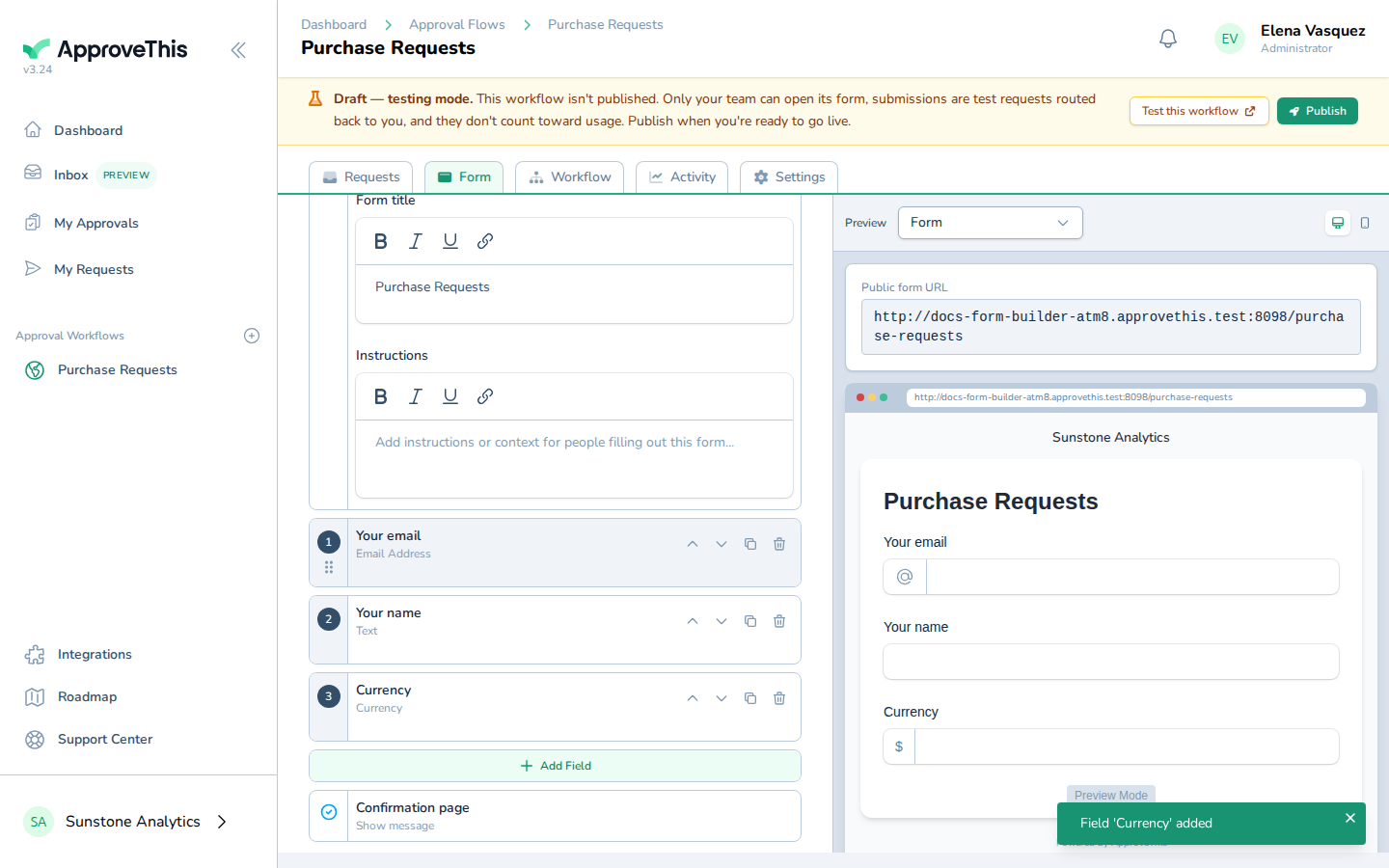
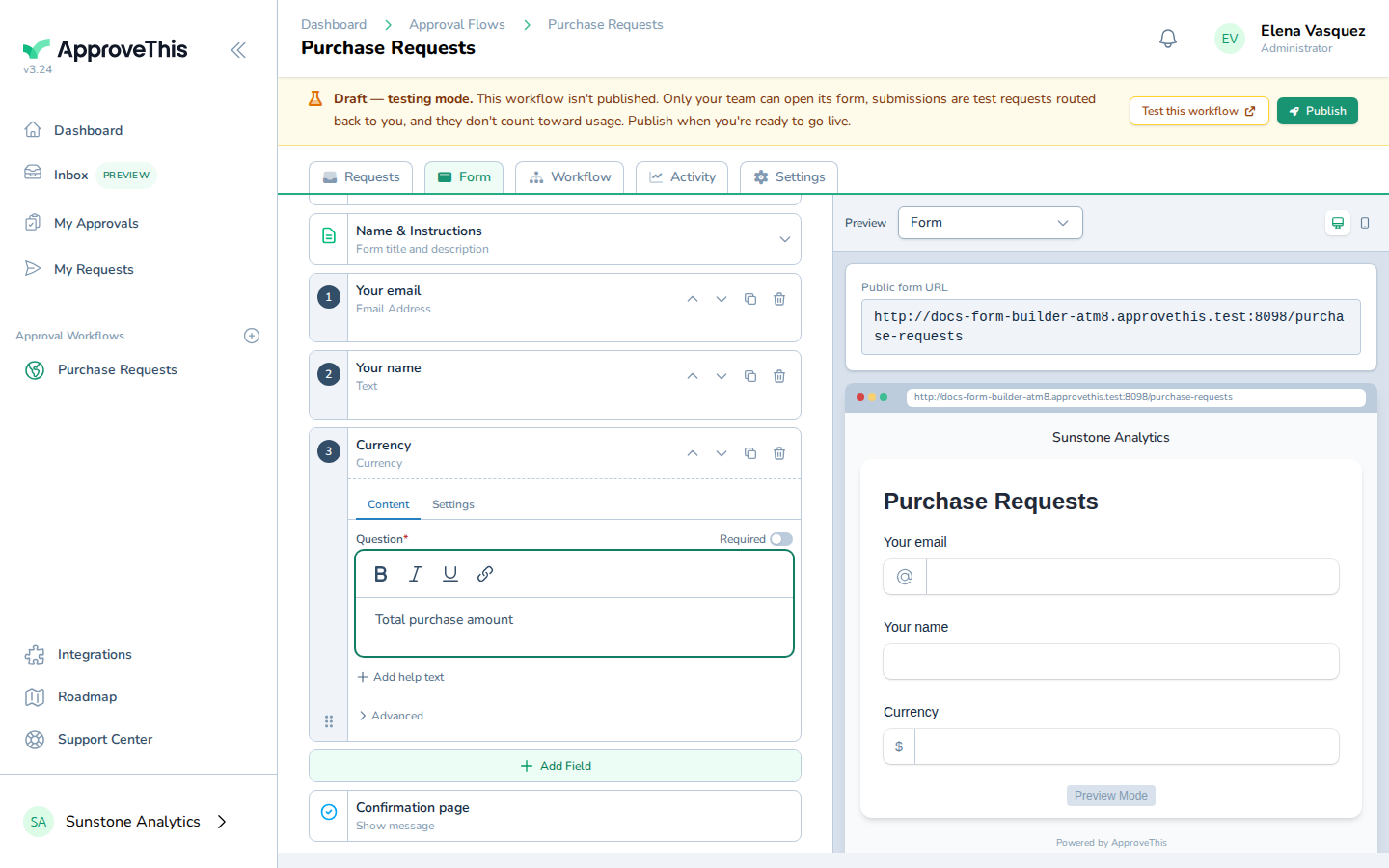
Click each field to set its label, mark it Required, and add help text so reps enter the right number the first time. The example configures a field labeled Total purchase amount — in your discount workflow the labels would be List price and Requested discount.
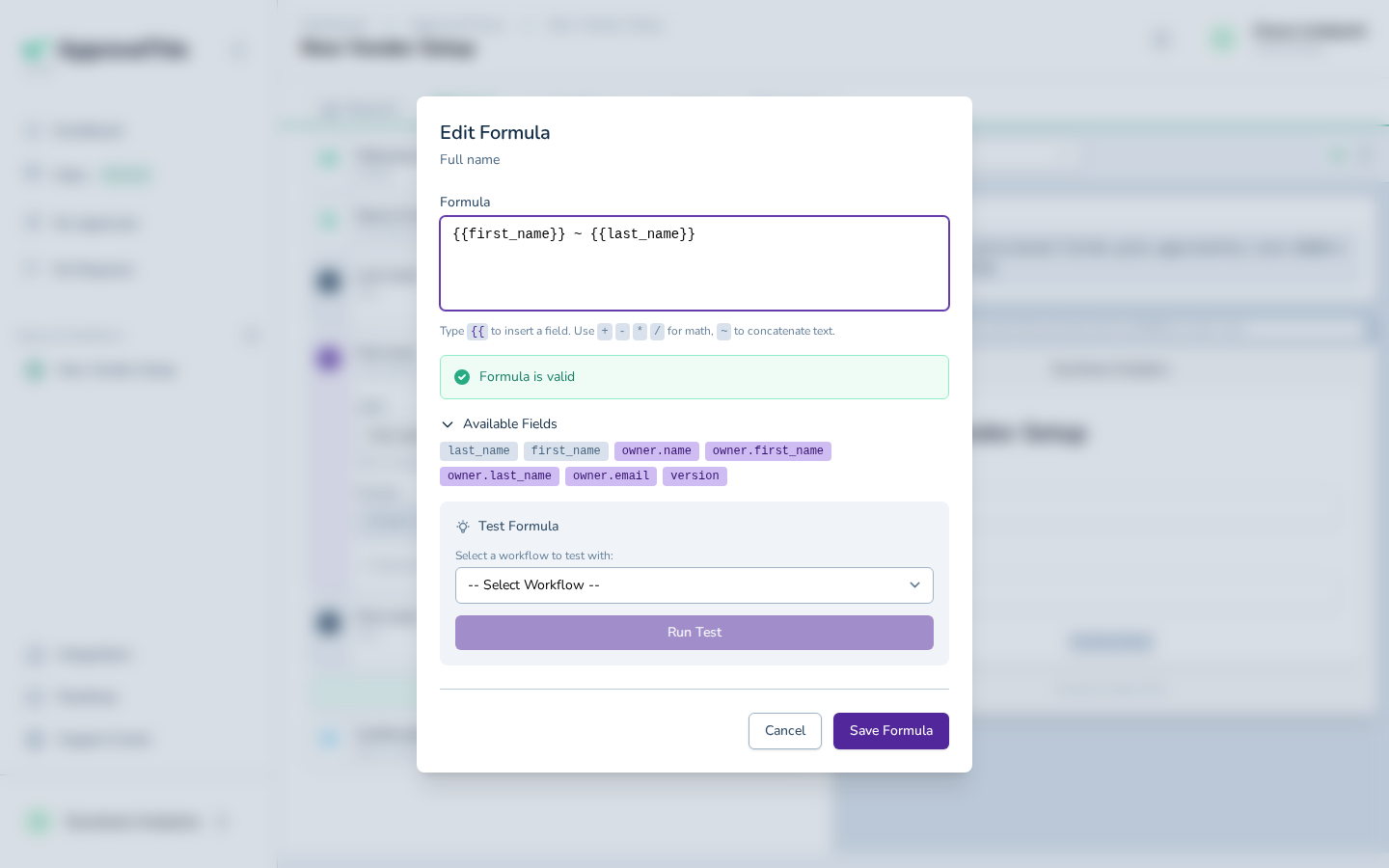
Then add a calculated field for the final price — the Calculated Fields guide picks up once that field is on the form. Click Click to edit formula..., check Available Fields for your field slugs, and write the formula with {{field_slug}} syntax. The example screenshot joins two name fields with ~; a final-price formula uses the same syntax with arithmetic instead, such as {{list_price}} - {{requested_discount}}. The point in this scenario: approvers see the actual price the customer will pay, computed the same way on every request, instead of trusting the rep's math.
Full click-by-click: Form Builder and Calculated Fields
Route small discounts to the manager, big ones up the chain
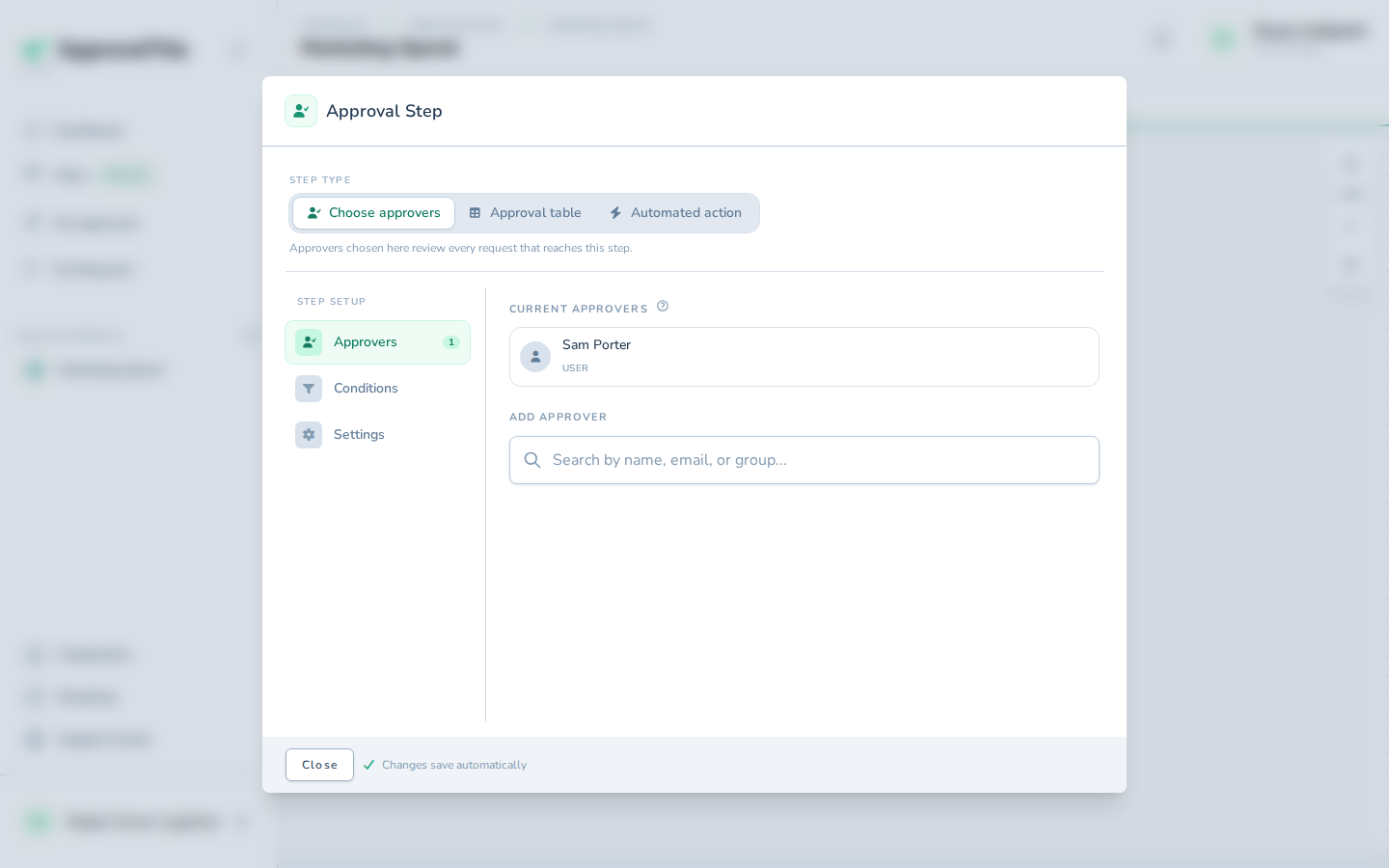
On the flow's Workflow tab, click Add a new step below this one and use Search for an approver to add the sales manager. Approvers on a step are named people you pick — the example adds Sam Porter. If several managers share deal-desk duty, add each of them and choose what counts as approved in the step's Settings — everyone, a majority, or a specific number. There is no automatic route-to-the-submitter's-own-manager mechanism, so name the people who actually sign off.
Now add two more steps, one for the VP Sales and one for the finance lead, and gate each with a condition so it only runs above its band. Click Configure step, then Conditions, then Add Condition: pick the field to test from Field, choose Greater than from Operator, and enter the band in Value. The example gates on a Budget field greater than 1000 — in your workflow the field is the requested discount and the value is where manager-only authority ends. Set the finance lead's condition at a higher value, so only the deepest discounts collect all three signatures.
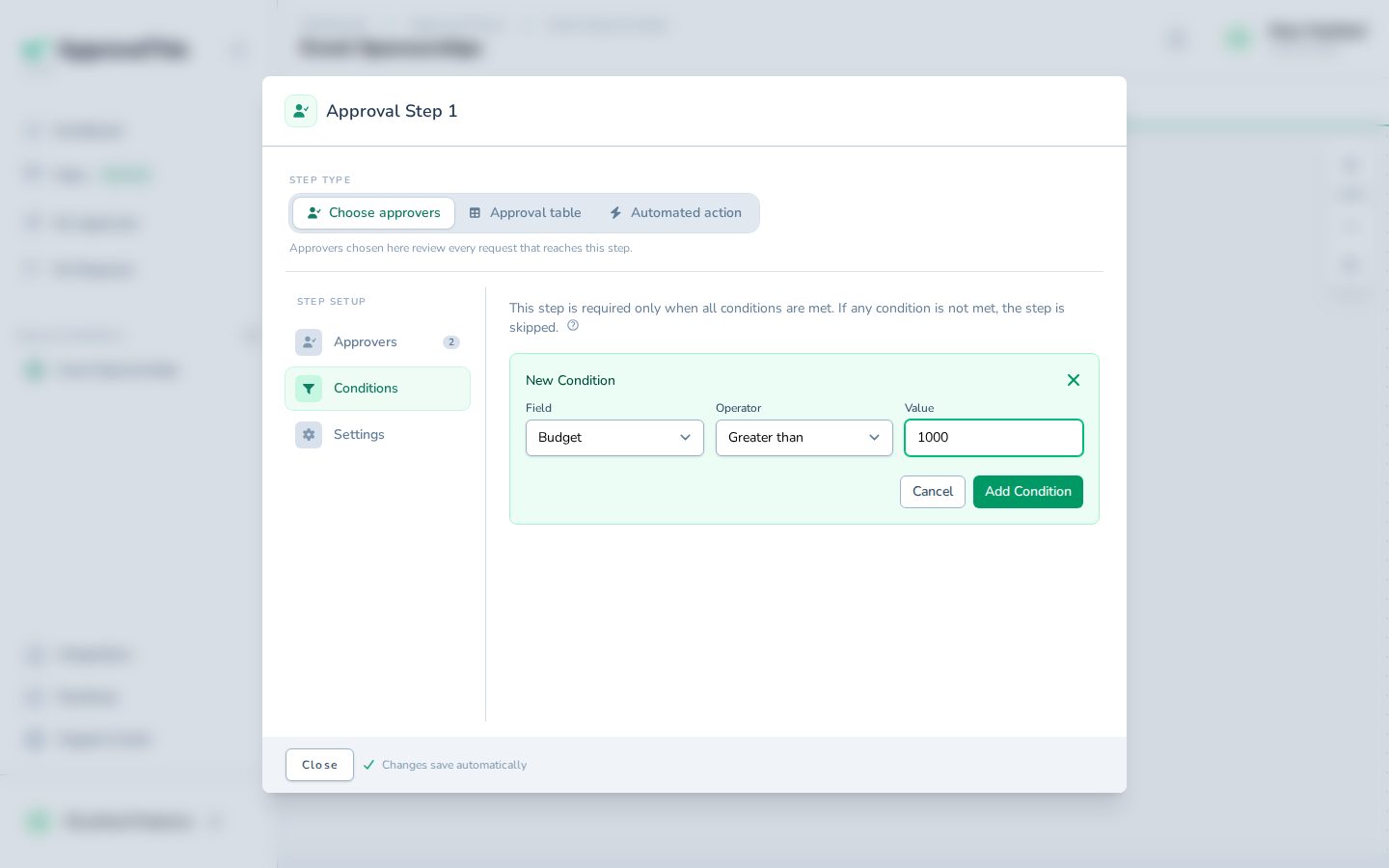
Conditions on a step combine with AND — each one you add narrows when the step runs, and a step is skipped entirely unless every condition is met. A condition change applies from the next request onward; anything already submitted finishes on the routing it started with.
Full click-by-click: Add an Approval Step and Conditional & Threshold Routing
A rep submits, and the decision happens in email
When a deal needs a discount, the account executive opens the flow's form — from the flow's New Request button or a link you share — fills in the deal, and clicks Submit (Submit a Request shows the requester's side). The final price fills itself in from the formula. A discount under the first band creates a request waiting on the sales manager alone; the VP and finance steps are skipped.
The manager doesn't need to log in to act, and in this scenario that's the point — time kills deals, and a discount approval that waits for someone to find their password is a discount approval that gets bypassed. The notification email carries a signed link, so clicking Approve in the message records the decision and logs the approver in for that single action.
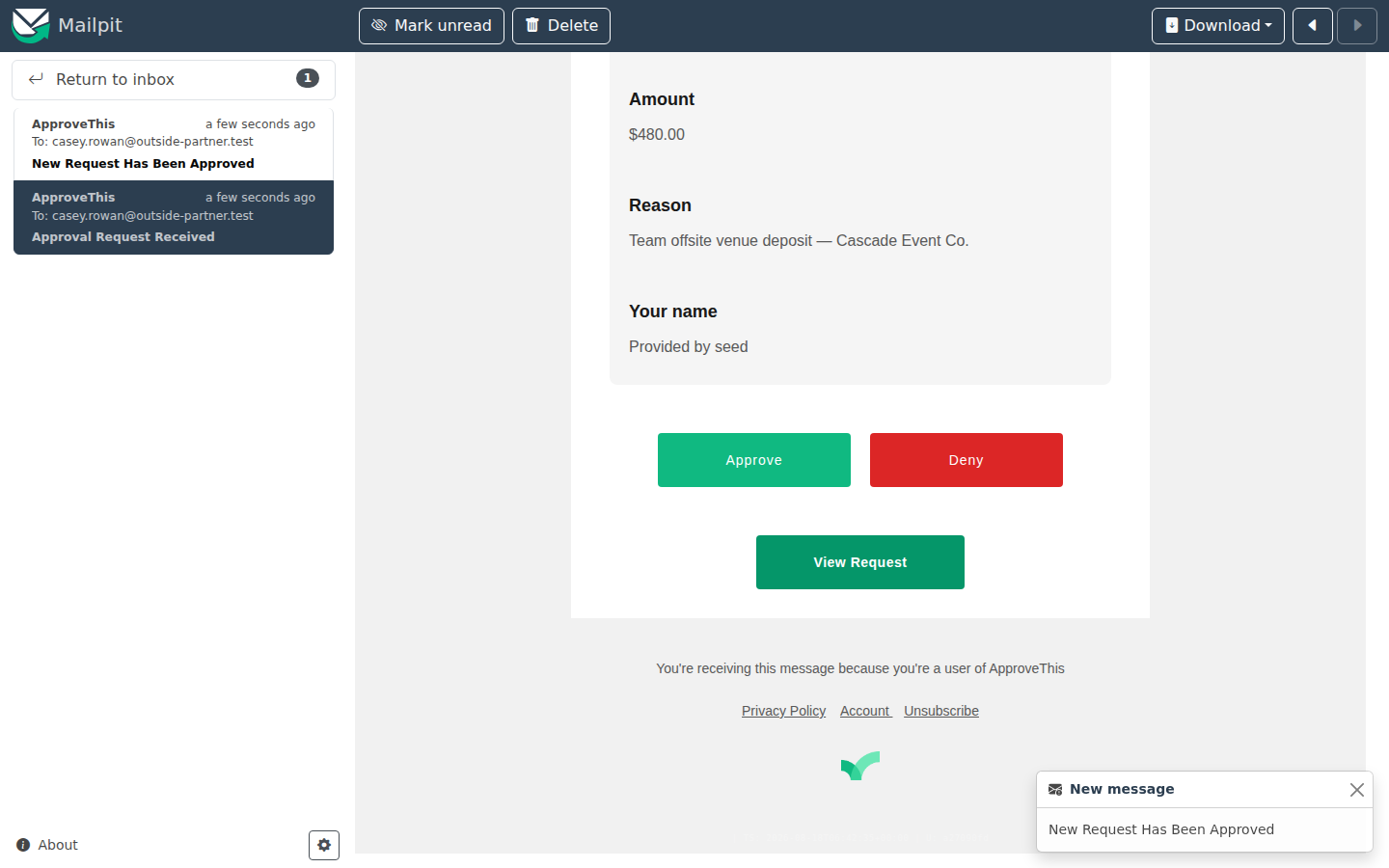
The confirmation reads You approved this request. We'll let everyone know. Set expectations with approvers who use 2FA, or on a workflow that requires approvers to log in: they are asked to sign in first.
Full click-by-click: Login-Free Approval Links
See where pending discounts are stuck
Open the flow and its Requests tab loads first. The Kanban board groups requests by status, so a deal desk stand-up starts with one glance: what's waiting, what's approved, what's denied. When end of quarter piles requests up, click Table to work the same requests as a sortable, filterable list with inline actions — the view switches on the spot, no page reload.
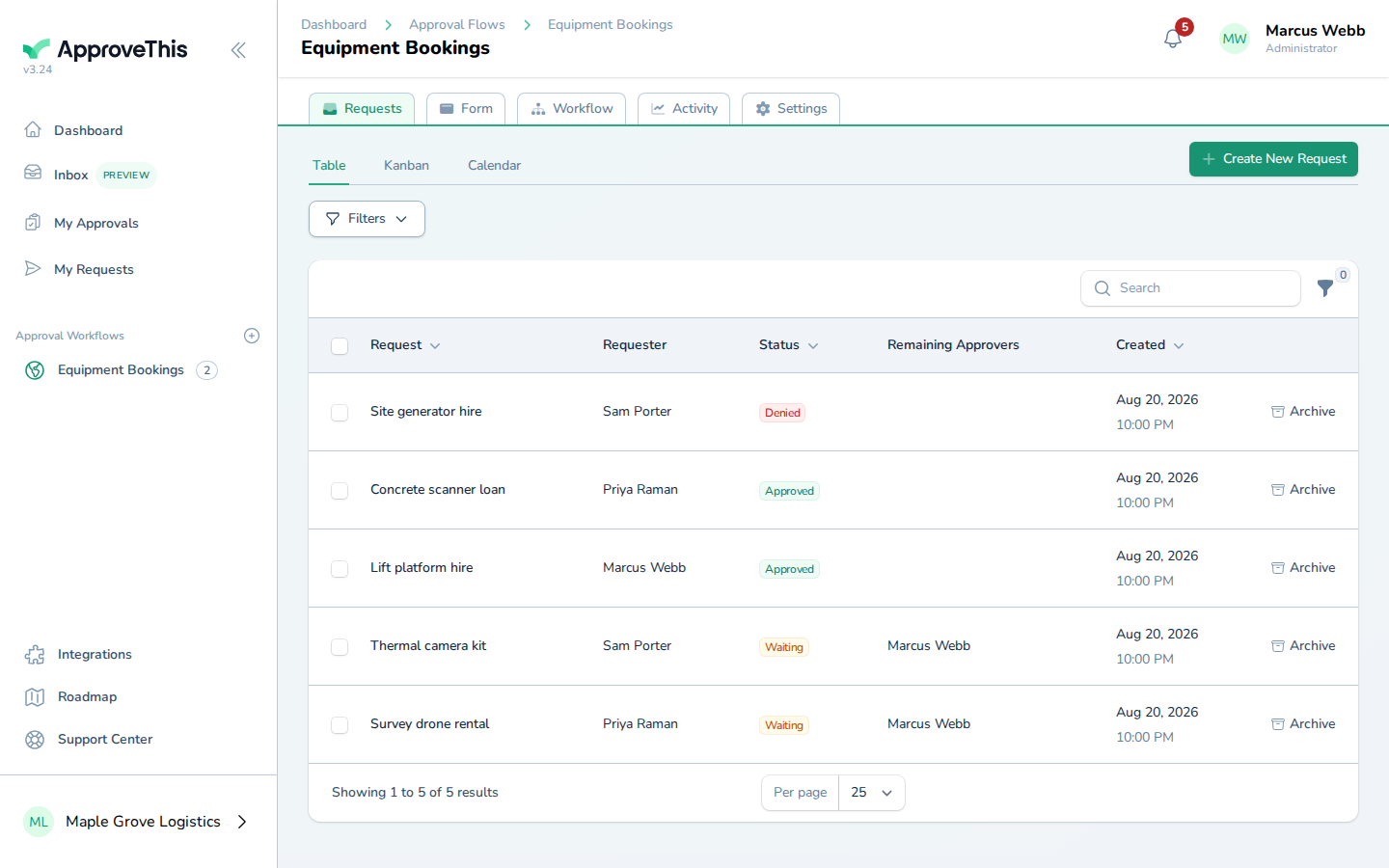
The switcher only lists the views a flow actually has. The example flow has date fields, so a Calendar view exists there too — a discount workflow has no date range, so you won't see a Calendar tab, and that's expected.
Full click-by-click: Workflow Dashboards
Hand finance the quarter
At pricing review time, the finance lead doesn't want screenshots — they want rows. On the flow's Activity tab, open the Requests sub-tab and click CSV. The file downloads immediately, one row per request with Status, Requester, and Submitted, then one column per visible form field — which means list price, requested discount, and the calculated final price each land in their own column, ready for margin analysis.
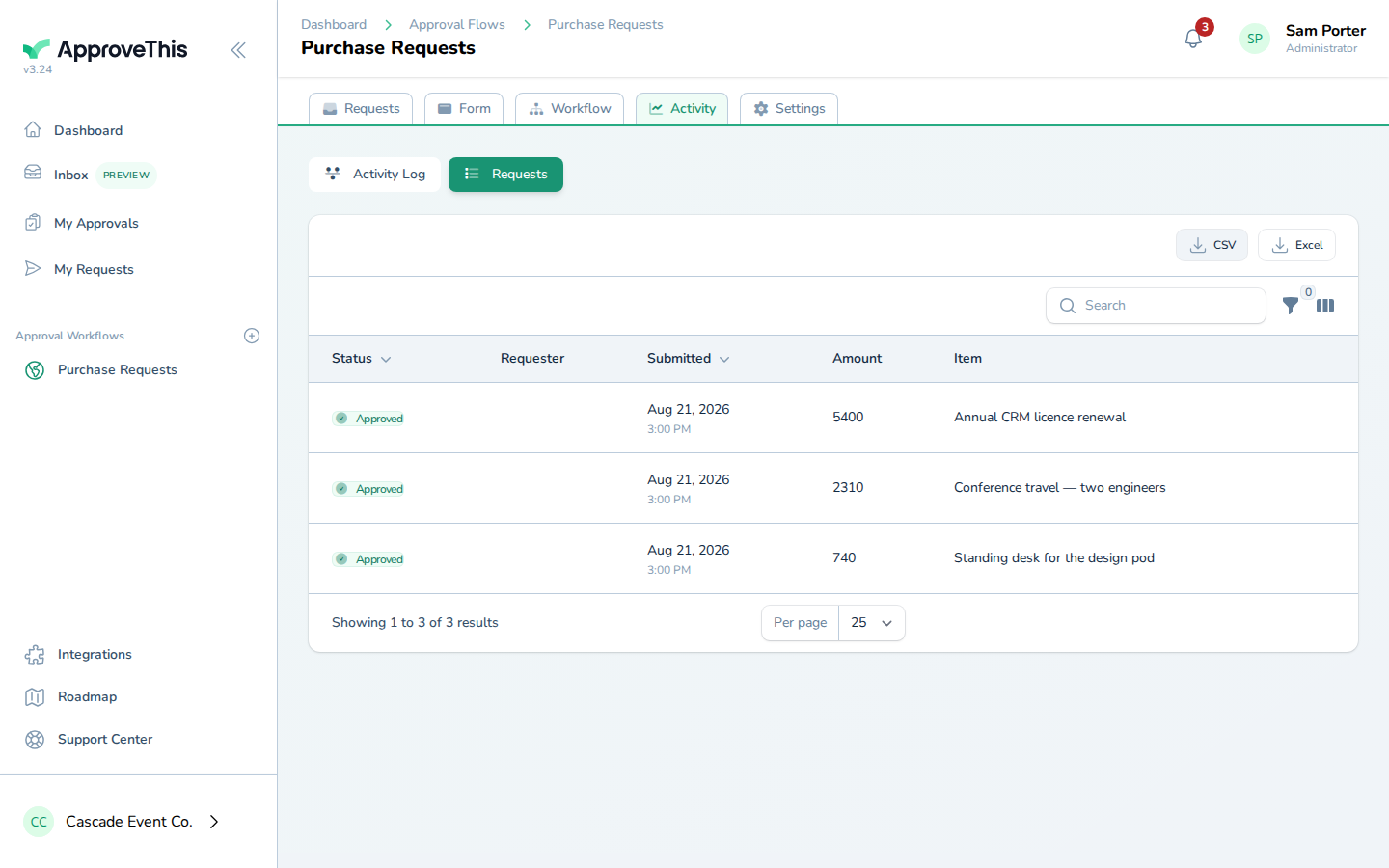
One thing that will burn you if you don't know it: the export honors the table's search text and sort order, but not the Status or Created From / Created Until dropdown filters. To pull the quarter, sort by date and trim the rows in your spreadsheet rather than trusting the date dropdowns to shape the file. Hidden form fields never appear in the export, test requests are excluded once the workflow is published, and the export itself is recorded in the Activity Log — so even the act of pulling the data is on the record.
Full click-by-click: Request & Activity Export (CSV / Excel)
Related guides
- Unified Inbox (Preview) — a preview of a proposed single-feed dashboard with the product's only full-text request search; useful when an approver wants one place to act, but expect it to change while it's in preview.
- Activity Log & Audit Trail — read a single request's timeline when finance asks who approved a specific deal and when.
- Request & Activity Export (CSV / Excel) — the full detail on exports, including what the file does and doesn't include.
- Dynamic Request Naming — title each request from its answers so the board reads as deals and amounts, not identical names.
- Submit a Request — the requester's view of filling out and submitting the form, for onboarding your reps.
- Zapier — create a Zapier-triggerable flow so a deal event in your CRM can raise the discount request automatically.