Client approvals under your firm's brand
Approval emails that carry your firm's own colors and sender name, and a timestamped record of every client authorization.
Updated
Client authorization at an outsourced accounting firm usually lives in an email thread. The bookkeeper finishes the week's bill run, emails the client's owner a list of payments to release, and waits. The owner is busy, the email gets skimmed or buried, and the thread grows a "circling back on this" reply every few days. When the bills finally get paid, the only proof the client authorized them is a one-word reply somewhere in an inbox. If the client later disputes a payment, the firm is reconstructing consent from buried threads instead of pointing at a record.
The fix is a payment-approval workflow per client. The firm principal builds and brands it so approval emails arrive under the firm's name and colors, then invites each client's owner or CFO as an External Approver with a restricted, approval-only view. Bookkeepers submit each week's bills as requests; the client decides from the email itself, no password required. Automatic reminders chase silence, a stalled email can be resent in one click, and every authorization lands in a timestamped activity log the firm can export.
What you'll set up
- One payment-approval workflow per client, with the bill's details captured on the request form.
- Flow-level branding: your firm's color and a From name clients recognize, so approval emails don't read as spam.
- The client's owner or CFO invited as an External Approver — they see only the approvals assigned to them, never the rest of your workspace.
- One-click approval from the notification email, with no sign-in step for the client.
- A reminder schedule for quiet clients, plus a one-click Resend from the request's activity log.
- A timestamped audit trail per request, exportable as CSV or Excel.
Brand the approval emails so clients recognize them
An approval email from an unfamiliar sender is exactly the kind of message a busy owner ignores. Branding is set per flow, so each client-facing workflow can carry the identity that client expects while your internal flows keep the workspace default; anything you leave blank inherits from the workspace branding. Open the client's flow, go to its Settings tab, and click Branding. Set Primary hex color to your firm's color, then open the Email section and set From name to the sender name the client should see in their inbox.
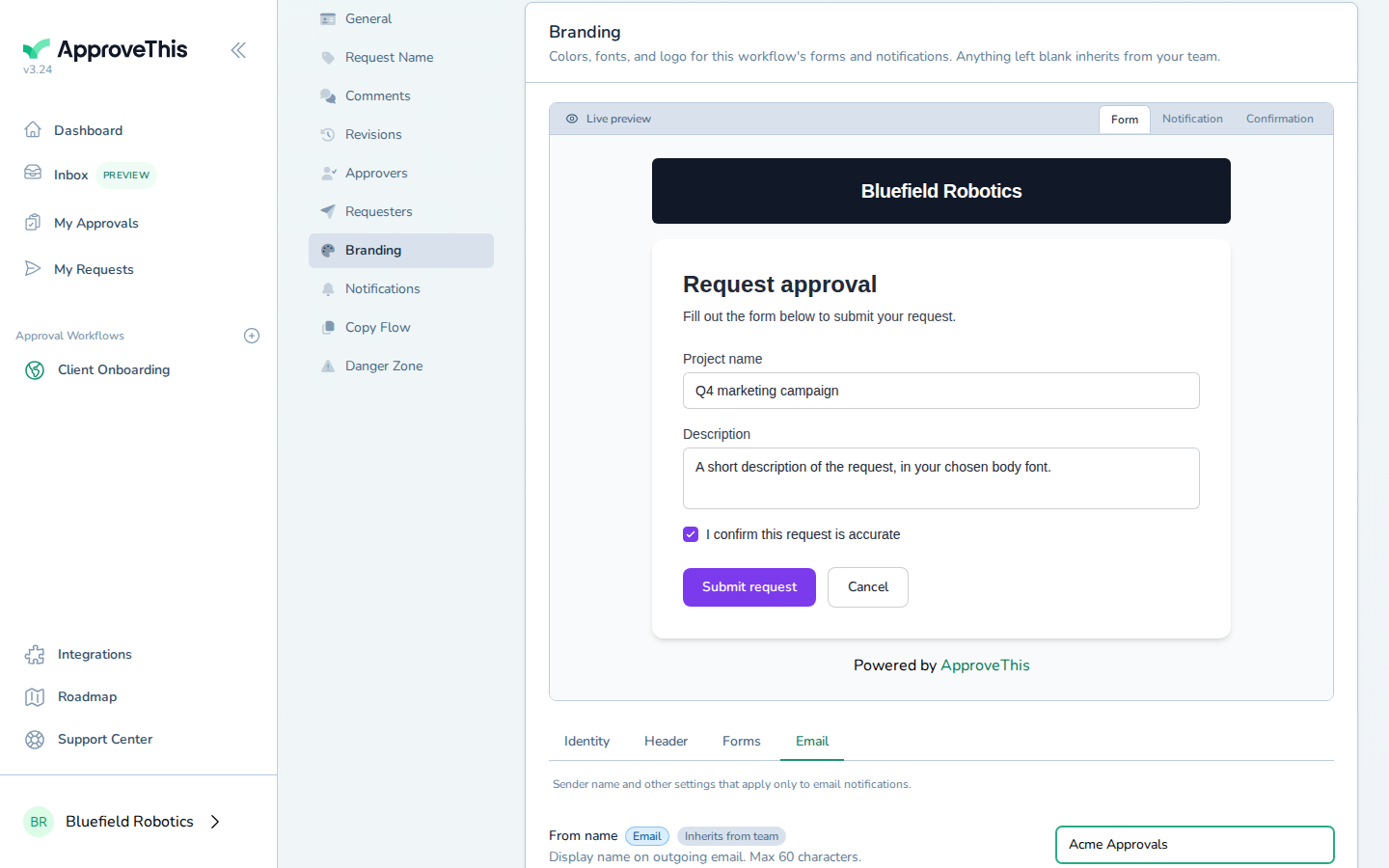
Before saving, click Notification in the live preview to check the branded email the way the client will see it, then click Save and look for the Branding saved. confirmation.
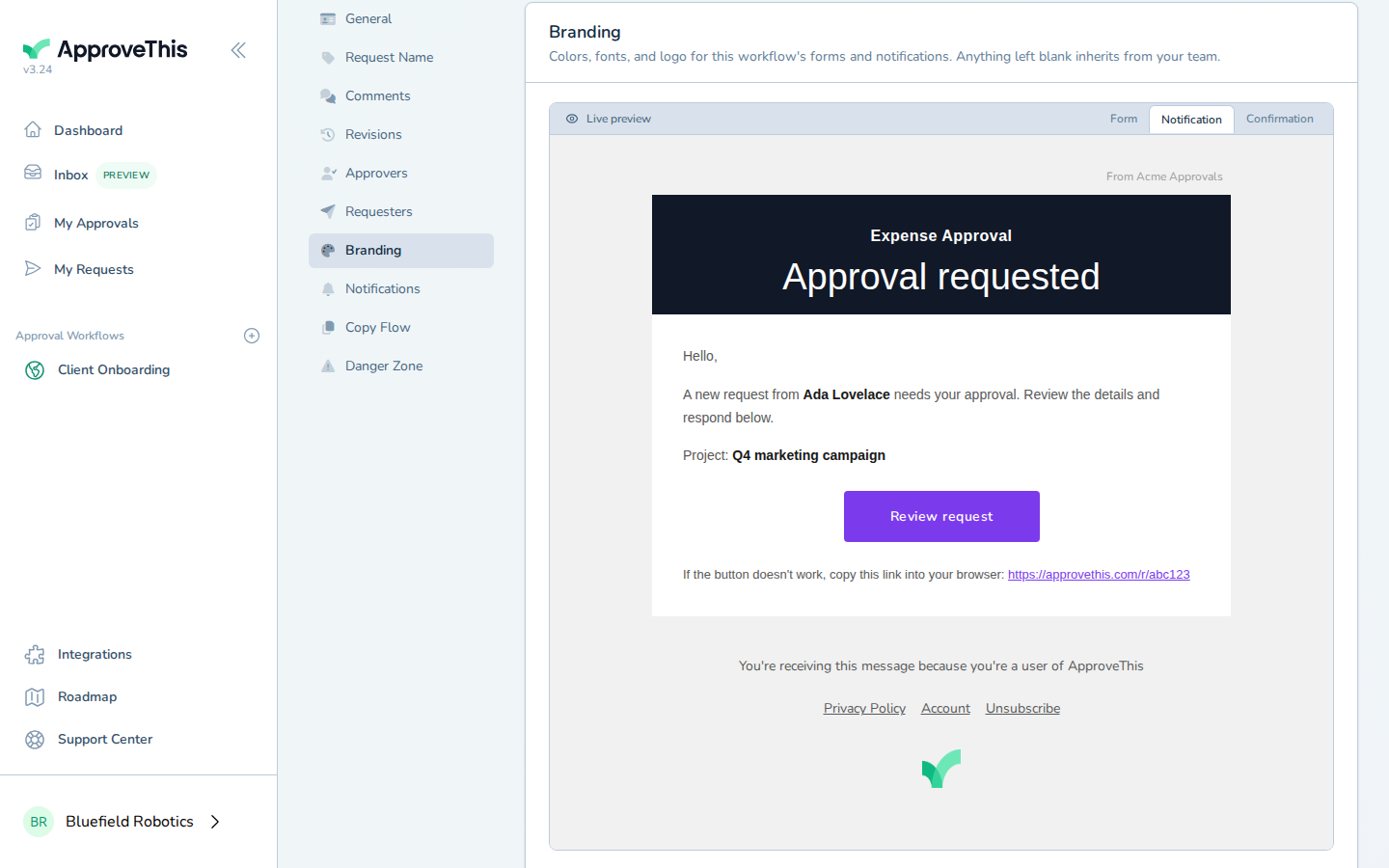
Full click-by-click: Notification Branding
Bring the client in as an external approver
The client's owner needs to approve payments without gaining access to your other clients' requests. That is what the External Approver role is for: their navigation is limited to the approvals assigned to them, so they never see the rest of your workspace. From the account menu in the top-right, open your team's settings, go to the Members tab, enter the client's email under Email address, choose the role, and click Send invitation. They stay listed under Pending invitations until they accept and set their own password.
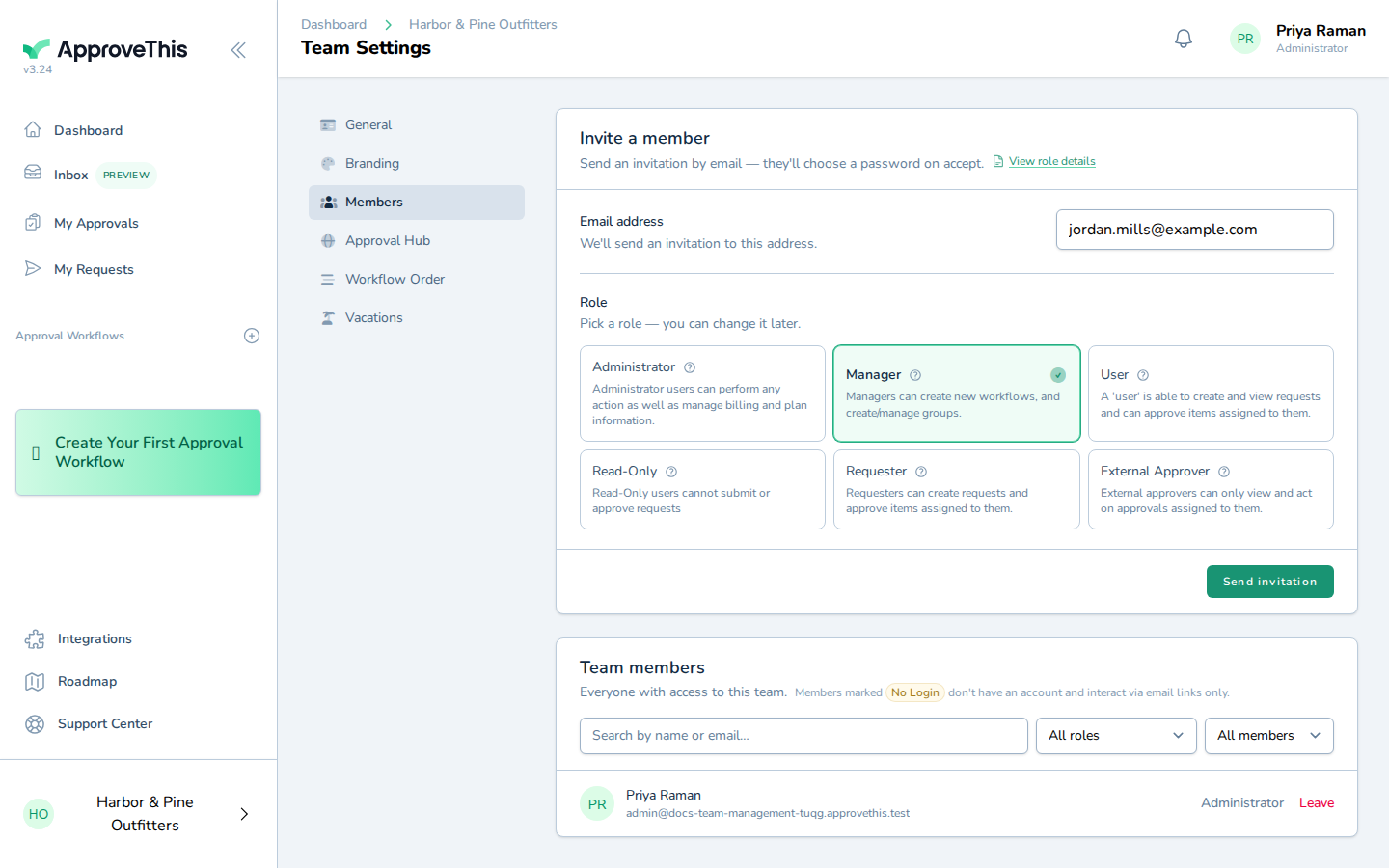
This phase assumes the client's payment-approval workflow already exists with the bill fields promised above; if it doesn't yet, build it first with Building Workflows and the Form Builder. Then make that person the approver on the workflow's approval step: on the flow's Workflow tab, add them to the step with Search for an approver — the click-by-click is in Add an Approval Step. If your form assigns approvers through a user_select field, creating a request can auto-create the external account for you.
Full click-by-click: Team Management and External Approver Role
Submit the week's bill run
When the bill run is ready, the bookkeeper opens the client's workflow and clicks New Request for each bill or batch that needs sign-off. Each request then shows who it is waiting on, labeled Awaiting approval: — which is your at-a-glance answer to "is this stuck with us or with the client?"
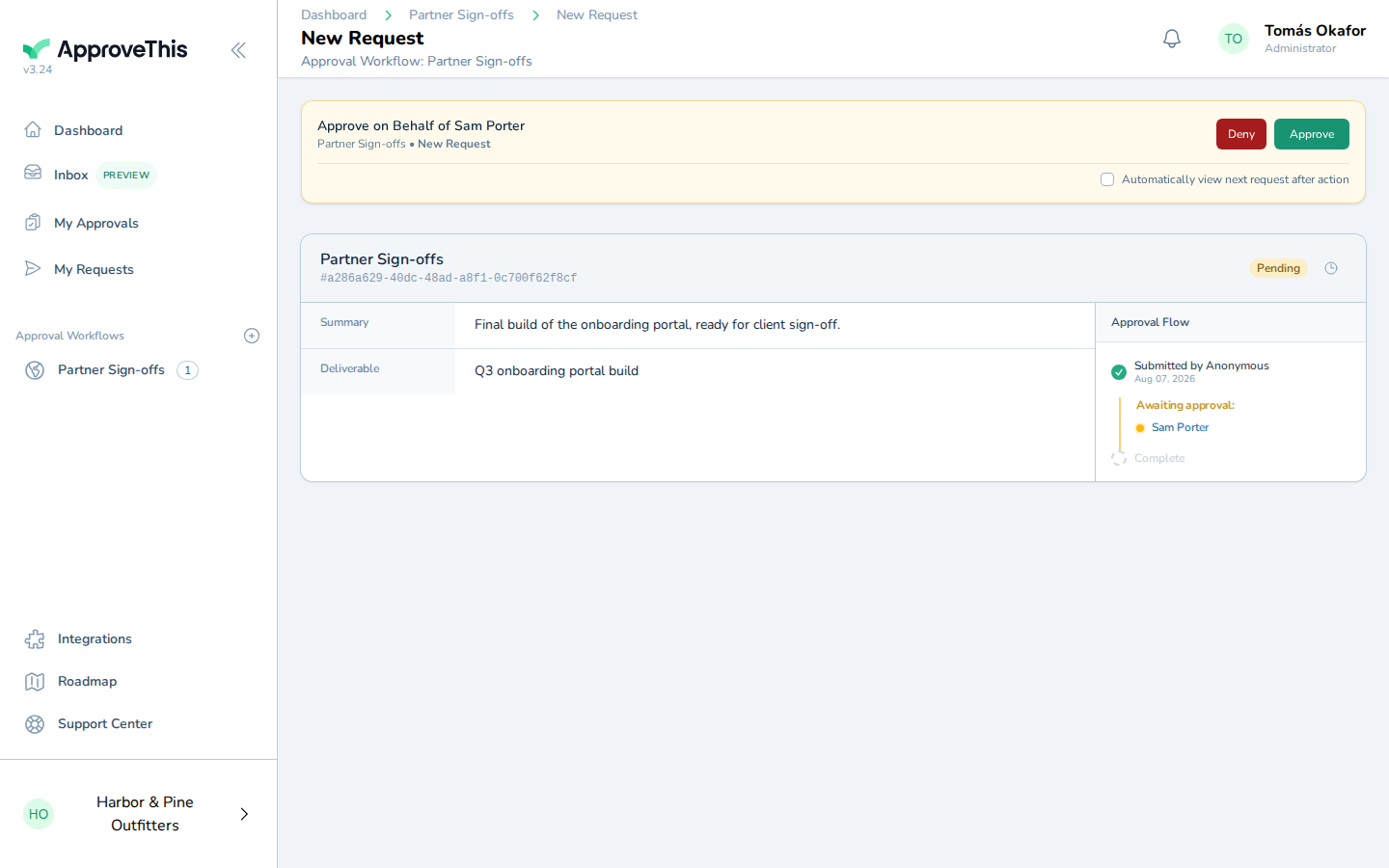
Full click-by-click: External Approver Role
The client approves from the email
The approval email carries a signed link, so one click records the decision without a separate sign-in — no password for the client to remember, wherever they read email. The example email arrives under the default ApproveThis look; with your From name set, it arrives under your firm's name instead. The two exceptions — 2FA on the approver's account, or a workflow that requires approvers to log in — prompt a sign-in first.
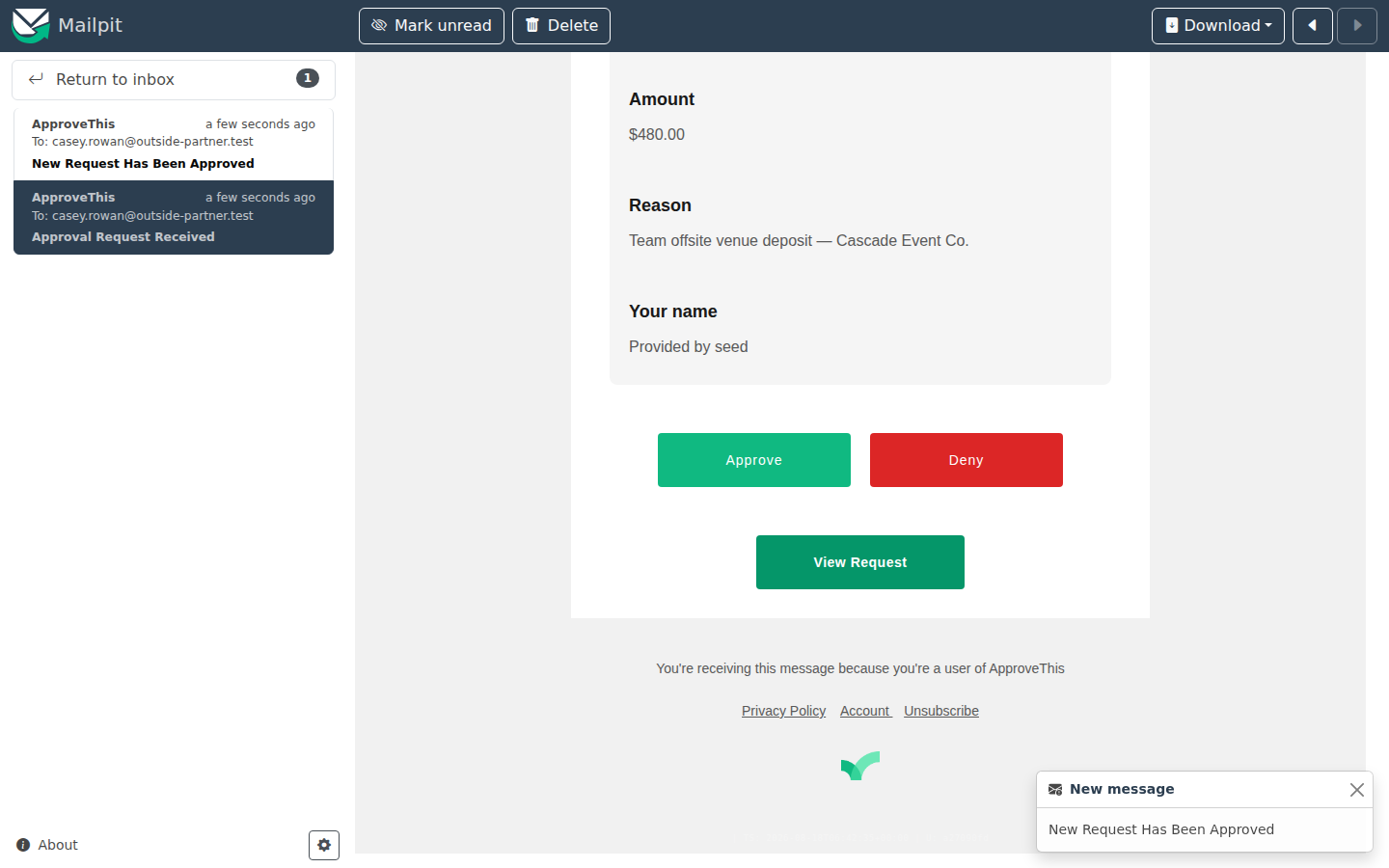
The client sees the confirmation You approved this request. We'll let everyone know. If they sign in to ApproveThis instead, their restricted view opens the request under Awaiting Your Approval, and Approve is the one action available there.
Full click-by-click: Login-Free Approval Links
When a client goes quiet
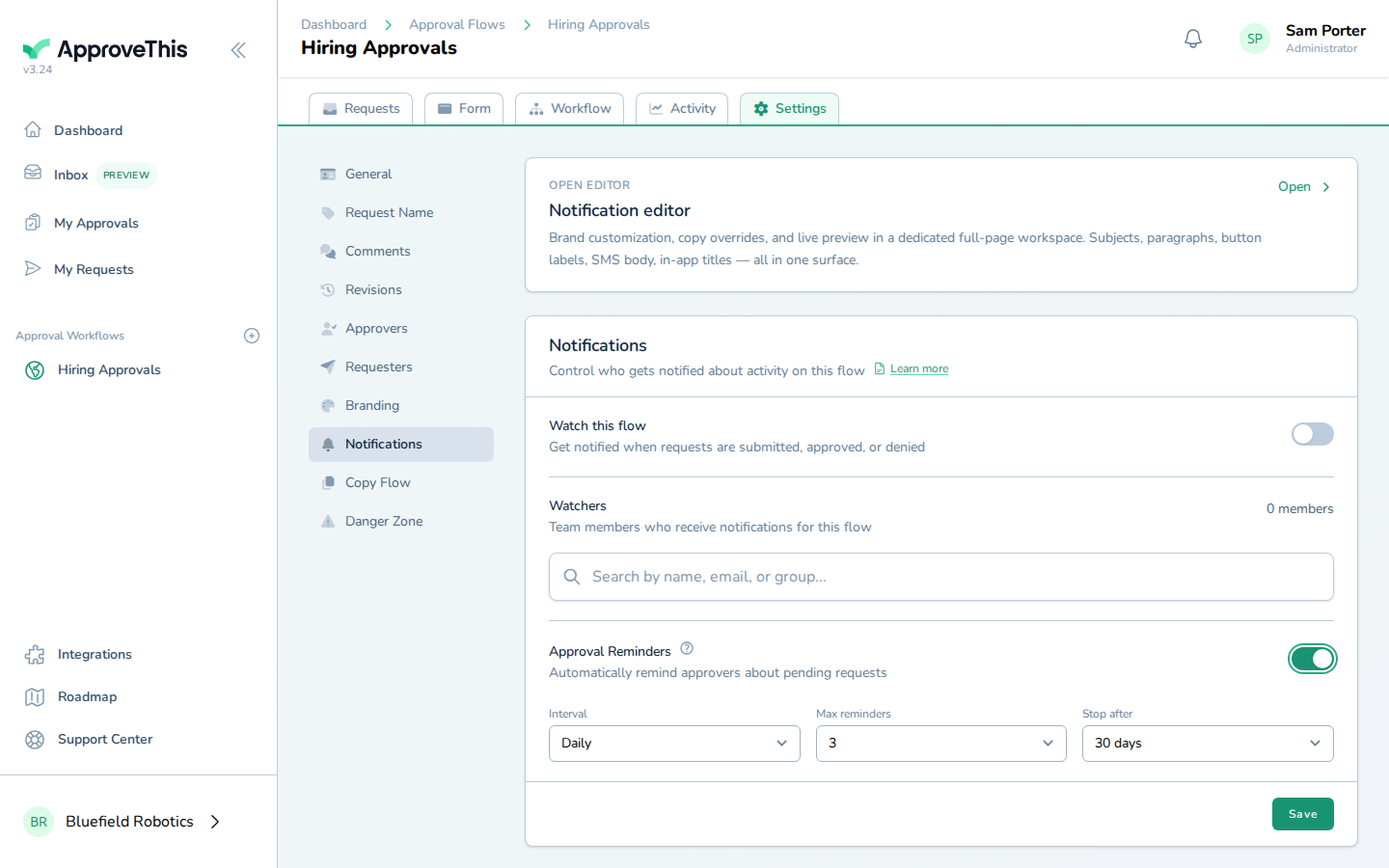
Silence is the normal failure mode, so put the chasing on a schedule. Reminders are off by default and configured per flow: in the flow's Settings, open Notifications, then Approval Reminders. Pick an Interval (daily, every 3 days, or weekly), a Max reminders count (up to 10), and a Stop after cutoff between 7 and 90 days — the example uses Daily, 5 reminders, 14 days. Turn this on for every client workflow you build; each flow needs it switched on individually.
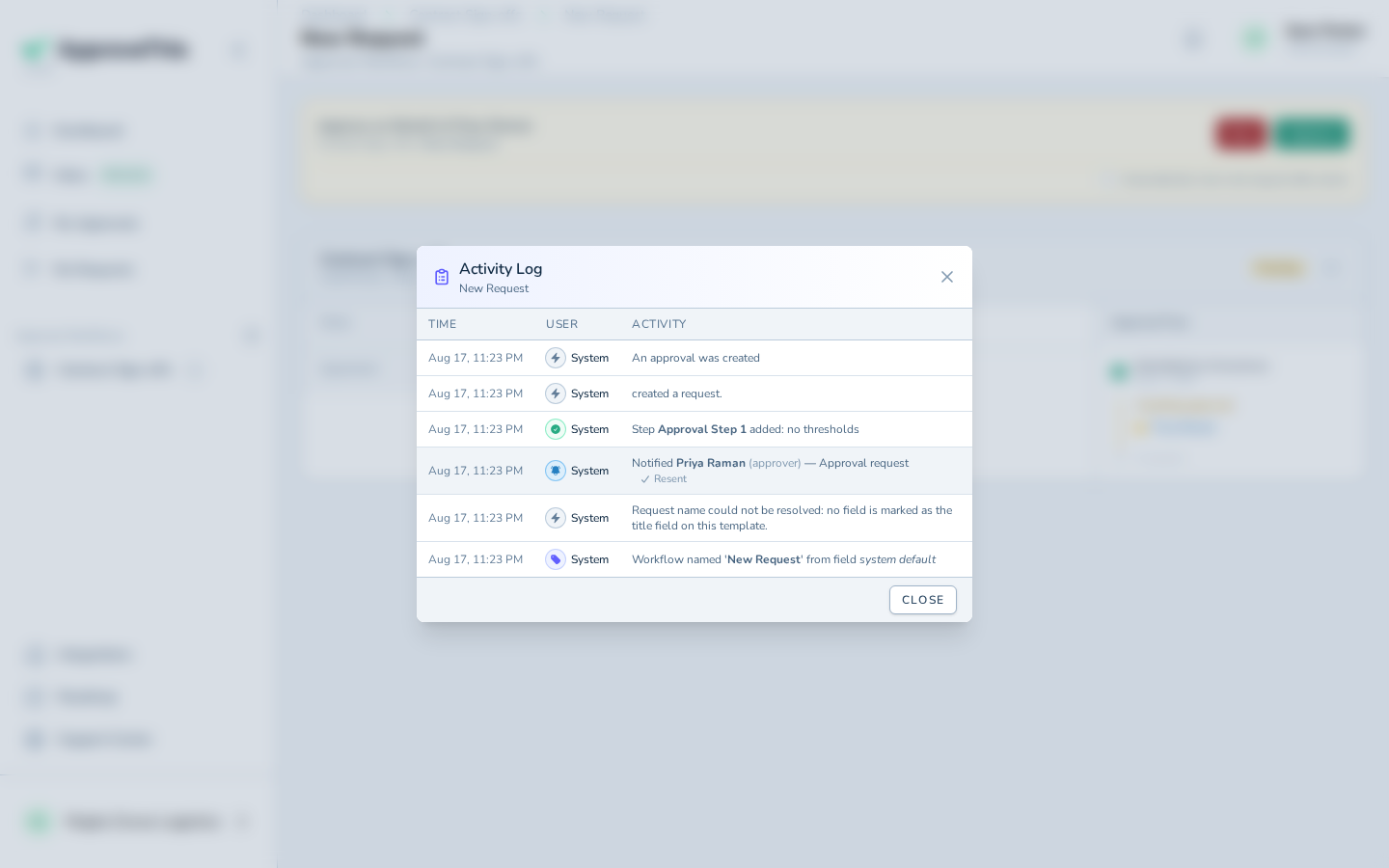
When a client says the email never landed, resend it from the request rather than forwarding your own copy: open the stalled request, click Activity Log, and click Resend. The client gets the same approval email again with working links, no duplicate request is created, and the log records the resend, so the follow-up itself becomes part of the request's history.
Full click-by-click: Approval Reminders and Resend an Approval Request
The defensible record
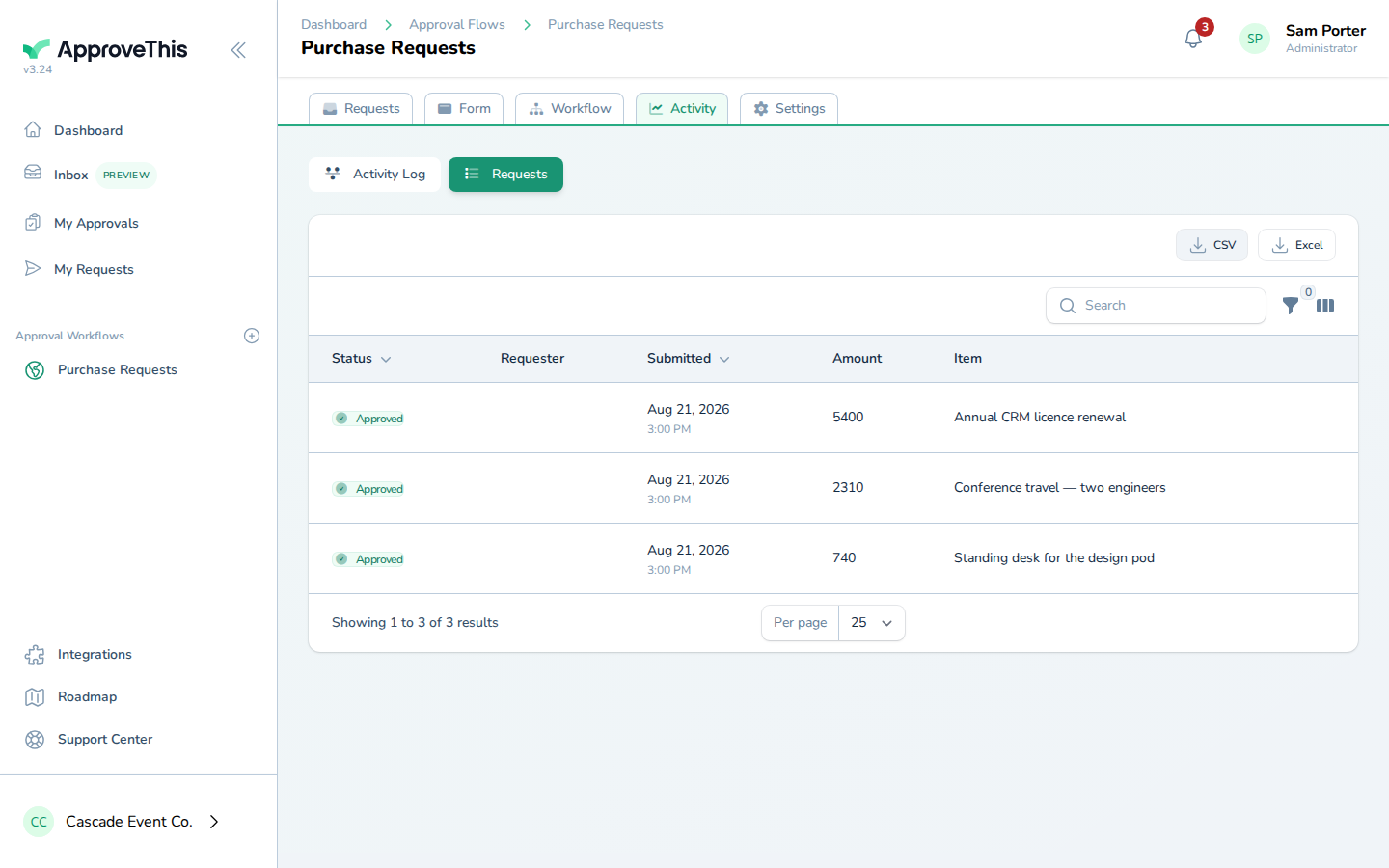
Here is what the firm gets out of it. Every request keeps a running timeline: each decision, each routing evaluation, and each notification sent, with who did it and when — so "did the client actually authorize this payment?" is answered by opening the request's Activity Log rather than searching an inbox. For reporting or an audit package, members who can edit the workflow get its 'Activity' tab: the Requests sub-tab exports every matching row as CSV or Excel, one column per visible form field, and the export itself is recorded in the audit trail. Note the export honors the table's search text and sort order but not the dropdown filters, and hidden form fields never appear.
Full click-by-click: Activity Log & Audit Trail and Request & Activity Export
Related guides
- Team Management — inviting bookkeepers and principals with the right roles as the firm grows.
- Activity Log & Audit Trail — reading a single request's timeline of decisions and notifications.
- Request & Activity Export — pulling request history or the audit table into CSV/Excel.
- CC Approval — a lighter habit for one-off sign-offs: CC your team's approvals@ address on an email to the client and the thread becomes a tracked request. Know its limits: approvers come from the To line only, and it is a single step where everyone on the To line must approve — no routing, no quorum.
- Unified Inbox — a preview feed where firm staff find and act on requests in one place; external approvers don't get this page.