File Upload Restrictions
Restrict what a File Upload field accepts, from allowed file types by curated groups to a maximum size per file, so requests arrive with the documents you expect and nothing you don't.
Updated
A File Upload field accepts anything by default, which is how a 400 MB video or a stray .exe ends up attached to a purchase request. On the Files tab of a File Upload or Multiple File Upload field card, you tick the curated type groups the field should accept — Documents, Images, Spreadsheets, Archives — and set a per-file size cap in megabytes. Both are enforced on the form when a requester attaches a file, so bad uploads never reach an approver. You'll need a published or draft workflow whose form already contains a File Upload field; this guide picks up on that field's card.
Who this is for: an Administrator.
Restrict the field to the file types you accept
An invoice field that quietly accepts screenshots and zip archives creates work for whoever opens the request. Ticking the groups you actually accept narrows the field to those extensions at upload time. One caution: custom extensions outside the built-in 31-extension MIME map are silently dropped from enforcement — paired with mapped types, files of that unmapped extension get rejected anyway, and configured on their own, no type restriction applies at all and every upload is accepted.
-
Sign in as an Administrator and open the workflow's Form tab.
-
Click Attachments to open the File Upload field's card.
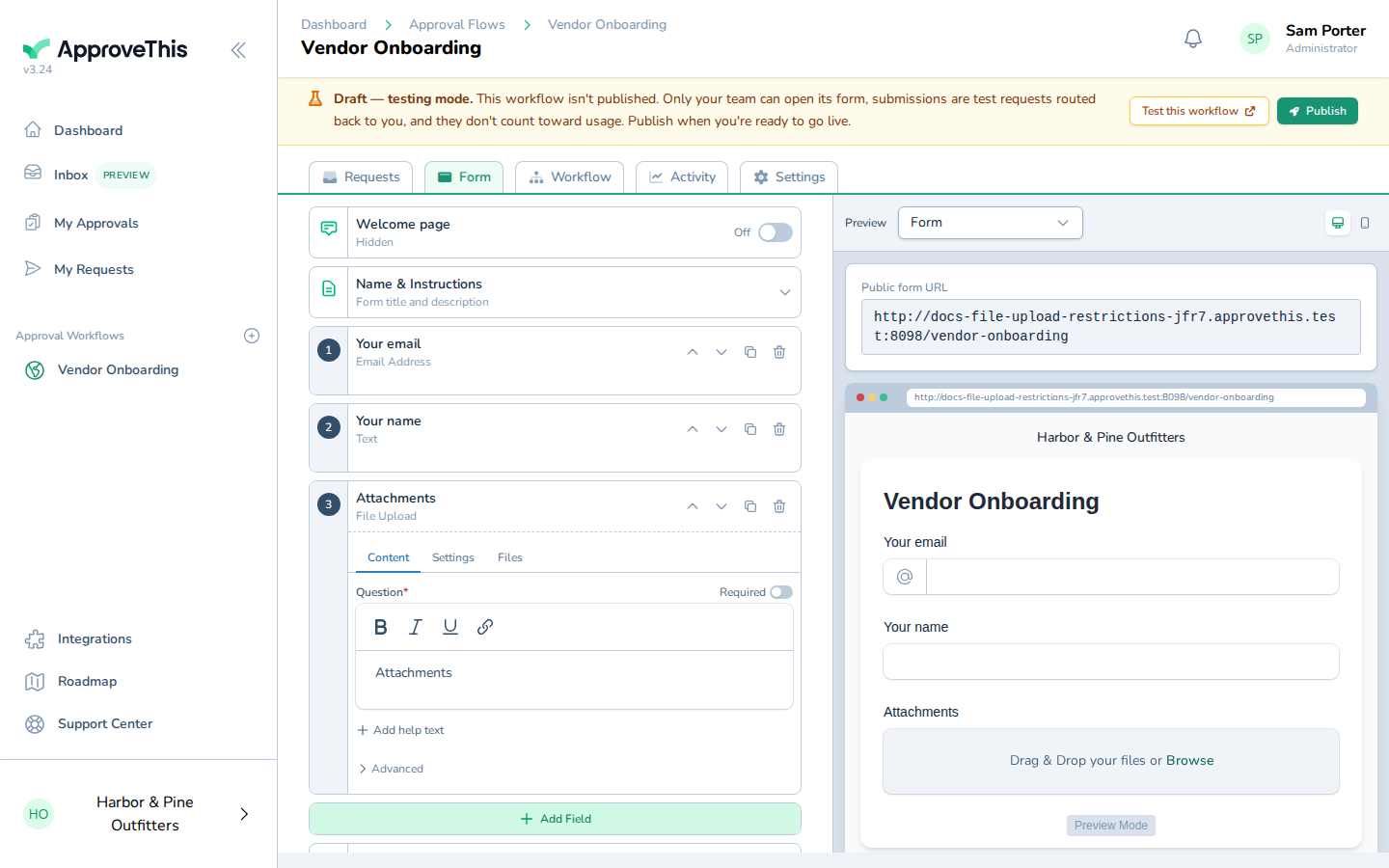
Click Attachments to open the File Upload field's card. -
Click Files to switch to the field's file restriction settings.
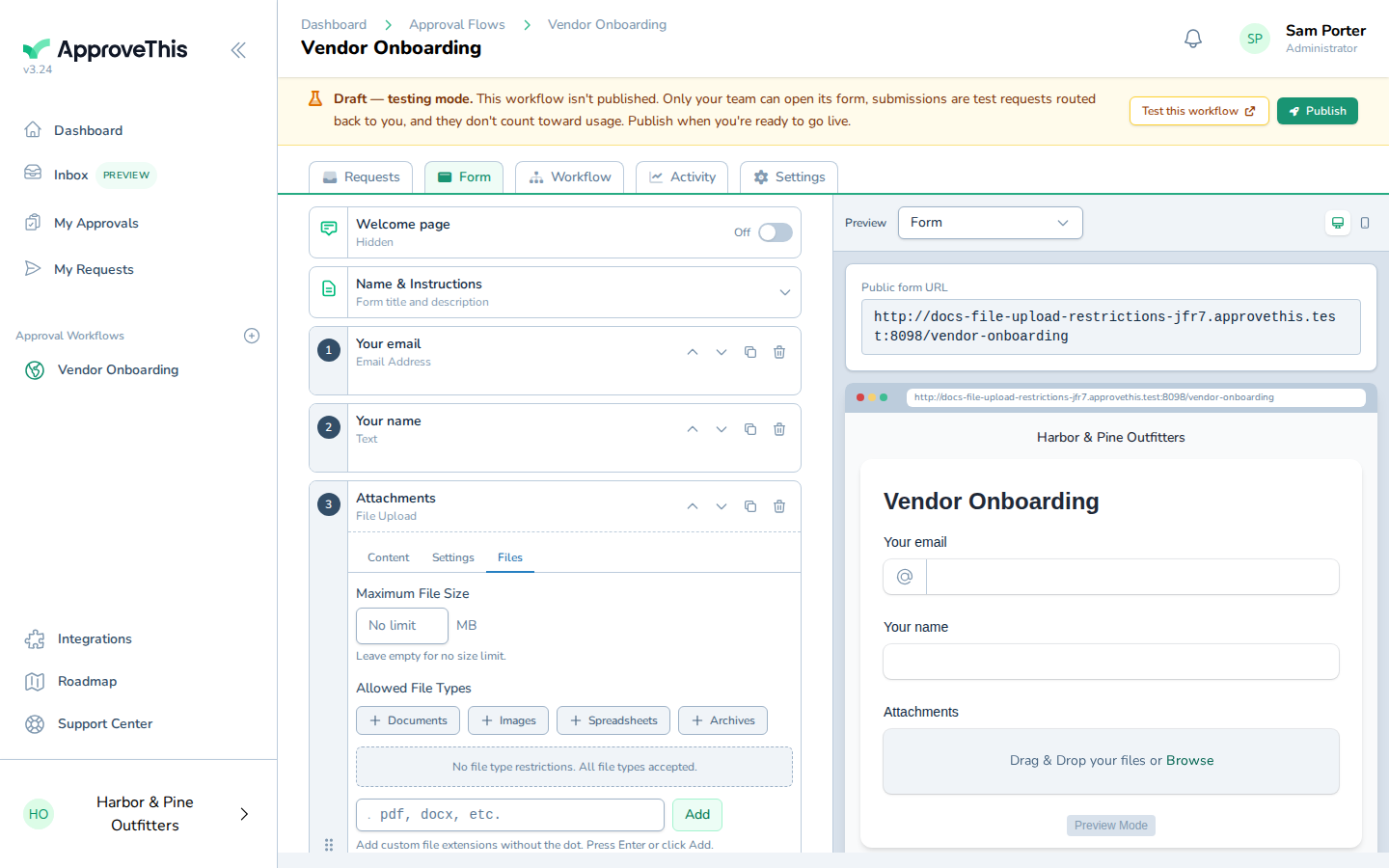
Click Files to switch to the field's file restriction settings. -
Click Documents to accept document file types.
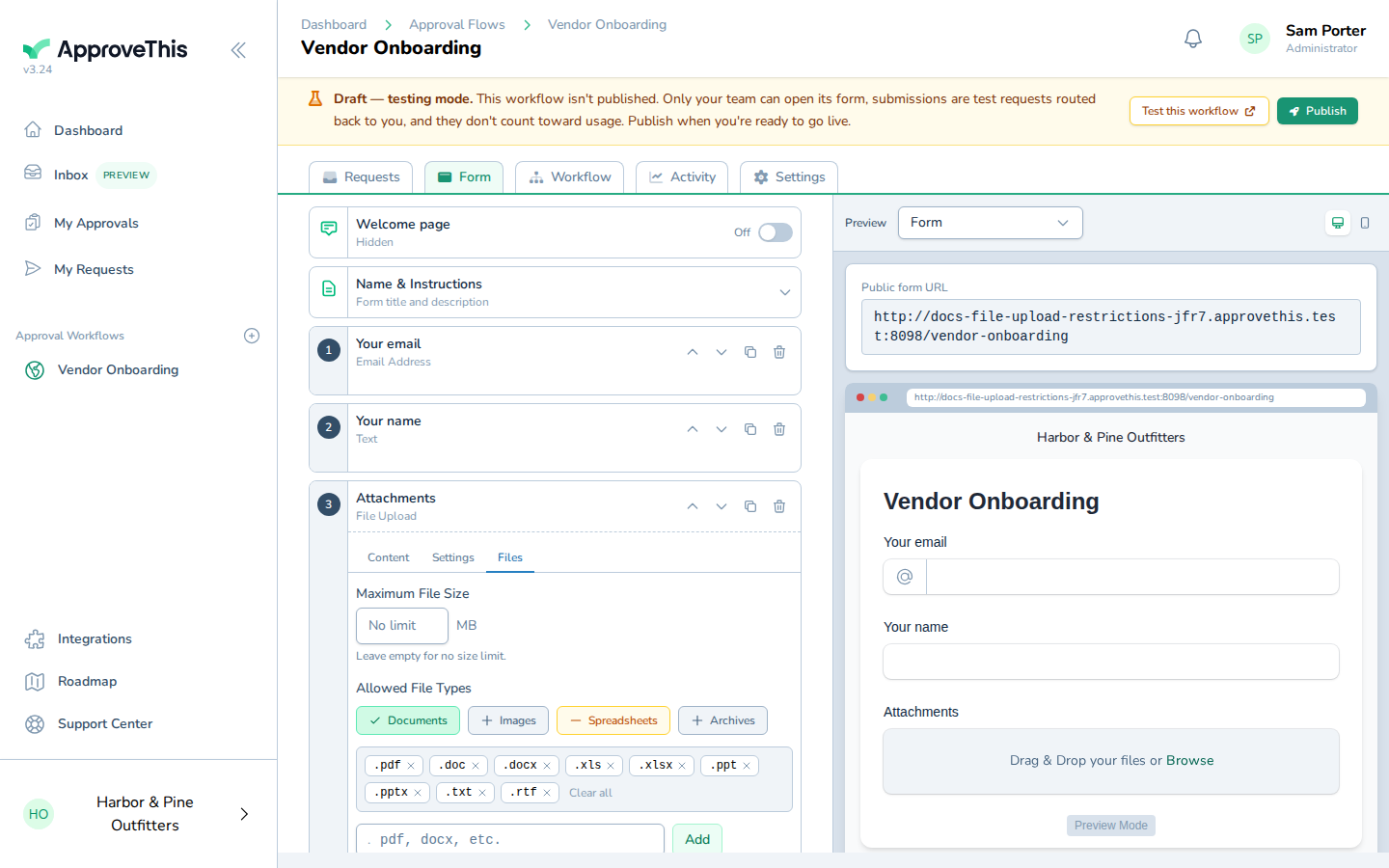
Click Documents to accept document file types. -
Click Images to also accept image file types.
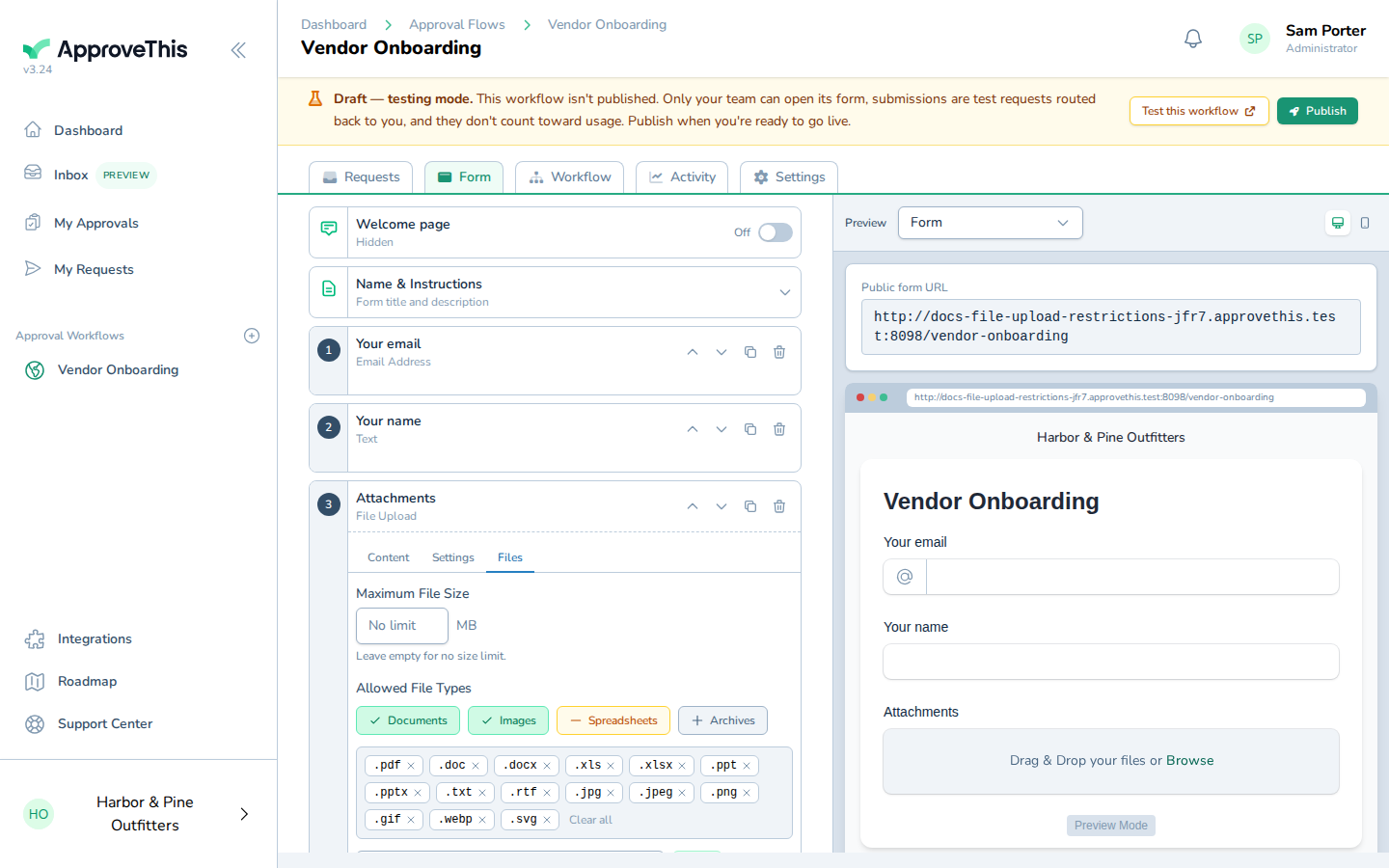
Click Images to also accept image file types.
Cap the size of each uploaded file
Large attachments slow down approvers on a phone and eat storage for no benefit. A per-file cap in megabytes stops the oversized file on the form rather than after it lands on the request.
-
Enter the per-file size limit in megabytes in Maximum File Size — the example uses
10.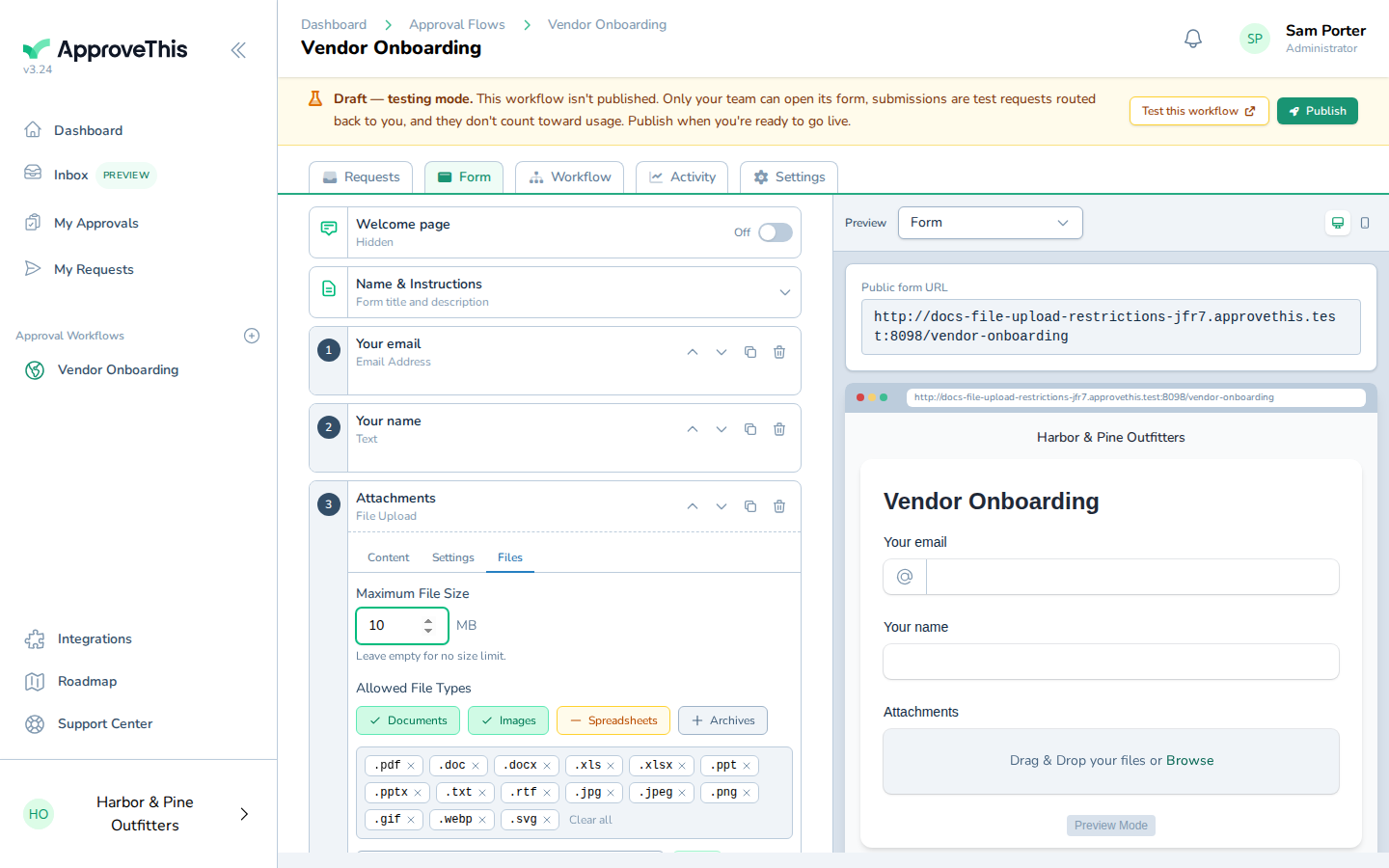
Enter the per-file size limit in megabytes in Maximum File Size — the example uses 10. -
Press
Tabto commit the value.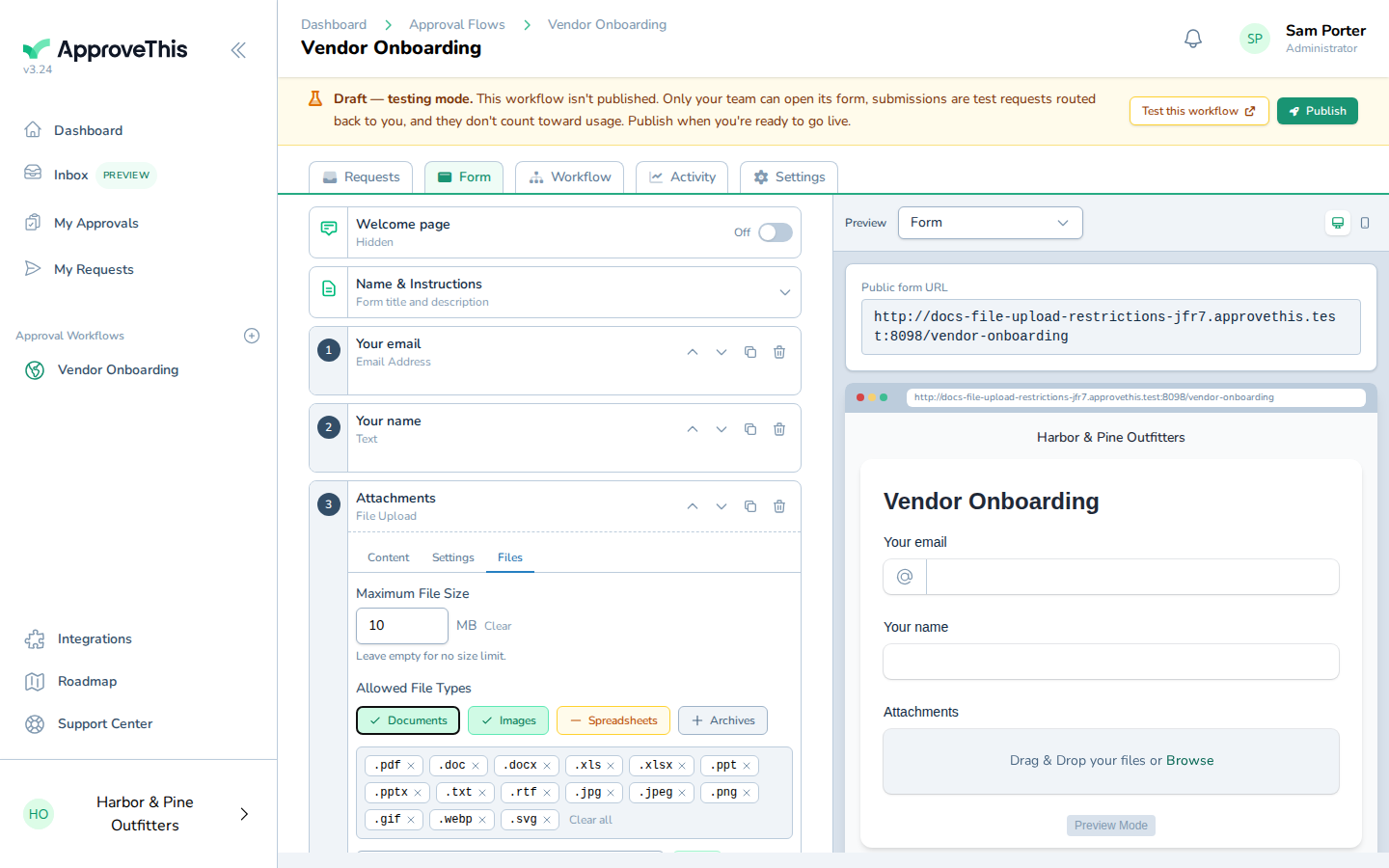
Press Tab to commit the value.