Construction change orders signed before work proceeds
No signed change order, no dispute risk — the owner's rep signs from an email link and the certificate goes in the project file.
Updated
A superintendent opens a wall and finds rot that the drawings never showed. The photos go to the PM by text, the PM emails the owner's rep a marked-up PDF, and somewhere on a phone call the rep says to go ahead. The crew proceeds. At closeout, the owner disputes the charge: no signature, no record of what was agreed, a photo trail scattered across three phones. For an operations manager at a general contractor or specialty sub, this is where margin goes to die — work performed on verbal approval that nobody can prove later.
The gap closes with one change order workflow. The ops manager sets it up once: a form that captures scope, cost, schedule, photos, and the vendor quote. The PM or superintendent submits from the field. Small change orders route to the project executive alone; larger ones pull in leadership by cost threshold. The owner's representative, who has no account in your workspace, signs electronically from the email link, and the approved request produces a verifiable certificate for the project file. The office admin follows every change order without approving anything.
What you'll set up
- A change order form: scope description, cost impact, schedule impact, photo uploads, and the vendor quote
- A project executive step that every change order passes through
- A leadership step gated by a cost threshold, skipped for small changes
- A final client step where the owner's rep signs electronically from the email, no login required
- A downloadable approval certificate, verifiable by anyone, for the project file
Build the change order form
Open the workflow and click Form. Each field exists to settle a later argument, so add one per fact you want on the record: a text field for the scope description, a currency field for cost impact, a date or text field for schedule impact, and file fields for the site photos and the vendor quote. The form builder offers text, email, date, file, and currency types; click Add Field and pick the type that matches.
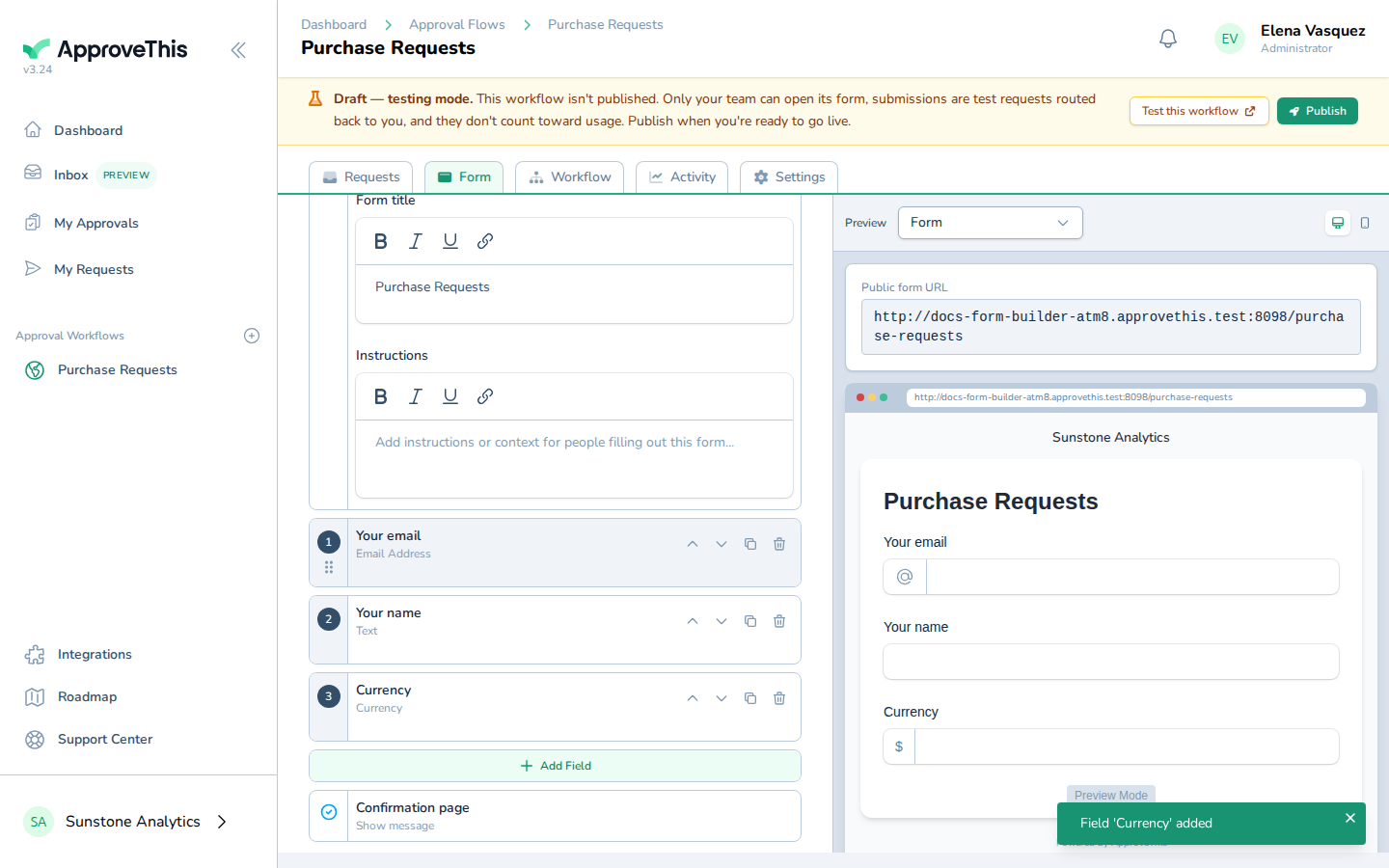
The example screenshots walk a Purchase Requests flow and label the currency field Total purchase amount; yours might read Cost impact. Mark the cost field Required so no change order can be submitted without a number, and use Add help text to tell the field crew exactly what to include, such as whether the amount carries markup.
Full click-by-click: Form Builder
Route small changes fast, large ones through leadership
Switch to the workflow's Workflow tab, where the approval chain is drawn. Add the first step and name your project executive in Search for an approver — the click-by-click is in Add an Approval Step. Note that approvers on a step are named people, so name the actual rep and executive for the project this workflow serves.
Add a second step for leadership, then gate it: click Configure step, then Conditions, then Add Condition. Choose your cost field, the Greater than operator, and your threshold.
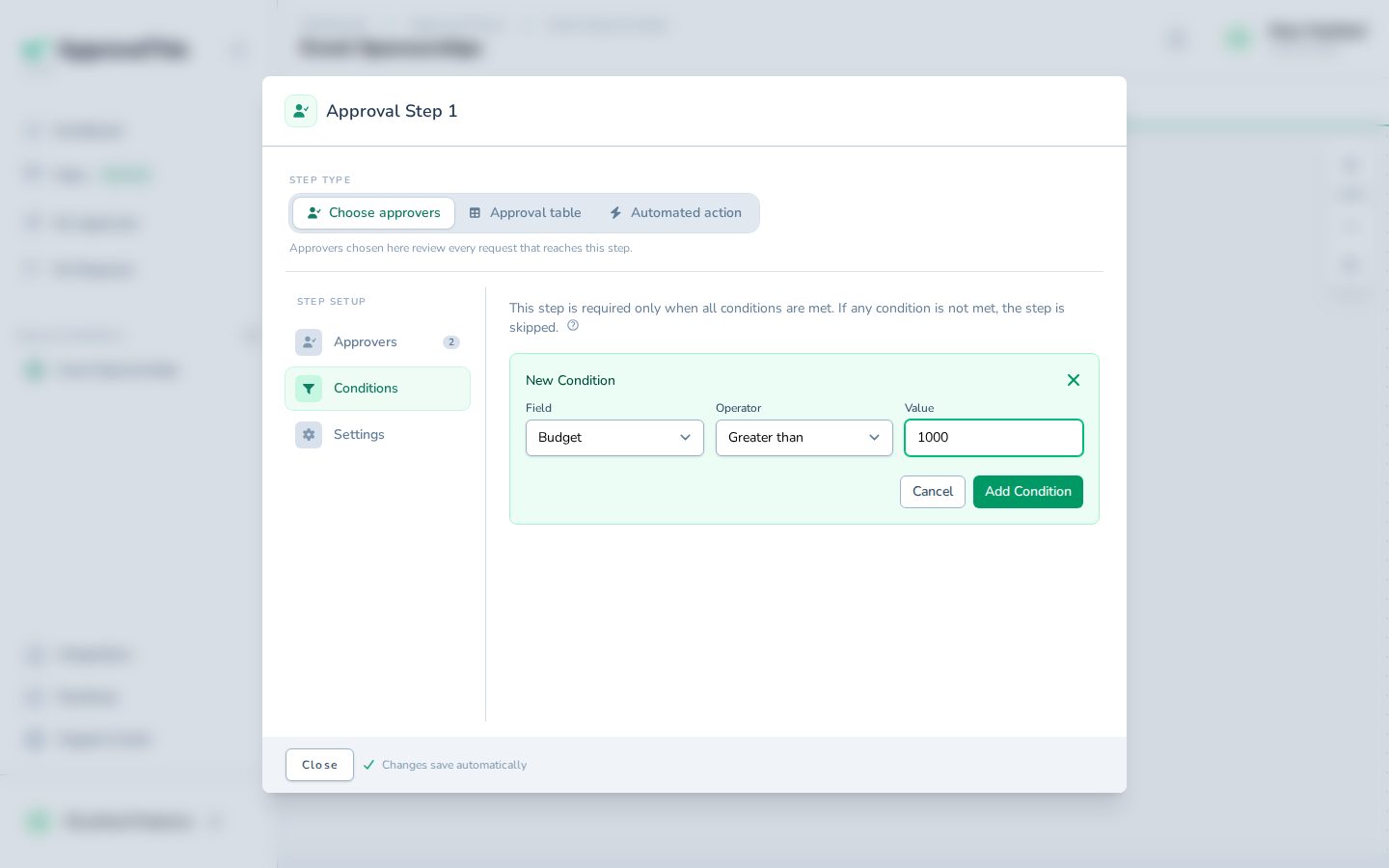
The example gates on a Budget field greater than 1000; in a change order workflow the field might be Cost impact and the value your leadership limit. When the condition is unmet the step is skipped, so a small change order reaches the project executive and moves straight on. Conditions combine with AND logic, and they are evaluated when a request is created — tightening the threshold later leaves in-flight change orders on their original path.
Add the final step for the owner's representative. In the step's Settings, click Require E-Signature so the client's decision is a signature, not a bare click.
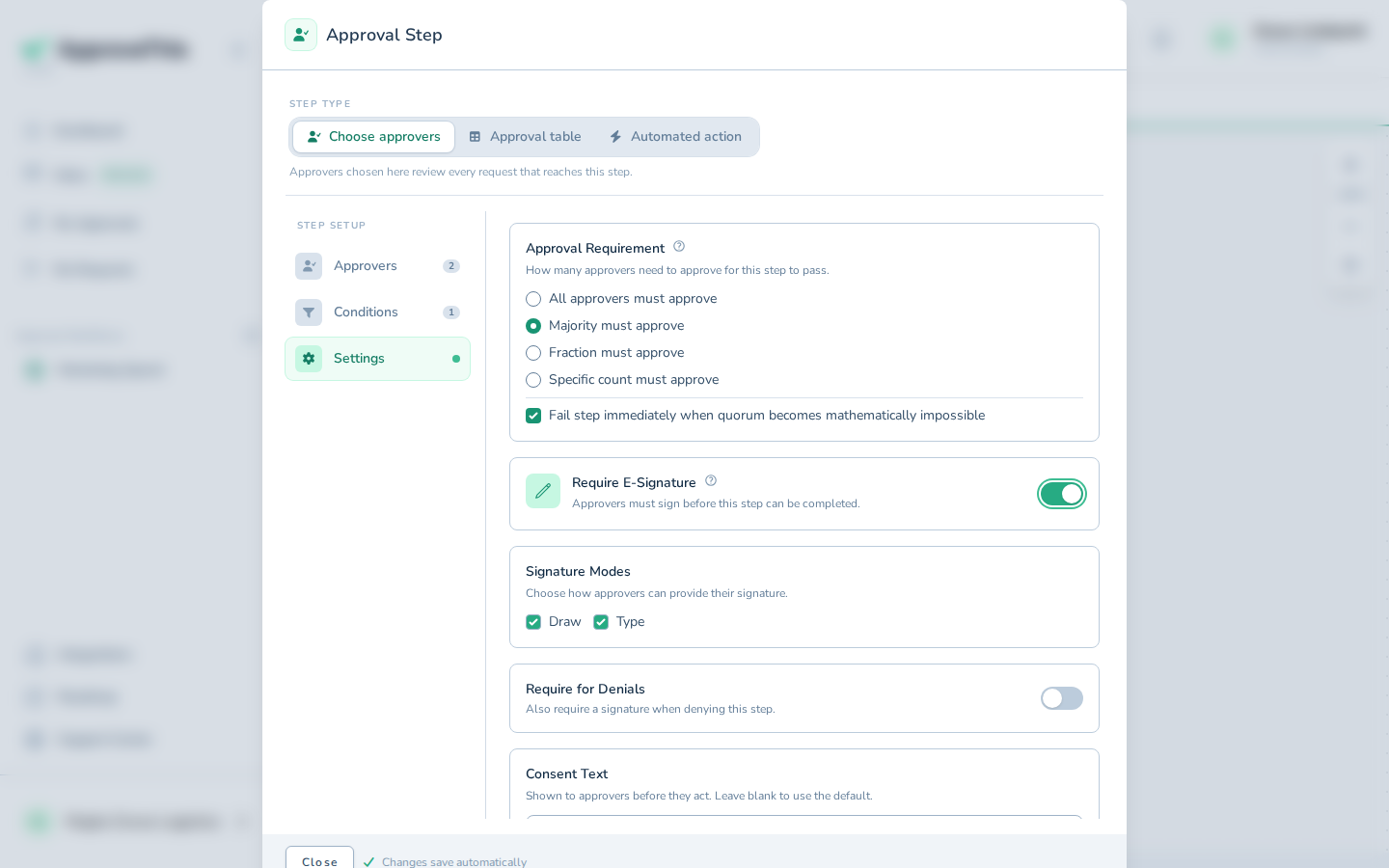
Full click-by-click: Add an Approval Step and Conditional & Threshold Routing
The PM submits from the field
When the wall comes open, the PM fills the form and attaches the photos and the quote. Because the form has file fields, the approval email shows an image thumbnail or PDF preview alongside the filename, size, and a download button, so the project executive can judge the damage from the inbox.
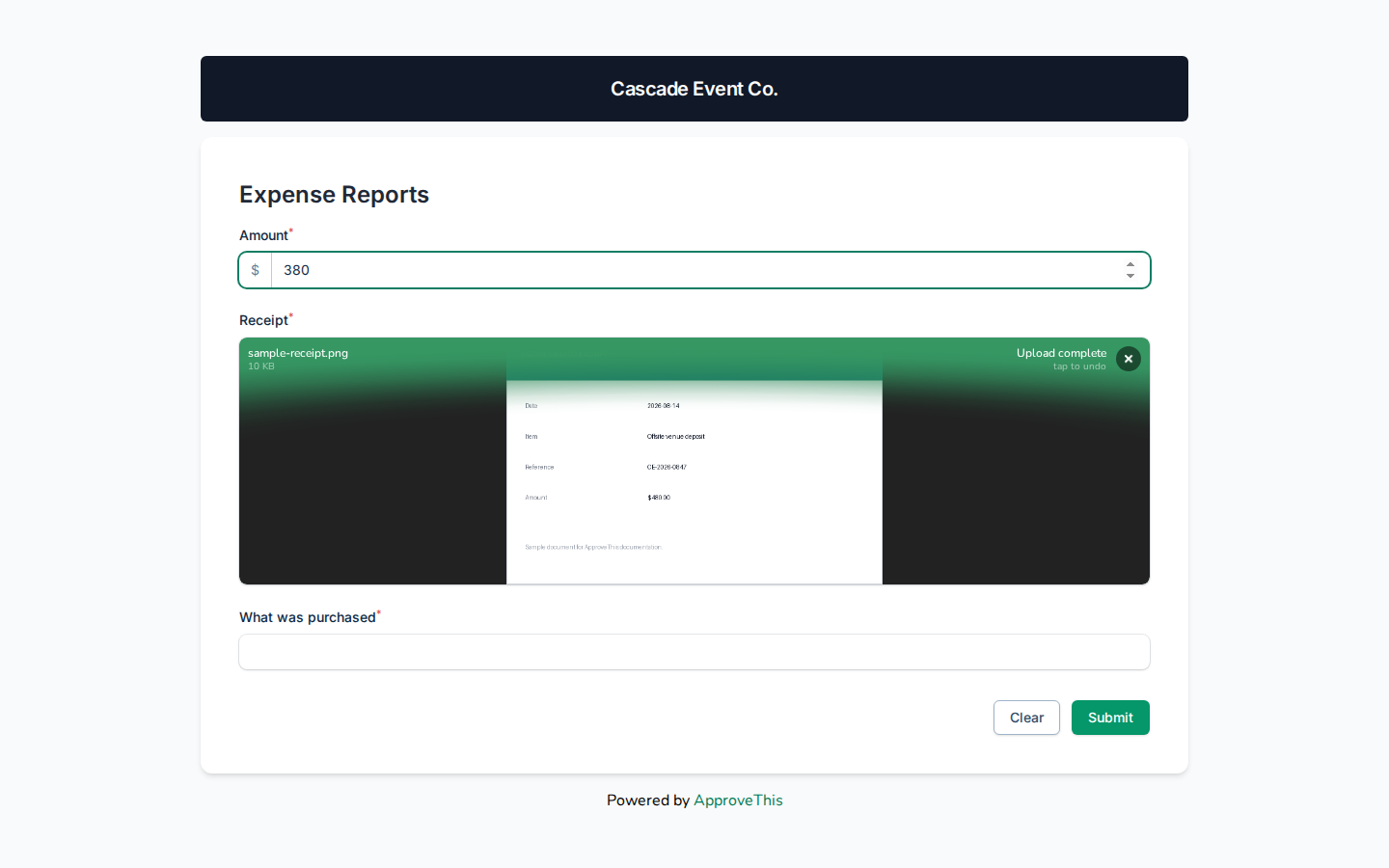
The example walks an expense report with a receipt; the mechanics are identical for a photo of rotten framing. One caution: non-previewable file types fall back to a download link in the email.
Full click-by-click: Inline File Previews
The owner's rep signs from the email link
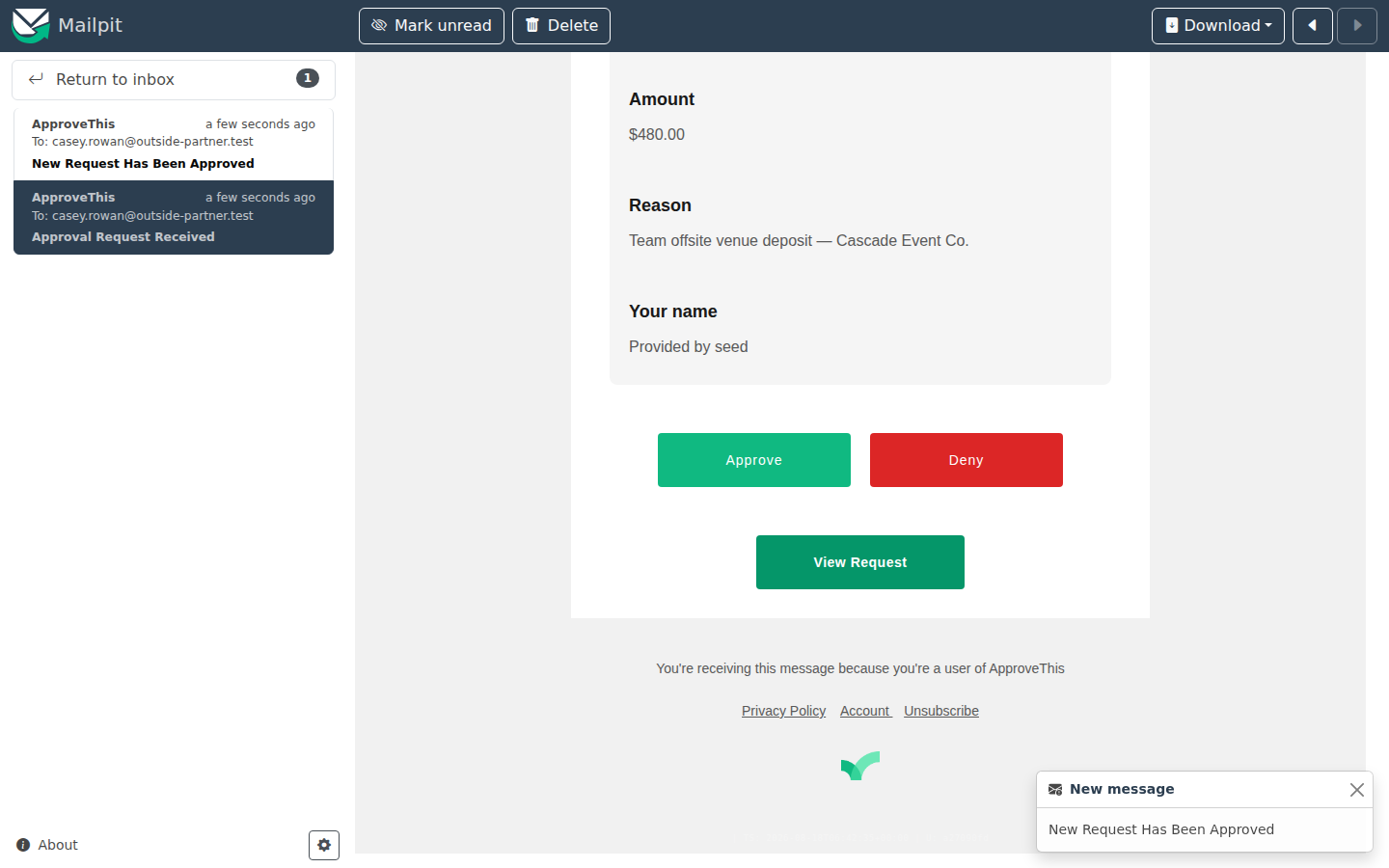
The owner's rep has no account in your workspace, and the pieces that make this work come from three features chained together. First, the approval email routes through a short link to a signed URL, so clicking it logs the rep in automatically for that single action — no password prompt between the client and the decision. With 2FA on the rep's account, or a workflow that requires approvers to log in, a sign-in comes first.
Second, because the step requires an e-signature, the decision is not saved on the click alone: the rep types their name in Full name and clicks Sign & Approve.
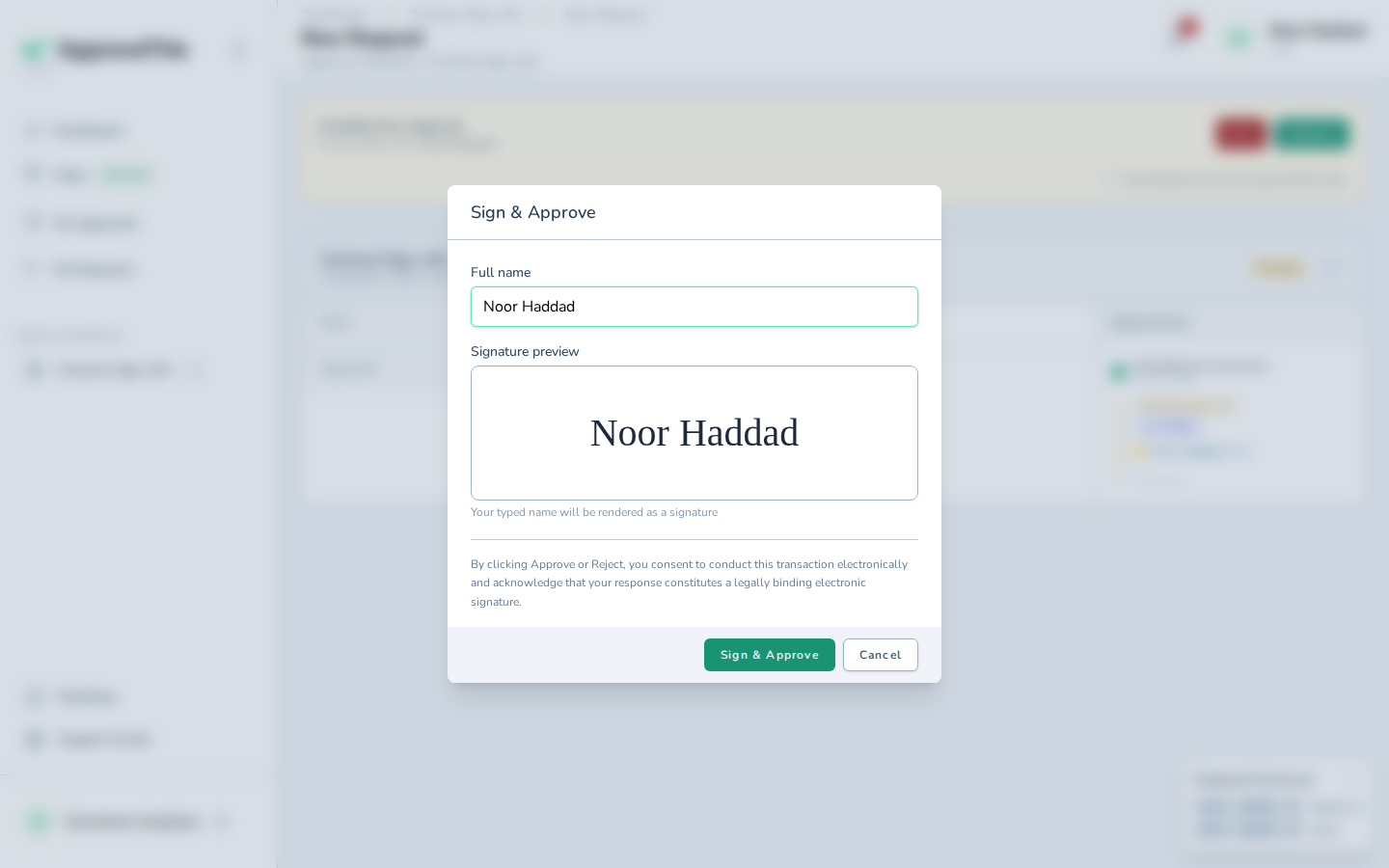
This is the dispute protection. ApproveThis stores a tamper-evident audit context alongside the signature: the signer's name, the signature type, the consent version, the signing method, the request IP address and user-agent, and a SHA-256 hash of the request's field values at signing time. The signature terms shown to the rep are snapshotted when the request is created, so later edits to the workflow don't change what they agreed to, and the same audit context is recorded whether they approve or deny.
Third, the External Approver role keeps the client contained: their navigation is limited to the approvals assigned to them, so they never see your other projects. External accounts can be auto-created when approvers are assigned through a user_select field; the role manual covers the hand-off.
Full click-by-click: Login-Free Approval Links, E-Signature, External Approver Role
The certificate goes in the project file
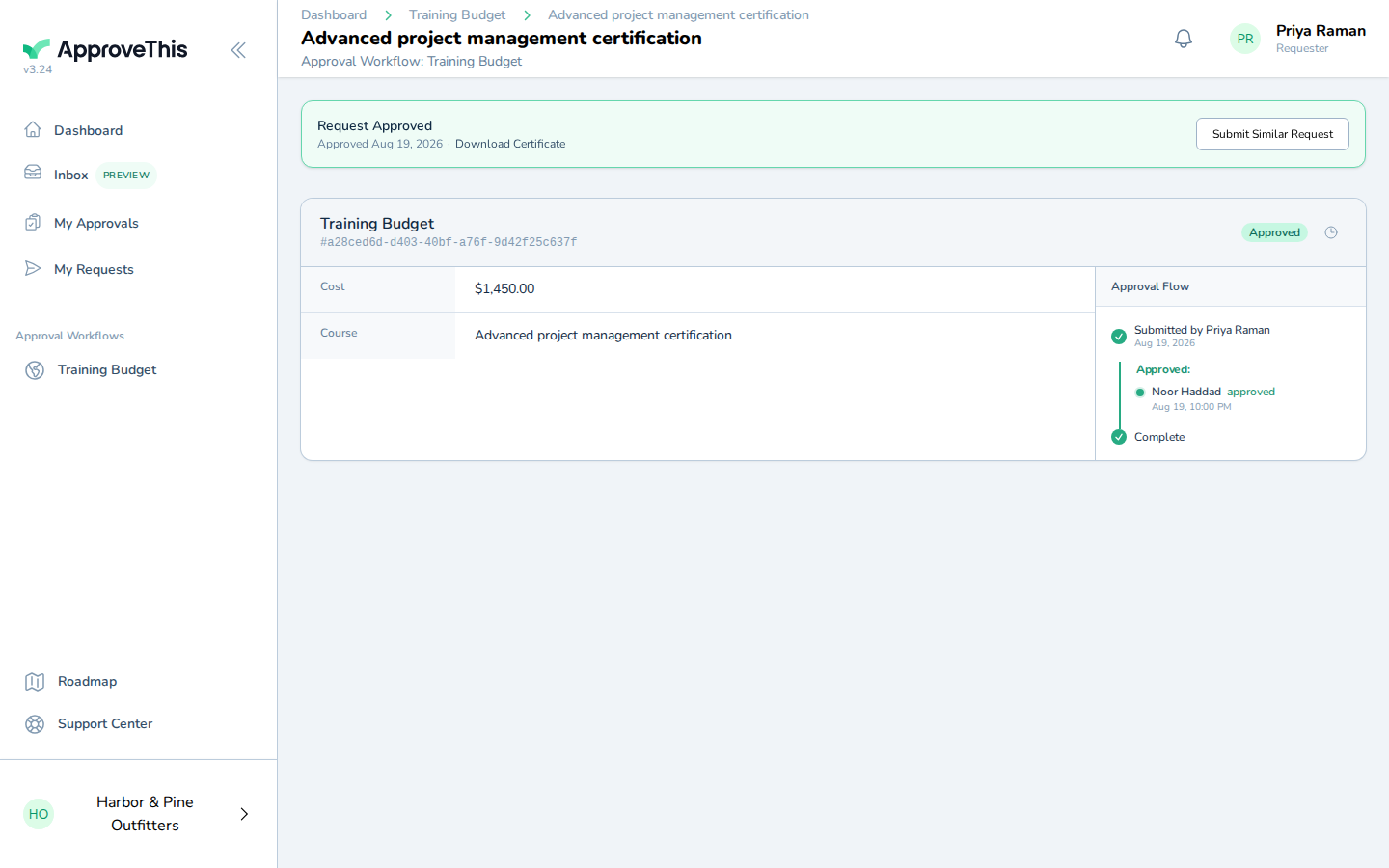
Once the request is approved, the PM opens it and clicks Download Certificate on the green approved bar. The PDF carries a public verification link in two forms, a QR code and the printed URL at the foot of the page, so the owner, an auditor, or opposing counsel can confirm the approval is genuine without an ApproveThis account.
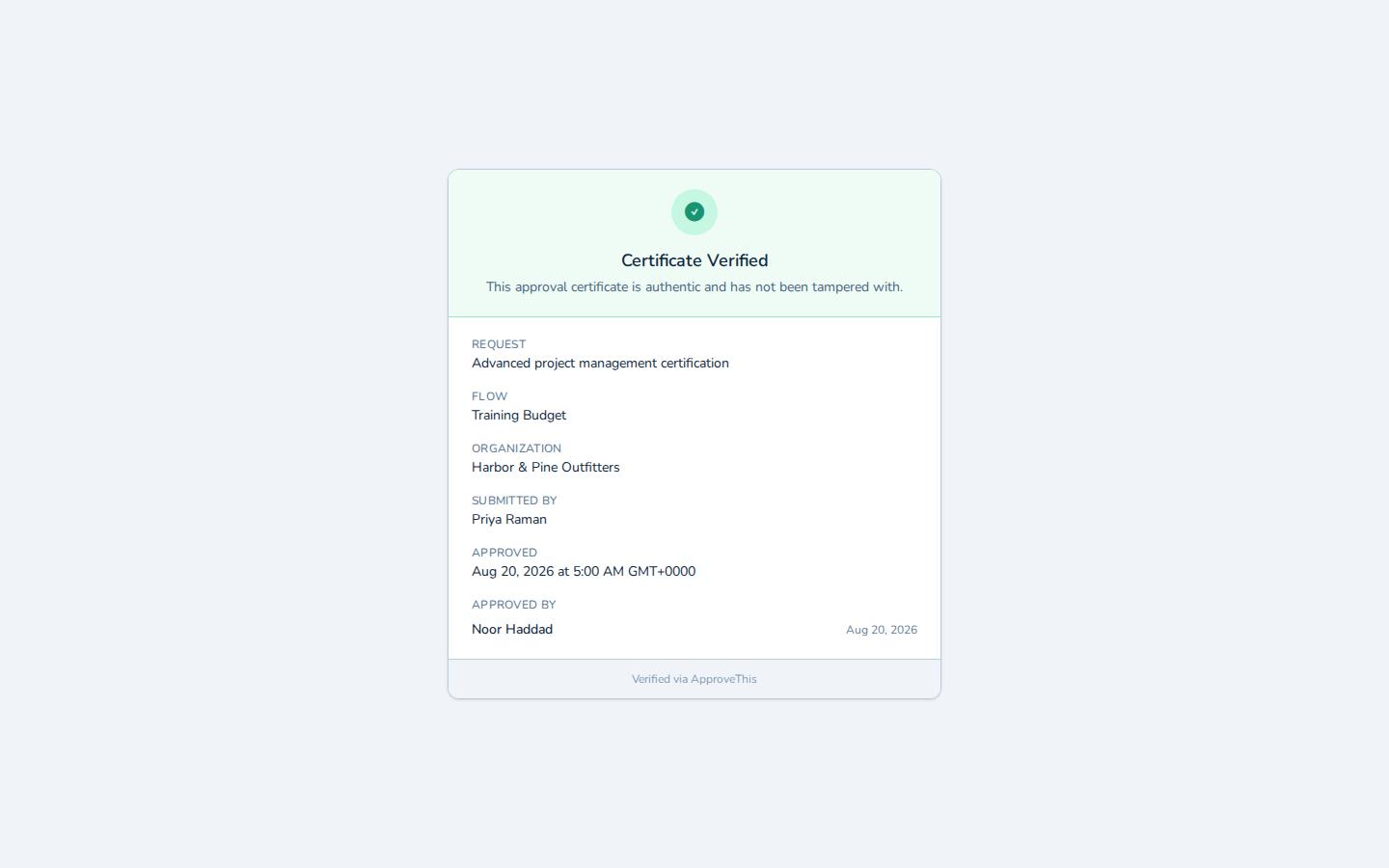
Before the certificate goes in the project file, check the link resolves: the page confirms with Certificate Verified. Each download and each verification visit is recorded in the request's Activity Log, so you can see when copies were taken and checked.
The office admin needs none of this to pass their desk. Add them as a watcher from the workflow's Settings > Notifications area, and they get email when change orders are submitted, approved, or denied, and when comments or revision requests land — visibility without a seat in the approval chain. The Flow Watchers guide covers adding them.
The same shape serves agencies and consultancies handling scope changes: the account director approves internally first, then the client sponsor signs the revised fee and timeline from the email link, and the certificate goes in the project record.
Full click-by-click: Approval Certificates
Related guides
- Flow Watchers — give the office admin, or anyone else, email visibility into every change order without making them an approver.
- Activity Log & Audit Trail — read the request's full timeline of decisions, routing checks, and notifications when someone asks who knew what, when.
- Workflow Comments — keep the back-and-forth about a change order on the request itself, with @-mentions instead of side-channel texts.
- Request Revisions & Versioning — when the executive sends a change order back for a better quote, the PM edits and resubmits as a linked new version.
- Inline File Previews — how photos and PDF quotes render inside the approval email itself.