Field Settings & Validation
Configure a field beyond its label: validation bounds on numbers and text, and the machine slug that formulas and routing rules use to refer to it.
Updated
A label tells someone what to type; it doesn't stop them typing 40,000 when the ceiling is 500. Each field card in a workflow's Form tab opens into tabs where an Administrator can set validation bounds on what gets submitted and edit the machine slug that formulas, routing rules, and the API use to reference the field. This guide covers both, working from a workflow that already has a number field on its form. Extra validation is limited to Number Min/Max and Text Box Max Length — integer values only, with no pattern rules or custom error messages.
Who this is for: an Administrator.
Put a minimum and maximum on the number field
Bounds on a number field catch out-of-range amounts at the form instead of after a request has already reached an approver. Note that Min and Max accept integers only, and there is no way to attach a custom error message to the rule.
-
Sign in as an Administrator.
-
On the workflow's Form tab, click the number field you want to constrain to open its card — the example uses Amount.
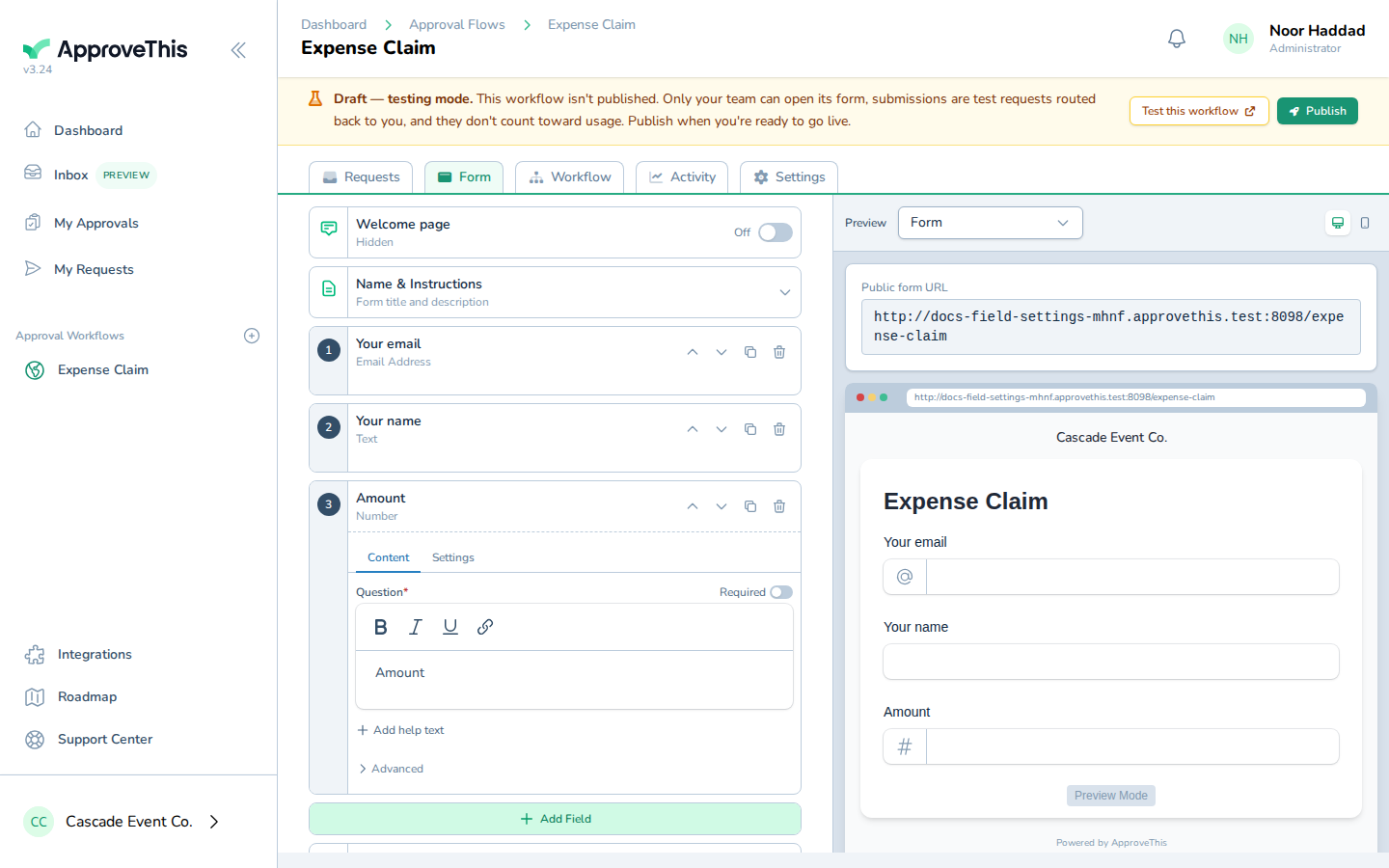
On the workflow's Form tab, click the number field you want to constrain to open its card — the example uses Amount. -
Click Settings to open the field's type-aware options.
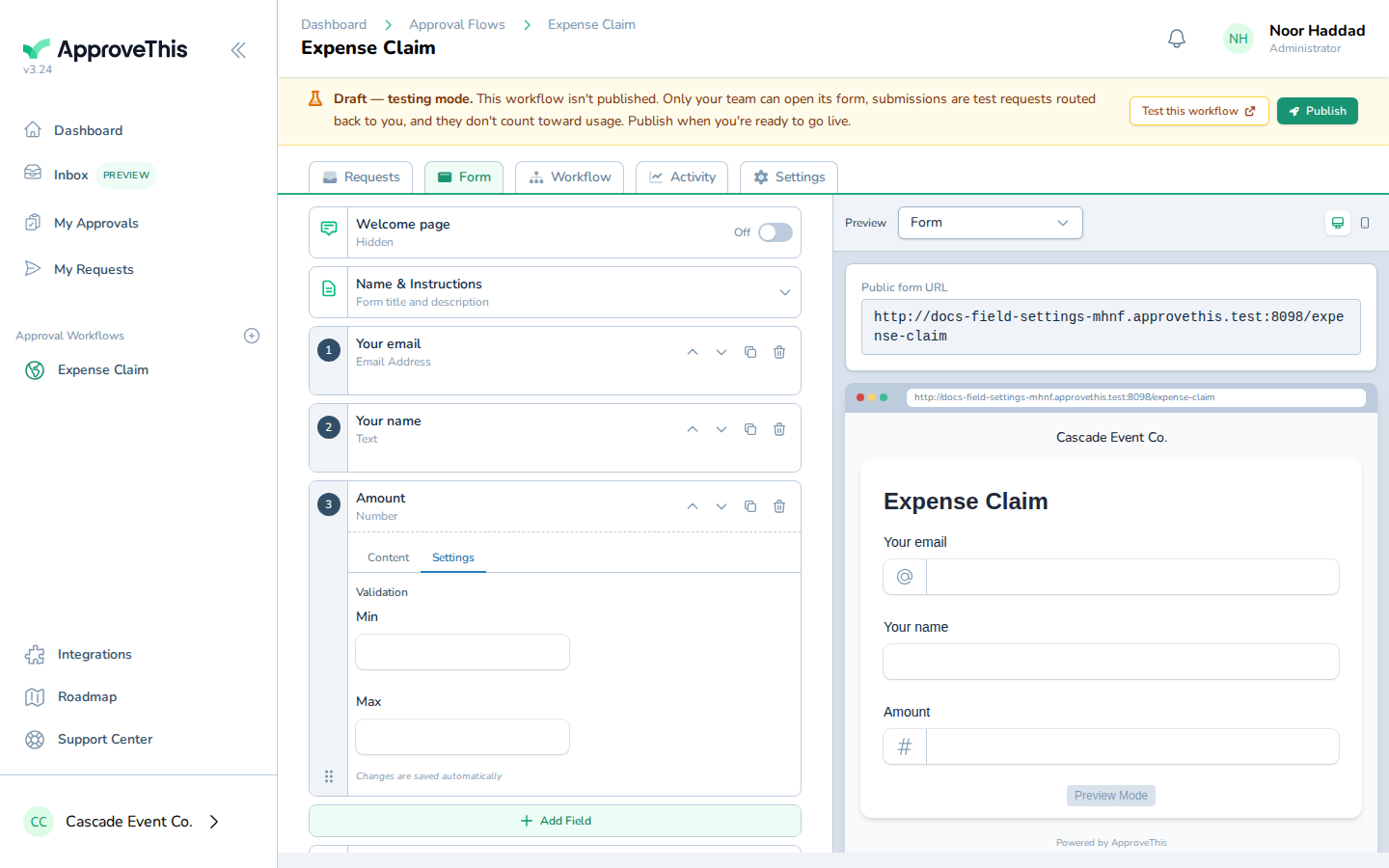
Click Settings to open the field's type-aware options. -
In Min, enter the lowest value a submitter may enter (e.g.,
5).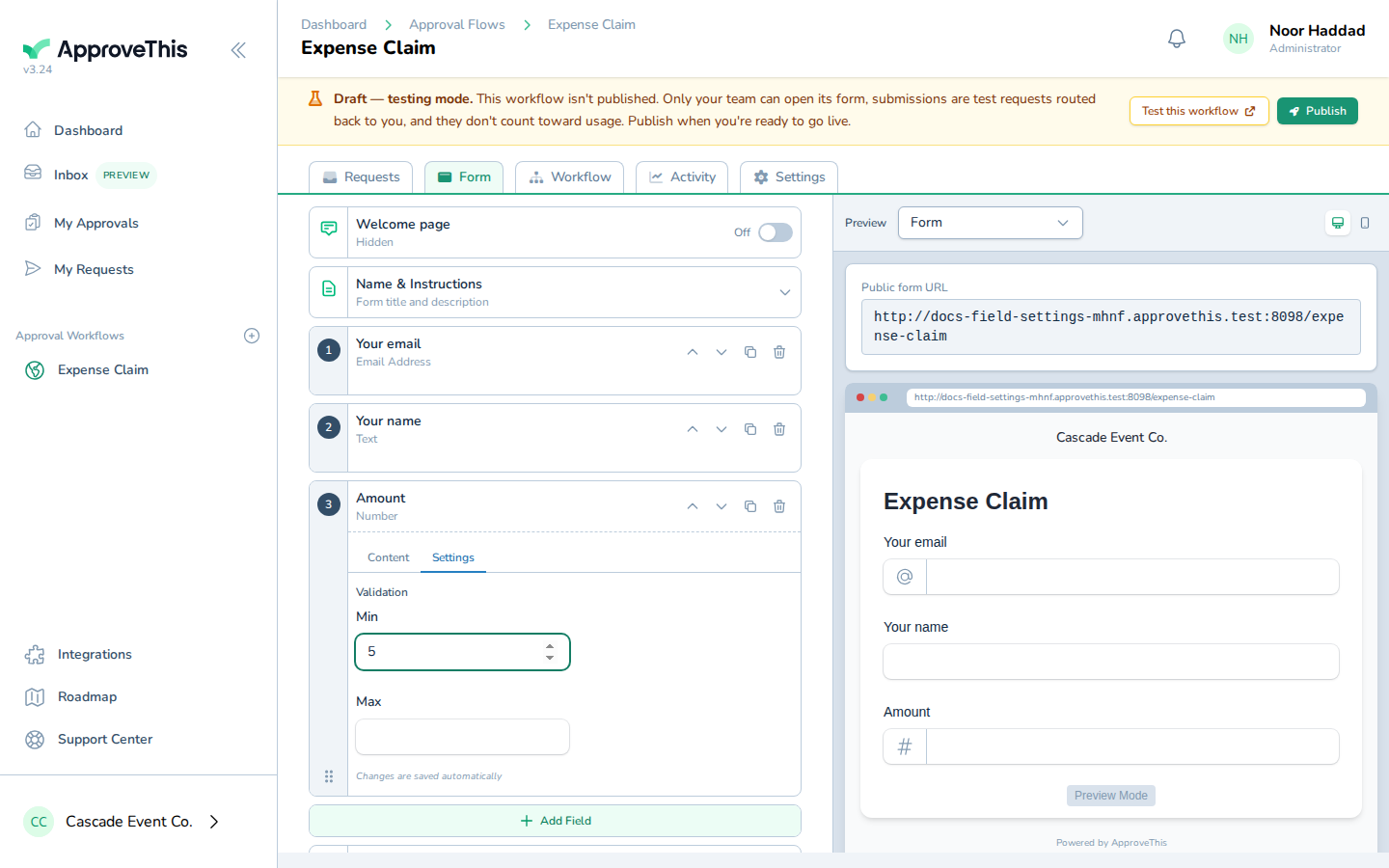
In Min, enter the lowest value a submitter may enter (e.g., 5). -
In Max, enter the highest value you'll accept —
500in the example screenshots.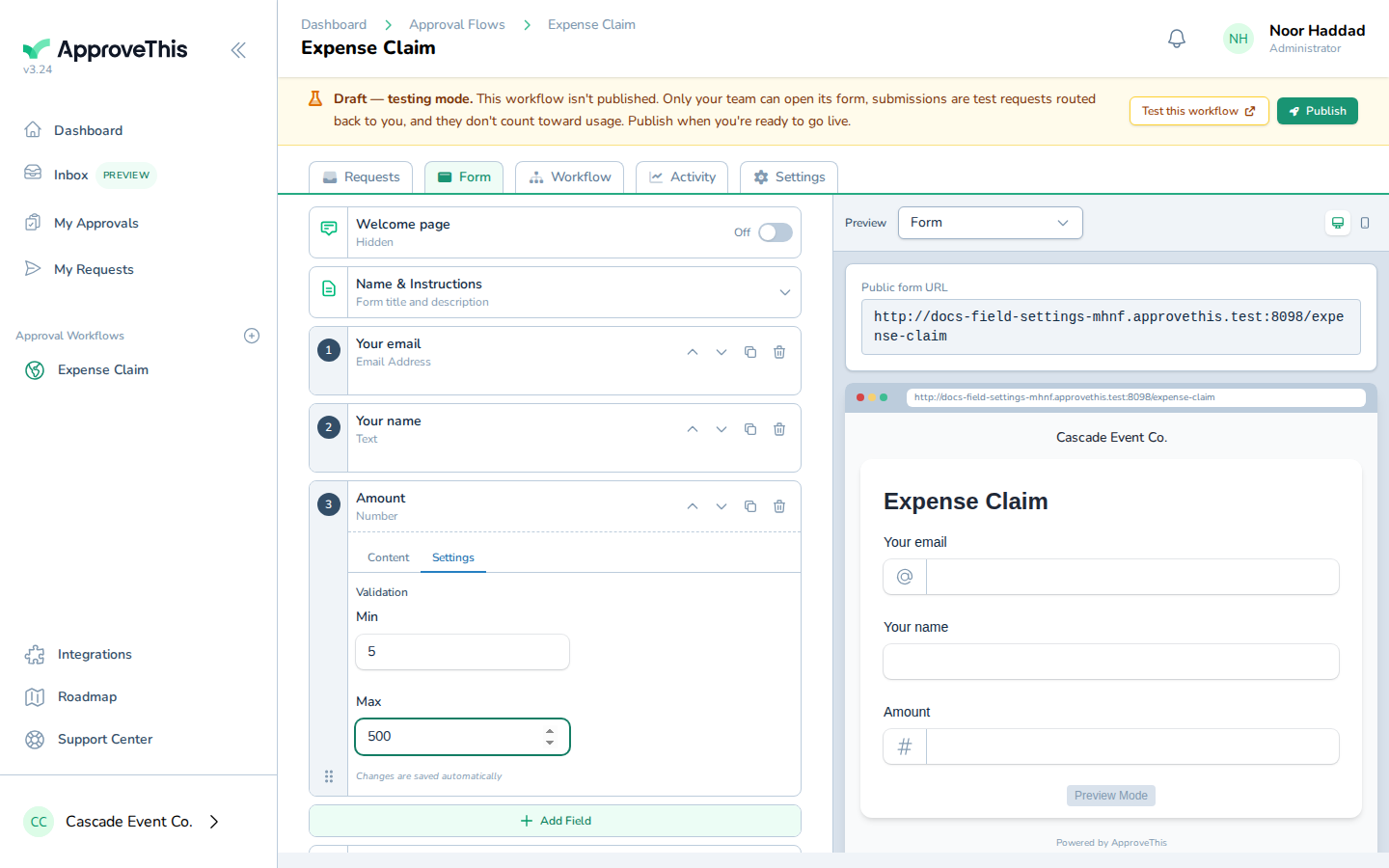
In Max, enter the highest value you'll accept — 500 in the example screenshots. -
Press
Tabto commit the second value.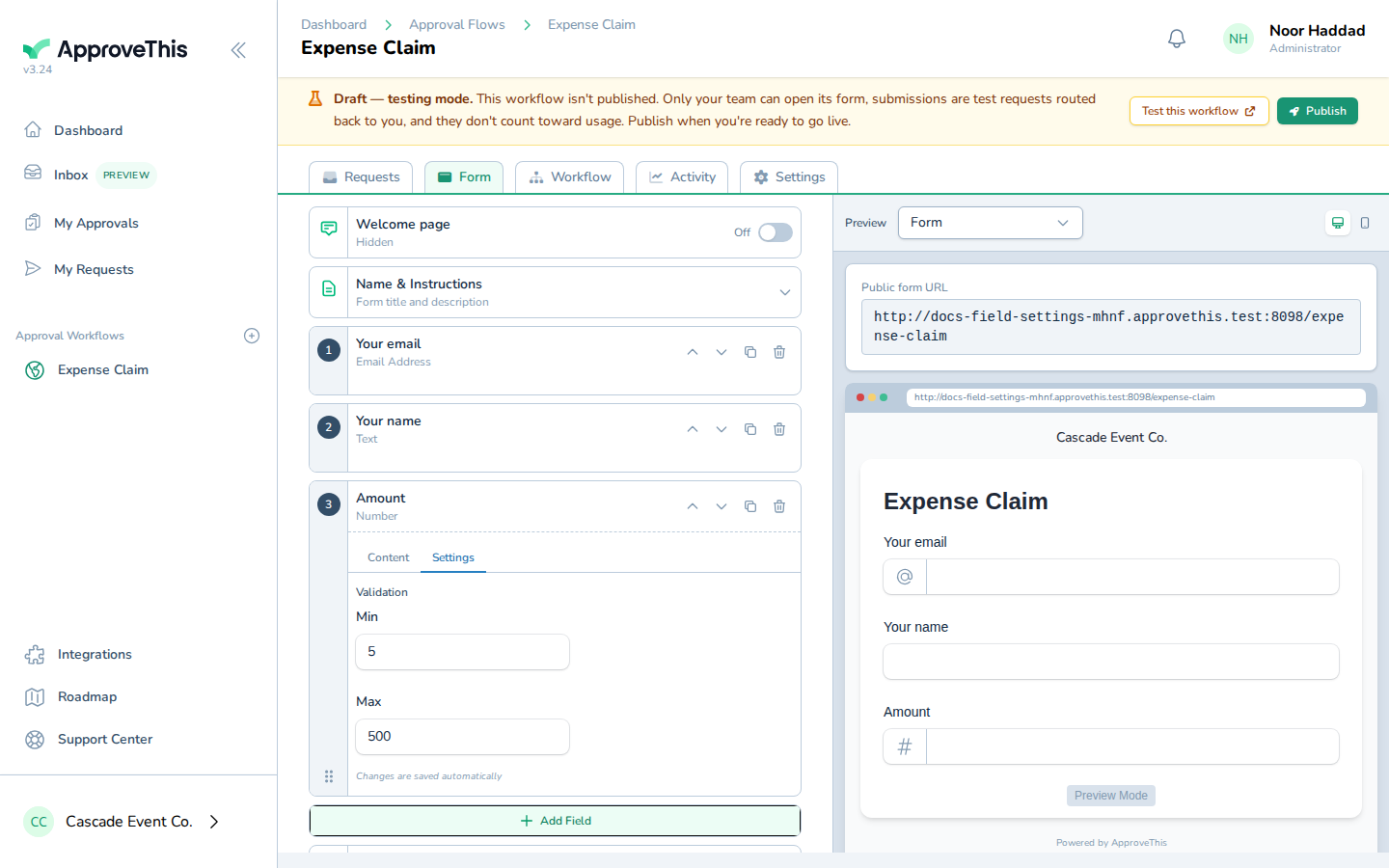
Press Tab to commit the second value.
Change the number field's machine slug
Formulas, conditions, and API calls refer to a field by its slug rather than its label, so a readable slug makes those rules easier to maintain. The editable input only renders when the workflow permits slug editing, and changing a slug breaks any formula or condition that referenced the old one.
-
Click Content to return to the field's question and help text.
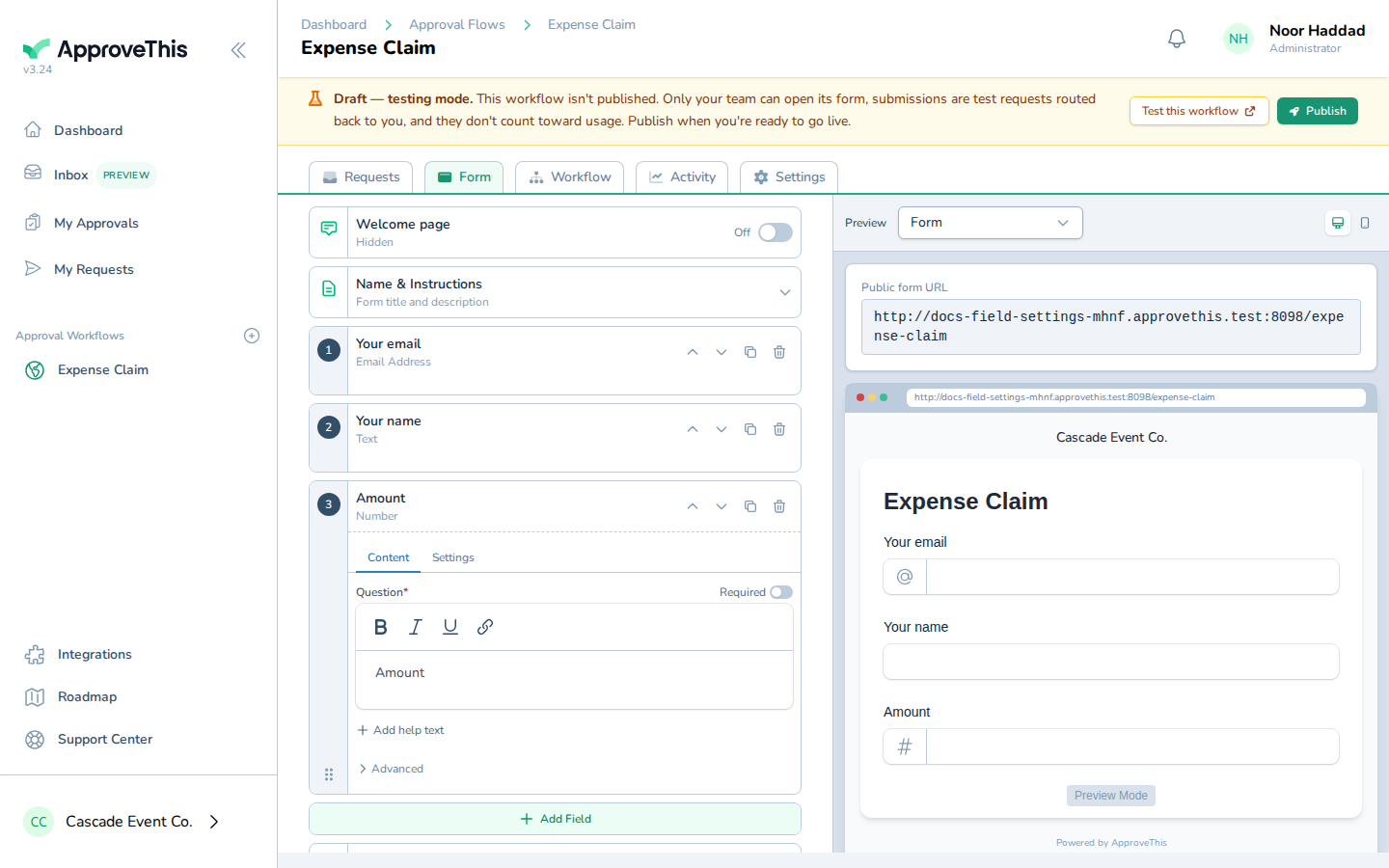
Click Content to return to the field's question and help text. -
Click Advanced to expand the section holding the Private switch and the machine slug.
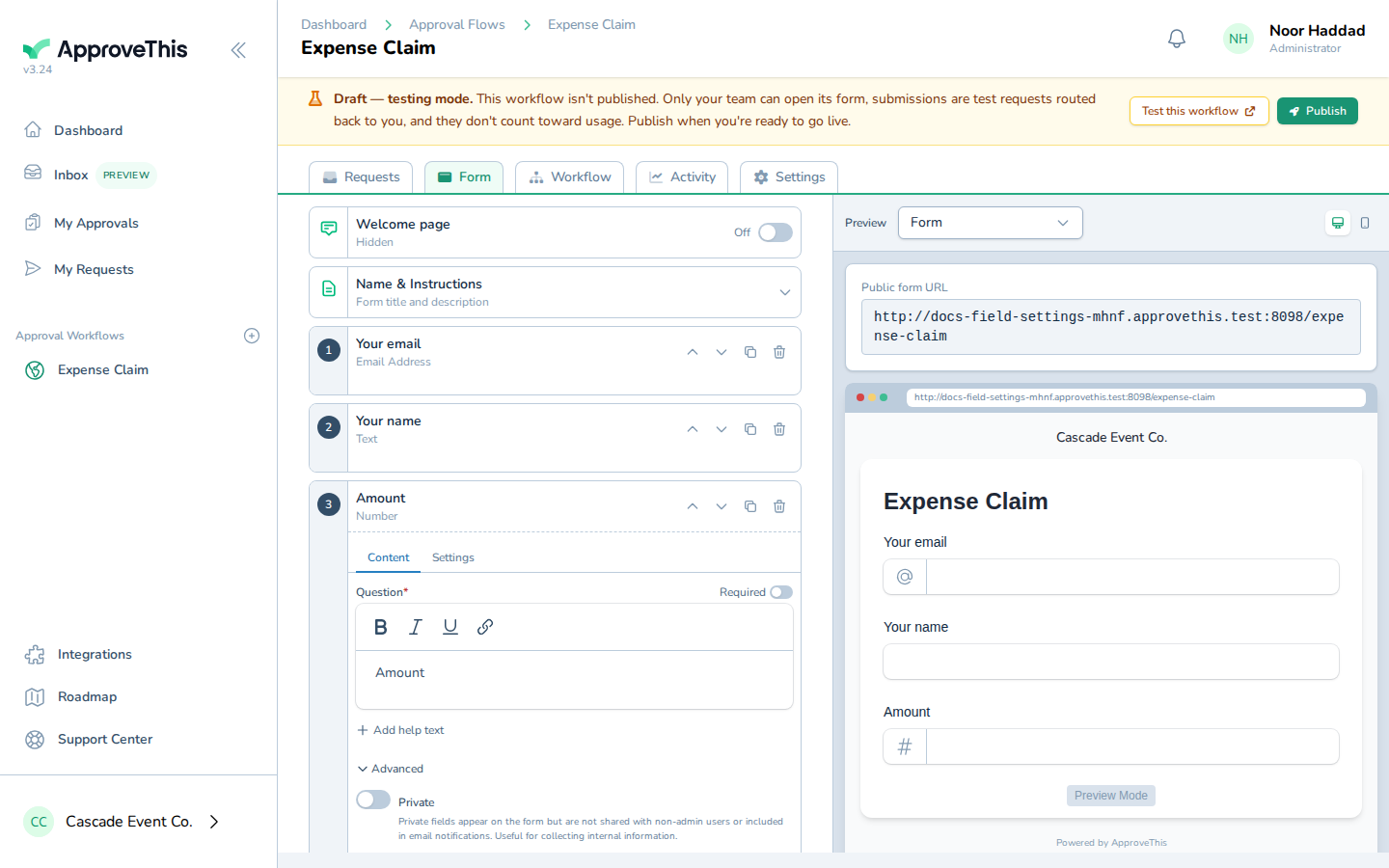
Click Advanced to expand the section holding the Private switch and the machine slug. -
In field_slug, type the short machine name you want formulas and routing rules to use, such as
total_cost; typed values are sanitized to lowercase and underscores.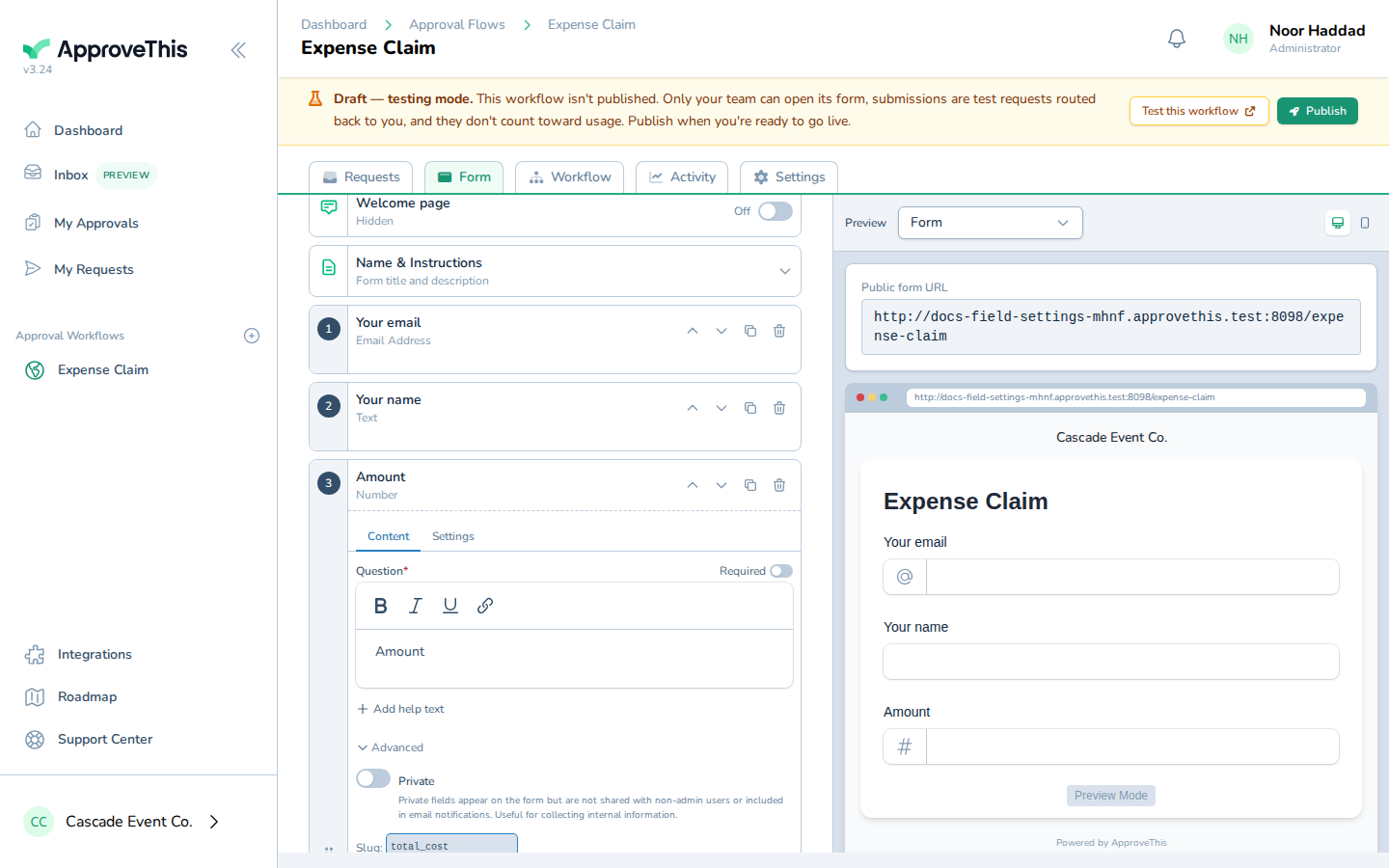
In field_slug, type the short machine name you want formulas and routing rules to use, such as total_cost; typed values are sanitized to lowercase and… -
Press
Tabto commit the change.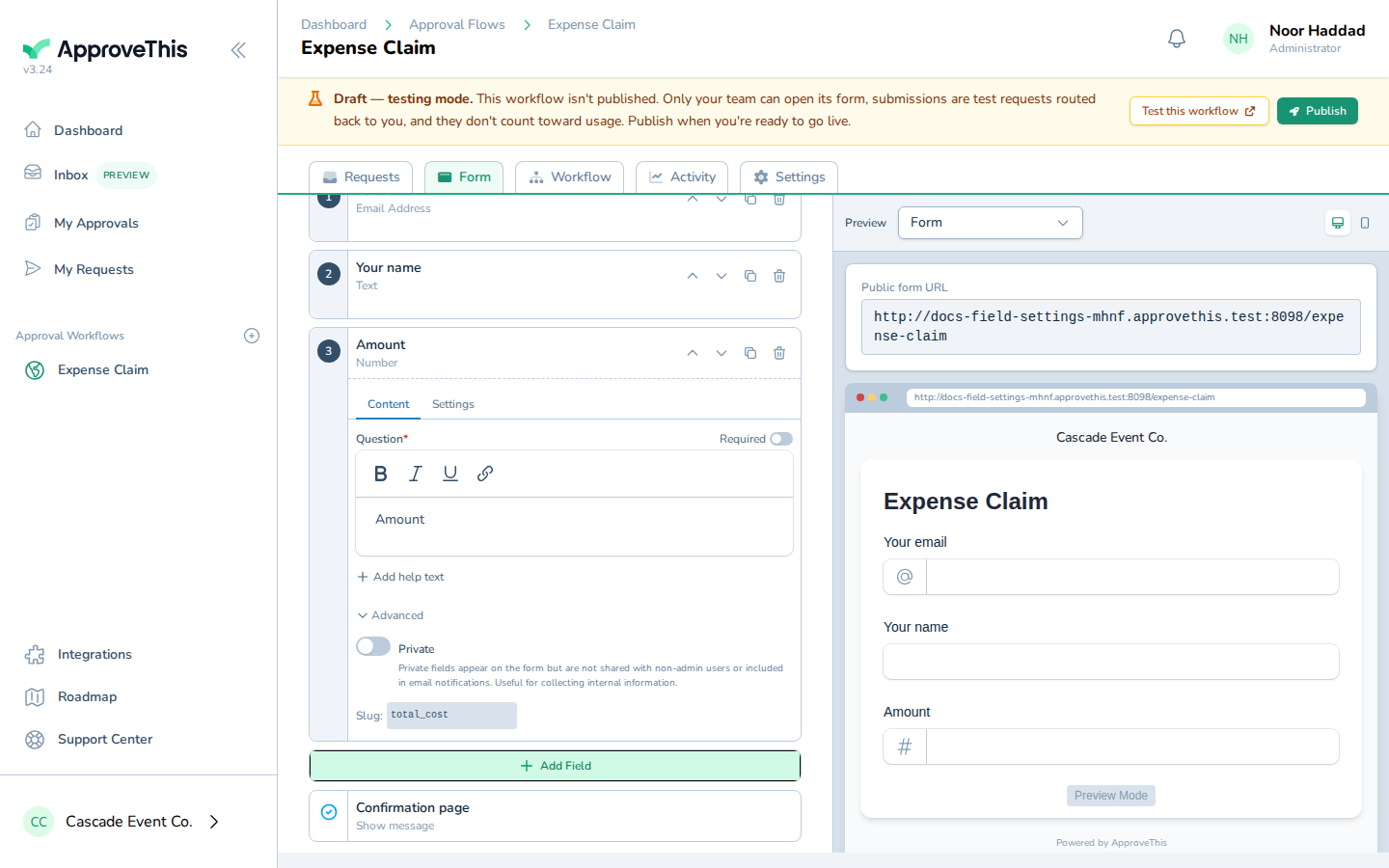
Press Tab to commit the change.