Notification Branding
Make a flow's forms and notification emails unmistakably yours — brand color, fonts, logo, and sender name, with a live preview and team-level inheritance for anything you leave blank.
Updated
Approval emails and forms that reach vendors, external approvers, or public form submitters land in inboxes where a generic sender name looks like spam. Branding settings on a workflow control the colors, fonts, logo, and the from-name recipients see, and anything you leave blank inherits from the workspace branding — so a client-facing workflow can carry that client's color while internal ones stay on the default. This guide is for Administrators working in a published workflow's Settings tab. The editor puts section tabs above a live preview, so you can check the branded email before saving.
Who this is for: an Administrator.
Set the flow's brand color and email sender name
A recognizable color and sender name are what make an approval request read as yours rather than as unsolicited mail — which matters most when the recipient is outside your workspace. Fields you leave blank keep inheriting the workspace-level branding, so you only set what differs for this workflow.
-
Sign in as an Administrator.
-
Click Branding in the settings section menu.
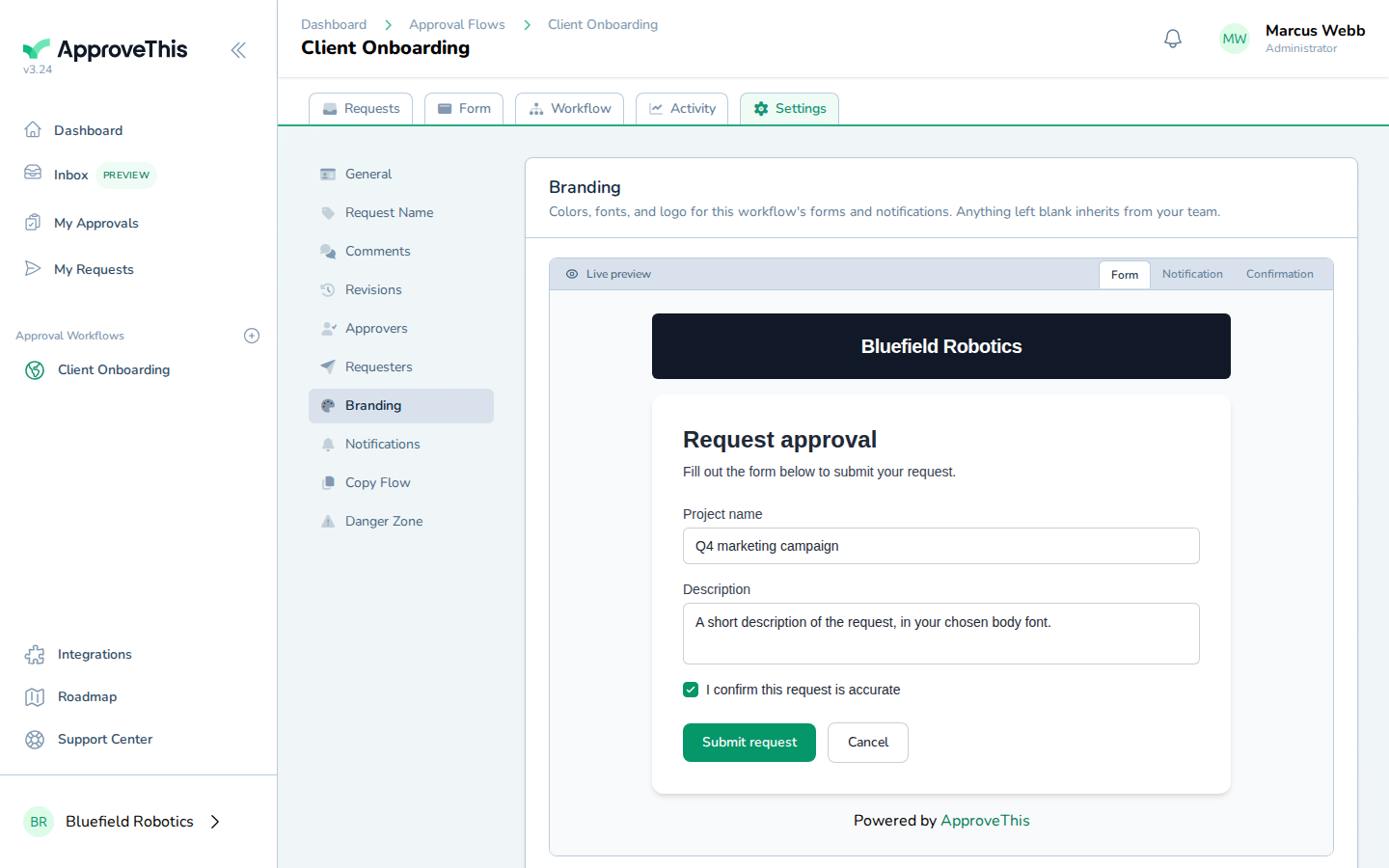
Click Branding in the settings section menu. -
Enter the hex code for the brand color you want this workflow's forms and emails to use in Primary hex color (the example uses
#7C3AED).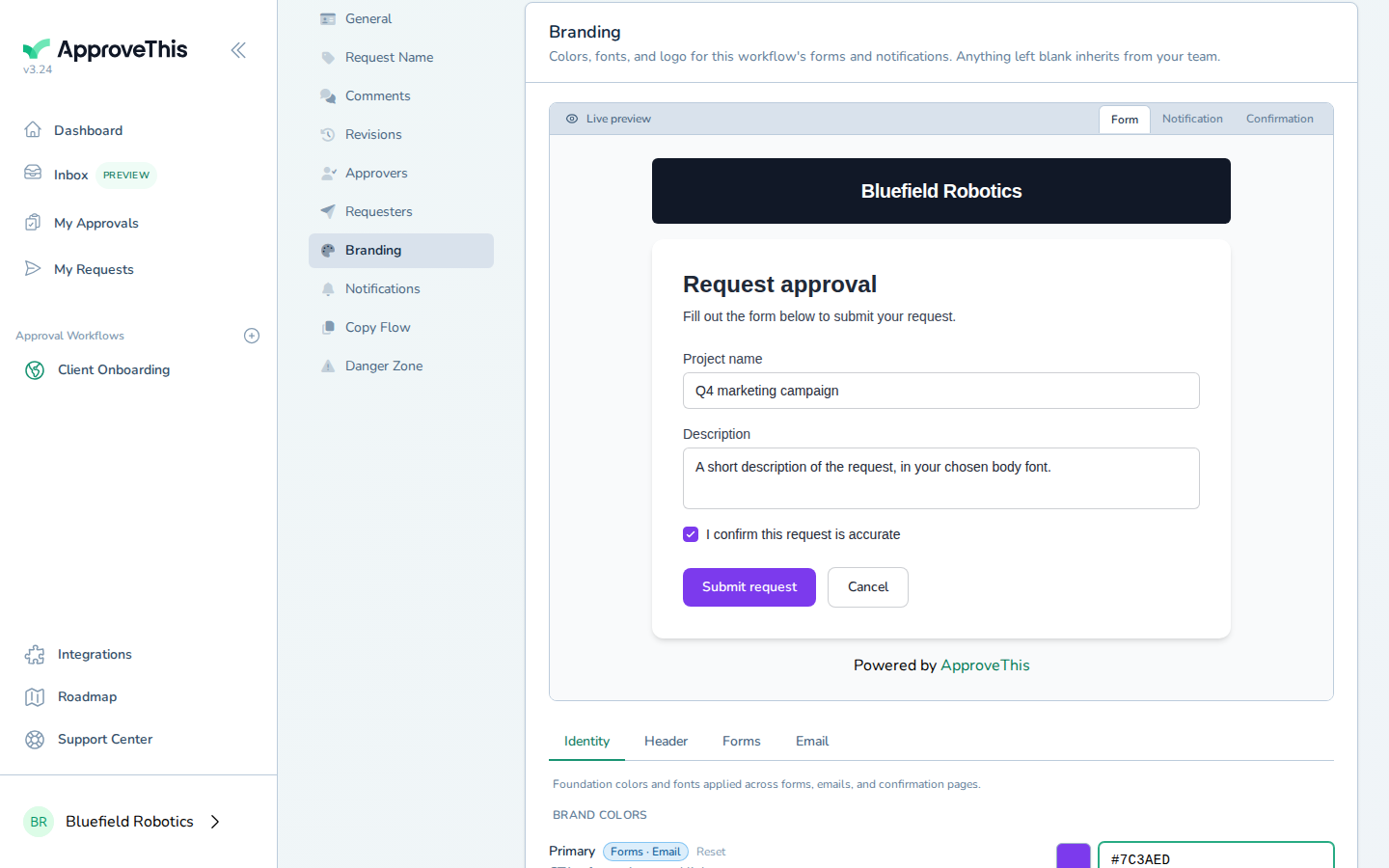
Enter the hex code for the brand color you want this workflow's forms and emails to use in Primary hex color (the example uses #7C3AED). -
Click Email to open the email branding tab.
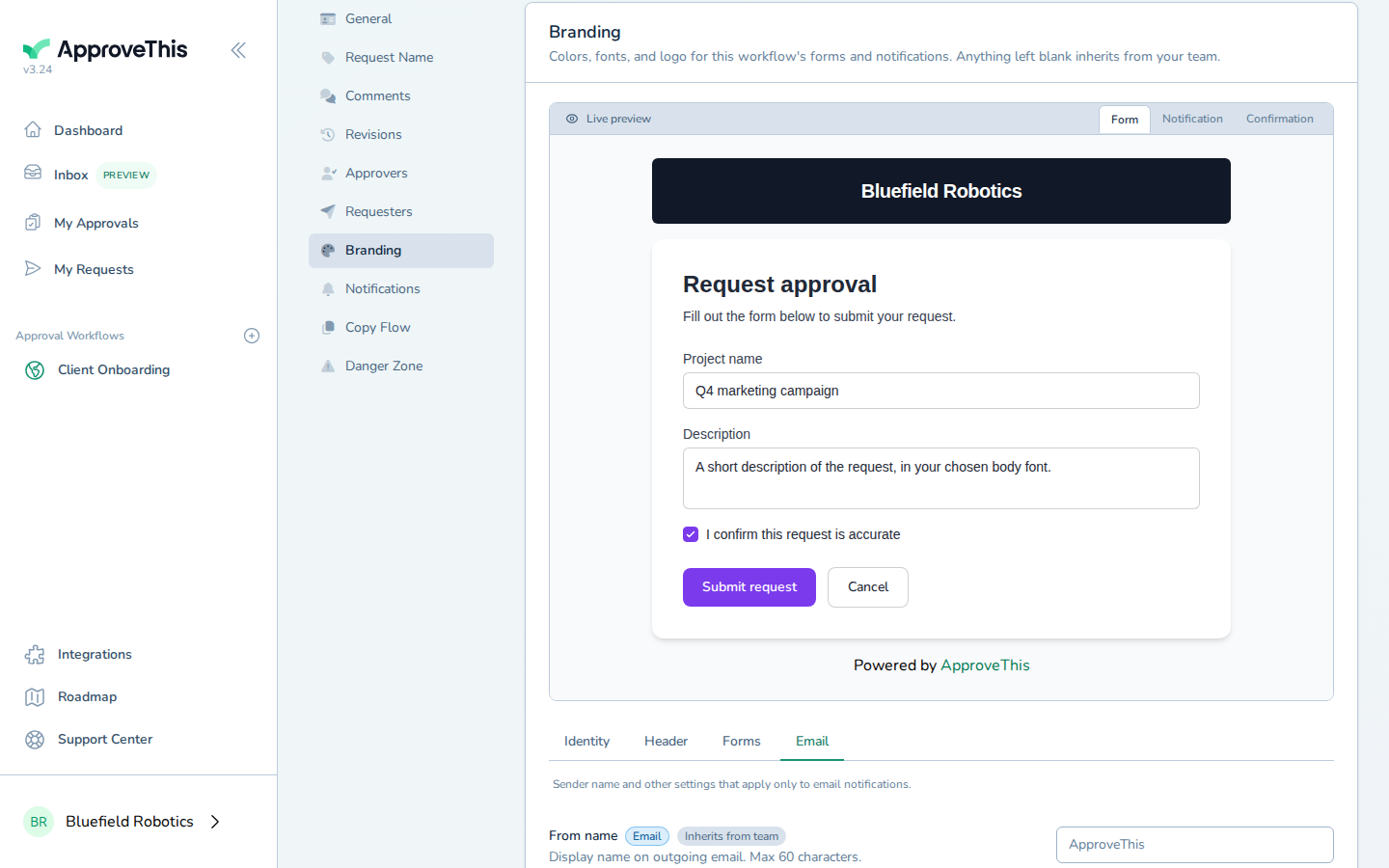
Click Email to open the email branding tab. -
Enter the sender name recipients should see in their inbox in From name — such as
Acme Approvals.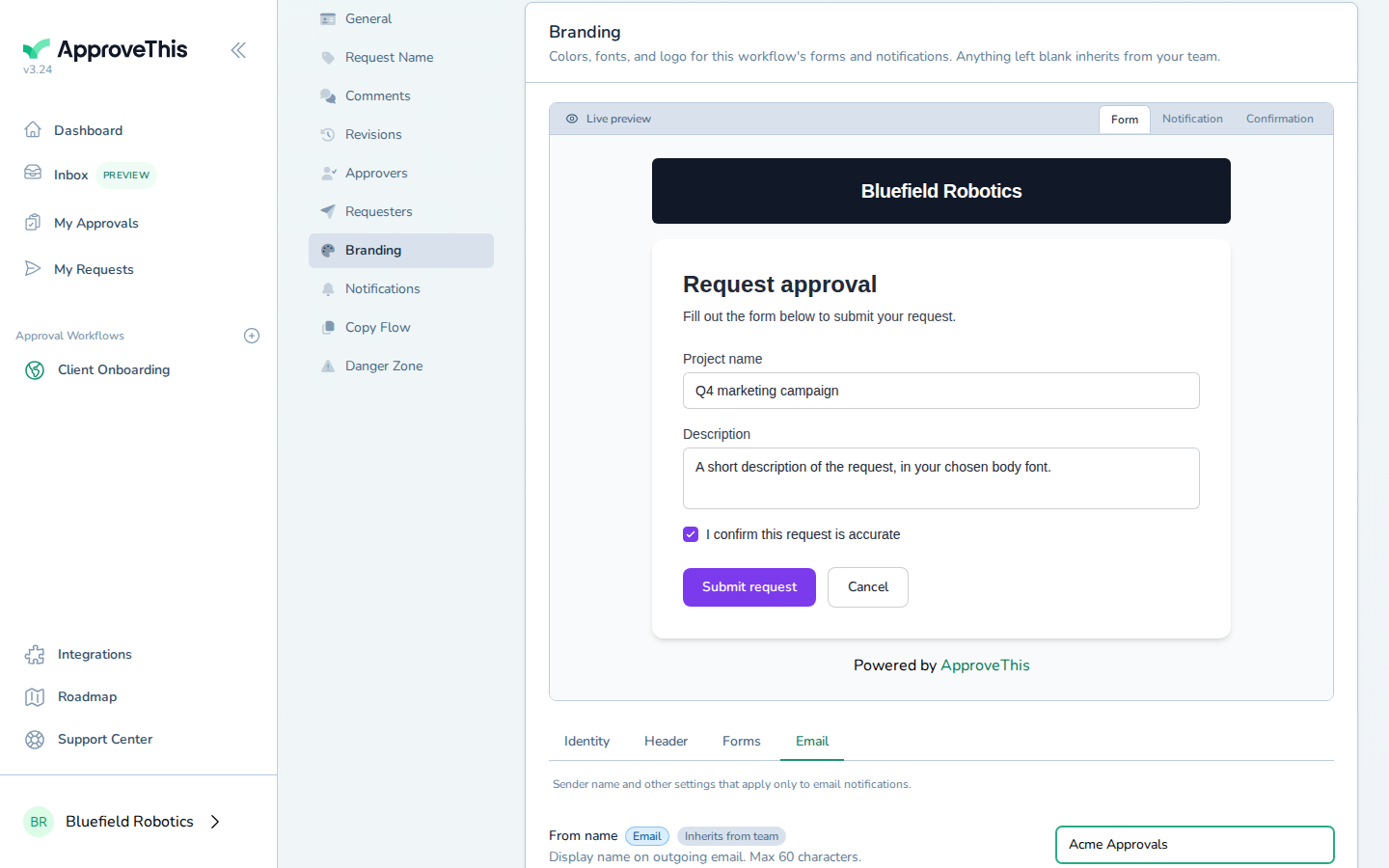
Enter the sender name recipients should see in their inbox in From name — such as Acme Approvals. -
Click Notification in the preview to switch the mockup to the branded email, showing your sender name before anything is saved.
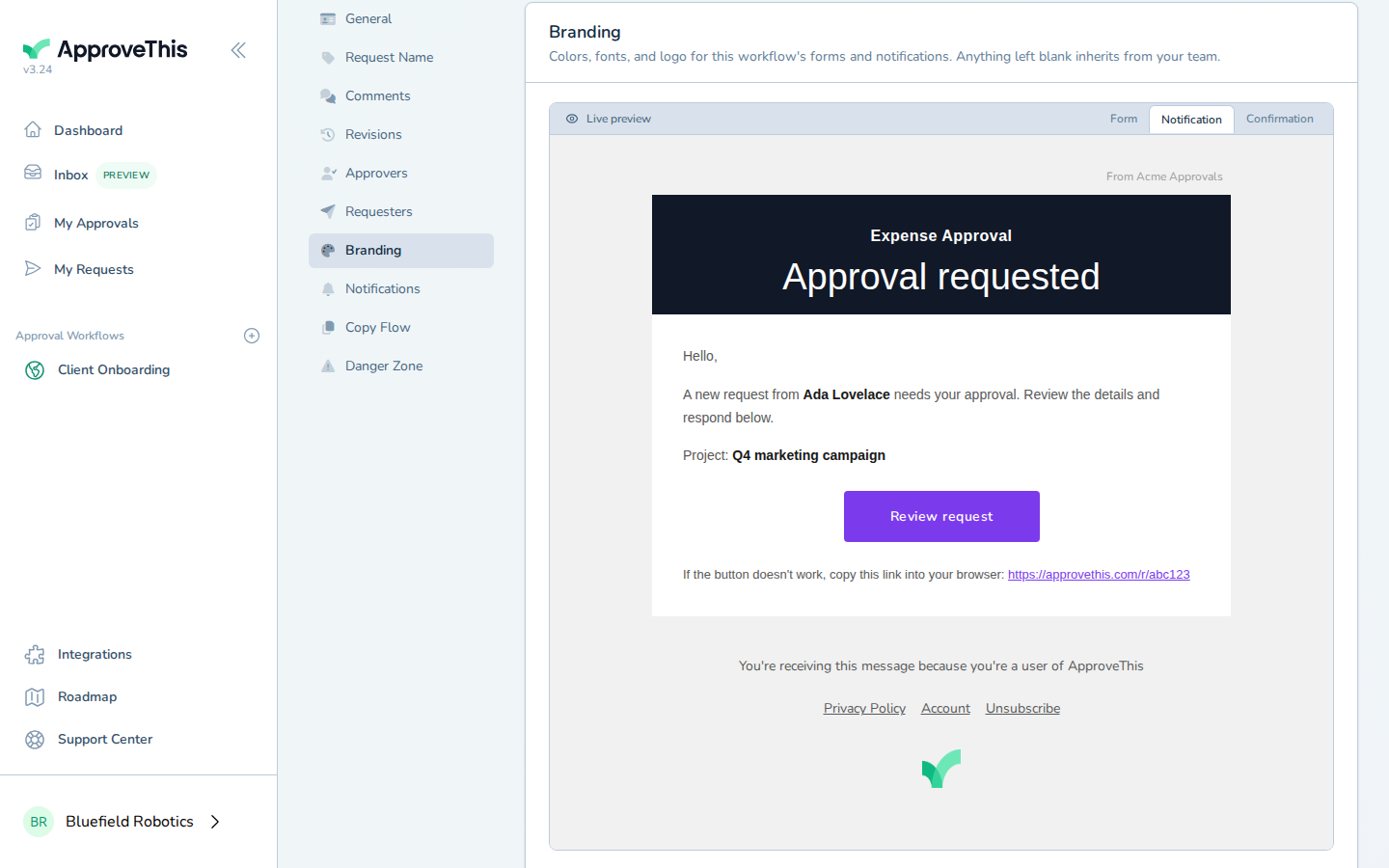
Click Notification in the preview to switch the mockup to the branded email, showing your sender name before anything is saved. -
Click Save.
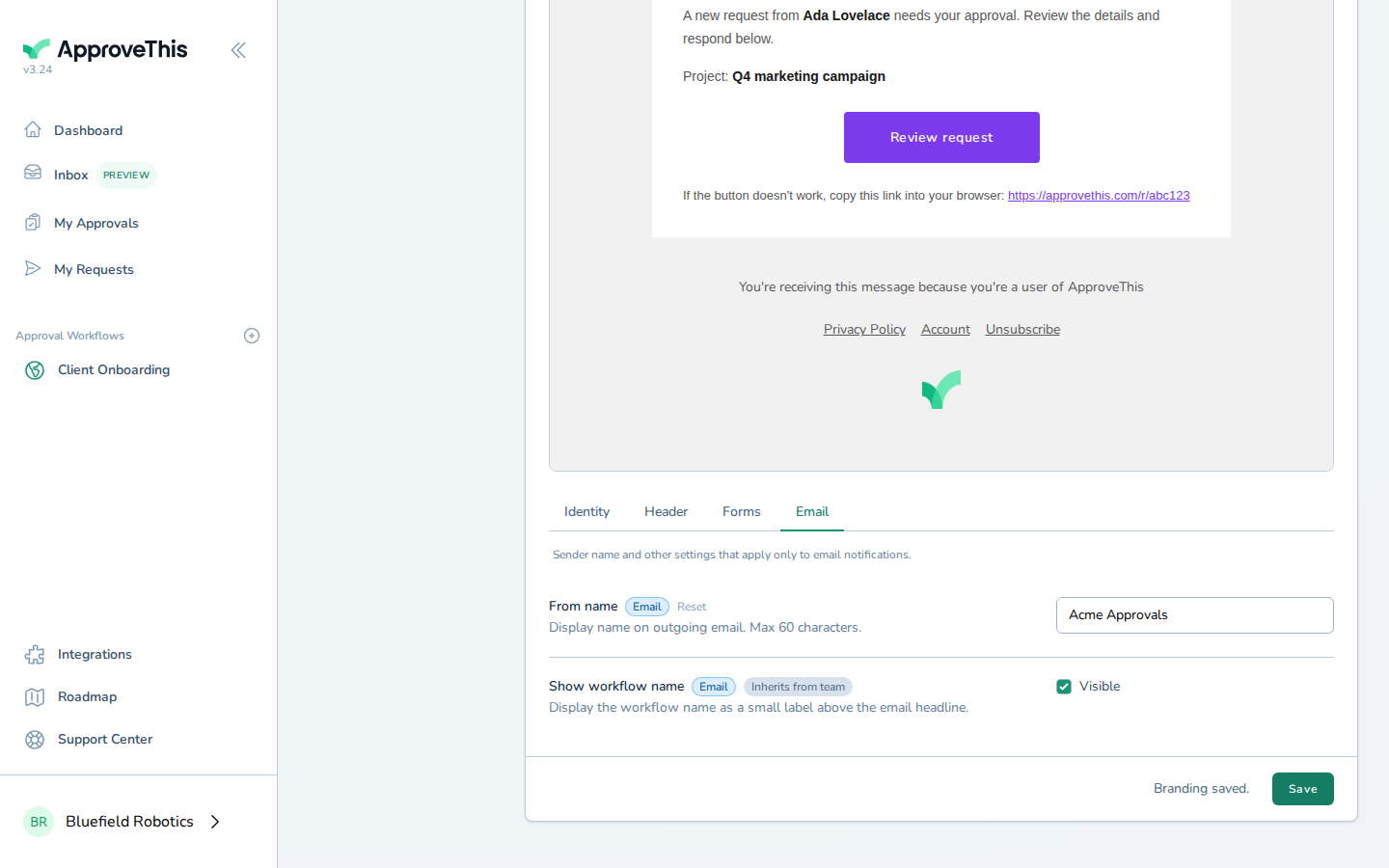
Click Save.