Resend an Approval Request
When an approval email never landed, resend it from the request's activity log. The approver gets the same email again with working links.
Updated
An approval can stall for a reason that has nothing to do with the approver: the notification email never arrived. Resending sends that same approval email again, with working links, from the record of activity on the request itself. This is written for Administrators and Users who own a request that's waiting on someone. You'll need a request already sitting with an approver.
Who this is for: an Administrator or a User.
Resend the approval request from the request's activity log
An approver who says they never got the email doesn't need a new request opened for them; resending puts the original approval email back in their inbox with its links intact. The activity log is also where the resend is recorded, so there's a record that it happened.
-
Sign in with your administrator account.
-
Open the workflow that holds the request you need to chase — Contract Sign-offs 1 in the example screenshots.
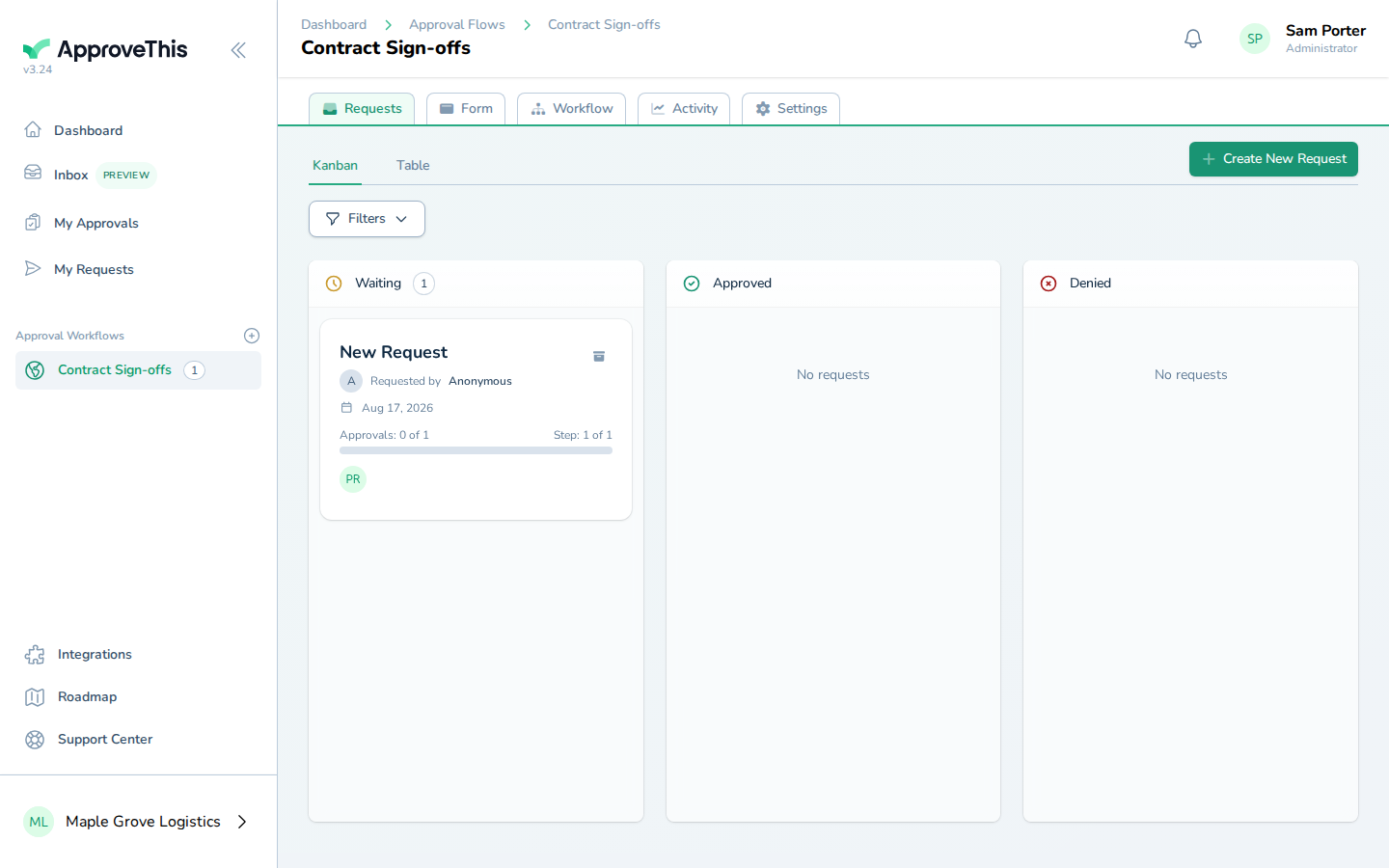
Open the workflow that holds the request you need to chase — Contract Sign-offs 1 in the example screenshots. -
Click New Request.
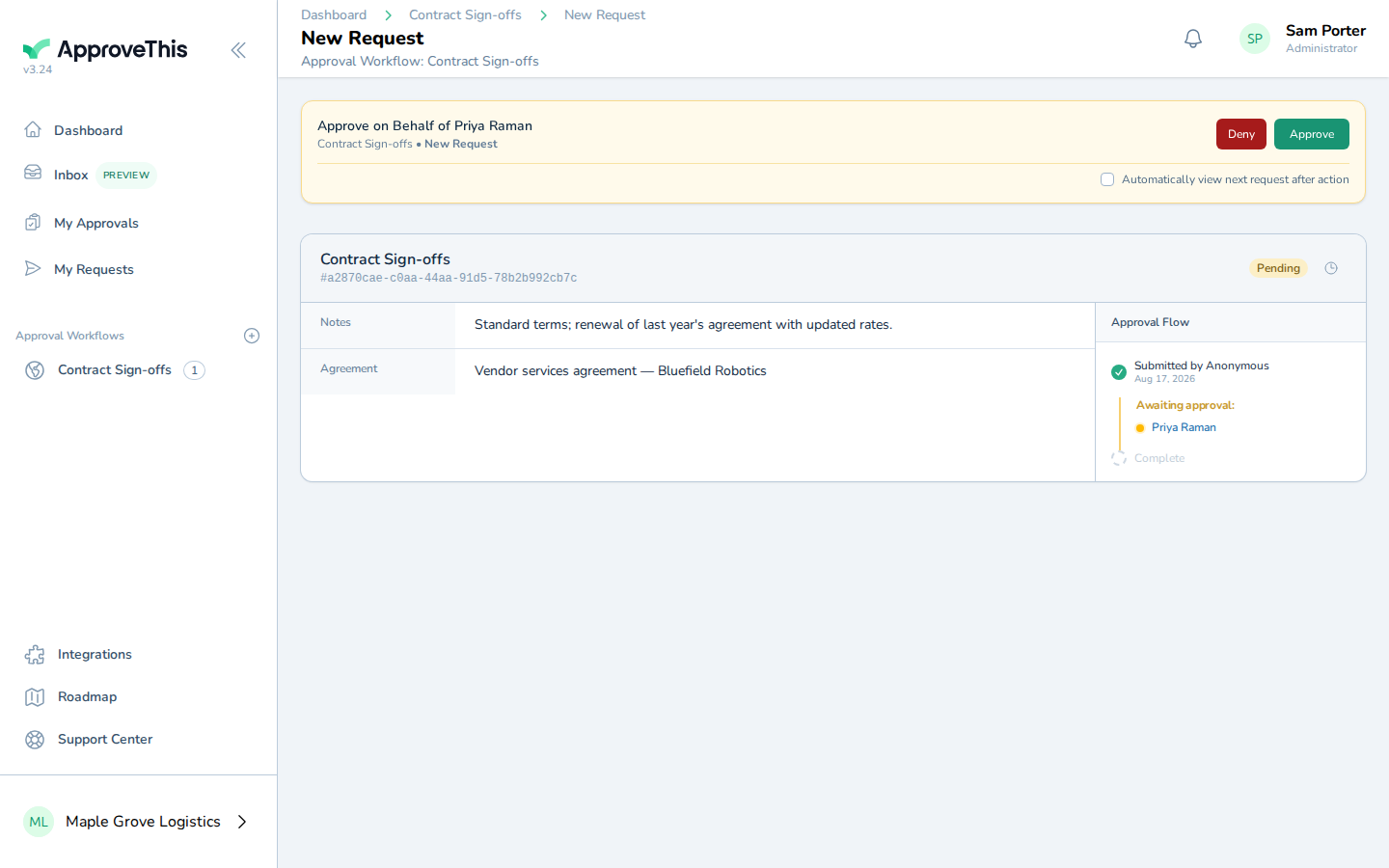
Click New Request. -
Click Activity Log.
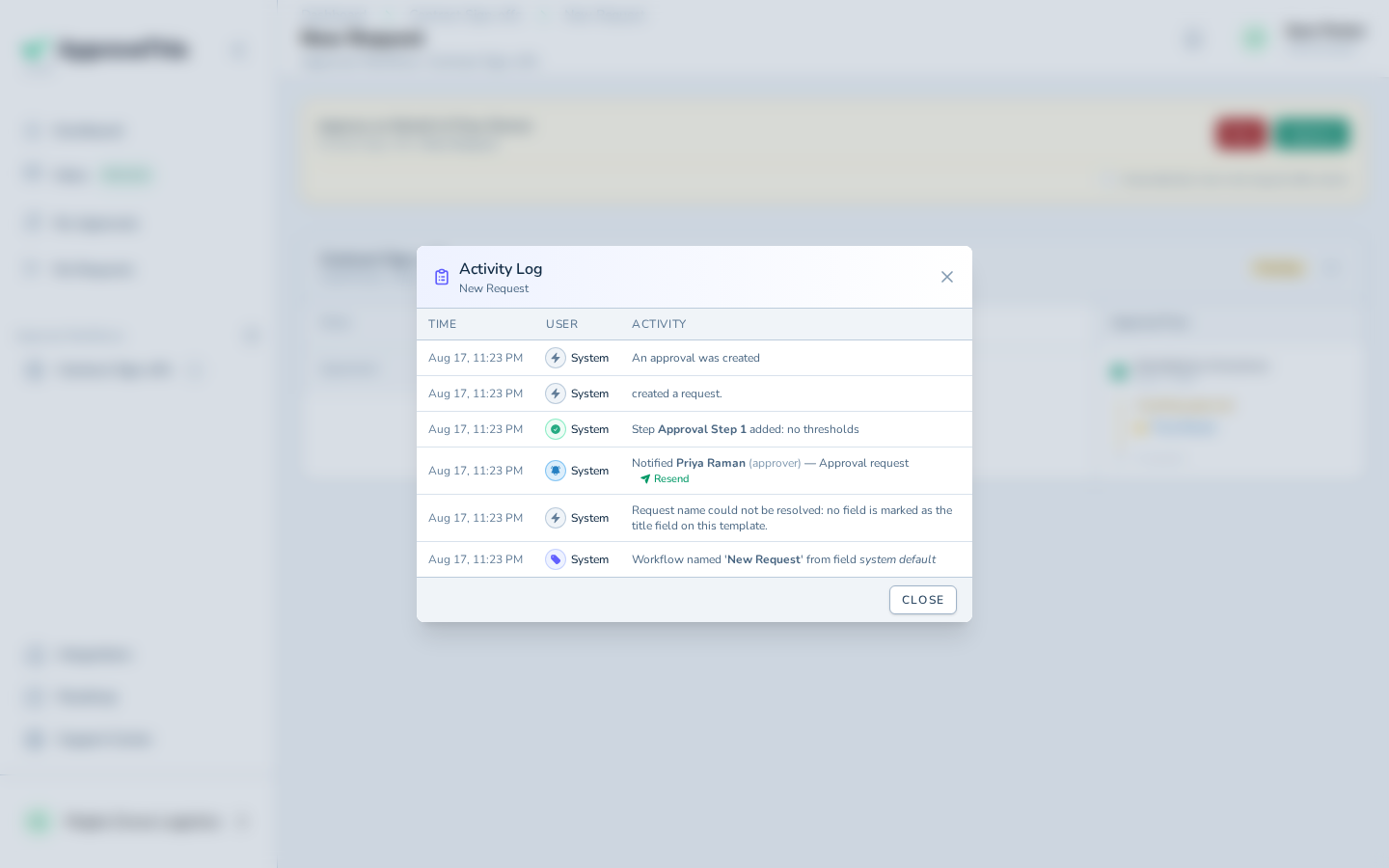
Click Activity Log. -
Click Resend.
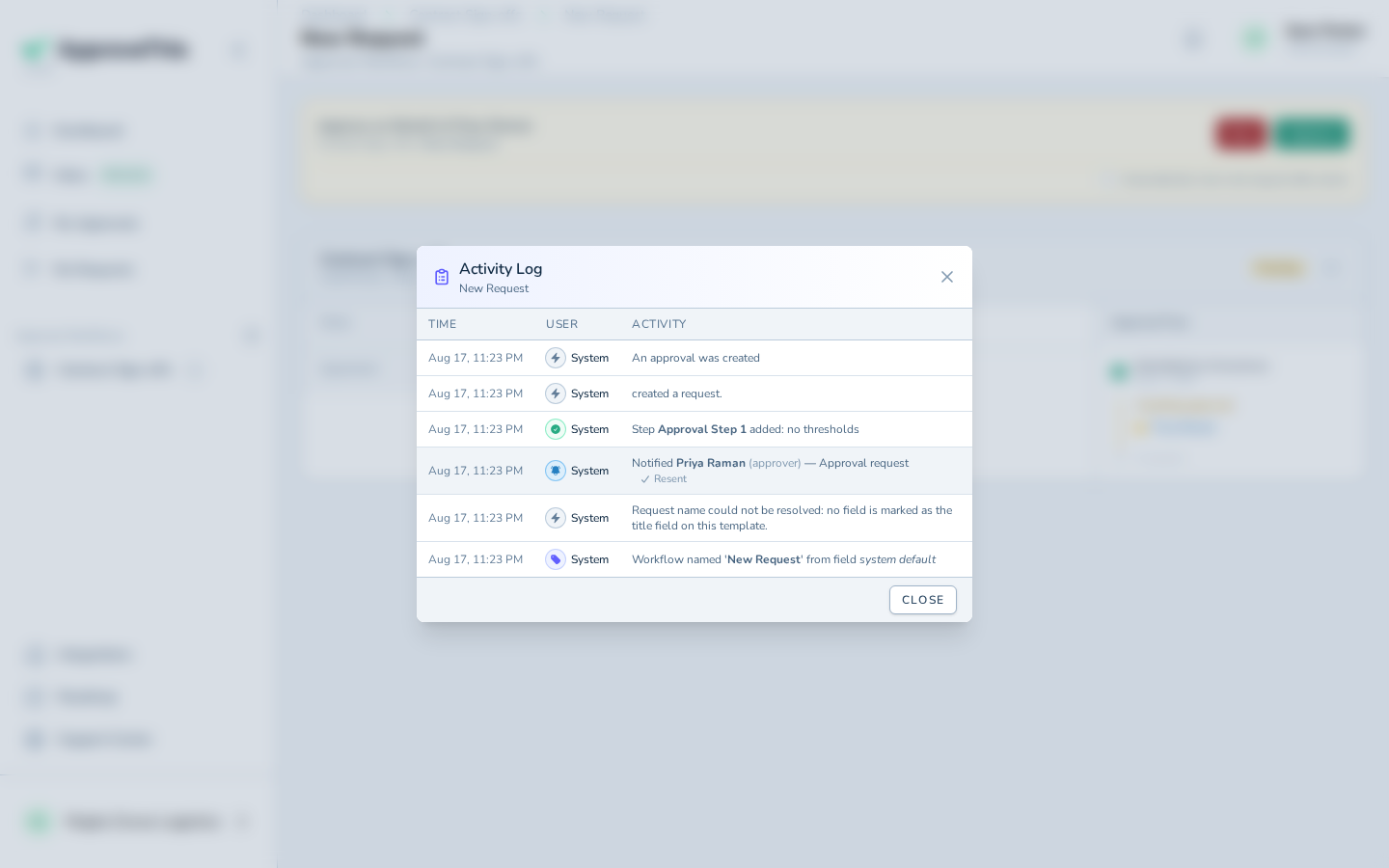
Click Resend.
Open the email inbox and confirm the approver received the approval email again
Before you tell the approver to check again, confirm the message actually went out. Opening the inbox shows the delivered approval email rather than just the app-side log entry.
-
Open the email inbox.
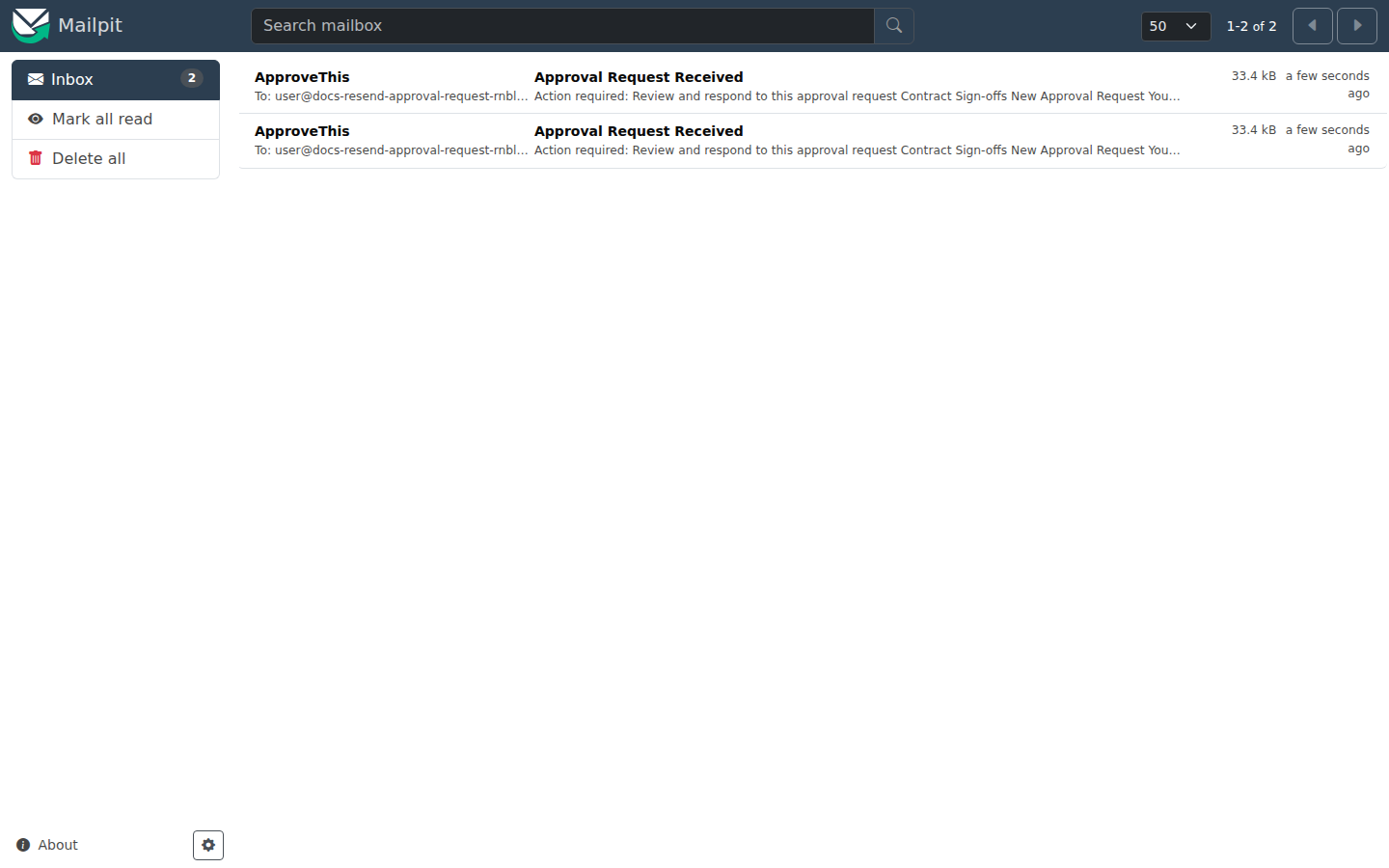
Open the email inbox. -
Open the message from ApproveThis.
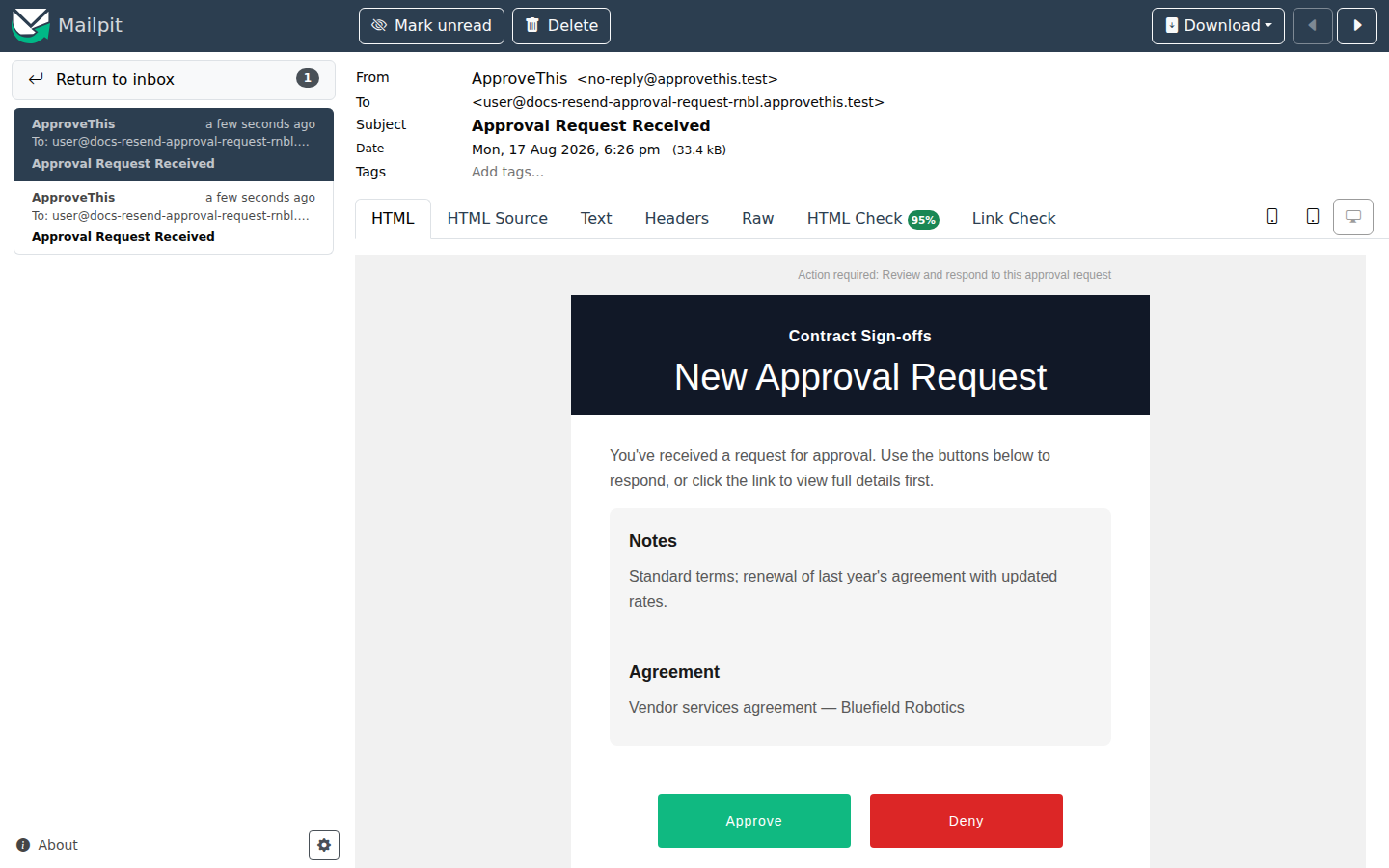
Open the message from ApproveThis.