User Selection Fields
Let the requester name who approves. A User Selection field puts a people-picker on the form, and an approval step routes to whoever they choose — so the form decides its own approver instead of you hard-coding one.
Updated
Some approvals have no fixed approver: the right person depends on what the request is about — the owner of the system, the lead on the project, the manager holding the budget. A User Selection field puts a people-picker on the form so the requester chooses a team member, a group, or their manager, and an approval step can read that field and route to whoever was picked, resolved when the request is created. This guide covers both halves: adding the picker to the form, then pointing a step at it. You'll need a workflow you can edit, open to its Form tab.
Who this is for: an Administrator.
Add a User Selection field so the requester can pick a person
Routing that follows the asset, the team, or the spend can't name an approver at build time, so the choice belongs to the person filling out the form. Note that this field type requires an authenticated submitter: it disappears from the palette once a workflow allows anonymous responses, a form already holding one can't be switched to public submissions, and it isn't offered on CC-approval workflows.
-
Sign in to ApproveThis as an Administrator.
-
On the Form tab, click Add Field to open the field palette.
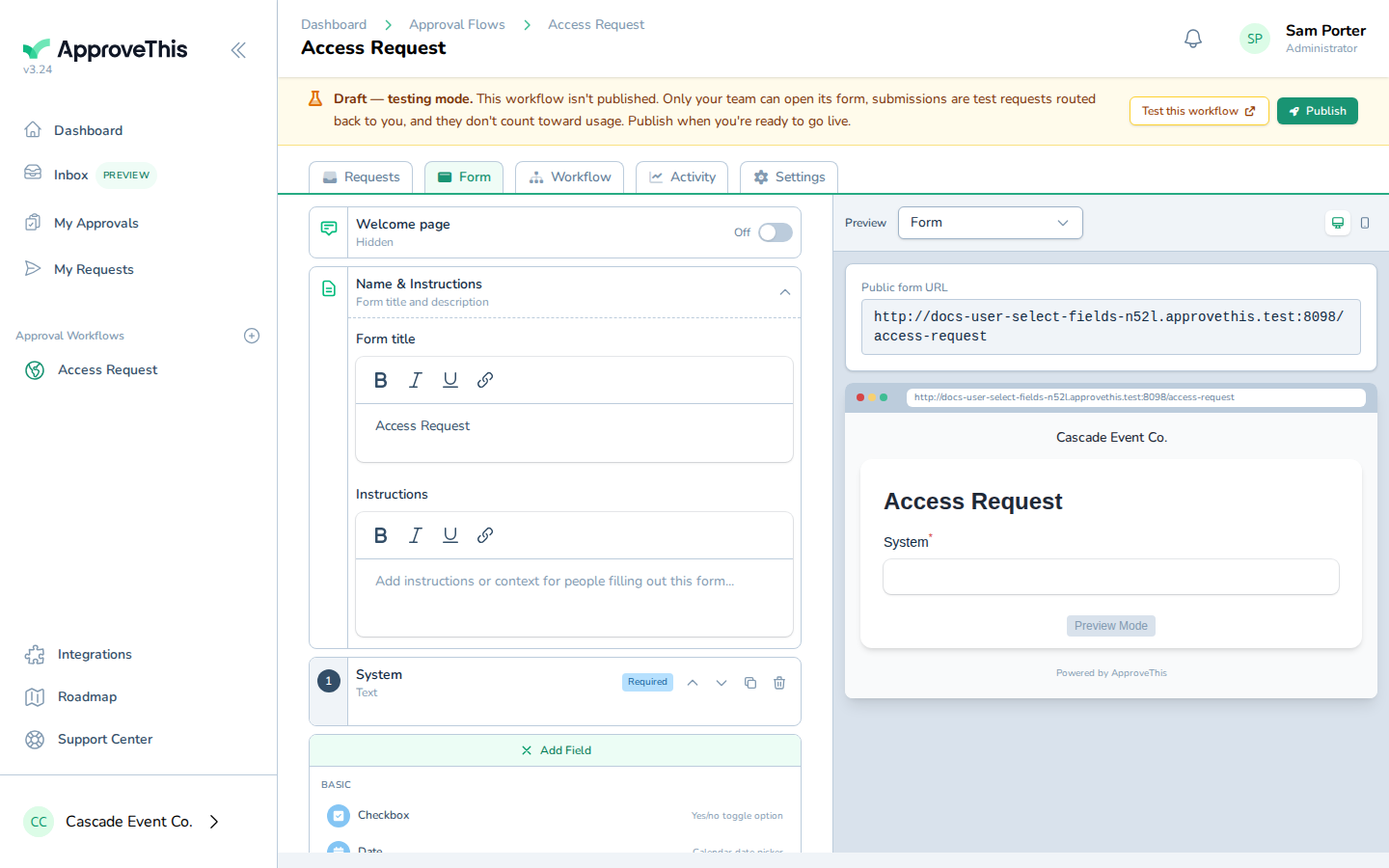
On the Form tab, click Add Field to open the field palette. -
Under the palette's Advanced group, click User Selection. There is no separate settings tab for this type; the picker itself is the configuration.
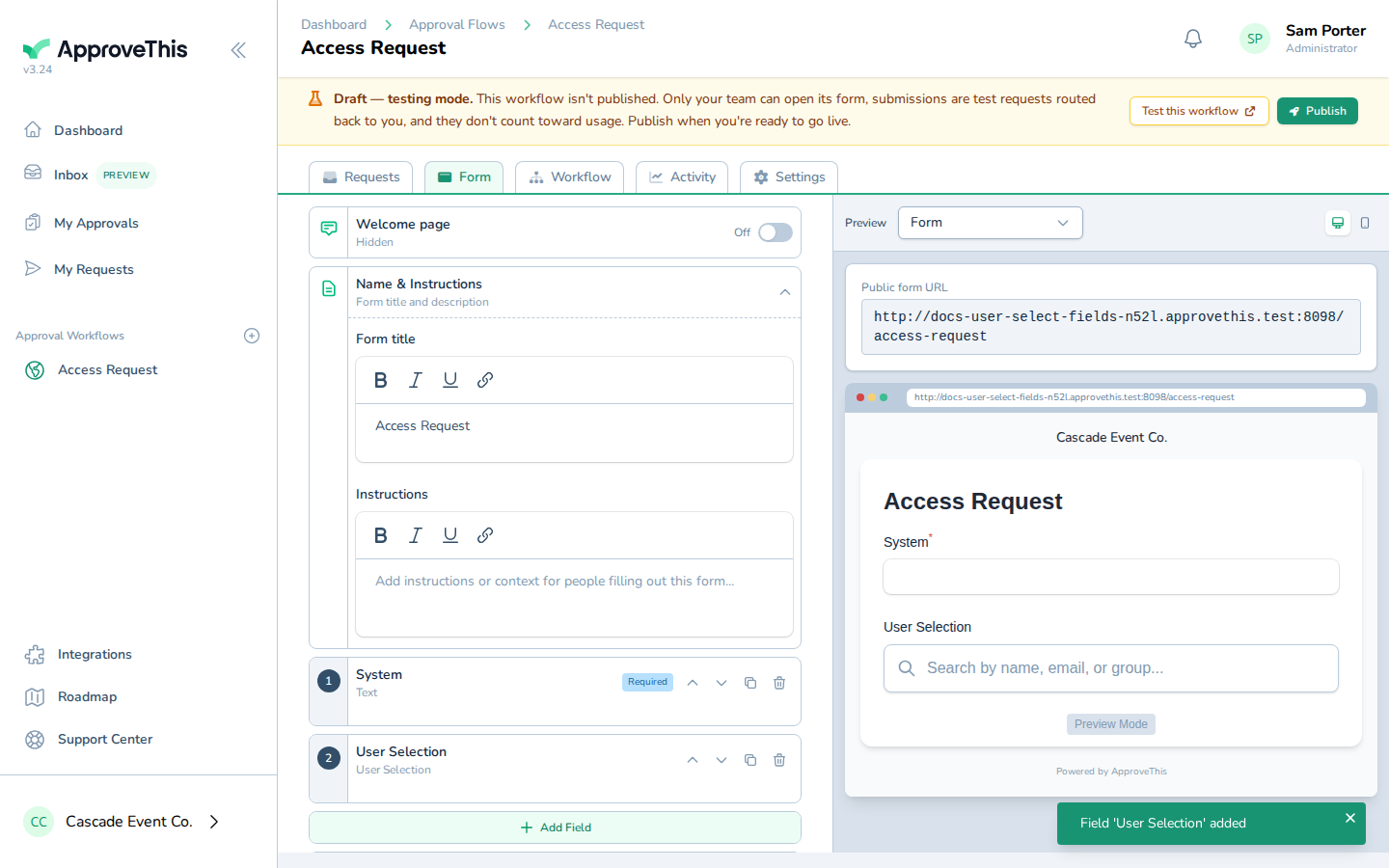
Under the palette's Advanced group, click User Selection. There is no separate settings tab for this type; the picker itself is the configuration.
Route an approval step to the person the requester picks
A picker on the form changes nothing about routing until a step reads it, and this is where that link is made: the request goes to whoever the requester selected. If a requester picks their manager and no manager is assigned for the team, resolution falls back to the workflow's owner.
-
Click Workflow to move from the form to the workflow's approval steps.
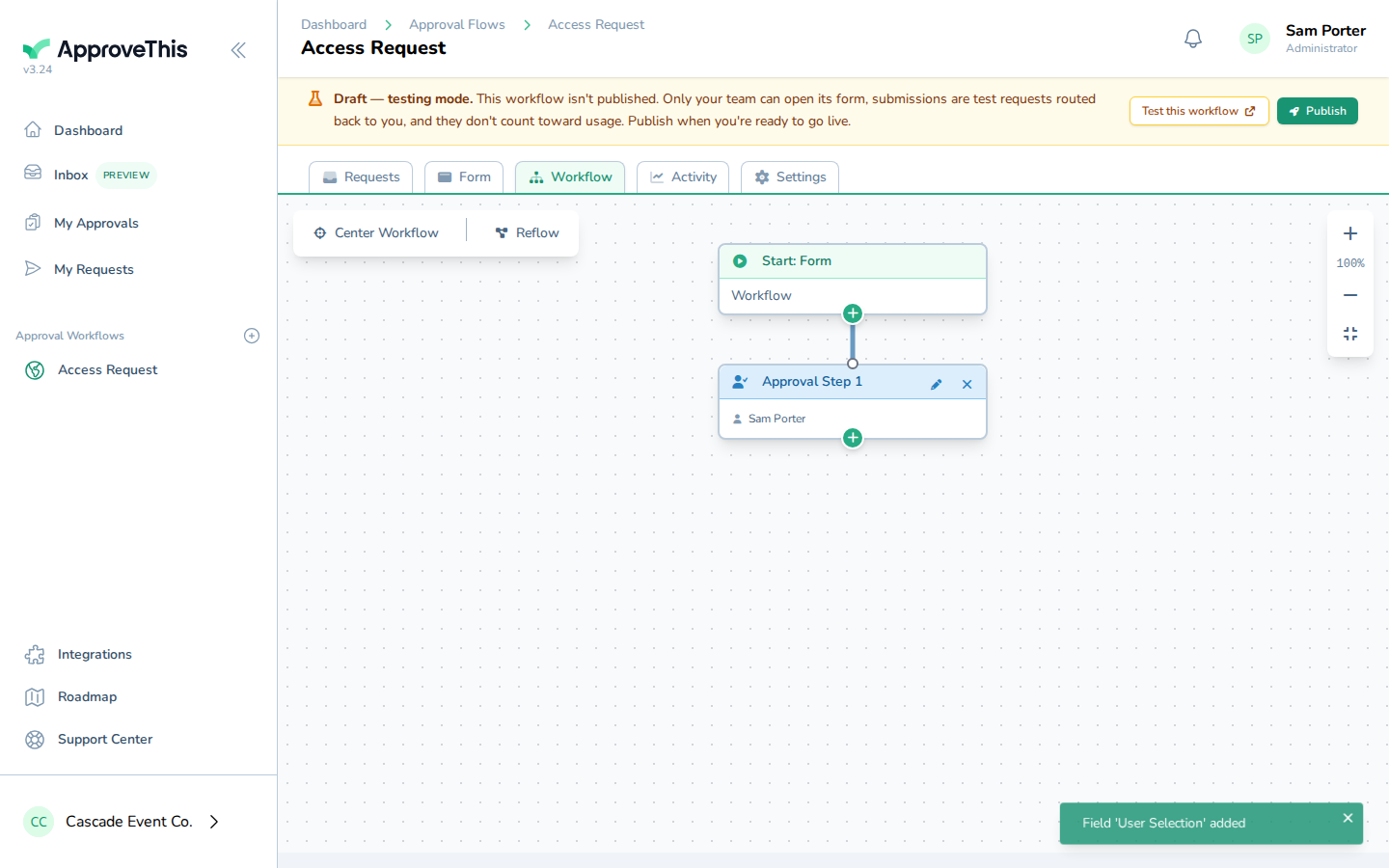
Click Workflow to move from the form to the workflow's approval steps. -
On the step that should go to the person the requester picks, click Configure step.
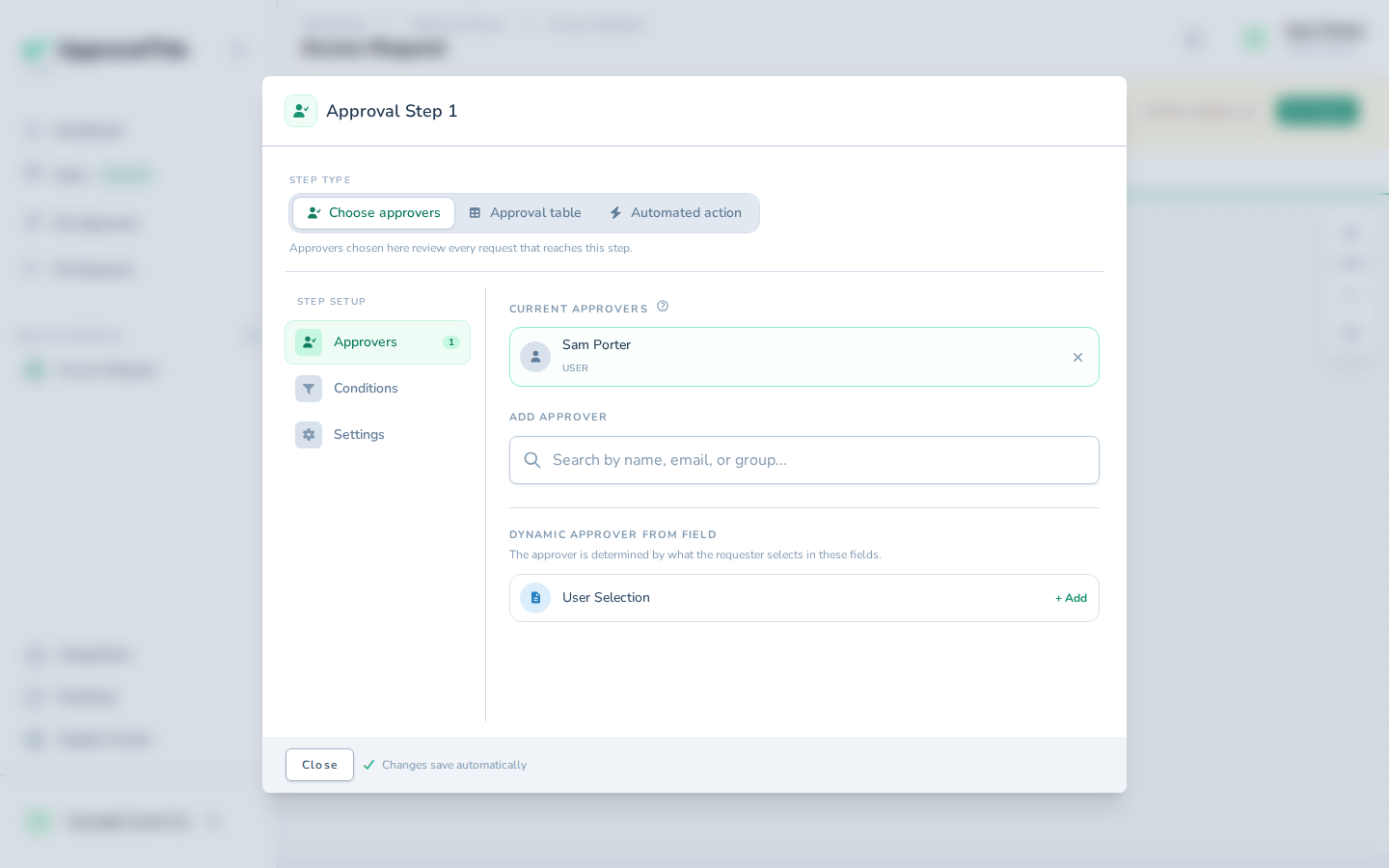
On the step that should go to the person the requester picks, click Configure step. -
In the step's approver configuration, click + Add.
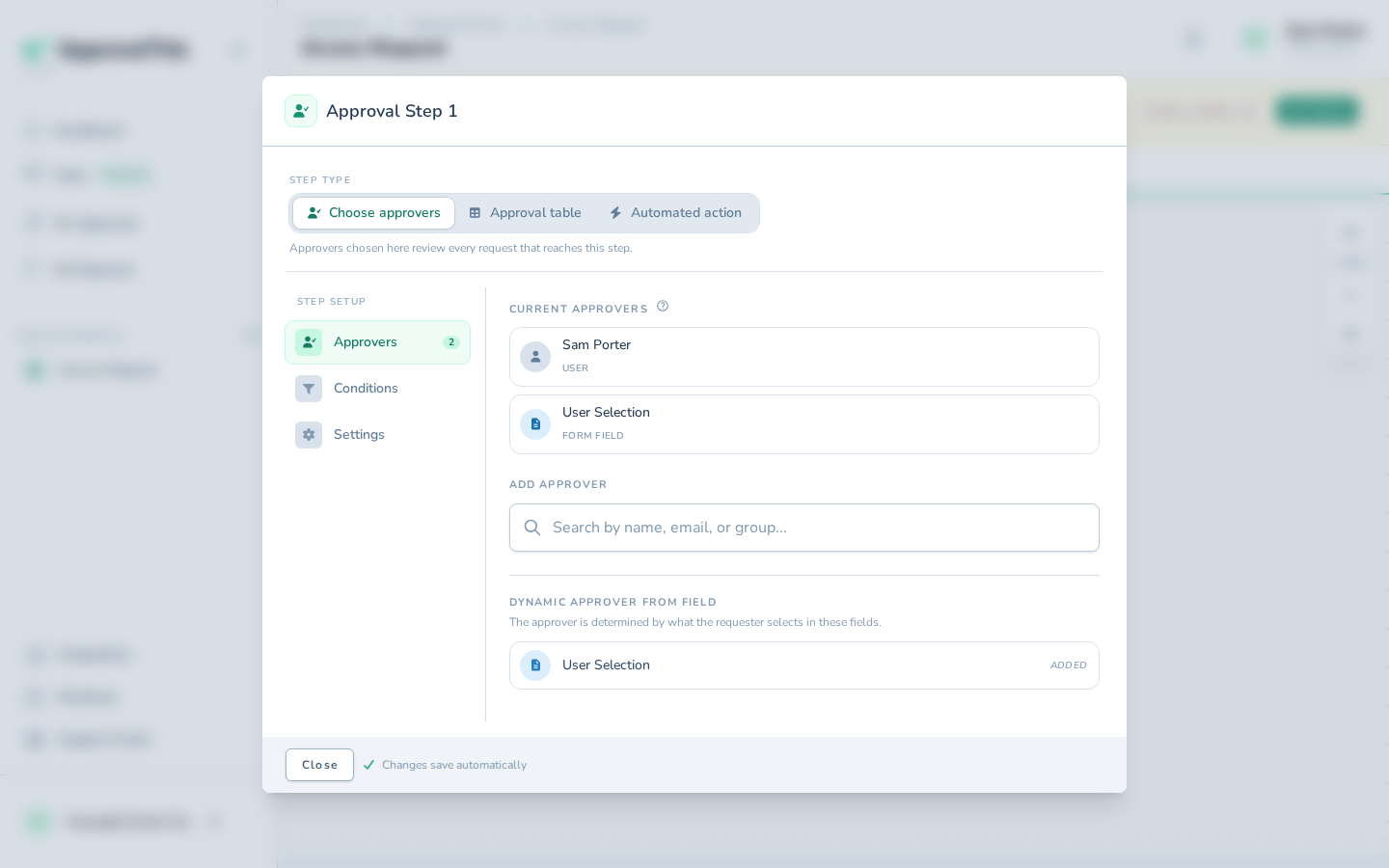
In the step's approver configuration, click + Add. -
Click Close to leave the step configuration.
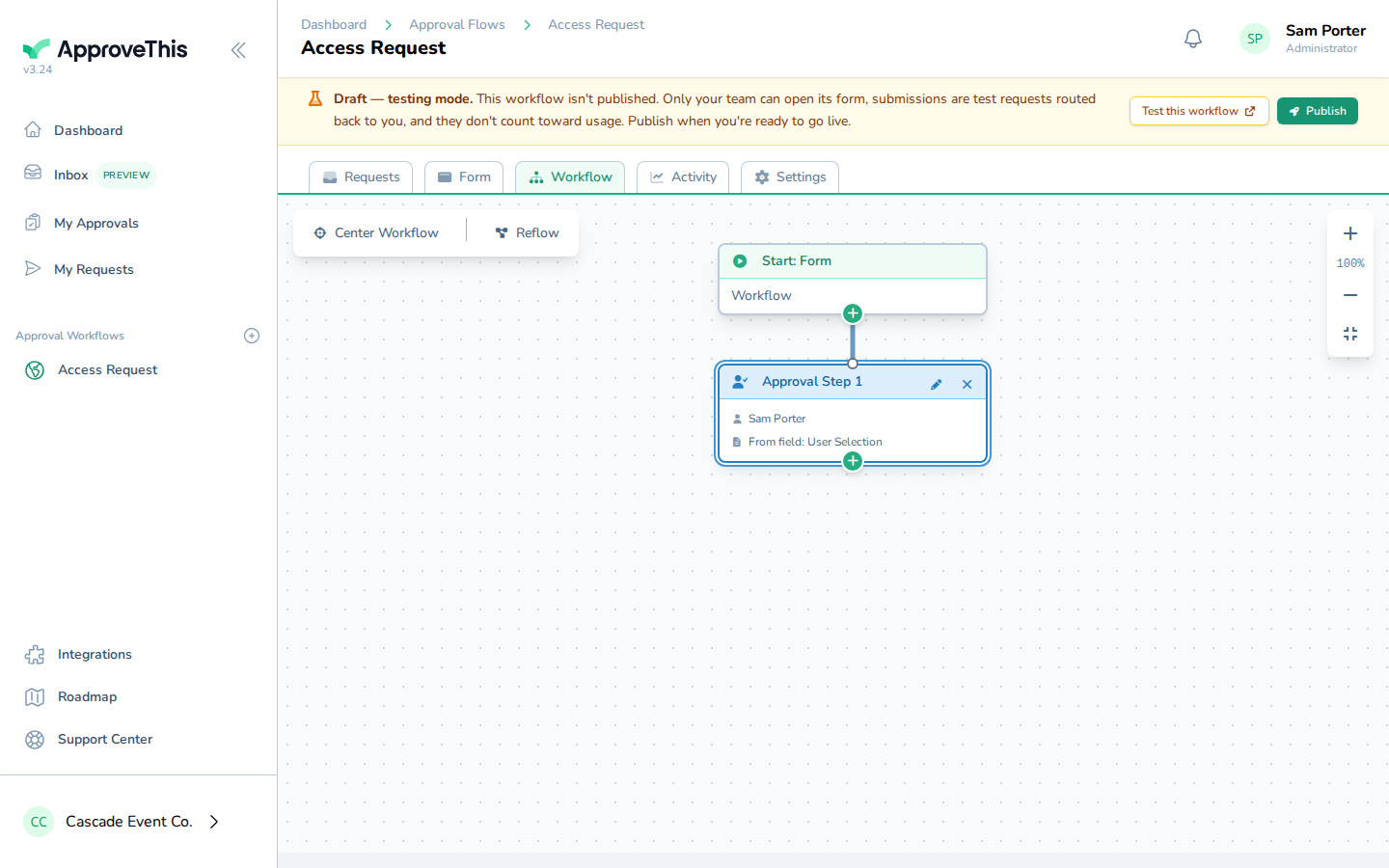
Click Close to leave the step configuration.