Approval Certificates
Hand anyone a tamper-evident record of an approval: a downloadable certificate for a completed request, with a public verification link a third party can check without an account.
Updated
An approved request often needs to be shown to someone outside the workspace — an auditor, a vendor, a finance contact who never logs in. ApproveThis turns a completed approval into a downloadable PDF certificate that carries a public verification link, so the recipient can check it is genuine without an account. This guide is for Requesters working from a request that has already been approved, and covers downloading the certificate and confirming the verification page. Approval Certificates are available on all tiers.
Who this is for: a Requester.
Download the approval certificate
A completed approval lives inside ApproveThis until you export it; the certificate is the copy you can attach to an email or hand across a desk. Downloads are recorded in the request's Activity Log, so you can see afterwards that a certificate was issued.
-
Sign in as the Requester who owns the approved request.
-
On the green approved bar, click Download Certificate to generate the PDF copy of the approval.
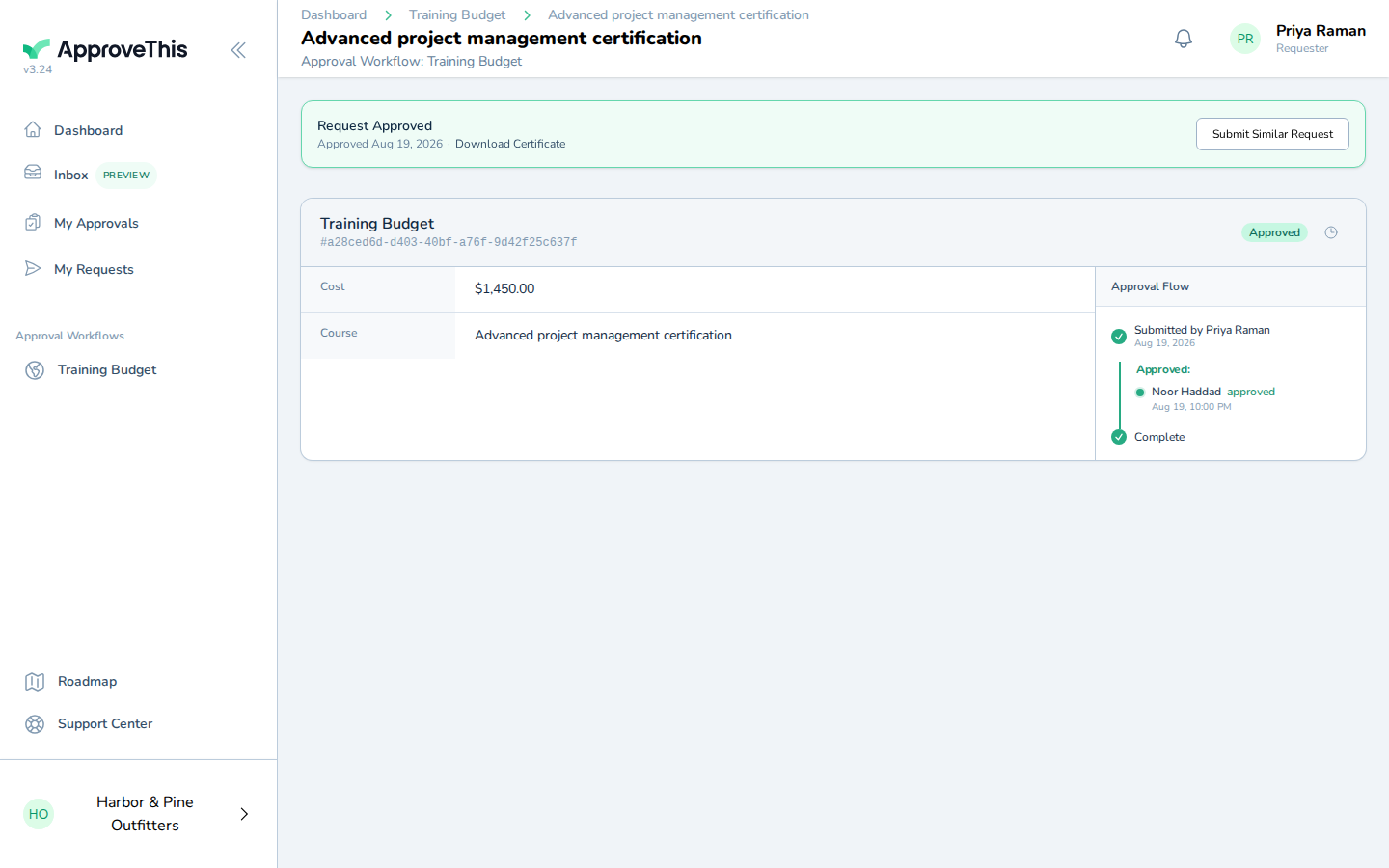
On the green approved bar, click Download Certificate to generate the PDF copy of the approval. -
Click Activity Log to open the request's history, where the download you just made is recorded.
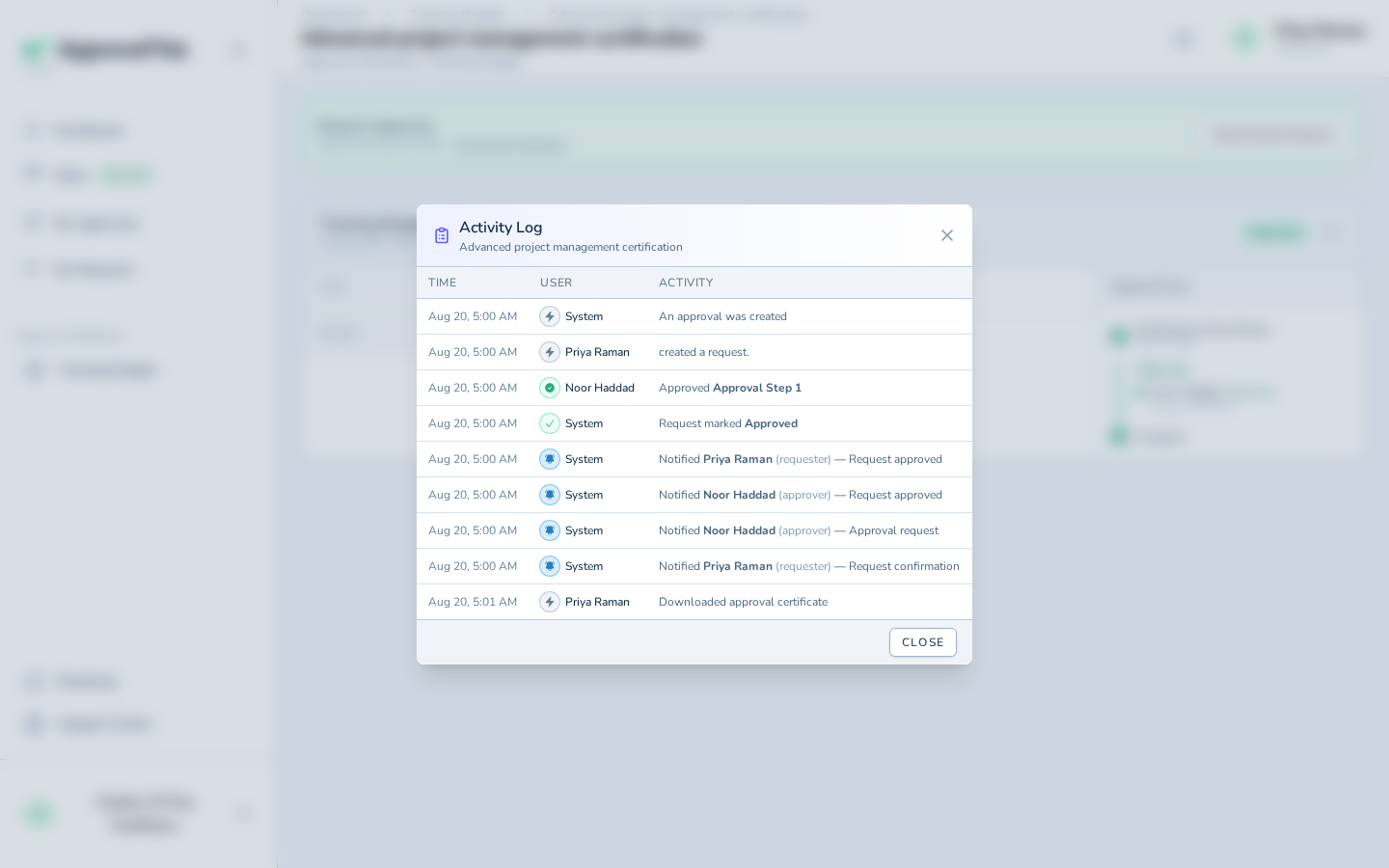
Click Activity Log to open the request's history, where the download you just made is recorded.
Confirm the certificate verifies as genuine
Anyone holding the PDF needs a way to tell a real certificate from a doctored one. The verification link — printed at the foot of the certificate as both a QR code and a URL — opens a public page confirming the approval, and no sign-in is required to view it.
-
Open the verification link from the certificate: scan the QR code or type the URL printed at the foot of the page (the example uses the address captured in
@artifact:verify_url).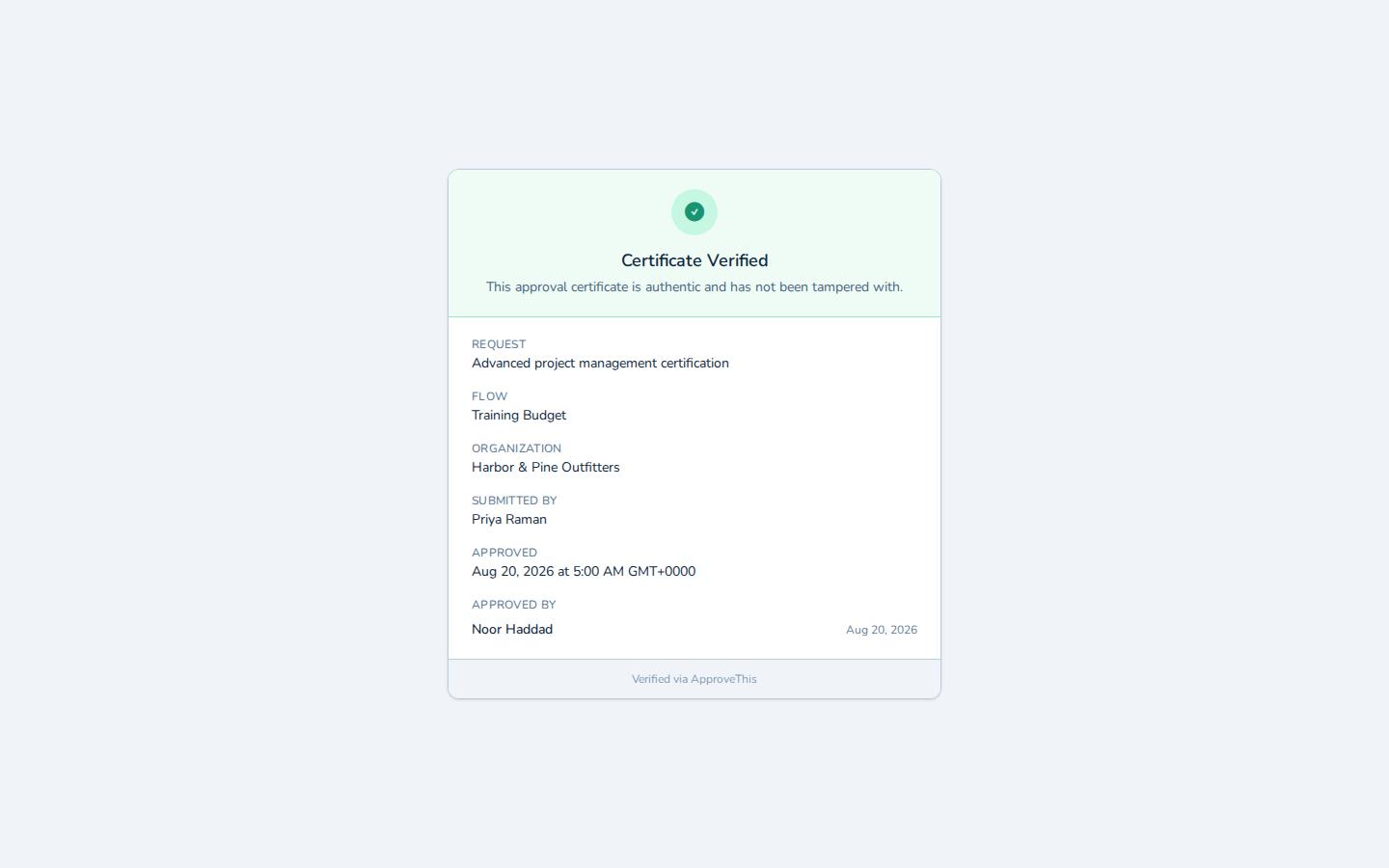
Open the verification link from the certificate: scan the QR code or type the URL printed at the foot of the page (the example uses the address captured in…